

Introduction
OCI Streaming Service is a Kafka-compatible managed service that lets you build scalable, event-driven pipelines without running your own Kafka brokers. However, once data is in a stream, a common question arises:
How do I move this data to systems like Splunk, Object Storage, databases, or SaaS platforms? That’s where Kafka Connect comes in.
This blog explains Kafka Connect with OCI Streaming from first principles, in a connector-agnostic way. Instead of focusing on one destination (like Splunk), we’ll understand:
- What Kafka Connect actually is
- What minimum components are needed to run connectors
- How Kafka Connect is configured and extended
- How the same setup supports multiple source and sink connectors
- Why Kafka binaries are still required even when OCI Streaming service is “managed”
By the end, you’ll be able to plug in any Kafka connector with confidence.
High-Level Architecture- Sink Connector

Key idea:
- OCI Streaming replaces Kafka brokers
- Kafka Connect still runs on your compute
- Connectors decide where data comes from and goes to
First Important Clarification: What Kafka Connect Is (and Is Not)
This is where most confusion starts.
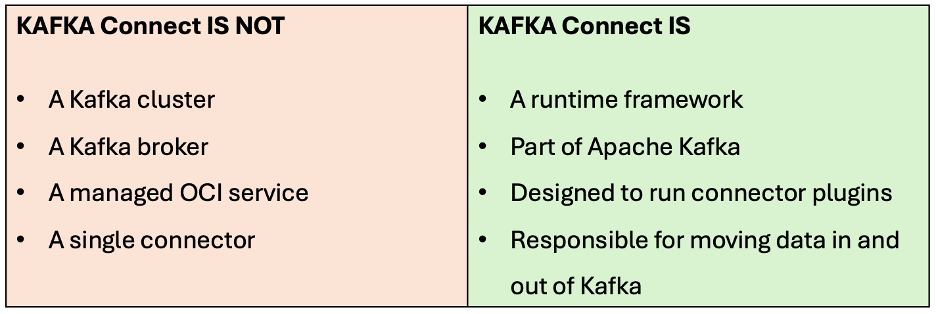
Think of Kafka Connect as an integration engine that sits beside Kafka, not inside it.
Why Are Kafka Binaries Needed If OCI Streaming Is Managed?
This is the most common (and very valid) question. You are correct that:
- You are not running Kafka brokers
- OCI Streaming already provides Kafka-compatible endpoints
So why download Kafka binaries such as: kafka_2.13-4.0.0.tgz
The Answer – Kafka Connect lives inside the Kafka distribution. When you download Kafka binaries, you get:
- Kafka broker binaries
- Kafka client libraries
- Kafka Connect runtime
- Scripts like:
connect-distributed.sh
You are downloading Kafka not to run Kafka brokers, but to run Kafka Connect.
Kafka Connect as a Runtime
Kafka Connect:
- Starts as a JVM process
- Loads connector plugins (JAR files)
- Runs connectors as tasks
- Tracks progress and state externally
Minimum Requirements to Run Kafka Connect on Compute
At a basic level, to run any connector you need the following things:
1. Java
Kafka Connect is a JVM application.
- Java 11 or 17
- Kafka 4.x → Java 17 recommended
#Install Java 17
sudo yum install java-17-openjdk-devel -y

#(Optional) Set Java 17 as the Default Version. If multiple Java versions are installed on the system, ensure Java 17 is set as the default.

# List and select the default Java version
sudo alternatives --config java

#When prompted, choose the entry that points to Java 17, typically:

/usr/lib/jvm/java-17-openjdk-...

#Verify the Installation
java -version

#Expected output:
openjdk version "17.x"
2. Kafka Binaries
Required only for Kafka Connect runtime. Download the latest Kafka binaries from here. From Kafka binaries you use:
connect-distributed.sh- Kafka client libraries
- Connect framework code
You do not start:
kafka-server-start.sh- Zookeeper
- Controllers
Download and Extract Kafka Binaries (for Kafka Connect Runtime)

# Change to the /opt directory
cd /opt
sudo wget https://dlcdn.apache.org/kafka/4.0.0/kafka_2.13-4.0.0.tgz

# Extract the downloaded archive
sudo tar -xzf kafka_2.13-4.0.0.tgz

# Rename the extracted directory for simplicity
sudo mv kafka_2.13-4.0.0 kafka

Note: In kafka_2.13-4.0.0.tgz, 4.0.0 is the Kafka version and 2.13 is the Scala build version. You only need to care about the Kafka version.
3. Connector JAR File and Plugin Path
Each connector is packaged as a JAR.
Examples:
- Splunk Sink Connector
- S3 Sink Connector
- JDBC Source Connector
The JAR contains:
- Connector logic
- Connector configuration definitions
- External system integrations
Kafka Connect itself does nothing without connector JARs. Kafka Connect loads connectors from directories defined in:
plugin.path=/opt/kafka-connect-pluginsExample layout:
/opt/kafka-connect-plugins/

 ├── splunk/

 │     └── splunk-kafka-connect.jar

 ├── s3/

 │     └── kafka-connect-s3.jar

 └── jdbc/

       └── kafka-connect-jdbc.jar
Kafka Connect:
- Scans all JARs at startup
- Loads them into isolated classloaders
- Makes them available to the REST API
You do not reference a JAR explicitly in the worker config
Splunk Kafka Connector – Download the Splunk Kafka Connect plugin either from confluent(self-hosted option)or from github
# Create plugin directory for the Splunk connector
sudo mkdir -p /opt/kafka-connect-plugins/splunk

# Download the Splunk Kafka Connect plugin
wget https://hub-downloads.confluent.io/api/plugins/splunk/kafka-connect-splunk/versions/2.2.4/splunk-kafka-connect-splunk-2.2.4.zip

# Extract the connector package
unzip splunk-kafka-connect-splunk-2.2.4.zip

# Copy the connector JAR files from the lib directory into the Splunk plugin path
sudo cp splunk-kafka-connect-splunk-2.2.4/lib/*.jar /opt/kafka-connect-plugins/splunk/
Additional Connectors
You can follow the same approach to install other Kafka Connect plugins:
- Download the connector package (ZIP or JAR) from Confluent Hub or the respective vendor.
- Extract the package if required.
- Copy the JAR files from the
libdirectory into a dedicated subfolder under the Kafka Connect plugin path.
Kafka Connect will automatically discover all available connectors at startup.
Note: Maven is not required to run Kafka Connect or to use pre-built connector JAR files. You only need Maven if you plan to build a connector from scratch or compile a connector from source code. For most use cases, using vendor-provided connectors such as Splunk, S3, JDBC, etc, you can simply download the connector JAR and place it in the Kafka Connect plugin path.
4. Connect Harness: OCI’s Managed Metadata Layer
Kafka Connect requires three internal topics. In OCI, these are abstracted as a Connect Harness. To use your Kafka connectors with Oracle Cloud Infrastructure Streaming, create a Kafka Connect configuration .
config.storage.topic=<harness>-configoffset.storage.topic=<harness>-offsetstatus.storage.topic=<harness>-status
These topics:
- Store connector definitions
- Track task progress
- Enable HA and rebalancing
The Role of connect-distributed.properties file
This file causes a lot of confusion – so let’s be very clear. /opt/kafka/config/connect-distributed.properties configures Kafka Connect itself, not connectors.
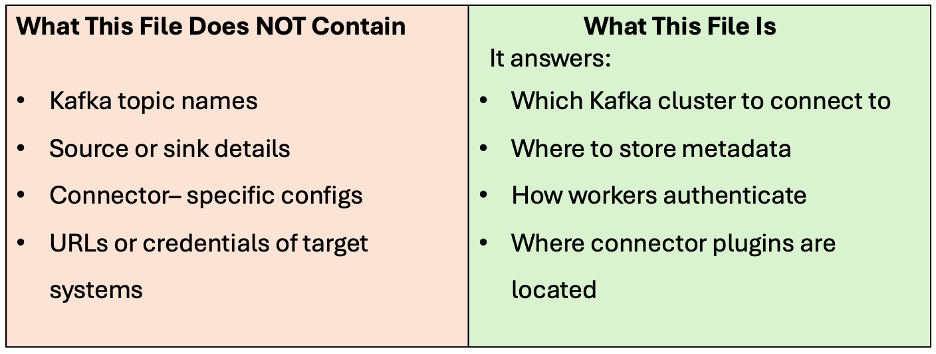
Why This Design Exists
Kafka Connect is designed to be:
- Multi-tenant
- Dynamic
- Extensible
One Kafka Connect cluster can run:
- Many connectors
- Different connector types
- Different topics
- Different destinations
Example (simplified):
cat connect-distributed.properties
bootstrap.servers= <cell1.streaming.us-ashburn-1.oci.oraclecloud.com:9092>
group.id=<kafka-connect-splunk-hec-sink>

key.converter=org.apache.kafka.connect.json.JsonConverter
value.converter=org.apache.kafka.connect.json.JsonConverter

config.storage.topic=<ocid1.connectharness.oc1.iad.amaaaxxxx-config>
offset.storage.topic=<ocid1.connectharness.oc1.iad.amaaaxxxx-offset>
status.storage.topic=<ocid1.connectharness.oc1.iad.amaaaxxxx-status>

key.converter.schemas.enable=false
value.converter.schemas.enable=false

security.protocol=SASL_SSL
sasl.mechanism=PLAIN
sasl.jaas.config=org.apache.kafka.common.security.plain.PlainLoginModule required username="<tenancyname>/<domainname>/<username>/<streampool_ocid>" password="<auth_token>";
producer.buffer.memory=4096
producer.batch.size=2048
producer.sasl.mechanism=PLAIN
producer.security.protocol=SASL_SSL
producer.sasl.jaas.config=org.apache.kafka.common.security.plain.PlainLoginModule required username="<tenancyname>/<domainname>/<username>/<streampool_ocid>" password="<auth_token>";
consumer.sasl.mechanism=PLAIN
consumer.security.protocol=SASL_SSL
consumer.sasl.jaas.config=org.apache.kafka.common.security.plain.PlainLogin
Module required username="<tenancyname>/<domainname>/<username>/<streampool_ocid>" password="<auth_token>";
access.control.allow.origin=*
access.control.allow.methods=GET,OPTIONS,HEAD,POST,PUT,DELETE

plugin.path=/opt/kafka-connect-plugins/splunk
Kafka Connect internally uses multiple Kafka clients: an admin client for coordination and metadata, producer clients for writing data and internal state, and consumer clients for reading from topics. Because OCI Streaming enforces SASL authentication on all Kafka clients, the SASL configuration must be explicitly defined at the global, producer, and consumer levels. Although this appears redundant, it ensures that every internal Kafka client created by Kafka Connect can authenticate successfully.
Start Kafka Connect (Distributed Mode)
Kafka Connect is started using the distributed mode, which is recommended for OCI Streaming as it supports scalability and connector management via REST APIs.
# Navigate to the Kafka installation directory
cd /opt/kafka

# Start Kafka Connect in distributed mode (foreground)
bin/connect-distributed.sh config/connect-distributed.properties

# Start Kafka Connect in the background and redirect logs to a file.Logs will be written to /var/log/kafka-connect.log
nohup bin/connect-distributed.sh config/connect-distributed.properties \ > /var/log/kafka-connect.log 2>&1 &
Creating Connectors: REST API
Once Kafka Connect is running, connectors are created dynamically using the REST API.
This is where:
- Topics are specified
- Source vs sink is defined
- External system configs are provided
POST http://localhost:8083/connectorsExample Connector Configuration – Splunk Sink Connector Example (Kafka → Splunk)
Configure Splunk HTTP Event Collector (HEC)
To send data from Kafka to Splunk, you must configure HTTP Event Collector (HEC) in Splunk.
Prerequisites
You will need:
- Splunk HEC Token
- Splunk HEC Endpoint (for example:
https://<splunk-host>:8088) - HEC input enabled in Splunk
- Network access from the Kafka Connect compute instance to Splunk (port
8088)
Steps in Splunk (Enterprise or Cloud)
- Go to Settings → Data Inputs → HTTP Event Collector
- Click New Token
- Provide the following details:
- Name:
Kafka-Connect - Source type:
_json(or leave as default) - Indexer acknowledgment: Disabled
- Ensure this option is unchecked; otherwise, Kafka Connect may encounter data channel errors.
- Name:
- Save the configuration and copy the generated HEC token
- Ensure that the HEC port (usually
8088) is reachable from the OCI instance running Kafka Connect
Validate Splunk HEC Connectivity
Before deploying the connector, verify that the Splunk HEC endpoint is reachable from your Linux instance.
curl -k https://<your-splunk-host>:8088/services/collector/health

#Expected response:

{"text":"HEC is healthy","code":0}
Deploy the Splunk Sink Connector
Create a connector configuration file.
cat /opt/kafka/splunk-connector.json
{
  "name": "kafka-connect-splunk",
  "config": {
    "connector.class": "com.splunk.kafka.connect.SplunkSinkConnector",
    "tasks.max": "1",
    "topics": "OCI-Stream",
    "splunk.hec.token": "<HEC-TOKEN>",
    "splunk.hec.uri": "https://<splunk-host>:8088",
    "splunk.hec.ssl.validate.certs": "false",
    "splunk.hec.raw": "false",
    "splunk.hec.ack": "true",
    "splunk.sourcetype": "_json"
  }
}

# Replace <HEC-TOKEN> and <splunk-host> with your actual Splunk values.
Create the Connector Using Kafka Connect REST API
curl -X POST -H "Content-Type: application/json" --data @splunk-connector.json http://localhost:8083/connectorsVerify Connector Status – Check the status of the connector and its tasks:
curl http://localhost:8083/connectors/kafka-connect-splunk/status | jq

#Expected output:

{
  "name": "kafka-connect-splunk",
  "connector": {
    "state": "RUNNING",
    "worker_id": "10.0.0.254:8083"
  },
  "tasks": [
    {
      "id": 0,
      "state": "RUNNING",
      "worker_id": "10.0.0.254:8083"
    }
  ],
  "type": "sink"
}
(Optional) Delete the Connector
If you need to update or recreate the connector, you can delete it using the REST API:
curl -X DELETE http://localhost:8083/connectors/kafka-connect-splunkVerify Data in Splunk
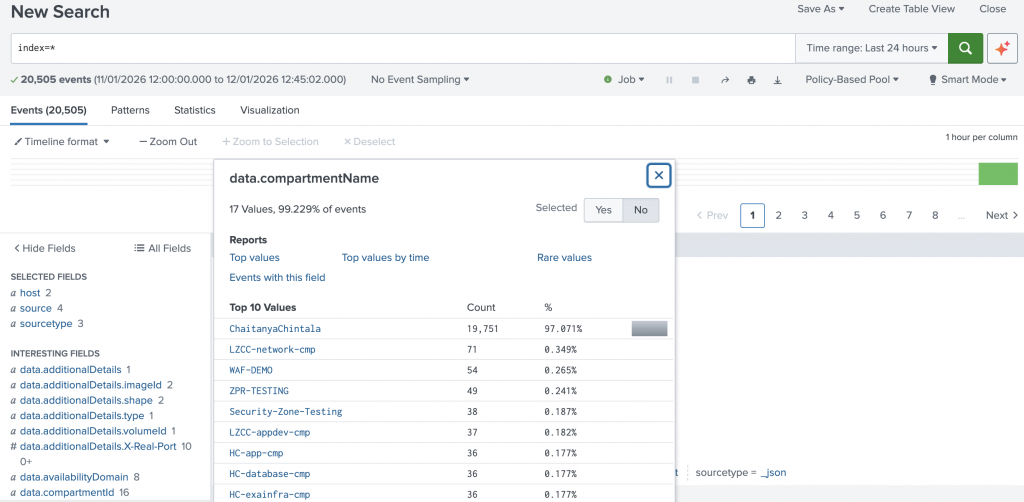
- Open Search & Reporting in Splunk
- Run a search query such as:
index=*
You should see events being ingested from the Kafka topic.
Logical Runtime Architecture of Splunk Sink Connector: OCI Logs to Splunk via Kafka Connect
The logical implementation shown in the diagram illustrates a secure, end-to-end pipeline for streaming OCI logs into Splunk without exposing any component to the public internet.
OCI services generate logs that are collected by OCI Logging and forwarded using Service Connector Hub into an OCI Streaming Service stream. In many general architectures, this stream is created as a public stream, which works well for log shipping and quick integrations.
However, public streams are not suitable for all customers.
Enterprises in regulated industries often require:
- No public endpoints
- Strict network isolation
- Regional data residency guarantees
- Controlled egress paths
For these scenarios, OCI Streaming with private endpoints becomes the preferred design.
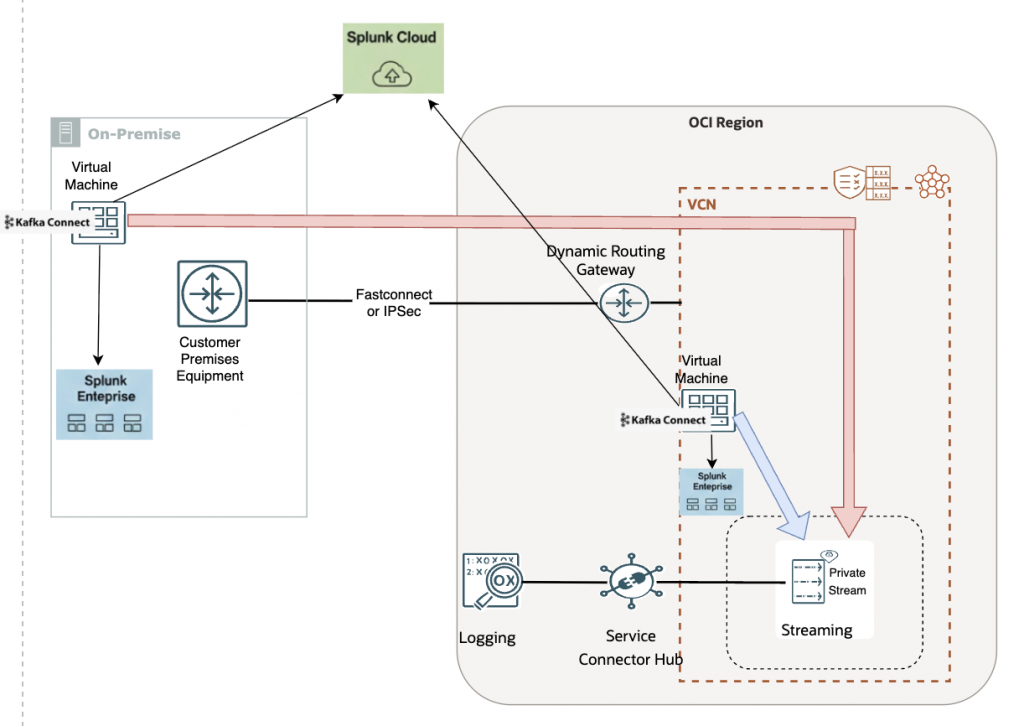
In this architecture, the stream is exposed privately within a VCN, and Kafka Connect consumes data using OCI Streaming’s Kafka-compatible private endpoint.
Kafka Connect itself can be deployed in two ways:
- Within OCI: Kafka Connect runs on a compute instance inside the VCN and accesses the private stream directly.
- On-premises: Kafka Connect runs on a customer-managed virtual machine and connects to OCI using FastConnect or IPSec VPN, traversing the Dynamic Routing Gateway (DRG) to reach the private stream endpoint.
Once consumed, the Splunk Sink Connector forwards the logs securely to:
- Splunk Enterprise (on-prem or in OCI), or
- Splunk Cloud, depending on the deployment model.
This design preserves end-to-end private data flow, avoids public exposure of streaming endpoints, and enables Kafka Connect to scale independently while meeting enterprise security and compliance requirements
Final Thought
Once Kafka Connect is set up correctly with OCI Streaming, adding a new integration becomes trivial:
Drop a JAR → POST a JSON → Data flows
That’s the real power of Kafka Connect.