
Some time ago we have launched a blog explaining the step-by-step procedure for AT&T Cloud Service Portal (Synaptic) configuration for OCI FastConnect: https://www.ateam-oracle.com/att-cloud-service-portal-synaptic-configuration-for-oci-fastconnect.
The scope of the blog was to deliver a clear procedure for the FastConnect configuration steps.
We are proudly to announce that the FastConnect configuration procedure with our partner AT&T was simplified and below are the changes we have performed in order for our customers to have full control on the process, without the need of opening any MOS SR on the OCI side.
You still need to obtain the AT&T Service Key from the AT&T portal following the steps from above blog post, more precisely the steps from 1 to 8. The big difference is that you do not need to open any Support SR for provisioning the FC VC because now, with the new feature, we can Edit the Virtual Circuit and insert the service key obtained from the AT&T portal.
Configuration steps:
1. Create the AT&T Netbond Virtual Circuit on the OCI Web UI:
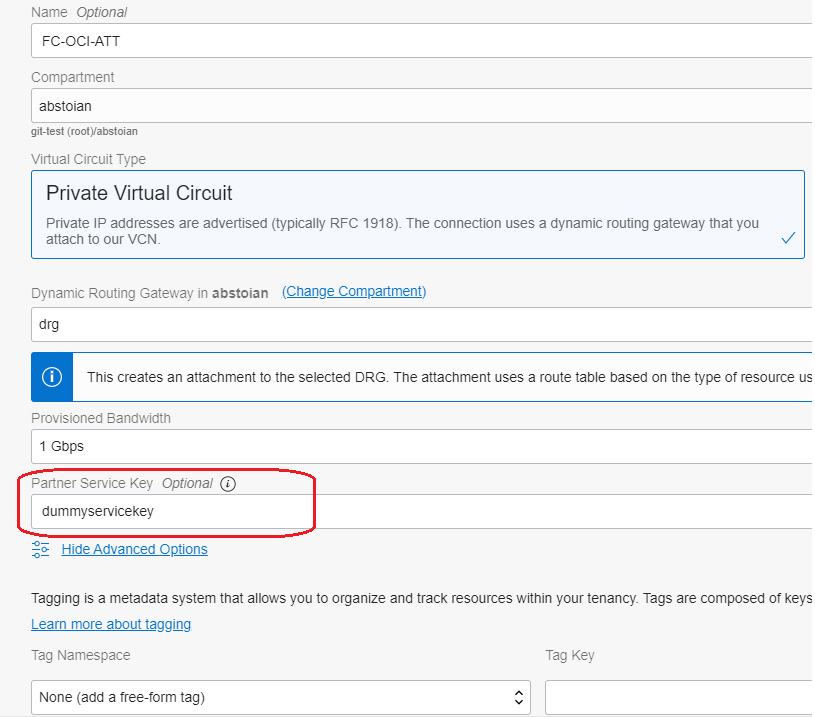
On the Partner Service Key you can simply add a dummy service key or just let the field blank. The OCI will accept this field without any value in the Virtual Circuit creation phase.
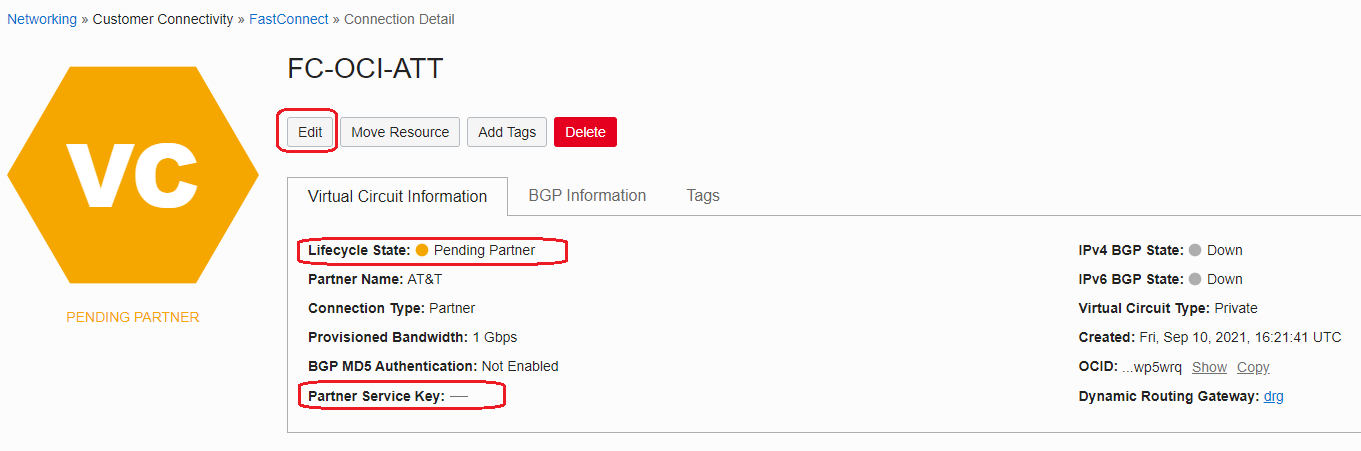
2. Wait for the Virtual Circuit to enter the Pending Partner state
In this state the Virtual Circuit can be edited:
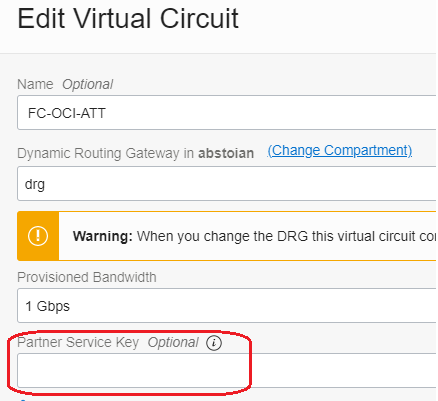
Editing the Virtual Circuit, the Partner Service Key can be changed:
3. Configure the service in the AT&T Cloud Service Portal
After this step you will obtain the Service Key (follow the steps from 1 to 8 from the previous mentioned blog) and update the Virtual Circuit on OCI with the correct Service Key.
After this step, a configuration process will be triggered. The configuration process needs three business days to complete and the FastConnect Virtual Circuit to enter the Provisioned state and ready to be used.