

Introduction
In today’s multi-cloud environments, organizations are continuously looking for different ways of seamless connectivity from OCI to other cloud providers. One common way of achieving this is through partner connectivity.
This is the second part of our interconnect using Equinix FCR series, following our previous blog on connecting OCI to AWS. In this post, we will guide you through the process of interconnecting OCI with GCP using Equinix Fabric Cloud Router.
Architecture
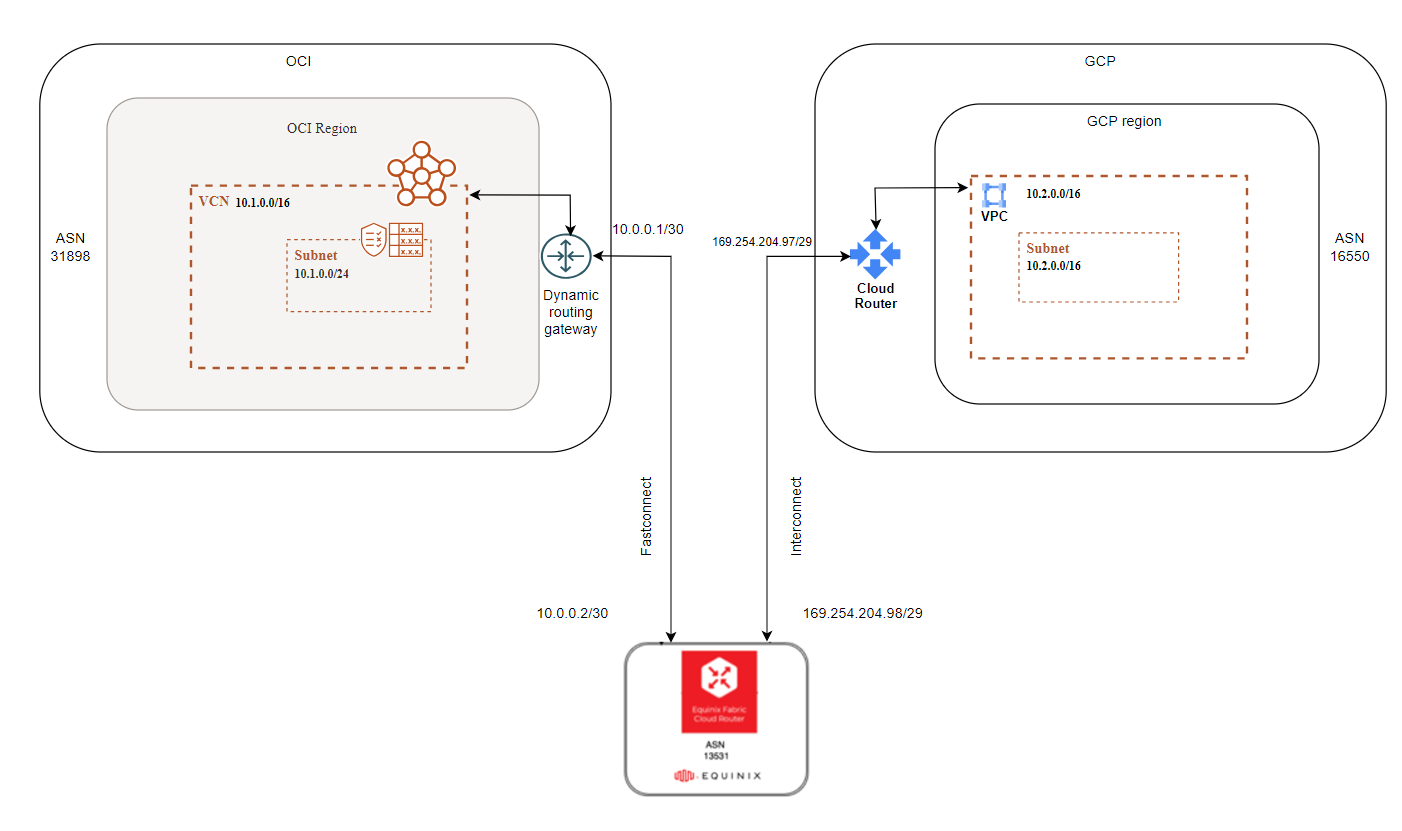
Throughout this blog, we will reference the below architecture diagram to guide you through the steps to connect OCI to GCP using Equinix FCR.
Pre-requisites
In this blog, we are configuring Equinix’s FCR to interconnect connections from OCI and GCP. To acheieve this you will need to have the following GCP and OCI resources deployed and configured, as shown in the architecture diagram above.
OCI Resources
• VCN and Private subnet in Ashburn region.
• DRG in Ashburn and VCN attachement.
• VM in private subnet and routing and security list to enable access to GCP 10.2.0.0/16

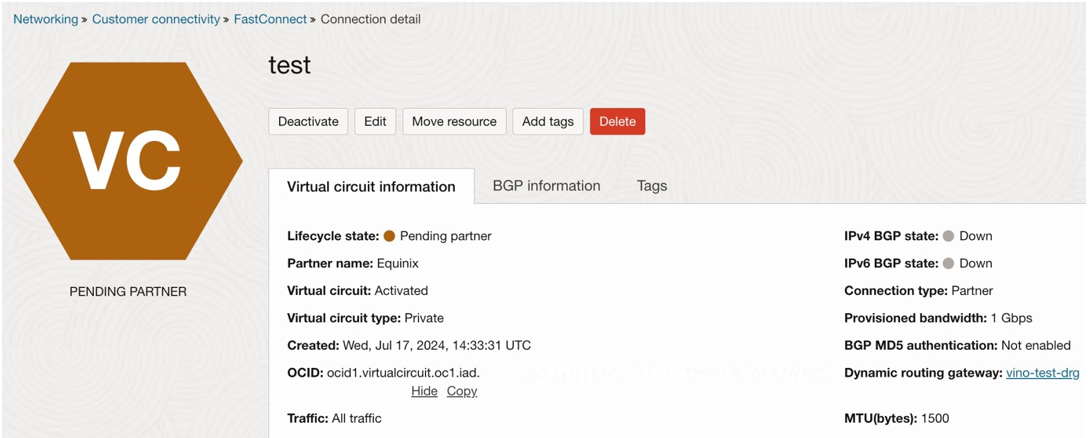
• Create fastconnect to Equinix and have the OCID handy.
GCP Resources
• VPC in US East 4 (N.Virginia) region with 10.2.0.0/16 CIDR
• Private subnet – 10.2.0.0/16
• VM in private subnet and routing and firewall rules to enable access to OCI 10.1.0.0/16
• Create Cloud router in the same region of your VPC and keep it ready.
Step 1: Setup Equinix Fabric Connect Router (FCR)
1. Create Fabric cloud router in equinix portal.
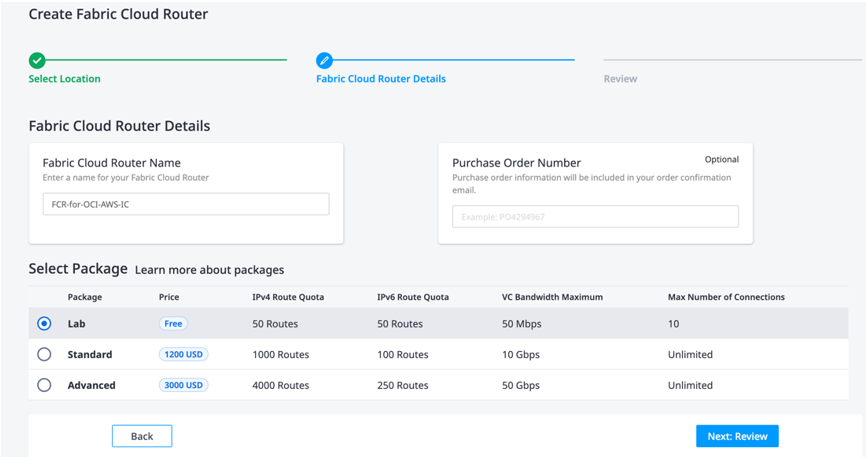
Click next to create.
Step 2: Create Equinix connections to OCI and GCP.
Quick connect to OCI
• Select the Connection type –> Redundant / primary and give OCID information and from Oracle cloud destination drop-down list, select the region where your FastConnect circuit and Fabric Cloud Router are located.
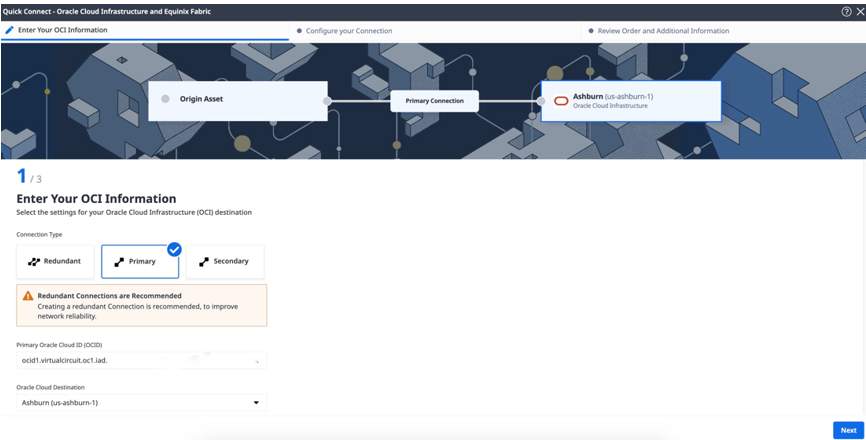
• From the Origin Asset Type drop-down list, select Cloud Router and pick the FCR you created in the previous step.
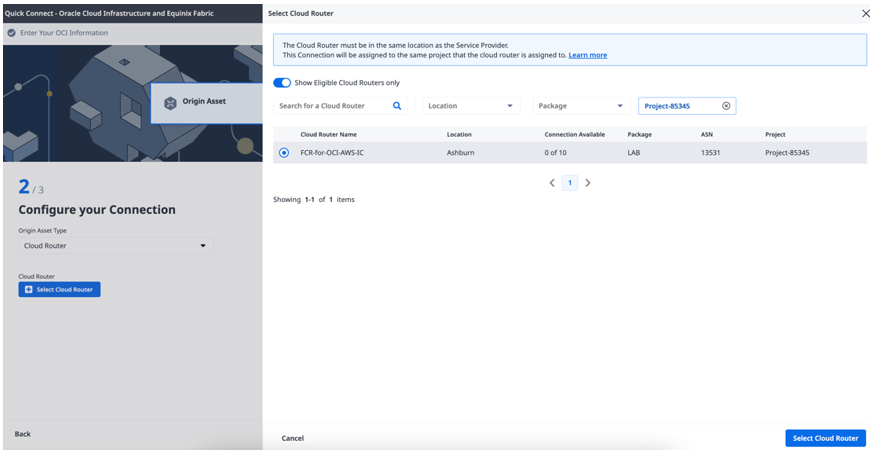
• Provide the connection name and select desired bandwidth.
• Then select Configure Routing Details and update BGP details, Click Next
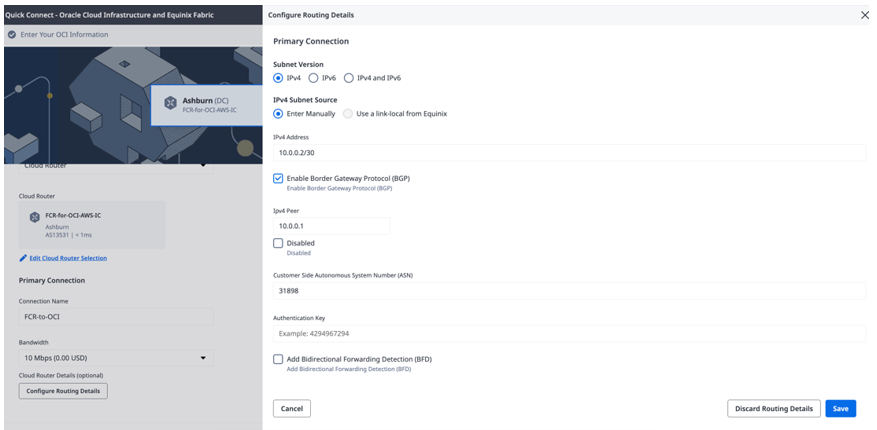
• Review Order and Additional Information, then click Create connection.
Quick Connect to GCP
• We need pairing key from GCP to start configuring connection in Equinix.
• Navigate to GCP account, create VLAN attachement from Interconnect option under Network Connectivity
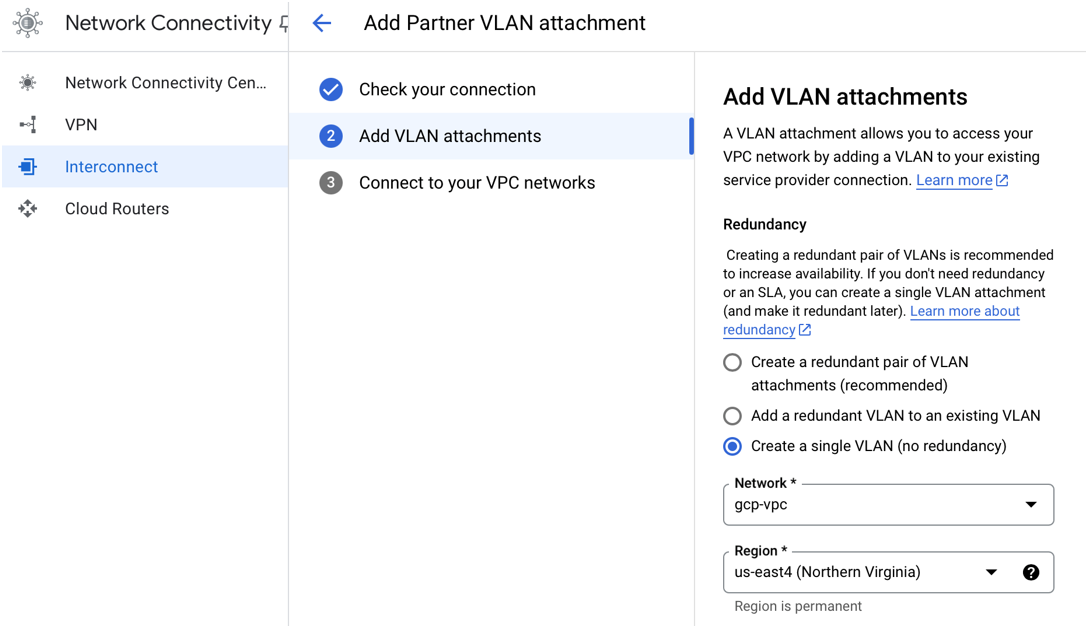
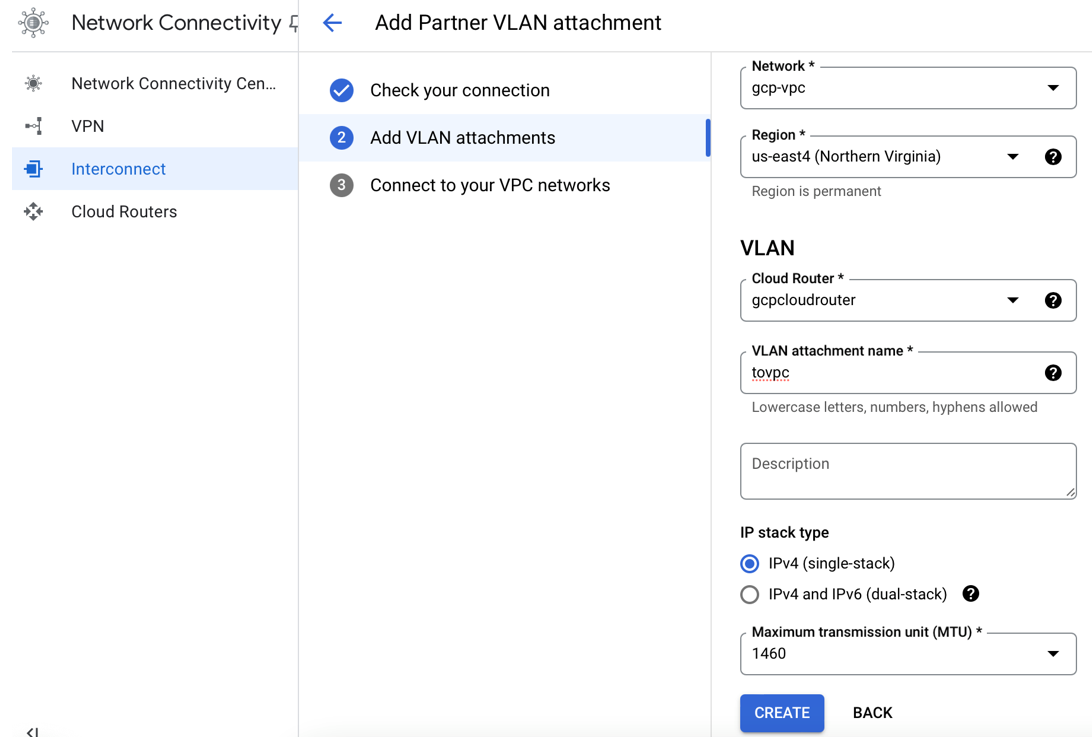
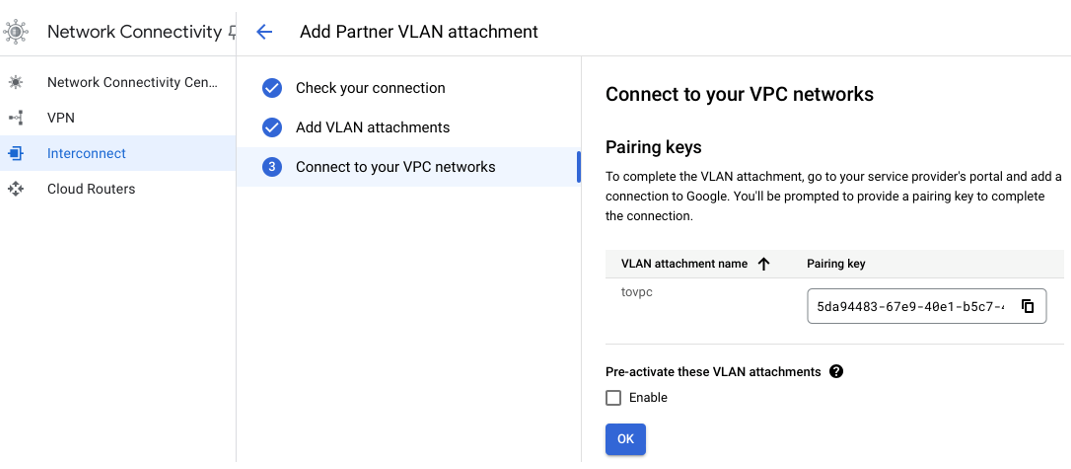
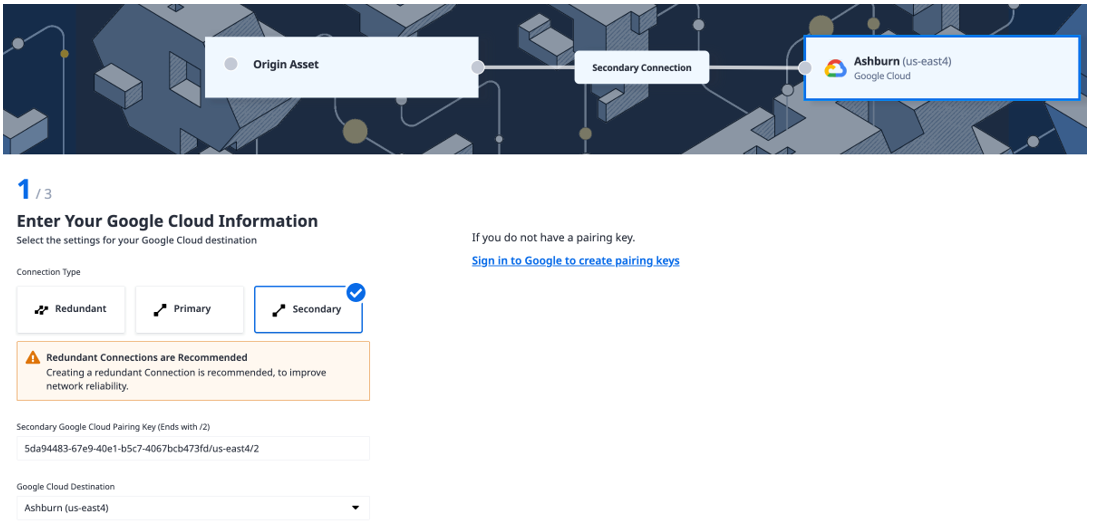
• Go back to Equinix portal and create connection to GCP, Select the Connection type –> Reduntant / Primary / Secondary and give paring key that is copied from GCP.
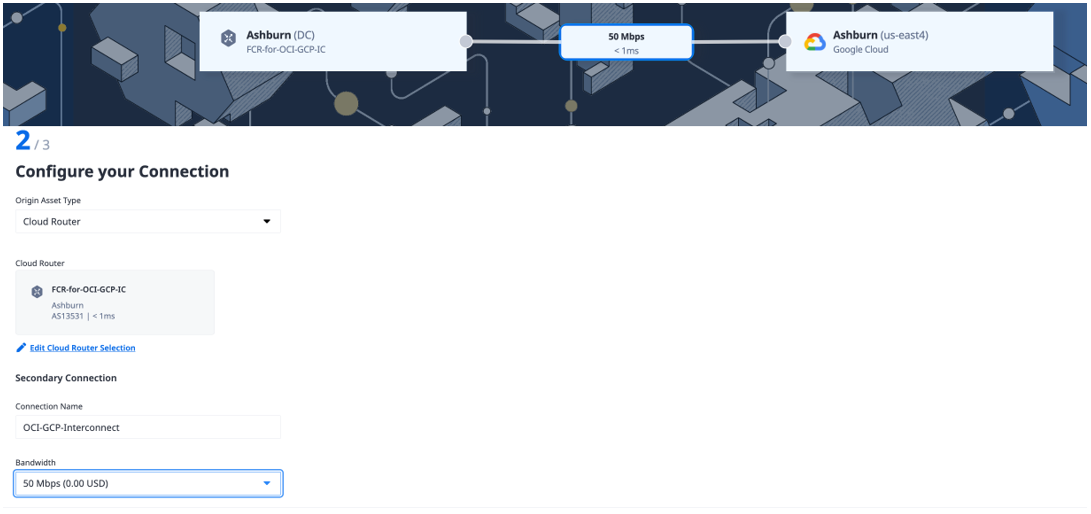
• Configure your connection.
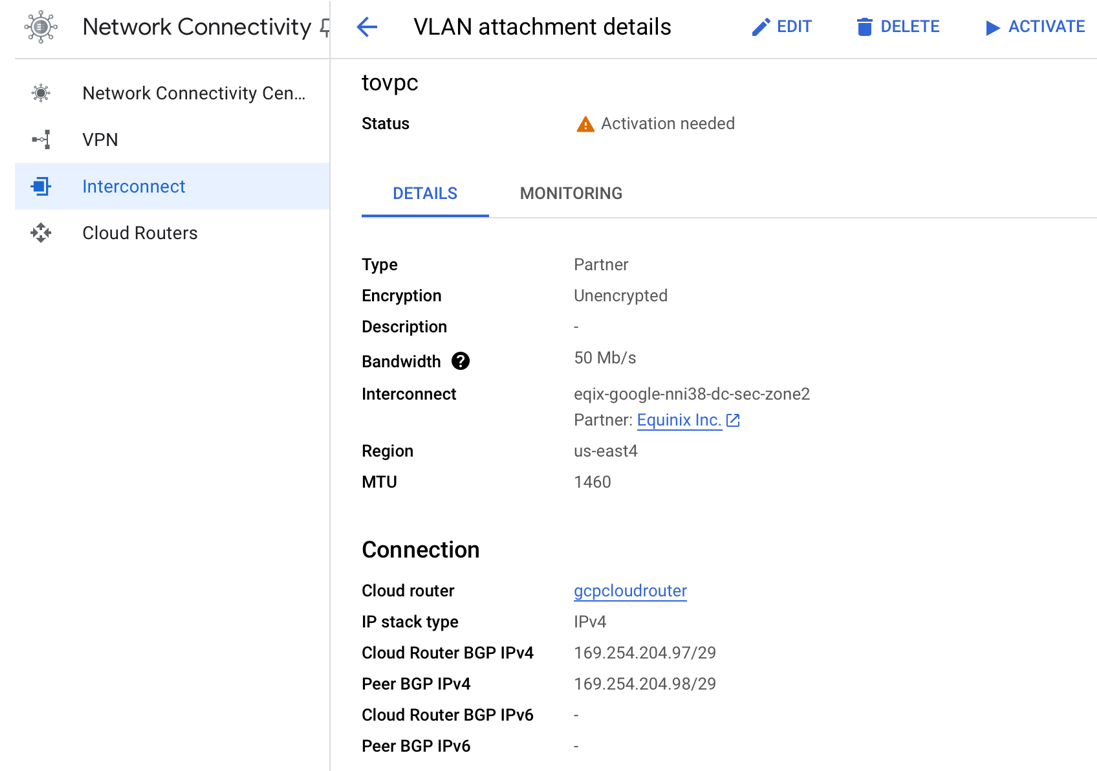
- Back to GCP console and activate the VLAN attachement.
• Navigate to Equinix portal, Configure Routing Details in the Fabric Portal by going to Connection inventory in Equinix fabric and select the connection to GCP and update routing details.
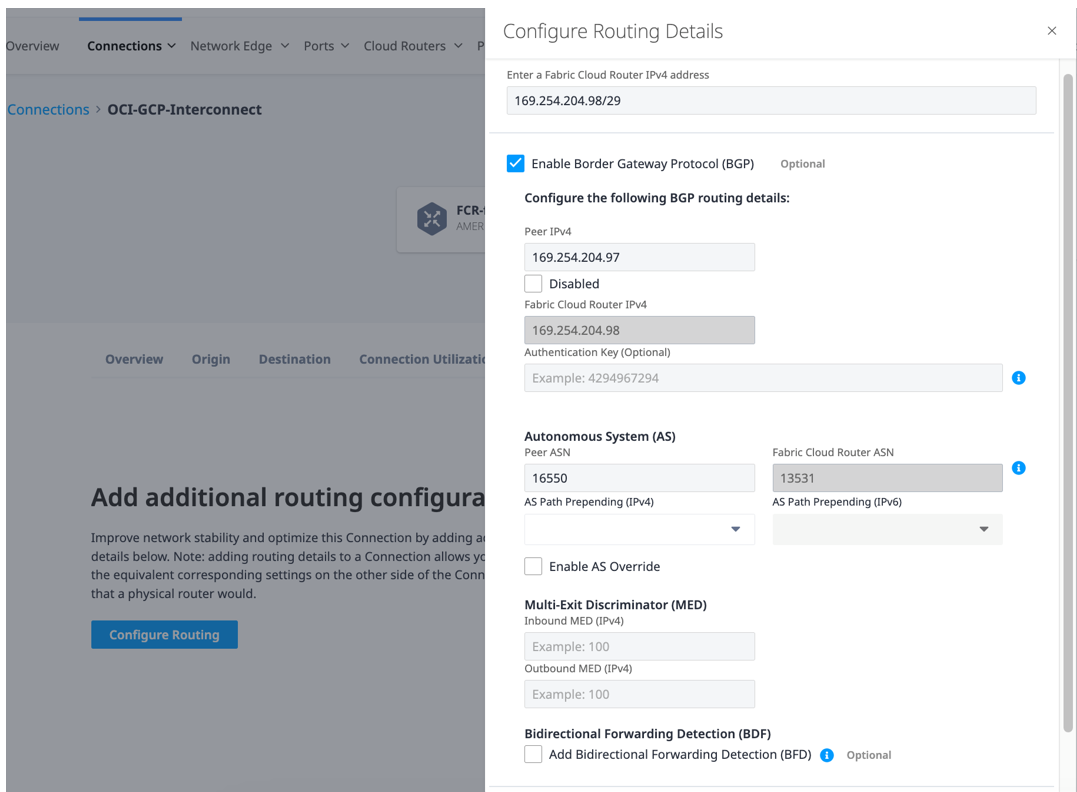
Step 3: Validate Connectivity
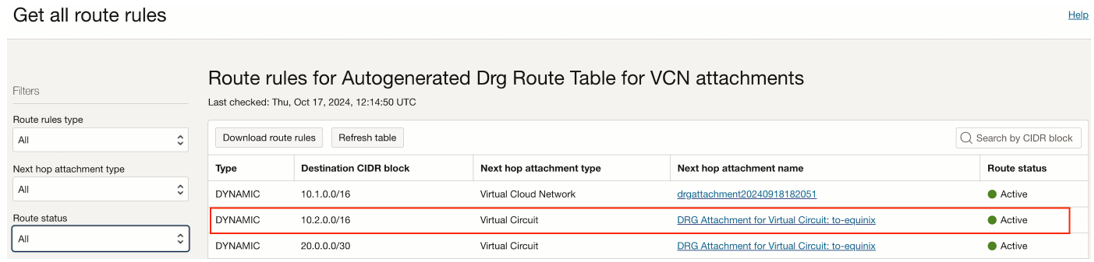
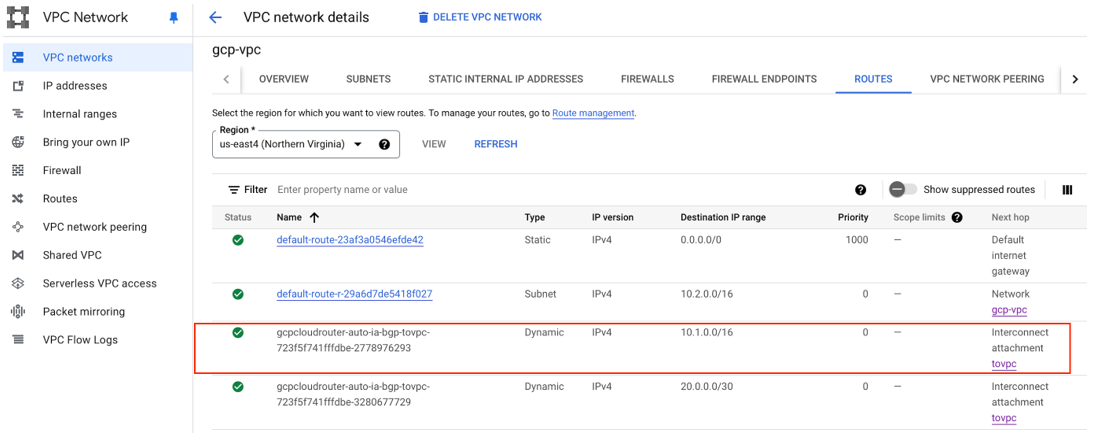
- Verify BGP status and received routes on both sides.
OCI
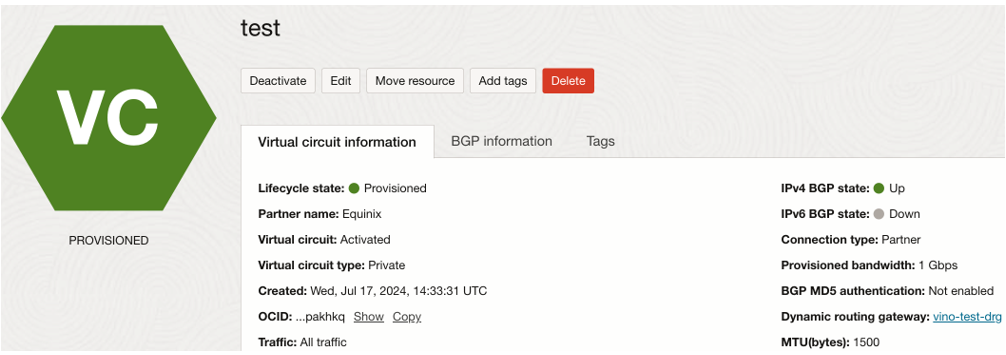
• In OCI console, go to DRG route table for VCN attachment and check you are receiving routes from GCP through Equinix.
GCP
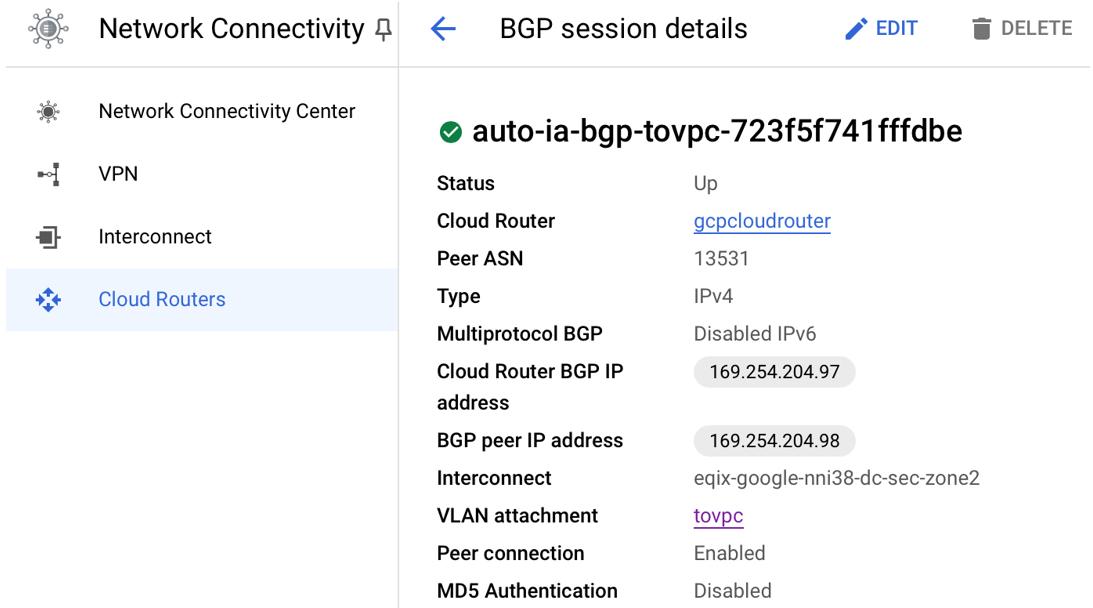
• Go to VPC routes and select the region of your VPC to see received routes.
Test end-to-end connectivity
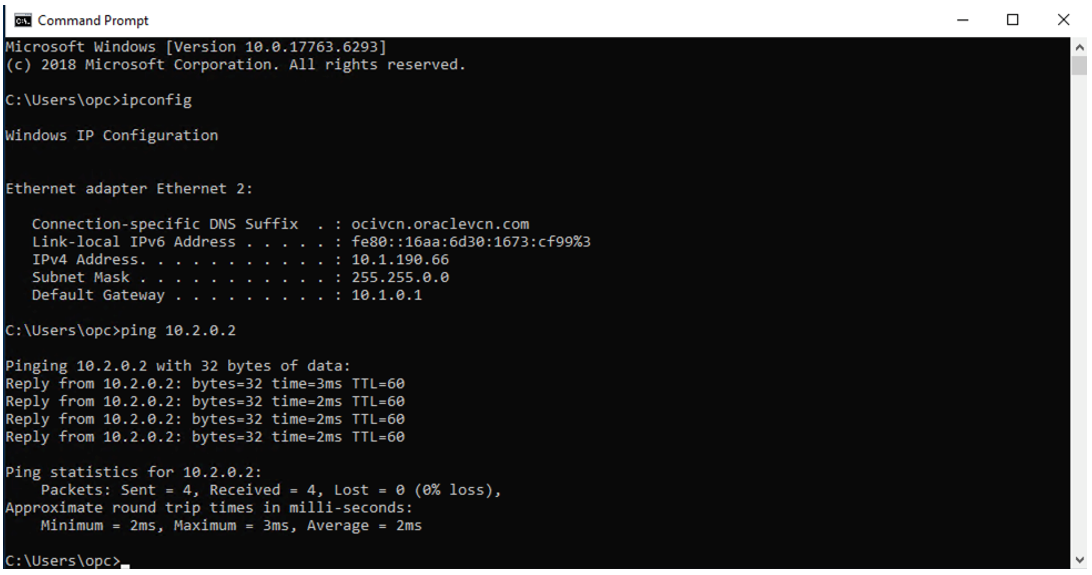
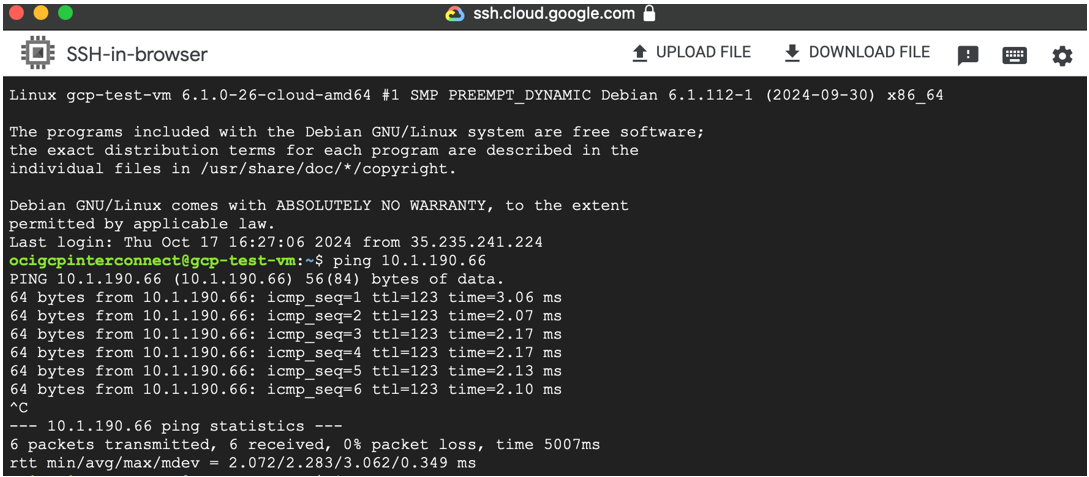
• Given that we configured subnet level routing and security list/Firewall rule correctly in both OCI and GCP, we should be able to ping both ways.
From OCI to GCP
From GCP to OCI
Conclusion
As we mentioned in our previous blog, Oracle do provide other options for multicloud interconnectivity for different unique use-cases. You may refer to some of them below Oracle Livelabs:
Reference links
Equinix FCR – https://docs.equinix.com/en-us/Content/Interconnection/FCR/FCR-intro.htm
OCI-AWS interconnect blog using Equinix FCR.
Oracle livelabs – https://apexapps.oracle.com/pls/apex/r/dbpm/livelabs/run-workshop?p210_wid=3759&p210_wec=&session=101787246919008
Hope you enjoyed this blog. Thank you for reading!