Introduction
Oracle Cloud Infrastructure GoldenGate is a fully managed, native cloud service that moves data in real-time, at scale. On top of core GoldenGate for Big Data capabilities, it brings additional advantages of a fully managed service like auto-scaling, flexible/ data throughput based licensing, improved user experience.
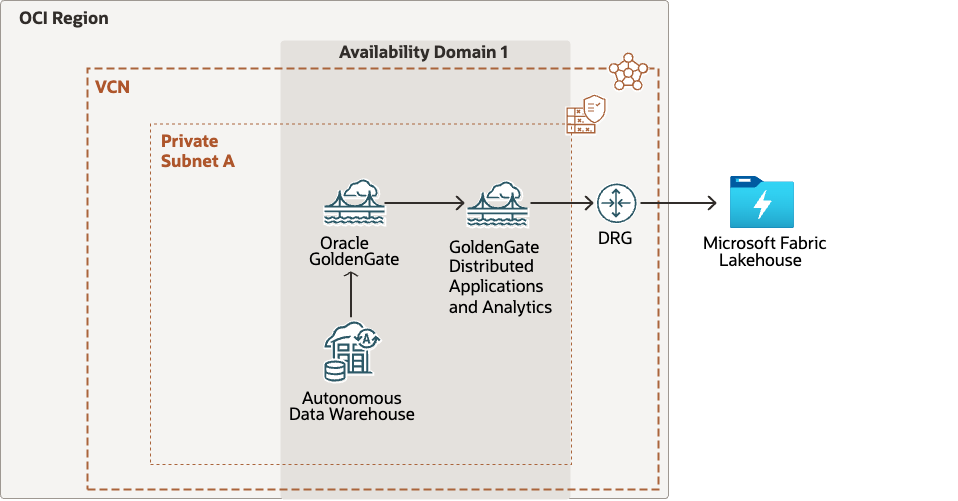
OCI GoldenGate now supports Fabric Lakehouse as target. You can use OCI GoldenGate for running initial load into Fabric Lakehouse and for syncing cdc replication with initial load. In this blog, I’ll explain how to configure the initial load and sync it with cdc replication.
You can check Create Deployments document if you don’t have a deployment yet and Create Connections document if you don’t have a connection.
I’m going to use an Autonomous Data Warehouse (ADW) as a source, but you can use any supported source by GoldenGate. Of course, some configurations might change it.
Pre-requisites
-
Deployments created for Oracle and Distributed Applications and Analytics (DAA).
-
Connection for Oracle ADW assigned to Oracle deploymnet.
Creating Fabric Lakehouse Connection
To create an OCI GoldenGate connection for Microsoft Fabric Lakehouse:
- From the OCI GoldenGate Overview page, click Connections.
- On the Connections page, click Create Connection.
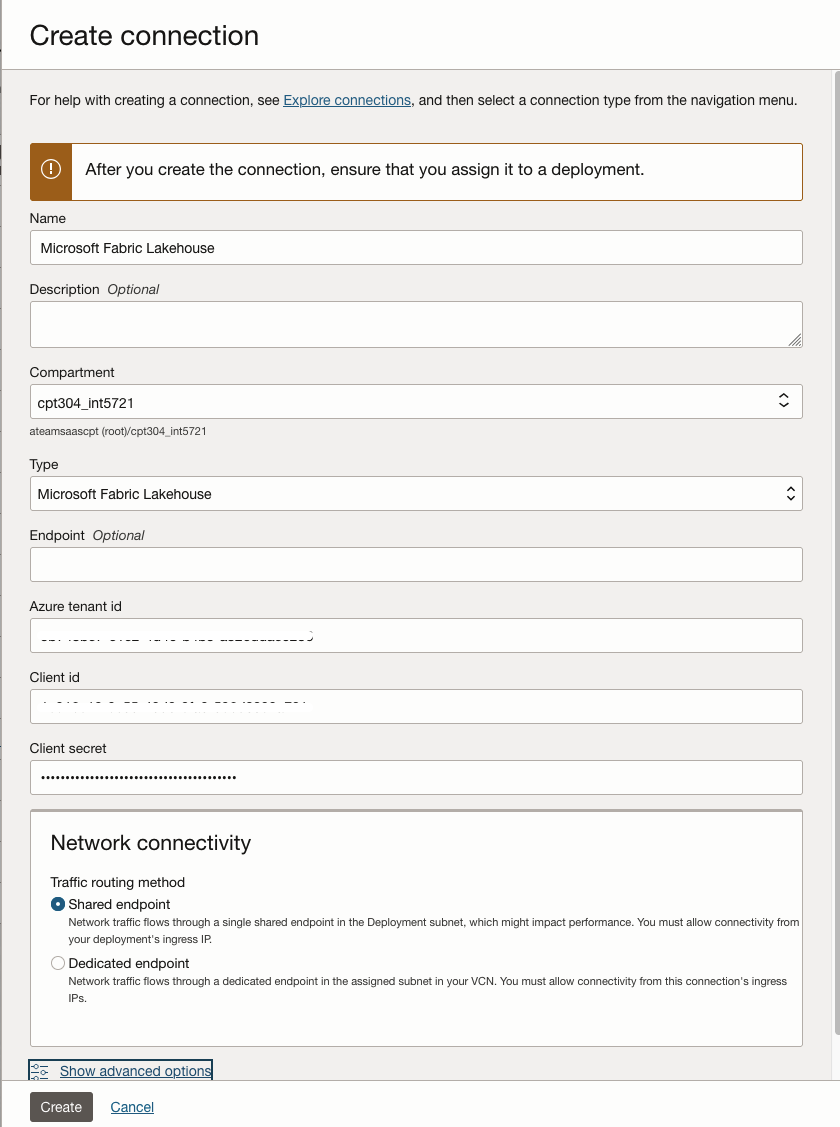
- On the Create Connection page, complete the fields as follows:
- For Name, enter a name for the connection.
- (Optional) For Description, enter a description that helps you distinguish this connection from others.
- For Compartment, select the compartment in which to create the connection.
- From the Type dropdown, select Microsoft Fabric Lakehouse.
- For Azure tenant id, enter the Azure tenant ID of the application.
- For Client id, enter the client ID of the application.
- For Client secret, enter the client secret of the application for authentication.
- Click Create.
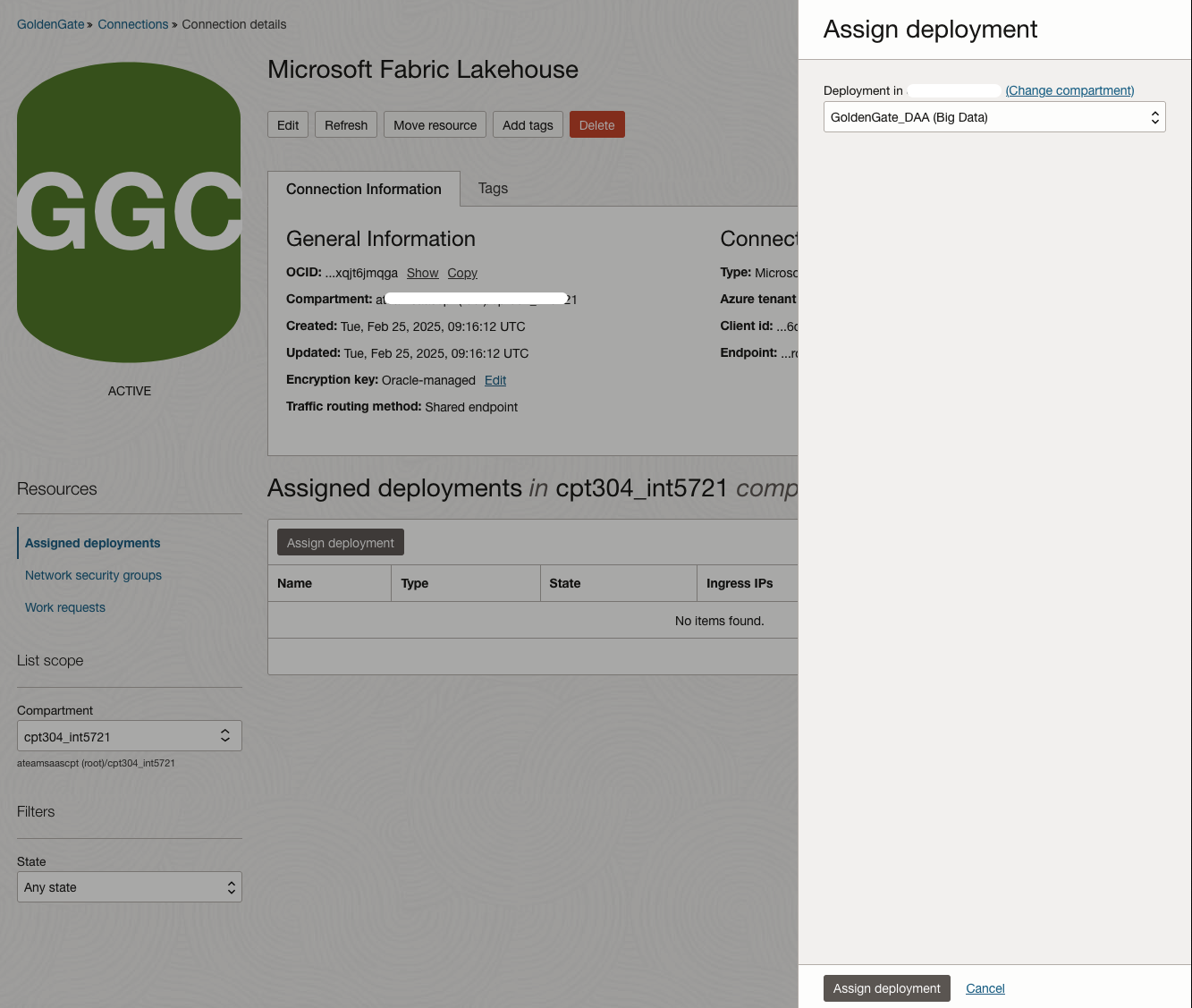
Assignt the connection to OCI GoldenGate DAA:
Creating CDC Extract
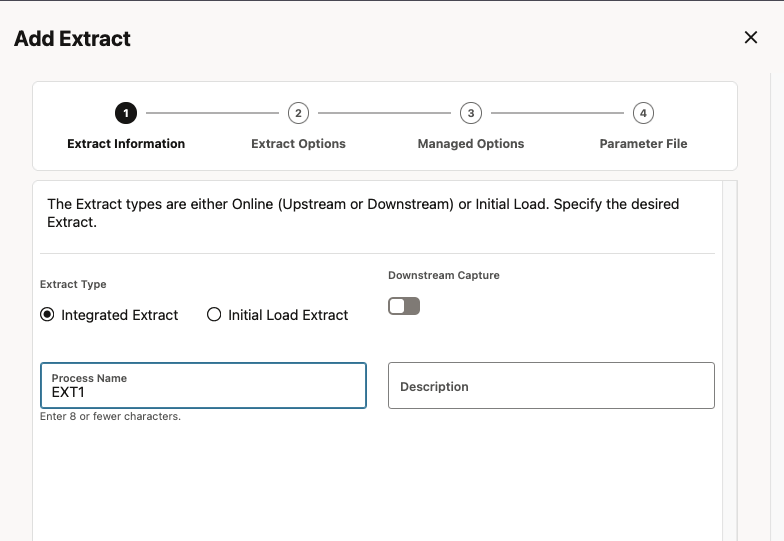
Click Add Extract (plus icon) in the Extracts panel to create either an Integrated Extract or a Initial Load Extract. Select Integrated Extract, enter a Name and click Next.
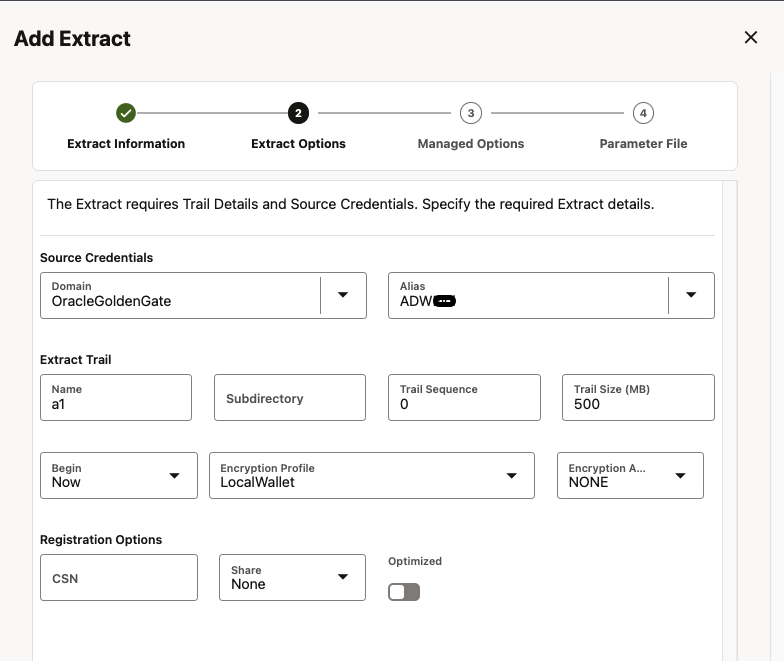
Select the Credential Domain and Alias, and enter a Trail Name. Click Next.
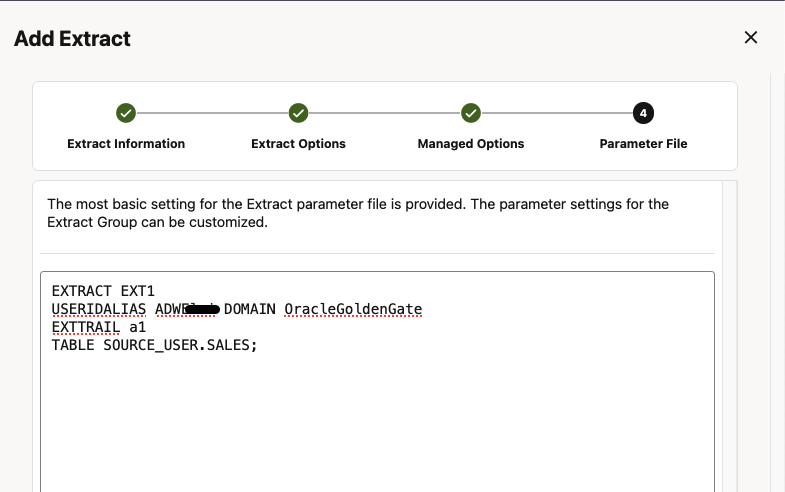
Specify which tables and schemas GoldenGate will capture data from in the Parameter Files page, then click Create and Run.
Before creating the Extract for Initial Load, please get the Oracle SCN:
— Query for active transactions
—
Select T.START_SCN, T.STATUS TSTATUS, T.START_DATE,
S.SID, S.SERIAL#, S.INST_ID, S.USERNAME, S.OSUSER, S.STATUS SSTATUS, S.LOGON_TIME
From gv$transaction T
Inner
Join gv$session S
on S.SADDR = T.SES_ADDR
Union All
—
— Query for current status
—
Select current_scn, ‘CURRENT’, CURRENT_DATE,
NULL, NULL, NULL, ‘SYS’, NULL, NULL, NULL
from v$database
Order by 1;
Creating Initial Load Extract
Click Add Extract (plus icon) and select Initial Load Extract, enter a Name and click Next.
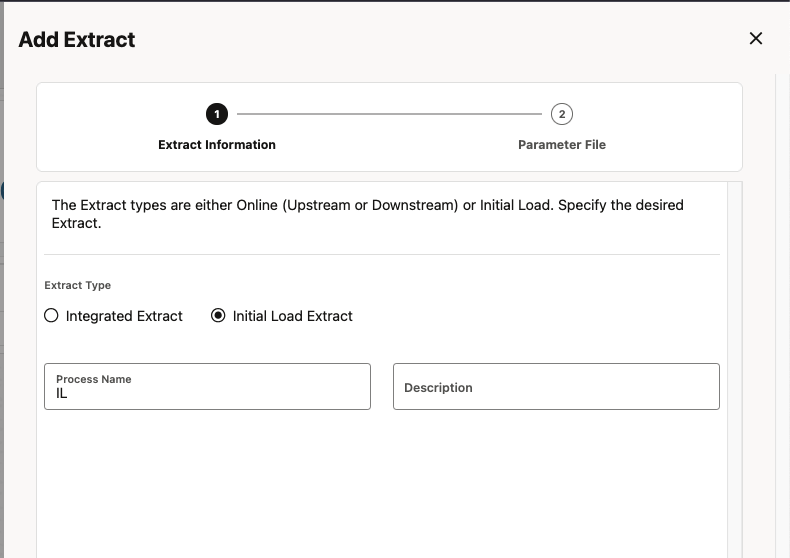
In Parameter File, please specify the credential, Trail File Name and the table(s).
EXTRACT IL
USERIDALIAS <credential> DOMAIN OracleGoldenGate
EXTFILE a2
TABLE SOURCE_USER.SALES; SQLPREDICATE “AS OF SCN <SCN from above query>”;
Click Create and Run.
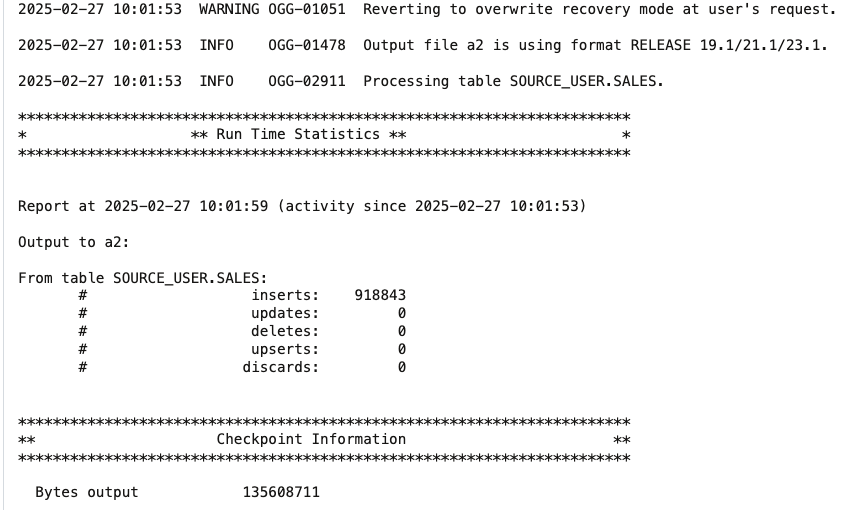
Check the report file and confirm all records were loaded:
Creating Distribution Paths
Before we create the distribution path, we need to create a credential in OCI GG for Distributed Applications and Analytics. This credential uses a GoldenGate user from the target OCI GoldenGate for Oracle deployment.
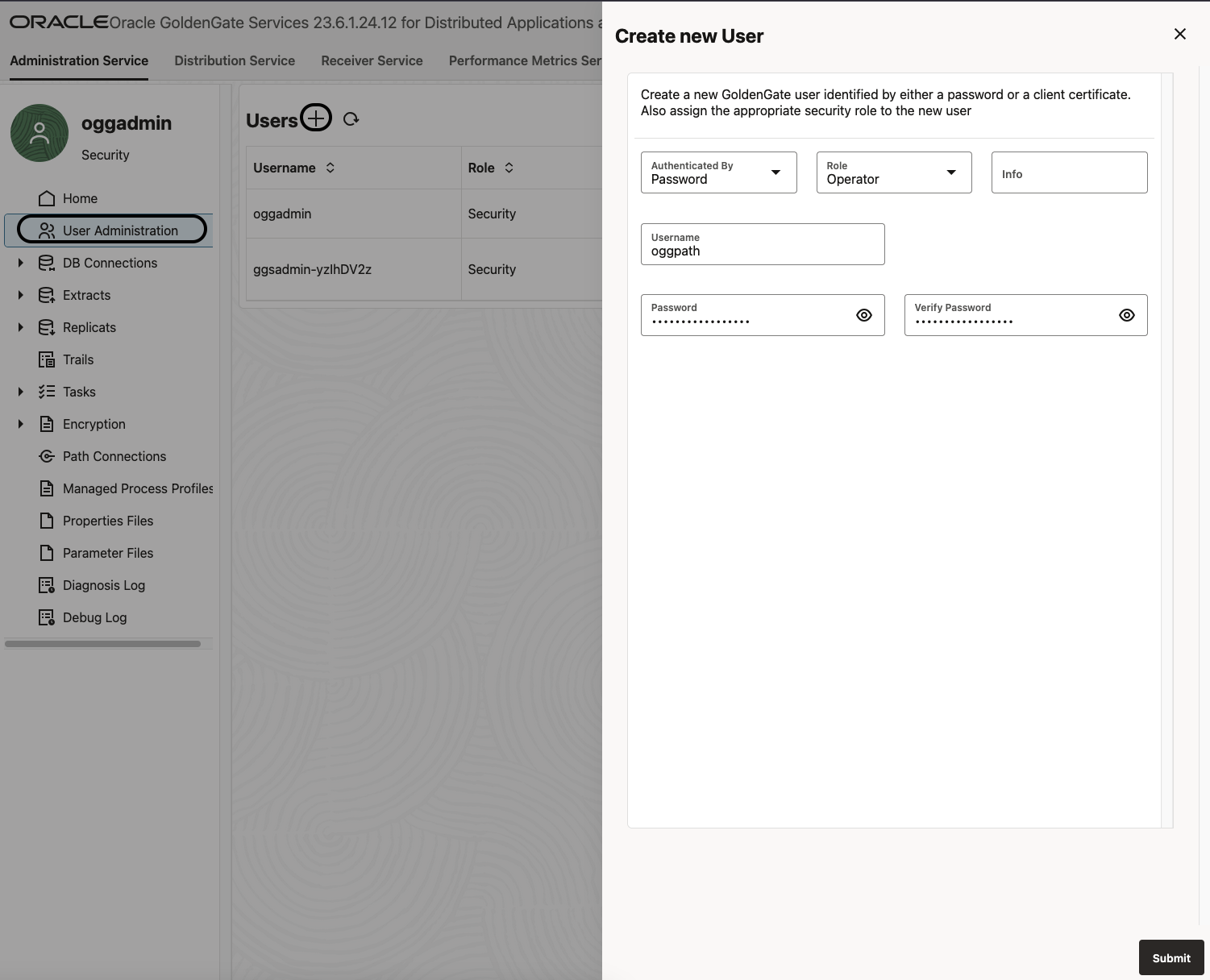
Create a new user for the Distribution Path
In OCI GoldenGate (for DAA), click User Administrator. Add a new user by clicking on the sign ‘+’. Specify the username, the Operator role, set the Type to Password, and provide your password:
Add a new credential on the source GoldenGate deployment
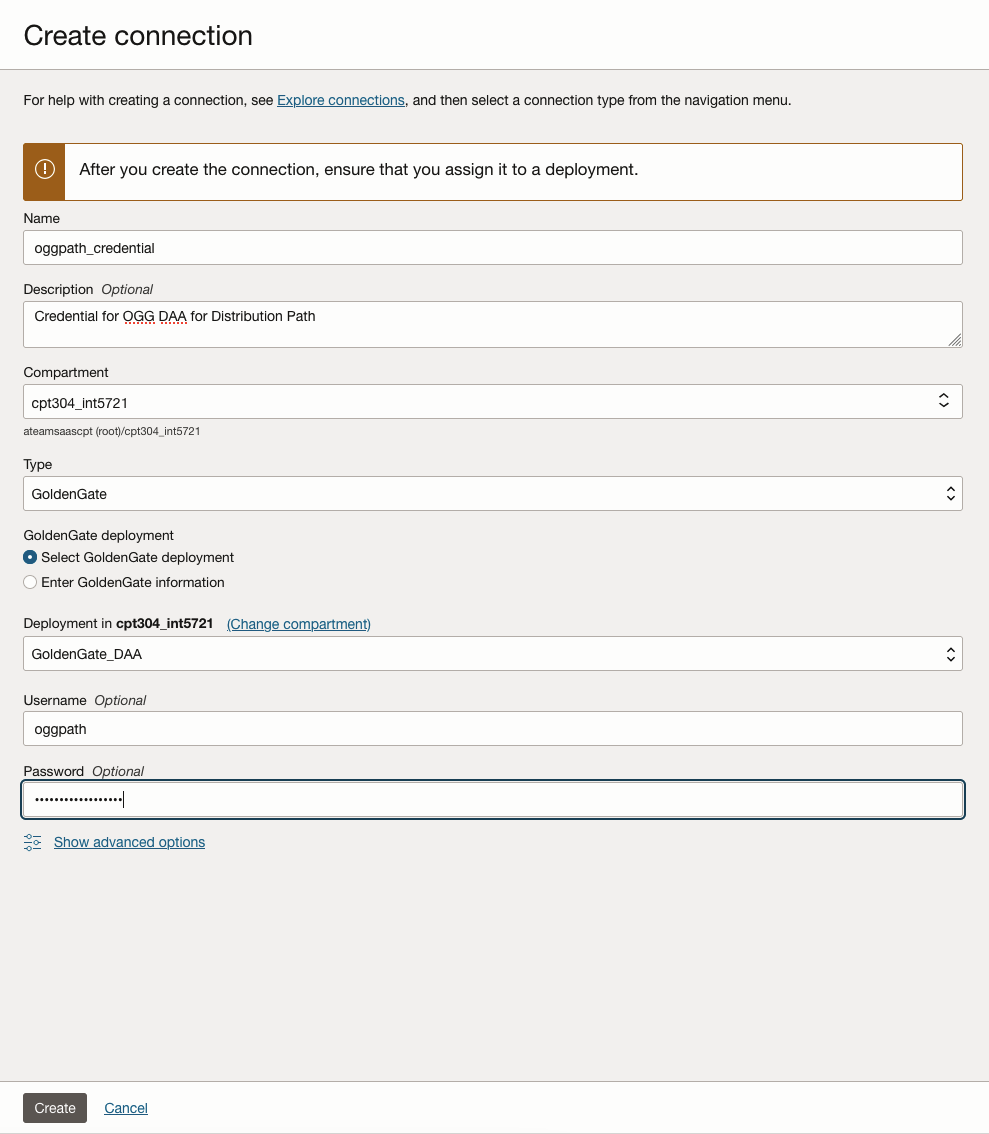
Go to OCI GoldenGate Connections and create a new connection, with the same username and password you defined for the GoldenGate:
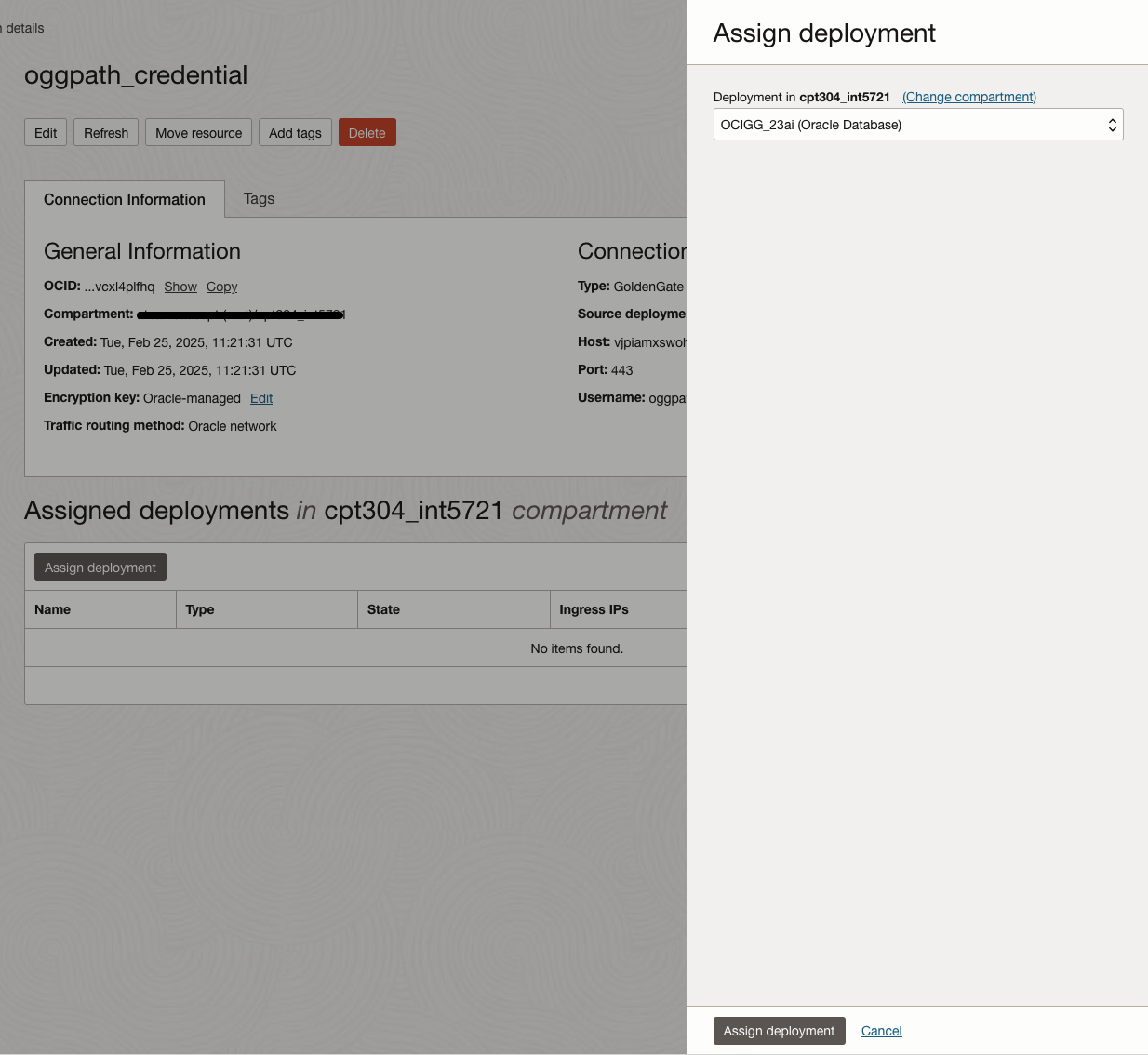
Assign connection to OCI GoldenGate deployment for Oracle:
Creating Distribution path for Initial Load
In OCI GoldenGate for Oracle, go to Distribution Service and click Add Path (‘+’ icon). Enter the Path Name:
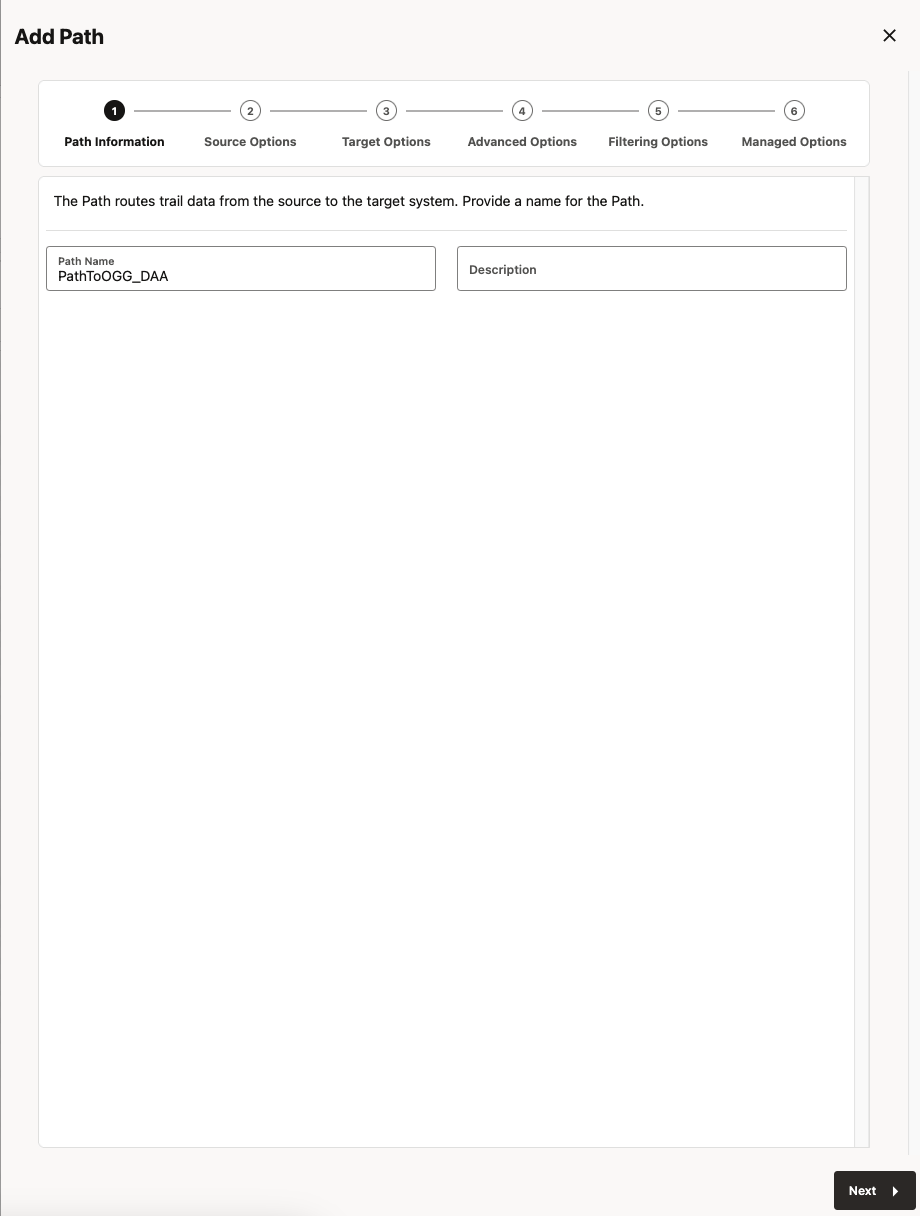
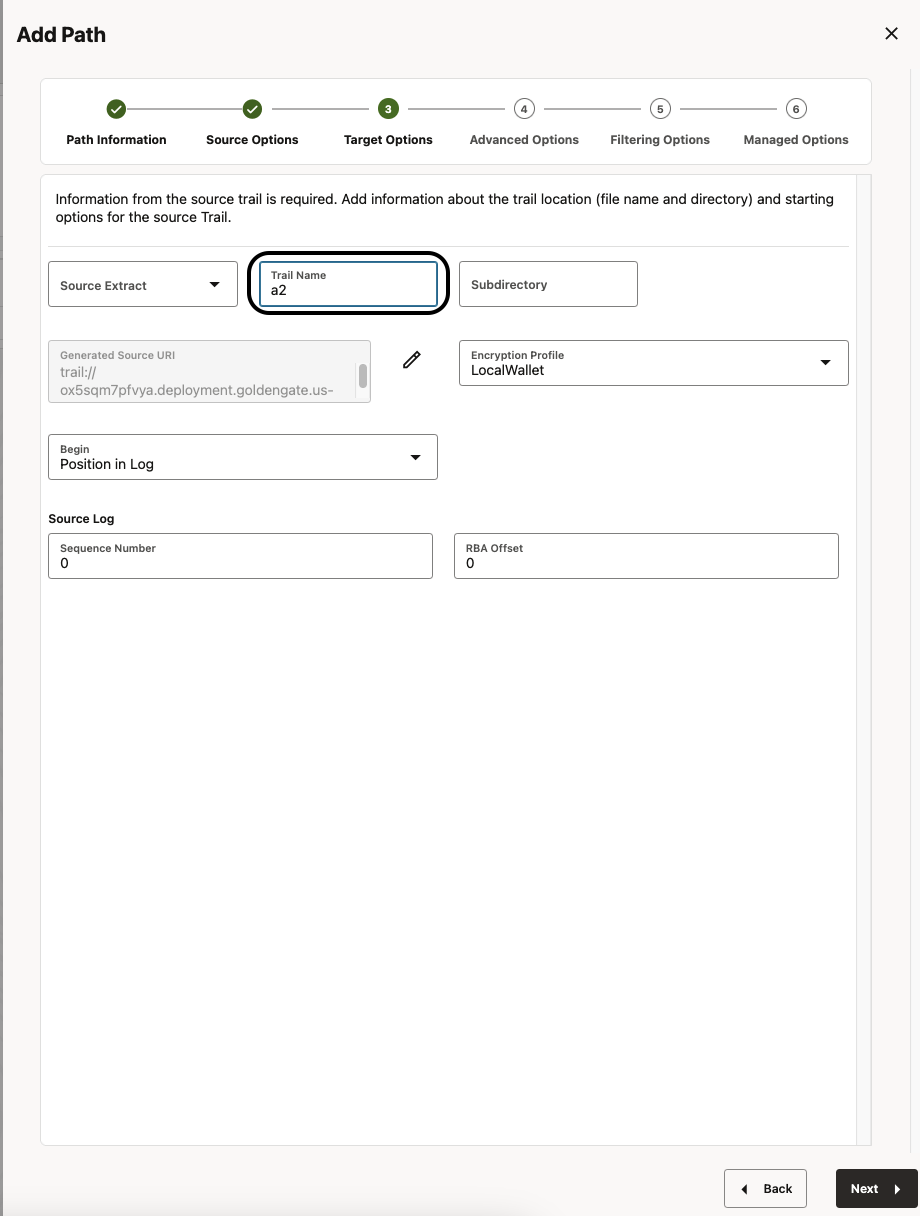
Provide the EXTFILE name that you used in your initial load extract. This is good enough, you don’t need to select Source, please leave empty. Click Next.
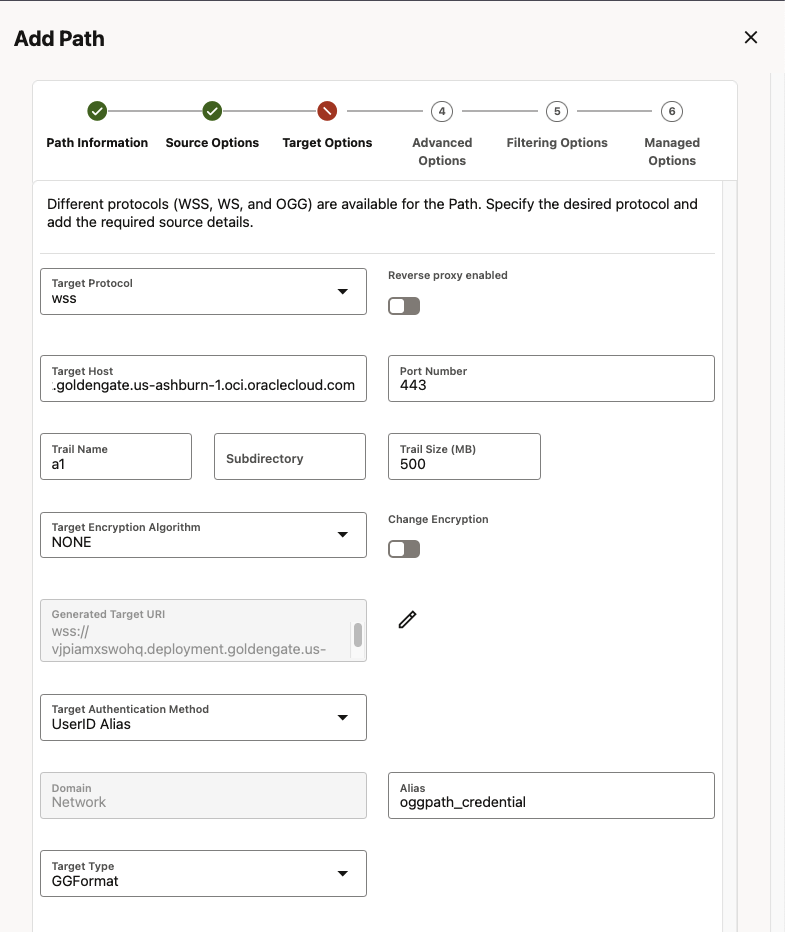
Specify the OCI GoldenGate for DAA hostname for Target and port 443. Enter the Trail Name, and Alias from the credential created in the previous step. Click on Create Path and then start the distribution path:
Following the same steps, you can create a second distribution path for the file created by CDC extract.
Creating Initial Load Replicat
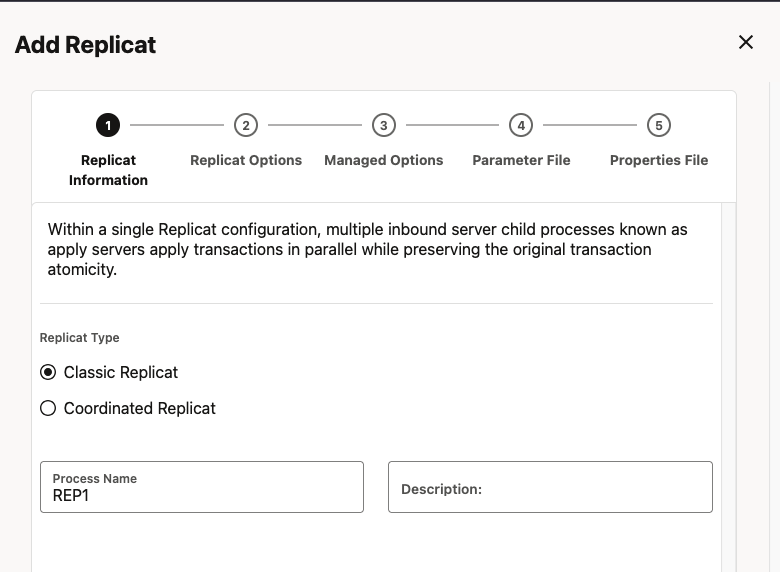
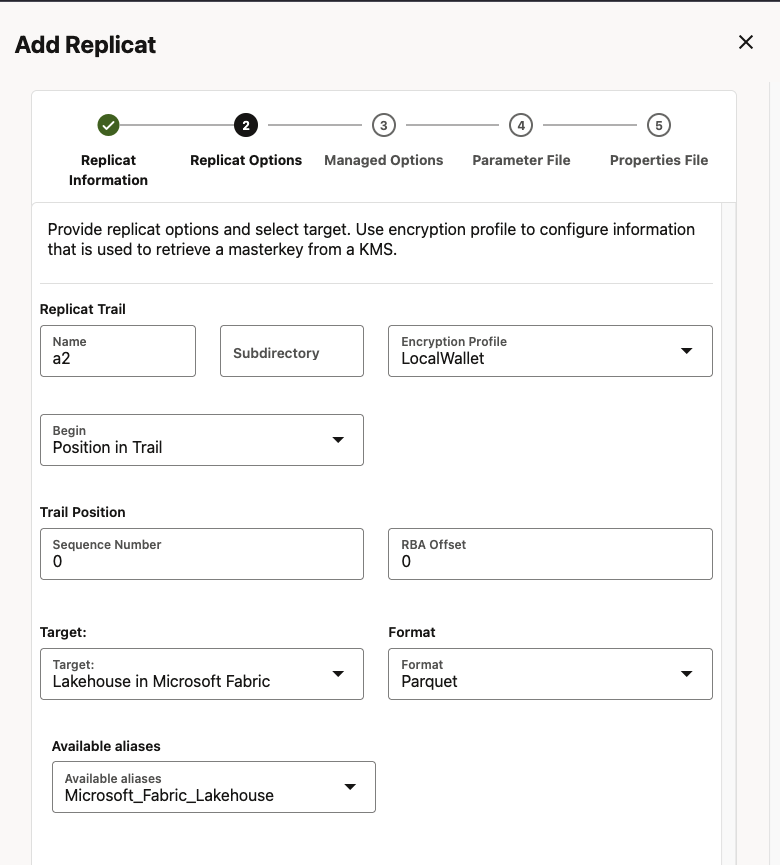
Go to your OCI GoldenGate deployment for DAA and add a new Replicat. Click Overview and Add Replicat (plus icon) in the Replicats panel. Select Classic Replicat and the Replicat Name:
Specify the Trail Name. In this case, I’m going to create parquet files, so I will select Parquet for format. Specify Lakehouse in Microsoft Fabric as a target:
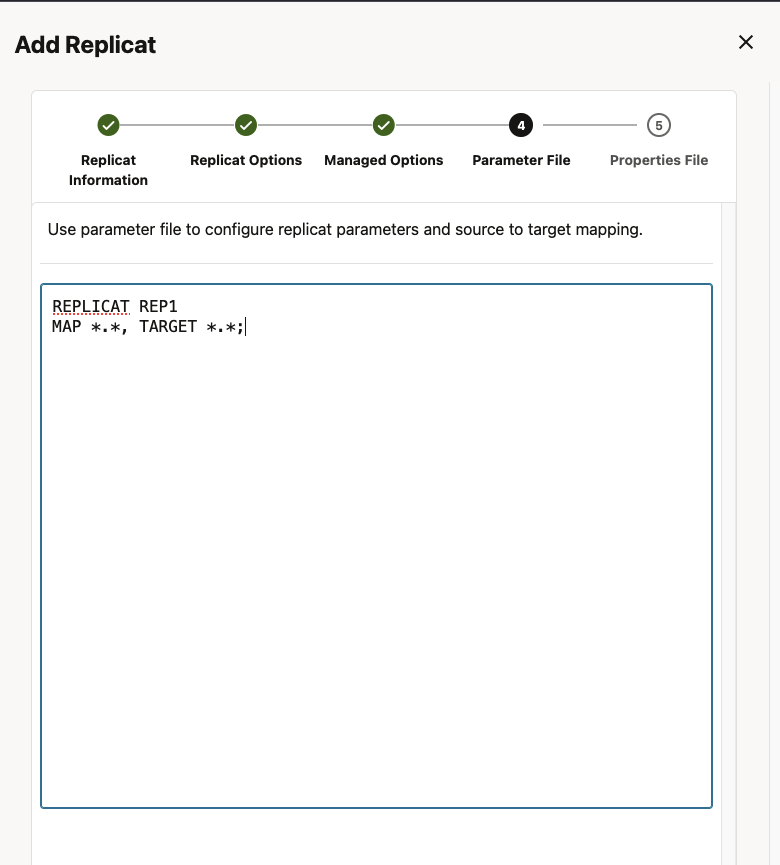
Specify how the source and target tables will be mapped by the Replicat and click Next.
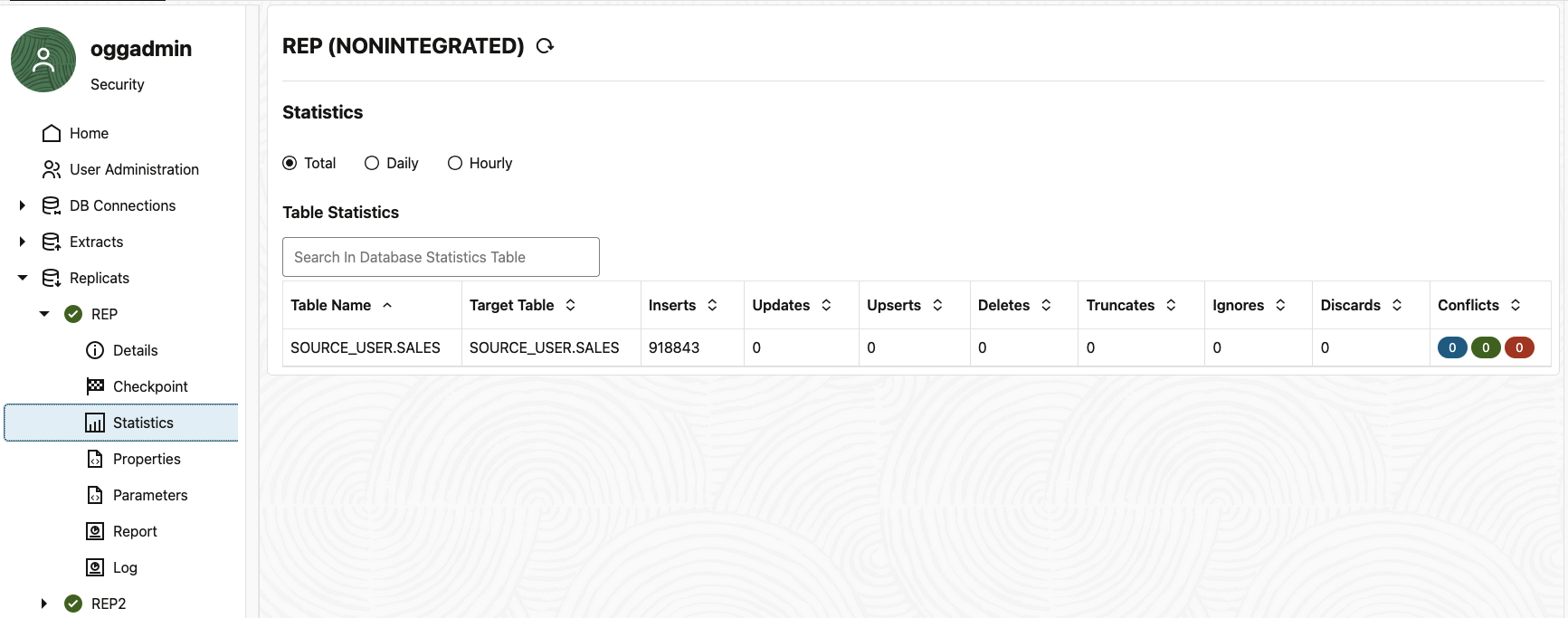
Check if the records were loaded:
In Properties, specify the workspace name, lakehouse name:
# Properties file for Replicat REP1
gg.target=fabric_lakehouse
#TODO: format can be ‘parquet’ or ‘orc’ or one of the pluggable formatter types. Default is ‘parquet’.
gg.format=parquet
gg.eventhandler.onelake.connectionId=ocid1.goldengateconnection.oc1.iad.amaaaaaa2t2mwsaan7qo6phrmpoyn5ngpxo7nwj7hjuvb7wjvexqjt6jmqga
gg.eventhandler.onelake.workspace=DSTEST
#TODO: Edit the Fabric lakehouse name.
gg.eventhandler.onelake.lakehouse=testds
gg.eventhandler.onelake.pathMappingTemplate=${catalogname}.lakehouse/Files/ogg/${groupName}/${schemaname}.schema/${tablename}
gg.classpath=$THIRD_PARTY_DIR/hadoop/*:$THIRD_PARTY_DIR/parquet/*:$THIRD_PARTY_DIR/onelake/*
The gg.eventhandler.onelake.pathMappingTemplate will help you to dynamically genrate path names at runtime.
Creating CDC Replicat
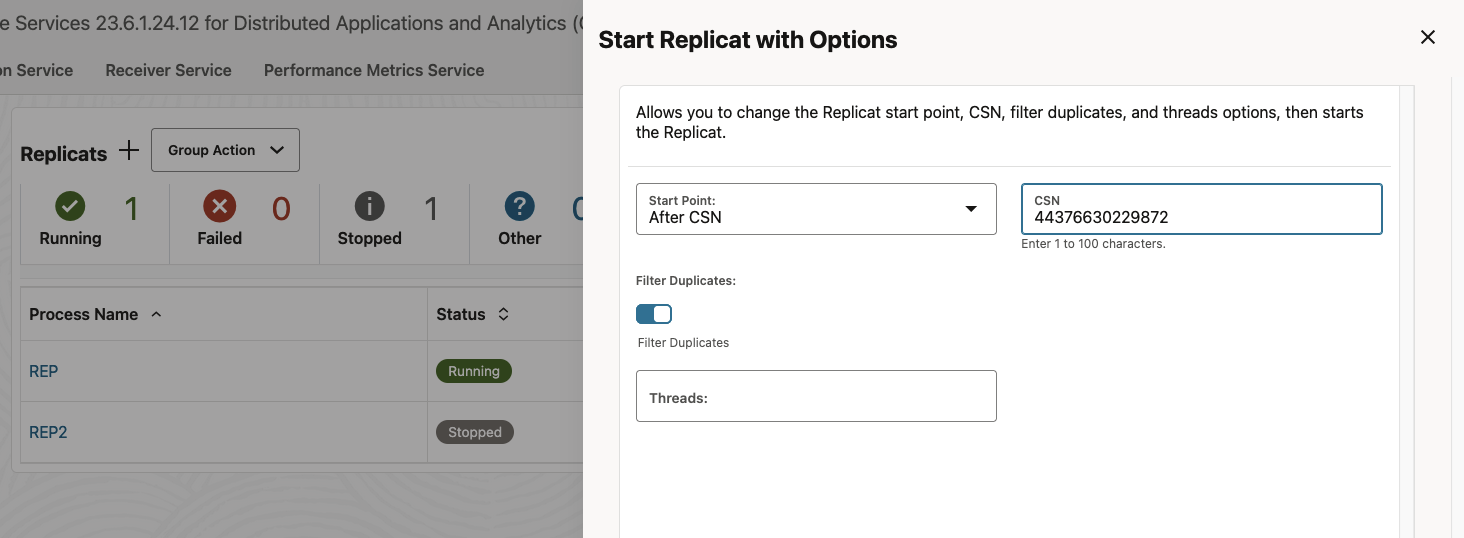
Following the same steps as above, but don’t click Create and Run, just click Create. Before starting the replicat, click on ‘…’ and Start With Options and change the option to ‘After CSN‘ :
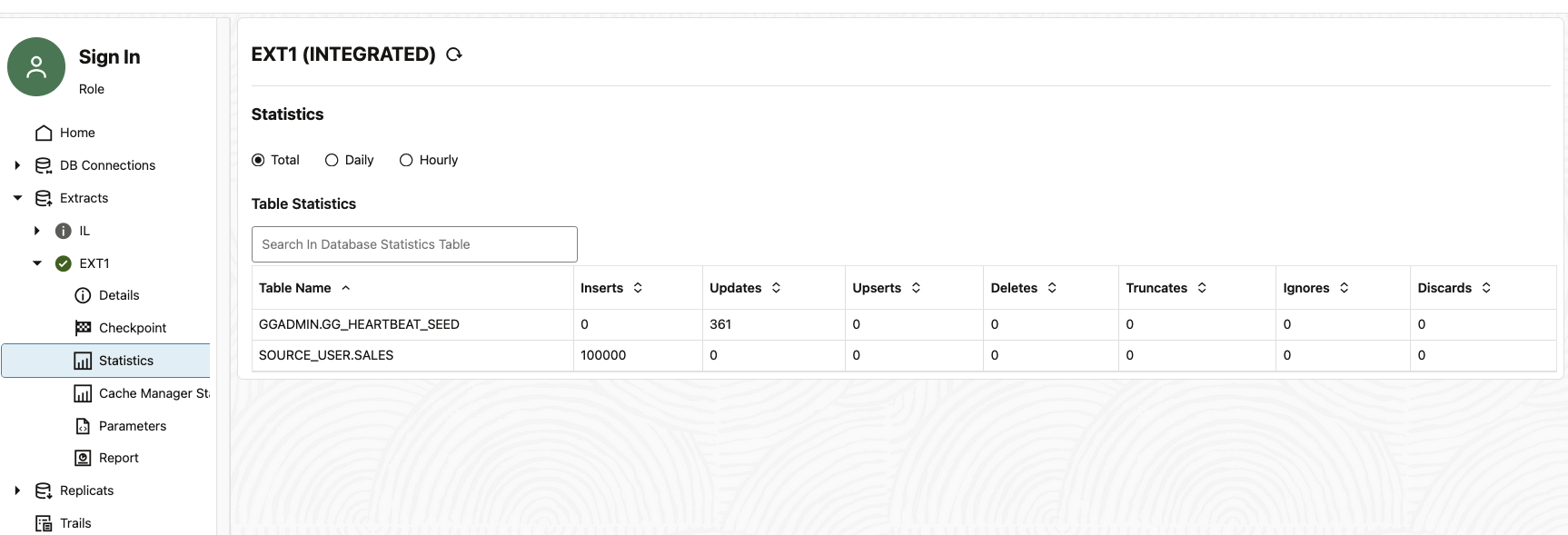
Now, generate some records on source. In my example, I generated 100.000 records. Confirm the data was replicated into target:
Extract CDC Statistics:
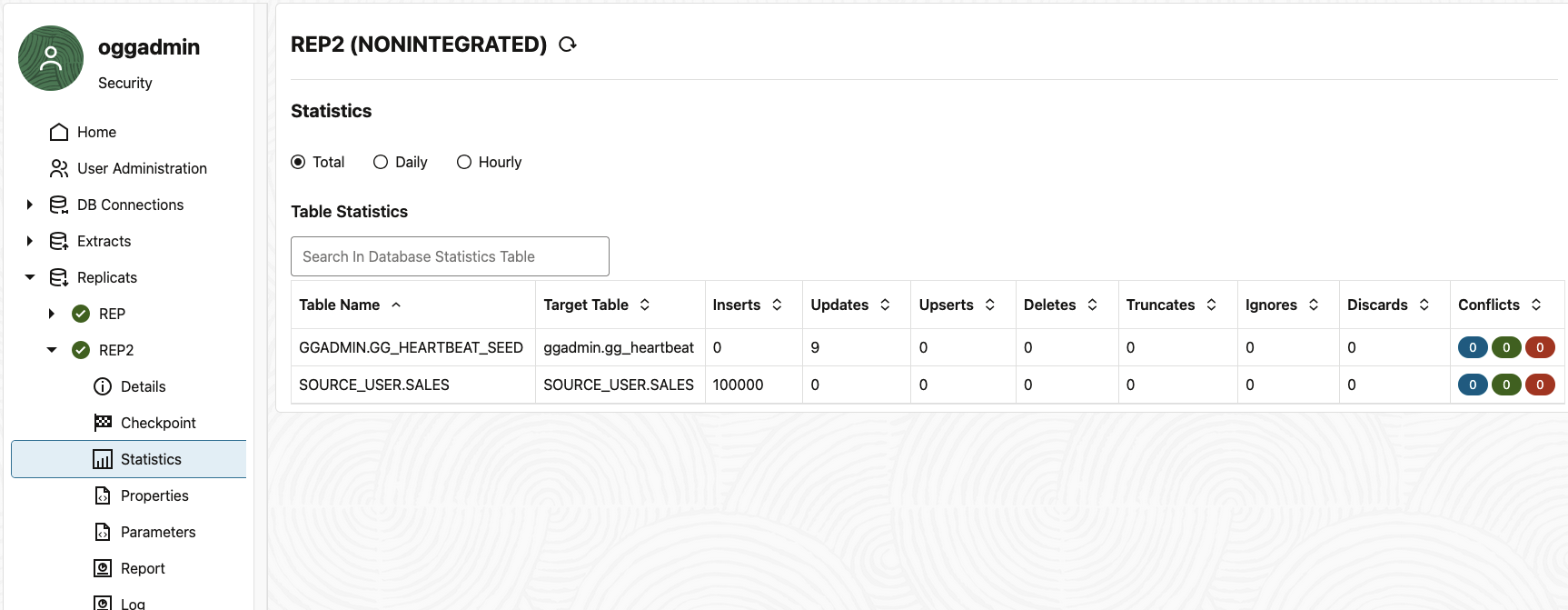
Check on your Replicat for CDC if the data was replicated:
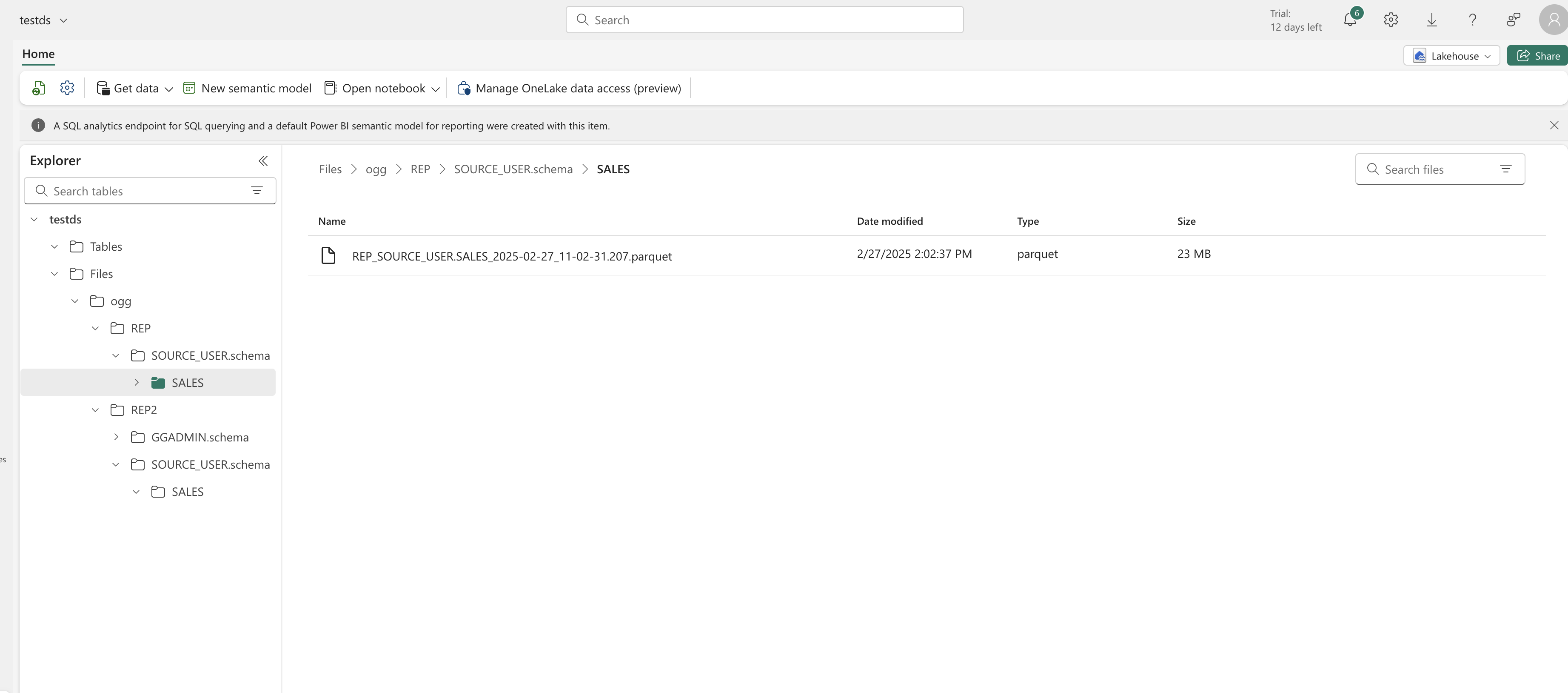
Last, but not least check your Fabric Lakehouse if parquet files were created in your lakehouse:
We have seen how easy it is to set up GoldenGate to replicate data into Microsoft Fabric Lakehouse. You can refer to the documentation for additional information.