
Introduction
In Part 2 of this series – Extending Fusion Applications using VBCS – SSO Configurations , We have explained various mechanism to access VBCS Application provisioned in Fusion Applications identity domain for different types of users (FA User, Local IAM User, External Users)
In Continuation of series, we will demonstrate how can we apply MFA in Fusion Applications identity domain for VBCS Applications.
Points to consider –
- Oracle Fusion Applications now natively support MFA through FA IAM post IAM upgrade, refer – Enable Multifactor Authentication (MFA), the approach described in this blog is for Fusion Extensions (e.g., VBCS), where MFA can still be configured using FA IAM policies or an external IdP if required.
- MFA can be enabled for certain Fusion features such as VBCS using FA IAM
- MFA for Application extensions (Using Fusion Applications Users)
- MFA for stand-alone custom Apps (Local IAM User not part of Fusion Application)
We will not cover External User as it will be authenticated from external IDP & external IDP can handle MFA as its own Sign on Policy, however if there is a need for additional MFA from Fusion Applications identity domain, it can be reinforced using IAM Sign on Policy.
Below is decision tree depicting how MFA can be applied using Fusion Applications identity domain for various use cases –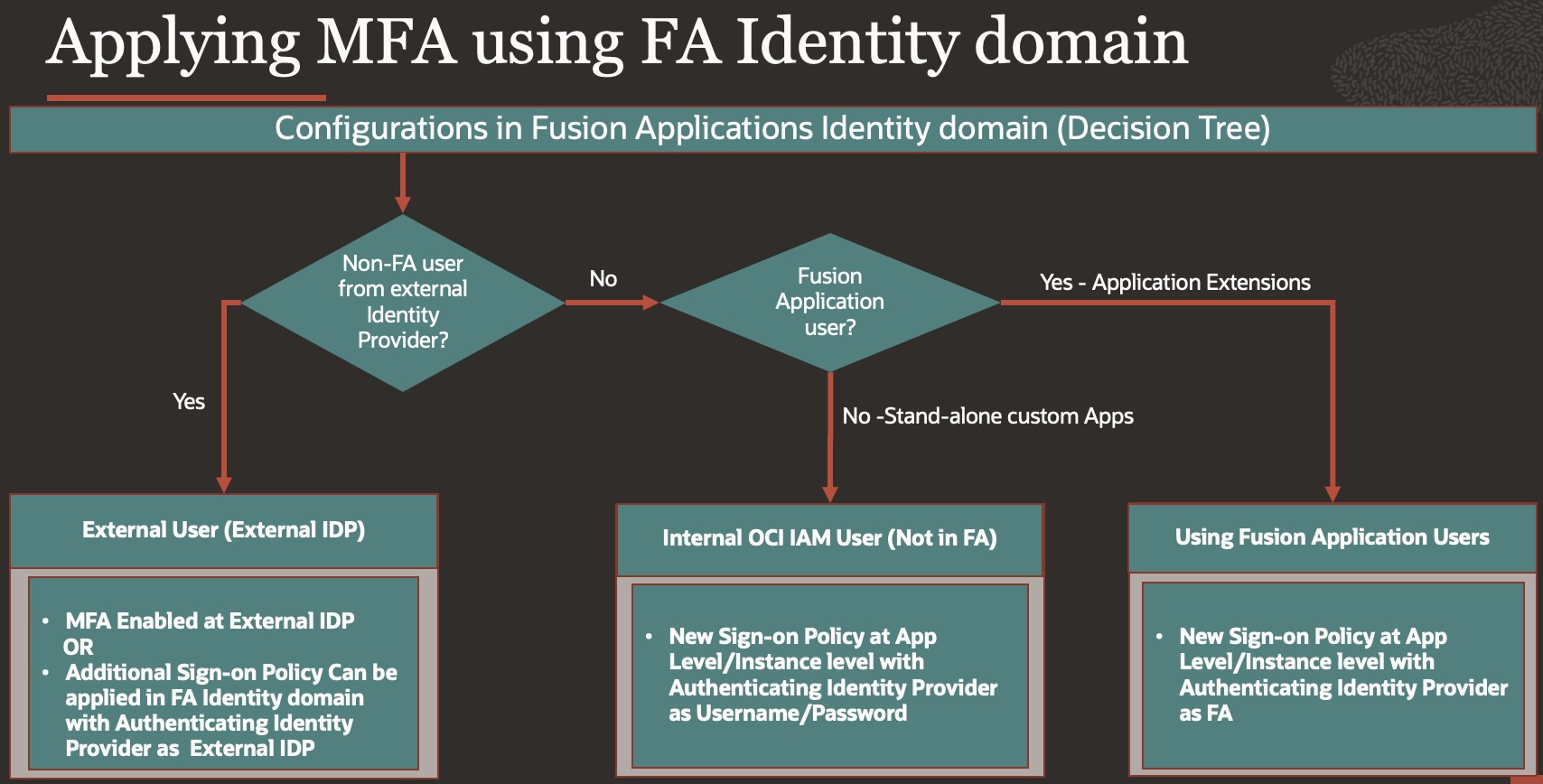
Details:
To demonstrate how MFA can be applied in VBCS application, we have created Demo VBCS app, please refer to Part2 – Extending Fusion Applications using VBCS – SSO Configurations of blog for details.
Use Case 1 – MFA for Application Extensions (Using Fusion Applications Users)
In this use case we wanted to Access VBCS application by users which are present in Fusion Application
Demo VBCS Application –
https://<vbcs>/ic/builder/rt/ESSJobMonitoring_FAUsers/live/webApps/getessjob/
Step 1: Create Sign in Policy
- Login to IAM in same domain which is domain of FA.
- Navigate to Identity > Domain> Security>Groups Sign-on policies
- Create a Sign-on policy – MFA_Hybrids
- Add Oracle Application Cloud(Fusion) in Authenticating identity provider
- In Action Enable – Prompt for an Additional Factor with frequency as desired.
- Add Application to Sign-on Policy
- This can be VBCS Instance or VBCS Application as Confidential app
- Navigate to Identity > Domain> Security>Groups Sign-on policies>Sign-on Policy details>Apps
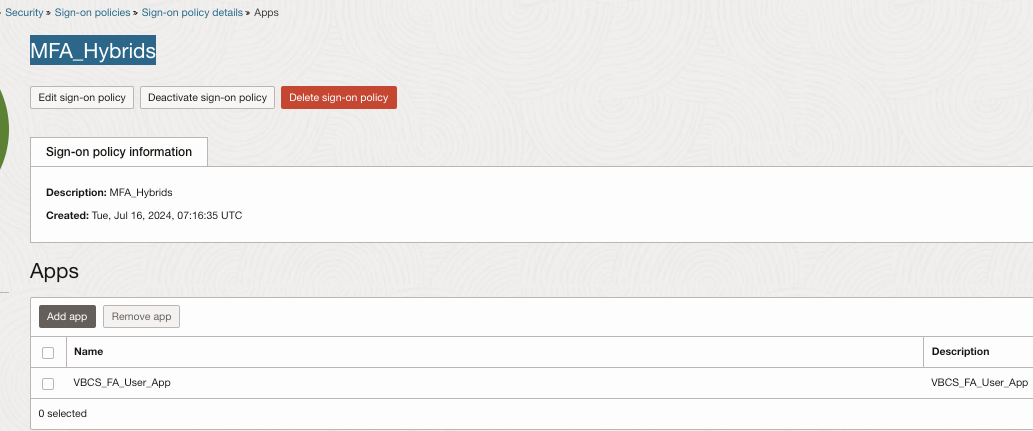
- In this example we have created new confidential App – VBCS_FA_User_App following steps mentioned in – Extending Fusion Applications using VBCS – SSO Configurations, Step 2: Register your application with the authorization server & then added FA user or FA group to that Application.
- Post Registration you can get Application URL from IAM console following – Extending Fusion Applications using VBCS – SSO Configurations, step 4: Get VBCS Application URL from IDCS
https://idcs-<XXYYZZ>.identity.oraclecloud.com/sso/v1/app/launcher/170014ad66cd49a191c81137a5a269e2?appName=VBCS_FA_User_App - We can also enable Sign-on Policy at VBCS Instance level, in that case you would not have flexibility of different Sign-on Policy at Application level, however if you enable at VBCS Instance level (by adding VBCS instance in App), you can skip – step 7 to create confidential app, post adding at Instance level, all VBCS applications would follow this Sign-on Policy – MFA_Hybrids.
Now we have completed all configuration steps, we will test accessing VBCS application using URL provided in step 1.7 & see how application is authenticated
We will access URL in browser & it will show up with IAM login page
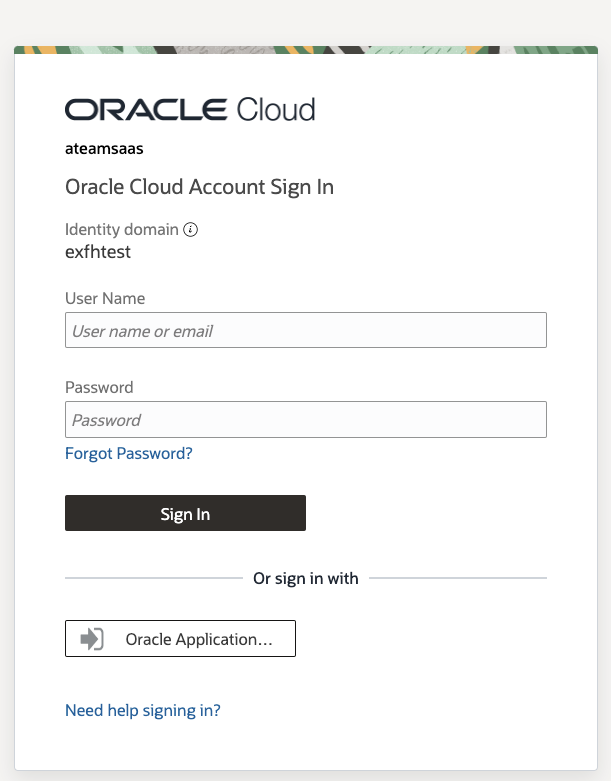
After Providing details, if it is first time access then it prompts for MFA registrations or prompt for MFA verification, please refer Roland Blog for detailed registration steps – Testing MFA.
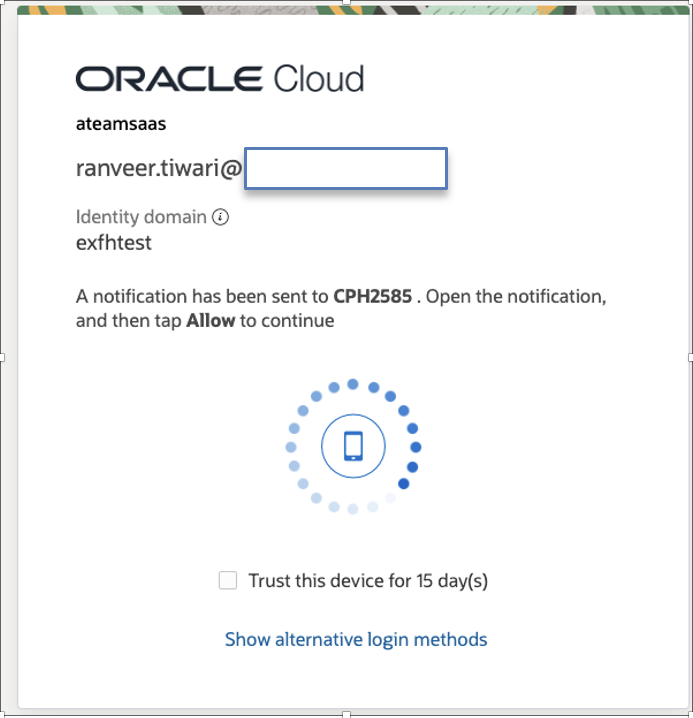
In Mobile device we will get prompt –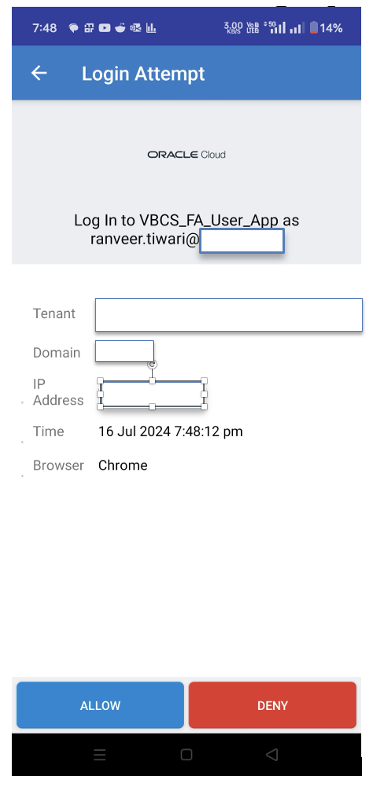
Post MFA authentication VBCS application is Accessible
Use Case 2 – MFA for stand-alone custom Apps (Local IAM User not part of Fusion Application)
In this Use case we wanted to Access VBCS application by users which are not present in Fusion Application however they are created in IAM domain as local user as part of OCI – User/Groups.
Demo VBCS Application –
https://<vbcs>/ic/builder/rt/ESSJobMonitoring_OCIIAMUsers/live/webApps/getessjobStep 1: Create Sign in Policy
- Login to IAM in same domain which is domain of FA.
- Navigate to Identity > Domain> Security>Groups Sign-on policies
- Create a Sign-on policy – MFA_localUsers
- Add Username Password in Authenticating identity provider
- In Action Enable – Prompt for an Additional Factor with frequency as desired.
- Add Application to Sign-on Policy
- Navigate to Identity > Domain> Security>Groups Sign-on policies>Sign-on Policy details>App
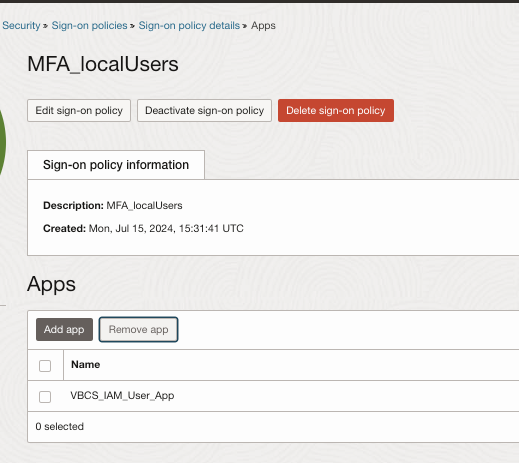
- In this example we will add confidential App – VBCS_IAM_User_App which is defined in Extending Fusion Applications using VBCS – SSO Configurations [Use Case 2 – Using Local IAM User which is not part of Fusion Application]
Now we have completed all configuration steps, we will test accessing VBCS application using URL provided in Extending Fusion Applications using VBCS – SSO Configurations [Use Case 2 – Using Local IAM User which is not part of Fusion Application – Step 4: Get VBCS Application URL from IDCS]& see how application is authenticated
We will access URL in browser & it will show up with IAM login page –
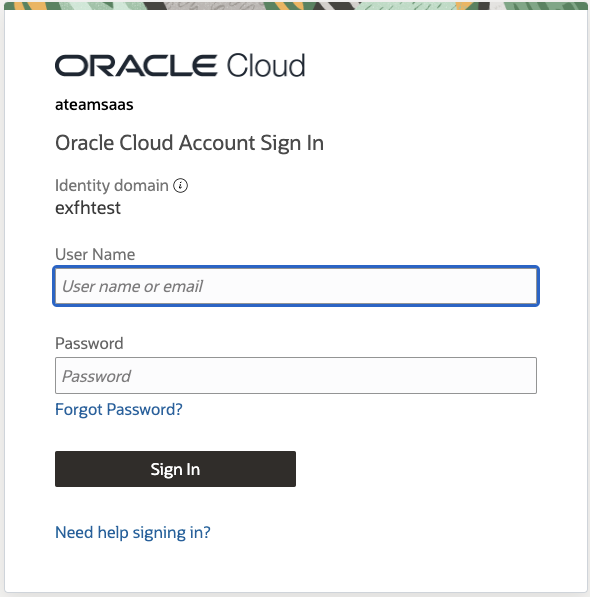
After Providing details, if it is first time access then it prompts for MFA registrations or prompt for MFA verification, please refer Roland Blog for detailed registration steps – Testing MFA.
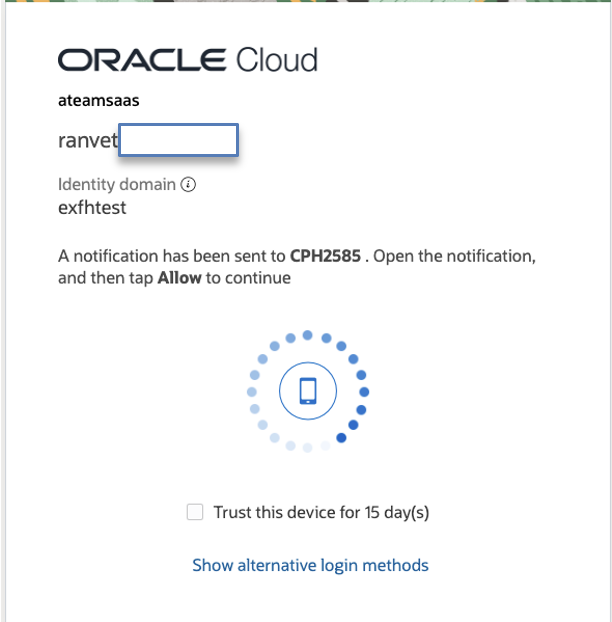
In Mobile device we will get prompt –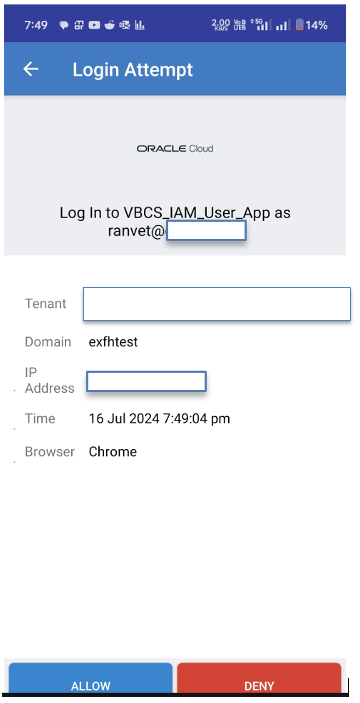
Post MFA authentication VBCS application is Accessible
Conclusion
We hope with this blog you have better understanding of how MFA can be applied using Fusion Applications identity domain & provides mechanism to implement for different use cases.
References:
- IAM MFA
https://docs.oracle.com/en-us/iaas/Content/Security/Reference/iam_security_topic-IAM_MFA.htm - IAM Sign-On Policies
https://docs.oracle.com/en-us/iaas/Content/Identity/signonpolicies/managingsignonpolicies.htm - Securing Oracle Fusion Cloud Applications with Multi-Factor Authentication (MFA)
https://www.ateam-oracle.com/post/securing-oracle-fusion-cloud-applications-with-multifactor-authentication-mfa - MOS Note – All Oracle Fusion Cloud Applications Environments are now Provisioned with an Associated Oracle-Managed OCI IAM Identity Domain (Doc ID 2889855.1)