
Introduction
In this blog series we are going to discuss ways to utilize Oracle Cloud Infrastructure (OCI) Observability and Management services and apply them to network resources with examples. Below are 3 common requests that I’ve received from customers that we will go over in more detail in this and future blogs in this series.
- Part One – How can I find who, what, and when something changed in OCI that possibly caused my issue?
- Part Two – How can I be proactively notified when changes are made in the future?
- Part Three – How can I be notified when my network connectivity is down or fails over to the backup path?
Before we dive in to Part Three for this blog, let’s briefly review some of the relevant OCI services that we’ll be covering.
Notifications Service
The OCI Notifications service enables you to setup communications channels for publishing messages using topics and subscriptions. When a message is published to a topic, the Notifications service sends the message to all of the topic’s subscriptions. Supported subscription methods include:
- Oracle Function
- https custom url
- PagerDuty
- Slack
- SMS
See the below link for more detailed information on the OCI Notification Service:
https://docs.oracle.com/en-us/iaas/Content/Notification/Concepts/notificationoverview.htm
Monitoring Service
The Oracle Cloud Infrastructure Monitoring service enables you to actively and passively monitor your cloud resources using the Metrics and Alarms features. The Monitoring service uses metrics to monitor resources and alarms to notify you when these metrics meet alarm-specified triggers.
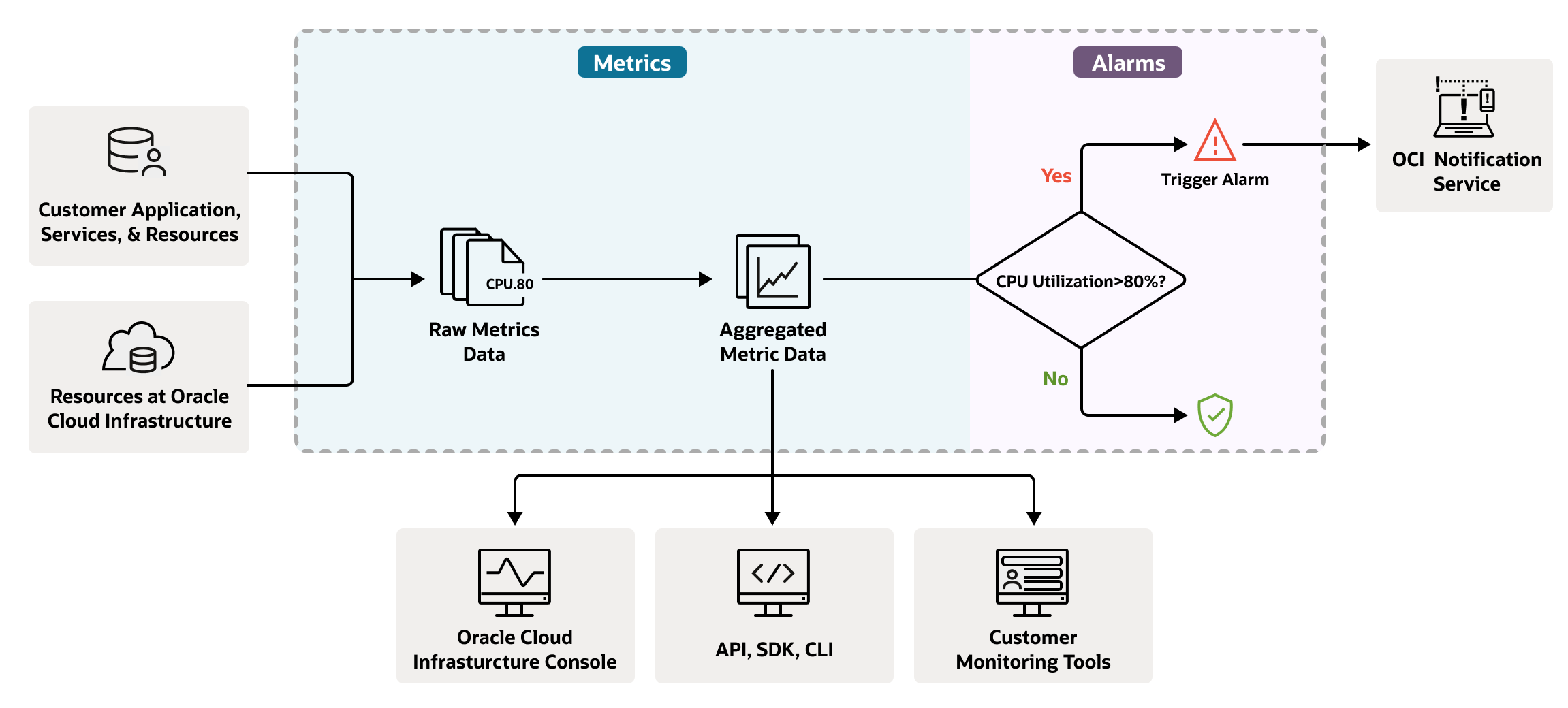
See the below link for more detailed information on the OCI Monitoring Service:
https://docs.oracle.com/en-us/iaas/Content/Monitoring/home.htm
How can I be notified when my FastConnect Virtual Circuit or IPSec Tunnel goes down?
In this scenario we are going to create a notification that will send us an email when OCI detects a state change with a FastConnect Virtual Circuit or IPSec Tunnel. Our example will use an IPSec Tunnel, however the same steps can be applied for a FastConnect Virtual Circuit. Keep in mind that OCI will only maintain status of the IPSec Tunnel or FastConnect Virtual Circuit from the OCI perspective. Situations can, and do exist where the connection is down external to OCI and this Alarm may not trigger in those circumstances. It is recommended that you also create alarms on other points in the path where an outage could occur so you get alarms for any outage along the end to end path, such as on your on-prem CPE or inside your FastConnect Partner or Third Party provider network. We will first create a Notification Topic and Subscription and then we will create an Alarm that will trigger when OCI detects a state change on the IPSec Tunnel State Metric.
Creating a Notification Topic
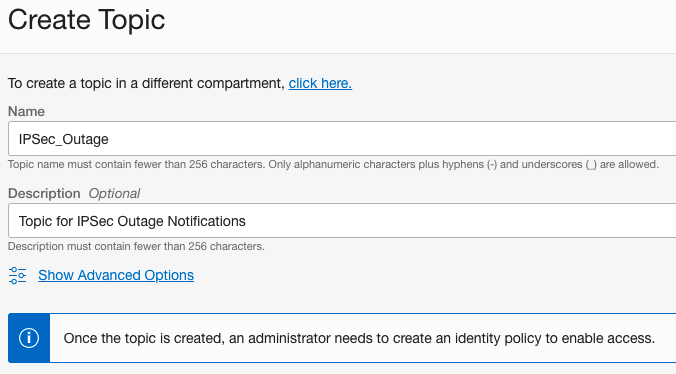
- From the OCI console, go to Observability & Management >> Notifications to get to the Notifications page and make sure you select the correct Compartment
- Under Topics click the blue Create Topic button
- Type a name for the Topic, in our example we will use IPSec_Outage
- When finished, click the blue Create button at the bottom.
Creating a Subscription
- Once the Topic is created in the step above, it should take you to the Topic details screen. If not, navigate to the Notifications page again and select the Topic you created above (IPSec_Outage)
- Click the blue Create Subscription button
- Select the protocol we want to use. In our example we will use email, but other protocols are supported such as Slack, SMS, and Pager Duty.
- Input the email address we would like the notifications sent to.
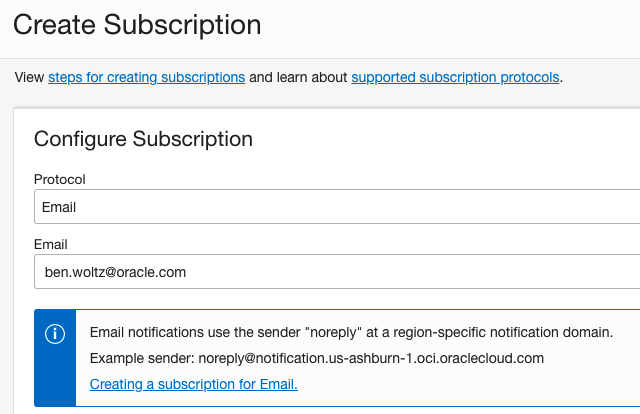
- Click the blue Create button at the bottom when finished
- After the Subscription is created, a confirmation email will be sent to the email address we provided and we will need to click on the link in that email to confirm the subscription. When you confirm the subscription, the subscription state in the console will change from yellow Pending state to green Active state.
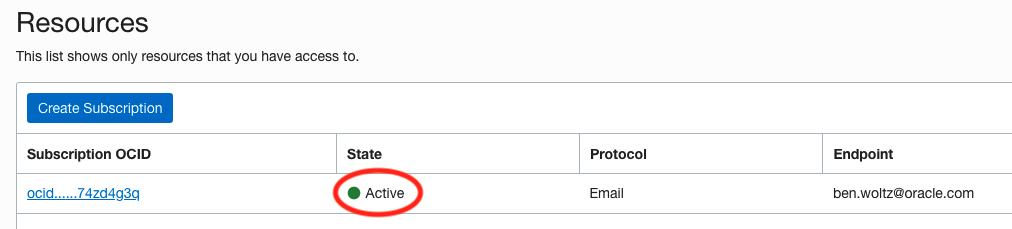
- We can also do a quick test of the subscription on the Topic Details page. Click on the top Publish Message button, enter some text into the message and title and click the blue Publish button. We should receive an email shortly after with the text that we inputted which will validate the subscription is working.
Creating an Alarm on IPSec Tunnel State or FastConnect Virtual Circuit Connection State Metric
- From the OCI console, navigate to your IPSec Tunnel by going to Networking >> Customer Connectivity >> Site-to-Site VPN >> Select your VPN >> Select your specific IPSec Tunnel and make sure you select the correct Compartment. For FastConnect go to Networking >> Customer Connectivity >> FastConnect >> Select your FastConnect Virtual Circuit.
You will notice on this screen that there are a handful of graphs towards the bottom under the Metrics section. These are the various Metrics that OCI is monitoring for IPSec Tunnels and you can create Alarms for any and all of these metrics. We are going to create an Alarm on the IPSec Tunnel State Metric but notice that you can also create an Alarm on the IPv4 BGP Session State Metric that will notify you when the BGP session were to change state.
- On the IPSec Tunnel State Metric click on the Options drop down on the top right corner of the graph. For FastConnect Virtual Circuit the Metric is Connection State.
- Select Create an Alarm on this Query. It’s worth noting here that you can create an Alarm in this same way on any Metric that you see inside OCI console on any resource.
- This will take you to the Create Alarm page. You will notice there are a lot of options on this page, we will focus on only the ones relevant for this Alarm but you can review the Monitoring link discussed above for more detailed information on all of these options.
- Give the Alarm a name, such as IPSec_Down_Alarm
- You can optionally add relevant text for the Alarm body, such as “VPN connection to on-prem Datacenter is Down” or “Backup VPN Tunnel is Down”
Note: The IPSec Tunnel State Metric (and FastConnect Virtual Circuit Connection State Metric) is a binary Metric meaning there are only two options for the value, ‘0’ indicating the tunnel state is down or ‘1’ for the tunnel state is up. We want this specific Alarm to trigger when the Tunnel State changes from up to down, or from ‘1’ to ‘0’.
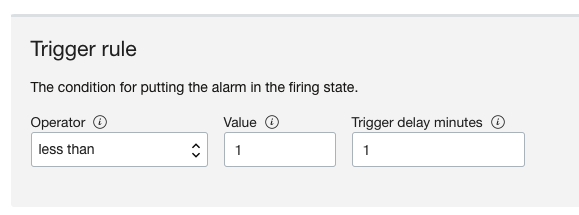
- Under Trigger Rule section select the Operator to be ‘less than’ and the Value to be ‘1’. This will trigger the Alarm when the Metric value changes to something less than ‘1’ and since this is a binary metric, the only option is ‘0’ which indicates the Tunnel is down.
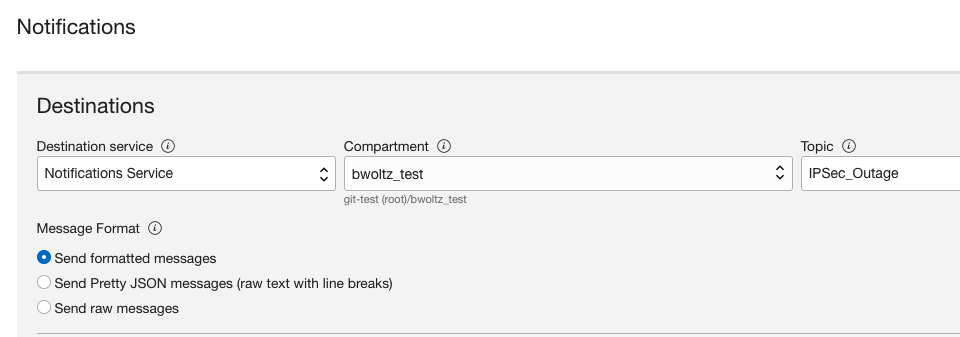
- Under the Notification section, select ‘Notification Service’ as the Destination Service, select the compartment you created the above Topic in (IPSec_Outage), and select the Topic you created from above (IPSec_Outage)
- Click the blue Save Alarm button
Now that we have the Alarm created let’s discuss the expected behavior. When the IPSec Tunnel state changes from up to down, the Alarm status will be in “FIRING” state and will send a notification to the subscribers to the IPSec_Outage Notification Topic, this will be the notification that the IPSec Tunnel went down. When the IPSec Tunnel state changes back up from the down state, the Alarm status will change to “OK” status and will also send a notification to the subscribers to the IPSec_Outage Notification Topic, this will be the notification that the IPSec Tunnel came back up. Since you will receive two emails on this same Alarm you will want to pay attention to the body of the email to determine whether the notification is for the IPSec going down or coming back up. You will see the Status as “FIRING” or “OK” and the Type will say “OK_TO_FIRING” or “FIRING_TO_OK” to let you know. Feel free to investigate other options on this Create Alarm page and tweak the Alarm to your liking, for example Repeat Notification, Metric Interval, Trigger delay minutes, Message Format, and Alarm Severity.
How can I be notified when my traffic fails over to my backup path?
A very common network design for customers is to provision a FastConnect as the primary method of connectivity to OCI, and then have a redundant FastConnect Virtual Circuit or a VPN Tunnel for backup path in case the primary FastConnect goes down. As we discussed above, when you create an Alarm on a state change on FastConnect Virtual Circuit Connection State or IPSec Tunnel State, there could be a scenario where the connection is down external to OCI and therefore we may not trigger an Alarm.
A FastConnect Virtual Circuit is a good example as there is normally an Oracle Partner or a Customer’s Third Party involved in the connection and OCI does not have visibility to the Partner or Third Party provider’s network. There could be a problem inside the Partner or Third Party provider’s network that brings the FastConnect down, and yet the FastConnect Virtual Circuit in OCI state remains as up and would not trigger the Alarm we created in the above section. However if the customer has a backup path into OCI that is being used as active/passive, we can create a different kind of Alarm that can notify you that there could be a problem on your primary path.
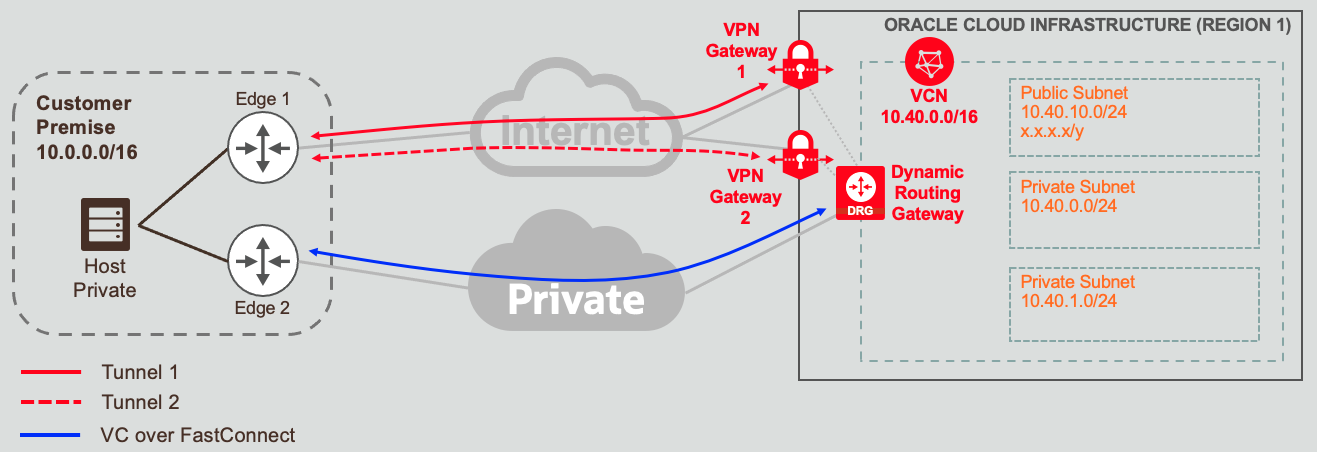
In this kind of design, during normal operation the traffic on the backup path is very low as it is sitting idle waiting for a failure on the primary path before it takes on any traffic. This creates an opportunity for us to create an Alarm on the backup path and trigger when we see traffic increase which would notifiy you that you may have an issue on the primary FastConnect. For this example we will be creating an Alarm on an IPSec Tunnel that is backing up a FastConnect Virtual Circuit. We will first create a Notification Topic and Subscription and then we will create an Alarm that will trigger when OCI detects an increase in traffic on the backup IPSec Tunnel Bytes Sent Metric.
Creating a Notification Topic
- From the OCI console, go to Observability & Management >> Notifications to get to the Notifications page and make sure you select the correct Compartment
- Under Topics click the blue Create Topic button
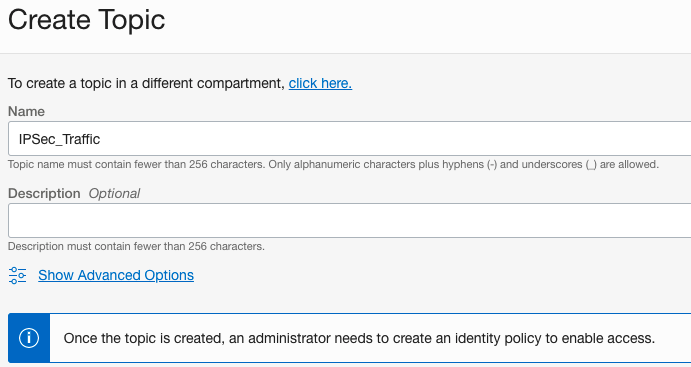
- Type a name for the Topic, in our example we will use IPSec_Traffic
- When finished, click the blue Create button at the bottom.
Creating a Subscription
- Once the Topic is created in the step above, it should take you to the Topic details screen. If not, navigate to the Notifications page again and select the Topic you created above (IPSec_Traffic)
- Click the blue Create Subscription button
- Select the protocol we want to use. In our example we will use email, but other protocols are supported such as Slack, SMS, and Pager Duty.
- Input the email address we would like the notifications sent to.
- Click the blue Create button at the bottom when finished
- After the Subscription is created, a confirmation email will be sent to the email address we provided and we will need to click on the link in that email to confirm the subscription. When you confirm the subscription, the subscription state in the console will change from yellow Pending state to green Active state.
- We can also do a quick test of the subscription on the Topic Details page. Click on the top Publish Message button, enter some text into the message and title and click the blue Publish button. We should receive an email shortly after with the text that we inputted which will validate the subscription is working.
Creating an Alarm on IPSec Tunnel Bytes Sent Metric
- From the OCI console, navigate to your IPSec Tunnel by going to Networking >> Customer Connectivity >> Site-to-Site VPN >> Select your VPN >> Select your specific IPSec Tunnel and make sure you select the correct Compartment.
You will notice on this screen that there are a handful of graphs towards the bottom under the Metrics section. These are the various Metrics that OCI is monitoring for IPSec Tunnels and you can create Alarms for any and all of these metrics. We are going to create an Alarm on the Bytes Sent Metric but you could create this Alarm on Bytes Received, Packets Received or Packets Sent to get a similar result.
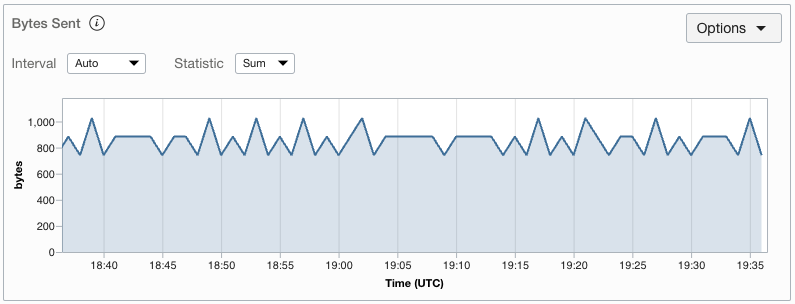
Below is the graph for the Bytes Sent on our IPSec Tunnel over the past hour during normal operation. Notice how low the traffic is during this hour, between 700 and 1000 Bytes being Sent on this Tunnel during the 1 minute Interval.
- On the Bytes Sent Metric click on the Options drop down on the top right corner of the graph
- Select Create an Alarm on this Query. It’s worth noting here that you can create an Alarm in this same way on any Metric that you see inside OCI console on any resource.
- This will take you to the Create Alarm page. You will notice there are a lot of options on this page, we will focus on only the ones relevant for this Alarm but you can review the Monitoring link discussed above for more detailed information on all of these options.
- Give the Alarm a name, such as IPSec_Traffic_Alarm
- You can optionally add relevant text for the Alarm body, such as “IPSec Tunnel Traffic has Increased”
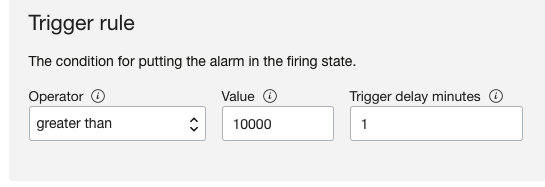
- Under Trigger Rule section select the Operator to be ‘greater than’ and the Value to be ‘10000’. This will trigger the Alarm when the Metric value changes to something greater than ‘10000’ and will therefore trigger when there is Bytes Sent on this Tunnel greater than 10,000. You can change the exact trigger amount to fit your exact scenario.
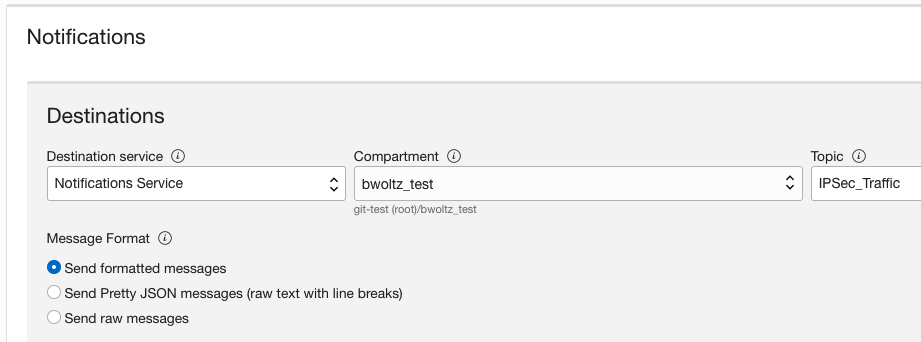
- Under the Notification section, select ‘Notification Service’ as the Destination Service, select the compartment you created the above Topic in (IPSec_Traffic), and select the Topic you created from above (IPSec_Traffic)
- Click the blue Save Alarm button
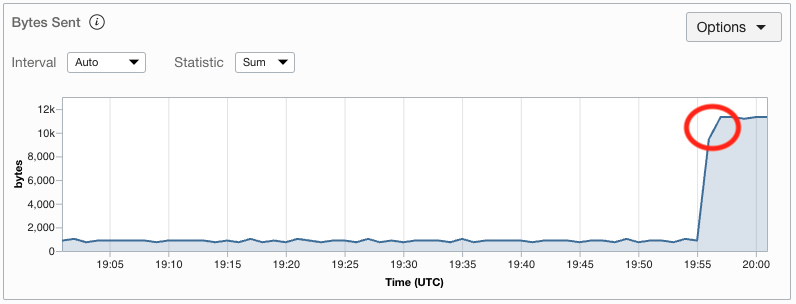
After failure of the primary path, in this scenario the FastConnect Virtual Circuit, traffic now starts running over the IPSec Tunnel and the Bytes Sent will increase significantly more than the 700-1000 Bytes Sent per minute than we see during normal operation, above the 10,000 Bytes Sent trigger that we set in the Alarm. In the graph below you can see the exact moment the traffic failed over as the large jump in Bytes Sent, which triggered our Alarm and email Notification was sent.
Now that we have the Alarm created let’s discuss the expected behavior. When traffic fails over to the backup IPSec Tunnel path and Bytes Sent is above the threshold, the Alarm status will be in “FIRING” state and will send a notification to the subscribers to the IPSec_Traffic Notification Topic, this will be the notification that traffic has failed over to the IPSec Tunnel. When the primary path comes back up and traffic fails back to the primary, the Alarm status will change to “OK” status and will also send a notification to the subscribers to the IPSec_Traffic Notification Topic, this will be the notification that the primary path came back up. Since you will receive two emails on this same Alarm you will want to pay attention to the body of the email to determine whether the notification is for the primary path going down or coming back up. You will see the Status as “FIRING” or “OK” and the Type will say “OK_TO_FIRING” or “FIRING_TO_OK” to let you know. Feel free to investigate other options on this Create Alarm page and tweak the Alarm to your liking, for example Repeat Notification, Metric Interval, Trigger delay minutes, Message Format, and Alarm Severity.