
In this continuation, we will go over an open source alternative to the AnyConnect protocol, OpenConnect. OpenConnect carries a few distinct advantages. If you already have an AnyConnect client installed on the client machine, no additional software is needed to connect to Oracle Cloud. It is possible to use a Radius server to remotely authenticate users with this configuration. Here is what the configuration looks like to get traffic into OCI.
To get started on this configuration, we will run through the following steps:
0.) Prerequisites
1.) Generate a self signed SSL certificate
2.) Configure the OpenConnect Server on VyOS
3.) Allow and Advertise the OpenConnect Tunnel Network
Prerequisites
Cisco AnyConnect Client on host machine
1.) Generate an SSL certificate
Here is the commands that you need to run on VyOS to create a self signed certificate. If you are using a trusted certificate, which is the recommended configuration, you can skip this step.
Generate the keypair and CA files to be referenced by OpenConnect on VyOS
openssl req -new -x509 -key /config/auth/server.key -out /config/auth/ca.crt
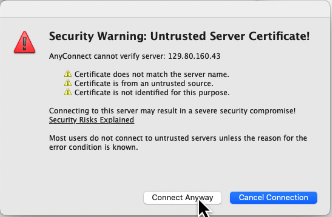
Here is the error you will see when connecting to the OpenConnect server if you are using self signed certs.
2.) Configure the OpenConnect Server on VyOS
The configuration for OpenConnect is straighforward. You specify the network, authentication method, DNS server and certificate files. In the configuration below I have specified a local user, but OpenConnect also supports Radius authentication. If you didn’t create a self-signed certificate, now is the time to copy and paste the trusted certificates to VyOS under the ca.crt, server.crt, and server.key file names. You can use SCP or just copy the files over with SSH and a Nano text editor.
set vpn openconnect authentication mode ‘local’
set vpn openconnect network-settings client-ip-settings subnet ‘10.8.254.0/24’
set vpn openconnect network-settings name-server ‘1.1.1.1’
set vpn openconnect network-settings name-server ‘8.8.8.8’
set vpn openconnect ssl ca-cert-file /config/auth/ca.crt
set vpn openconnect ssl cert-file /config/auth/server.crt
set vpn openconnect ssl key-file /config/auth/server.key
The only hurdle I’ve found with this configuration is that split tunneling does not work when specifying the “set vpn openconnect network-settings push-route” configuration parameter. OpenConnect sends a default route to the client, and all client traffic will traverse the VPN.
3.) Allow and Advertise the OpenConnect Tunnel Network
The final step in making this work is to allow the traffic to forward between OCI and VyOS. There are two configuration parameters that need to be met.
1.) Allow TCP/443 on the security list or network security group that VyOS is a part of.
2.) Advertise the OpenConnect tunnel network on VyOS
3.) If the spoke VCN has specific routes to the DRG, you will need to add the 10.8.0.0/24 VCN’s with DRG attachments. If you are forwarding all traffic to the DRG (0.0.0.0/0), then this step can be skipped.
Final Thoughts
OpenConnect is a great way to quickly connect endusers into Oracle Cloud if an AnyConnect client is already available, and it is possible to authenticate users with Radius. For other methods of connecting endusers and remote sites into Oracle Cloud using VyOS, refer to the Connecting to Oracle Cloud using VPNs blog series.