
Once upon a time not so long ago – I published a blog that demonstrated how to natively authenticate to an Oracle Autonomous Database using Azure EntraID with SQLDeveloper 24. Now, that is all fantastic for those who are using EntraID as their enterprise identity provider – but what about those who are not living that luxury?
Fortunately, OCI IAM domains have you covered. It has been no secret that OCI IAM can be used an authentication provider for Oracle Databases running in the Oracle Cloud Infrastructure. In fact – it has been a feature for quite some time that many customers are using to centrally manage their database users. And with the latest 23ai JDBC libraries – it makes the user experience much smoother and flexible for SQLDeveloper users.
An extremely handy use case that we have discovered when using OCI IAM as the database authenticator is the ability to extend the login process to another enterprise identity provider through the use of identity federation. With the ability to chain OCI IAM to another Identity Provider – you can make sure that you are following your organizations preferred standards for high-assurance IAM by leveraging an authoritative source for enterprise identity and access management.
Setup
Once again, I used the latest release of SQLDeveloper 24 here.
The first step is building the JDBC extensions from the Oracle public github repository. You can either clone this repository using git or simply just download the entire bundle.
https://github.com/oracle/ojdbc-extensions/tree/v1.0.1
Next, you will need to build the project from root of the project. In this case, you will make sure you are inside the correct directory – ojdbc-extensions-1.0.1. Once you are in the directory, if you list the contents – you should see the following.
(Notes: The ojdbc-extensions are subject to release new versions and enhancements which will change the versioning – so make sure to be cognizant of the version you choose to build and use in the subsequent configs.)
CONTRIBUTING.md. SECURITY.md THIRD_PARTY_LICENSES.txt
ojdbc-provider-common ojdbc-provider-samples ojdbc-provider-oci
README.md ojdbc-provider-azure ojdbc-provider-opentelemetry
LICENSE.txt. pom.xml
First off, you will need to make sure you have Apache Maven installed which is an open source build utility. This utility is responsible for building, retrieving dependencies, and installing the libraries into your local maven repository.
mvn clean install
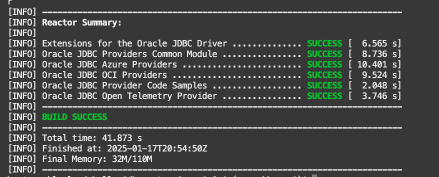
If you notice that during the maven build, it does download quite a few dependencies from public repositories. Most importantly, it downloads the core OCI SDK and a number of other dependencies that the OCI SDK relies upon. The Oracle JDBC resource provider for OCI makes use of the OCI SDK in order to facilitate the interaction for login – much similar to how the OCI CLI works.
If the build is successful, then you can continue to move to the following steps.
Note: I chose to use the branch version 1.0.1 since I know it has been stable for a few months – chances are newer versions will be available as development continues. The version and dependencies are important because it could potentially impact the libraries that are referenced in the SQLDeveloper configuration performed later.
Update SQLDeveloper 24 configuration file
Now that you have all of the libraries that are needed for the SQLDeveloper runtime, we will be updating the SQLDeveloper 24 configuration to load those newly acquired libraries into runtime at the next startup of the application. By default, the libraries will be in your home directory in a .m2 repository.
Next I will need to identify the SQLDeveloper configuration location, because I need to add the following AddJavaLibFile entries into the SQLDeveloper product configuration file. Since I am working on a MacOS, the default product configuration file is in the following location:
~/.sqldeveloper/24.3.1/product.conf
####LIBRARIES FOR OCI IAM
AddJavaLibFile ~/.m2/repository/com/oracle/database/jdbc/ojdbc-provider-common/1.0.1/ojdbc-provider-common-1.0.1.jar
AddJavaLibFile ~/.m2/repository/com/oracle/database/jdbc/ojdbc-provider-oci/1.0.1/ojdbc-provider-oci-1.0.1.jar
AddJavaLibFile ~/.m2/repository/com/oracle/oci/sdk/oci-java-sdk-shaded-full/3.52.1/oci-java-sdk-shaded-full-3.52.1.jar
AddJavaLibFile ~/.m2/repository/com/oracle/oci/sdk/oci-java-sdk-core/3.52.1/oci-java-sdk-core-3.52.1.jar
AddJavaLibFile ~/.m2/repository/com/oracle/oci/sdk/oci-java-sdk-common-httpclient/3.52.1/oci-java-sdk-common-httpclient-3.52.1.jar
AddJavaLibFile ~/.m2/repository/com/oracle/oci/sdk/oci-java-sdk-common-httpclient-jersey3/3.52.1/oci-java-sdk-common-httpclient-jersey3-3.52.1.jar
AddJavaLibFile ~/.m2/repository/com/oracle/oci/sdk/oci-java-sdk-identity/3.52.1/oci-java-sdk-identity-3.52.1.jar
AddJavaLibFile ~/.m2/repository/com/oracle/oci/sdk/oci-java-sdk-workrequests/3.52.1/oci-java-sdk-workrequests-3.52.1.jar
AddJavaLibFile ~/.m2/repository/com/oracle/oci/sdk/oci-java-sdk-identitydataplane/3.52.1/oci-java-sdk-identitydataplane-3.52.1.jar
AddJavaLibFile ~/.m2/repository/com/oracle/database/jdbc/ojdbc11/23.5.0.24.07/ojdbc11-23.5.0.24.07.jar
AddJavaLibFile ~/.m2/repository/org/slf4j/slf4j-simple/1.7.25/slf4j-simple-1.7.25.jar
AddJavaLibFile ~/.m2/repository/org/slf4j/slf4j-api/1.7.25/slf4j-api-1.7.25.jar
Configure the OCI API Gateway to host Database Connection Details
Once again, I chose to use the HTTP-based config provider because it also demonstrates how you can store database connection information in a centrally accessible and secure location – almost like looking up an address in a phonebook. This provides a simple, cloud-native way to host this information and highlight the use of the HTTP config provider.
First, you will need to have a database that has been configured and enabled to leverage an OCI Identity Domain. To set this up, follow this documentation and set up some sample user schemas to test with using Add IAM Users on Autonomous Database.
Then, you will need to contruct the contents of JSON configuration payload for SQLDeveloper to retrieve and interpret.
Service_Name – this can obtained from the OCI Database Connection
To achieve the goal of hosting this configuration in a centrally accessible location – the easiest way I could think to create a publicly accessible database connection is to setup a simple OCI API Gateway. I used the following documentation to create that endpoint to host the following JSON data.
Setup an API Gateway with a Stock Response
{"connect_descriptor":"(description=(retry_count=20)(retry_delay=3)(address=(protocol=tcps)(port=1521)(host=adb.us-ashburn-1.oraclecloud.com))(connect_data=(service_name=xxxxxx_yyyyyyyyy_high.adb.oraclecloud.com))(security=(ssl_server_dn_match=yes)))"}
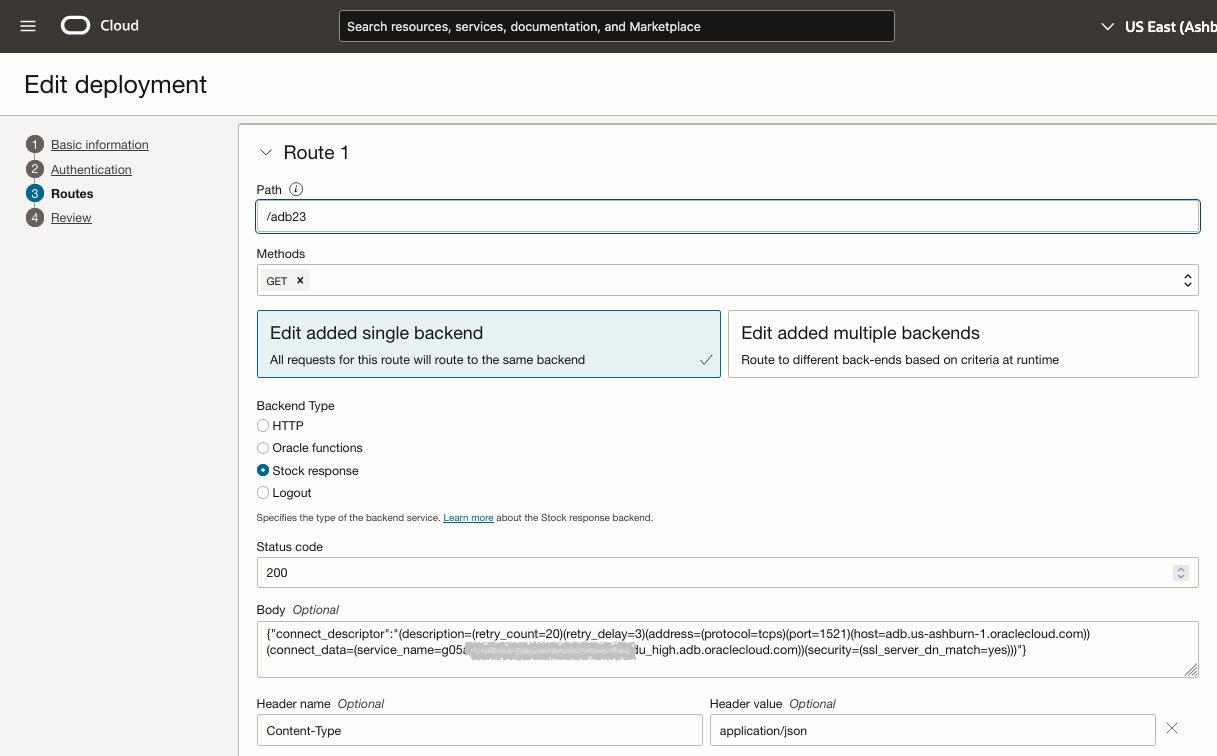
As you can see above – after creating a Public API Gateway instance, I created a specific deployment that was of a Stock Response. I have also added a header name to identify the Content-Type as application/json. Once I save the deployment – it will give me a specific fully-qualified public URL that I can use for the next step.
Browser Check
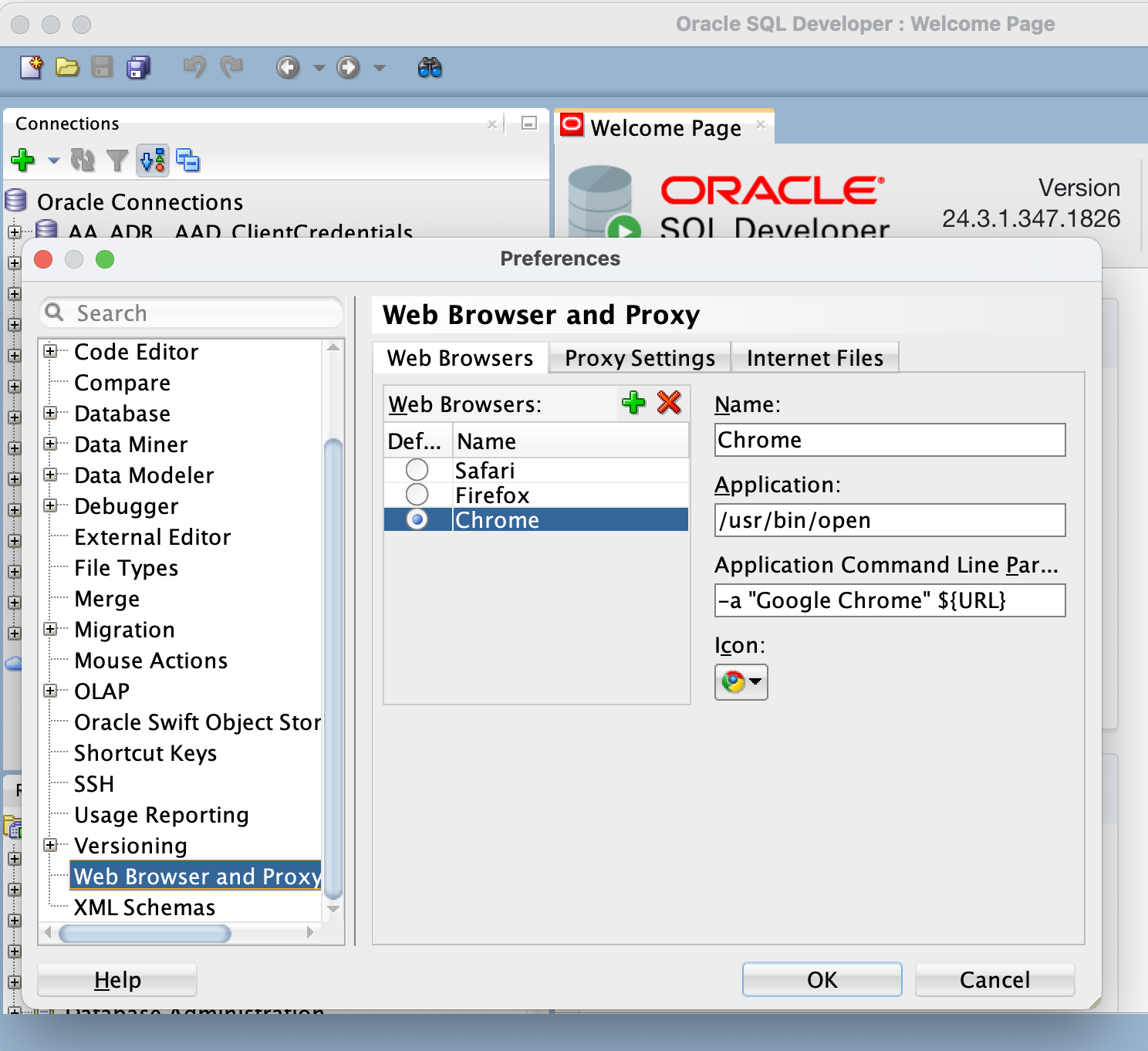
Before you move on to some testing, you may want to verify that you have a browser or preferred browser configuration in the SQLDeveloper Application.
If you open Preferences/Settings – you can add any browsers that may not have been detected by SQLDeveloper. You can also specify which preferred browser that you would like to use for the login. Note: This may be different default browser that you specify for the rest of your desktop
Setup the SQLDeveloper Connection
If you have made it this far – then we are on the home stretch. Next, we will create a new connection in SQLDeveloper. You will notice that the connection parameters look slightly different than before – as we will not be referencing a token file located on the file system. In addition – you can see that the JDBC connection string has a new context – config-https. This, config-https, instructs the JDBC driver to use the JDBC config provider to build the rest of the database connection details via a HTTP-based service. Here, I have specified the API Gateway endpoint which I created in the previous section.
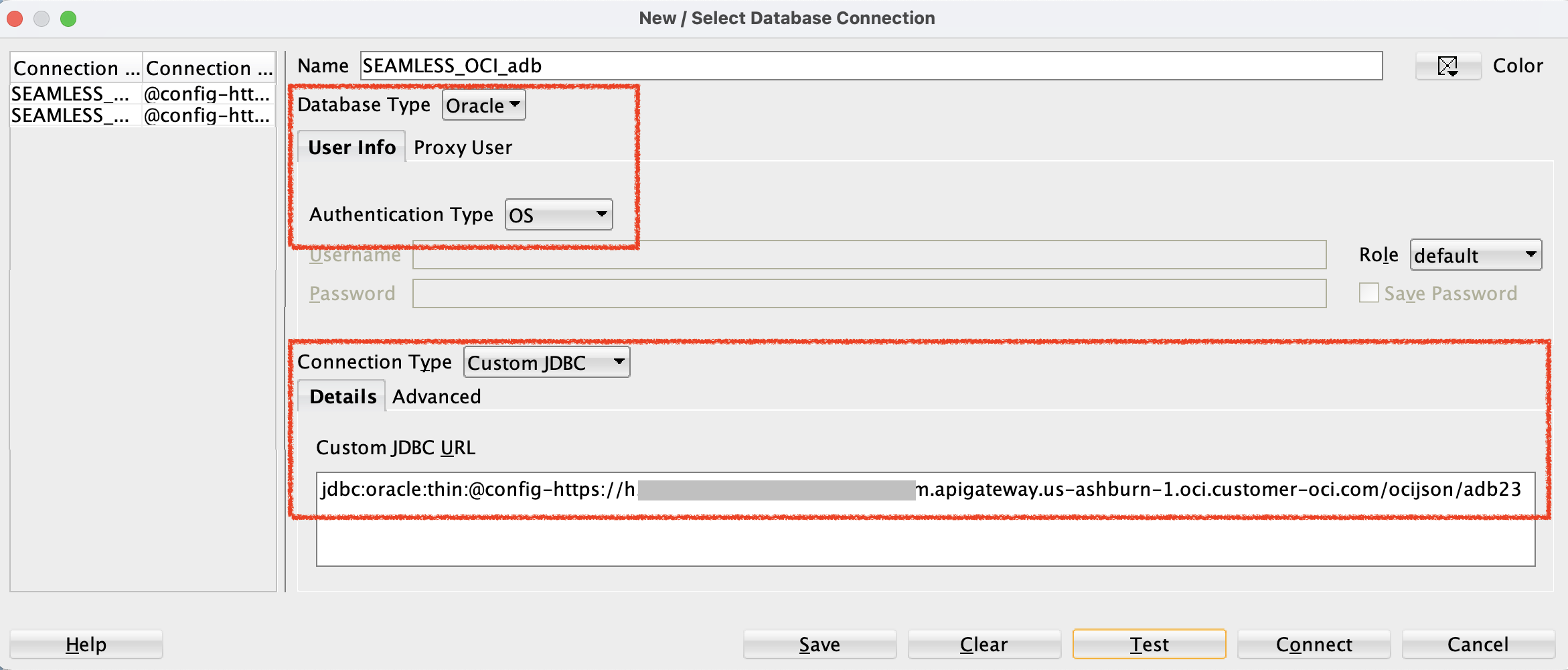
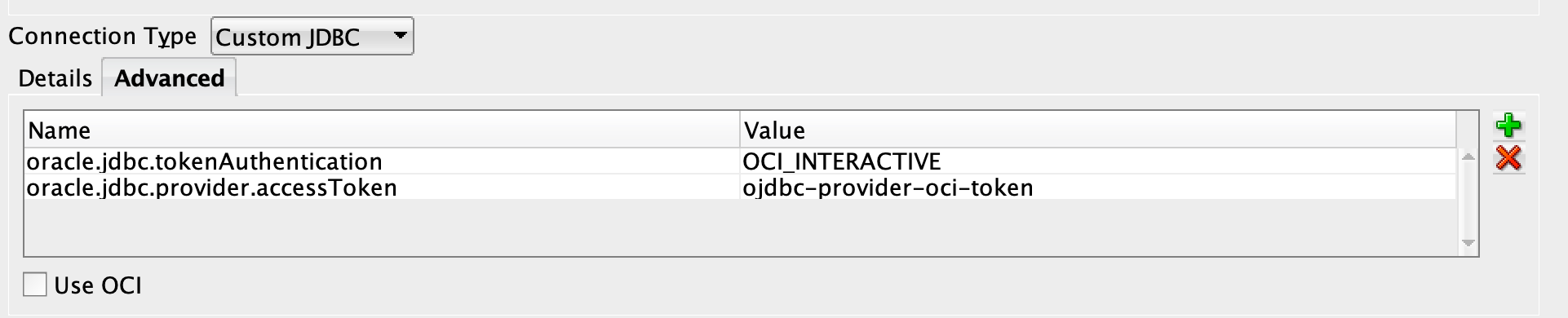
In the properties, I have added the Advanced properties to instruct the JDBC driver to trigger the OCI IAM Interactive Authentication flow by setting the following values:
Note: (These properties can also be set in the API Gateway Stock Response via HTTP, as well)
oracle.jdbc.provider.accessToken: ojdbc-provider-oci-token
oracle.jdbc.tokenAuthentication: OCI_INTERACTIVE
Test the Connection and Authentication
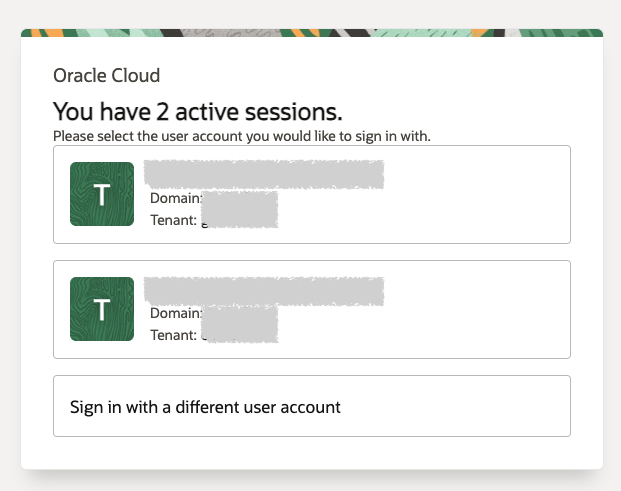
Upon selecting either the Test or Connect button – this should trigger a browser to open on your desktop. Then, you will be sent to the Oracle Cloud Infrastructure web-based login. Now, all you need to do is authenticate to the correct OCI tenancy and Identity Domain that has been configured as the Identity Provider of the database – which in this case, is the Default Domain.
Upon successful authentication and authorization to the OCI IAM domain in which your ADB-S is configured to use for authentication – you should be redirected to a page that looks similar to below. This is informing you that you have completed the authentication flow – and the token has been returned to the awaiting SQLDeveloper application.
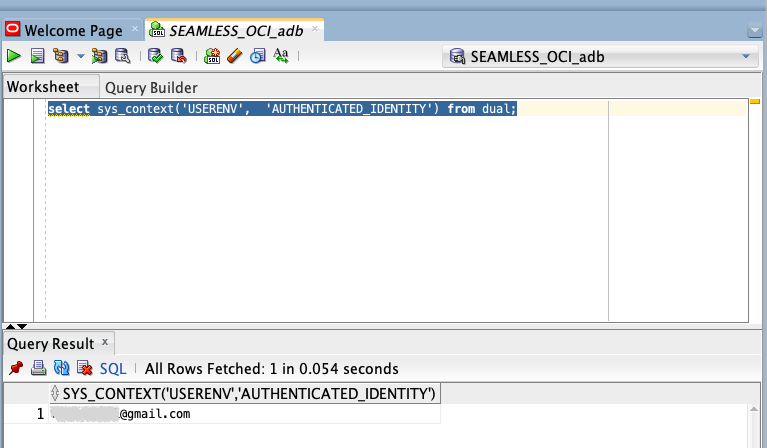
If everything worked properly, then you then will be presented a blank SQL Worksheet where you can start to execute statements. Here I am showing that my user is set to the Globally Identified Schema User, and that the enterprise authentication that is tied to this session is the user principal that I used to authenticate to OCI IAM Domain.
Use Cases for OCI IAM as the Identity Provider for the Oracle Database
One key unique difference between the OCI IAM and Azure Entra ID tokens when operating as the identity provider for the oracle database is how it evaluates the group and role membership assignments for a database user session. For example, in the Entra ID OAuth2 token use case – the groups and roles are expressed as Claims within the token. When the token is cryptographically validated, the claims are extracted and assigned to database roles for a user during the session creation.
In the case of OCI IAM, the database uses the subject of the OCI IAM token – then it performs a lookup of the user’s group assignments in the OCI Identity Domain which is assigned during the session creation.
Instead of managing the group memberships directly in OCI IAM or Entra ID, your organization may want to opt to build some more robust guardrails into your identity lifecycle management for database users through the use of Oracle Access Governance (OAG). OAG gives you the ability to construct workflows that orchestrate the request, review and approval requirements across your database fleet – as well as, it can enforce separation of duties rules for your database admins for your various workloads running in the cloud.
Additional Tips
This use case demonstrates authentication to an Autonomous Database – Serverless that has been configured to allow the use of a walletless one-way TLS connection to the database. If you are enforcing the use of mTLS – that will require the an additional configuration parameter to specify the location of the local Oracle Wallet that contains the keys to complete the mTLS connection
This use case leverages the config-http service provider extension which was designed to highlight the enhancements for 23ai JDBC libraries. With that said – you can still use the local TNS files (tnsnames.ora) and jdbc properties when specifying your database configuration with the 23ai client libraries.