


Introduction
Fusion Cloud Applications supports various network patterns as illustrated in MOS Note – Network Connectivity Patterns for Oracle Fusion Cloud Applications (Doc ID 3060221.1)
As part of the requirement to restrict Fusion Cloud applications from being accessed over the public internet, we are publishing a blog series that explores different approaches to achieve this. In the first part of this series, we will demonstrate how to block public internet access to Fusion Cloud applications while still allowing secure, private access from OCI resources through a Virtual Cloud Network (VCN) using the Service Gateway (SGW).
Use Case
A customer wants to:
- Completely block public internet access to their Fusion Cloud Applications (ERP, HCM, SCM, CX, etc.).
- Enable secure access from on-premises networks using Site-to-Site VPN.
Prerequisites
To implement this setup, ensure the following:
- An OCI tenancy hosting the Fusion Cloud Application environment.
- IAM credentials with required permissions to manage network resources.
- Access to the OCI Console or OCI CLI.
- A dedicated compartment for organizing network resources.
- Established connectivity between your on-premises network and OCI DRG usingthe S2S VPN.
High-Level Architecture
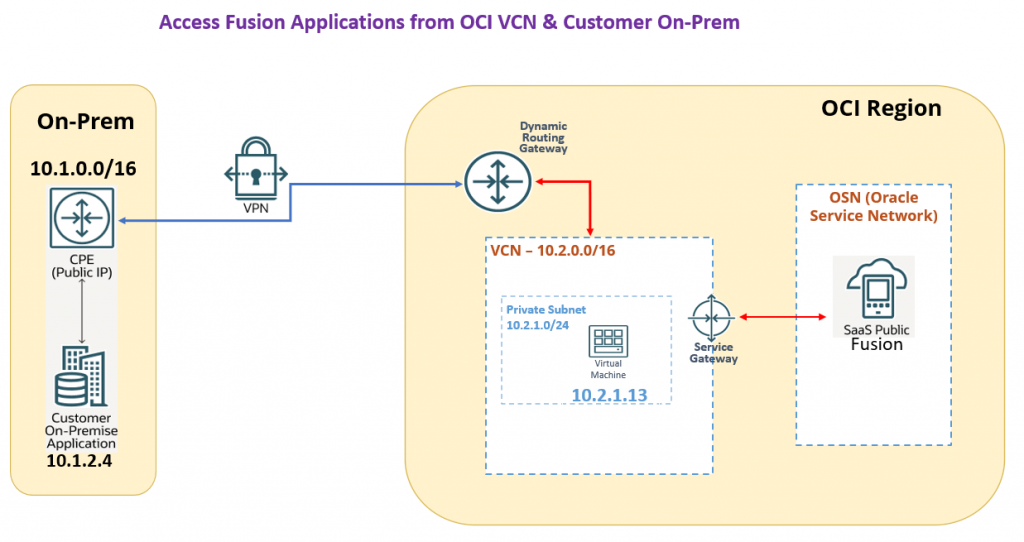
The architecture integrates:
- Site-to-Site VPN
- Customer Premises Edge Router (CPE)
- Secure access path from on-premises → S2S VPN → DRG → VCN SGW àFusion Cloud Applications
Setup
The end-to-end setup is divided into the following major steps:
- Create Network to allow access to OCI Resources
- Disable Content Acceleration and Enable Access Control rules in Fusion Application
- Enable access from the customer on-prem via the Service Gateway
Part 1: Create Network to Allow access to OCI resources:
- Configure OCI VCN – Building block of your network
- Create Private Subnet – To host the test VM
- Configure security rule – Enable access to the subnet for RDP
- Configure service gateway – To Access Fusion Application Privately.
- Configure route in routing table – Create network access rules
- Create & Configure VM – To check the connectivity to Fusion App
Step 1: Configure OCI VCN
- Navigate to the Networking Section
- Open the navigation menu (☰) in the upper left.
- Go to Networking > Virtual Cloud Networks.
- Create VCN (manual, more flexible).
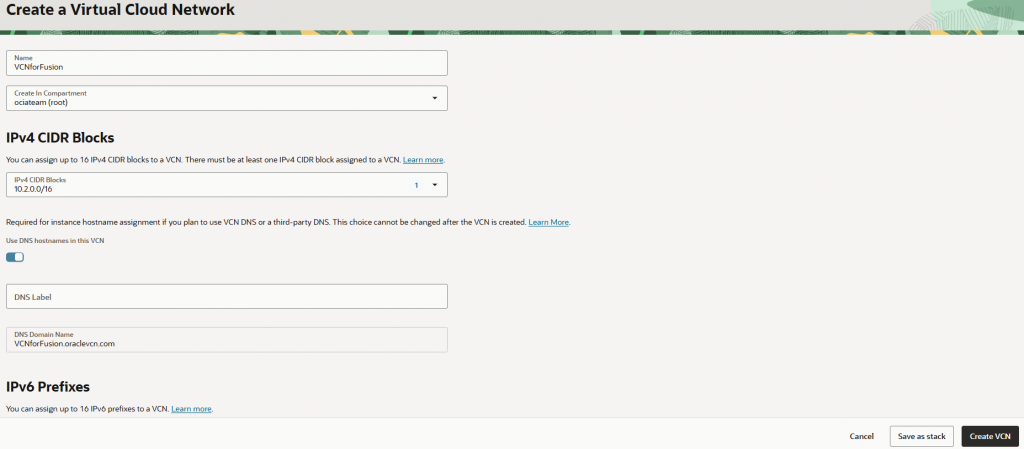
Fill in VCN Details - Name: e.g., VCNForFusion
- Compartment: Select the appropriate one.
- CIDR Block: e.g., 10.2.0.0/16
Step 2: Create Subnets:
- Once the VCN is created, create subnets:
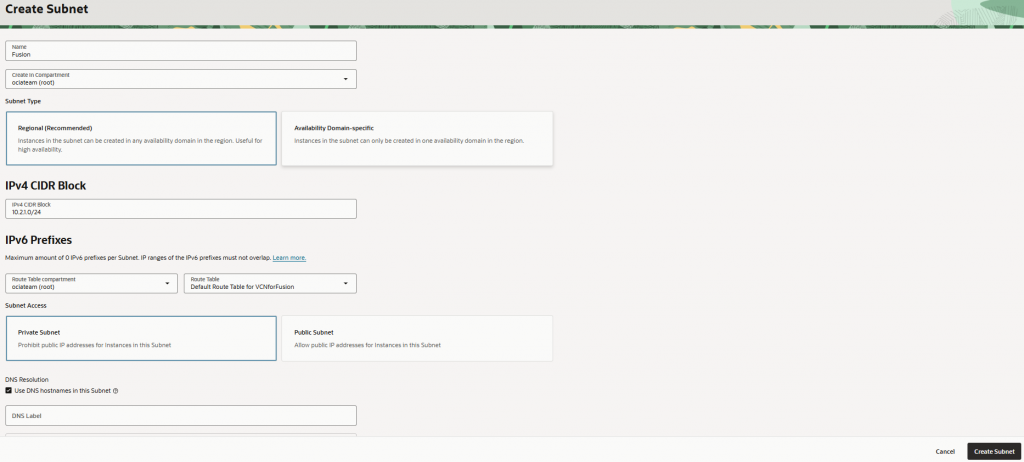
- Subnet Name: e.g., Fusion
- Subnet Type: Regional (recommended)
- CIDR Block: e.g., 10.2.1.0/24
- Route Table & Security List: Use default or create custom.
Step 3: Configure security rule
We need to create this to access the VM configured in the subnet
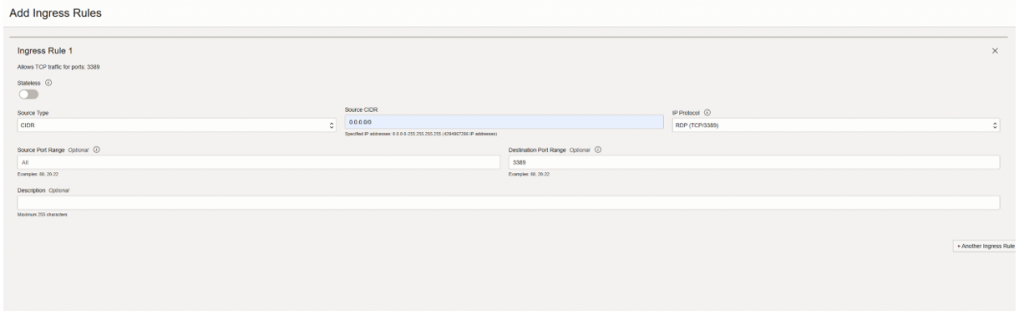
- Click to the ” Default Security List for VCNforFusion”
- Click “Add Ingress Rules”
- Source type: CIDR
- Source CIDR: 0.0.0.0/0
- IP Protocol: RDP(TCP/3389)
- Click to add ingress rule
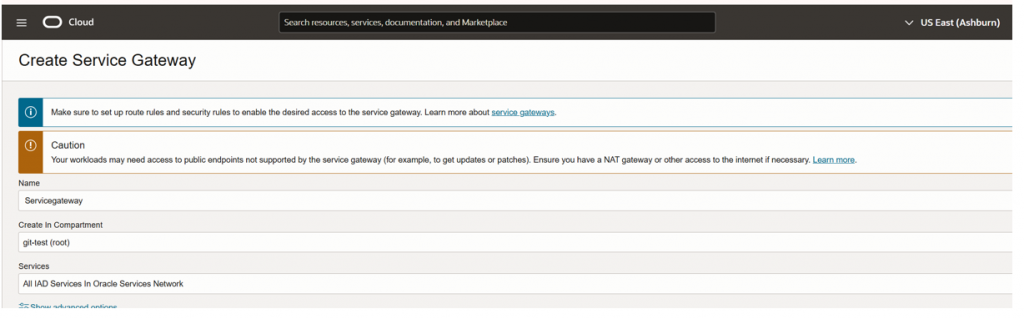
Step 4: Configure service gateway
- Go to Networking > Virtual Cloud Networks.
- Click on your VCN.
- Under Resources, click Service Gateways > Create Service Gateway.
- Name: My-Service-Gateway
- Compartment: Choose appropriate compartment.
- Select “All IAD services in oracle service network”
- Create service gateway.
Step 5: Configure route in routing table
- Go to the Compute-instance and click to the create instance.
- Provide the name for VM
- Select correct Compartment.
- Select operating system ex: windows server 2016 standard.
- Select shape for the VM.
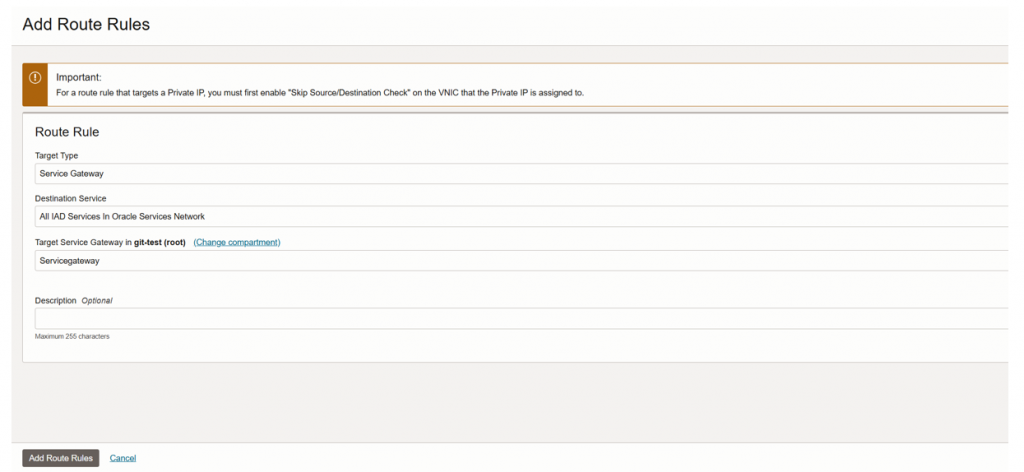
- Go to the “Default Route Table for VCNforFusion”
- Click to the “Add route rules”
- Target Type: service gateway
- Destination Services: All IAD Services in Oracle service Network”
- Target service gateway: Select service gateway we created.
- Select the internet gateway we created.
- Create route rules.
Step 6: Create & Configure VM
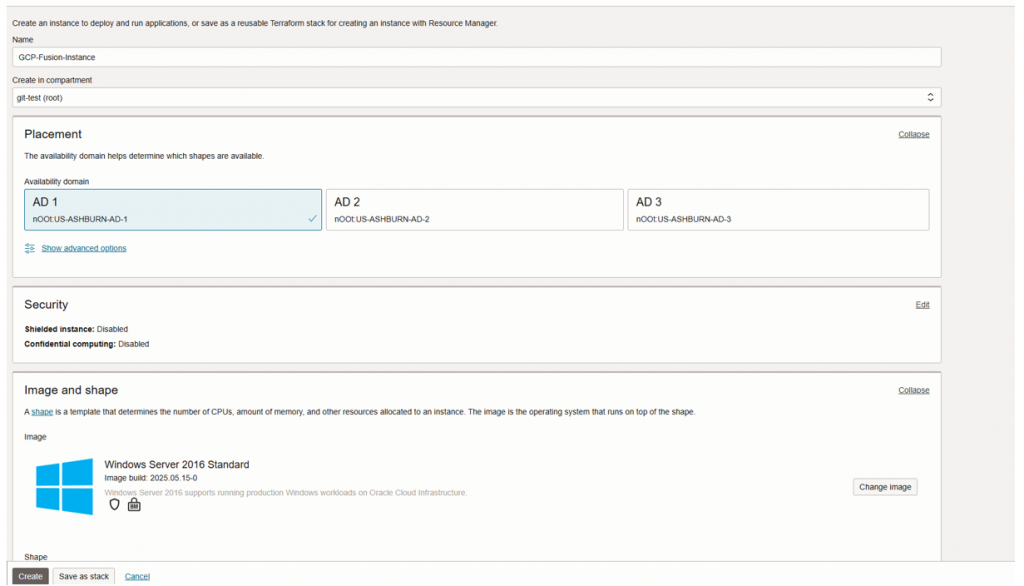
- Go to the Compute-instance and click to the create instance.
- Provide the name for the VM
- Select correct Compartment.
- Select operating system ex: windows server 2016 standard.
- Select shape for the VM.
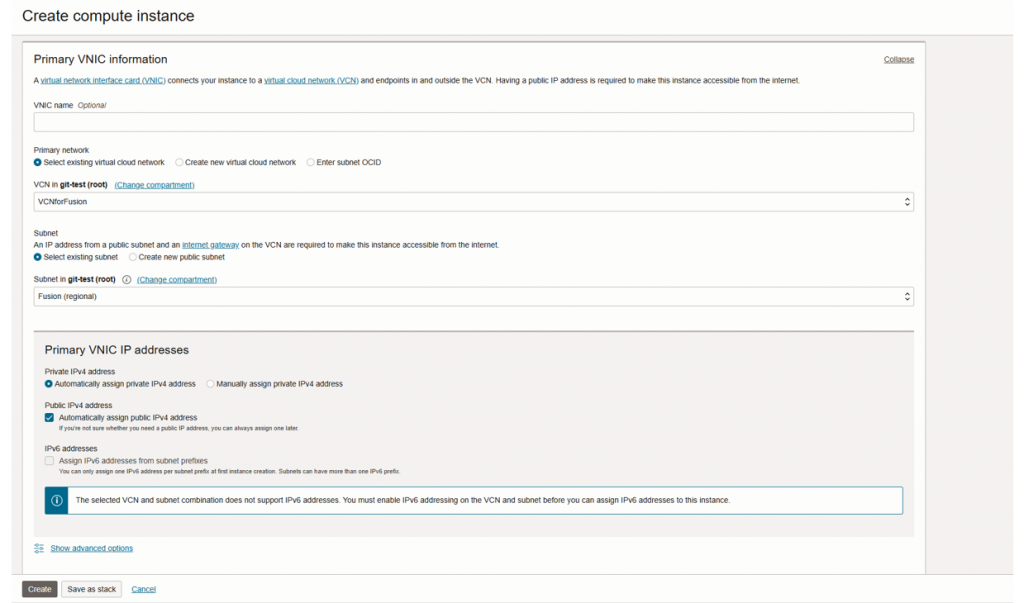
- Select the VCN we configure earlier
- Select the subnet
Part 2 – Disable Content Acceleration and Enable Access Control rules in Fusion Application:
- Go to Fusion Application network settings
- Disable Content Acceleration
- Create Network Rule
Step 1: Navigate to Fusion Applications
- Navigate to the Networking Section
- Go to Fusion Applications in OCI >>Applications>>My Applications
- Select the Fusion POD in which you want to apply network rules
- Go to Networking Section at left hand side
Note: You need to have Fusion Applications Environment Administrator access to perform these operations.
https://docs.oracle.com/en-us/iaas/Content/applications-manager/manage-access.htm
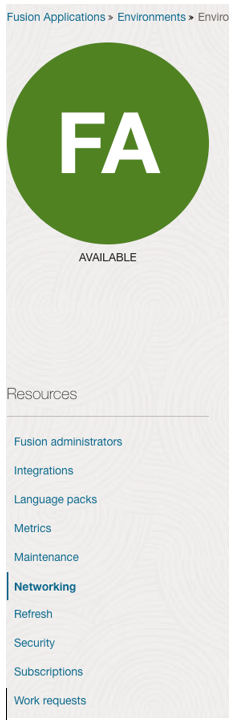
Step 2: Disable Content Acceleration
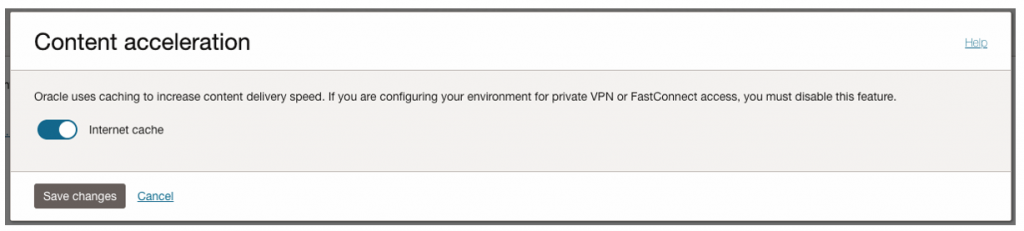
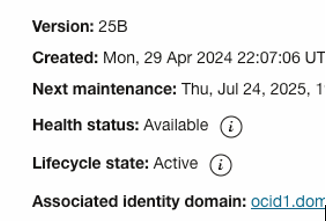
This will take some time & lifecycle state will go to Update, please wait till it is active again.
Step 3: Create Network Rule
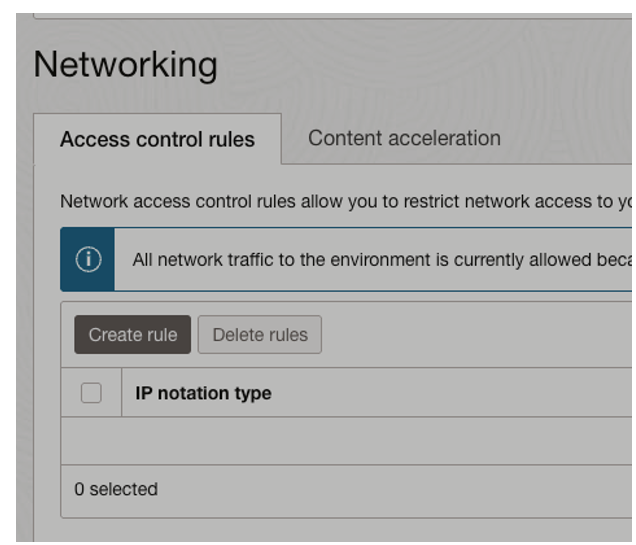
Select OCI VCN which you have configured in Part 1 of the configuration.
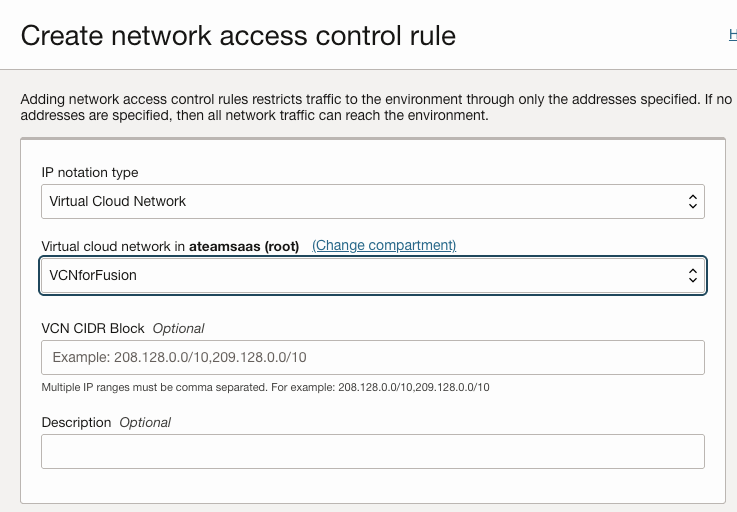
Apply, lifecycle state will go in update again & then become active.
Part 3 – Enable access from the customer on-prem via the Service Gateway
- Configure new route table in the VCN for service gateway
- Add route in that route table
- Attach that new route table to the service gateway
Step 1: Configure new route table in VCN
- Go to Networking > Virtual Cloud Networks.
- Click on your VCN.
- Under Resources, click Route Tables.
- Name: ex-SGRoutetable
- Click Create Route Table.
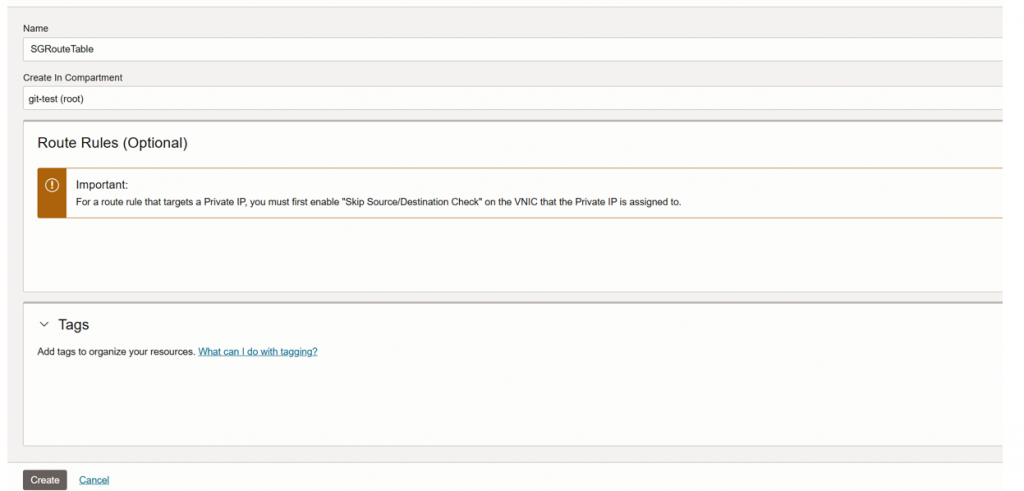
Step 2: Add route in the route table
- Go to the “Default Route Table for SGRoutetable”
- Click to the “Add route rules”
- Target Type: Dynamic Routing Gateway.
- Destination CIDR Block: on-prem prefix
- Target: Select the created : Select DRG
- Create Route rule.
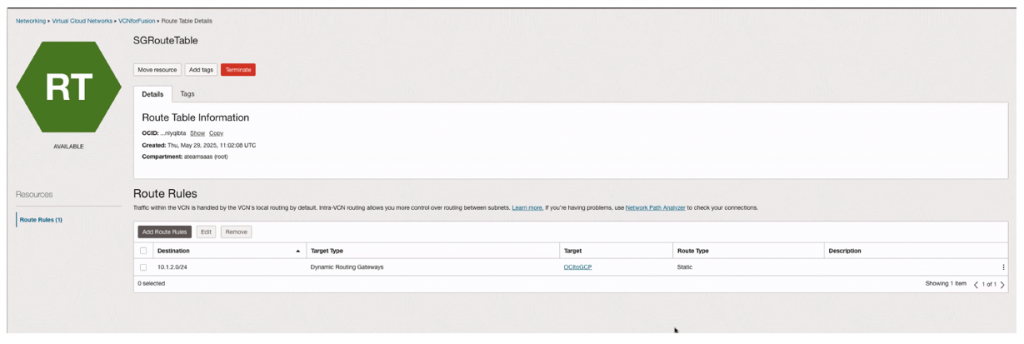
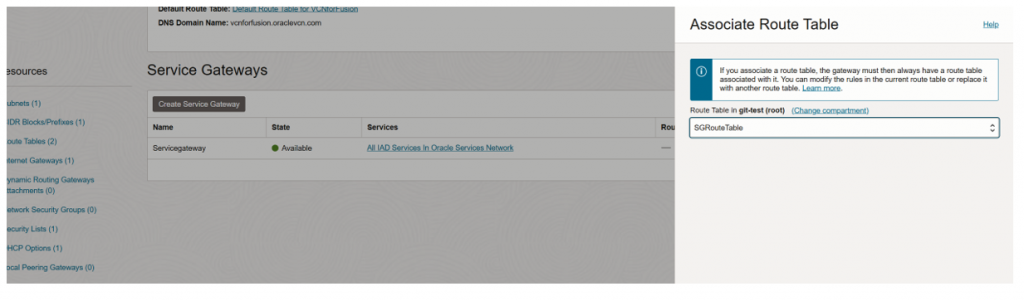
Step 3: Attach new route table to service gateway
- Click to service gateway.
- Click to edit and go to “associate route table.”
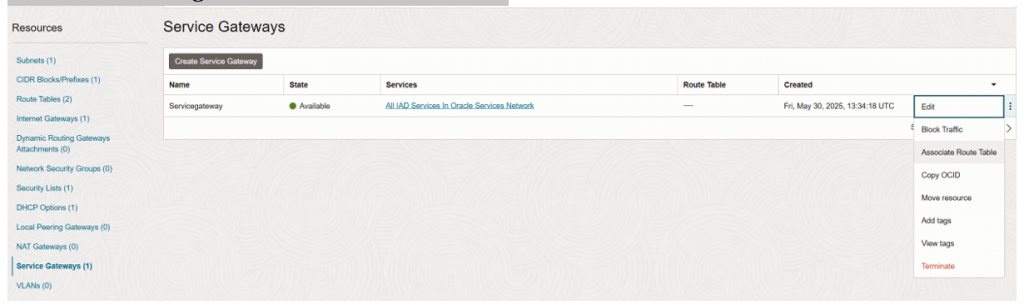
Select “SGRoutetable” and click on “Associate route table.”
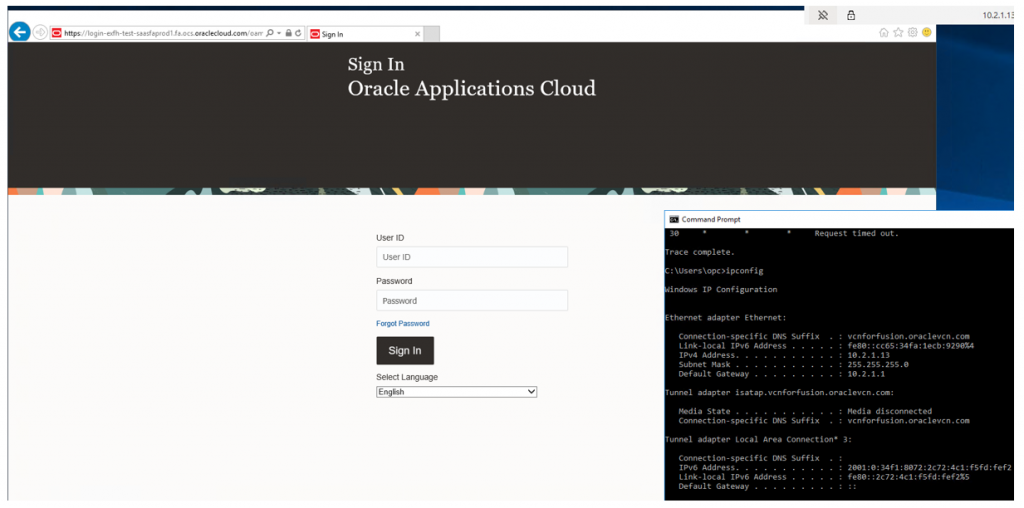
Testing Fusion Connectivity
1: Connectivity from OCI VCN to Fusion application.
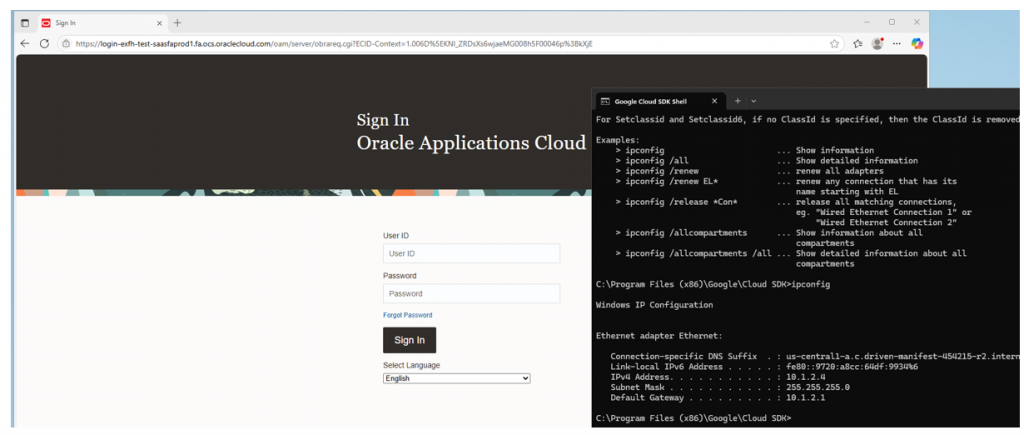
2. Connectivity from on-prem VM to Fusion Application.
Conclusion
We hope this blog helps you restrict public access to Fusion Cloud applications, enable secure access to OCI resources for extension use cases, and establish connectivity from your on-premises network.
Stay tuned for the next part of this series, where we will demonstrate how to privately access Fusion Cloud from on-premises environments using FastConnect.
Check out our latest blog on how to restrict public internet access to Oracle Fusion Cloud Applications using FastConnect private peering and Equinix Fabric here.
References:
- Securely Accessing Fusion Applications
https://docs.oracle.com/en-us/iaas/Content/fusion-applications/network-setup.htm
- Site-to-Site VPN between your on-premises network and virtual cloud network
https://docs.oracle.com/en-us/iaas/Content/Network/Tasks/settingupIPsec.htm
- Network connectivity patterns for Oracle Cloud HCM and ERP applications on OCI
- Extending Oracle Fusion SaaS with OCI: Network Consideration
https://www.ateam-oracle.com/post/extending-oracle-fusion-saas-with-oci-network-considerations