


Introduction
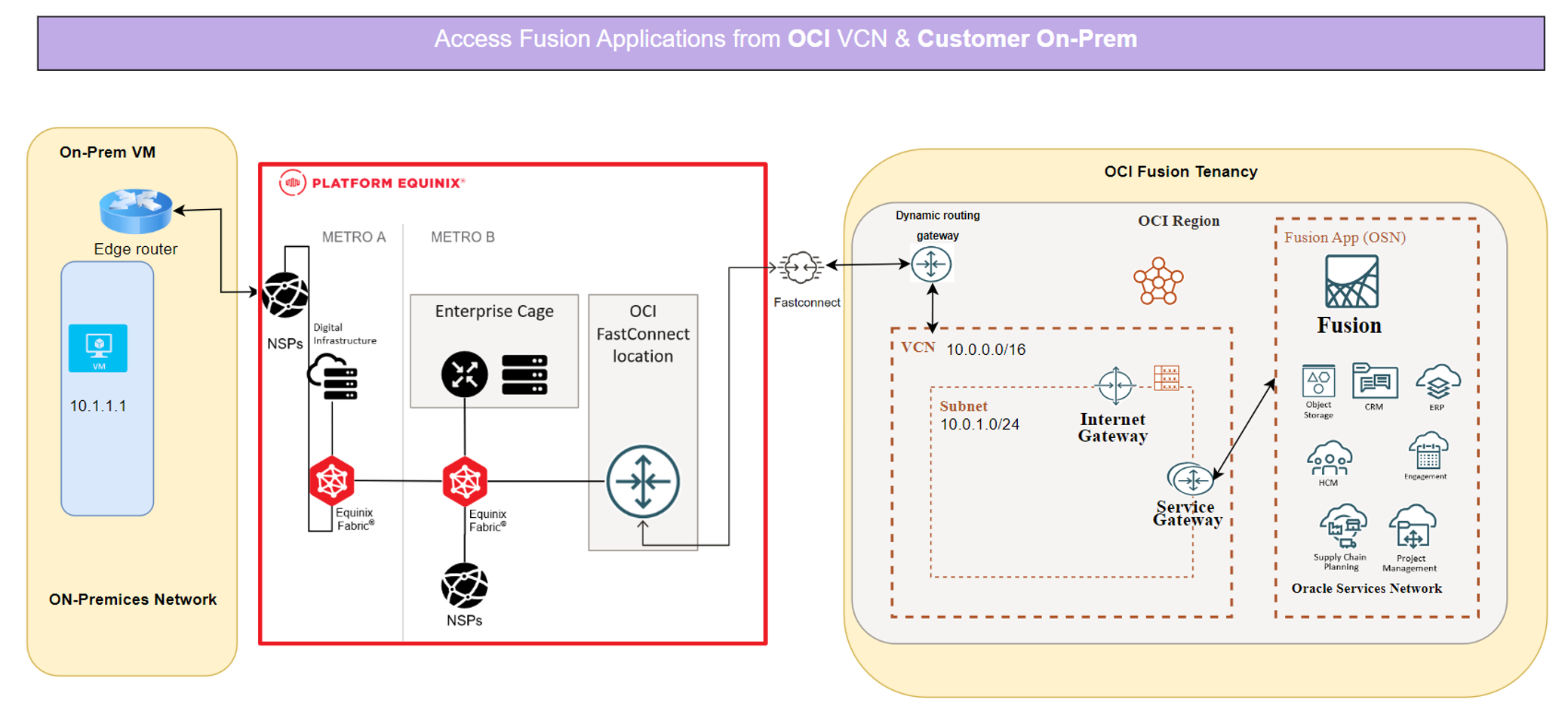
As part of our blog series on restricting Oracle Fusion Cloud Applications from public internet access, in part 1 we demonstrated – how to Restrict public access of Fusion Cloud Applications and enable access to OCI Resources using IPSEC VPN. continuing in this blog we will demonstrate how to prevent Fusion Cloud Applications from being accessed over the public internet while still enabling secure access from on-premises resources through Fast Connect private peering in partnership with Equinix.
Use Case:
A customer wants to:
• Block all public internet access to their Fusion Cloud Applications.
• Enable secure private access to these applications from on-premises via FastConnect.
Oracle Fusion Cloud Applications support multiple network connectivity models as outlined in MOS Note 3060221.1: Network Connectivity Patterns for Oracle Fusion Cloud Applications.
Prerequisites
Below are the prerequisites to perform configuration steps –
OCI tenancy where Fusion Cloud Application is hosted.
IAM credentials with permissions to create and manage network resources.
Access to the OCI Console or OCI CLI (depending on how you want to create the VCN).
Ensure you have a compartment created to logically organize your VCN resources.
High level architecture diagram:
Implementation Guide
We’ll break this into four parts:
- OCI Network Configuration.
- FastConnect & Equinix Fabric Connect Router Configuration.
- Fusion Applications Network Settings.
- Service Gateway Routing.
Part 1: Configure the OCI Network
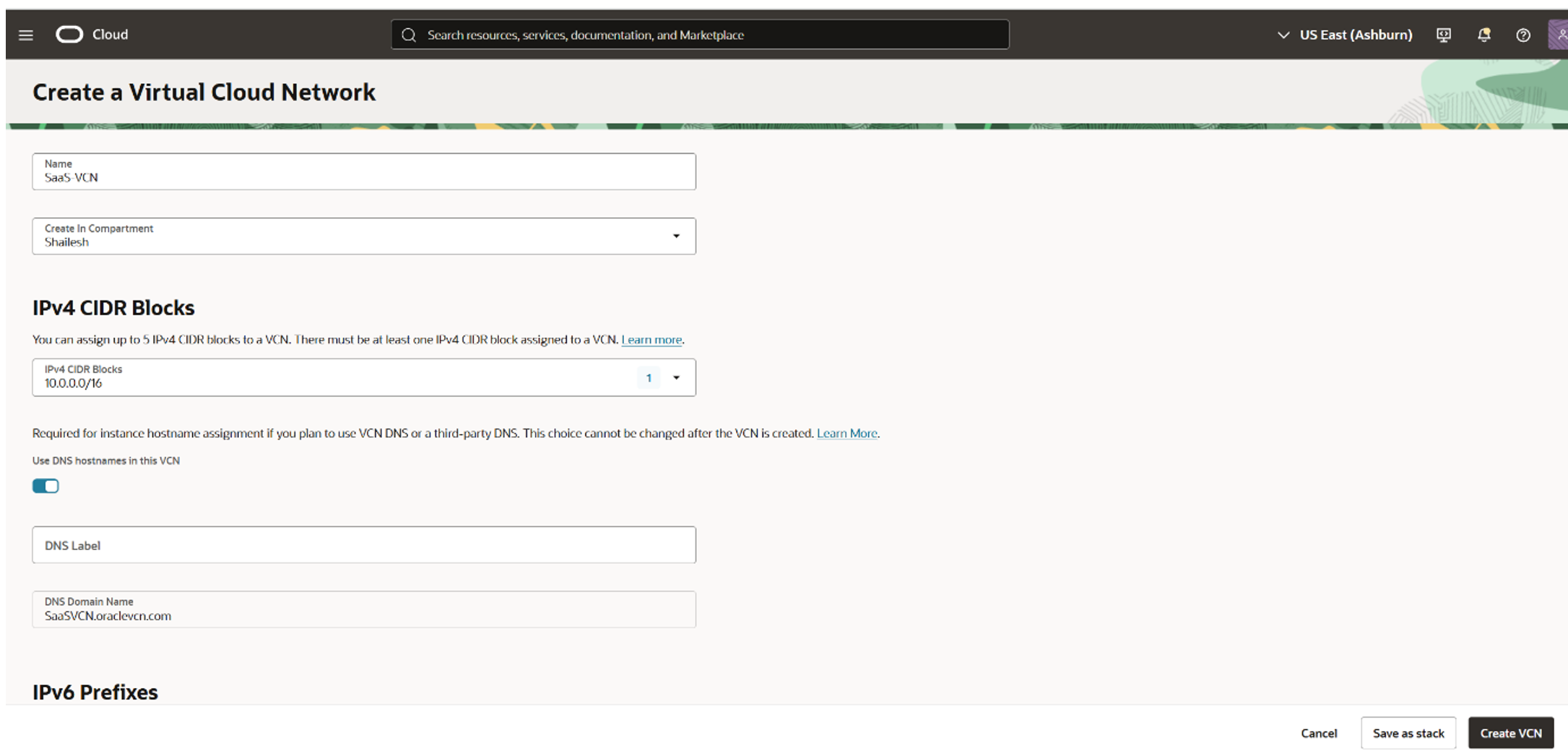
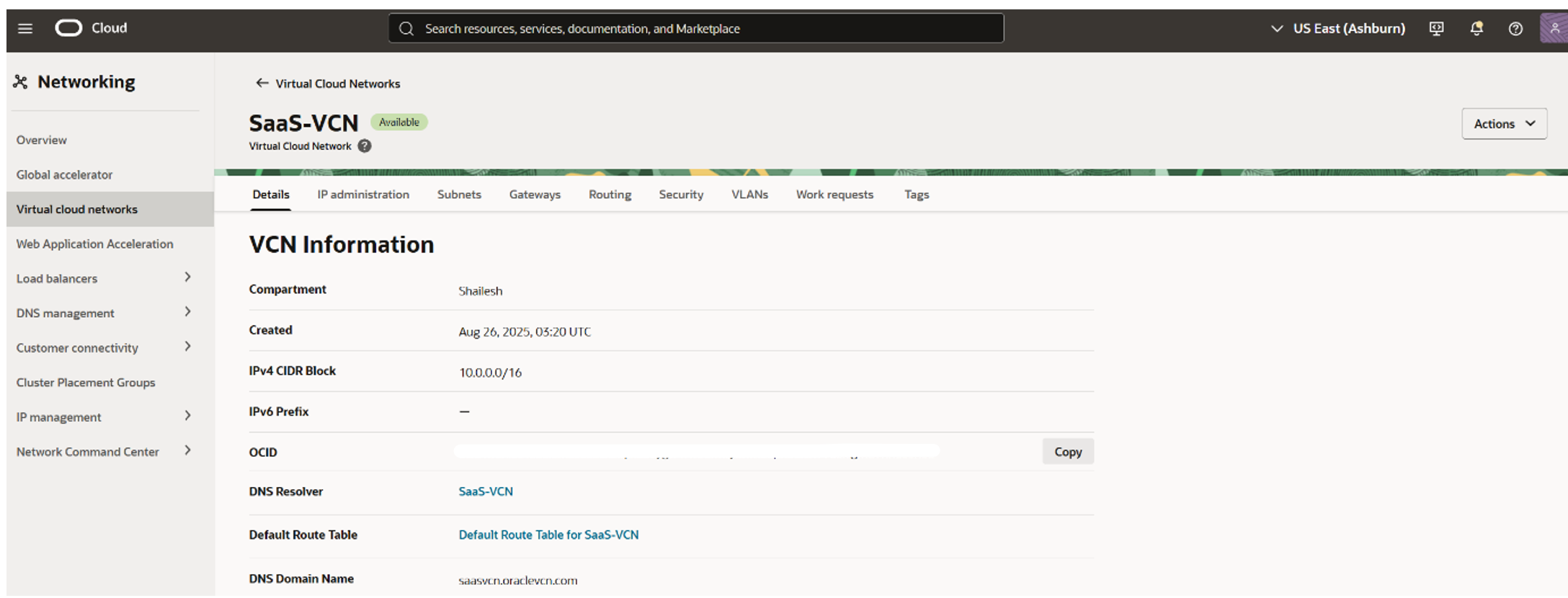
1. Create the VCN
Navigate to Networking > Virtual Cloud Networks.
Create a VCN (manual mode recommended for flexibility).
Example:
- Name: SaaS-VCN
- Compartment: select your compartment
2. Create Subnets
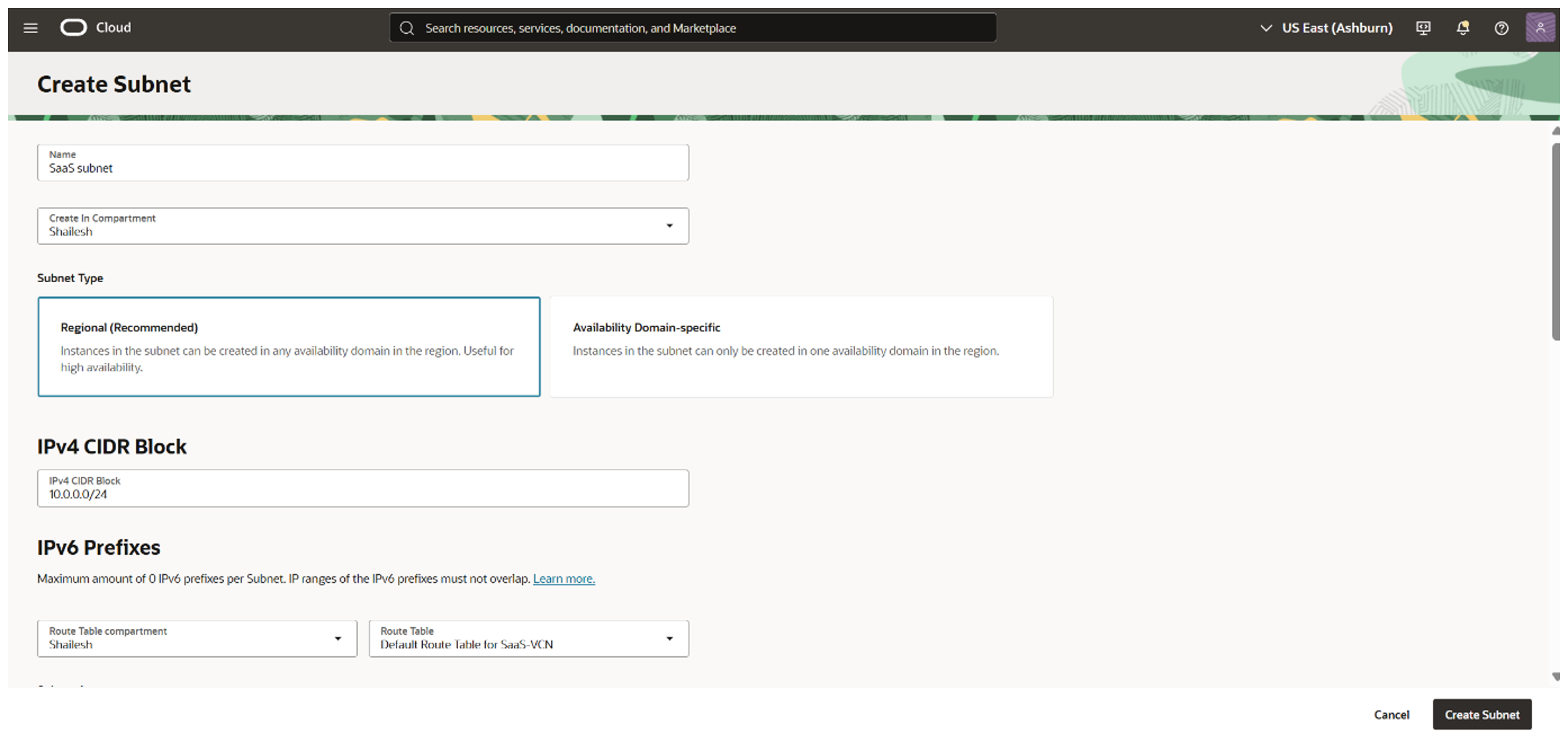
After creating the VCN, add subnets:
- Example Name: SaaS-Subnet
- Subnet Type: Regional
- Use default or custom route tables/security lists as needed
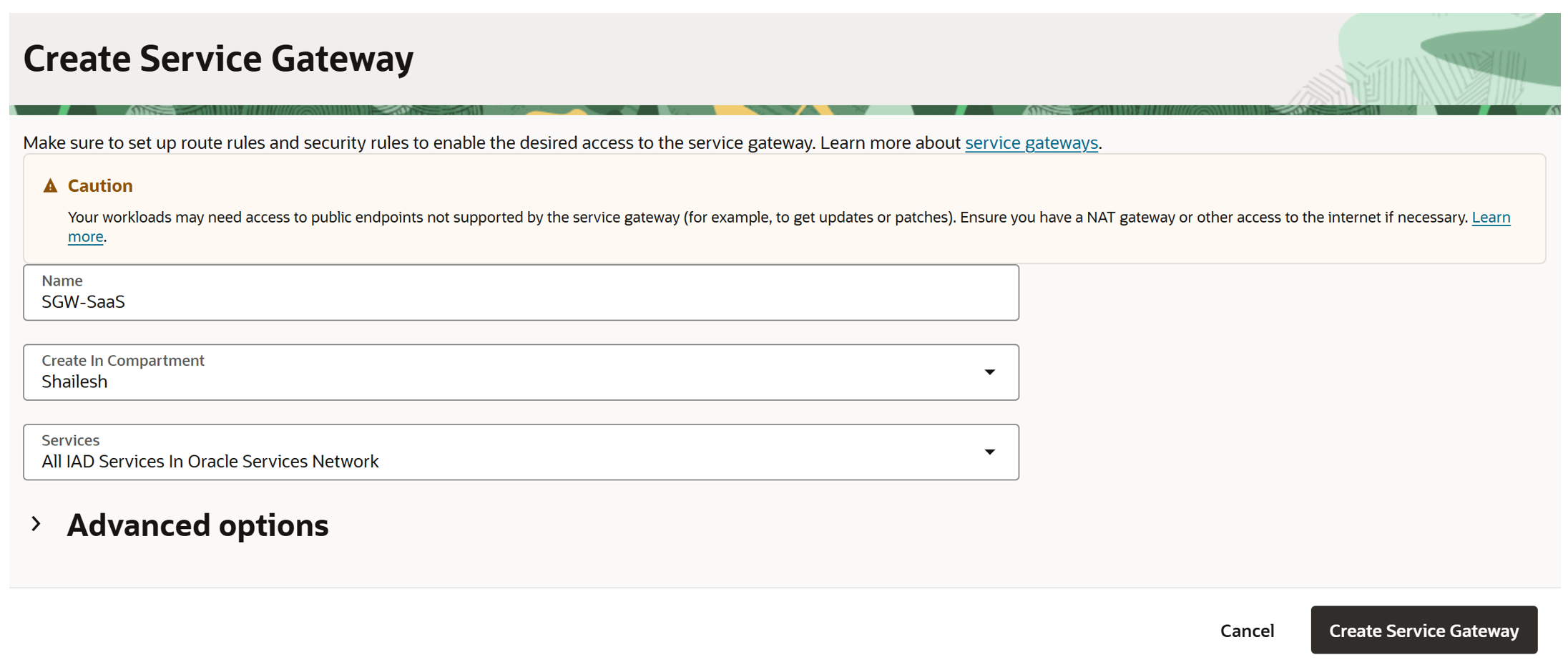
3. Configure the Service Gateway
- Under Gateways, click Service Gateways > Create Service Gateway.
- Provide a name (e.g., SGW-SaaS).
- Select All [region] Services in Oracle Services Network (or a specific service).
- Associate the VCN and create the gateway
4. Create and Attach a DRG
-
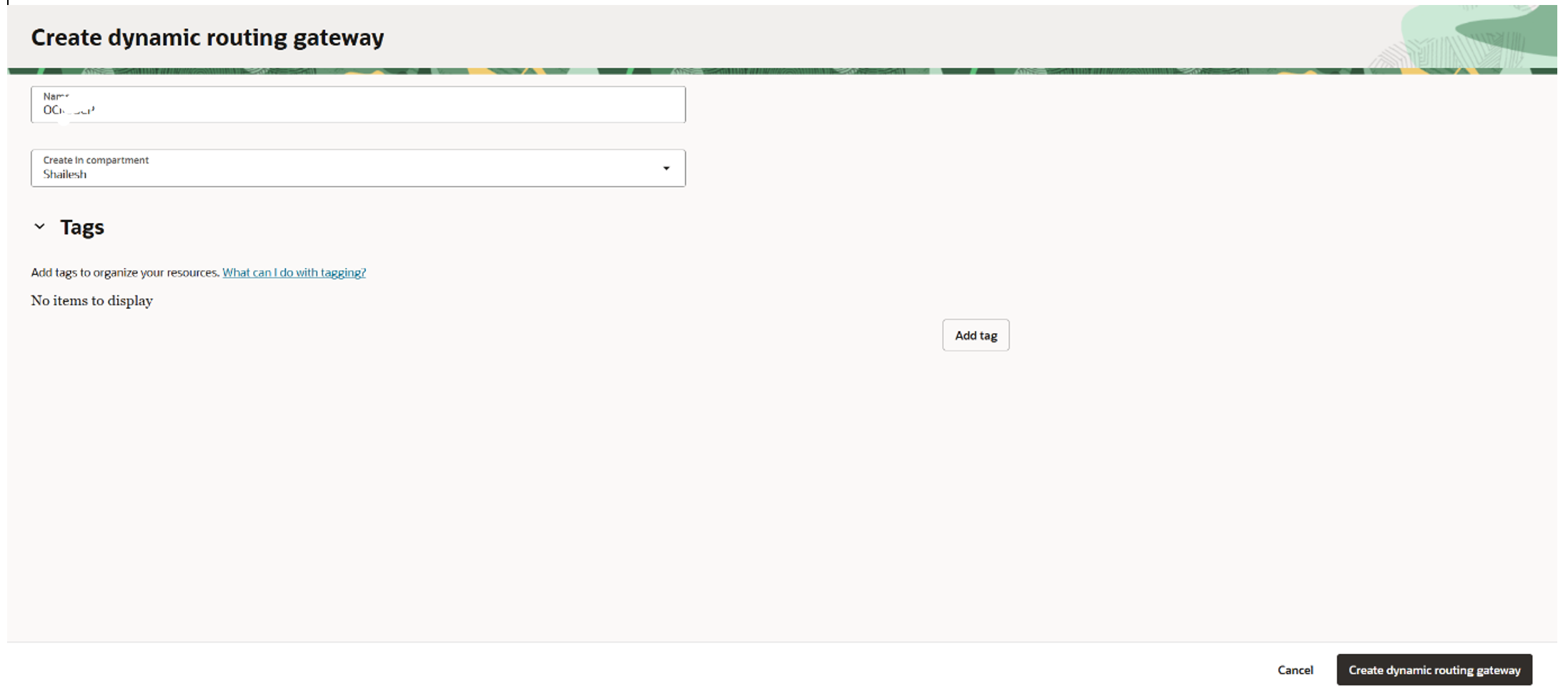
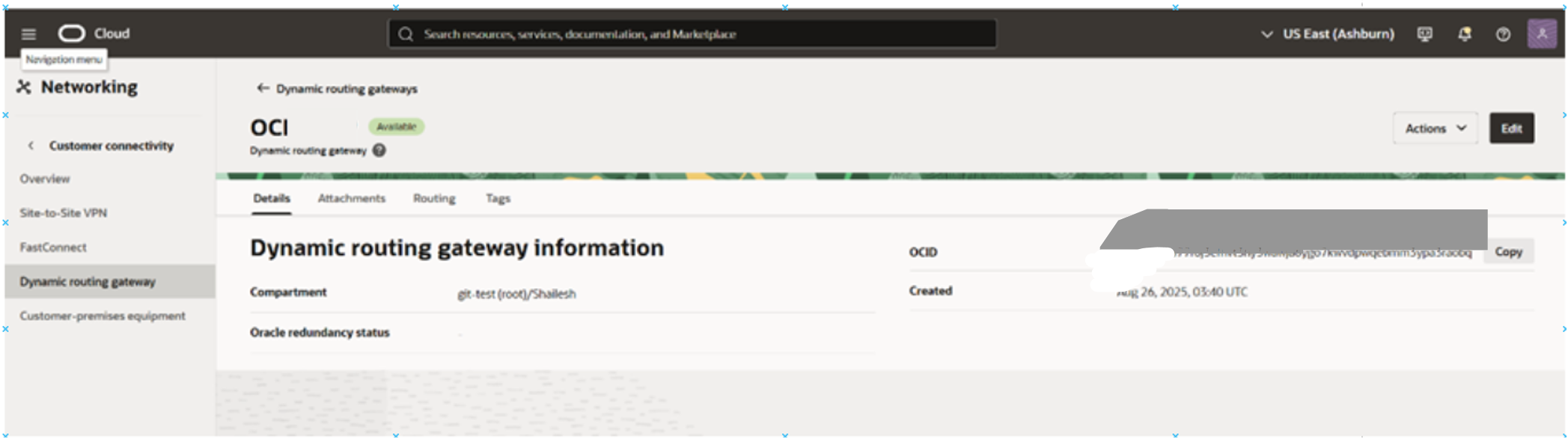
Go to Networking > Dynamic Routing Gateways > Create DRG.
-
Name your DRG and select the compartment.
-
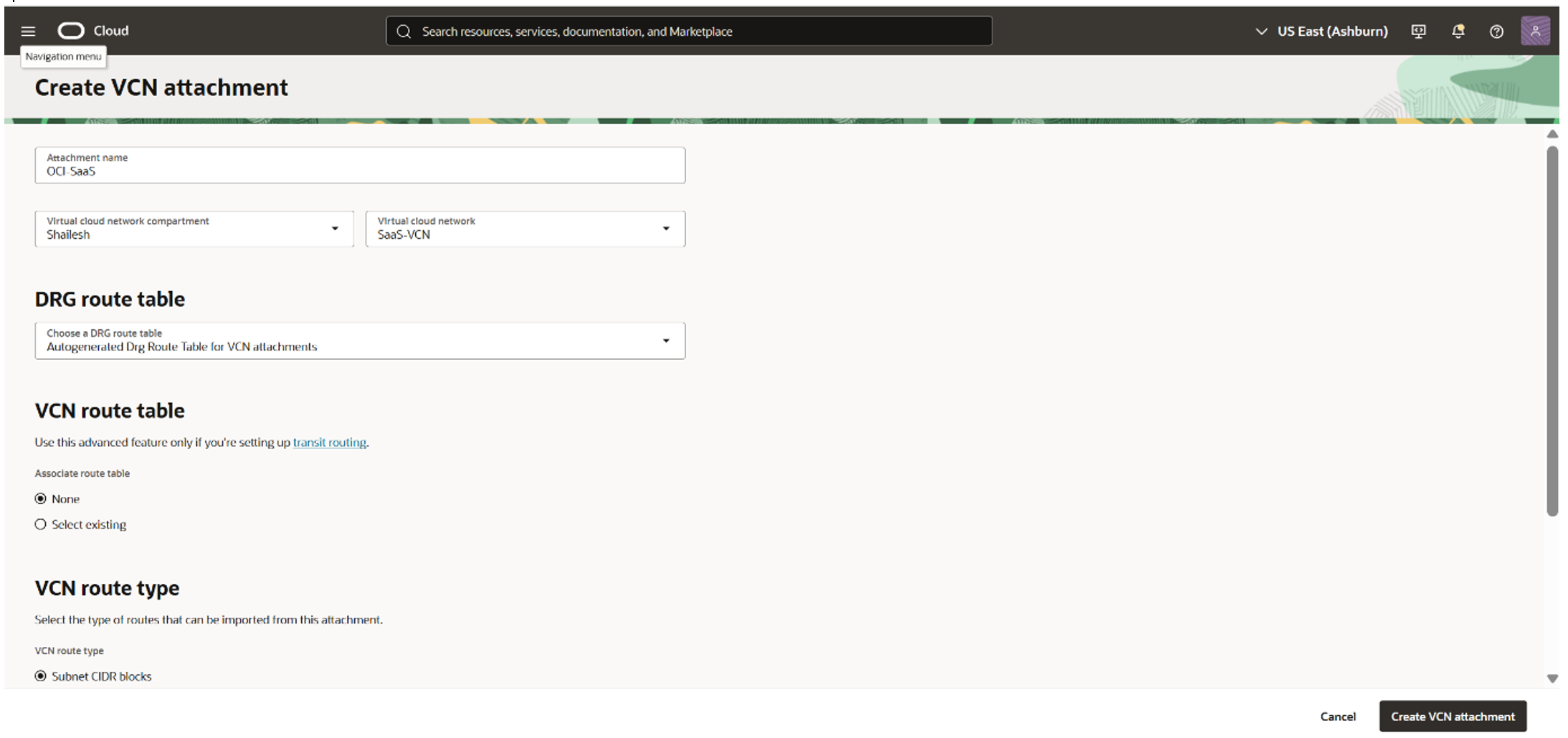
After creation, click VCN Attachments > Create VCN Attachment.
-
Choose the VCN and (optionally) a DRG route table.
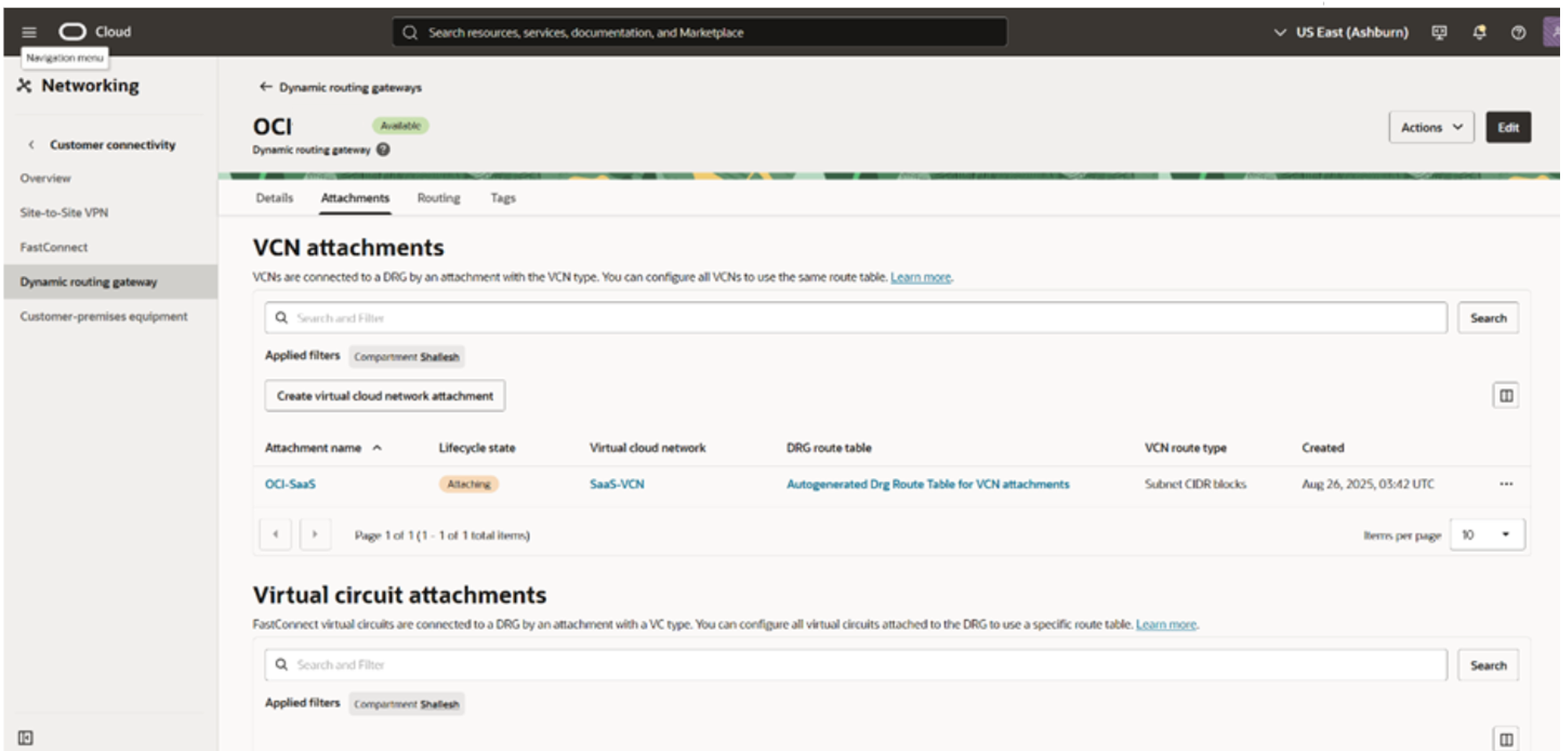
Part 2: OCI FastConnect Configuration and Setup Equinix Fabric Connect Router (FCR)
1. FastConnect Setup in OCI
-
Go to FastConnect > Create Connection
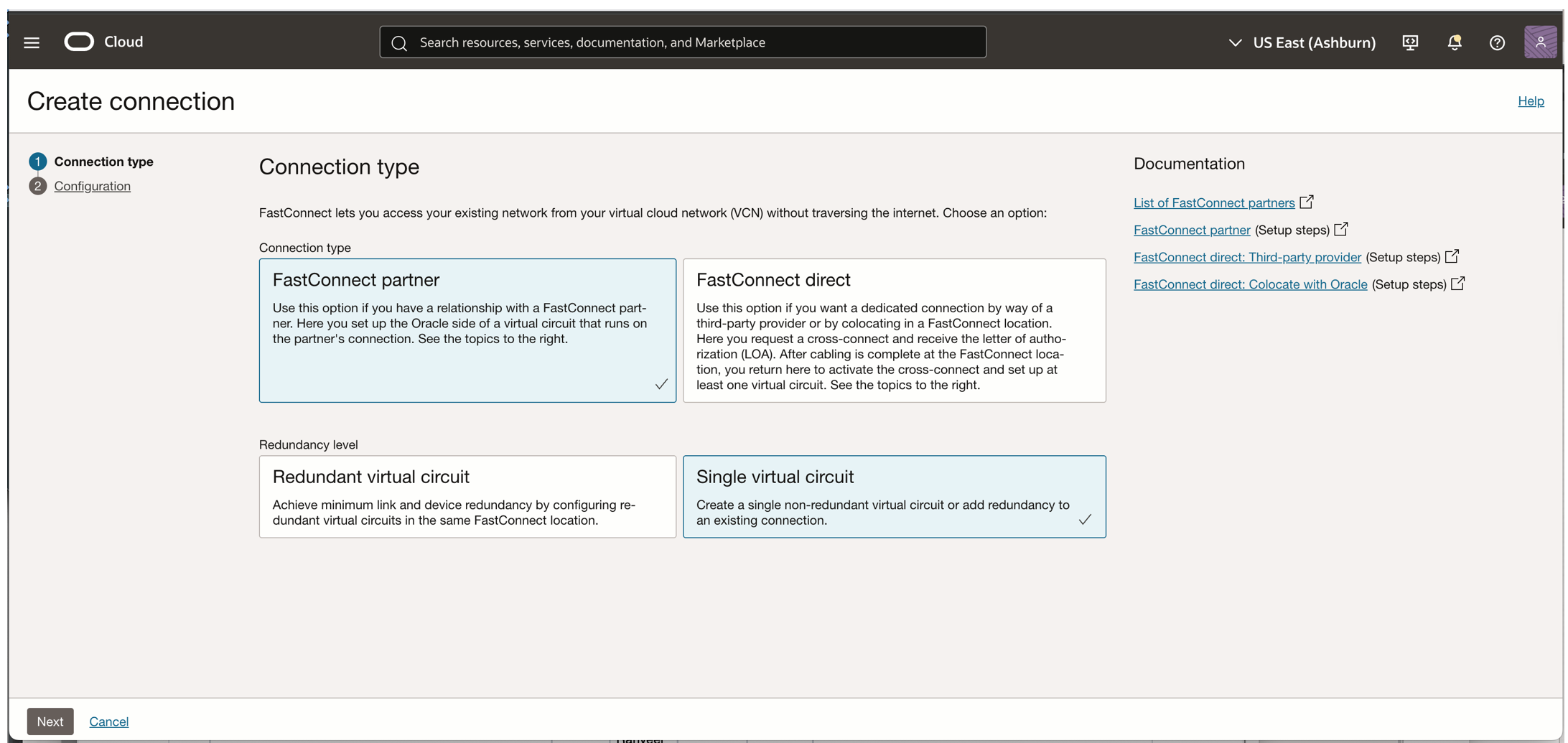
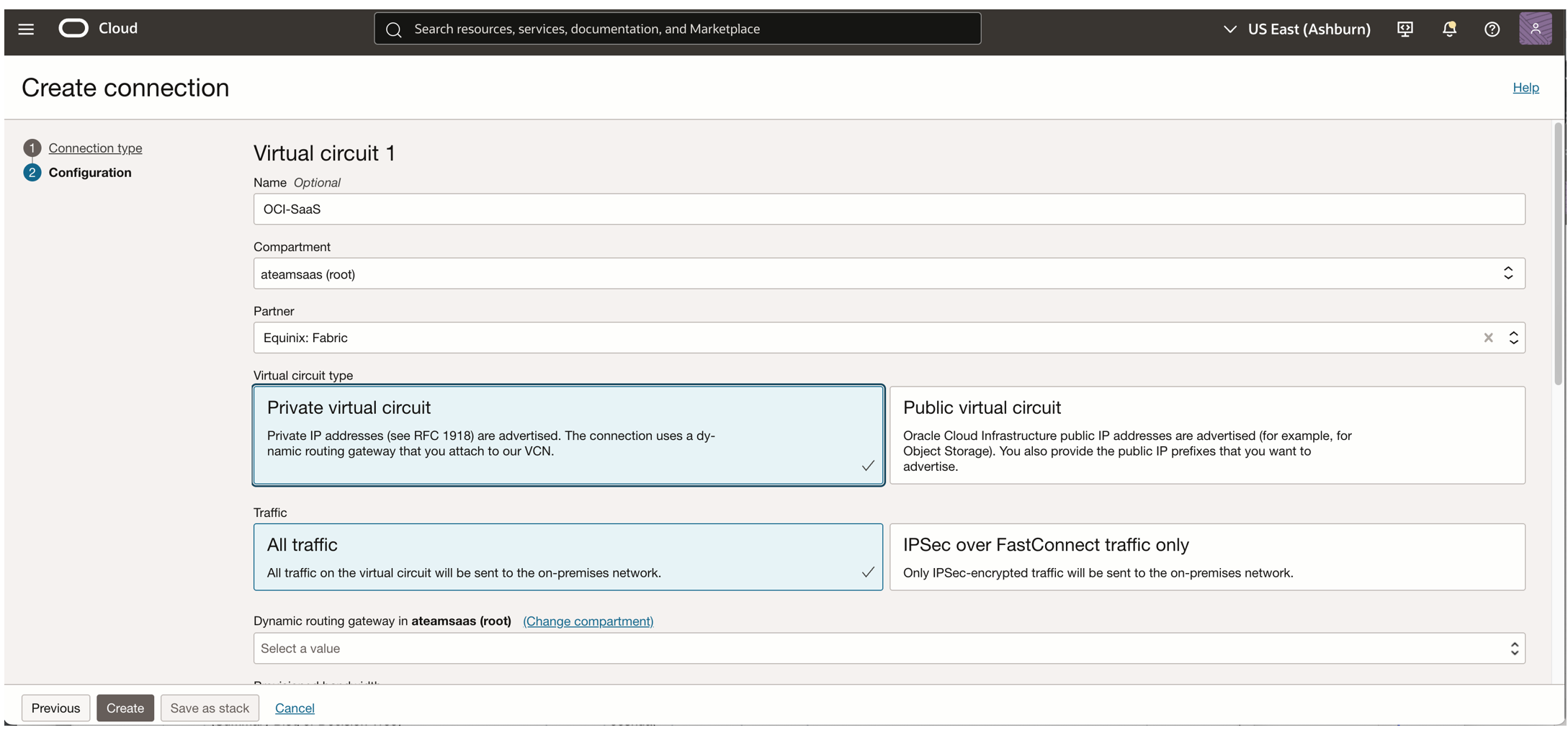
- Select Private Virtual Circuit
- Choose All Traffic
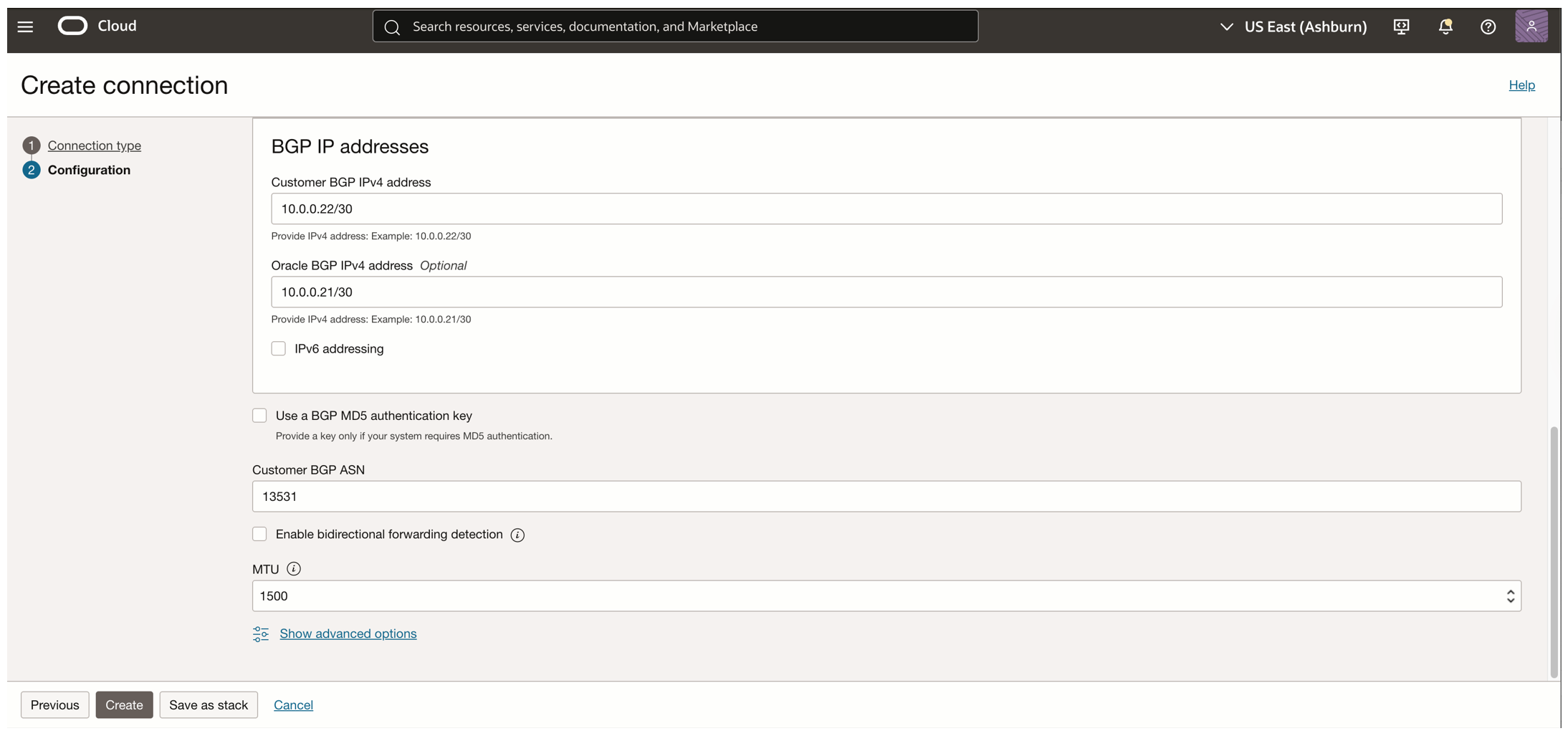
Assign a /30 IP pool for BGP and ASN 13531 (Equinix ASN)
-
Click Create (state shows “pending partner” until Equinix completes its side)
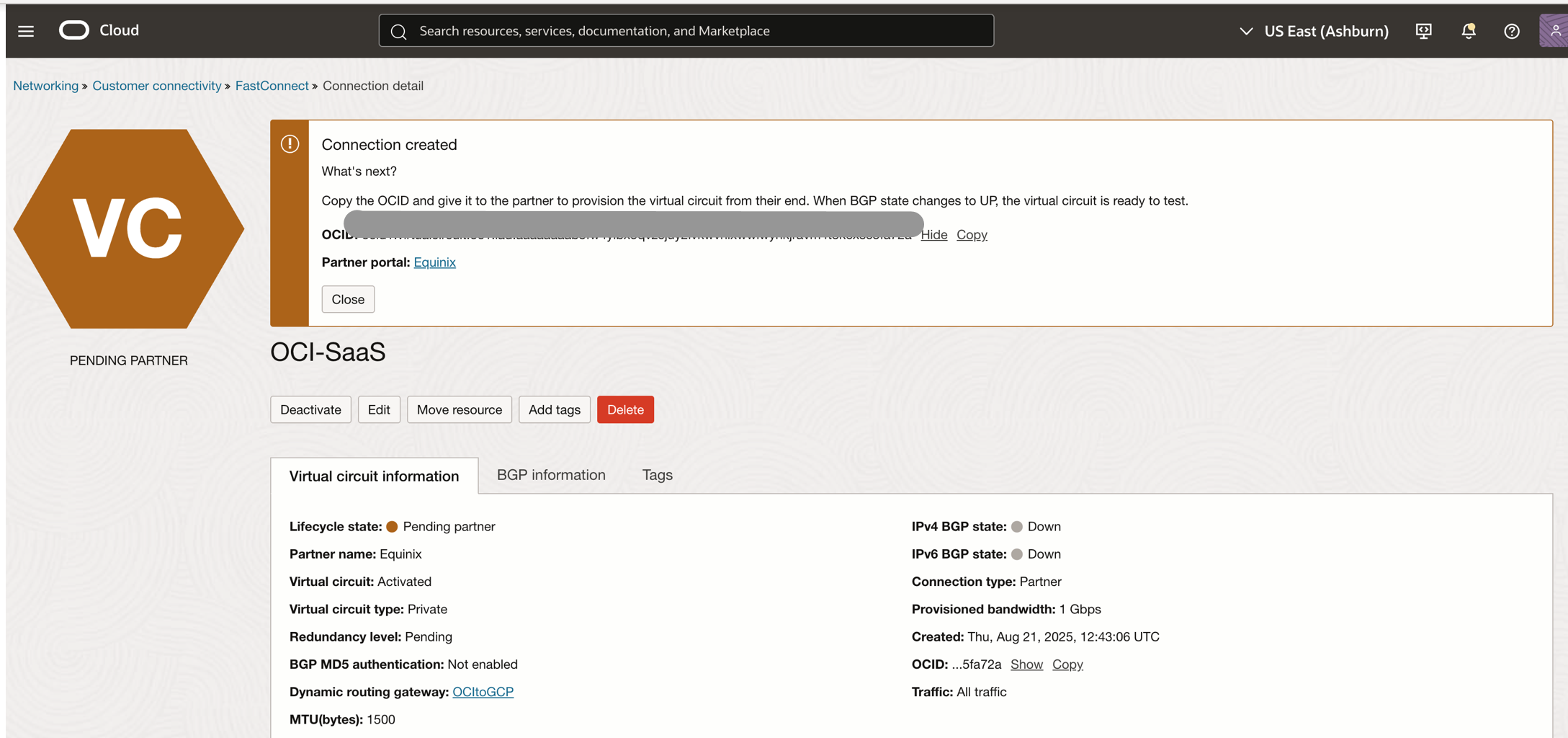
2. Configure Equinix Fabric Cloud Router (FCR)
-
In the Equinix portal, navigate to Network Edge > Fabric Router.
-
Select your region, bandwidth, and name.
-
Review and create the cloud router.
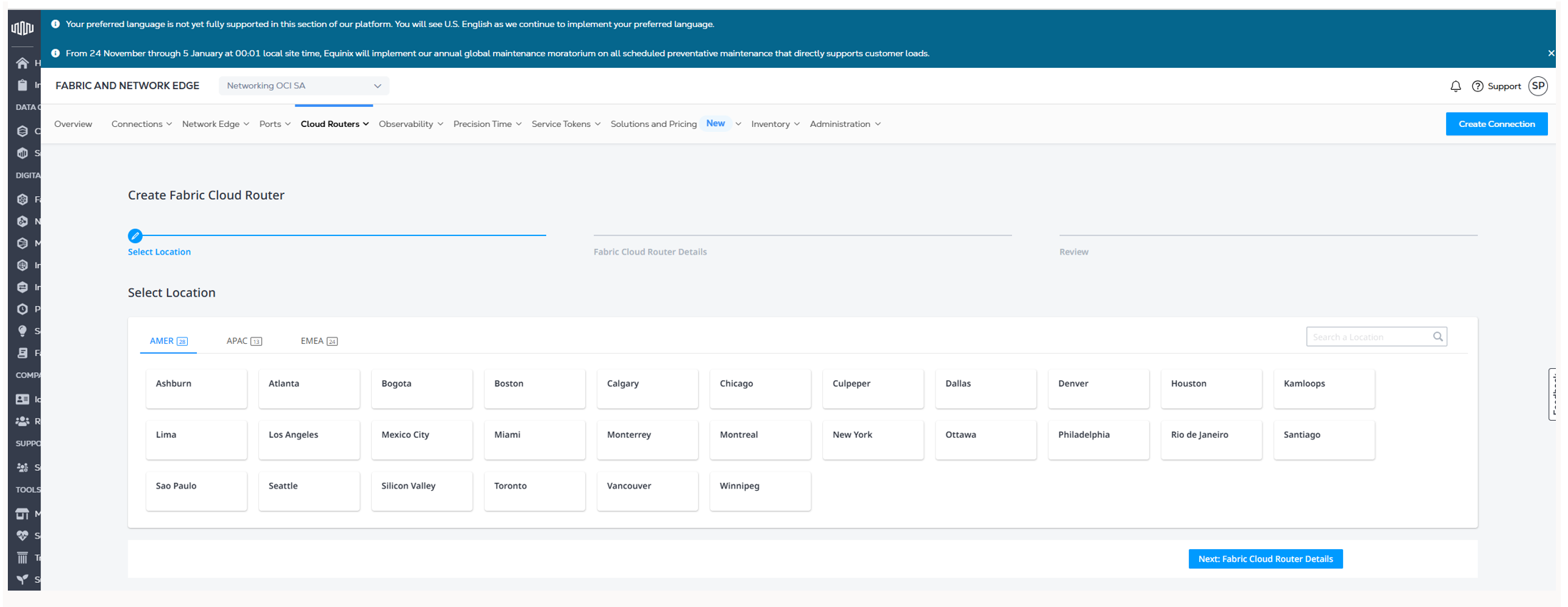
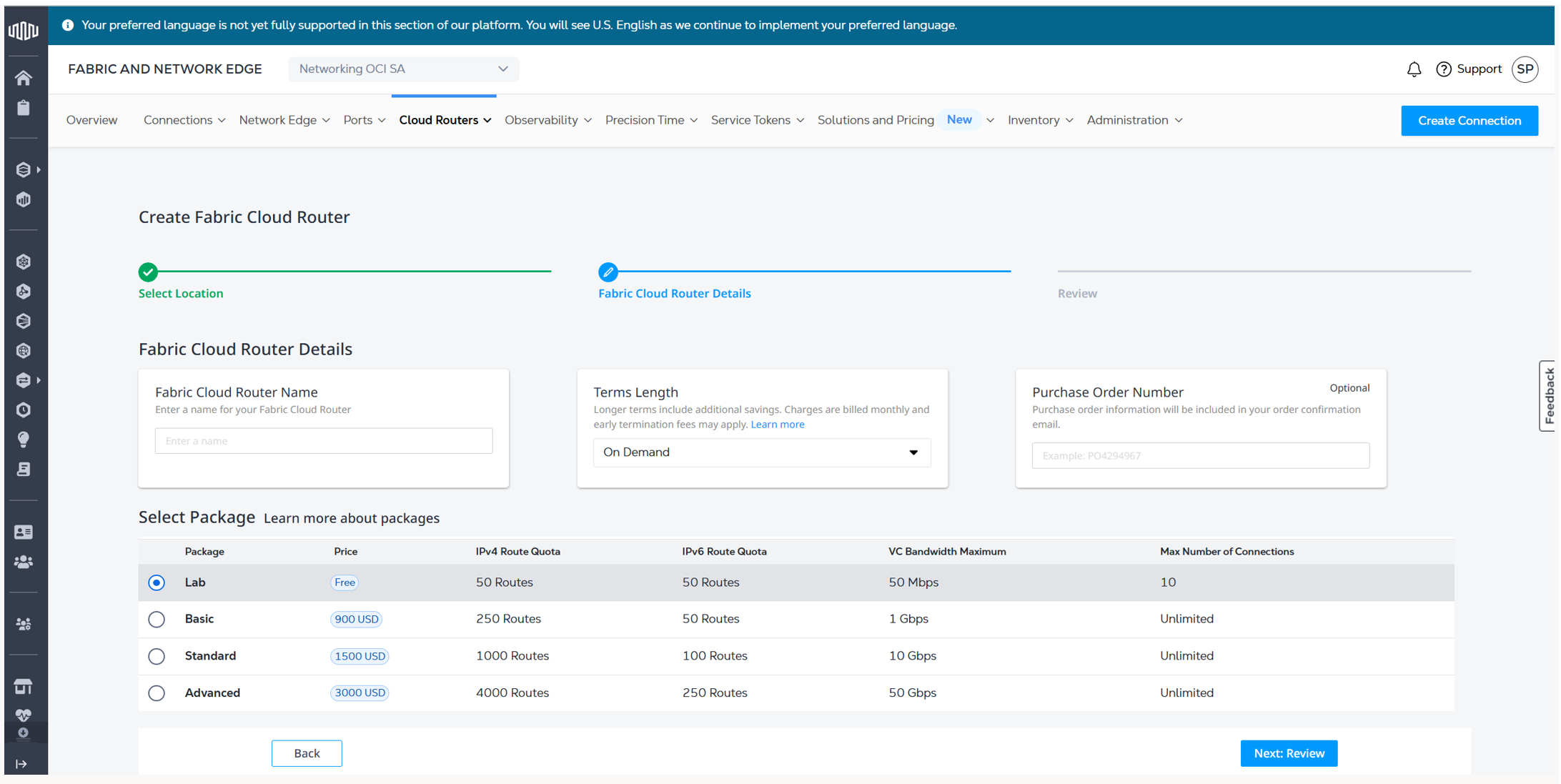
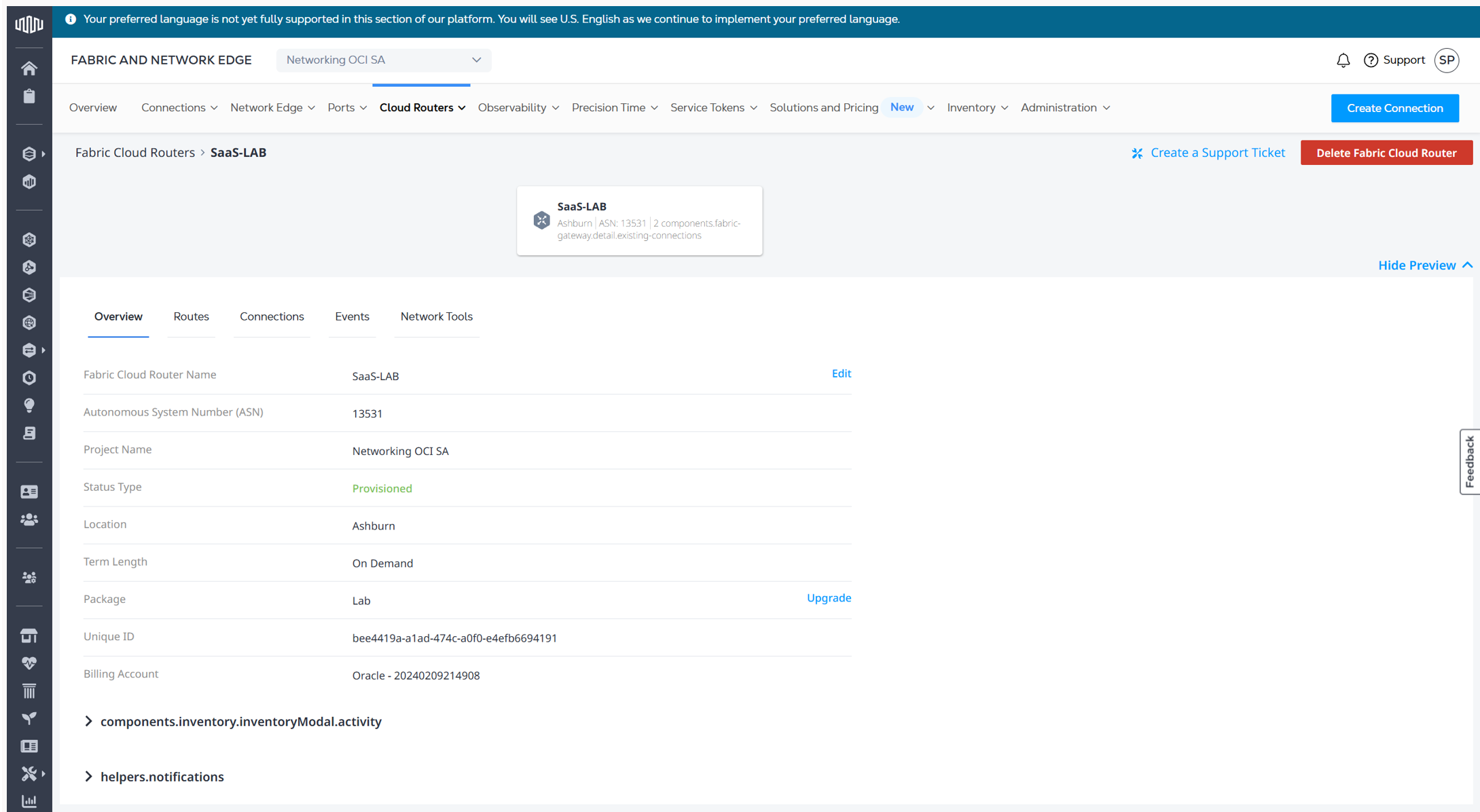
3. Create Equinix Connections to OCI
-
In Equinix, create a connection to OCI:
-
Select connection type (redundant/primary)
-
Provide OCID and region for FastConnect circuit
-
Select the FCR created earlier
-
Set bandwidth, BGP details, and review order
-
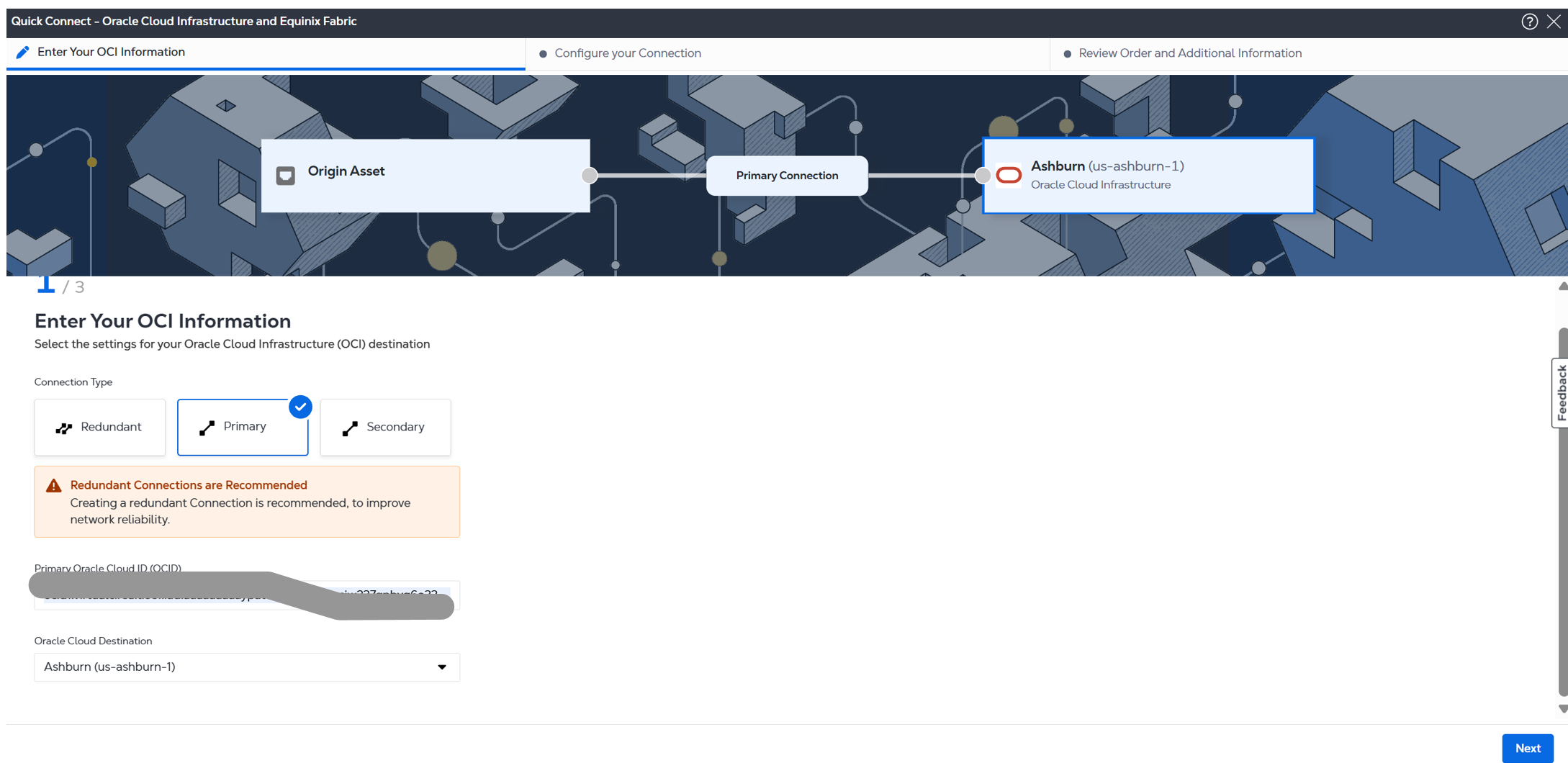
From the Origin Asset Type drop-down list, select Cloud Router and pick the FCR you created in the previous step. 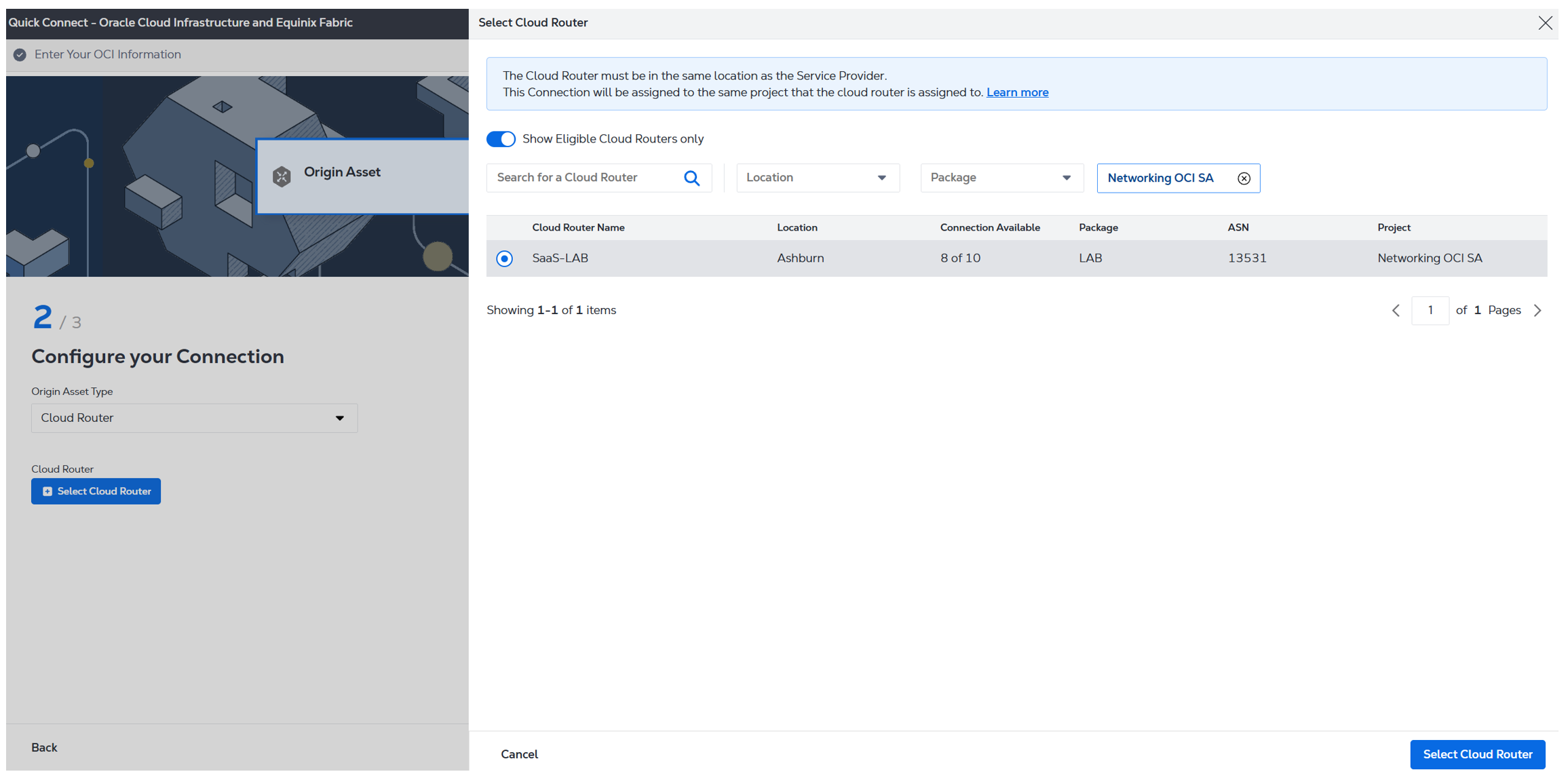
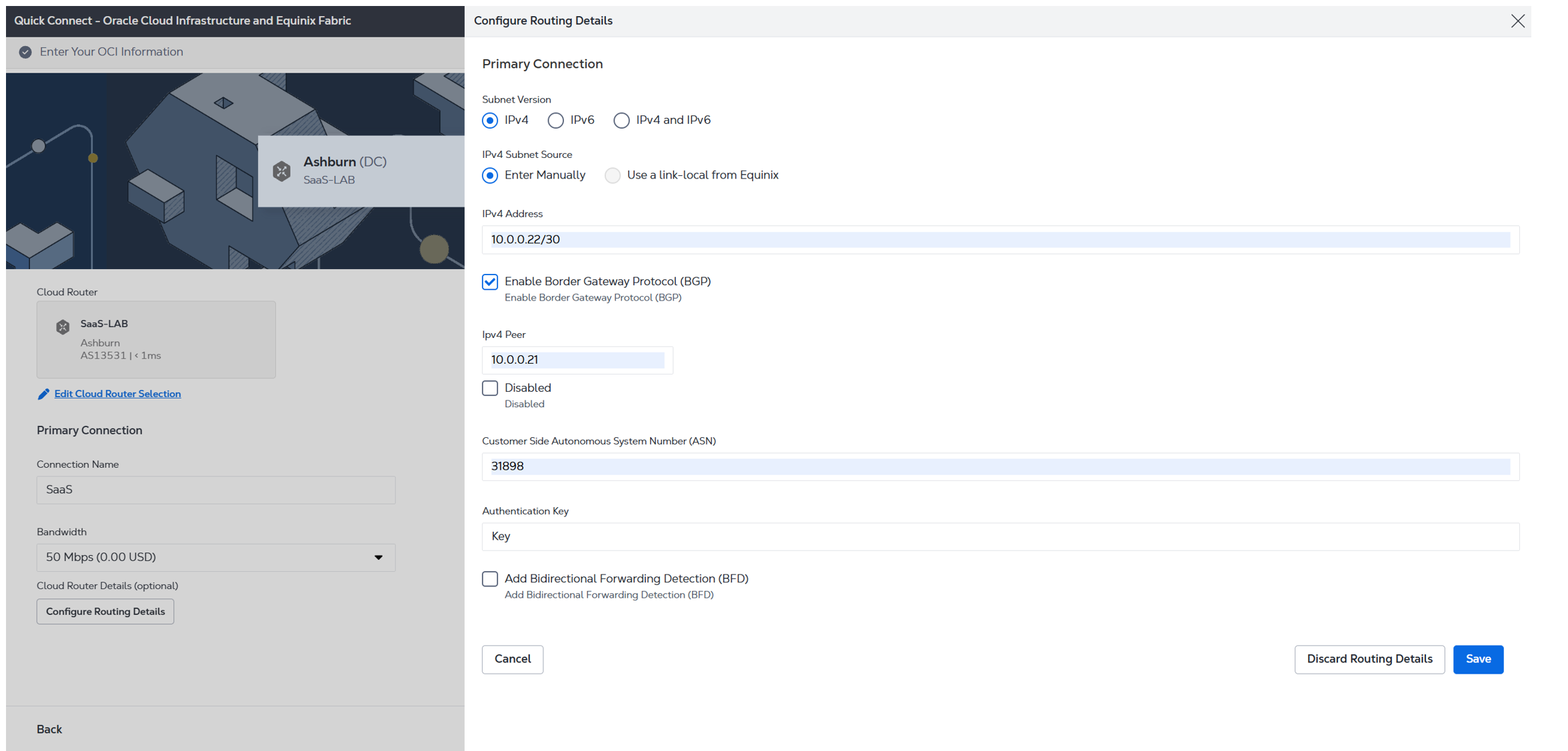
-
Review Order and Additional Information, then click Create connection.
-
Configure the other end between Equinix and on-prem/other clouds as needed.
4. Validate Connectivity
-
Check BGP status on both sides (should show UP)
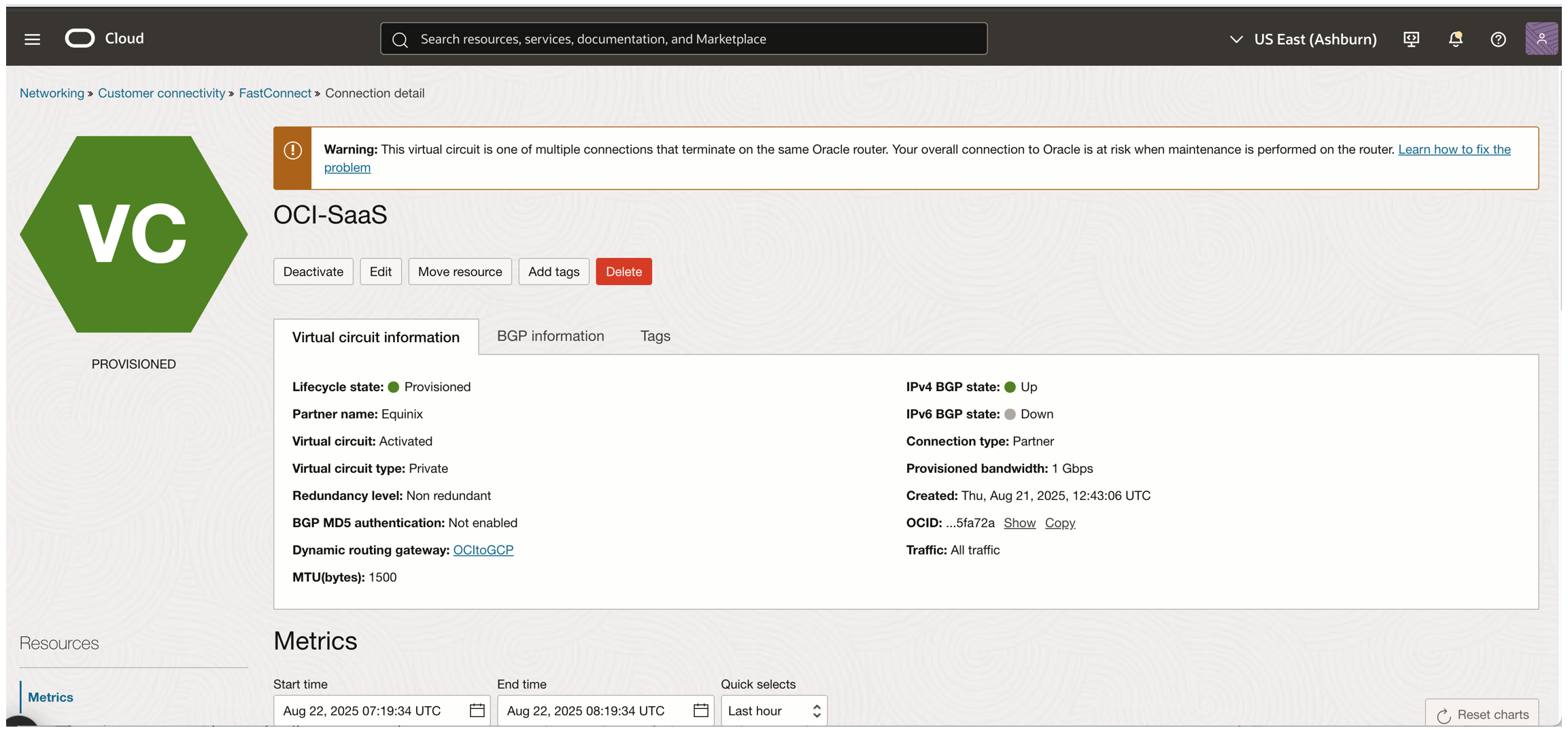
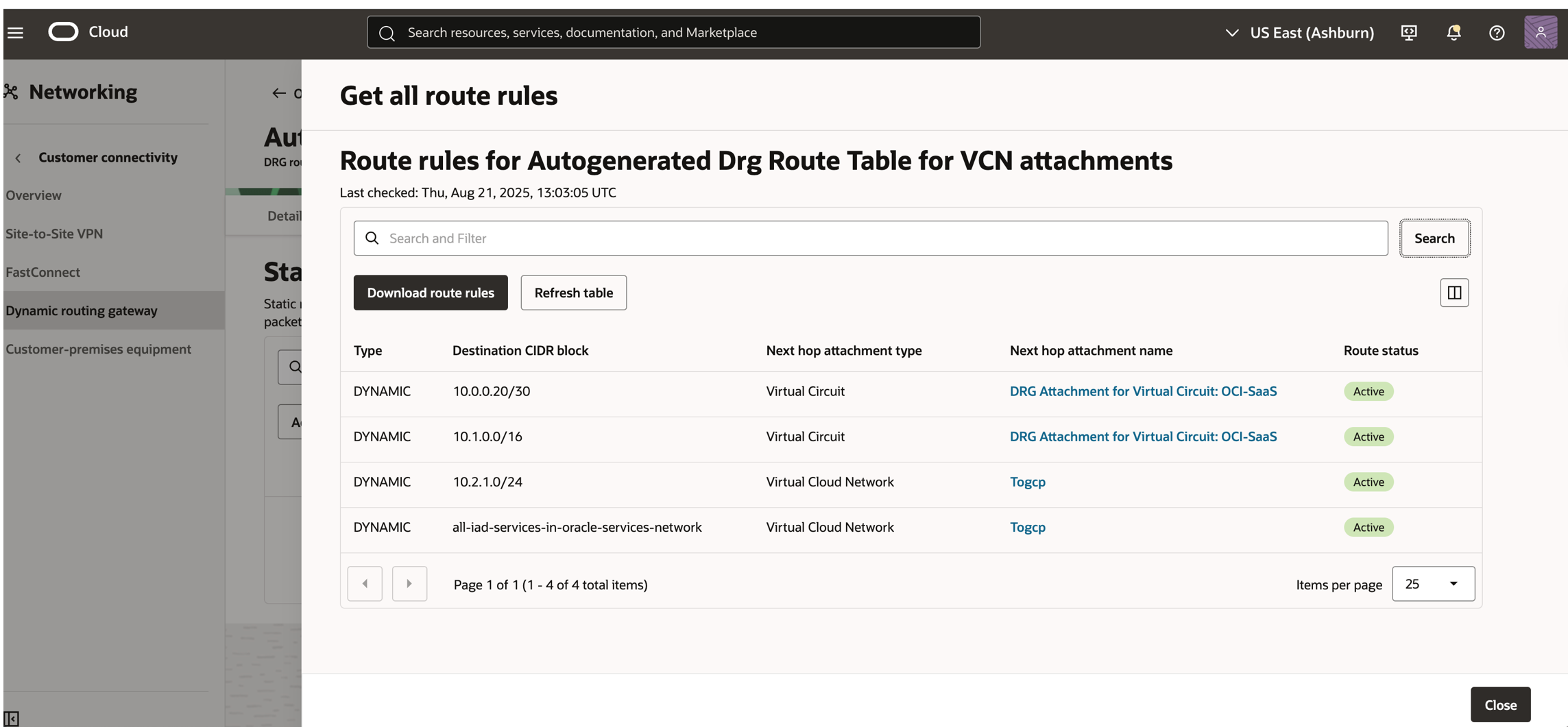
In OCI, confirm DRG route tables are receiving routes from on-premises
5. Add Route in the Route Table for OSN and On-Prem
-
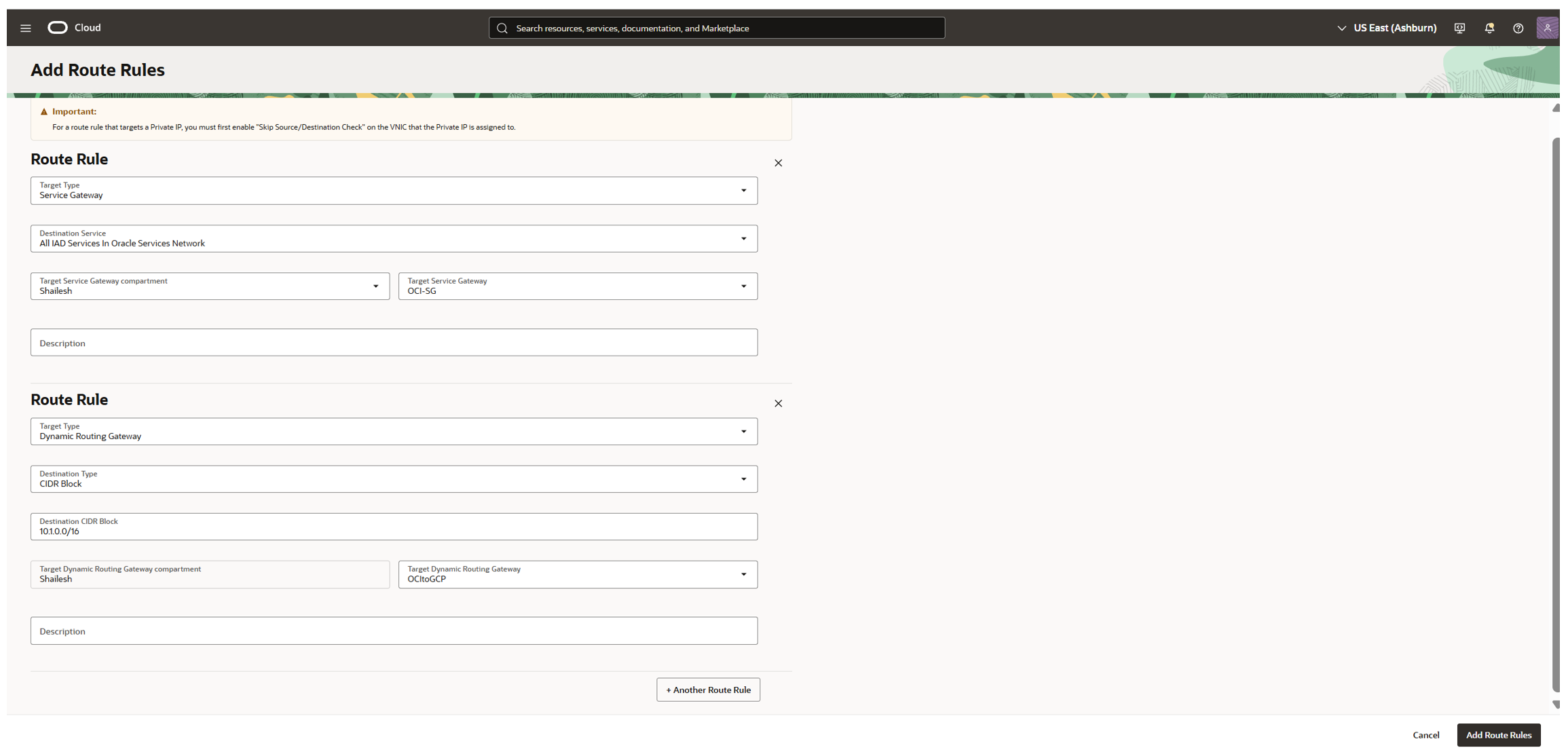
Go to the Default Route Table
-
Click Add Route Rules
-
Target Type: Dynamic Routing Gateway
-
Destination CIDR Block: on-prem prefix
-
Target: Select the created DRG
-
Click Add another route rule
-
Create a Route Rule
Part 3: Configure Fusion Applications Network Settings
Note: You’ll need Fusion Applications Environment Administrator access for this step. Refer to Fusion Access Management Docs.
-
Go to Applications > My Applications in OCI
-
Select your Fusion POD
-
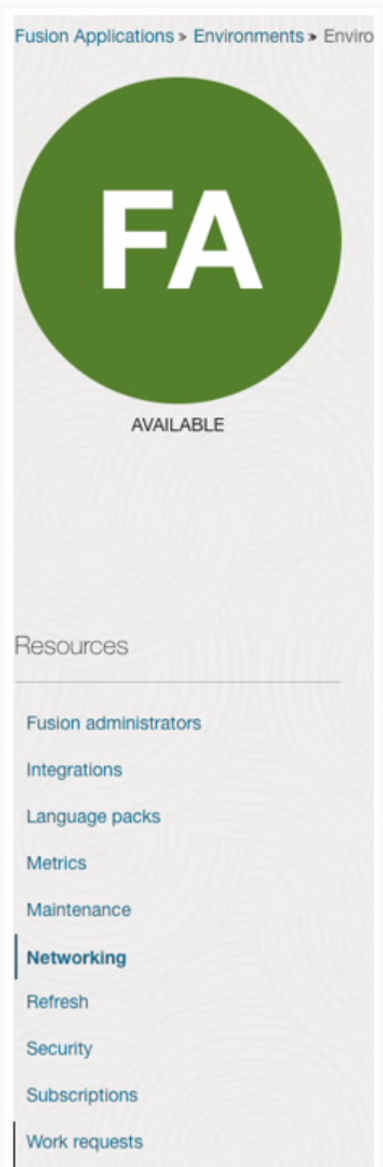
In the Networking section:
-
Disable Content Acceleration (wait for lifecycle state to return to Active)
-
This restricts public access and binds Fusion Applications to your private OCI VCN.
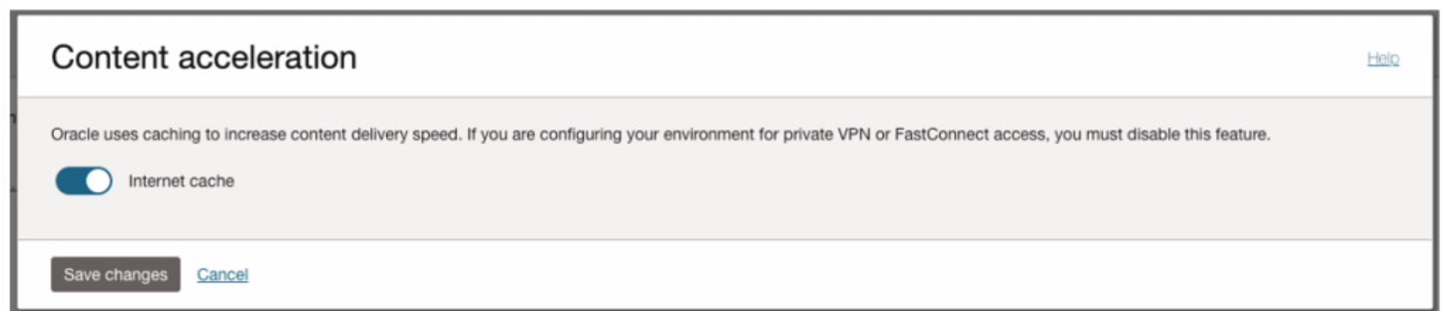
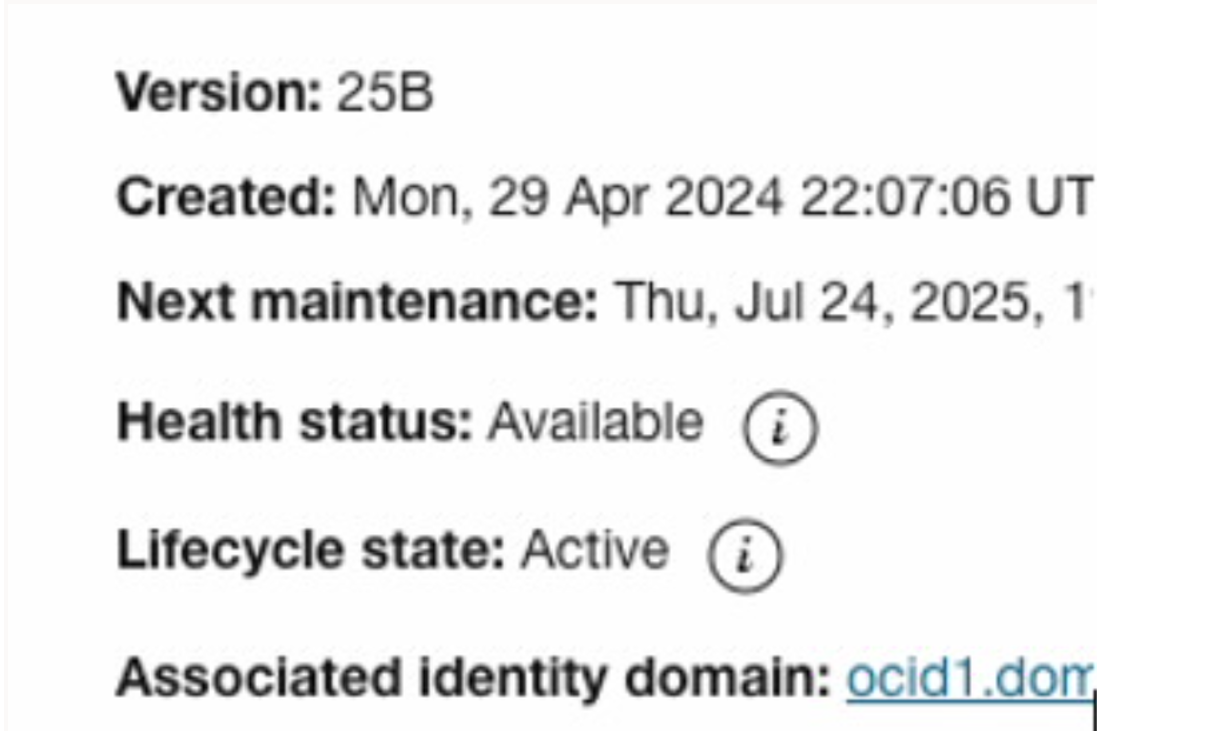
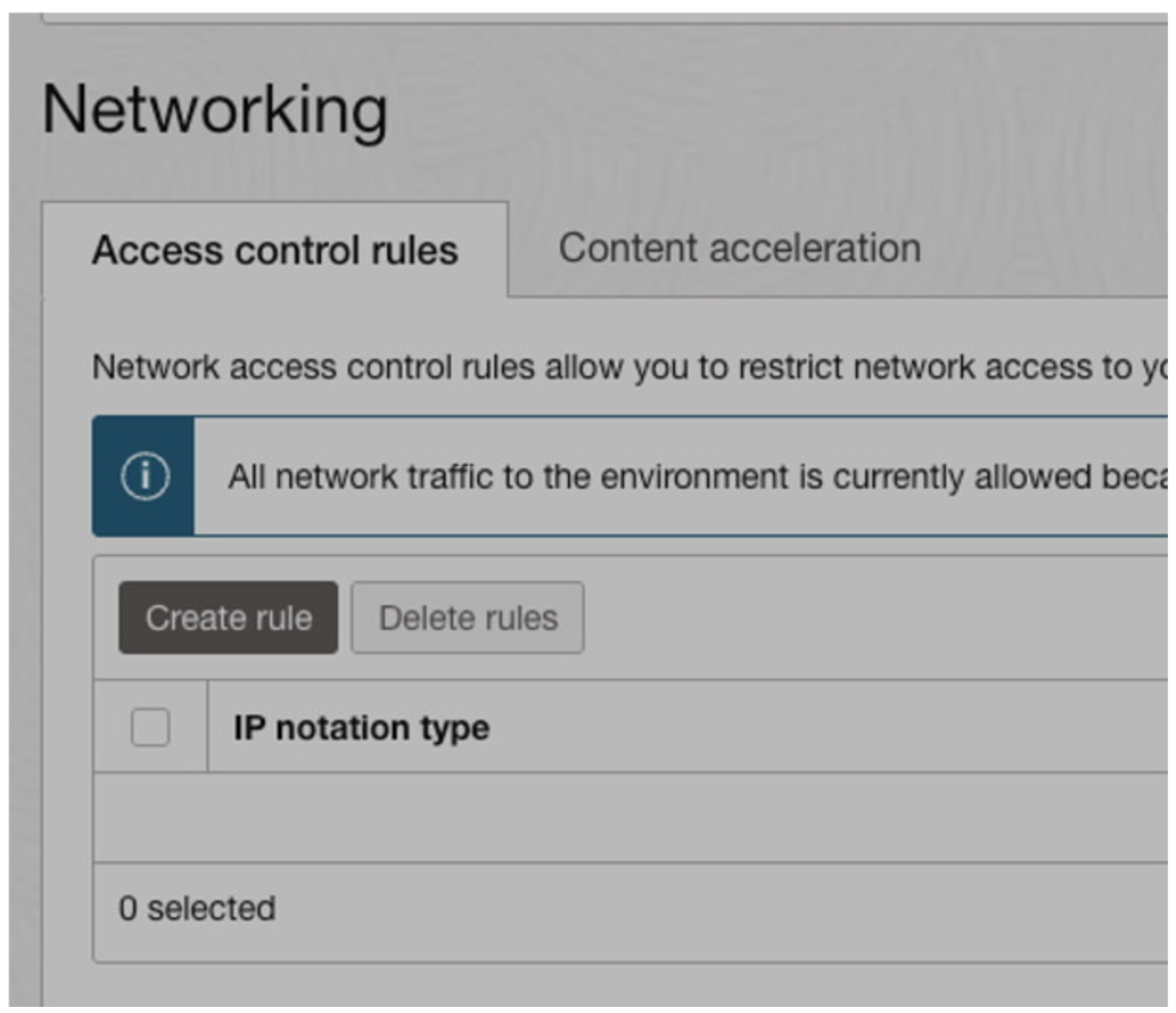
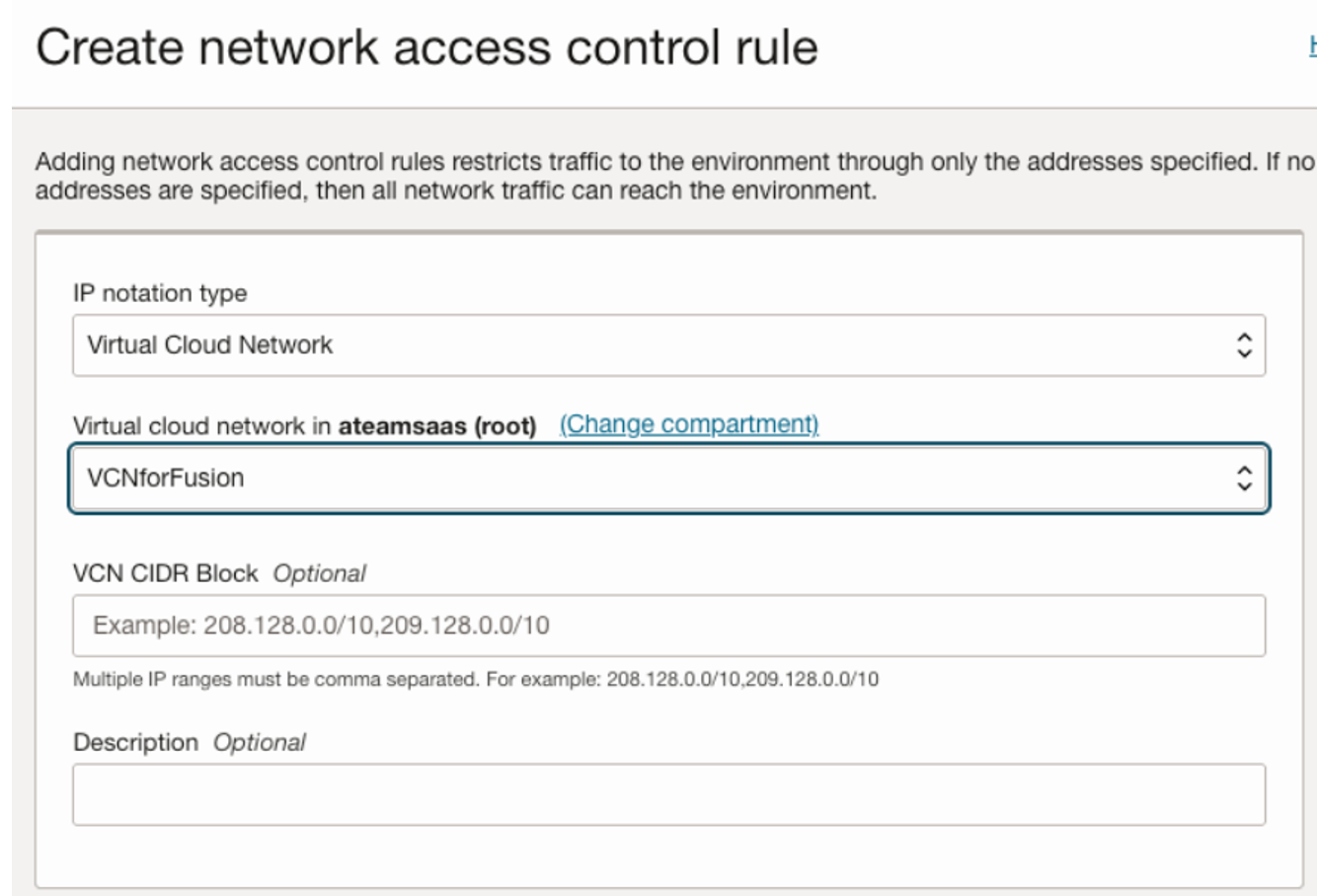
- Apply and wait for state to update to Active again
Part 4: Add Service Gateway Routing
1. Create a New Route Table in the VCN
-
Go to Networking > Virtual Cloud Networks
-
Under Route Tables, click Create Route Table
-
Add route to on-prem:
-
Target Type: Dynamic Routing Gateway
-
Destination: On-prem prefix.
-
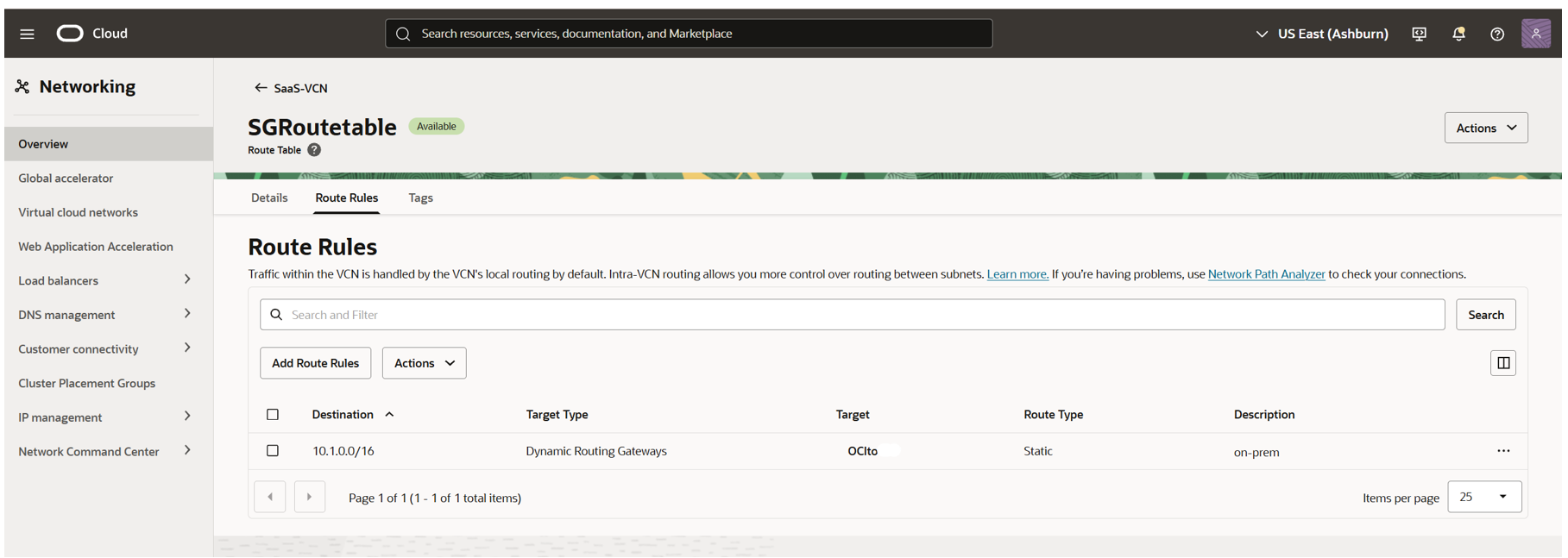
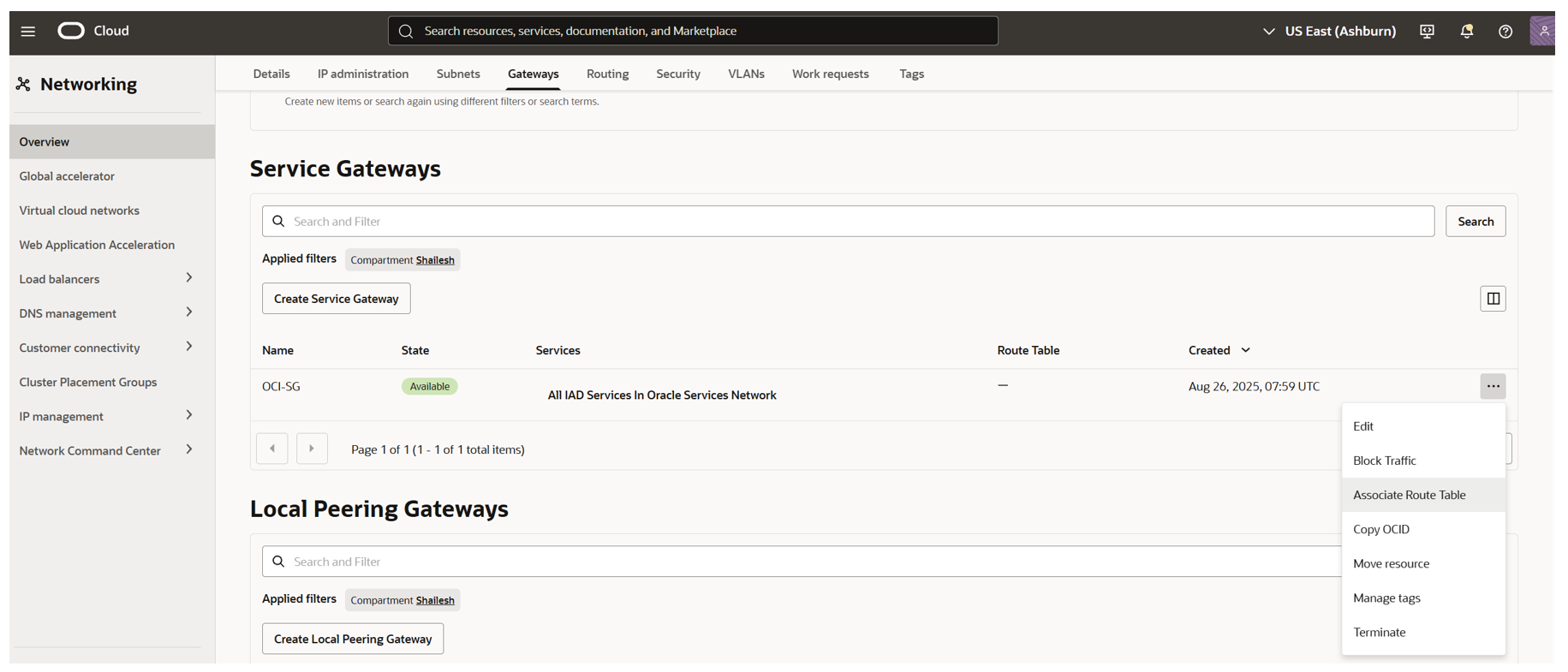
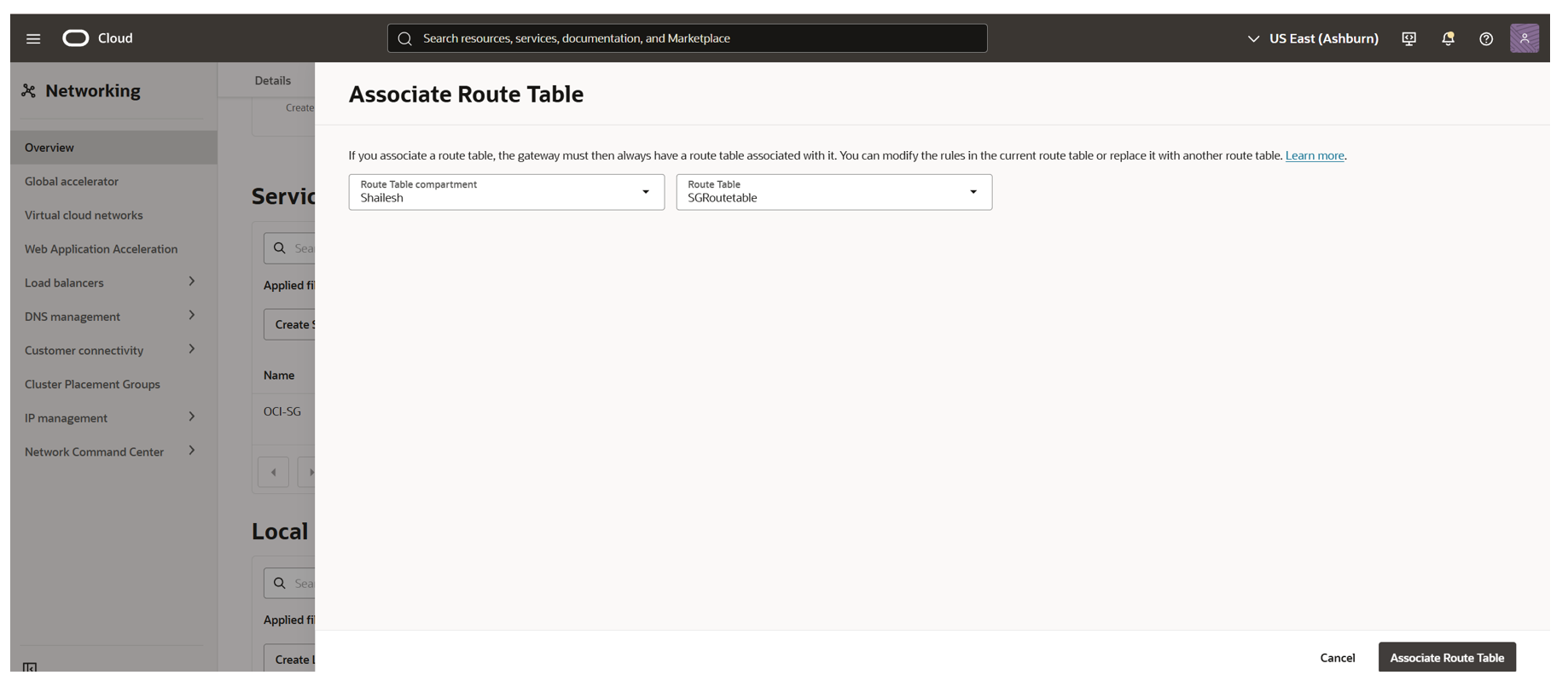
2. Attach the Route Table to the Service Gateway
-
Click on the Service Gateway
-
Edit and associate the new route table.
3. Configure Security Lists
-
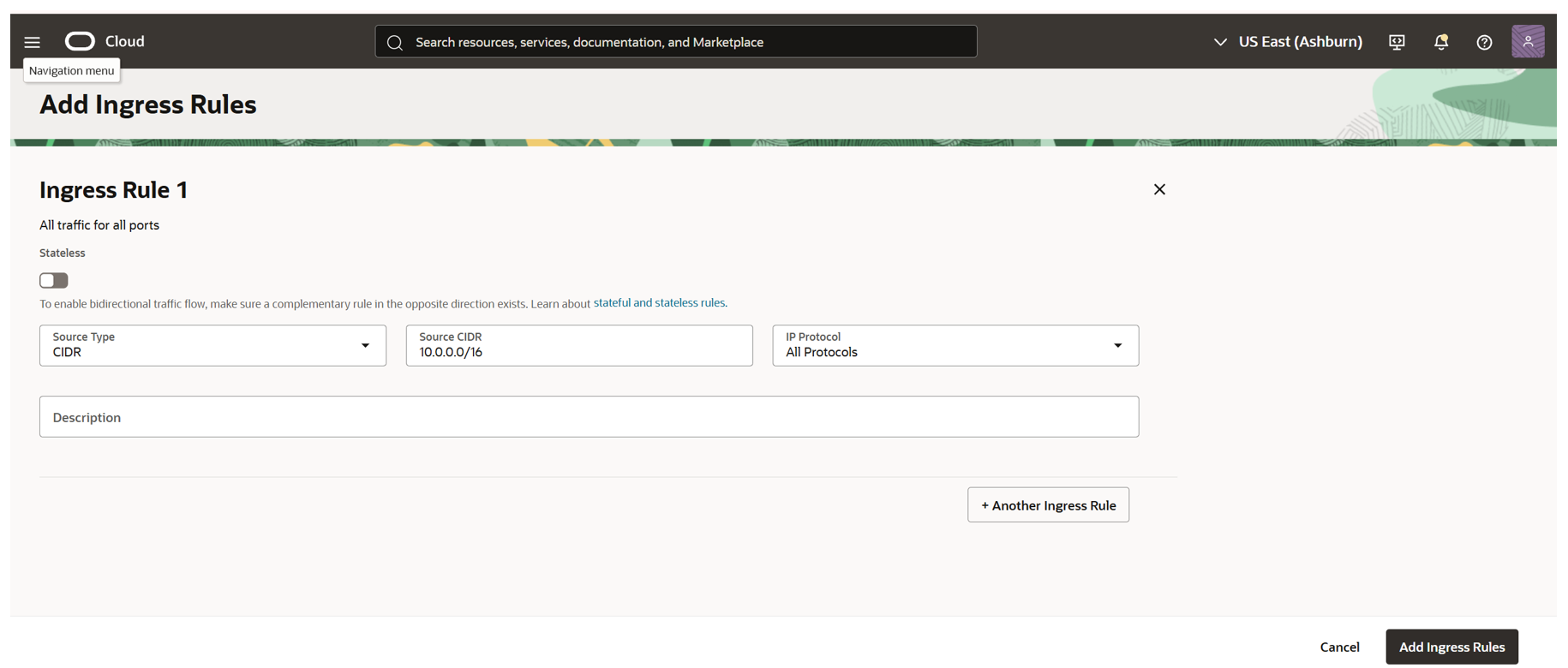
Open the security list attached to your subnet
-
Add an ingress rule:
-
Source CIDR: on-prem prefix
-
Protocols: All (for testing)
-
4. Test Connectivity
-
Verify you can reach the Fusion Application from an on-prem VM.
Conclusion
By following this approach, you can:
- Restrict public access to Oracle Fusion Cloud Applications
- Securely connect your on-prem network to Fusion over FastConnect with Equinix Fabric Router
- Extend OCI resources for integration or extension use cases—all without exposing sensitive applications to the internet
Stay tuned for the next article in this series, where we’ll cover additional private access use cases for Fusion Cloud Applications.
References
Securely Accessing Fusion Applications
https://docs.oracle.com/en-us/iaas/Content/fusion-applications/network-setup.htm
Site-to-Site VPN between your on-premises network and virtual cloud network
https://docs.oracle.com/en-us/iaas/Content/Network/Tasks/settingupIPsec.htm
Connect Oracle Cloud Infrastructure resources to GCP
https://docs.oracle.com/en-us/iaas/Content/Network/Tasks/vpn_to_gcp.htm
Network connectivity patterns for Oracle Cloud HCM and ERP applications on OCI
Extending Oracle Fusion SaaS with OCI: Network Consideration
https://www.ateam-oracle.com/post/extending-oracle-fusion-saas-with-oci-network-considerations
Equinix Pricing
https://docs.equinix.com/fabric/pricing-billing/fabric-billing-pricing/