
Starting with Enterprise Manager 24ai Release 1 Update 12, the Enterprise Manager Model Context Protocol (MCP) server is built directly into Enterprise Manager. The MCP server enables AI agents to access management context, retrieve insights, and assist with routine operational workflows through natural-language interactions. This helps teams accelerate troubleshooting, simplify administration, and build intelligent automations.
With this setup, you are using the power of AI agents, such as Codex, to understand your question and access the specific OEM REST APIs (exposed through the MCP server) that answer your specific query and augment the response with additional context and details. You can ask questions such as:
- Show databases with the highest Average Active Sessions.
- List the SQL ID and SQL Text for the statement with the highest average active session in database “x”.
- Why is SQL ID “x” slow?
- What database objects are consuming significant resources throughout the day?
The MCP server runs in the Oracle Management Service (OMS), where it complements existing Enterprise Manager REST APIs rather than replacing them. It uses existing Enterprise Manager security, governance, and operational capabilities
This blog describes the steps needed to configure Codex to securely access your Enterprise Manager MCP server, and provides examples of using it to gain insights from your Enterprise Manager telemetry data. I recommend you review the documentation link and the product management blog in the Reference section below for additional context and background.
Pre-Requisites
Assumptions
- You are running Enterprise Manager 24ai RU12 or above.
- You have Codex installed on your workstation.
Before you start
- Take note of your Enterprise Manager console URL.
- Your EM MCP server endpoint will be of the form: https://<subdomain>.<domain>.com:<EM_CONSOLE_HTTPS_PORT>/em/api/mcp
- Create a Base64 Encoded string of the EM username and password you want to use to connect to Enterprise Manager. In this blog, I am using sysman, but you can use any EM user. An MCP client can only perform operations for which the authenticated Enterprise Manager user is authorized.
- You can use a site such as “https://www.base64encode.org/” to create the encoding, or ask Codex to encode it. The string you need to encode is of the form “username:password”. As an example, “sysman:welcome1” will encode as: c3lzbWFuOndlbGNvbWUx
- Download your Enterprise Manager server root certificate (and intermediate certificates if applicable). You will add this to your workstation’s trust store.
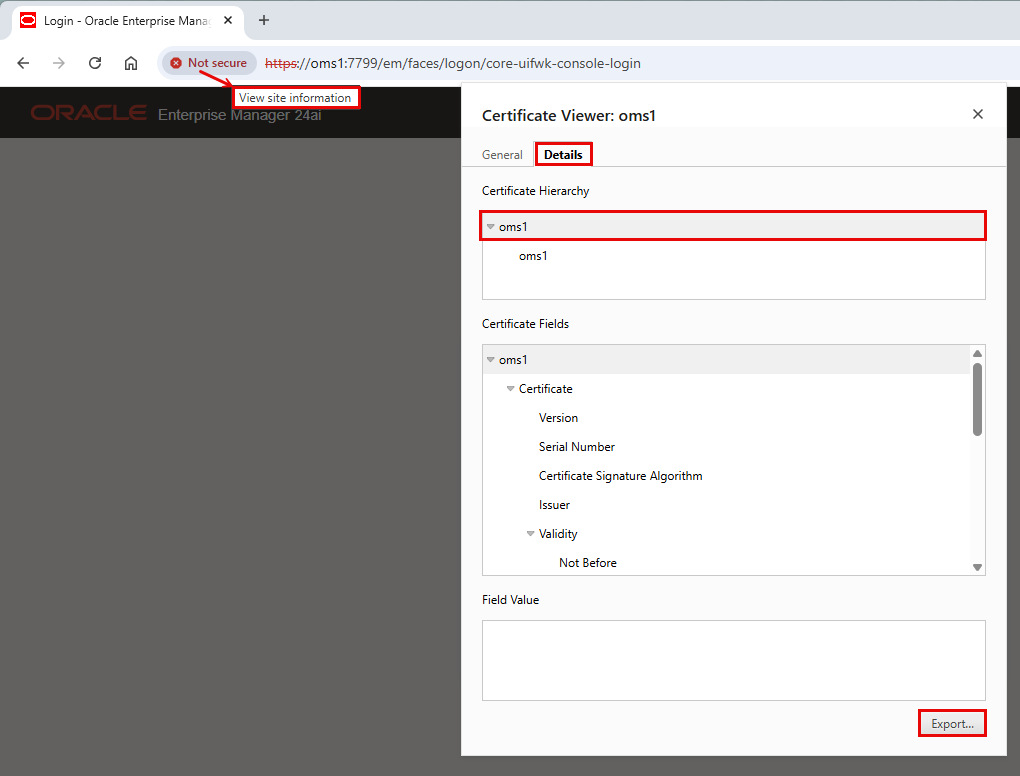
- In Chrome, you can do this by clicking “View site information” in the location field, then “Certificate details”. On the Certificate Viewer, click the “Details” tab, highlight the top-most entry, then click “Export”
- Add the certificate as a trusted certificate to your workstation’s trust store. Instructions for Windows:
- Press Win + R, enter “certlm.msc“, and approve the administrator prompt.
- Expand “Trusted Root Certification Authorities” → “Certificates“.
- Right-click “Certificates” → “All Tasks” → “Import“.
- Select the root CA’s .cer or .crt
- If the chain includes an intermediate CA, import that certificate into “Intermediate Certification Authorities” → “Certificates“.
- Restart Codex.
Connect Codex to Enterprise Manager MCP Server
As of the writing of this blog, OAuth is not supported for authenticating with the Enterprise Manager MCP server. For this reason, we cannot connect from Codex GUI using “Plugins”→”Manage Plugins”→”Add MCP Server”. Instead, we need to authenticate using Basic Authentication through the Authorization header.
We do this by updating the Codex configuration file on the local machine with the information gathered in the first 2 steps above. The block we need to add to Codex configuration file looks like:
[mcp_servers.em_mcp]
enabled = true
url = "https://<subdomain>.<domain>.com:<EM_CONSOLE_HTTPS_PORT>/em/api/mcp"

[mcp_servers.em_mcp.http_headers]
Authorization = "Basic <base64Encoded(username:password)>"
Note you can change “em_mcp” to something more meaningful to you, such as “em_test”, “em_prod”, etc. You can also repeat the procedure to register additional EM instances you have access to. You can then specify the EM instance in your requests, e.g. “List database targets using em_test.”
The default location of the Codex configuration file is “<local user’s home directory>/.codex/config.toml”. However, instead of manually updating the file, we’ll ask Codex to update it. In Codex GUI, enter the following text (update the code block as necessary for your environment):
Add this block to config.toml
[mcp_servers.em_mcp]
enabled = true
url = "https://oms1:7799/em/api/mcp"

[mcp_servers.em_mcp.http_headers]
Authorization = "Basic c3lzbWFuOndlbGNvbWUx"
Codex responds with:
Added the exact block to your Codex config.toml and verified that the existing content was preserved.
Enter:
run testing and validation on this em_mcp server
Codex responds with:
em_mcp is now working in Codex.
- Tool discovery: 113 tools available.
- Authentication and execution: Two read-only tool calls succeeded.
- Target listing: Returned 3 sample targets out of 74.
- Blackout dashboard: Returned successfully, with all counts zero.
- TLS: Certificate trust and hostname checks pass. Strict Windows revocation checking still fails because revocation information is unavailable.
Codex has now discovered the Enterprise Manager tools exposed through the MCP Server.
Use Codex to Retrieve Information from Enterprise Manager
Let’s start with the sample query from the product management blog in the Reference section below. Note for this blog, I am using a demo OEM environment with databases that do not have much load:
1) Show databases with the highest Average Active Sessions
Codex responded with:
ORCL_01 has the highest latest reported Average Active Sessions (AAS).
| Database | AAS | Last collected (PDT) |
|---|---|---|
| ORCL_01 | 0.042 | 4:29 PM |
| emrep | 0.040 | 4:06 PM |
| ADW01 | 0.0133 | 4:16 PM |
| ORCL_03 | 0.005 | 4:25 PM |
These are the four databases with an available AAS metric, ranked by their latest samples on October 20, 2026. Collection times differ; emrep’s sample is approximately 23 minutes old.
You can now ask any question on telemetry data from your Enterprise manager repository and get answers in natural language, augmented with additional context and insights.
More examples:
2) List the SQL ID and SQL Text for the statement with the highest average active session in emrep
Codex responded with:
SQL ID: 01ncdk23uqcks
Average Active Sessions: 0.009167 across emrep
Period: October 26, 10:04–11:04 AM PDT.
The statement counts running or stalled Scheduler jobs and jobs whose latest run failed.
<Codex then shows the SQL text>
3) Why is SQL ID “01ncdk23uqcks” slow?
Codex responded with:
SQL 01ncdk23uqcks is CPU-heavy because it repeatedly scans and aggregates Scheduler job history across containers. The main hotspot is finding the latest run for every job, then joining that result back to identify failures.
The cached statistics show:
<Codex then provides measures, observed values, additional findings, and a “likely improvement area“>
4) List events without incidents reported today
Found 4 events reported today, October 26, with no associated incident. All remain open.
| Reported (PDT) | Severity | Target¹ | Event |
|---|---|---|---|
| 1:03:34 AM | Warning | ORCL_02_PDB02_1 | <event listed> |
| 1:03:33 AM | Critical | ORCL_02_PDB02_1 | <event listed> |
| 1:03:31 AM | Critical | ORCL_02 | <event listed> |
| 1:03:31 AM | Warning | ORCL_02 | <event listed> |
The following session is from another demo Enterprise Manager instance, with a different set of databases.
5) What database objects are consuming significant resources throughout the day?
Codex responded with:
Today’s historical samples do not establish a significant table or index hotspot. The clearest recurring resource consumer is ORCL3’s backup/control-file metadata processing.
Checked October 26, midnight–2:21 PM PDT, across the same four databases, including their PDBs and both RAC instances. Available samples extend to approximately 2:03–2:19 PM, depending on the database.
| Database | Recurring activity | Evidence |
|---|---|---|
| ORCL3_z3w_iad | Backup metadata views: V$BACKUP_PIECE, V$BACKUP_REDOLOG, V$ARCHIVED_LOG | SQL 2x2j82x65mk54 appeared in all 15 hourly buckets: 39 samples, including 35 control-file read waits. Related SQL 7u5k8vg3h0p1k also appeared in all 15 buckets. |
| ORCL_1 | SYS.WRI$_DBU_FEATURE_USAGE_PK | Most frequently associated named object: 12 samples across 8 hourly buckets—41% of this database’s samples, but only 29 samples overall. |
| emrep / EMPDB | Dictionary and optimizer-statistics objects | SYS.OBJ$: 3 samples across 3 buckets. Statistics queries were concentrated around 1:45–1:49 PM, rather than sustained throughout the day. |
| at_racdb | Backup and tablespace monitoring | Recurring monitoring activity; the leading named table, SYS.WRI$_ADV_FINDINGS, had only 2 samples across 2 buckets. |
Most samples lacked a named-object attribution: 99% in ORCL3, 84% in emrep, and 94% in RAC. Consequently, the backup views above are identified from the sampled SQL and its plan—not measured as individual segment resource totals.
“Appeared across hourly buckets” means recurring activity, not continuous heavy utilization. These results concern sampled CPU/wait activity, not storage size or memory usage.