
Introduction
In this post, I want to walk you through the exact steps to dockerize the IDCS custom login widget.
Please refer to part 1: Running IDCS Custom Login Widget on OKE: Overview to understand the overall process.
What you will need :
1) git client and GitHub account
2) Docker installed on your development machine
3) OCI tenancy and user account with permissions to create OCIR repository
Step 1: – Fork the GitHub repository
The tutorial suggests downloading and unzipping the Custom Sign-In API web application from the GitHub repository to a temporary folder on your computer. You may want to fork the repository instead. fork creates a copy of a repository that allows you to freely experiment with changes without affecting the original project. It is recommended to fork the repository to make your own changes and create pull requests to contribute/submit any fixes.
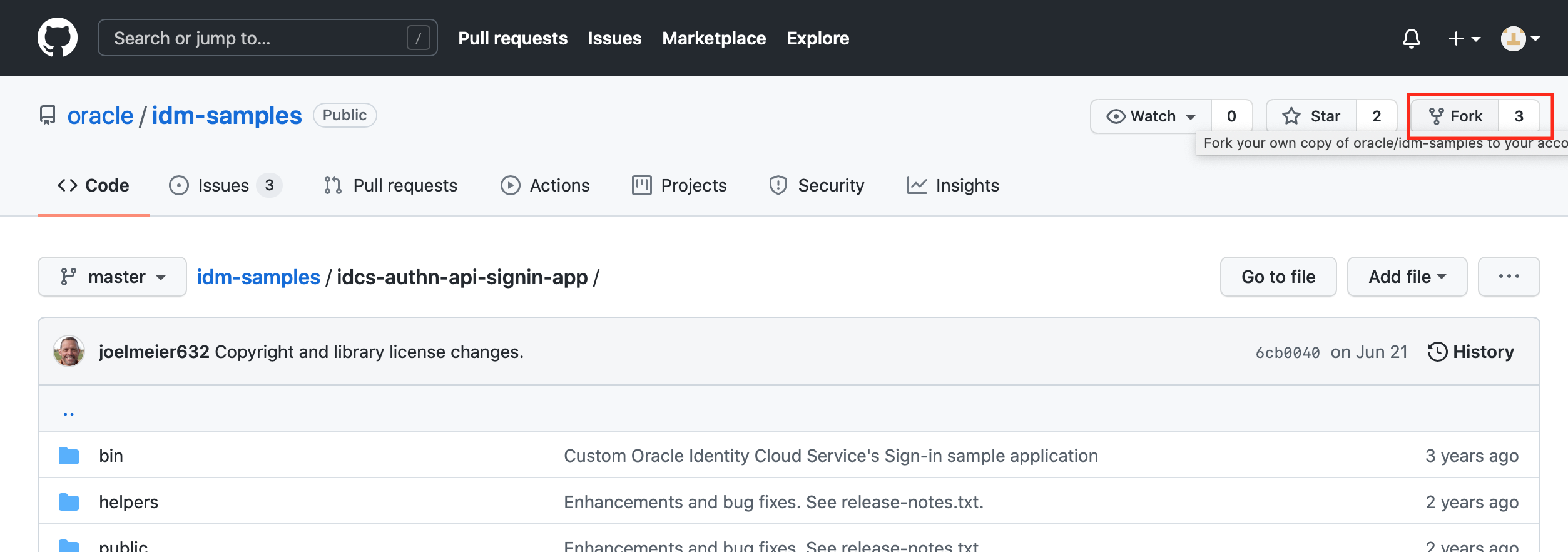
Then clone your forked repository on your development machine –
git clone https://github.com:USERNAME/YOUR-FORKED-REPO
Step 2: Create a Dockerfile
In the same directory, create a new file named Dockerfile.
IDCS Custom login widget is a Node JS application. So, the dockerfile looks very similar to any other NodeJS app.
Here is my sample Dockerfile
FROM node:alpine

 # Create app directory WORKDIR /usr/src/app # Install app dependencies
 # A wildcard is used to ensure both package.json AND package-lock.json are copied where available (npm@5+)
 COPY package*.json ./
 RUN npm install
 # If you are building your code for production
 # RUN npm install --only=production
 # Bundle app source
 COPY . .

 EXPOSE 3000
 # "npm start" is how this would normally be started
 CMD [ "npm", "start" ]
Step 3: Build a docker image
Build a docker image from the dockerfile, provide your own image name
docker build -t $IMAGE_NAME $PATH_TO_DOCKERFILE
List the images to verify your docker image
docker images
Step 4: Push the image to OCIR
Refer to this tutorial to understand how to push any docker image to OCIR. I am adding some more screenshots to make it easier.
A. To set an auth token in your OCI user profile
Login to OCI console and navigate to user profile -> Auth Tokens and generate a new auth token
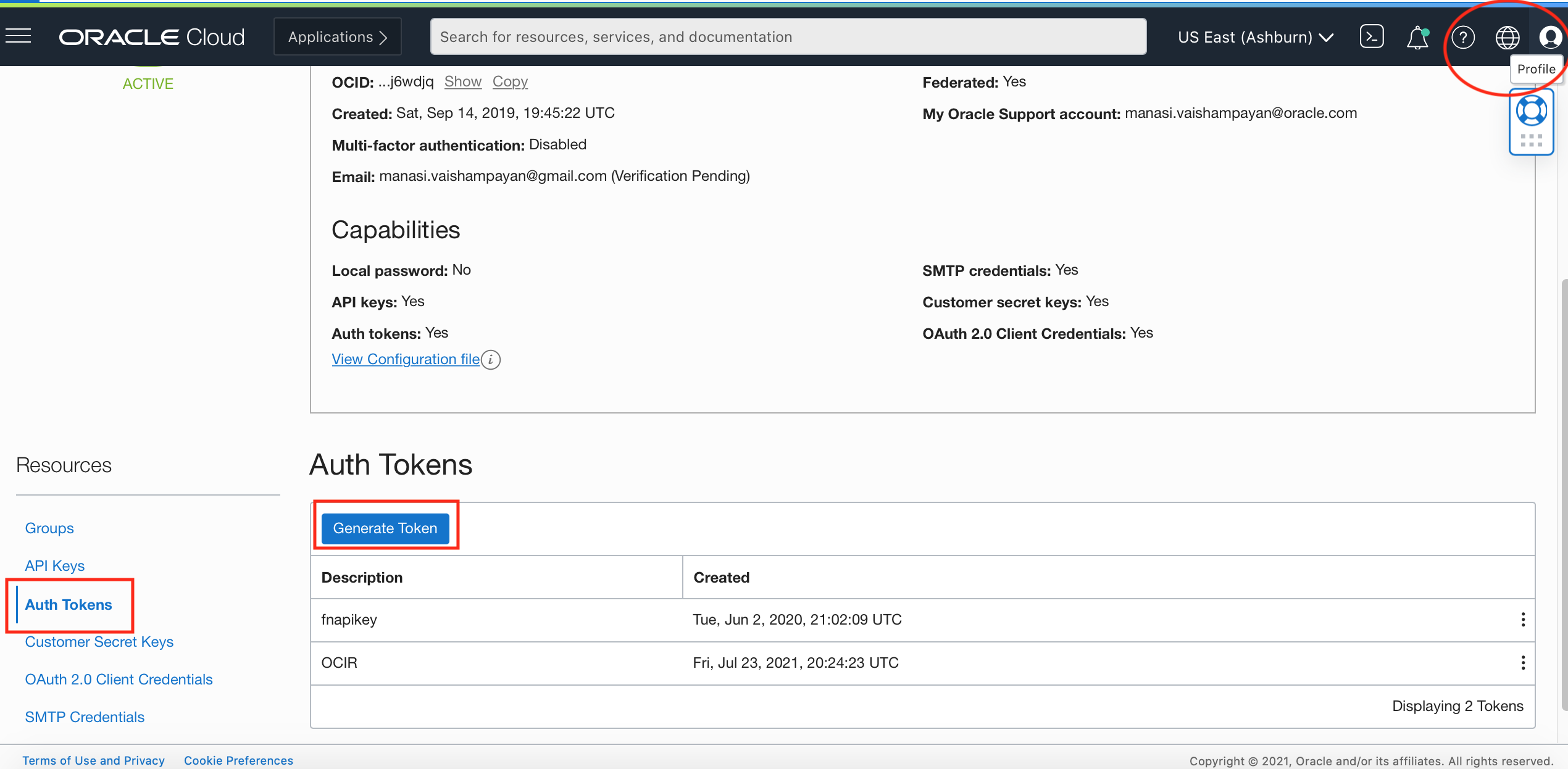
Keep your Auth token secure. You will NOT be able to view or get the value of this auth token later
B. From your development machine, login to OCIR by running
docker login <region-key>.ocir.io
For example, my OCIR region is Ashburn so, I’d use
docker login iad.ocir.io
When prompted for Username, enter the name of the user having auth token in the format – <tenancy-namespace>/<username>
Or if is an IDCS user, in the format – <tenancy-namespace>/oracleidentitycloudservice/<username>
When prompted for Password, enter the user’s Oracle Cloud Infrastructure auth token.
C. Tag and push the docker image built in the previous step to OCIR
Tag the docker image you created in step 2. You can either create a new repository in OCI container registry or use an existing one. The format of the tag should be – <region-key>.ocir.io/<tenancy-namespace>/<repo-name>:<version>
docker tag idcslogin:latest iad.ocir.io/mytenancy/myrepo/idcslogin:latest docker push iad.ocir.io/mytenancy/myrepo/idcslogin:latest
Kubernetes manifest file will use this image when deploying a pod.
The custom login app requires you to set some mandatory environment variables like IDCS_URL, IDCS_CLIENT_ID and IDCS_SECRET and you can set other optional environment variables like IDCS_SELFREGPROFILES to pass a self-registration profile to the login widget and DEBUG_LOGIN=true to enable debug logging in NodeJS. For production, you will also need to set NODE_ENV=production variable.
We will be using Kubernetes secrets to store these values and pass these along in the manifest file.
Summary
This post showed how easily you can dockerize and push the login widget image to OCIR. This sets up the stage for our next step, deploying and running the widget on OKE.