
Hi! Welcome to the 2nd blog of the series in which we discuss why and how you can leverage Oracle Cloud services to build your own “light” Content Delivery Network. In this part, we will do a demo on a small CDN deployment and see if it can improve a website’s loading time.
Blog list:
Build your own CDN on OCI – part 1 – Concepts
Build your own CDN on OCI – part 2 – demo 1 – Website
Build your own CDN on OCI – part 3 – demo 2 – Object Storage
Scenario
Let’s say we have a website deployed in OCI’s US East Coast region, Ashburn. Users accessing it from US East and US Central have a good experience, while users in US West and Europe are experiencing high load times and slowness while navigating the site.
We can use a lightweight CDN with two PODs, one on the US West region, Phoenix, and the other in Europe, Frankfurt, to improve the user experience for the users in those geographical areas.
Prerequisites:
- DNS Zone managed by OCI – I have oci-lab.cloud which I will use for this demo. From it, I will carve the following hostnames:
– mushop-origin.oci-lab.cloud for the website deployed in OCI Ashburn;
– mushop-cdn.oci-lab.cloud for accessing the Ashburn website through the CDN;
- SSL Certificates, certificate chain and private key for all DNS hostnames that will be used. In my case I have a wildcard certificate (*.oci-lab.cloud) which I will use, but specific certificates for each hostname will also work.
Before we start, here is a diagram of what we will build:
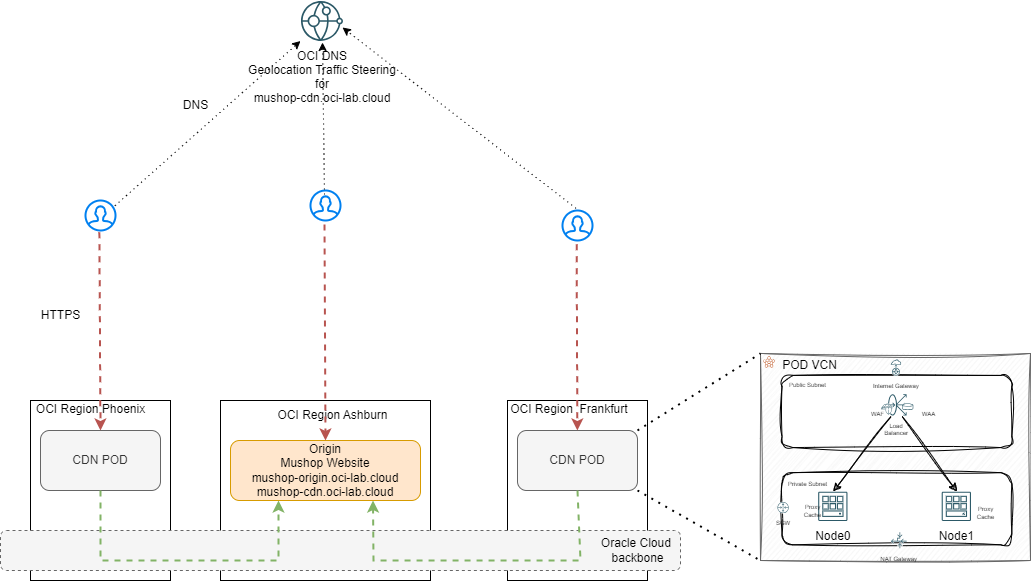
Demo
Let’s build all the components of the lightweight CDN.
A. Origin
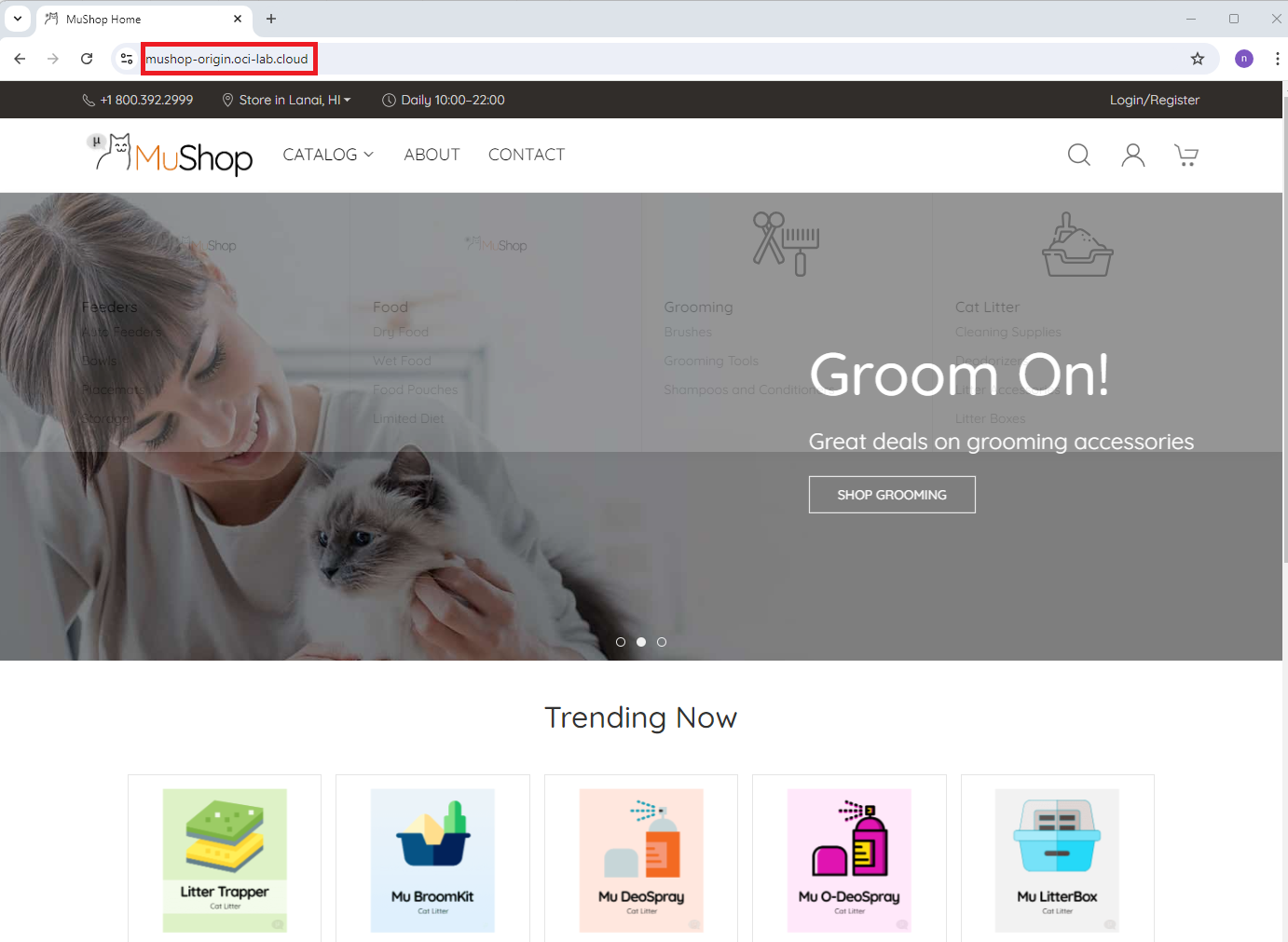
To act as an Origin, I deployed Mushop, which is a fully functional e-commerce website provided by Oracle for demo purposes. You can fully install Mushop from Github, free of charge. Mushop has a lot of static content which makes it a great showcase for a CDN. The only modification I made to the Github deployment is to add SSL certificates to the provided Load Balancer so access is only via HTTPS.
The SSL certificates I added allow two hosts:
- mushop-origin.oci-lab.cloud – so I can connect directly to the website and test performance.
- mushop-cdn.oci-lab.cloud – so the website can be part of the DNS Steering policy, thus avoiding putting a CDN POD in the same region.
B. CDN PODs
The CDN PODs are the main components. To do a step-by-step guide on the full deployment would take too much space and would make the blog boring. I will skip through some of the parts and only focus on the details that are important.
Let’s deploy a POD in Frankfurt. As per the previous blog, the POD design is pretty simple: one VCN with subnets, one public Load Balancer, two virtual machines running Oracle Linux 8 and NGINX.
In the end, it should look like this:
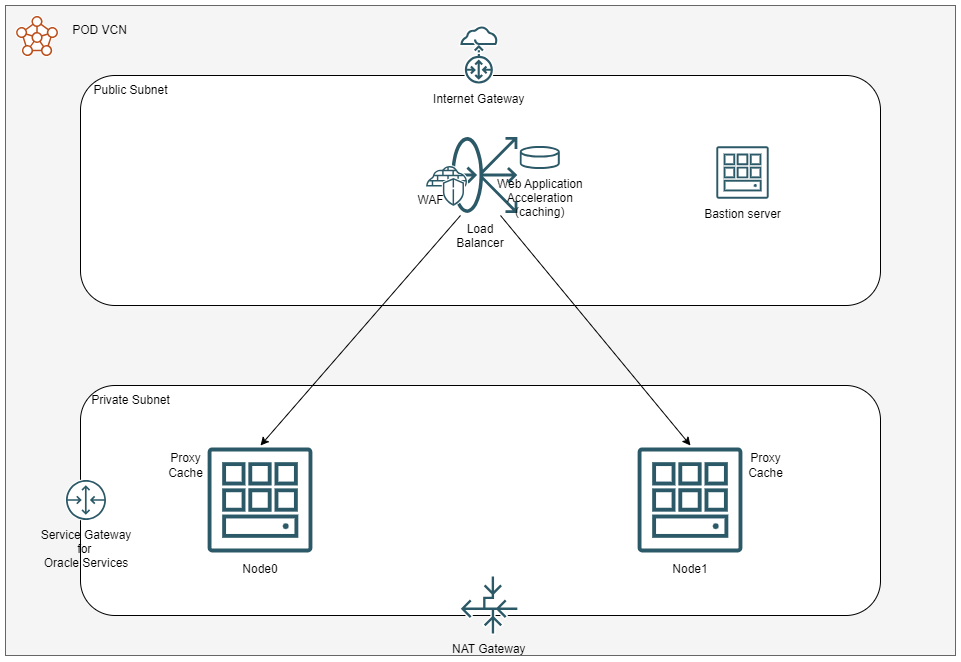
1. Deploy one VCN with:
– An Internet Gateway, a NAT Gateway and a Services Gateway
– A public subnet with a dedicated route table that points 0.0.0.0/0 to the Internet Gateway; add a dedicated Security List which allows only TCP 443 and 22 from the Internet, allowing all on egress.
– A Private subnet with a dedicated route table that points 0.0.0.0/0 to the NAT Gateway and “Services” to the Service Gateway; add a dedicated Security List which allows only TCP 80 and 22 from the Public Subnet, allowing all on egress.
2. Deploy the Bastion server on the public subnet to use it to connect to the backend NGINX servers. Alternatively, you can use OCI’s Bastion Service.
3. Deploy 2 Compute instances in the private subnet running Oracle Linux 8 with 2 OCPUs and 16 or 32 GB of RAM. Make sure they are in different Availability domains and that you assign the correct SSH keys so you can connect to them from the Bastion server.
Let’s connect to the first NGINX node and install/configure NGINX. Add these lines, one by one:
sudo yum install -y nginx
sudo systemctl enable --now nginx.service
sudo firewall-cmd --add-service=http --permanent
sudo firewall-cmd --reload
sudo systemctl status nginx
After the last line, the status should be:
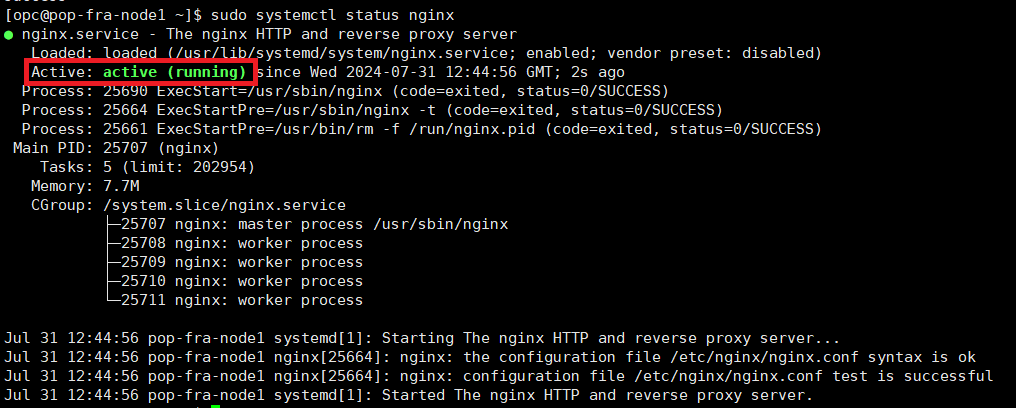
If it is not, do not move further, troubleshoot and fix the deployment.
Next, create a cache folder and point nginx to it.
sudo su -
mkdir /var/cache/nginx
chown nginx:nginx /var/cache/nginx
echo "proxy_cache_path /var/cache/nginx levels=1:2 keys_zone=cache:10m inactive=60m;" >> /etc/nginx/conf.d/cache.conf
exit
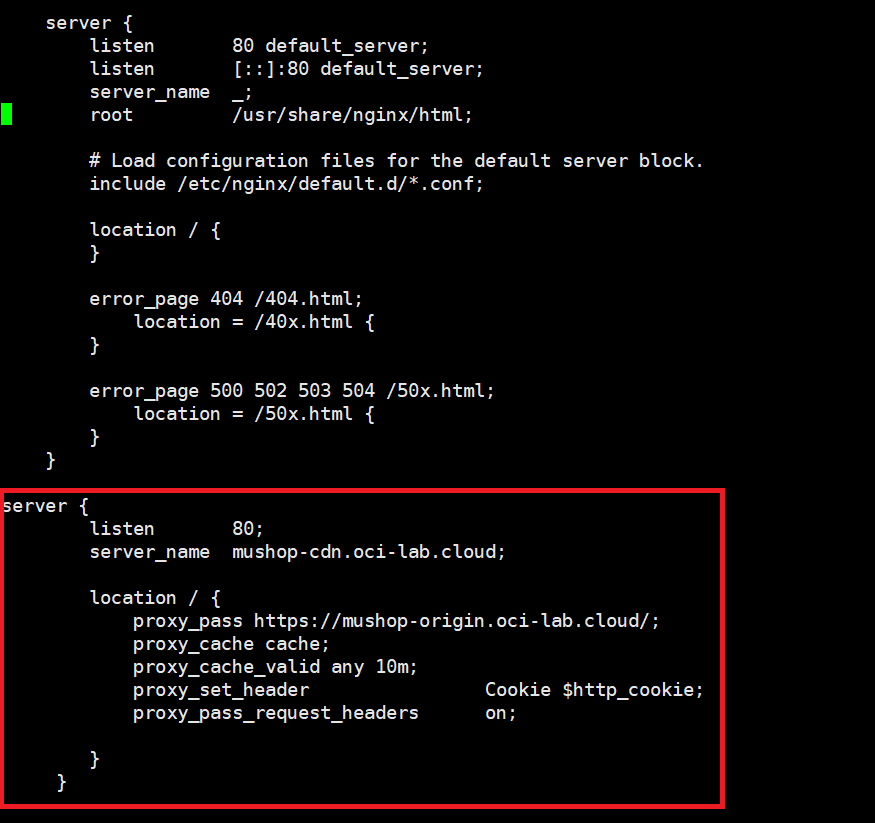
Add the proxy and cache related config to nginx.
sudo vi /etc/nginx/nginx.conf
Go to the middle of the file and add a new server after the default one.
server {
        listen       80;
        server_name  mushop-cdn.oci-lab.cloud;

        location / {
            proxy_pass https://mushop-origin.oci-lab.cloud/;
            proxy_cache cache;
            proxy_cache_valid any 10m;
            proxy_set_header                Cookie $http_cookie;
            proxy_pass_request_headers      on;

        }
     }
Restart nginx and make sure it comes back in a running state.
sudo systemctl restart nginx
sudo systemctl status nginx
Before moving on, disable SELinux until next reboot as, by default, SELinux will prevent NGINX from running as a proxy. While there are ways to configure SELinux to allow NGINX to proxy traffic and make that configuration stick after a reboot, for demo purposes we will just disable SELinux. For a production deployment, this topic should be tackled with more security in mind.
sudo setenforce 0
sudo systemctl restart nginx
Repeat the same procedure for the second NGINX node.
DISCLAIMER: The configuration above is for demo purposes only, to showcase the concept of caching and proxy inside NGINX. The production configuration should be a lot more complex, with settings related to cache control, http headers and cookies, logging and what not.
4. Load balancer setup
After both NGINX servers are up and running, deploy a Public Load balancer, in the public subnet.
– Shape – any values that will work for your particular application; for this demo I will go with a minimum of 50 Mbps and a maximum of 500 Mbps.
– Listener HTTPS with SSL Certificates for the hostname you will use (mine is mushop-cdn.oci-lab.cloud).
– Backend set with the two NGINX servers on HTTP (port 80).
– Health check on HTTP un default settings.
– Optional: Add a Web Application Firewall Policy by following this guide.
– Optional: Add a Web Application Acceleration policy (for caching) by following this guide.
If everything is configured correctly, the load balancer should come up with status OK. Take a note of the public IP, we will need it in the DNS config.
5. Repeat steps 1-4 to deploy as many PODs as you want in other OCI Regions. I will deploy a second POD in OCI Phoenix.
C. DNS Traffic Steering
The last piece of the puzzle is the DNS. Before we start, we need to gather the public IPs of all the sites. Here is what I have:
– Origin Load Balancer in Ashburn: 150.136.202.85;
– CDN POD Load Balancer in Phoenix: 129.153.85.220;
– CDN POD Load Balancer in Frankfurt: 129.159.248.53;
Note that all three load balancers need to have SSL certificates for the CDN DNS name, mine is mushop-cdn.oci-lab.cloud.
1. Health checks
The DNS policy needs the Health Check service to monitor the three sites. Go to the Burger Menu -> Observability & Management and click Health Checks under Monitoring. Create a new Health Check.
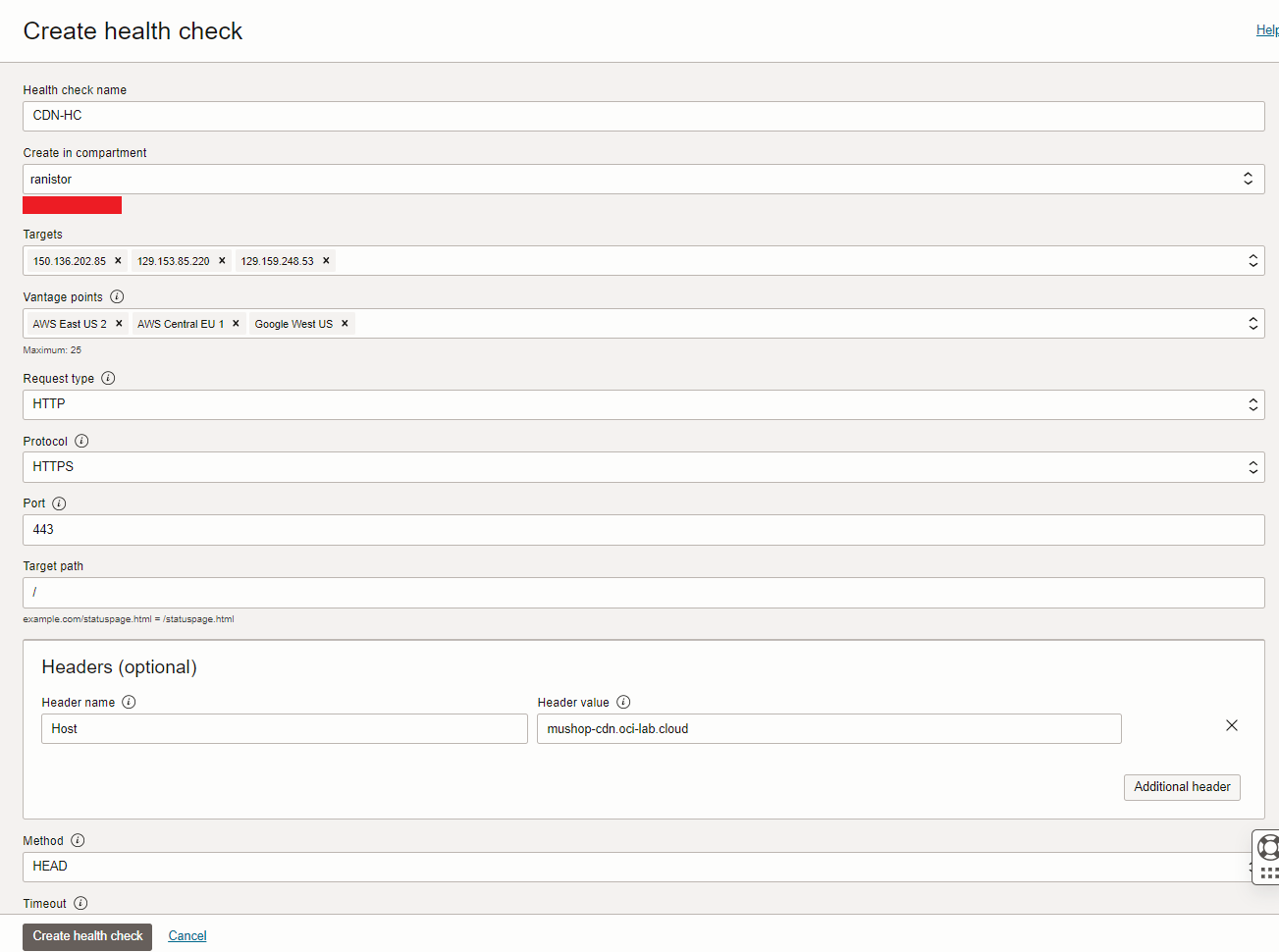
– Targets: the three sites (Origin + 2 CDN PODs).
– Vantage Points: select a few source locations for the health checks, I chose three in proximity of the targets.
– Request type must be HTTP.
– Make sure you add the “Host” header for your CDN DNS hostname.
– HEAD method should be fine.
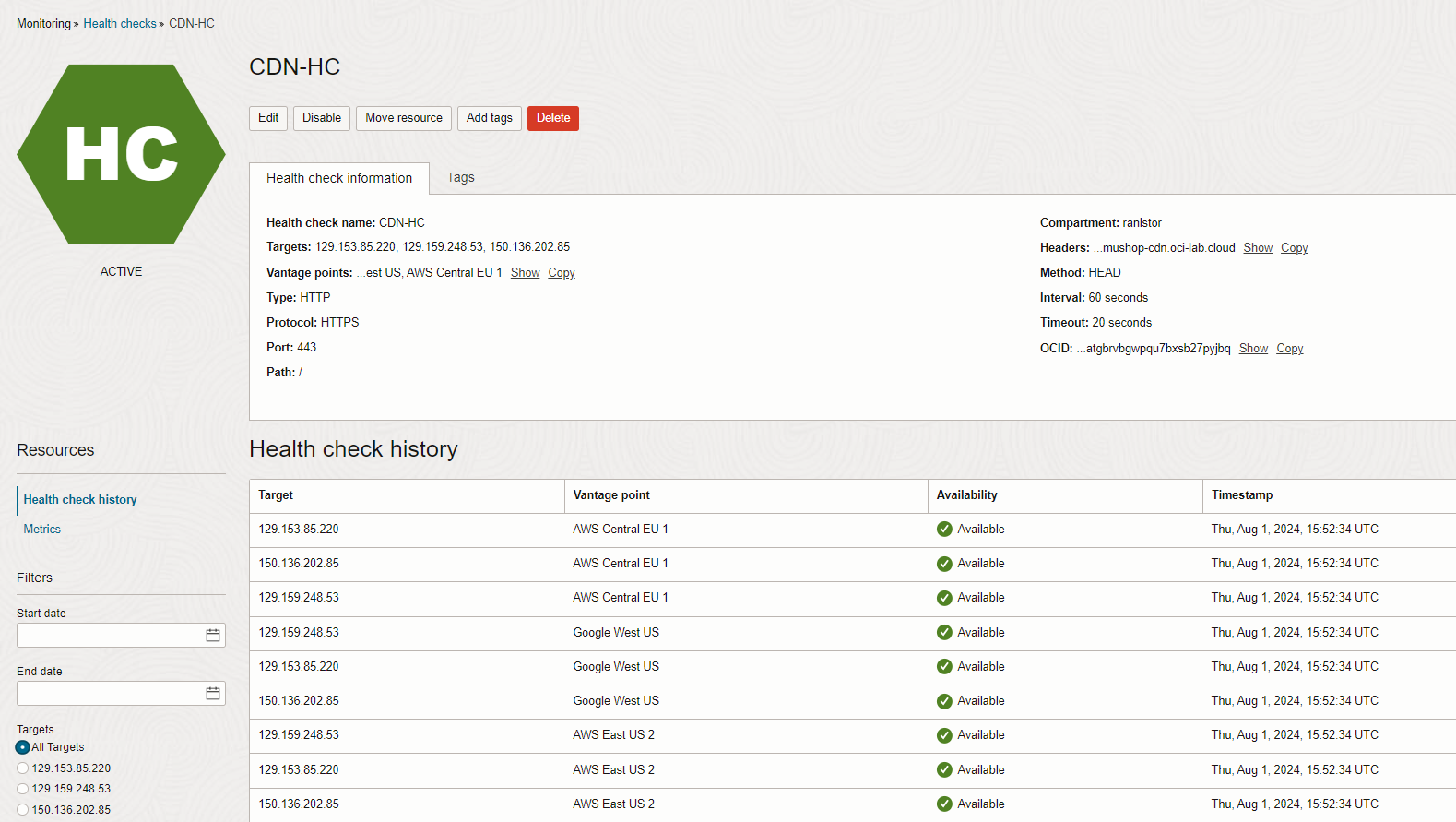
Give it a few minutes and make sure all three sites are reported as Available.
2. DNS Geolocation Traffic Steering policy
We will create a DNS Steering policy with the following mapping:
– US West states (Oregon, Washington, California, Idaho, Utah, Arizona) will be allocated to the Phoenix POD; if the Phoenix POD becomes unhealthy, they will be redirected directly to the Origin in Ashburn.
– All countries in Europe will be allocated to the Frankfurt POD; if the Frankfurt POD becomes unhealthy, they will be redirected directly to the Origin in Ashburn.
– The rest of US and all other Continents will be directed to the Origin in Ashburn, a global catch-all rule.
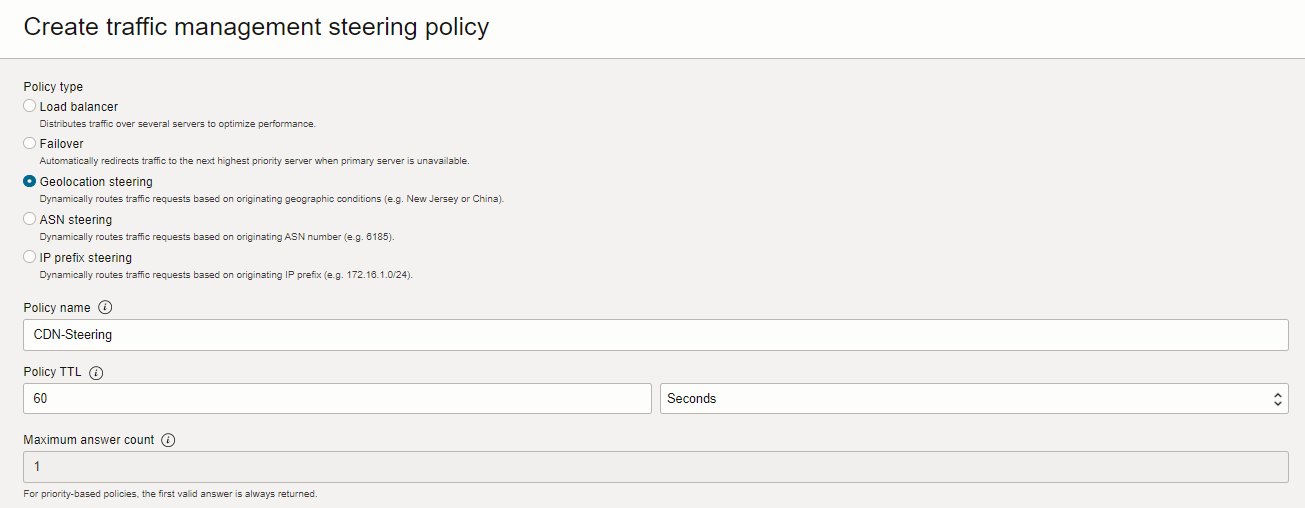
Go to the Burger menu -> Networking and click Traffic management steering policies under DNS management. Press Create a new policy. Choose the name and type (geolocation):
Next, create three pools mapped to the three sites, like below:
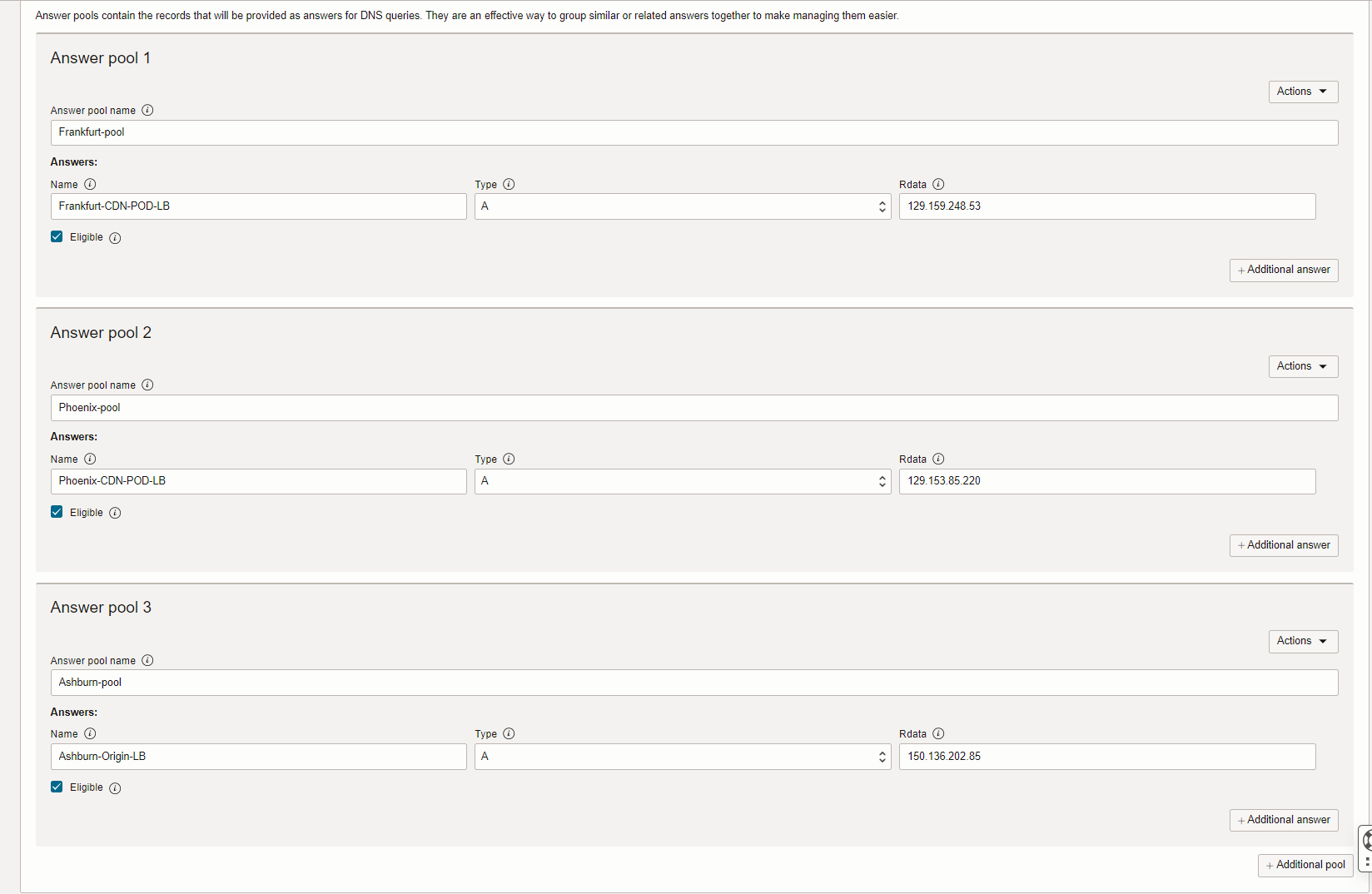
Next, create the steering rules, like below:
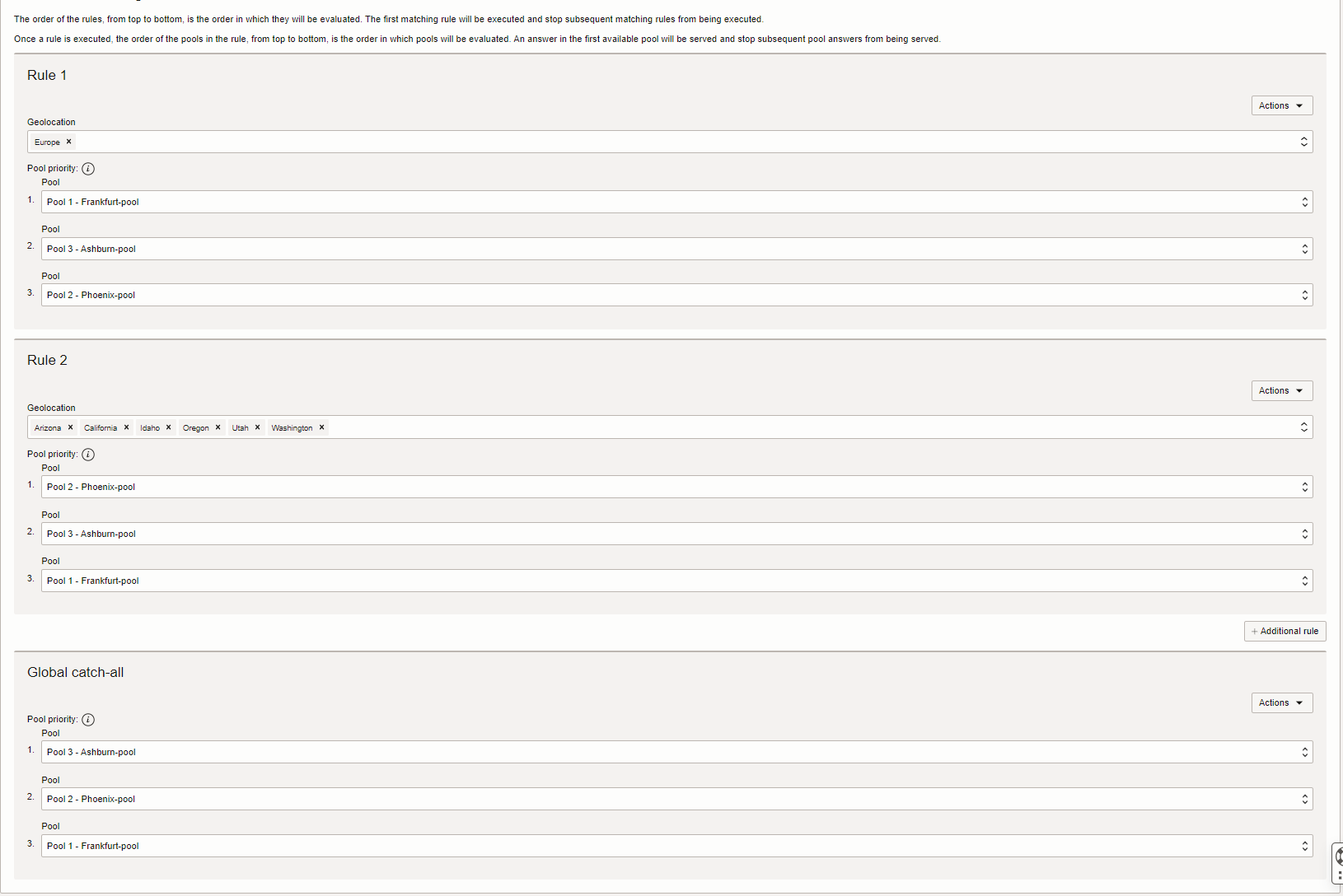
Finally, attach the health check and the subdomain:
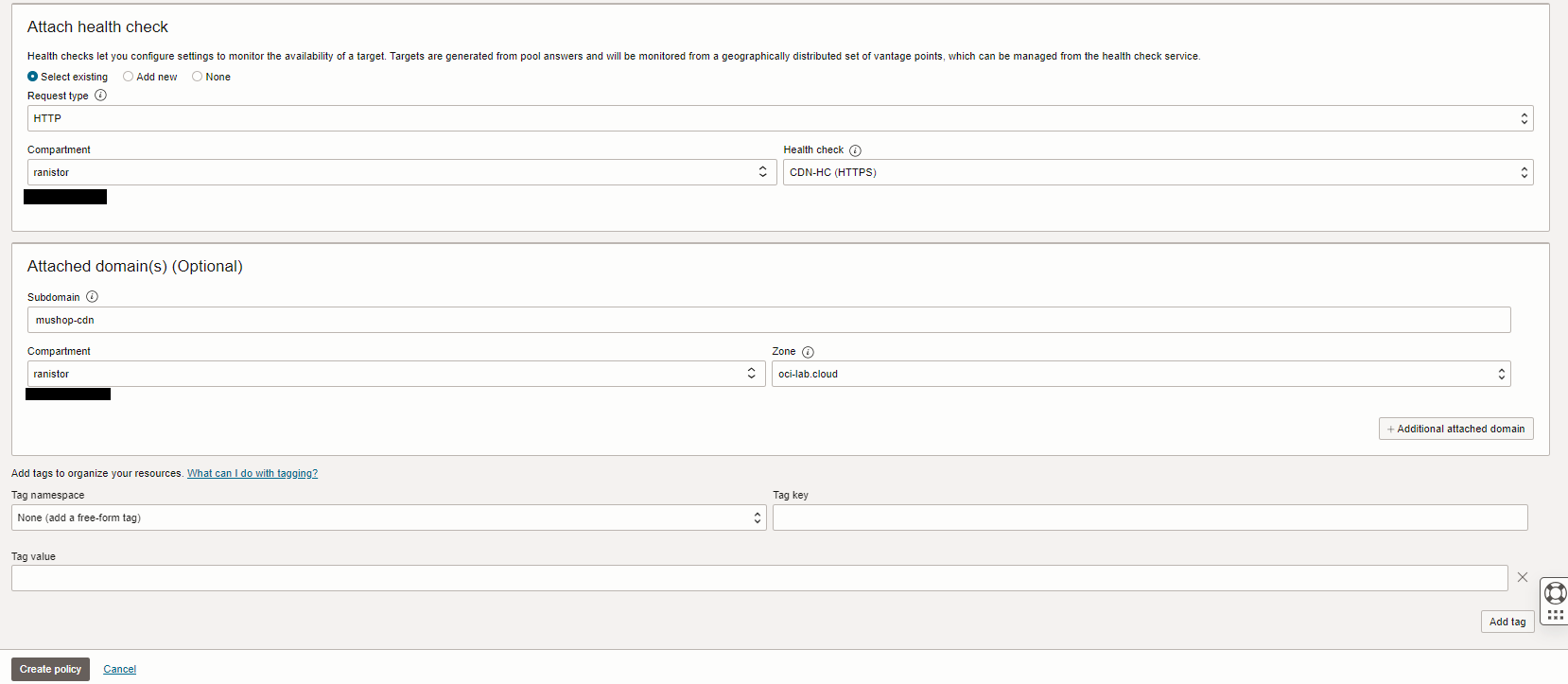
And we’re done! The CDN is deployed and we can take advantage of it.
Performance testing.
After all this work, does it really make a difference? Let’s find out. From my home computer which connects to the Internet via a generic ISP I will test website loading times by targeting the Origin directly and by targeting the CDN. I am based in Europe, so I should be directed to the Frankfurt POD.
A direct Origin connection:
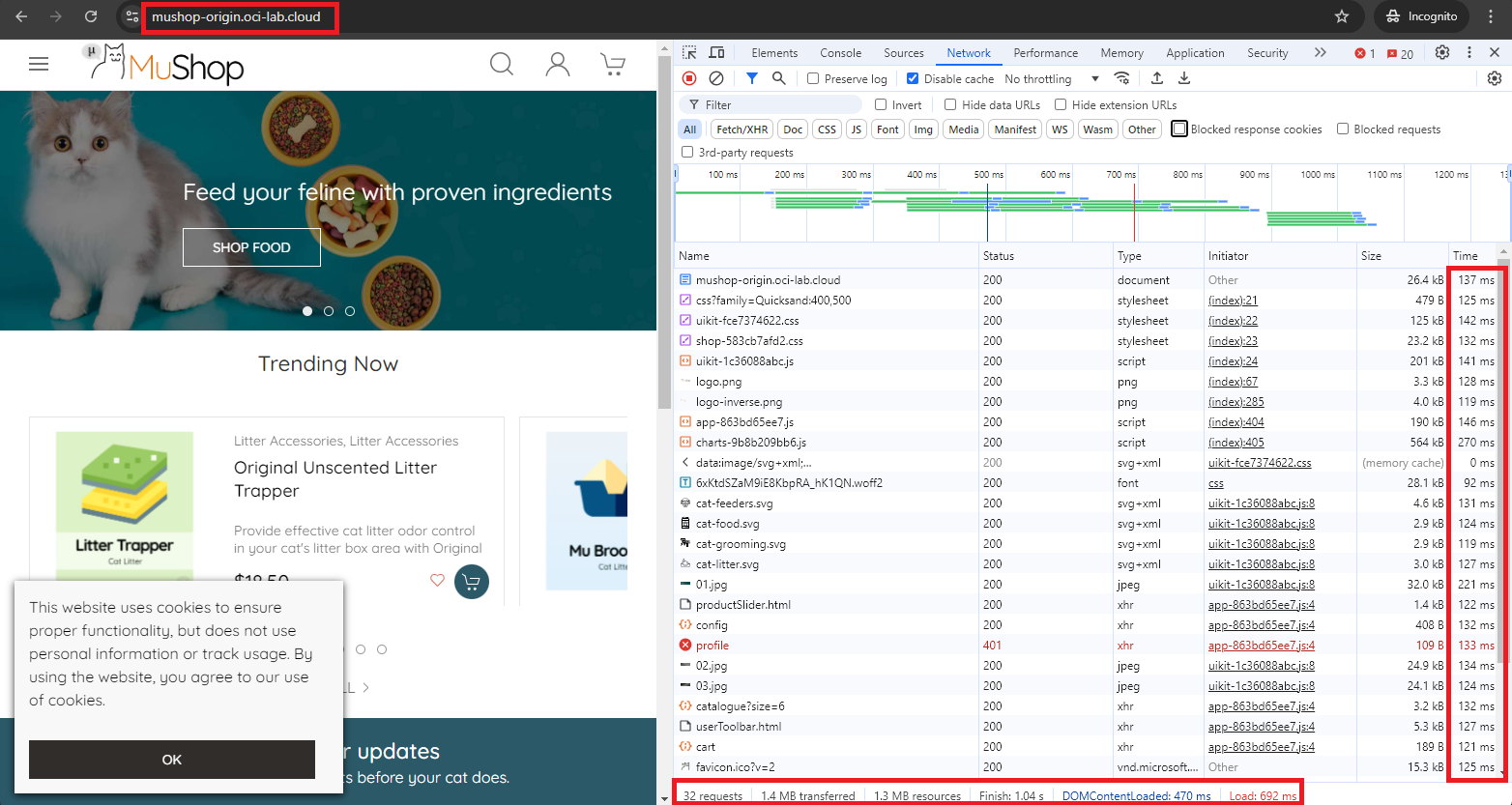
Notice the 100+ ms for each item in the website and the total load time. Now let’s see the CDN:
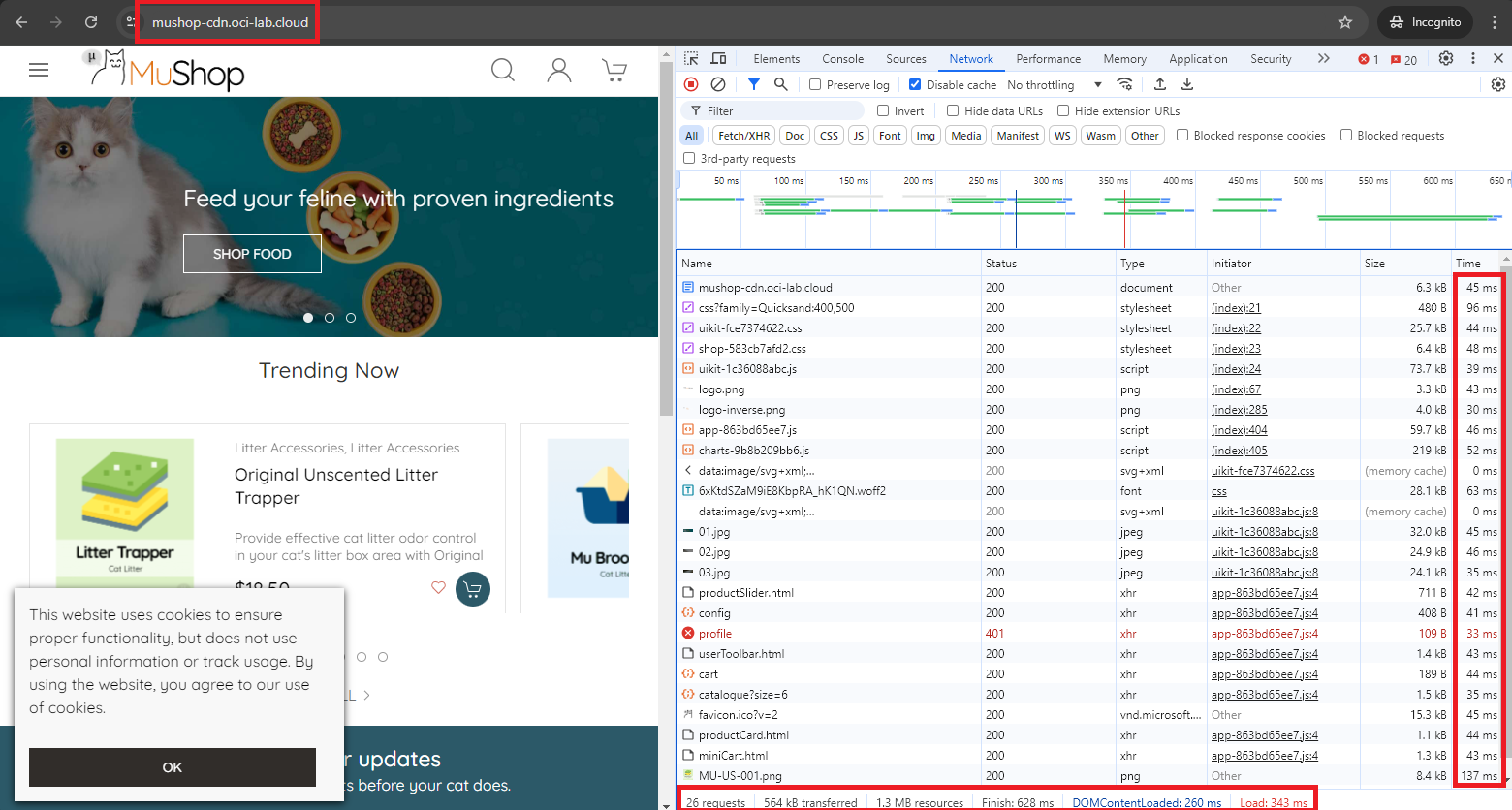
As you can see, the website loads virtually twice as fast as most of the data is cached in the Frankfurt POD. Let’s double-check that I was directed to Frankfurt:

Yes, that is the Frankfurt POD Load Balancer IP.