
Hi! In this blog entry we will talk about Check Point Cloud Firewalls deployed on Oracle Cloud Infrastructure and some features that really help with Cloud deployments.
Check Point Cloud Firewalls in OCI
You can deploy Check Point Cloud Firewalls in OCI with a Pay as You Go license or you can Bring Your Own License. The images are available in the OCI Marketplace:
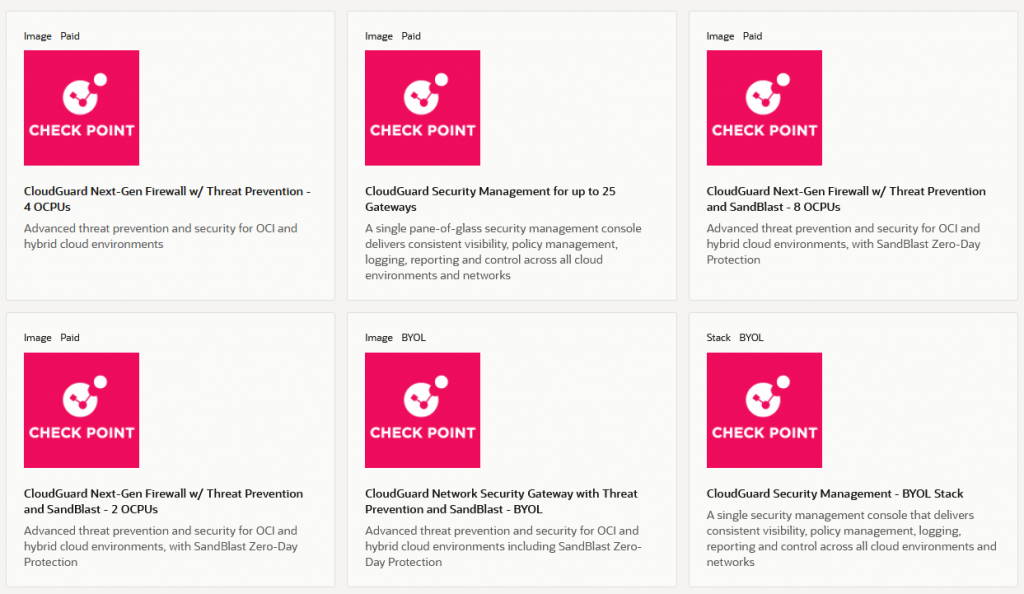
Deployment methods supported:
- Single firewall deployment – you can deploy one firewall at a time, either BYOL or PAYG, and fully manage the deployment. You can manually configure two firewalls deployed like this to work as a cluster.
- Stack deployments – you can deploy predefined stacks which will use OCI’s Resource Manager to leverage Terraform and deploy two firewall nodes at the same time, configured to work together as a cluster and with predefined interfaces. More information on this deployment can be found here.
High Availability options:
- You can deploy, using a stack from the Marketplace, or you can build yourself, an Active-Passive Firewall cluster. In this method, the cluster will present Virtual IPs to OCI, for routing integration, and there is a prebuilt script that ensures the VIPs are moved between nodes in case of node failures.
- You can also build Active-Active deployments by putting as many firewalls as you want behind OCI Network Load Balancers that will perform health checks and ensure that traffic is forwarded only to healthy nodes. If you want to take it to the next level, you can use this procedure built by Check Point to deploy Autoscaling clusters which will deploy/delete Firewall nodes based on need.
Check Point Management
Check Point Cloud Firewalls require an external management system. This system can be another Virtual Machine, running the Security Management software, deployed locally, in OCI, or deployed in a remote location or use Check Point’s Cloud Management called Smart-1 Cloud. All that is needed is IP connectivity between the Firewalls and the Management system.
Now that we briefly went through deployment options, let’s talk about some features that work very well for Cloud deployments, mainly policy objects that are dynamic, based on external sources, which are automatically updated when changes occur. While there are a number of supported external sources, I will focus on only two of them: External Network Feeds and CloudGuard Controller for Oracle Cloud Infrastructure.
Before jumping to the demo side, please note the firewall deployment and integration to the Management System is not covered in this blog and it is assumed you already have one firewall deployed and linked to a management system.
External Network Feeds
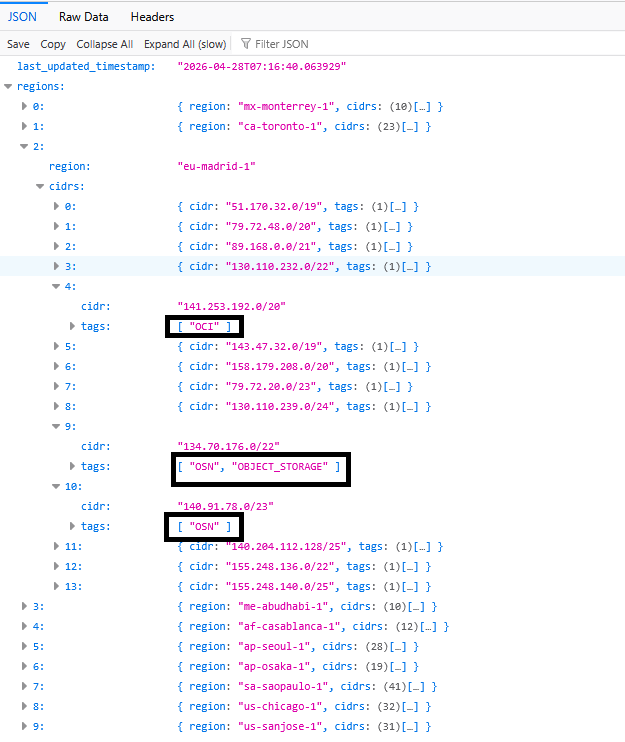
Check Point Cloud firewalls can create policy objects based on an external file. How does this help with OCI deployments? OCI Public IPs used across all regions are published in a JSON file that is publicly available, located here. The file contains existing IP ranges allocations to OCI regions and is updated whenever a new range is allocated. Also, the CIDRs are tagged like this:
- Tag “OCI” means those CIDRs are allocated to customer deployments in a region, mainly IaaS ( Public Virtual Machines, Public Load Balancers, etc).
- Tag “OSN” means those CIDRs are allocated to Oracle Managed Services deployed on the Oracle Services Network, basically a dedicated network for Public PaaS and SaaS (Oracle Integration Cloud, Fusion SaaS, etc).
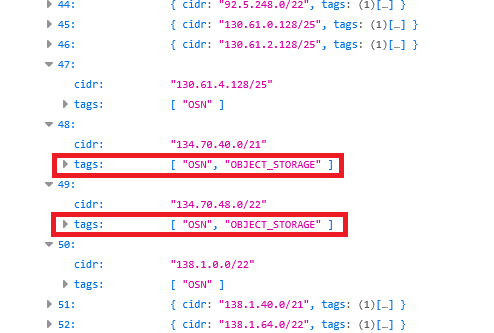
- An OSN subtag called “Object Storage” dedicated for the OCI Object Storage deployments.
Let’s see a quick example for region Madrid, in EU:
Why is this helpful? There are scenarios where you would want access to and from OCI Public IPs to continue to work even though the service itself might have changed the IP. Let’s take some examples:
- Private Virtual Machines in OCI need to communicate with OCI Object Storage and you want to inspect that traffic. Also, you want to make sure that even if OCI Object Storage changes its IPs, the communication continues to work.
- Oracle SaaS like Fusion is connecting to a public Load Balancer for email or printing services. The public IP of Fusion can change so an External Network Feed with only OSN Ranges will make that IP change transparent for your environment.
Official Check Point documentation can be found here.
Let’s do a quick demo.
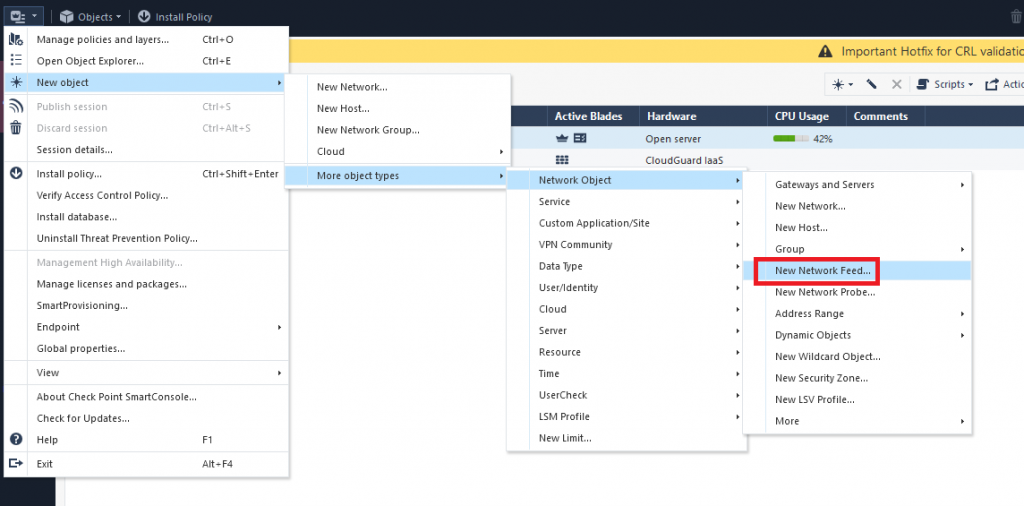
I will create a new Object based on the OCI JSON file that references the OSN ranges in OCI Frankfurt dedicated to Object Storage. Go to the Management System and create a new Network Feed Object:
Next, input the following in the menu that opens:
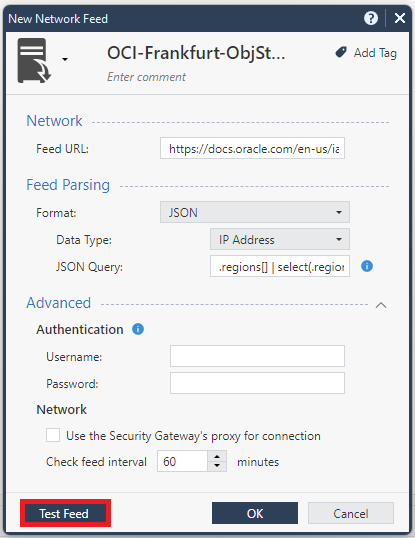
- Name: give it any name, I gave it OCI-Frankfurt-ObjStorage
- Feed Url: https://docs.oracle.com/en-us/iaas/tools/public_ip_ranges.json
- Format JSON
- Data Type: IP Address
- JSON Query – you will need to build a JSON query that extracts only the info that you want from that large file. For this example, I created a JSON query that filters by region eu-frankfurt-1 and only outputs the CIDRs that have tags “OSN” and “Object_Storage” and it looks like this:
.regions[] | select(.region=="eu-frankfurt-1") | .cidrs[] | select((.tags | index("OSN")) and (.tags | index("OBJECT_STORAGE"))) | .cidr- Network – the firewall is actually connecting to the public JSON so check/uncheck the option to use a proxy based on your design. I left mine unchecked.
- Since these ranges are updated only a few times per year, you can make the feed interval quite long, I just left it on default.
Press “Test Feed”. In the menu that opens you need to select one Firewall that will perform the check.
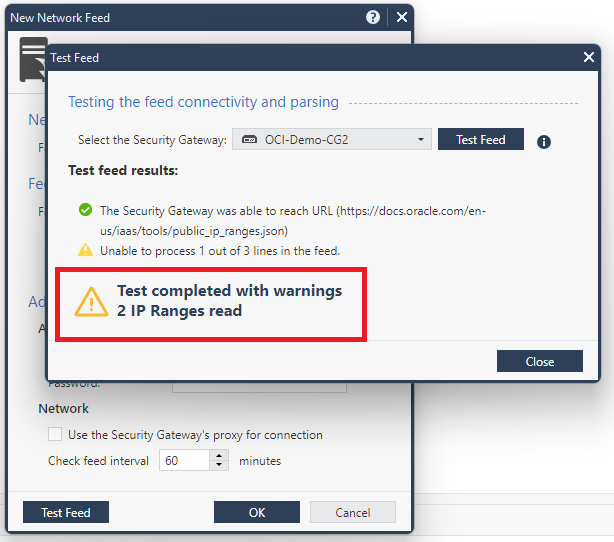
As we can see, the Feed read 2 IP ranges from the file as expected, if we verify in the JSON:
To check what exact IP ranges the firewall learned, we will need to run a command on the Firewall CLI, which is “dynamic_objects -efo ”, however you can only do that after you use the object in a policy.
CloudGuard Controller for Oracle Cloud Infrastructure
The second feature I would like to talk about is the OCI Datacenter Object. This is a very interesting feature that does the following:
- It connects to an OCI API Public Endpoint and imports all cloud resources deployed in a region, for a given tenancy.
- It updates every 30 seconds to learn about changes in the environment.
- At this time, it imports: Virtual Cloud Networks, VCN Subnets, Compartments, Compute Instances and Tags.
How does this help?
- You can deploy a Check Point Cloud Firewall in an existing environment in OCI and automatically import all resources (ex: hundreds of VMs, subnets) in a couple of minutes.
- If you perform a change on a resource (ex: add a Secondary IP, add another interface,etc) the object will update itself with the change.
- If you have a dynamic environment where you deploy and destroy instances multiple times per day, the firewall will immediately know the changes.
- You can build complex security policies based on Compute tags which opens a lot of options.
Prerequisites:
- The Object will require an OCI user’s API key to be able to connect to OCI’s API Endpoint.
- That user must be part of an IAM group that can read all resources in a tenancy.
- The Management system must be able to connect to OCI Public Endpoints.
Official Check Point documentation can be found here.
Let’s do a demo.
First, we need to create an OCI IAM User and Group. The Group must have the following policy set at the root compartment:
allow group checkpoint-api to read all-resources in tenancyNext, we need to go into the user config and create an API key:
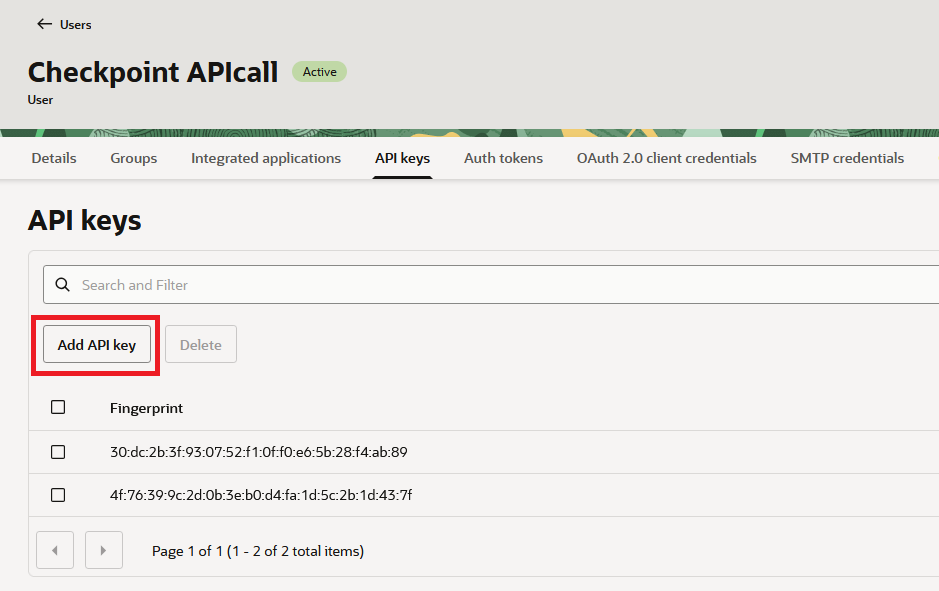
Add an SSH Public key and take the output as it is needed in the Firewall config:

Note: the region will output as your tenancy’s home region (in this case, us-ashburn-1) but the API call can be made for resources in any region.
Next, go to the Check Point Smart Console and add a new OCI Datacenter. Note that the Object can only gather data for a given OCI Region so if you need multiple regions, create multiple Objects.
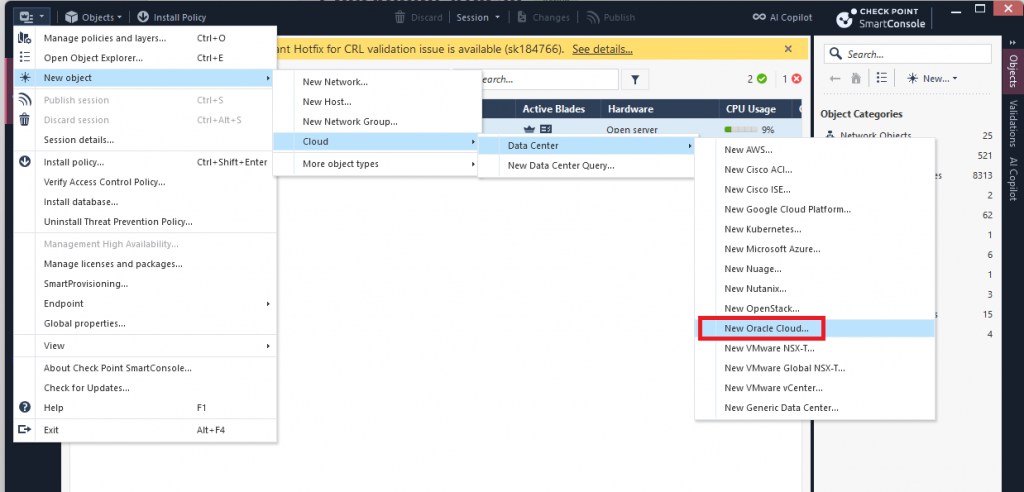
I will create a new Object dedicated to OCI Frankfurt, my test tenancy:
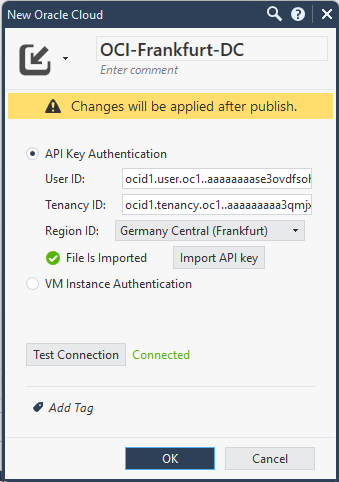
- User ID and Tenancy ID are given when you create the API KEY, in the OCI Portal.
- You must import the private key that is coupled with the public key you put in OCI.
- Make sure pressing Test Connection gives you “Connected” before moving on.
After you press OK, you need to enable Identity Awareness in your Firewall, for it to be able to use this kind of object. You must create a new Host called LocalHost (any other name will not work) and IP 127.0.0.1. Assign it to the Firewall’s Identity Awareness Web API:
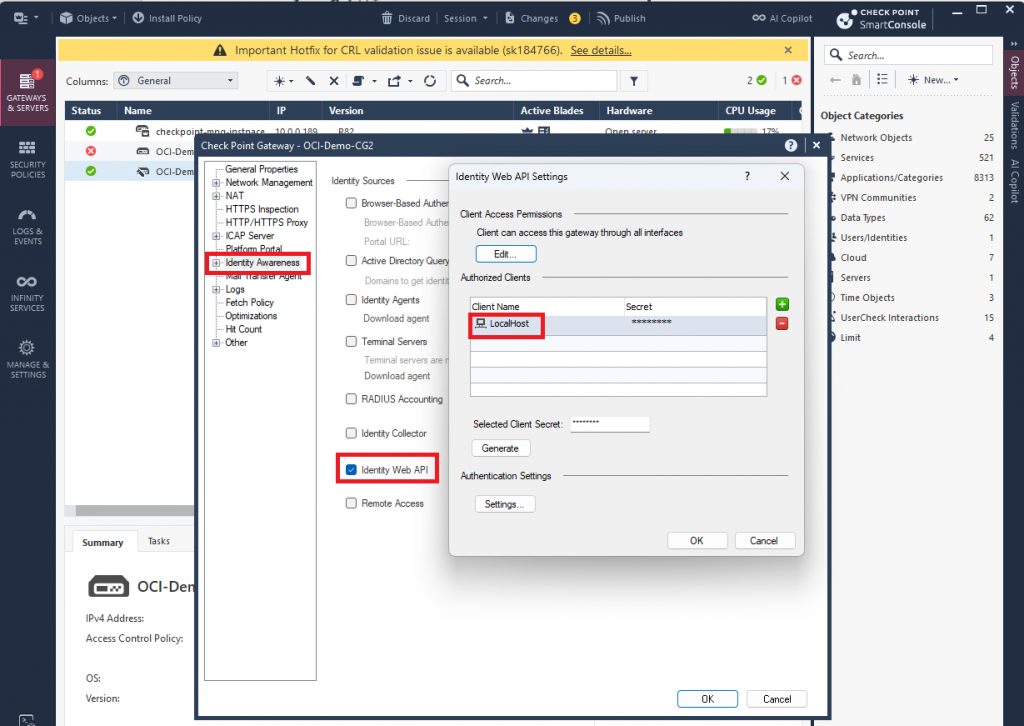
More information on this process here.
If everything was configured correctly, you should be able to Publish and changes and Install the Policy.
Now, if you go to a policy, you will be able to import objects from the OCI Datacenter:
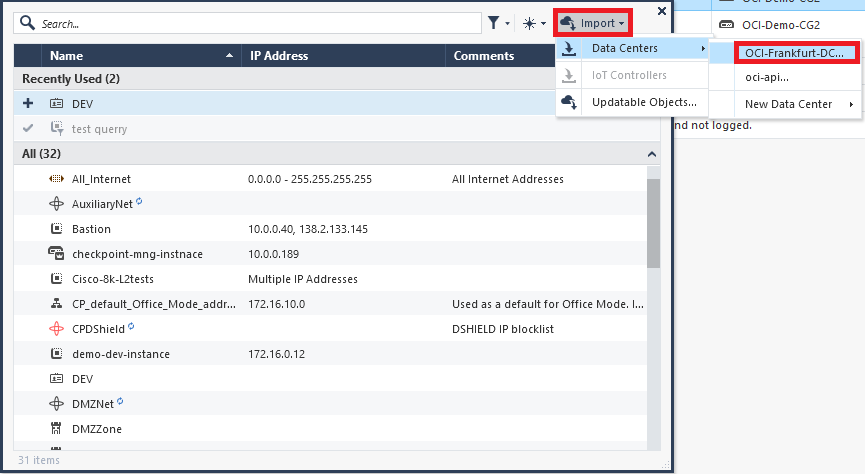
The Firewall will present all discovered resources via the API call, which you can add to firewall policies.
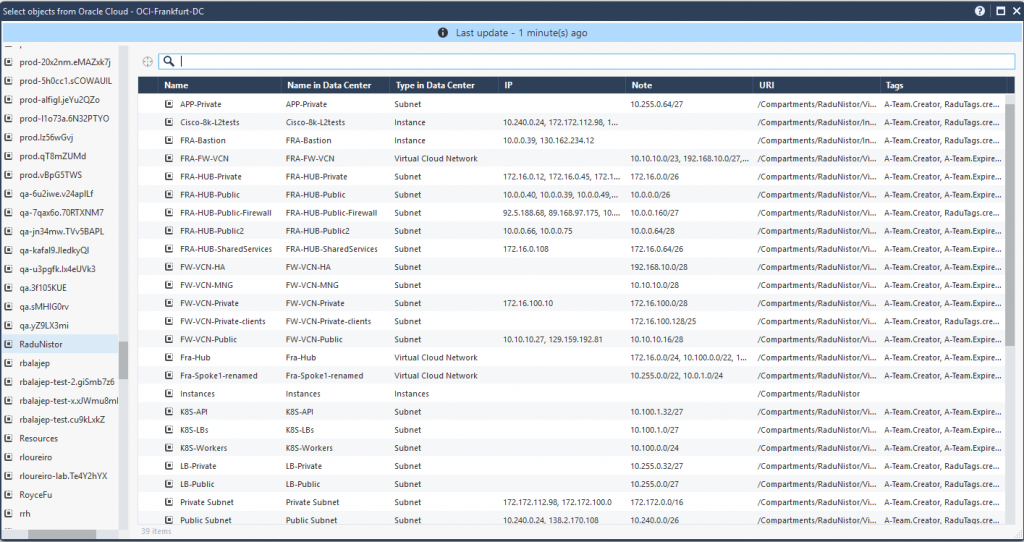
You can search the Datacenter Object by deployed OCI Compartment, Resource Tag and many other interesting combinations. However, a truly interesting concept is the ability to create firewall policies based on a resource TAG.
Let’s say I want all my Virtual Machines in OCI Frankfurt that are tagged with the Tag Key “Env” and Value “DEV” to access OCI Object Storage in Frankfurt without me defining those IPs and I want it to be dynamic, meaning if any IP changes, the security policy should still work.
In OCI, the Compute tag will look like this:
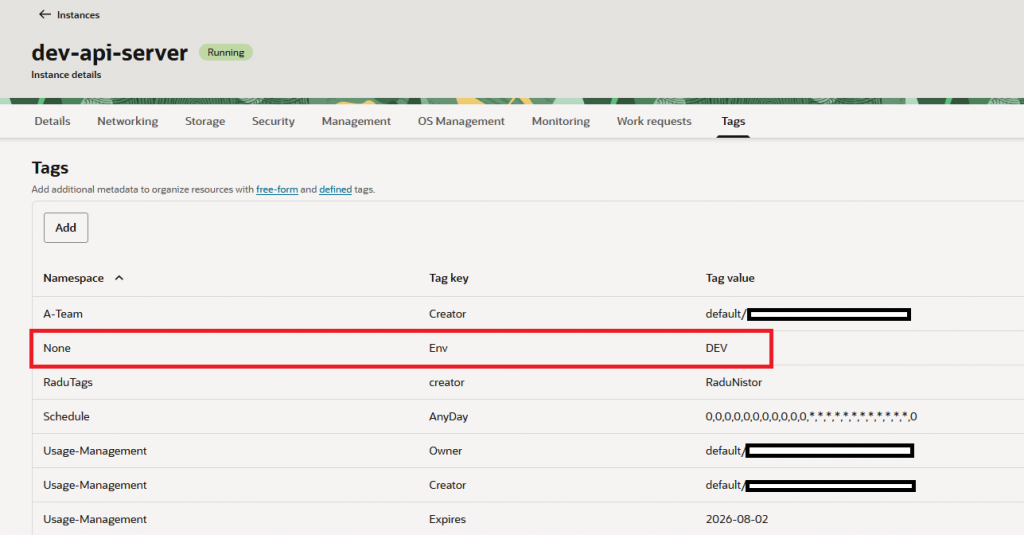
Let’s create a new Object called “Data Center Query” which looks into the previously defined OCI Datacenter and fetches all Compute Instances with the Tag “Env:DEV”:
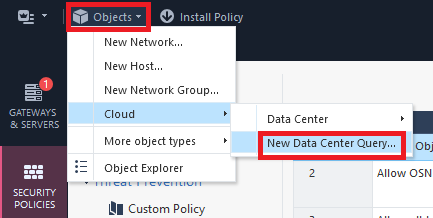
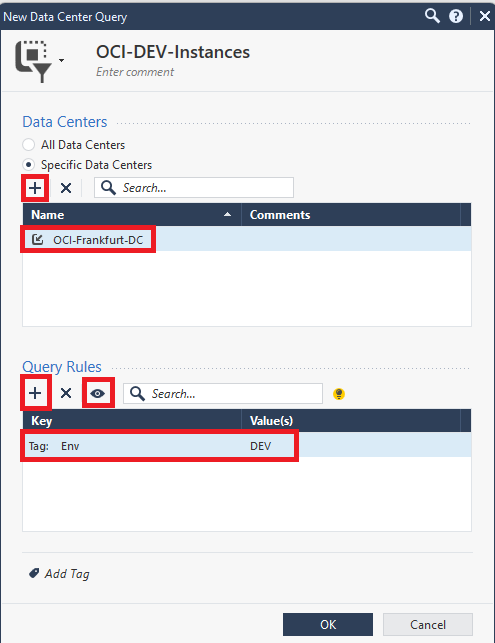
Input the following info:
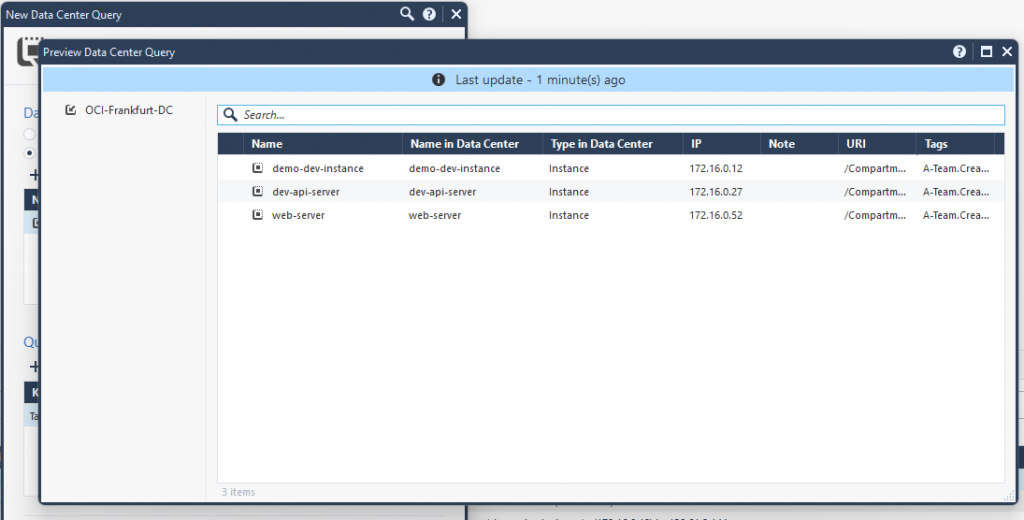
You can press on the small “eye” to preview what the query will install in the policy:
I will use this Datacenter Query as a source in the security policy. For the destination I will use the “Network Feed” created at the beginning of this blog. The policy will look like this:

Now, if I do a few tests and try to access OCI Object Storage from any Compute that has the DEV tag, I should see the policy hit:
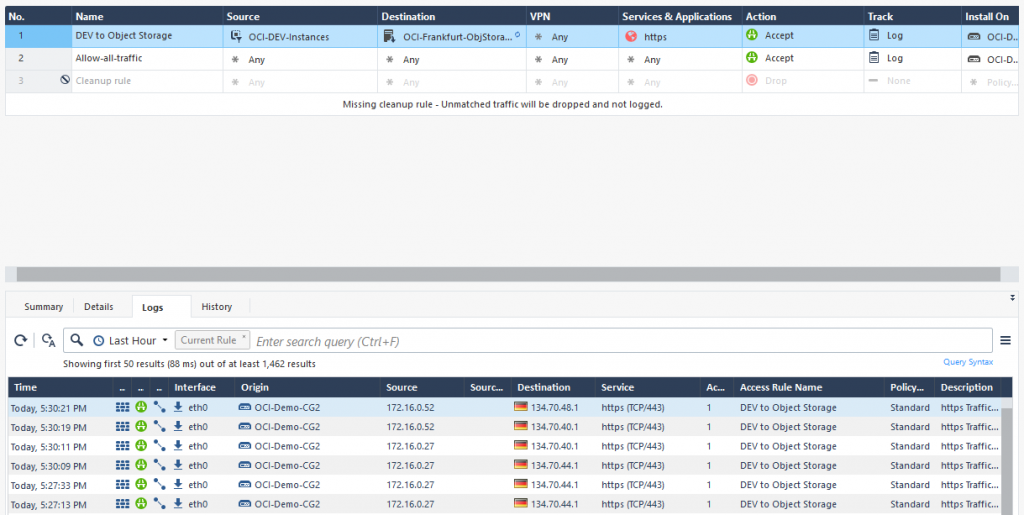
And there it is, a working firewall rule with only dynamic objects. Again, the power of this rule lies in:
- Any IP change on either side will not matter, the Check Point Cloud Firewall will automatically update the policy objects.
- Any new host in OCI that gets the correct tag will be added to the policy automatically.
And this concludes this blog. I hope it helps you!