
In cloud security, an organizations detection and response capabilities are only as strong as the visibility those tools have into the data. As organizations accelerate their adoption of multicloud architectures, the challenge is no longer simply generating the logs and alerts — it is building a comprehensive, trustworthy understanding of what is happening across their cloud environments.
Every authentication attempt, API invocation, configuration change, workload interaction, and network connection contributes to the broader security picture. When telemetry is incomplete, delayed, or low quality, critical attack signals become fragmented or invisible altogether.
With the Oracle Autonomous AI Database@GCP, logging events are generated at multiple layers of the stack—from the GCP Control Plane, OCI control plane, all the way down to database-level unified audit logs. Aggregating and analyzing these logs enables better threat detection, compliance monitoring, and operational visibility.
In this blog, we will illustrate a reference architecture and provide step-by-step procedures for correlating the full-spectrum of OCI, GCP and the Database Unified Audit logs for the Oracle Autonomous AI Database Database@GCP into Google Cloud Storage.
Understanding the Oracle Database@GCP Logging Landscape
The Oracle AI Database@Google Cloud architecture is built around a multicloud control plane model that integrates OCI infrastructure within Google Cloud regions. This design allows Oracle-managed database infrastructure to run natively within Google Cloud while maintaining OCI’s operational, security, and resiliency standards.
Together, these distributed control plane logs provide the cross-cloud visibility required for monitoring, governance, and security detection across an Oracle Database@Google Cloud deployment.
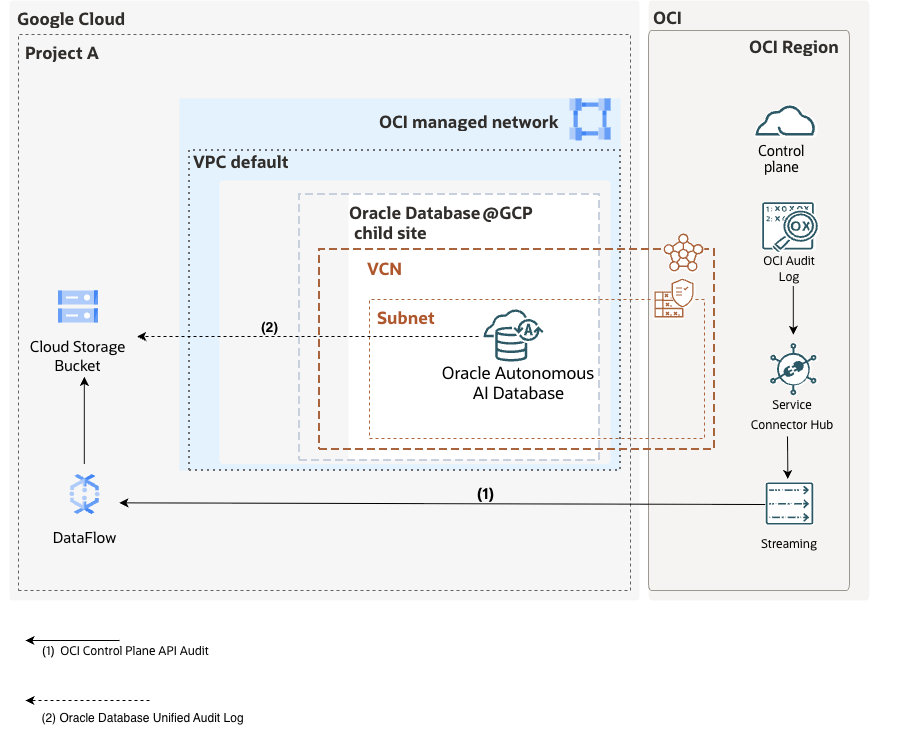
1. OCI Control Plane Audit Logs to GCS
- OCI Audit logs (API calls, configuration changes)
- Infrastructure-level events
- Note: By default, some of the DB@GCP Audit Events are natively sent to GCP logging.
2. Autonomous AI Database Unified Audit Log
- Unified Audit logs (user activity, SQL operations, privilege usage)
- Fine-grained database security telemetry
Configure OCI Audit Logging streaming to Google Cloud Storage
At a high level, the data pipeline looks like this:
- OCI Audit Logs → OCI Service Connector
- OCI Service Connector → OCI Streaming (Kafka-compatible)
- OCI Streaming → Google Cloud Storage Service Bucket(via Dataflow)
As a pre-requisite, GCP Dataflow Kafka connection requires the use of a SASL credential when authenticating to the OCI Streaming service. For this, we will use an OCI IAM User as a service account and create an Auth Token credential for that user. Make note of credential during creation, as it cannot be retrieved later.
Create OCI Streaming Pool
OCI Streaming is Kafka-compatible and acts as the event backbone. This will be the integration point for GCP to consume the audit log events from OCI. For a more detailed step-by-step setup, you can refer to the following tutorial.
Steps
- Go to OCI Streaming Service
- Create a Stream and Stream Pool:
- Define partitions (based on throughput needs)
- Set retention period
- Make note the following variables which will be used in the setup of the GCP Dataflow service.
- Bootstrap servers
- SASL Connection String
- AuthToken from a Service Account in OCI IAM
- Stream Name
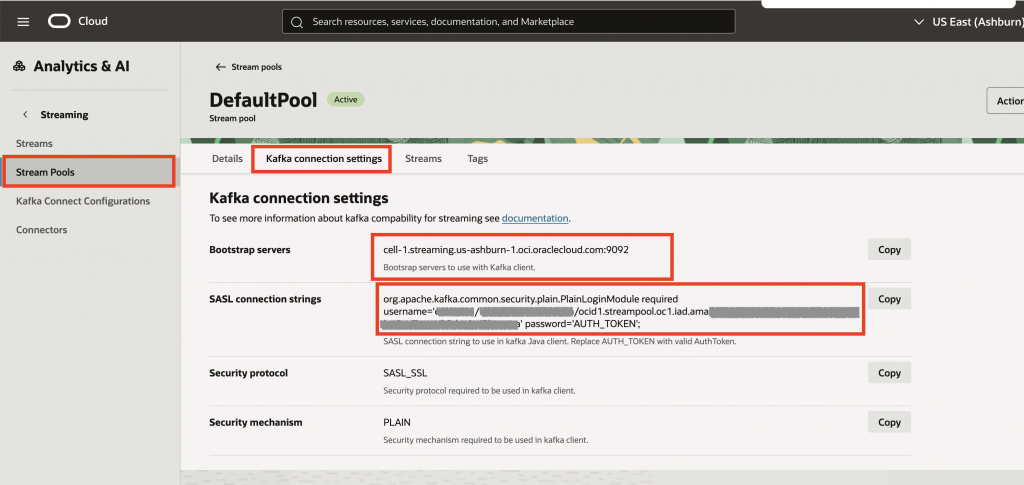
OCI Stream Pool – Kafka Connection Settings
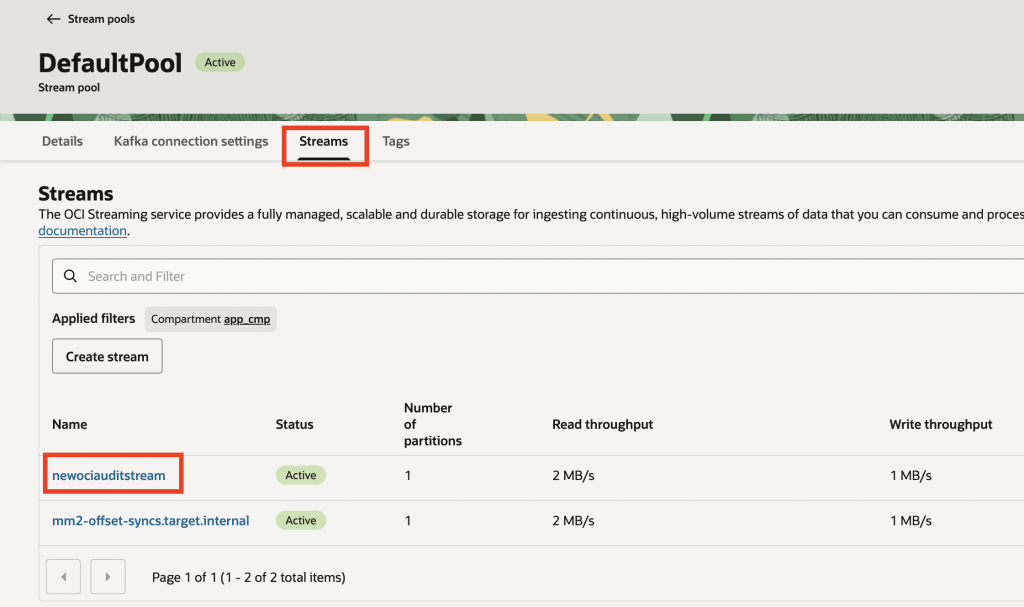
Associated Streams to the newly created streaming pool
Configure OCI Service Connector Hub
The Service Connector Hub acts as the broker between the OCI logging service and OCI streaming services.
Steps
- Navigate to OCI Console → Observability & Management → Service Connector Hub
- Click Create Service Connector
- Configure:
- Source: Logging
- Log Group: Select your Audit log group
- Log Type:
Audit
- Configure Target:
- Target Service: Streaming
- Select the Stream created above (newociauditstream)
- Set batching and format options (JSON)
- Create the connector
OCI Audit events should now be continuously sent into OCI Streaming. If the stream is not populating with data, you may need to verify if all of the appropriate IAM policies have been created as part of the Service Connector creation workflow.
The OCI portion of the setup is now complete. The remaining steps will be executed in the GCP console.
Create GCP Storage Service – Bucket
- Create a bucket (e.g.,
oci-audit-logs) - Configure lifecycle policies (recommended but optional)
For Dataflow to successfully write logs into a Cloud Storage bucket, its managed service account must have the appropriate IAM roles.
Grant GCS Write Permissions
Identify the Worker Service Account
- Go to GCP Console → IAM & Admin → IAM
- Select the ‘Include Google-provided role grants’
Understand the Service Accounts Used by Dataflow
Dataflow uses two identities by default, as described in the Google Cloud Dataflow Documentation:
- Dataflow Service Agent (managed by Google)
service-PROJECT_NUMBER@dataflow-service-producer-prod.iam.gserviceaccount.com- Worker Service Account (used by pipeline workers)
Default:
PROJECT_NUMBER-compute@developer.gserviceaccount.com(or a custom service account if explicitly configured)
The worker service account is the one that needs access to write to GCS.
Add the following permissions to those Service Accounts.
Log Bucket Write & Secret Manager Secret Accessor Role to both the Default Dataflow Service Account & Compute Service Account.
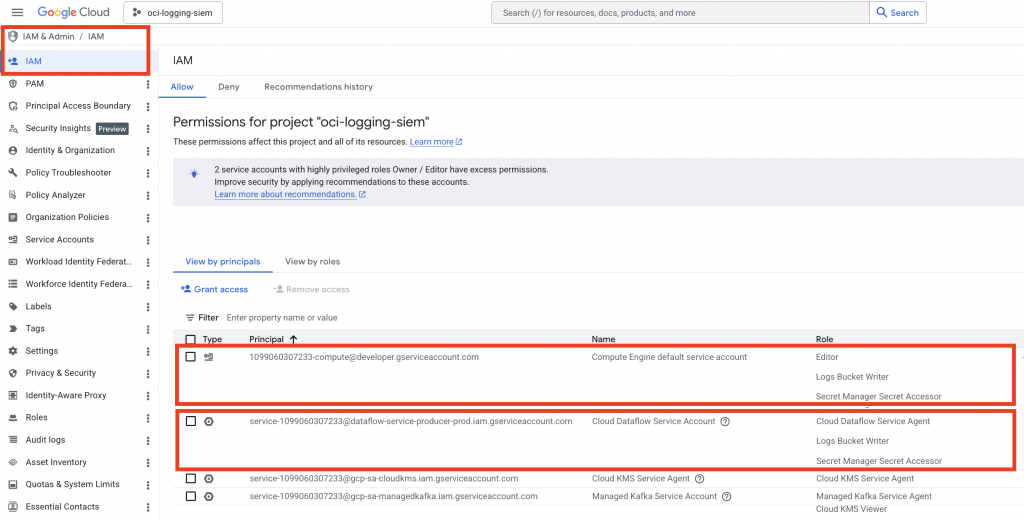
Save Changes
Click Save to apply the IAM Permissions.
Configure the Google Dataflow Job
Google Cloud Dataflow provides a scalable, serverless stream-processing platform that can be used to easily consume OCI Streaming data in near real time. Using Apache Beam and native Kafka-compatible integrations, Dataflow can connect directly to OCI Streaming endpoints because OCI Streaming exposes a Kafka API interface.
Especially in the case of multicloud security architectures such as Oracle Database@GCP, Dataflow can act as the ingestion and transformation layer between OCI-generated telemetry and downstream GCP services such as BigQuery, Chronicle, Pub/Sub, or SIEM platforms, enabling centralized cross-cloud detection, monitoring, and analytics.
Prerequisites
- Enable Dataflow API
- Set up GCP Service Accounts with proper IAM permissions
- Configure networking (VPC, firewall rules)
- OCI Stream and Stream Pool Created
- OCI IAM User and Auth Token
Pipeline Setup Steps
When configuring a GCP Dataflow job to consume OCI Streaming through the Kafka-compatible API, SASL authentication credentials should be securely stored in Google Secret Manager rather than hardcoded in pipeline configurations or templates. Typically, separate secrets are created for the OCI Streaming username (tenancy/user/stream pool format) and the associated auth token used for SASL/PLAIN authentication.
The Dataflow service account is then granted access to read these secrets at runtime using IAM permissions such as Secret Manager Secret Accessor. During job execution, the pipeline retrieves the secrets dynamically and injects them into the Kafka client configuration for secure authentication to OCI Streaming endpoints.
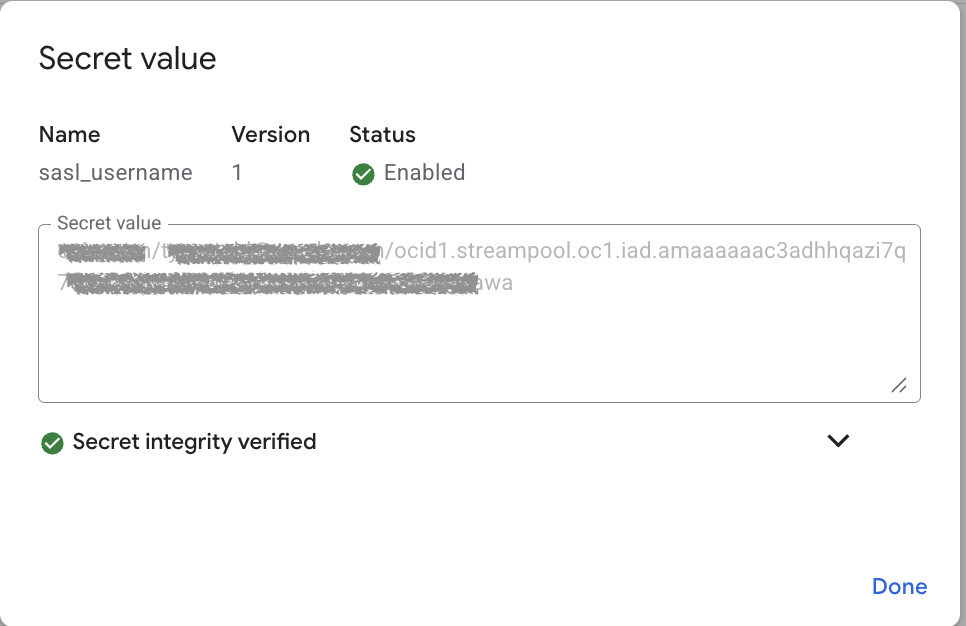
The sasl_username secret is the value that was captured from the Kafka Settings in the OCI Stream Pool, and looks like the following:
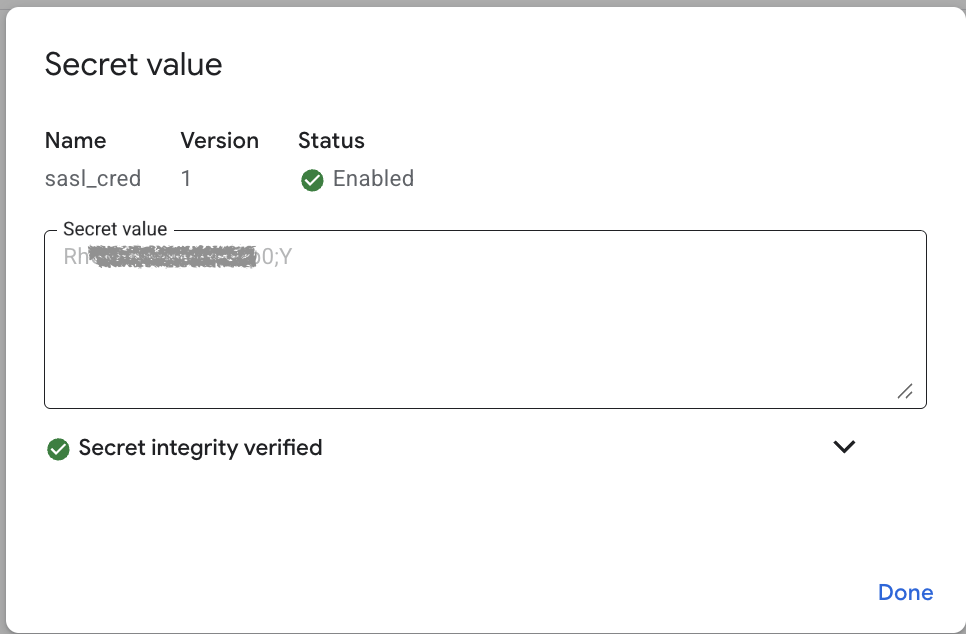
The sasl_cred, is the value of the Auth Token which was created for the service user in OCI IAM. Note: the OCI IAM username that is referenced in the sasl_username connection string must be correlated to the Auth Token Credential stored as the following secret.
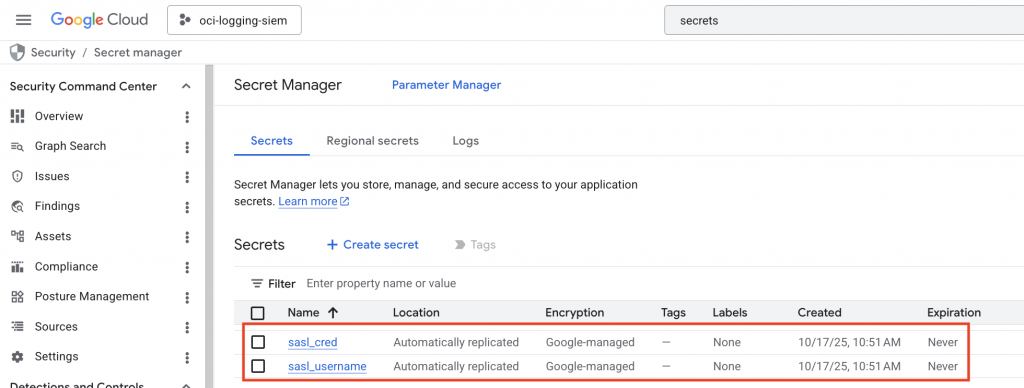
Important Action: Record the unique Resource Name of each secret by selecting Copy Resource Name on both the sasl_username and sasl_cred:
The Resource Names will look similar to the following, and we will use these values in the next section:
sasl_username – projects/xxxxxxxx/secrets/sasl_username
sasl_cred = projects/xxxxxxxx/secrets/sasl_cred
Create a Dataflow Job
Navigate to Dataflow in the GCP Console. Ensure that the service API is enabled.
If enabled, you will see – “Create Job From Template”
Select the region you have your resources deployed to, ideally your Dataflow job should run in the same region as your GCP Storage Service (bucket) and the paired-region for OCI DB@GCP where the Stream Pool exists.
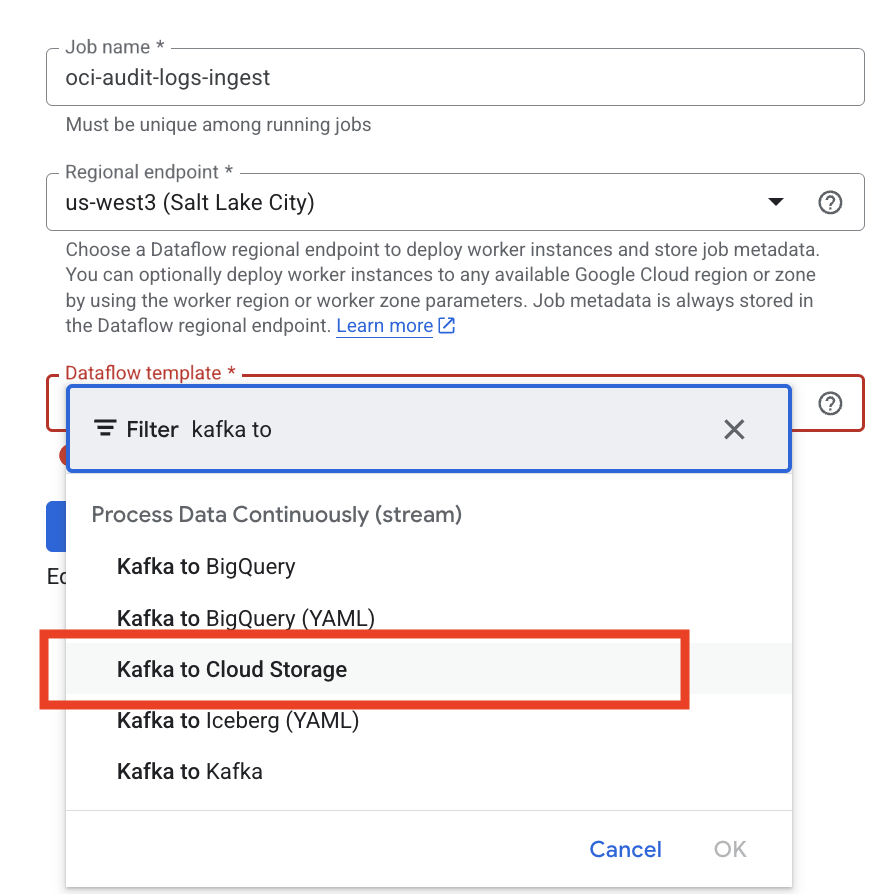
Select Dataflow Template:
“Kafka to Cloud Storage”
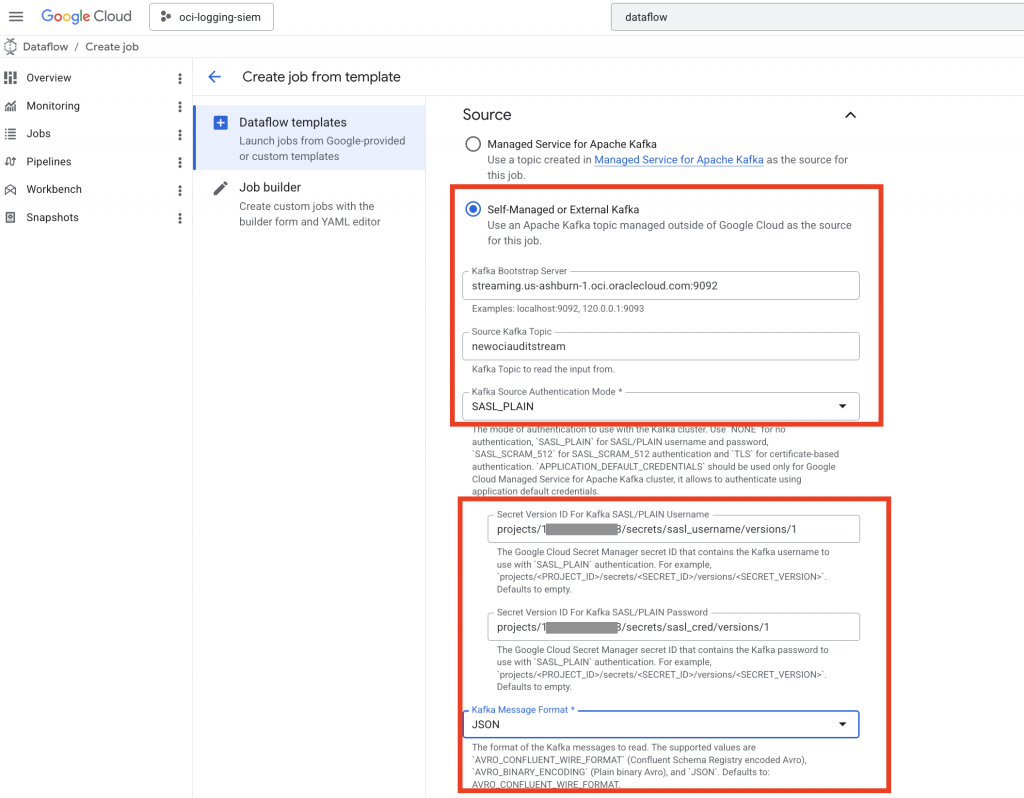
Configure Kafka Source
- Use OCI Streaming Kafka endpoint
- Provide:
- Bootstrap servers
- Kafka Topic name (OCI Stream Name)
- Authentication config (SASL/SSL)
- The GCP Secrets created in the previous step
Be sure to select “Self-Managed or External Kafka” as the stream is in OCI, not in GCP.
Populate the form for Source configurations with the variables that have been gathered previously:
Also ensure the Kafka Message format is set to ‘JSON’
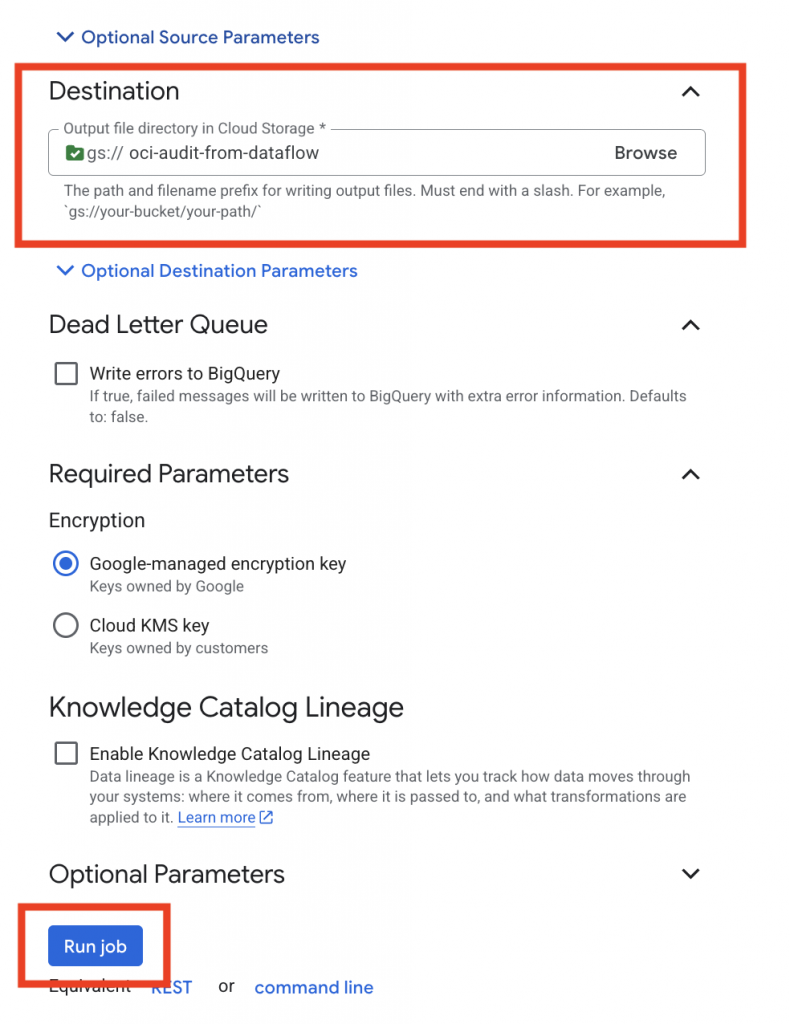
Destination
- Cloud Storage (GCS)
- Select the GCS bucket you wish to store the OCI Audit logs
For Advanced settings, you may want to adjust the sizing of the Runners and other settings to help tailor your jobs to the amount of OCI audit logs you are expecting. The GCP Dataflow Pipeline Options documentation covers the various options can be set for each template.
Select “Run Job” when the configurations have been accurately specified.
Pipeline Verification
After deployment:
- Run the Dataflow job – if configured properly and the permissions are sufficient, then the job should go into a Running state.
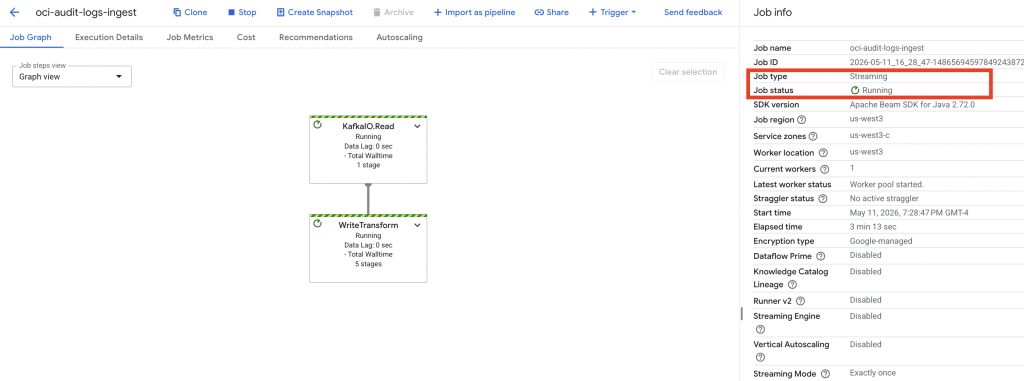
Last but not least – Check the following to verify if the pipeline is running successfully:
- Job logs in Cloud Logging
- GCS bucket for new objects
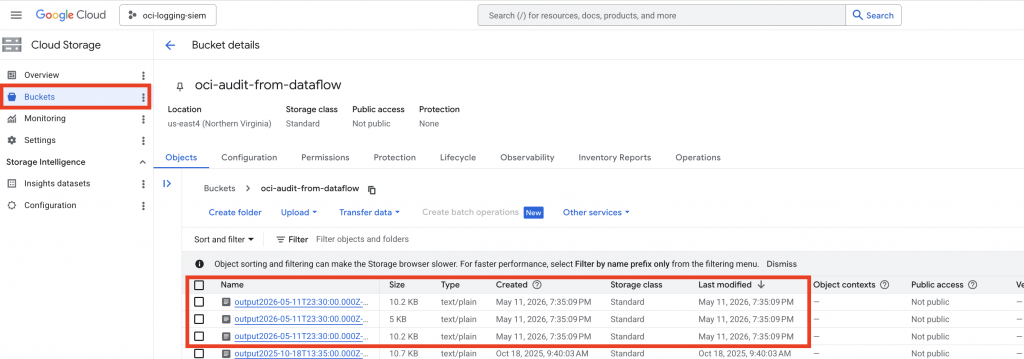
If permissions are incorrect, you’ll typically see:
403 ForbiddenPermission denied for storage.objects.create
Common Issues if the Dataflow Job has an execution error
- Granting permissions to the wrong service account
- Using overly restrictive IAM conditions
- Not specifying the service account in Dataflow job config
Now, that the OCI Audit logs are successfully flowing into GCS – the next section walks through the steps required to get the Oracle Database Unified Audit logging into GCS.
Configure Oracle Database@GCP to export the Unified Audit Log to a GCS Bucket
Prerequisites:
- Oracle Autonomous AI Database@GCP (Serverless) has been deployed
- GCS Bucket Exists for Audit Log Storage
- Unified Audit Trail is enabled, this can be achieved using Data Safe or performed manually
Oracle’s Autonomous AI Database Serverless on Database@GCP ships with out-of-the-box export pipelines for continuous, incremental logging to GCS through the DBMS_CLOUD_PIPELINE package.
For Google Cloud Storage access, service account authentication with the special credential name GCP$PA, https://BUCKET_NAME.storage.googleapis.com/OBJECT_NAME.
Granting DB@GCP access to GCS
Step 1: Verify the Autonomous AI Database for DB@GCP Service Account authentication in the GCP Console
When provisioning an Oracle Database@Google Cloud Autonomous AI Database environment, a dedicated service account is created for the instance in order to allow it to interoperate with other GCP services – such as Google Cloud Storage (GCS).
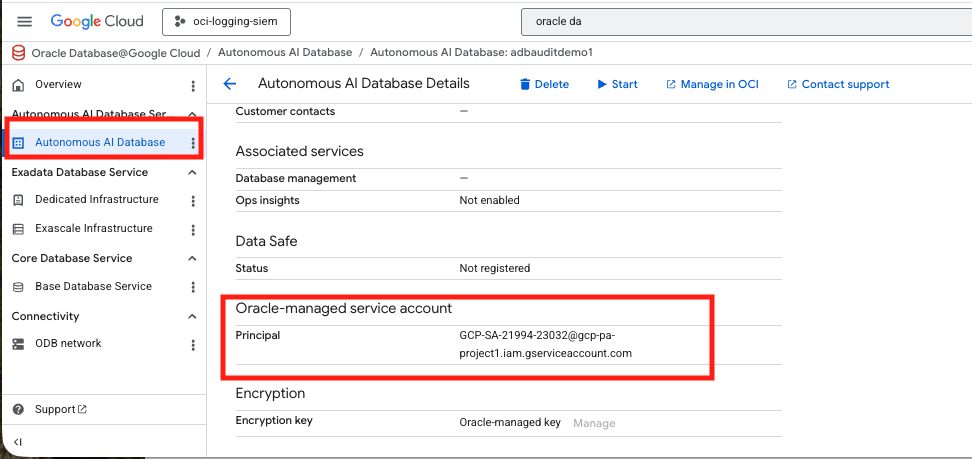
From SQL, you can also retrieve the generated service account name using this statement:
SELECT *
FROM CLOUD_INTEGRATIONS
WHERE param_name = 'gcp_service_account';
Step 2: Create the GCS bucket and grant the database service account access
If you have not done so already – create a destination bucket in Google Cloud Storage.
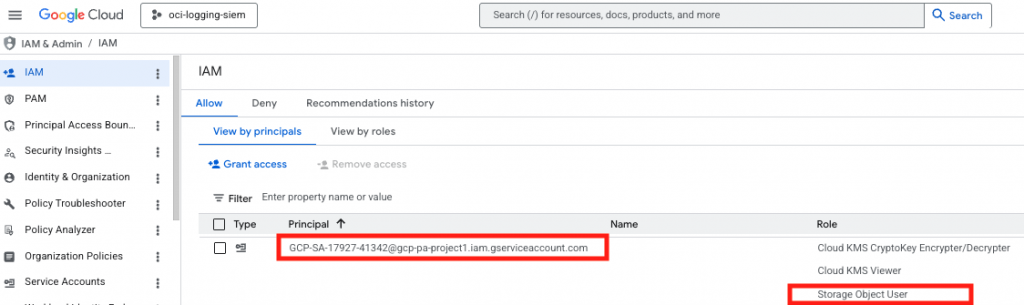
Next, grant the Oracle-generated GCP Service Account access to that bucket by adding the gcp_service_account value as a principal on the bucket and assign the needed role there. Since this is an export-only flow, roles/storage.objectCreator is the closest least-privilege built-in role because it allows object creation but not viewing, deleting, or overwriting objects; if your workflow needs broader object management, roles/storage.objectAdmin gives full object control.
A console-based bucket grant looks like this in concept:
- Open the bucket in Cloud Storage.
- Open Permissions.
- Add the service account email from CLOUD_INTEGRATIONS.
- Assign the role you chose.
- Save.
From SQL, execute a test to verify if you can list the Bucket contents – although it will be empty, the procedure should successfully execute.
SELECT * FROM DBMS_CLOUD.LIST_OBJECTS('GCP$PA', 'https://adb26aidemounifiedaudit.storage.googleapis.com/' );Step 3: Create the export pipeline
Export pipelines are created with DBMS_CLOUD_PIPELINE.CREATE_PIPELINE, using pipeline_type => ‘EXPORT’.
BEGIN

DBMS_CLOUD_PIPELINE.SET_ATTRIBUTE( pipeline_name => 'ORA$AUDIT_EXPORT', attribute_name => 'credential_name', attribute_value => 'GCP$PA' );

DBMS_CLOUD_PIPELINE.SET_ATTRIBUTE( pipeline_name => 'ORA$AUDIT_EXPORT', attribute_name => 'location', attribute_value => 'https://adb26aidemounifiedaudit.storage.googleapis.com/' );

DBMS_CLOUD_PIPELINE.SET_ATTRIBUTE( pipeline_name => 'ORA$AUDIT_EXPORT', attribute_name => 'interval', attribute_value => '15' );

END;

/
Step 5: Test the pipeline once before scheduling it
To validate the configurations before putting it into continuous scheduled mode, execute – RUN_PIPELINE_ONCE . After a test run, you can reset the pipeline state.
BEGIN DBMS_CLOUD_PIPELINE.RUN_PIPELINE_ONCE( pipeline_name => 'ORA$AUDIT_EXPORT' );

END;

/
Check to see if the GCS bucket has been populated with a audit log record
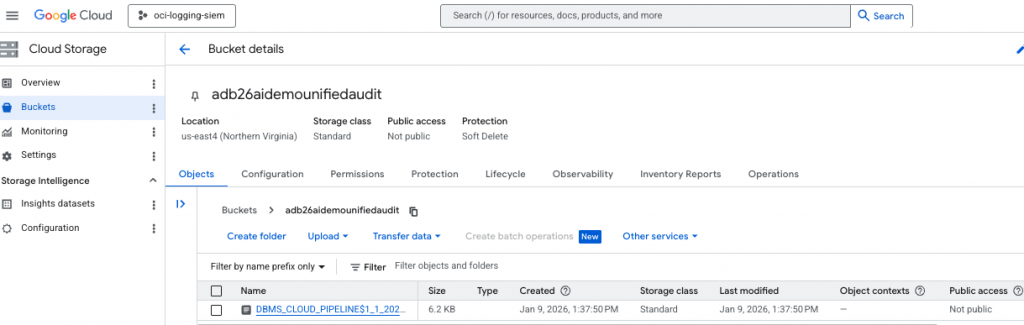
If the test was successful and you want to return the pipeline to its pre-test state, execute RESET_PIPELINE; for export pipelines, purge_data => TRUE – deletes existing files at the destination location.
BEGIN DBMS_CLOUD_PIPELINE.RESET_PIPELINE( pipeline_name => 'ORA$AUDIT_EXPORT', purge_data => TRUE);

END;

/
Step 6: Start the continuous export job
Once the test looks good, start the pipeline so it runs on schedule. START_PIPELINE launches the job continuously according to the configured interval.
BEGIN DBMS_CLOUD_PIPELINE.START_PIPELINE( pipeline_name => 'ORA$AUDIT_EXPORT' );

END;

/
Step 7: Monitor the export
Pipelines are logged in the DBMS_CLOUD_PIPELINE views, which is where you should look to confirm status and troubleshoot failures.
A simple operational checklist is:
- Confirm the pipeline is started.
- SELECT pipeline_name, status, LAST_EXECUTION from USER_CLOUD_PIPELINES WHERE pipeline_name = ‘ORA$AUDIT_EXPORT’;
- Verify files appear in the bucket.
Private Connectivity Option
This setup uses the default network connectivity configuration of the Autonomous Database DB@GCP to communicate to the GCS. If your security posture requires that audit log events must travel on private connectivity, then you will want to look at this excellent blog authored by my fellow colleagues.
In short, they describe how the Autonomous AI Database private endpoint within the ODB Network can be utilized to enforce fully private connectivity to Google Cloud Storage services, eliminating exposure to the public internet and strengthening enterprise security posture. It achieves this by routing traffic through private networking paths established by the service, so that organizations maintain tighter control and visibility over their data movement.
Extra Credit: Ingest into Google SecOps (formerly Chronicle)
OCI Audit → OCI Streaming → GCP Dataflow → GCS → Google SecOps pipeline.
Additionally, if you are using Google SecOps
- GCP Storage → Google SecOps ingestion
- Chronicle parsers normalize logs
Steps
- Go to Google SecOps → Data Ingestion
- Configure a new feed:
- Source: GCS
- Format: JSON
- Map log types:
- OCI Audit logs
- Oracle Database Unified Audit logs
Using Google SecOps Built-in Parsers
Google SecOps provides native parsers that:
- Normalize logs into UDM (Unified Data Model)
- Enable detection rules and correlation
Final Architecture and Summary
- OCI, GCP and the Oracle Database generate logs at multiple layers
- Service Connector Hub routes logs to OCI Streaming
- Dataflow consumes and transfers logs into GCP
- Logs are stored and ingested into Google SecOps
- Parsers normalize data for security analytics
Closing Thoughts
This architecture bridges Oracle Database@GCP with Google’s security ecosystem, enabling a modern, cloud-native SIEM pipeline. By combining OCI streaming with GCP Dataflow and optionally Google SecOps, organizations can achieve end-to-end observability and security intelligence across hybrid environments.
As organizations deploy Database@GCP to power mission-critical workloads, observability becomes just as important as performance and scalability.
Centralized visibility makes it easier to detect anomalies early, troubleshoot multicloud performance issues faster, and strengthen security monitoring across both OCI and GCP platforms. More importantly, comprehensive log ingestion enables richer operational insights, compliance auditing, and can enable the use of AI-driven analytics that help security teams move from reactive troubleshooting to proactive cloud database management. In a modern multicloud architecture, having complete visibility into every layer of the stack is no longer optional — it’s foundational to maintaining reliability, security, and performance at scale.