

This new monitoring paradigm inspired by a customer request to test the Oracle Fusion REST APIs that their business integrations depend on. It offers a way to check API availability and expected responses beyond what native Fusion metrics offer. The request points to a useful design shift for Fusion monitoring: organize checks around business API capabilities. An item lookup, an inventory query, or a work-order request gives availability a meaning that an integration team can act on. Each check combines an authenticated request, a small set of known test records, and explicit response assertions.
The customer request supplied the starting point, but the pattern applies more broadly. Fusion customers can choose the API capabilities on which their own processes depend, then check those capabilities from the locations and at the frequency that matter to them. In a broader Fusion observability approach, these outside-in API checks belong in the Performance pillar: they measure whether a selected business API responds correctly and how long the synthetic operation takes. Real User Monitoring for Oracle Fusion SaaS Cloud Apps examines the complementary experience of people using the Fusion frontend web pages, while ESS log collection and ESS, audit, and security dashboards show audit operational and security signals.
This blog post extends Fusion monitoring beyond native metrics by asking whether a selected, authenticated business API returns the expected data within an acceptable time from a selected vantage point. Using OCI Application Performance Monitoring (APM) Availability Monitoring, we show how to create Scripted REST checks, configure where and when they run, and visualize availability, execution time, and failure trends. Items, inventories, work centers, and work orders illustrate scoped GET checks; a read-only batch shows how to test POST without changing business records. Together, these examples give Fusion teams a pattern they can adapt to their own critical integrations while keeping customer-specific workflows and records private.
Reference architecture: Fusion business APIs and APM Availability Monitoring
In OCI APM, these synthetic checks are configured under Availability Monitoring. APM schedules the monitor, a selected execution location sends requests to Fusion, and the results return to APM for analysis. The architecture connects each business API capability to a repeatable availability check. Use Availability Monitoring
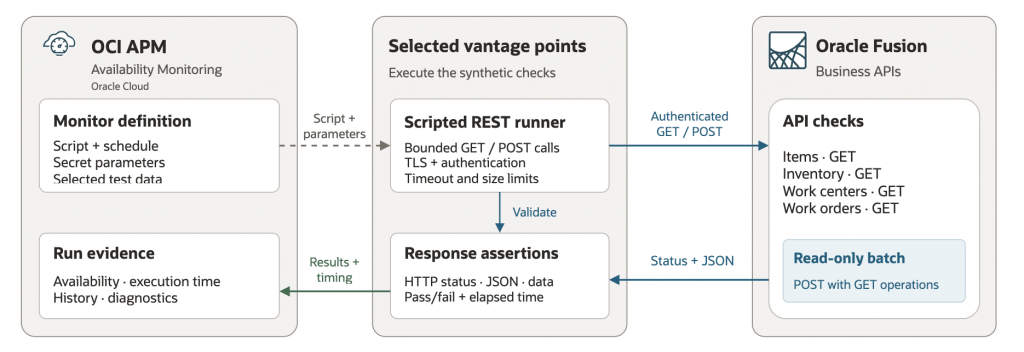
The components have distinct responsibilities:
| Component | Role in this design |
|---|---|
| APM domain and Availability Monitoring | Organize scripts and monitors, schedule executions, and expose run history and metrics. |
| Scripted REST script | Define the HTTP requests, authentication headers, response assertions, and optional timing markers in JavaScript. |
| Monitor | Associate a script with parameter values, execution locations, frequency, timeout, and availability settings. One script can be reused with different monitor configurations. |
| Vantage point | Run the script, call Fusion over HTTPS, evaluate the responses, and report the outcome. |
| Fusion business APIs | Serve the authenticated requests using the monitoring account’s access and selected test records. |
| Metrics, history, and dashboards | Show availability and timing trends, locate failed executions, and connect observations to a monitor and location. |
For a scripted monitor, the script defines what to test; the monitor defines how and where it runs. For example, an items script contains the lookup and assertions, while a monitor named fusion_items supplies the pod, test values, schedule, and locations.
Choose the monitor type for the test
Availability Monitoring provides several monitor types, each suited to a different kind of test:
| Monitor type | What it tests |
|---|---|
| Browser | Loads one web page in a browser to measure page performance and check its response. |
| Scripted Browser | Runs a recorded browser workflow, such as signing in and navigating through a user transaction. |
| REST | Sends a single GET or POST request with configured authentication and response validation. |
| Scripted REST | Runs JavaScript-defined API requests, sequencing, and custom response assertions. |
| Network | Checks host reachability and network performance using TCP or ICMP probes. |
| DNS | Tests DNS resolution, delegation, or DNSSEC validation. |
| SQL | Executes a SELECT query against a reachable supported database and measures its performance. |
| FTP | Tests file listing, upload, or download over FTP, FTPS, or SFTP. |
Oracle’s monitor type and configuration documentation describes the settings for each type. SQL monitoring requires an accessible database; a Fusion REST endpoint does not provide that database connection.
We use Scripted REST because this API testing use case needs queries built from test values, validation of returned JSON and batch parts, and timing around named operations. JavaScript gives the check control over those requests and assertions. The REST monitor also supports POST; the reason for choosing Scripted REST here is the programmable test logic. Browser monitors suit checks of the Fusion user interface.
What is a vantage point?
A vantage point is where APM runs a monitor and sends its requests. Oracle provides public locations in OCI data centers and in external data centers; the locations labeled External are part of that public offering. You can also run monitors from locations you operate in your tenancy or on a VM in another network. Oracle APM vantage-point overview
| Vantage point | Where the check runs | When it helps |
|---|---|---|
| Public, OCI location | An Oracle-managed location in an OCI data center. | Check a publicly reachable Fusion API from a selected OCI region. Availability Monitoring setup |
| Public, External location | An Oracle-managed location in an external data center. | See how the same public API responds from a location outside OCI. Oracle APM overview |
| Dedicated | A location set up inside your OCI tenancy and network. | Run checks through your chosen VCN path, including access to private endpoints when that network is configured to reach them. Dedicated vantage points |
| On-premise | An Availability Monitoring worker deployed on a VM in a network you operate. | Test a private endpoint from that network; use a non-browser worker for a Scripted REST check. On-premise vantage points, worker types |
This exercise uses selected public vantage points for a reachable Fusion pod. Choose additional locations based on the network path the integration uses; each location contributes its own execution result.
At each selected vantage point, the script builds the request, authenticates with the monitoring account, and checks the returned data. A failed assertion fails that execution. Comparing the same check across locations helps distinguish a widespread problem from one concentrated along a particular access path.
Monitor the business contexts
For an integration, availability includes being able to authenticate, access the intended resource, and receive a usable response. A successful HTTP connection is one part of that contract. The script also needs to check the response against a defined expectation.
A fixture supplies that context: a known item and organization, an existing work center, or a work order selected for testing. The script uses those values to make a focused request and evaluate the result. Small page limits and a request timeout keep each execution bounded.
| Business capability | Illustrative request | What the check examines |
|---|---|---|
| Items | GET /itemsV2 | An organization-and-item-scoped lookup returns records with the expected item fields. |
| Inventories | GET /subinventories | An organization-scoped query returns inventory reference records with expected fields such as the subinventory name. |
| Work centers | GET /workCenters | A query for a known active work center returns the intended center. |
| Work orders | GET /workOrders | A query for an existing work order returns a nonempty response with the selected fields. |
| Read-only batch | POST to the REST API root | One batch request returns the expected item and work-order read results. |
These resource paths sit below /fscmRestApi/resources/11.13.18.05. They are representative checks, rather than complete request definitions; each needs an appropriate query and fixture for the target pod.
The assertions determine what a green result means. In this implementation, the GET checks generally validate HTTP status, JSON content, nonempty collections, and selected field presence; they do not all compare every returned value with the fixture. The batch check additionally verifies the requested record identities. Inventory quantities and completion of a business process are outside these checks.
Create a script for an API check
Open Observability & Management → Application Performance Monitoring → Availability Monitoring → Scripts, select the compartment and APM domain, and choose Create Script. Upload a JavaScript .js file. After saving the script, create a Scripted REST monitor that references it. Oracle documents postman-request for HTTP calls and ORAP placeholders for parameters, including secret values. Create an APM script
This compact items example shows the pattern.
APM parameters
BASE_URL: Fusion host root, includinghttps://, with no path. Example:https://your-fusion-hostBASIC_AUTH_B64: Base64 ofusername:password; store as an APM secret.ORGANIZATION_CODE: test organization code.ITEM_NUMBER: a known-good item number in that organization.TIMEOUT_MS: optional; defaults to20000and is constrained to 1-60000 ms.
What it does
- Sends one read-only
GETto/fscmRestApi/resources/11.13.18.05/itemsV2. - Filters by organization and item number.
- Requires HTTP 200 and an
application/jsonresponse. - Requires a non-empty
itemsarray containingItemNumberandItemId. - Confirms the returned
ItemNumbermatches the requested item. - Emits APM custom timing markers
item_lookup/startTimeanditem_lookup/endTimewhen available. - Never prints credentials, headers, request URLs, or the raw response.
Security note
For quick testing this retains the same Basic-auth model as the source script. The Fusion account should be read-only and least-privileged. For production use, also restrict BASE_URL to an approved Fusion host/allowlist rather than allowing arbitrary HTTPS destinations. Please reach out to Oracle account teams to get guidance on the full APM monitor script examples.
// Oracle APM Scripted REST monitor - Fusion itemsV2 smoke test
// Purpose: quick, read-only connectivity + functional check.
// APM parameters:
//   BASE_URL           Fusion host root, e.g. https://my-pod.example.com
//   BASIC_AUTH_B64     Secret Base64(username:password)
//   ORGANIZATION_CODE  Test organization code
//   ITEM_NUMBER       Test item number expected to exist
//   TIMEOUT_MS         Optional; default 20000

"use strict";

const MONITOR_INPUT = {
  BASE_URL: "<ORAP><ON>BASE_URL</ON><OV>SET_IN_APM</OV><OS>false</OS></ORAP>",
  BASIC_AUTH_B64: "<ORAP><ON>BASIC_AUTH_B64</ON><OV>SET_IN_APM</OV><OS>true</OS></ORAP>",
  ORGANIZATION_CODE: "<ORAP><ON>ORGANIZATION_CODE</ON><OV>SET_IN_APM</OV><OS>false</OS></ORAP>",
  ITEM_NUMBER: "<ORAP><ON>ITEM_NUMBER</ON><OV>SET_IN_APM</OV><OS>false</OS></ORAP>",
  TIMEOUT_MS: "<ORAP><ON>TIMEOUT_MS</ON><OV>20000</OV><OS>false</OS></ORAP>"
};

(function runFusionSmokeTest(input) {
  const request = require("postman-request");
  const API_PATH = "/fscmRestApi/resources/11.13.18.05";
  const RESOURCE_PATH = "/itemsV2";
  const MAX_BYTES = 1024 * 1024;
  const timeout = parseInt(String(input.TIMEOUT_MS || "20000"), 10);

  function fail(code) {
    const err = new Error("FUSION_SMOKE_TEST_" + code);
    err.monitorFailure = true;
    throw err;
  }

  function validateHttpsBase(value) {
    if (typeof value !== "string" || !/^https:\/\/[A-Za-z0-9.-]+\/?$/i.test(value)) {
      fail("BAD_BASE_URL");
    }
    return value.replace(/\/$/, "");
  }

  function validateValue(value, code) {
    if (typeof value !== "string" || !value.trim() || value.length > 1024 || /[\x00-\x1f\x7f]/.test(value)) {
      fail(code);
    }
    return value;
  }

  function validateTimeout(value) {
    if (!Number.isInteger(value) || value < 1000 || value > 60000) fail("BAD_TIMEOUT");
    return value;
  }

  const baseUrl = validateHttpsBase(input.BASE_URL);
  const auth = validateValue(input.BASIC_AUTH_B64, "BAD_AUTH");
  const organizationCode = validateValue(input.ORGANIZATION_CODE, "BAD_ORGANIZATION");
  const itemNumber = validateValue(input.ITEM_NUMBER, "BAD_ITEM");
  validateTimeout(timeout);

  if (typeof oraSynCustomMarker === "function") {
    try { oraSynCustomMarker("item_lookup", "startTime"); } catch (_) {}
  }

  const q = "OrganizationCode='" + organizationCode.replace(/'/g, "''") +
            "' AND ItemNumber='" + itemNumber.replace(/'/g, "''") + "'";

  const options = {
    method: "GET",
    url: baseUrl + API_PATH + RESOURCE_PATH,
    qs: { q: q, onlyData: "true", limit: "1", offset: "0" },
    headers: {
      "Authorization": "Basic " + auth,
      "Accept": "application/json",
      "REST-Framework-Version": "4"
    },
    strictSSL: true,
    followRedirect: false,
    followAllRedirects: false,
    maxRedirects: 0,
    timeout: timeout,
    gzip: true,
    encoding: null
  };

  const started = Date.now();
  let completed = false;
  let bytesReceived = 0;
  let pending;

  function requestFailure() {
    fail("REQUEST");
  }

  function complete(error, response, body) {
    if (completed) return;
    completed = true;

    if (error) requestFailure();

    const status = response && response.statusCode;
    if (status !== 200) fail("HTTP_" + (Number.isInteger(status) ? status : "UNKNOWN"));

    const contentType = response.headers && response.headers["content-type"];
    if (typeof contentType !== "string" || !/^application\/(?:json|[a-z0-9!#$&^_.+-]+\+json)(?:\s*;.*)?$/i.test(contentType.trim())) {
      fail("CONTENT_TYPE");
    }

    if (body === null || body === undefined) fail("EMPTY_BODY");
    if (Buffer.byteLength(body) > MAX_BYTES) fail("RESPONSE_LIMIT");

    let data;
    try {
      data = JSON.parse(body.toString("utf8"));
    } catch (_) {
      fail("INVALID_JSON");
    }

    if (!data || typeof data !== "object" || !Array.isArray(data.items)) fail("BAD_SHAPE");
    if (data.items.length < 1) fail("ITEM_NOT_FOUND");
    if (!data.items[0] || typeof data.items[0] !== "object") fail("BAD_ITEM_ROW");
    if (!Object.prototype.hasOwnProperty.call(data.items[0], "ItemNumber")) fail("MISSING_ITEM_NUMBER");
    if (!Object.prototype.hasOwnProperty.call(data.items[0], "ItemId")) fail("MISSING_ITEM_ID");

    if (String(data.items[0].ItemNumber) !== itemNumber) fail("IDENTITY_MISMATCH");

    if (typeof oraSynCustomMarker === "function") {
      try { oraSynCustomMarker("item_lookup", "endTime"); } catch (_) {}
    }

    console.log("PASS fusion_items_smoke_test latency_ms=" + Math.max(0, Date.now() - started));
  }

  try {
    pending = request(options, complete);
    if (pending && typeof pending.on === "function") {
      pending.on("data", function (chunk) {
        if (completed) return;
        bytesReceived += Buffer.byteLength(chunk);
        if (bytesReceived > MAX_BYTES) {
          completed = true;
          if (typeof pending.abort === "function") pending.abort();
          fail("RESPONSE_LIMIT");
        }
      });
    }
  } catch (error) {
    if (error && error.monitorFailure) throw error;
    requestFailure();
  }
})(MONITOR_INPUT);
This is an illustrative single-request check, verified locally with mocked responses; it has not been executed as a hosted monitor. It checks status, JSON, and item-field presence. The fuller scripts add stricter input validation, response-size and pagination controls, and sanitized diagnostic detail.
Suggested security controls
Credential handling. BASIC_AUTH_B64 contains Base64-encoded username:password credentials and is explicitly marked secret. It is decoded and validated, while the actual HTTP call sends:
Authorization: "Basic " + input.BASIC_AUTH_B64The script intentionally avoids logging the credentials or arbitrary request/error objects. Pasted markdown
SSRF/redirect protection. The code implements its own restricted HTTPS URL parser, requires HTTPS, validates DNS-style hostnames, and disables redirects:
strictSSL: true,
followRedirect: false,
followAllRedirects: false,
maxRedirects: 0
So the monitor can’t casually be redirected somewhere unexpected. Pasted markdown Pasted markdown
Response validation. A 200 isn’t sufficient. It checks content type, response size, valid JSON, the Fusion collection shape (items), expected fields, pagination behavior, and non-empty results. Pasted markdown
Bounded execution. Responses are capped at 2 MB, page size is restricted to 1–20, and the script allows at most two pages per endpoint. This keeps a synthetic test from accidentally turning into a large Fusion data extraction. Pasted markdown Pasted markdown
APM timing instrumentation. Calls such as:
oraSynCustomMarker("item_lookup", "startTime");
...
oraSynCustomMarker("item_lookup", "endTime");
allow APM to measure individual REST operations instead of seeing the entire script as one opaque transaction. Pasted markdown
FIXTURE_B64 fields for parameters encoding
Rather than hardcoding an organization, item number, component IDs, etc., the script receives a Base64-encoded JSON fixture containing:
component_ids generic_resource item_number item_number_prefix organization_code
Those are the known test objects against which the synthetic transaction executes. The script strictly validates them before issuing requests. Pasted markdown
So, operationally, APM would be configured approximately as:
BASE_URL
    https://<your-fusion-pod>

BASIC_AUTH_B64
    base64(username:password)       [SECRET]

FIXTURE_B64
    base64({
      organization_code: "...",
      item_number: "...",
      item_number_prefix: "...",
      component_ids: "...",
      generic_resource: "itemsV2"
    })

PAGE_SIZE
    5

MAX_PAGES
    1

TIMEOUT_MS
    20000

MAX_LATENCY_MS
    0
Exercise POST with a read-only batch
POST is useful here because Oracle’s batch interface accepts an envelope containing multiple operations, including reads. Our example posts to /fscmRestApi/resources/11.13.18.05/ with the media type application/vnd.oracle.adf.batch+json. Both enclosed operations use get. Oracle batch actions
The POST body contains two parts, and both parts are GET operations:
itemsV2lookup byOrganizationCodeandItemNumberworkOrderslookup byWorkOrderId
Therefore the POST is an ADF batch transport mechanism; the script does not submit a create/update/delete operation.
APM parameters
| Parameter | Example |
|---|---|
BASE_URL | https://<fusion-host> |
BASIC_AUTH_B64 | Base64 of username:password |
ORGANIZATION_CODE | V1 |
ITEM_NUMBER | TEST-ITEM-001 |
WORK_ORDER_ID | 12345 |
TIMEOUT_MS | 20000 |
Pass conditions
The monitor requires:
- HTTPS endpoint and valid host syntax
- HTTP 200
application/vnd.oracle.adf.batch+jsonresponse- valid JSON batch envelope with exactly two parts
- successful
item_lookupresult with matching item and organization - successful
work_orderresult with matching work-order ID - one result row per part
Redirects are disabled, TLS certificate validation remains enabled, the response is limited to 2 MiB, and errors do not include arbitrary request/URL/header content.
Important security note
BASE_URL is still configuration-driven. For production use, consider replacing the generic HTTPS-host validation with an allowlist of approved Fusion hosts. The Basic-auth account should also be least-privileged and stored only as an APM secret parameter.
// Read-only POST: the batch contains only GET operations; no Fusion data is modified.
// Requires only the APM-included postman-request module.

"use strict";

const MONITOR_INPUT = {
  "BASE_URL": "<ORAP><ON>BASE_URL</ON><OV>SET_IN_APM</OV><OS>false</OS></ORAP>",
  "BASIC_AUTH_B64": "<ORAP><ON>BASIC_AUTH_B64</ON><OV>SET_IN_APM</OV><OS>true</OS></ORAP>",
  "ORGANIZATION_CODE": "<ORAP><ON>ORGANIZATION_CODE</ON><OV>SET_IN_APM</OV><OS>false</OS></ORAP>",
  "ITEM_NUMBER": "<ORAP><ON>ITEM_NUMBER</ON><OV>SET_IN_APM</OV><OS>false</OS></ORAP>",
  "WORK_ORDER_ID": "<ORAP><ON>WORK_ORDER_ID</ON><OV>SET_IN_APM</OV><OS>false</OS></ORAP>",
  "TIMEOUT_MS": "<ORAP><ON>TIMEOUT_MS</ON><OV>20000</OV><OS>false</OS></ORAP>"
};

(function runFusionBatchSmokeTest(input) {
  const request = require("postman-request");
  const API_PATH = "/fscmRestApi/resources/11.13.18.05";
  const BATCH_MIME = "application/vnd.oracle.adf.batch+json";
  const MAX_BYTES = 2 * 1024 * 1024;

  function fail(code, label) {
    const error = new Error(code + ": " + label);
    error.monitorFailure = true;
    throw error;
  }

  function scalar(value, label) {
    if (typeof value !== "string" || !value.trim() || value.length > 1024 || /[\x00-\x1f\x7f]/.test(value)) {
      fail("CONFIG", label);
    }
    return value;
  }

  function positiveId(value, label) {
    const text = scalar(String(value), label);
    if (!/^[1-9]\d{0,17}$/.test(text)) fail("CONFIG", label);
    return text;
  }

  function httpStatus(response) {
    const status = response && response.statusCode;
    return Number.isInteger(status) && status >= 100 && status <= 599 ? status : null;
  }

  function safeOrigin(value) {
    const text = scalar(value, "BASE_URL");
    if (/\s|[\x00-\x1f\x7f\\]/.test(text)) fail("CONFIG", "BASE_URL");
    const match = /^https:\/\/([A-Za-z0-9.-]+)(?::([0-9]{1,5}))?\/?$/i.exec(text);
    if (!match) fail("CONFIG", "BASE_URL");

    const host = match[1].toLowerCase();
    if (host.length > 253 || host.split(".").some(function (part) {
      return !/^[a-z0-9](?:[a-z0-9-]{0,61}[a-z0-9])?$/.test(part);
    })) fail("CONFIG", "BASE_URL");

    const port = match[2] === undefined ? 443 : Number(match[2]);
    if (port < 1 || port > 65535) fail("CONFIG", "BASE_URL");

    return "https://" + host + (port === 443 ? "" : ":" + port);
  }

  function marker(operation) {
    if (typeof oraSynCustomMarker !== "function") return;
    try {
      if (operation === "startTime") {
        oraSynCustomMarker("batch_readonly_smoke", "startTime");
      } else if (operation === "endTime") {
        oraSynCustomMarker("batch_readonly_smoke", "endTime");
      }
    } catch (_) {
      fail("MARKER", "batch_readonly_smoke");
    }
  }

  function quoted(value) {
    return "'" + scalar(value, "query_value").replace(/'/g, "''") + "'";
  }

  function collectionPath(path, query, fields) {
    return path +
      "?q=" + encodeURIComponent(query) +
      "&fields=" + encodeURIComponent(fields) +
      "&limit=1&offset=0&onlyData=true";
  }

  function requestFailure(error, phase, started, response) {
    const allowedCodes = [
      "ENOTFOUND", "EAI_AGAIN", "ECONNRESET", "ECONNREFUSED", "ECONNABORTED", "EPIPE",
      "EHOSTUNREACH", "ENETUNREACH", "EACCES", "ETIMEDOUT", "ESOCKETTIMEDOUT", "EPROTO",
      "ERR_TLS_CERT_ALTNAME_INVALID", "ERR_TLS_HANDSHAKE_TIMEOUT", "CERT_HAS_EXPIRED", "CERT_NOT_YET_VALID",
      "UNABLE_TO_VERIFY_LEAF_SIGNATURE", "UNABLE_TO_GET_ISSUER_CERT", "UNABLE_TO_GET_ISSUER_CERT_LOCALLY",
      "DEPTH_ZERO_SELF_SIGNED_CERT", "SELF_SIGNED_CERT_IN_CHAIN", "ERR_INVALID_PROTOCOL",
      "ERR_INVALID_URL", "Z_DATA_ERROR"
    ];
    const allowedTypes = ["Error", "TypeError", "RangeError", "SyntaxError"];
    const originalCode = error && error.code;
    const originalType = error && error.name;
    const code = allowedCodes.indexOf(originalCode) >= 0 ? originalCode : "UNKNOWN";
    const type = allowedTypes.indexOf(originalType) >= 0 ? originalType : "UNKNOWN";
    const status = httpStatus(response);
    const elapsed = Math.max(0, Math.floor(Date.now() - started));
    fail("REQUEST", "batch_readonly_smoke phase=" + phase +
      " code=" + code + " type=" + type +
      " status=" + (status === null ? "none" : status) +
      " elapsed_ms=" + elapsed);
  }

  function validatePart(part, expectedId, expectedPath, validateRow) {
    if (!part || typeof part !== "object" || Array.isArray(part)) fail("BATCH_PART", expectedId);
    const allowed = ["id", "path", "operation", "payload", "preconditionSucceeded"];
    Object.keys(part).forEach(function (key) {
      if (allowed.indexOf(key) < 0) fail("BATCH_PART", expectedId);
    });
    if (part.id !== expectedId || part.operation !== "get") fail("BATCH_PART", expectedId);
    if (part.preconditionSucceeded !== undefined && part.preconditionSucceeded !== true) fail("BATCH_PART", expectedId);
    if (part.path !== expectedPath) fail("BATCH_PART", expectedId);

    const payload = part.payload;
    if (!payload || typeof payload !== "object" || Array.isArray(payload) || !Array.isArray(payload.items)) {
      fail("SHAPE", expectedId);
    }
    if (!payload.items.length) fail("EMPTY", expectedId);
    if (payload.items.length !== 1) fail("PAGINATION", expectedId);
    validateRow(payload.items[0], expectedId);
  }

  const origin = safeOrigin(input.BASE_URL);
  const authB64 = scalar(input.BASIC_AUTH_B64, "BASIC_AUTH_B64");
  const organizationCode = scalar(input.ORGANIZATION_CODE, "ORGANIZATION_CODE");
  const itemNumber = scalar(input.ITEM_NUMBER, "ITEM_NUMBER");
  const workOrderId = positiveId(input.WORK_ORDER_ID, "WORK_ORDER_ID");
  const timeout = Number(scalar(input.TIMEOUT_MS || "20000", "TIMEOUT_MS"));

  if (!/^[A-Za-z0-9+/]+={0,2}$/.test(authB64) || authB64.length > 8192 || authB64.length % 4 !== 0) {
    fail("CONFIG", "BASIC_AUTH_B64");
  }
  const credentials = Buffer.from(authB64, "base64").toString("utf8");
  const colon = credentials.indexOf(":");
  if (colon < 1 || colon === credentials.length - 1 || /[\x00-\x1f\x7f]/.test(credentials)) {
    fail("CONFIG", "BASIC_AUTH_B64");
  }
  if (!Number.isSafeInteger(timeout) || timeout < 1000 || timeout > 60000) fail("CONFIG", "TIMEOUT_MS");

  // The POST itself is an ADF batch envelope containing only GET operations.
  const itemPath = collectionPath(
    "/itemsV2",
    "OrganizationCode=" + quoted(organizationCode) + " AND ItemNumber=" + quoted(itemNumber),
    "ItemId,ItemNumber,OrganizationCode"
  );

  const workOrderPath = collectionPath(
    "/workOrders",
    "WorkOrderId=" + workOrderId,
    "WorkOrderId,WorkOrderNumber"
  );

  const body = JSON.stringify({
    parts: [
      { id: "item_lookup", path: itemPath, operation: "get" },
      { id: "work_order", path: workOrderPath, operation: "get" }
    ]
  });

  const options = {
    method: "POST",
    url: origin + API_PATH + "/",
    body: body,
    headers: {
      "Authorization": "Basic " + authB64,
      "Accept": BATCH_MIME,
      "Content-Type": BATCH_MIME,
      "REST-Framework-Version": "4"
    },
    strictSSL: true,
    followRedirect: false,
    followAllRedirects: false,
    maxRedirects: 0,
    timeout: timeout,
    gzip: true,
    encoding: null
  };

  const started = Date.now();
  let finished = false;
  let pending;
  let bytesReceived = 0;
  marker("startTime");

  function complete(error, response, responseBody) {
    if (finished) return;
    finished = true;
    if (error) requestFailure(error, "callback", started, response);

    try {
      const status = httpStatus(response);
      if (status !== 200) fail("HTTP_" + (status === null ? "UNKNOWN" : status), "batch_readonly_smoke");

      const contentType = response && response.headers && response.headers["content-type"];
      if (typeof contentType !== "string" || !/^application\/vnd\.oracle\.adf\.batch\+json(?:\s*;.*)?$/i.test(contentType.trim())) {
        fail("CONTENT_TYPE", "batch_readonly_smoke");
      }

      if (typeof responseBody !== "string" && !Buffer.isBuffer(responseBody)) fail("JSON", "batch_readonly_smoke");
      if (Buffer.byteLength(responseBody) > MAX_BYTES) fail("RESPONSE_LIMIT", "batch_readonly_smoke");

      let data;
      try {
        data = JSON.parse(responseBody.toString("utf8"));
      } catch (_) {
        fail("JSON", "batch_readonly_smoke");
      }

      if (!data || typeof data !== "object" || Array.isArray(data) || !Array.isArray(data.parts) || data.parts.length !== 2) {
        fail("BATCH_SHAPE", "batch_readonly_smoke");
      }

      const seen = {};
      data.parts.forEach(function (part) {
        if (!part || typeof part.id !== "string" || seen[part.id]) fail("BATCH_PART", "batch_readonly_smoke");
        seen[part.id] = true;
      });

      validatePart(data.parts[0].id === "item_lookup" ? data.parts[0] : data.parts[1],
        "item_lookup", itemPath, function (row) {
          if (!row || typeof row !== "object" || Array.isArray(row)) fail("FIELDS", "item_lookup");
          if (!/^[1-9]\d{0,17}$/.test(String(row.ItemId))) fail("FIELDS", "item_lookup");
          if (row.ItemNumber !== itemNumber || row.OrganizationCode !== organizationCode) fail("IDENTITY", "item_lookup");
        });

      validatePart(data.parts[0].id === "work_order" ? data.parts[0] : data.parts[1],
        "work_order", workOrderPath, function (row) {
          if (!row || typeof row !== "object" || Array.isArray(row)) fail("FIELDS", "work_order");
          if (String(row.WorkOrderId) !== workOrderId) fail("IDENTITY", "work_order");
          if (typeof row.WorkOrderNumber !== "string" || !row.WorkOrderNumber.trim() || row.WorkOrderNumber.length > 1024 || /[\x00-\x1f\x7f]/.test(row.WorkOrderNumber)) {
            fail("FIELDS", "work_order");
          }
        });

      marker("endTime");
      console.log("PASS monitor=batch_readonly_smoke post=1 parts=2 latency_ms=" + (Date.now() - started));
    } catch (caught) {
      if (caught && caught.monitorFailure) throw caught;
      requestFailure(caught, "response", started, response);
    }
  }

  let phase = "dispatch";
  try {
    pending = request(options, complete);
    phase = "subscribe";
    if (pending && typeof pending.on === "function") {
      pending.on("data", function (chunk) {
        if (finished) return;
        bytesReceived += Buffer.byteLength(chunk);
        if (bytesReceived > MAX_BYTES) {
          finished = true;
          if (typeof pending.abort === "function") pending.abort();
          fail("RESPONSE_LIMIT", "batch_readonly_smoke");
        }
      });
    }
  } catch (error) {
    if (error && error.monitorFailure) throw error;
    requestFailure(error, phase, started);
  }
})(MONITOR_INPUT);
This compact example was verified locally with mocked responses; this exact excerpt has not been run as a hosted monitor. The fuller batch script adds stricter input, returned-path, pagination, and response-size handling. The monitoring account and fixture remain private.
The monitor validates the outer response and both returned parts, including their identities. HTTP 200 alone is insufficient: a missing, duplicate, erroneous, or mismatched part fails the check. The implementation fixes the two read operations in code rather than accepting arbitrary batch actions through parameters.
This exercises POST transport, authentication, batch processing, and result validation without creating or updating business records. It provides a useful additional monitoring pattern alongside the individual GET checks. Testing a business write would require its own transaction assertions and repeatable data lifecycle.
Data collected by APM Monitors
Application Performance Monitoring publishes availability and monitor execution-time metrics, with dimensions that include the monitor and vantage point. These support comparisons across locations and over time. APM metric definitions
The scripts add context through named timing markers and sanitized output:
- Availability: whether the execution satisfied the configured checks. A failure can reflect connectivity, authentication, response validation, or a fixture that needs attention.
- Execution time: how long the complete monitor took, plus custom durations around named script steps. A GET step can include pagination and validation; the batch marker measures the complete batch check.
- Response evidence: whether the expected HTTP status, JSON structure, selected fields, and applicable identity checks passed. Success output includes bounded row and request counts.
- Failure context: the operation that failed and a diagnostic such as a missing parameter, an HTTP error, or a transport error. Credentials and response bodies are excluded from the script’s own logs.
These signals help direct investigation. A missing fixture value calls for a configuration check. An HTTP 401 calls for investigation of authentication and access. Slower results concentrated at one vantage point suggest comparing that location’s access path with the others before attributing the delay to Fusion.
Custom assertions may appear under APM’s Unknown Error category, so inspect the script error message as well. A completed timing marker may also be absent when the execution fails early.
Monitor Fusion API endpoints in APM
Start with an APM domain, a monitoring account that can access the selected Fusion records, and a vantage point that can reach the pod. Prepare one stable fixture and confirm the request locally before scheduling it.
1. Upload and configure the script
In Observability & Management → Application Performance Monitoring → Availability Monitoring, select the compartment and APM domain, open Scripts, and choose Create Script. On Script Definition, upload one .js file for the capability you want to check. For example, the items script contains its HTTP request and assertions; the read-only batch script contains its POST and two fixed GET parts. Confirm that the uploaded content is the intended version before continuing. Create an APM script
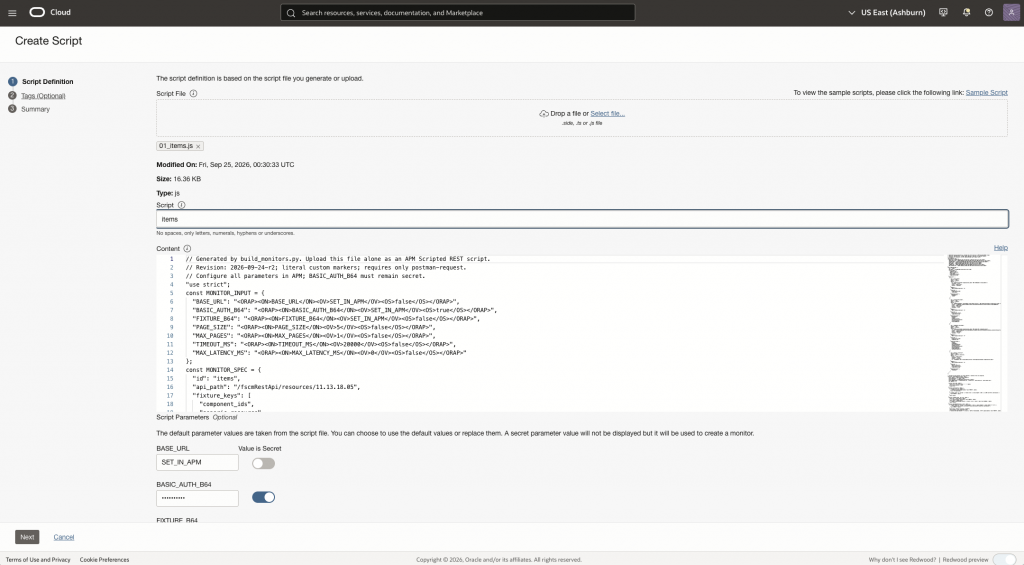
The uploaded file is the fuller items monitor script. The shorter code examples above explain its GET and batch patterns; they are not the file shown in this capture.
The script’s ORAP placeholders appear as Script Parameters below the content. Set BASE_URL to the Fusion HTTPS origin without a trailing slash. Set BASIC_AUTH_B64 to the Base64 value of username:password and turn on Value is secret. Set FIXTURE_B64 to Base64-encoded JSON containing the selected test identifiers and mark it secret when those identifiers are private. Base64 is reversible encoding, so neither value is safe to publish. Keep the script’s request-size, page-count, and timeout settings bounded.
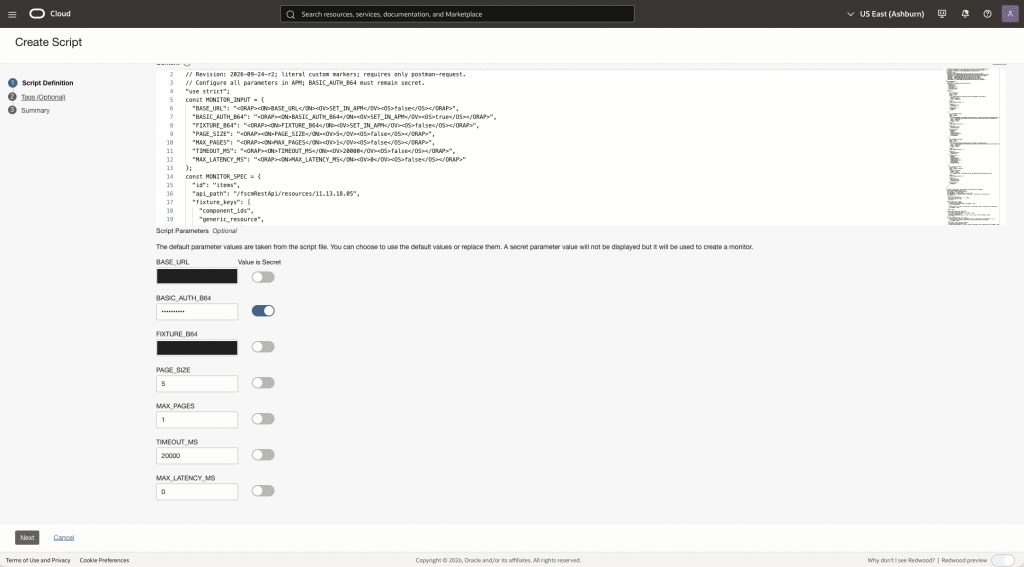
This earlier capture has Value is secret enabled for BASIC_AUTH_B64 but disabled for FIXTURE_B64. For a fixture with private identifiers, enable it for FIXTURE_B64 before saving.
Choose Next, add tags if needed, and check the Summary page before selecting Create. Verify the script name and parameter names; a summary only confirms what will be saved, not that the API request has succeeded. The capture below shows the equivalent summary for the read-only batch script.
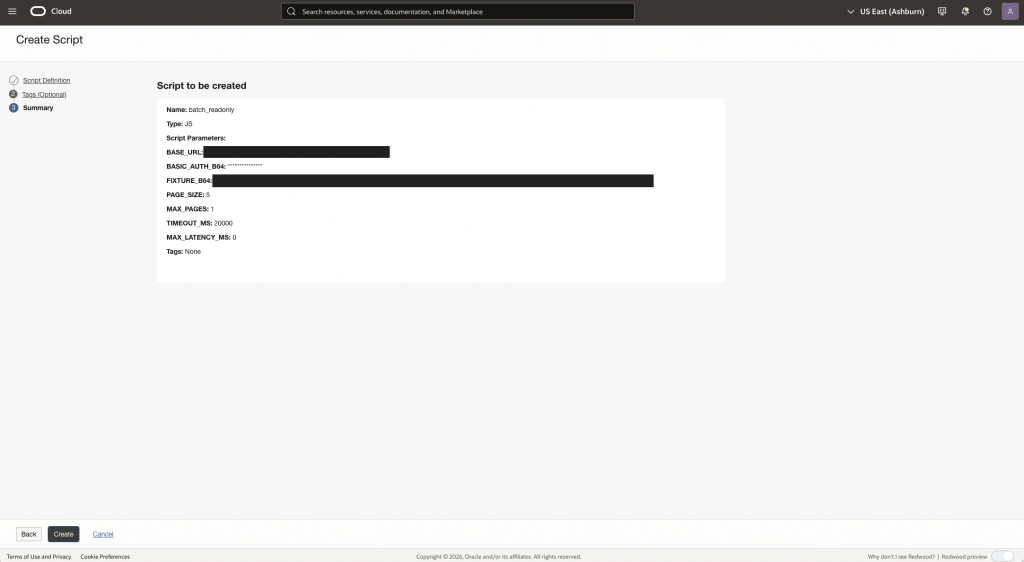
2. Create and configure the monitor
From the saved script’s page, choose Create Monitor, or open Monitors → Create Monitor in the same APM domain. Enter a distinctive name, select Scripted REST, and choose the saved .js script. The script parameters are available on Monitor Definition; verify their values for this environment and keep BASIC_AUTH_B64 secret.
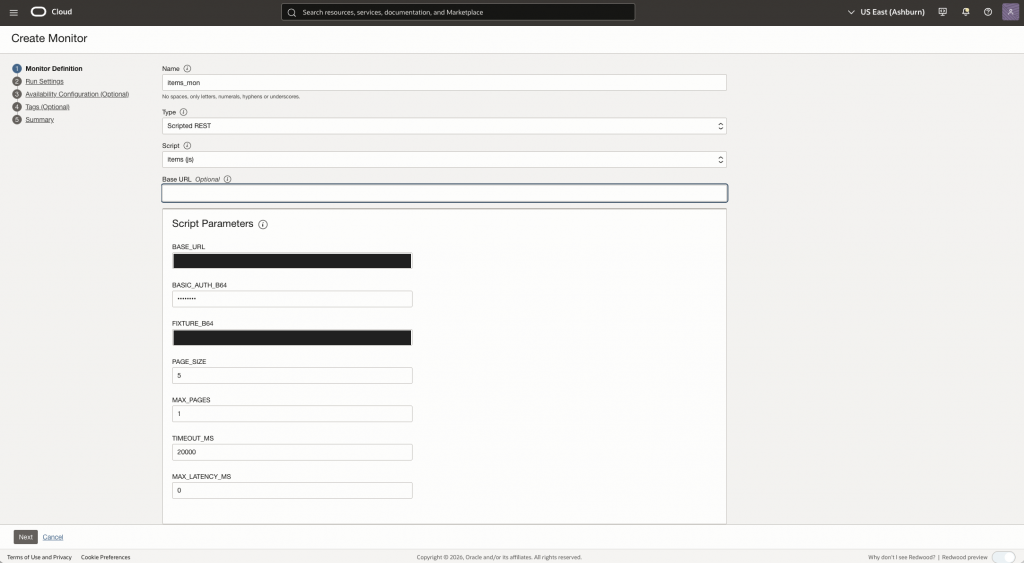
Historical capture: the monitor-level Base URL is empty here. For the current setup, populate it with the same Fusion HTTPS origin as the script parameter BASE_URL.
Enter the Fusion HTTPS origin, without a trailing slash, in both places: the monitor-level Base URL field and the script parameter BASE_URL. The monitor form in this setup requires its own Base URL even though the script builds complete request URLs from its parameter. Oracle’s documentation labels the monitor-level field optional, so check the behavior of the APM form you use; the earlier empty-field capture above is no longer the configuration to follow here. Scroll down to Authentication and leave its type at None: this script supplies the Basic Authorization header itself. Under Response Validations, select response code 200; the JavaScript also checks the status and the returned data. Leave Override DNS off unless the network design specifically requires it. Oracle monitor configuration
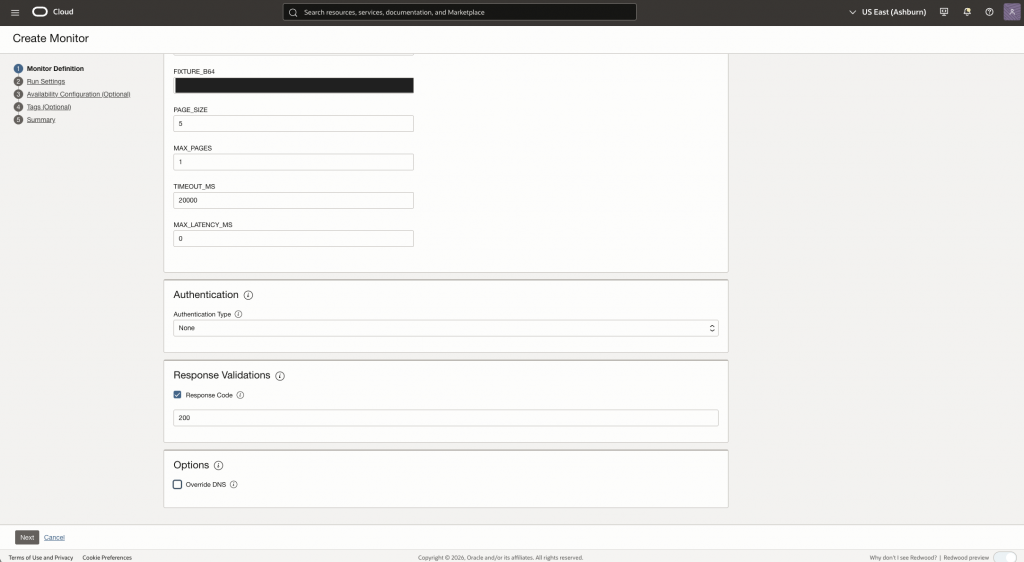
3. Set the execution locations and cadence
On Run Settings, select the vantage points that represent the integration’s access path. For an initial diagnostic, choose one location and Run once; once that execution succeeds, expand to the intended locations and select Interval for continuous monitoring. Set the monitor timeout long enough for the script to finish; the captured setup used three minutes, while each request in the example has its own 20-second timeout. Disable Enable Retry for the first diagnostic so its result is easier to interpret, then decide whether retries fit the operational policy.
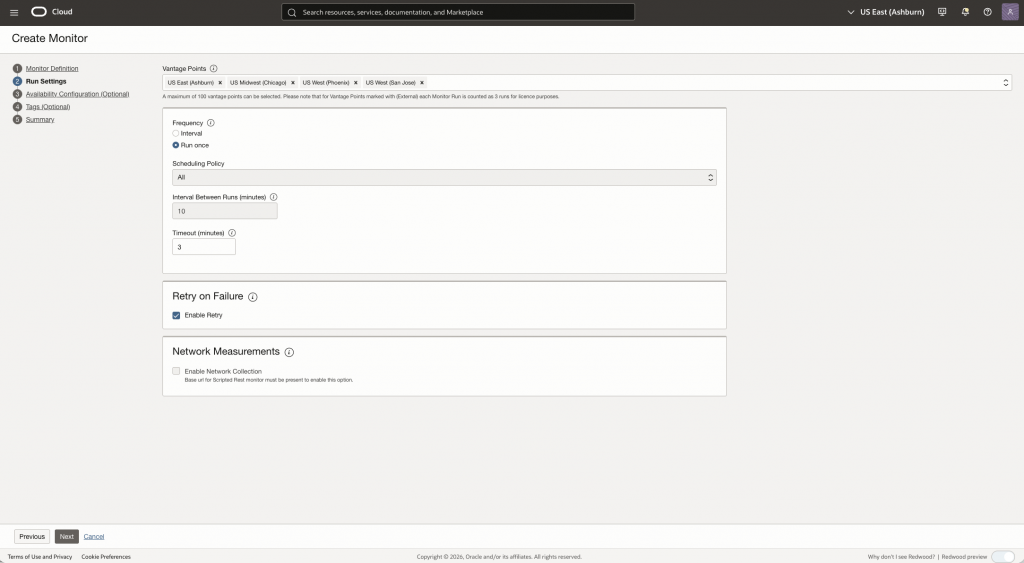
The captured example uses four public vantage points, Run once, and retry enabled. A first diagnostic can use one location and retry disabled; the screenshot records a later setup choice.
For the current setup, leave Enable Network Collection unchecked even though both Base URL fields are populated. The image above shows the same unchecked option in the earlier configuration with an empty monitor-level Base URL. Network Collection is a separate measurement option; leaving it unchecked here does not imply a general incompatibility with Fusion. Oracle documents that the option is shown for Scripted REST when a monitor-level Base URL is specified. Run settings and Network Collection
4. Define availability and review the summary
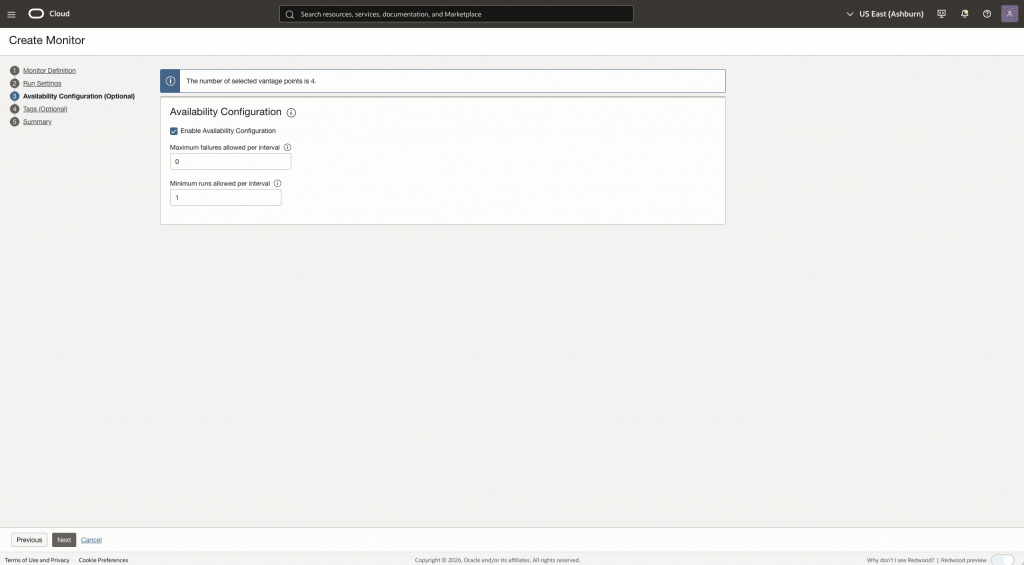
On Availability Configuration (Optional), enable the calculation if you want the dashboard’s availability widget to classify each interval. The captured example allows 0 maximum failures and requires 1 minimum run per interval. With those thresholds, any failed run makes an interval with enough runs unavailable; too few runs makes it unknown and excludes it from the availability calculation. Choose thresholds appropriate for the final schedule and number of vantage points. Availability configuration
Choose Next, add optional tags, and inspect Summary. Confirm that the monitor-level Base URL and the script parameter BASE_URL both show the intended Fusion origin. Also review the script name, authentication type, response validation, vantage points, cadence, retry, Network Collection, and availability thresholds before clicking Create. The summary screenshot is a historical configuration review, not proof of a completed run or an example of the new Base URL setting.
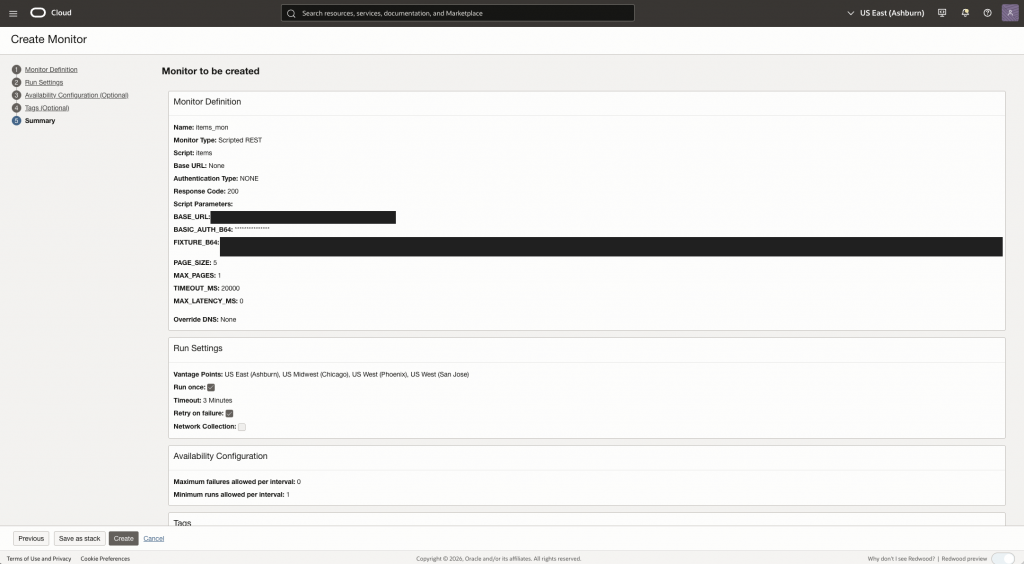
Inspect the newest execution in History before choosing a recurring interval. Verify the timestamp, vantage point, assertions, and duration. Then add the other selected capabilities, each with its own fixture, and expand the locations according to the integration’s access requirements.
Development evidence included a successful hosted items check and local validation of the other selected GET patterns. The exact read-only batch script passed locally against Fusion. The later dashboard screenshots also show recorded successes and failures for the hosted batch monitor. Those aggregate counters do not identify the executed script revision or establish which response assertions passed; use individual run output to confirm that baseline.
Create monitoring widgets using APM monitor KPIs
Each Availability Monitoring execution produces signals that can answer three operational questions: Is the Fusion endpoint available? How long does the scripted check take? Are failures recurring or concentrated at one vantage point? Build widgets around those questions so the dashboard shows the health of the business API checks, not merely a collection of charts.
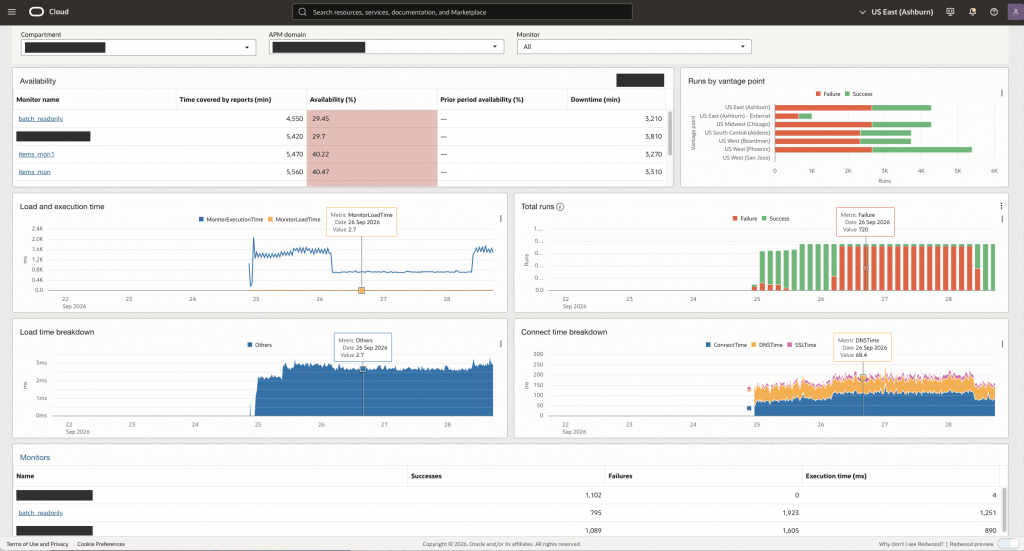
The supplied test dashboard shows successes and failures over the selected period, not a production SLA. Environment details and unrelated monitor names are redacted. The plots are unchanged and still include historical series beyond the five illustrative examples.
Start with a small KPI set, then choose a widget that makes each signal easy to interpret. The metrics below come from the oracle_apm_synthetics namespace. They measure synthetic monitor runs and requests, not the volume or end-to-end success of the customer’s integration traffic. APM metric definitions
| Monitoring question | Metric | Suggested widget and interpretation |
|---|---|---|
| Availability: Are the selected API checks passing? | Availability | Show a trend or current value by MonitorName; 1 means a successful run and 0 a failed run. Mean × 100 gives the success percentage for the selected runs and period. |
| Performance: Is the complete check getting slower? | MonitorExecutionTime | Plot a line by monitor and, when useful, vantage point. The metric measures the whole monitor execution in milliseconds. |
| Reliability: How often do runs fail? | Failure | Sum failures per time bucket and compare them with successful runs or the availability trend. Failure is 1 for a failed run, 0 otherwise. |
| Failure diagnosis: Did requests return HTTP errors or no response? | HTTP4xxFailureCount, HTTP5xxFailureCount, TotalRequestFailures | Use separate count charts so an HTTP response error is not confused with a request that received no response. |
| Synthetic activity: Were checks actually sent? | RequestCount | Show the count of requests generated by these monitors; this is not business integration traffic. |
For count metrics, sum within a time bucket. For execution times, start with a mean and keep the native millisecond unit clear; compare failure counts before treating a sudden shorter run as an improvement. Choose a bucket that fits the monitor’s schedule. APM metric names, units, and dimensions
Create the widgets
A Metric line chart is one way to show execution time or availability over time; use a table or count chart when it communicates outcomes more clearly. The following steps use the APM dashboard editor:
- Open Observability & Management → Application Performance Monitoring → Dashboards. Create a dashboard or open a custom dashboard and choose Actions → Edit. To customize an Oracle-defined dashboard, duplicate it first. APM dashboard customization
- On the Widgets tab, choose a visualization for one KPI. For example, search for Metric line chart and add it to the canvas for execution time.
- Open Edit widgets, select that widget, and use the pencil icons beside Configured widget inputs. Set Namespace to
oracle_apm_syntheticsand Metric name toMonitorExecutionTime; verify that the data compartment contains the intended APM domain. - Label it Fusion monitor execution time, select a time range, and choose Save changes. Add separate widgets for availability and failure counts using the metrics in the table. Confirm that each series represents the intended monitor and location. Widget input configuration
An APM domain filter elsewhere on a dashboard does not automatically scope every generic metric widget. Check its input links. When you need explicit domain filtering and separate vantage-point series that the widget’s exposed inputs do not provide, use Widgets → + → Create query-based widget…, select Monitoring as the data source and oracle_apm_synthetics as the namespace, then enter a query such as:
MonitorExecutionTime[10m]{ResourceId="<APM_DOMAIN_OCID>",MonitorName="fusion_items"}.groupBy(MonitorName,VantagePoint).mean()
Replace the placeholders with your domain and monitor. This illustrative query uses a ten-minute aggregation interval and a mean for each monitor/location pair; the dashboard time range is a separate choice. Click Run, select a Line chart visualization, save the widget, and save the dashboard. Query-based metric widgets, Monitoring query syntax
Use MonitorName for a capability overview and VantagePoint to compare locations. ResourceId identifies the APM domain; MonitorId identifies an individual monitor. Prefer monitor names in public chart legends because Target can expose pod URLs. APM metric dimensions
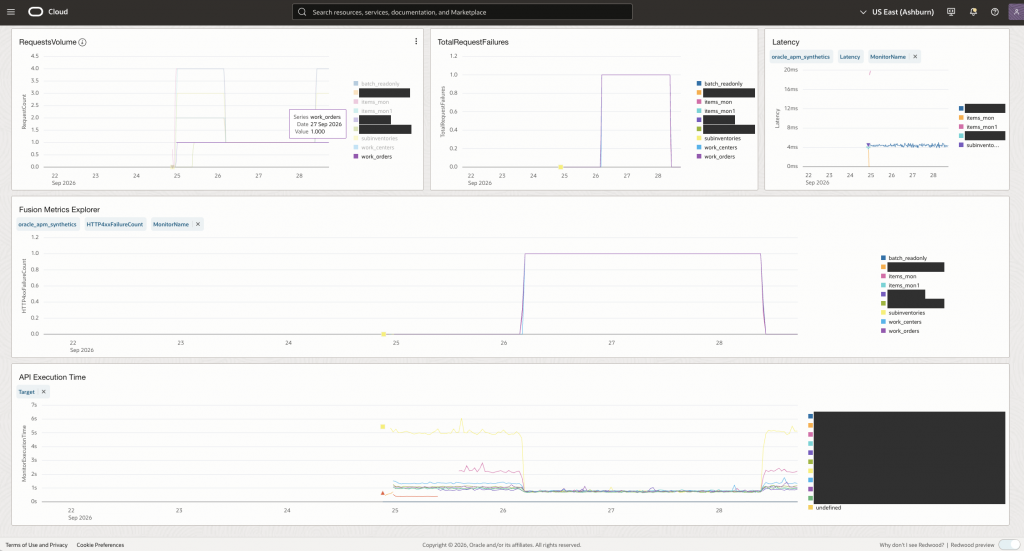
Custom charts put related signals on the same time axis. The chart titled API Execution Time uses MonitorExecutionTime, which measures the complete monitor run. The separate Latency metric is network packet round-trip time; it is not the duration of a Fusion API operation.
Use RequestCount to understand synthetic request activity, not the customer’s integration traffic volume. A shorter execution time can also accompany a request that fails early, so compare timings with success and failure signals. Gaps are missing observations, not evidence of zero latency or perfect availability. Select the same monitor and time window in History to investigate a change. APM synthetic metric definitions
Conclusion
This customer-inspired pattern turns an integration requirement into a repeatable check at the Fusion SaaS API boundary. A Scripted REST monitor asks a specific business question—can this account retrieve the expected item, inventory reference, work center, or work order?—from a selected vantage point. A read-only batch adds coverage of POST transport without changing business records. The resulting availability, execution-time, and failure signals remain useful even when customer integration traffic is quiet.
The broader value for Fusion customers is a shared view of which capability is affected, when it changed, and from where the failure was observed. A dashboard can reveal a trend; the individual monitor run provides the request and assertion context needed to investigate it. As a Performance-pillar signal, this outside-in view complements real user experience monitoring, ESS process logs, integration logs, and security/audit analysis. A passing synthetic read does not prove that every business transaction or customer integration succeeded.
References
- Oracle APM overview: public locations in OCI and external data centers
- Set Up Availability Monitoring: public and private vantage-point options
- Use Dedicated Vantage Points
- Use On-premise Vantage Points
- Download a Worker: monitor types supported by each on-premise worker
- APM Availability Monitoring metrics and dimensions
- Create a query-based widget using metrics
- Real User Monitoring for Oracle Fusion SaaS Cloud Apps using OCI APM Browser Agent
- Fusion Apps Observability by Collecting Enterprise Scheduler ESS Logs Using OCI Logging Analytics REST API Ingestion
- Gaining Insights from Fusion ESS, Audit and Security Dashboards with AI Augmentation Using LoganAI – Part 3