Are you troubleshooting why events from your Oracle Cloud Infrastructure (OCI) environment aren’t making it to your Security Information and Event Management (SIEM) system, like QRadar? It’s a common dilemma: Is the issue with OCI not sending the events, are the events not reaching the stream, or is the issue with the SIEM parser it is using? This script was developed precisely to help you see and read events directly from the OCI stream, providing clarity on where the problem lies.
This blog post introduces a powerful, yet simple, Python script that acts as your diagnostic tool to determine if your events are successfully reaching and residing within your OCI Streaming Service. By directly consuming messages from your OCI stream, this script helps you pinpoint the problem’s origin, allowing you to quickly move from “Is it OCI?” to “It must be the SIEM parser!”
The Critical Role of This Script in Troubleshooting
When SIEMs aren’t showing expected events, the first question often is: are the events even reaching the stream? This Python consumer script provides the answer. If you run this script and successfully see and read events from your OCI stream, then you can confidently say:
The events ARE reaching the OCI Streaming Service.
The issue is likely NOT with OCI’s event generation or delivery to the stream.
The focus should shift to your SIEM’s configuration, network connectivity to the stream, or, most commonly, its event parser.
Conversely, if the script runs but receives no messages (or errors), it indicates a problem further upstream within OCI or its integration, or a configuration issue with your consumer itself.
Sample Python Kafka Consumer Script
Note: Please note that the Python script provided in this discussion for troubleshooting OCI Streaming to SIEM issues is a sample script for education purpose only. Care should be taken to fully test this script thoroughly in a controlled environment before deploying or using it in any production OCI tenancy or against any critical OCI Stream. This includes validating its behavior, resource consumption, and ensuring all configurations (like stream names, security credentials, and group IDs) are accurate and appropriate for your specific environment.
The script leverages the confluent_kafka library to establish a secure connection and consume messages from an OCI Streaming Service stream. Let’s break down its components.
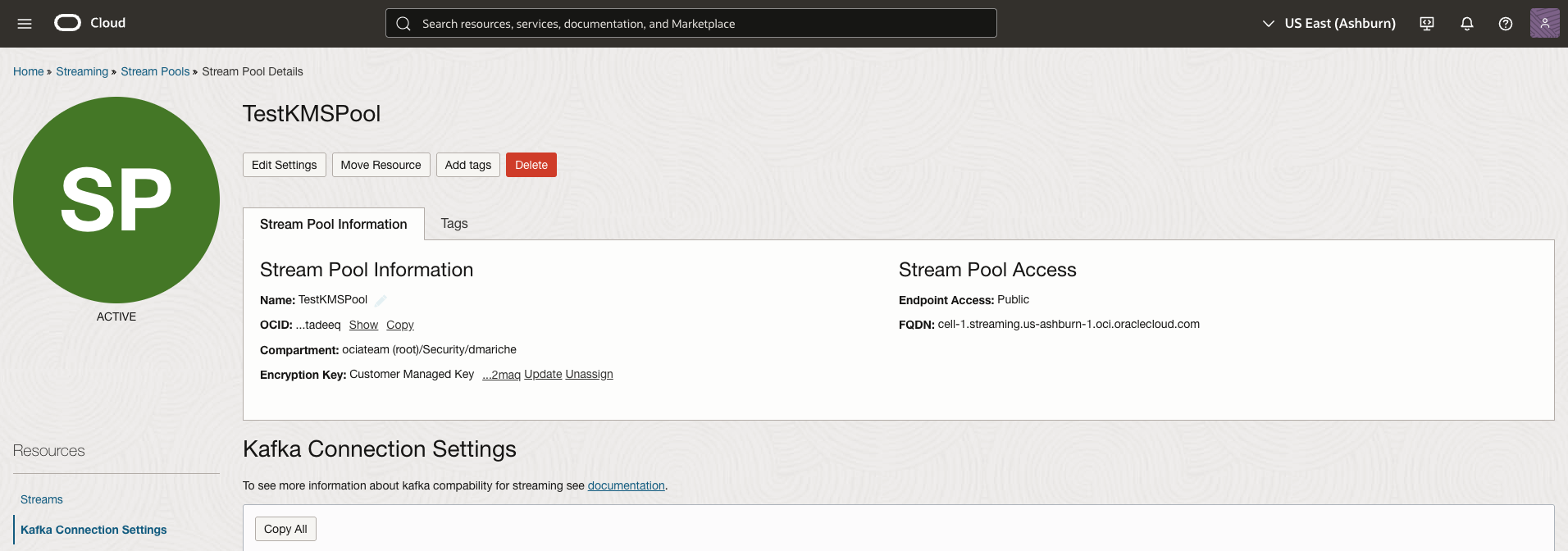
The foundational part of the script is setting up the connection parameters. These parameters are crucial for securely connecting to your OCI stream: This information is available in the OCI console, (We are going to use an AuthToken for authentication, make sure that the user has an AuthToken)
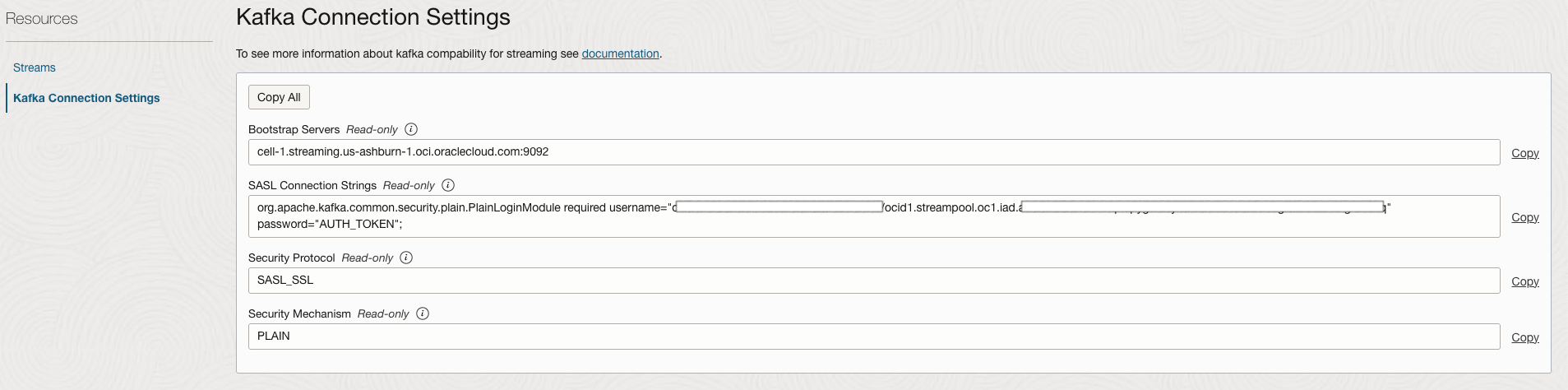
Go to the OCI Stream Pool to get the Kafka Connection details, Next screenshot shows the details that we need to use to get the connection from the python script
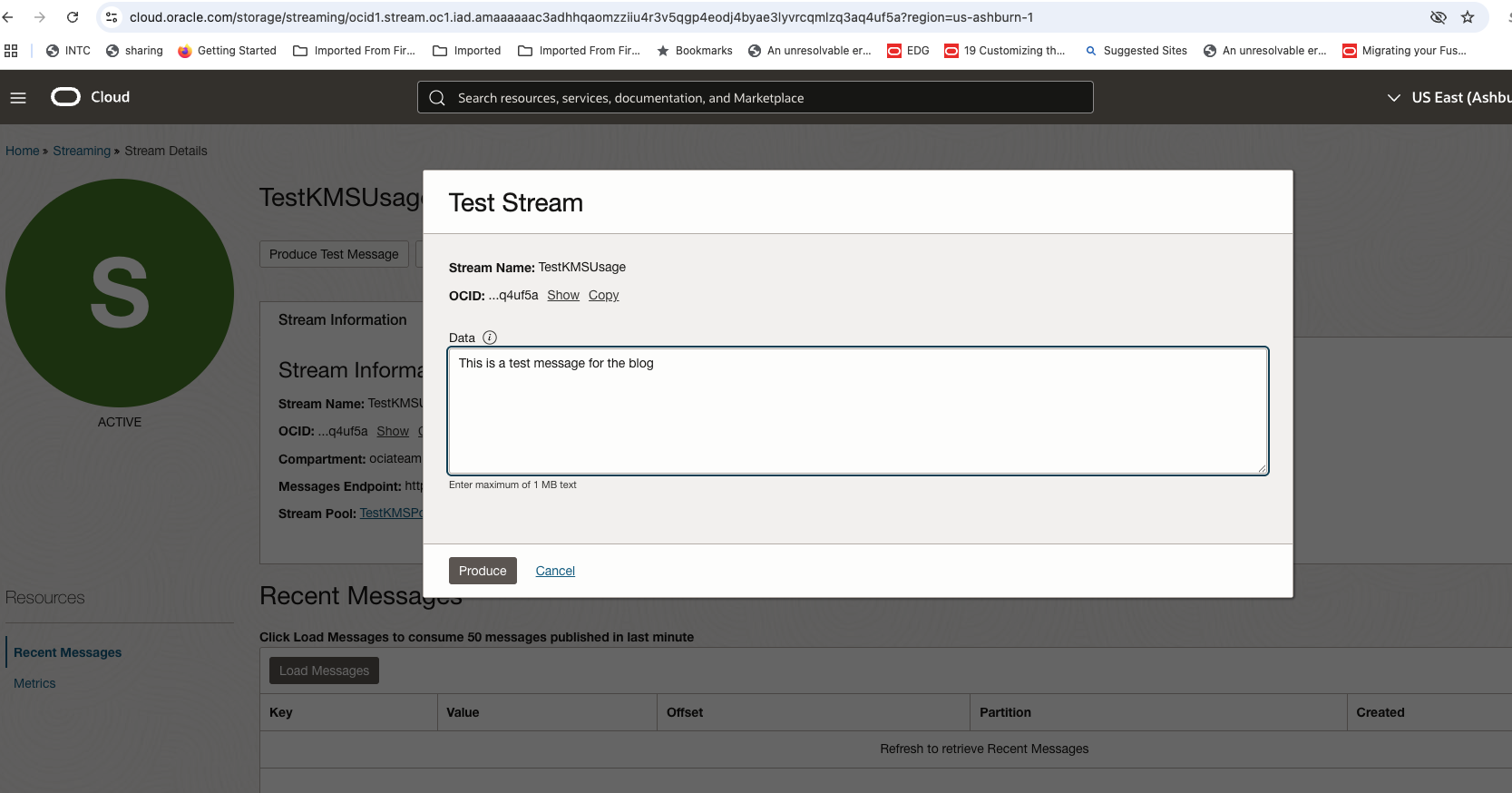
Check if the user has an AuthToken and copy the AuthToken to update sasl.password.
Let’s highlight the critical configuration details(we can capture this information from the above screenshots ) for your troubleshooting success, directly sourced from the script’s configuration:
bootstrap.servers: This is your OCI Streaming endpoint, specific to your region and tenancy. It’s the primary contact point for the Kafka client.
security.protocol: SASL_SSL: Ensures secure communication over SSL/TLS with SASL authentication. This is non-negotiable for OCI Streaming.
sasl.mechanisms: PLAIN: Specifies the SASL mechanism for authentication.
sasl.username: This is your OCI Streaming stream pool OCID, formatted as TenancyName/UserPrincipal/StreamPoolOCID. Accurate entry here is paramount for authentication. For example, TenancyName/dineshmaricherla@email.com/ocid1.streampool.oc1.iad.xxxxxxxxxxx. Note, if the user resides in a different domain(other than the default domain) then the user has to also be prefixed with the domain name.
sasl.password: This is your OCI Authentication Token. This token acts as your password for Kafka access. Ensure you generate and use a valid token.
group.id: oci-python-consumer: Defines the consumer group this instance belongs to. This helps Kafka manage message consumption across multiple consumers.
auto.offset.reset: earliest: Crucially, this ensures that your consumer starts reading from the very beginning of the stream, allowing you to see historical events. This is invaluable when checking if events ever made it to the stream.
ssl.ca.location: certifi.where(): Points to the necessary CA certificates for SSL validation, enabling secure communication.
Initializing and Subscribing to the Stream
After defining the configuration, the script initializes the consumer and tells it which stream to listen to:
consumer = Consumer(conf)
consumer.subscribe(['TestKMSUsage']) # Replace with actual stream name
The consumer.subscribe([‘TestKMSUsage‘]) line is where you specify the exact name of your OCI Streaming stream that you suspect is missing events in your SIEM. Double-check this stream name!.
Event Polling Loop: Your Visibility Into the Stream
This is where the magic happens – the script continuously tries to fetch messages from your OCI stream:
print("Starting Kafka consumer...")

try:
    while True:
        msg = consumer.poll(1.0)
        if msg is None:
            continue
        if msg.error():
            print(f"Consumer error: {msg.error()}")
            continue
        print(f"Received message: {msg.value().decode('utf-8')}")
except KeyboardInterrupt:
    print("Stopped by user")
finally:
    consumer.close()
In this block, we consume the messages here is the logic:
Here’s what’s happening in this vital section:
while True: and msg = consumer.poll(1.0): The consumer continuously polls the stream for new messages. The 1.0 indicates a 1-second timeout. If messages are present, they are retrieved.
if msg is None: continue: If no message arrives within the timeout, the loop simply continues, waiting for the next polling interval.
if msg.error():: This robust check captures any Kafka-related errors during message retrieval, preventing the script from crashing and providing valuable debug information.
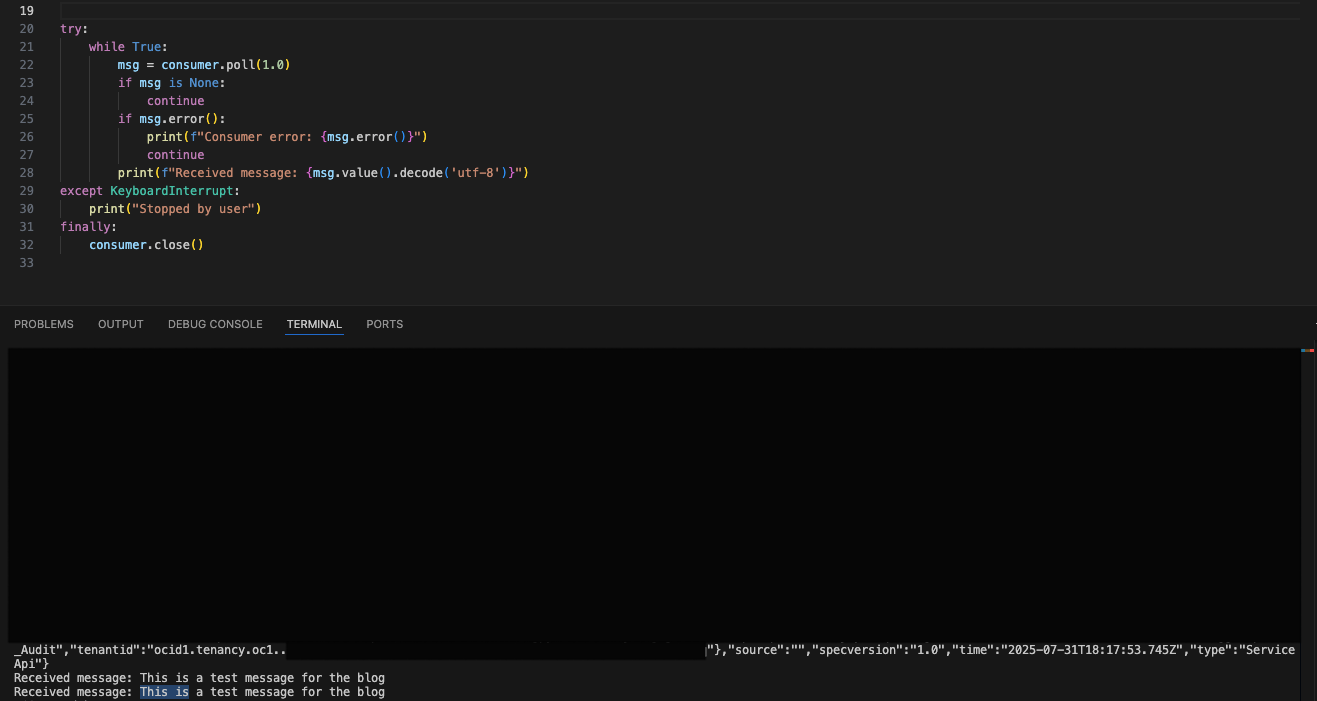
print(f”Received message: {msg.value().decode(‘utf-8’)}”): This is the critical output for your troubleshooting! If you see messages printing to your console, it means your events are indeed reaching the OCI stream. The .decode(‘utf-8’) converts the raw bytes into a human-readable string.
Seeing messages here means your OCI setup for event generation and streaming is working as expected. Here is a screenshot
How to Exit the Script:
We can exit the consumer script using Ctrl+C
In conclusion:
This Python script is an indispensable tool for diagnosing OCI Streaming integration issues with your SIEM. By running it and observing the output, you gain immediate clarity:
If you see messages: The problem likely lies with your SIEM – its network connectivity, listener configuration, or parser. You can then confidently focus your troubleshooting efforts there.
If you do NOT see messages: The issue is earlier in the chain – perhaps OCI services aren’t generating events, the connector to Streaming isn’t configured correctly, or your consumer’s credentials/stream name are incorrect.
By empowering yourself with this simple script, you can quickly narrow down the scope of your SIEM event ingestion problems and accelerate your resolution time. Remember to replace all placeholder values (bootstrap.servers, sasl.username, sasl.password, TestKMSUsage) with your specific OCI environment details.
Dinesh Maricherla is a security professional at Oracle working as a Principal Solution Engineer. Dinesh strives to stay abreast of the latest trends and best practices within the dynamic field of security.