
In my previous blog we discussed some concepts related to creating redundant IPSEC connections between Oracle Cloud and Microsoft Azure. In this entry, let’s see how we actually implement one of those scenarios.
Scenario
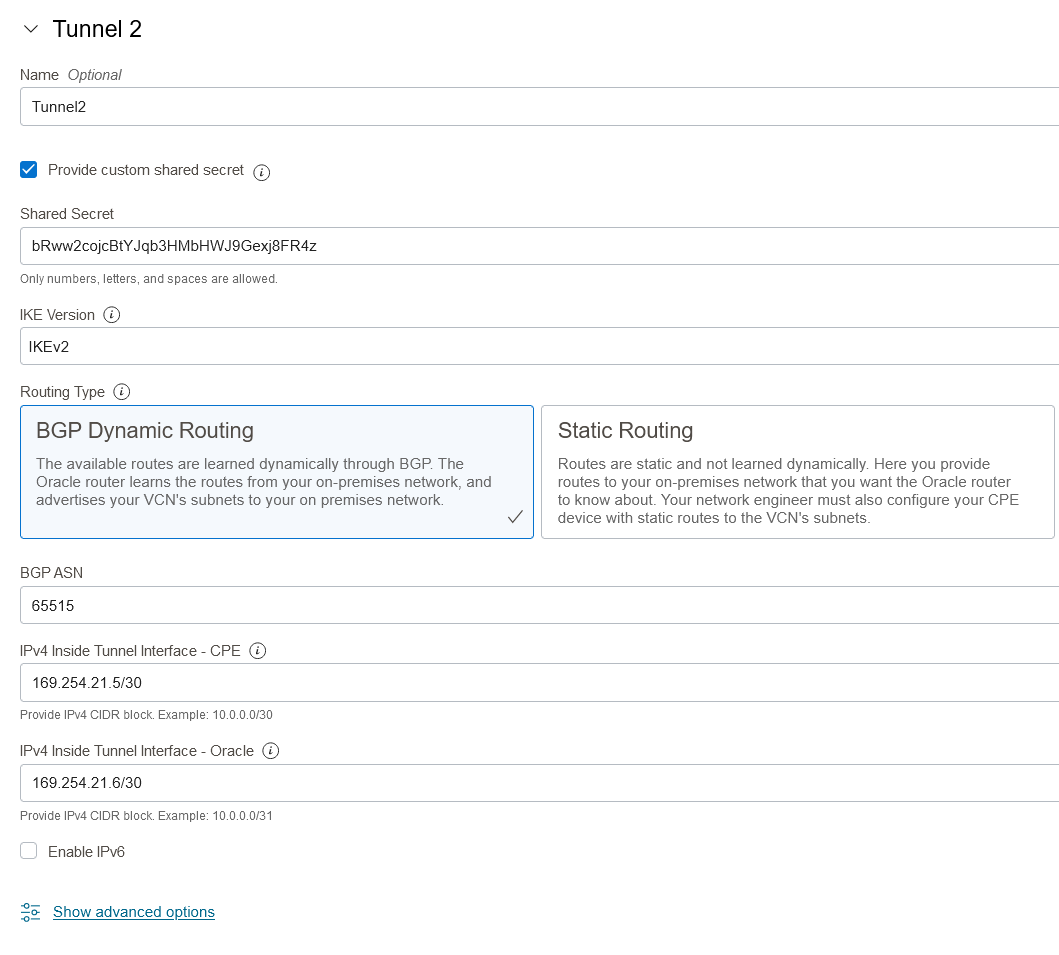
Let’s say we want to use BGP and the Virtual Network Gateway is in active-passive mode. According to Microsoft documentation (and my tests), the VNG supports only one APIPA IP. So how do we configure two Point to Point links, both targeting the same IP and yet not overlap with each other? The answer is OCI’s ability to support both /30 and /31 addressing on the P2P links. We will have to do a small IP addressing “hack” to get this working. Let’s take a look at the picture below:
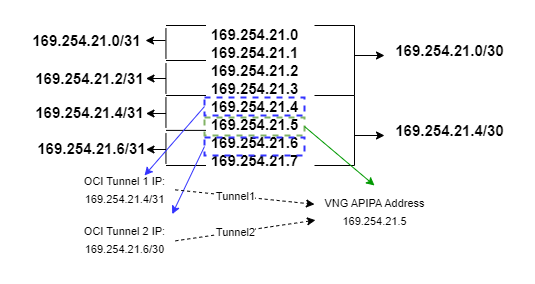
By using both /30 and /31 addressing we will be able to create both tunnels and not have them overlap.
Now let’s start the deployment. Here is what we are trying to achieve:
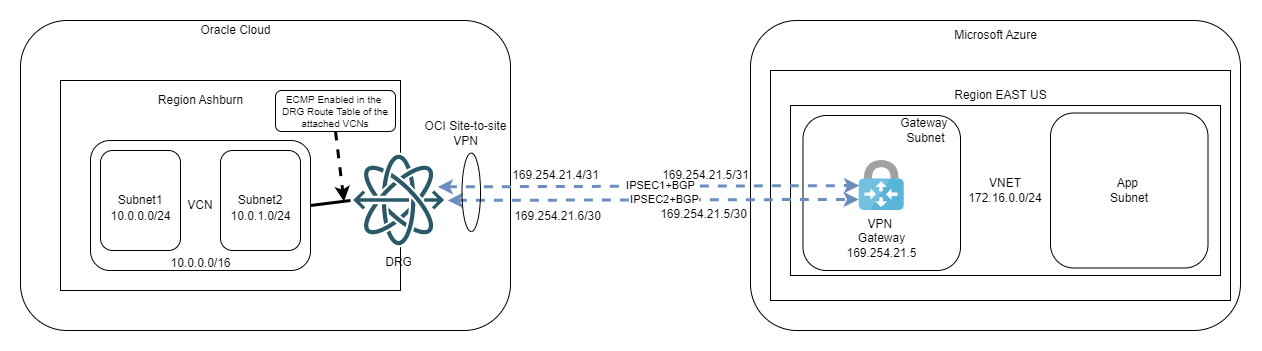
Note: In the interest of space I will not go over creating the VCN, the DRG, and the connection between them. Similarly, it is expected you already have an Azure Subscription, a VNET, and a Gateway Subnet inside that VNET.
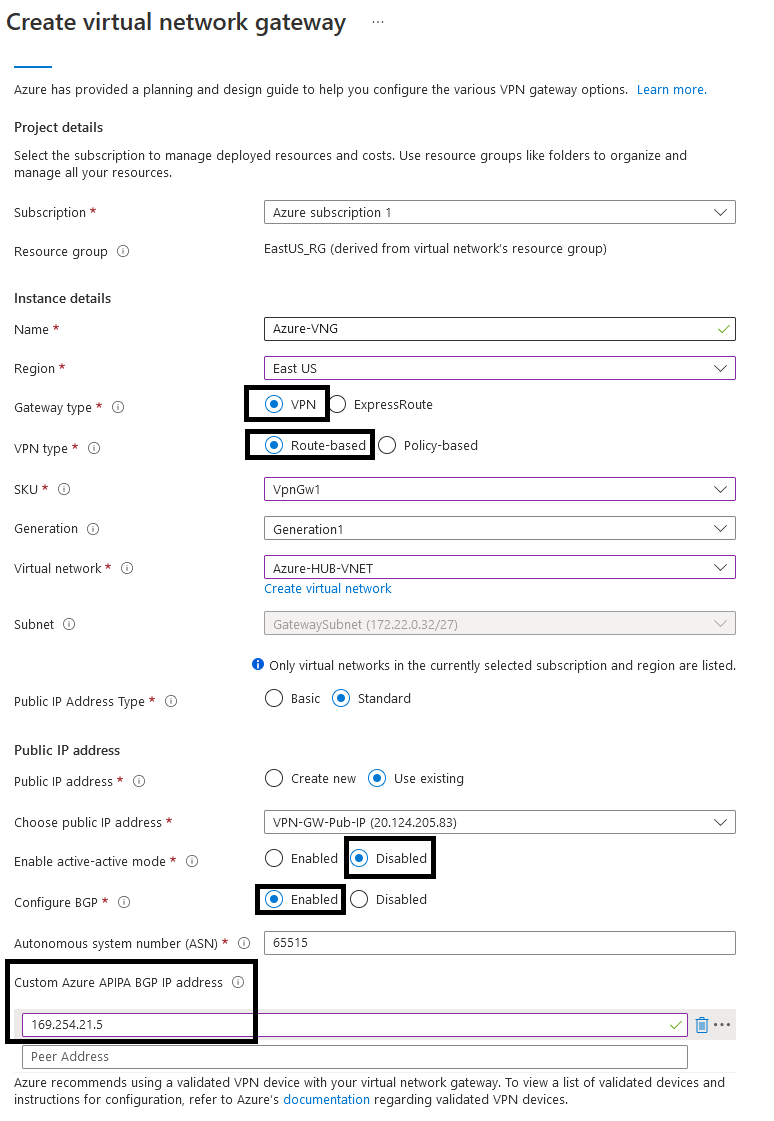
1. Azure Virtual Network Gateway
We will start with the VNG. Feel free to change the SKU and the BGP ASN according to your needs. Here is how it should look like:
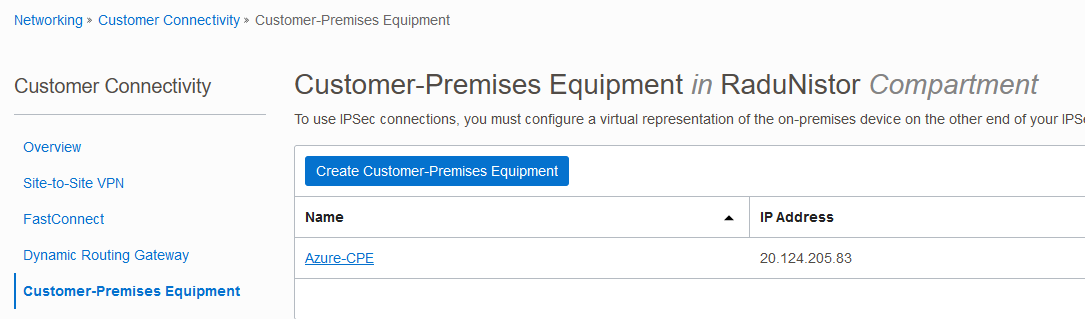
2. OCI Customer-Premises Equipment
Create a CPE resource in the OCI portal, with the Public IP of the VNG.
3. OCI Site-to-Site VPN
At this point, we can create the OCI VPN which translates into 2 IPSEC tunnels. As the menu contains a lot of data, I will have to create multiple snippets.
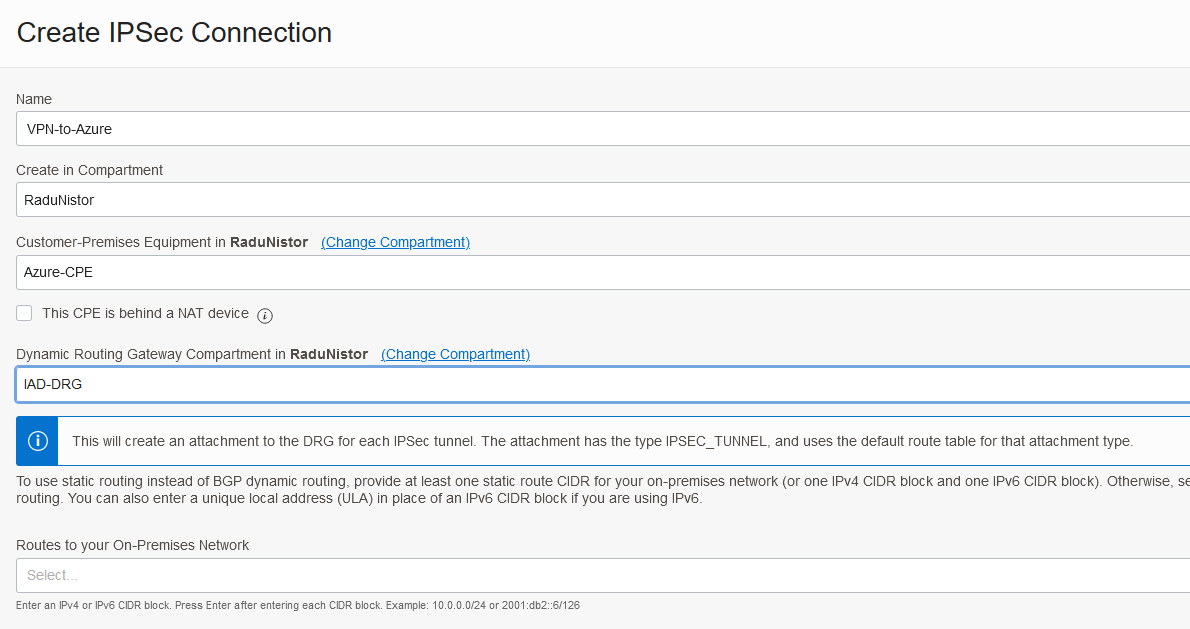
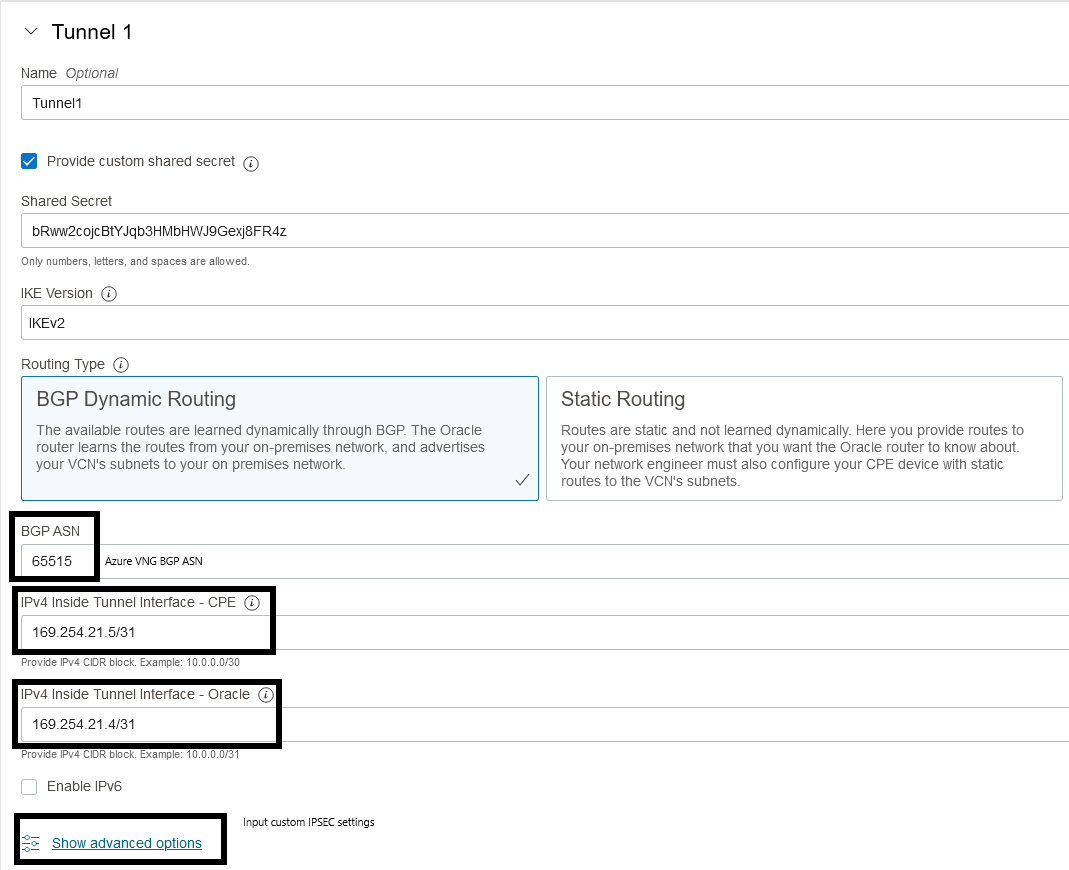
As discussed before, the default ISPEC parameters need to be changed. Input any settings that you want. We will have to do the same on Azure’s side.
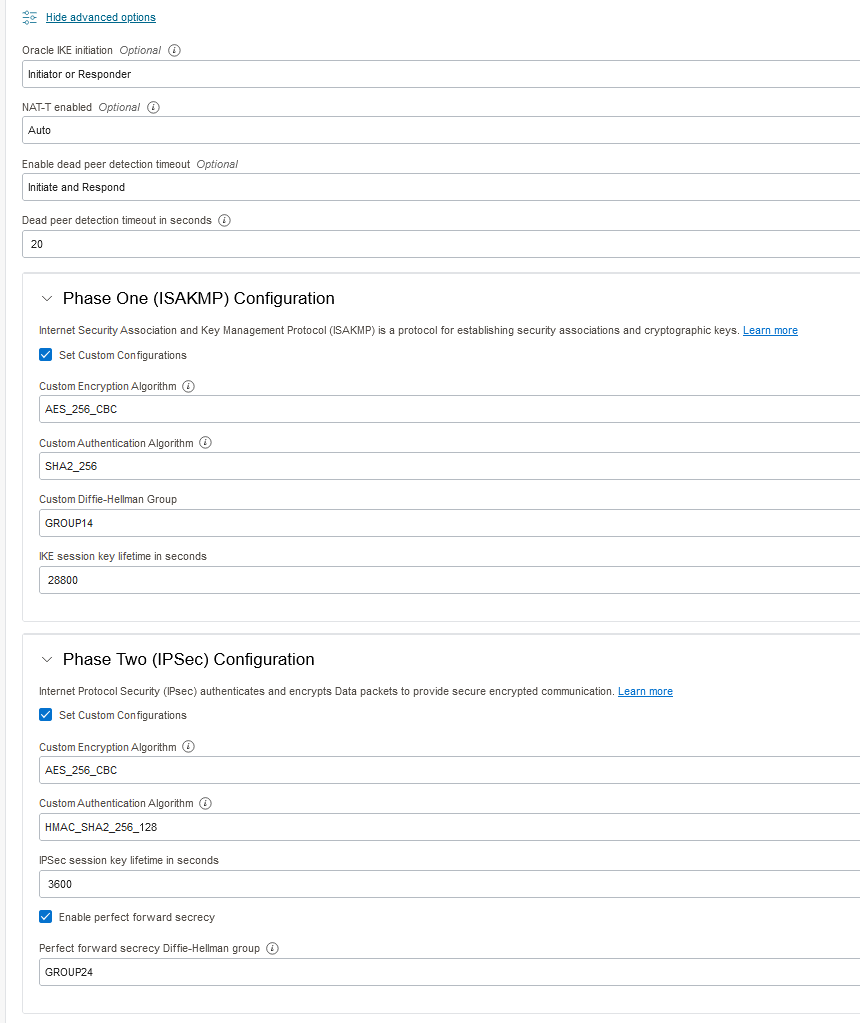
Tunnel 2 will be similar, the only thing that changes is the tunnel endpoints definition. Remember to go into advanced settings and select the custom parameters. Then, press Create.
Once both tunnels are deployed, we need to fetch the Public IPs so we can configure them in Azure. You can get them from the VPN overview:
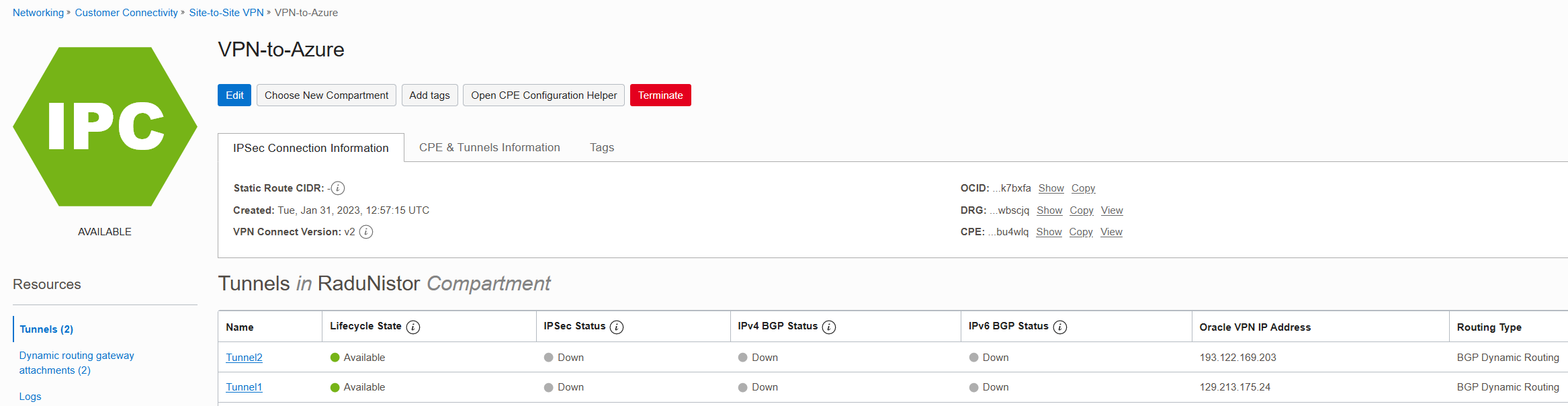
Now that we have the Public IP of each tunnel, let’s move to Azure.
4. Azure Local Network Gateway
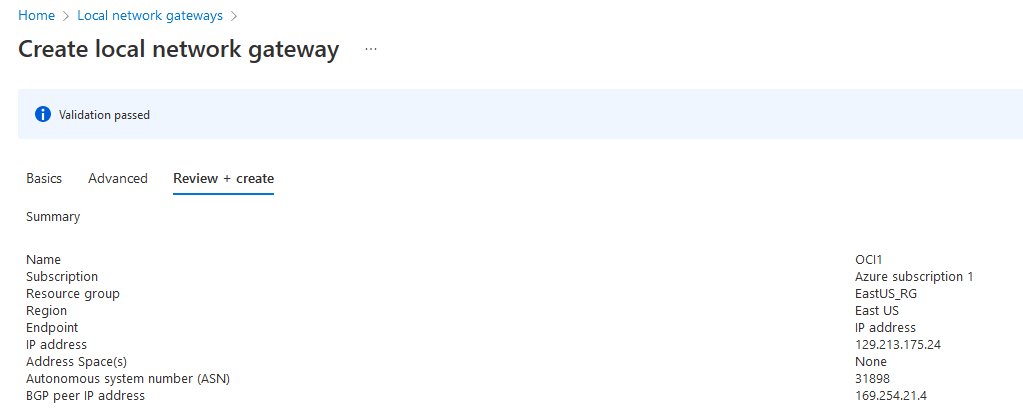
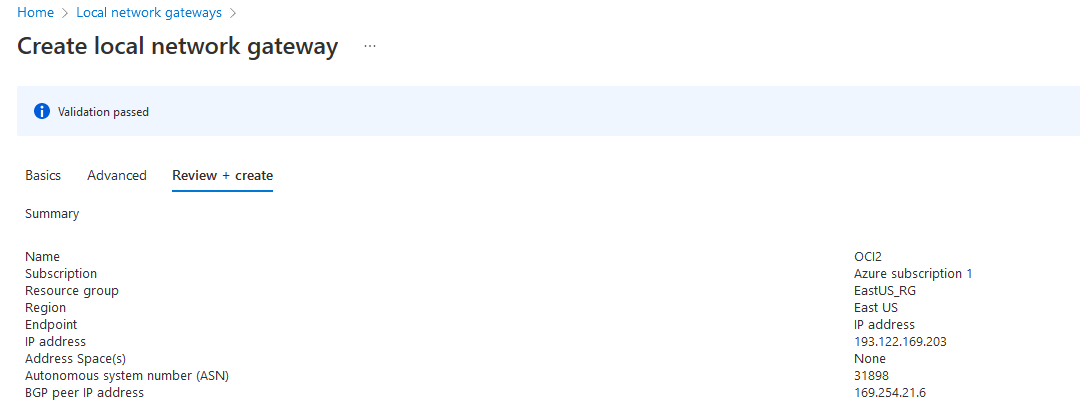
The next step is to define one LNG for each OCI endpoint. Search “Local Network Gateway” and press create. In the first menu you will input the Public IP and on the advanced menu you will enable BGP, add OCI’s BGP ASN which is always 31898 and add the tunnel endpoint according to the diagram.
OCI LNG1:
OCI LNG2:
Wait for both LNGs to deploy before moving on.
5. Azure IPSEC tunnels
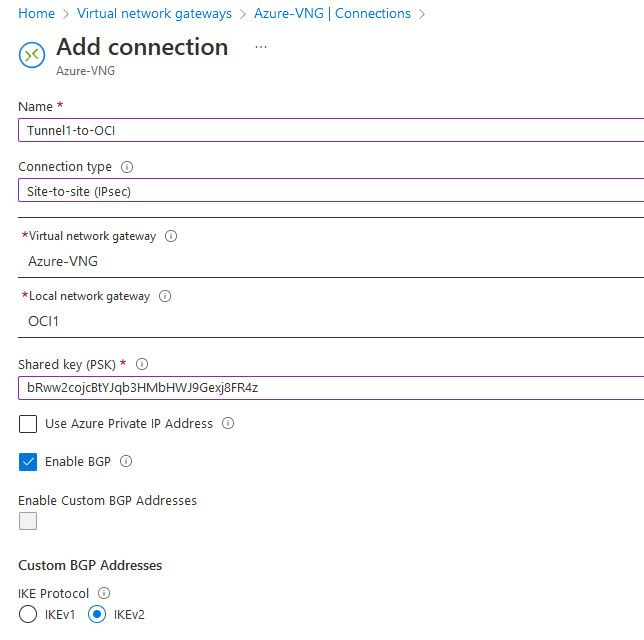
Now we are ready to deploy the Azure tunnels. Go to the Virtual Network Gateway deployed at step one and go to connections.

Press Add to create a connection. We will have to do this twice as we have 2 IPSEC connections to create.
Tunnel1:
Tunnel2:
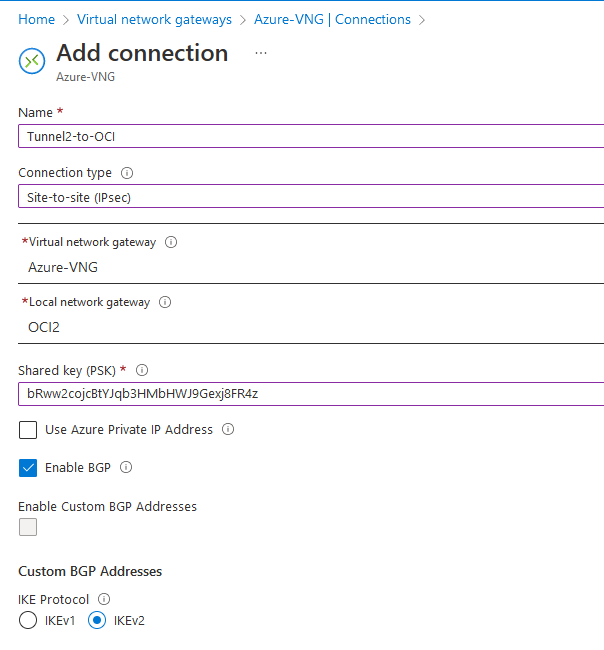
Wait for both tunnels to deploy. Next, click Tunnel1 and go to Properties. Here, we will have to change a few options that were deployed. Toggle “Enable Custom BGP Addresses” and create CUSTOM IPSEC parameters to match OCI’s side.
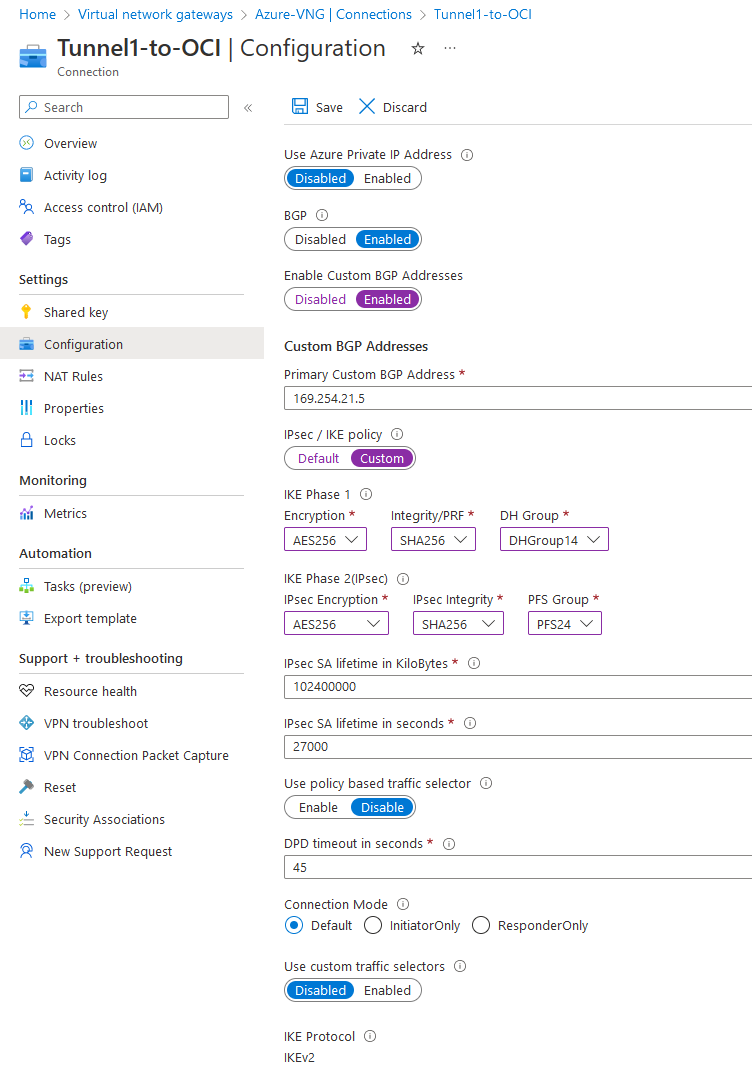
Press SAVE and REPEAT the same process for Tunnel2.
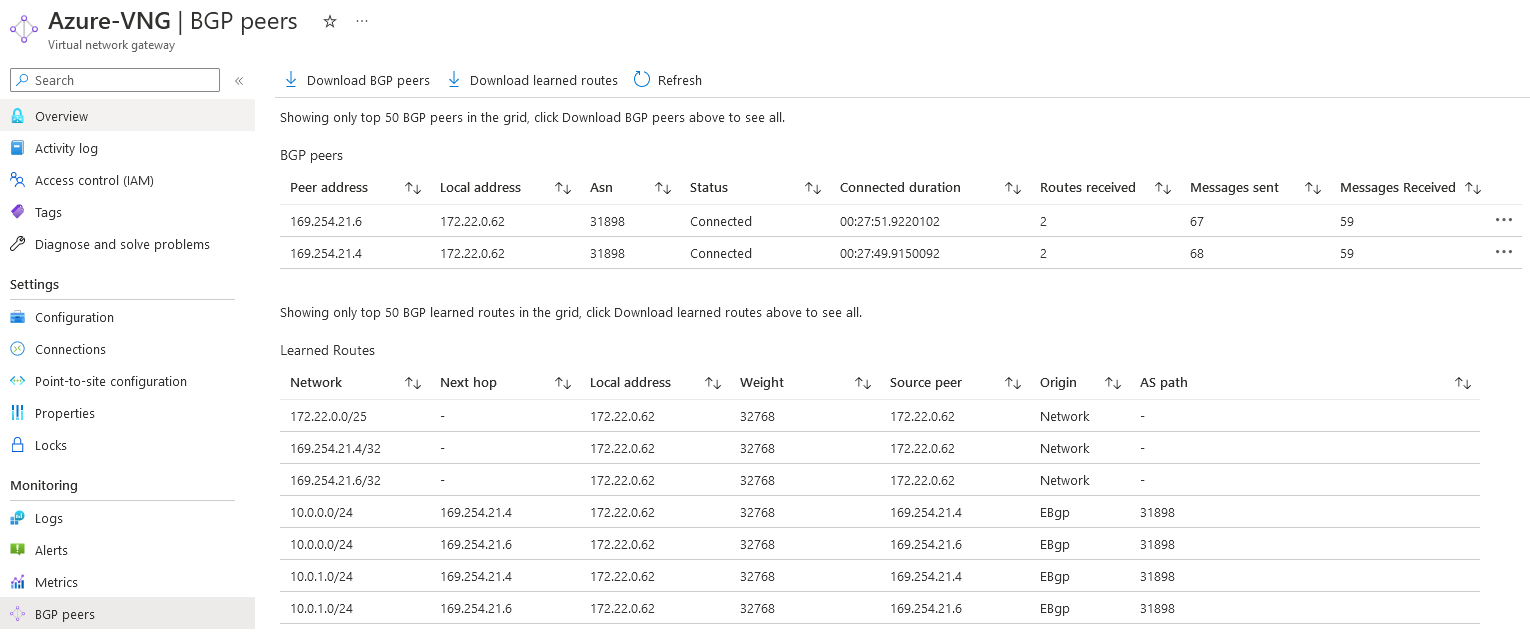
After you modified both tunnels you should see them come up. Note that during my tests I noticed that one of the tunnels was slow to bring BGP up. The way to force it is to RESET the VNG from the Reset button. Be careful, as resetting the VNG resets all IPSEC tunnels.
Azure IPSEC tunnel status:

Azure BGP status:
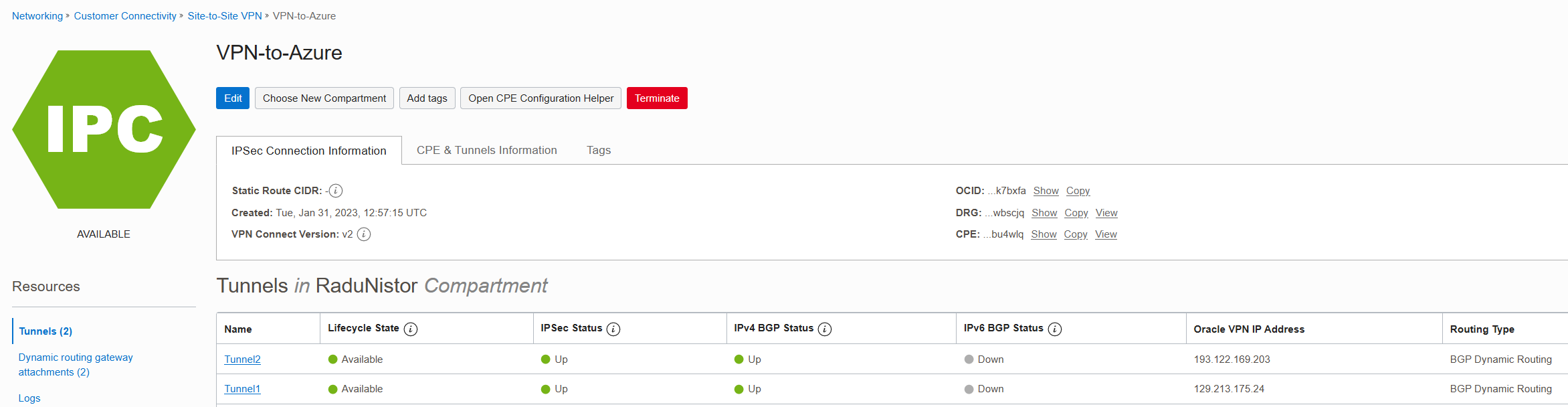
Similarly, you can check the status on OCI’s side by going to the VPN overview.
6. OCI ECMP
Microsoft’s documentation says we need to enable Equal Cost Multi-Path for everything to work properly. To Enable ECMP we need to go to the DRG, click the VCN attachments DRG Route table and enable ECMP. This will make OCI load balance the traffic between the 2 tunnels so you also get increased throughput. However, everything should work fine without enabling ECMP, you will just get asymmetric routing.
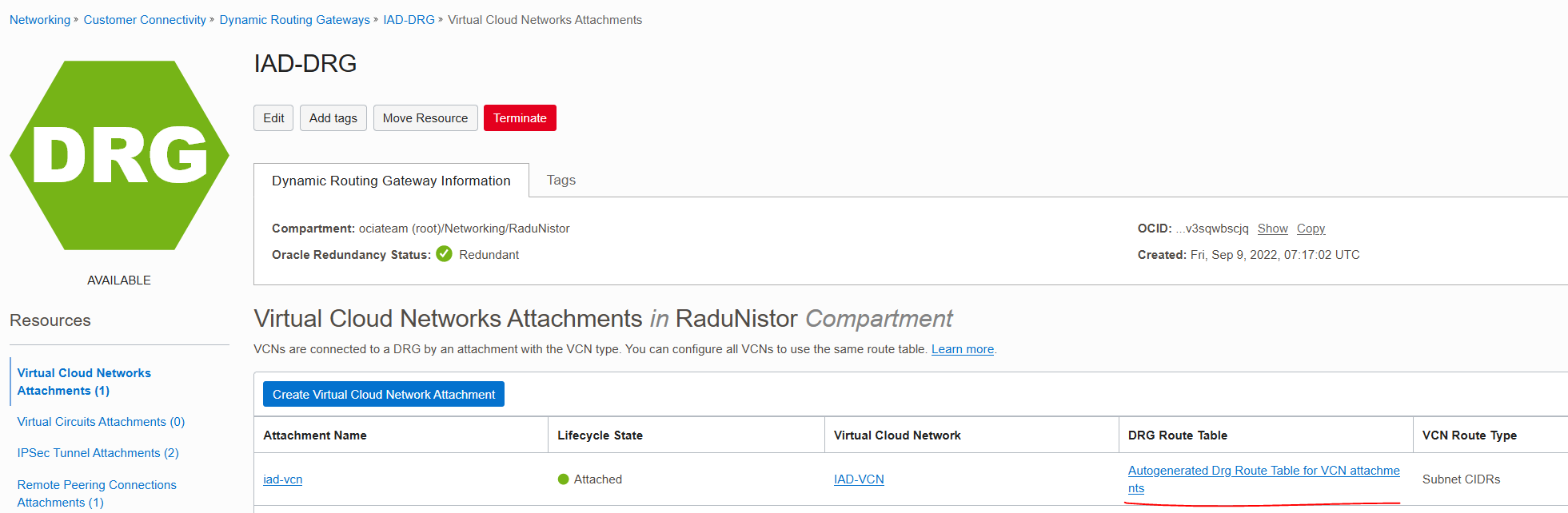
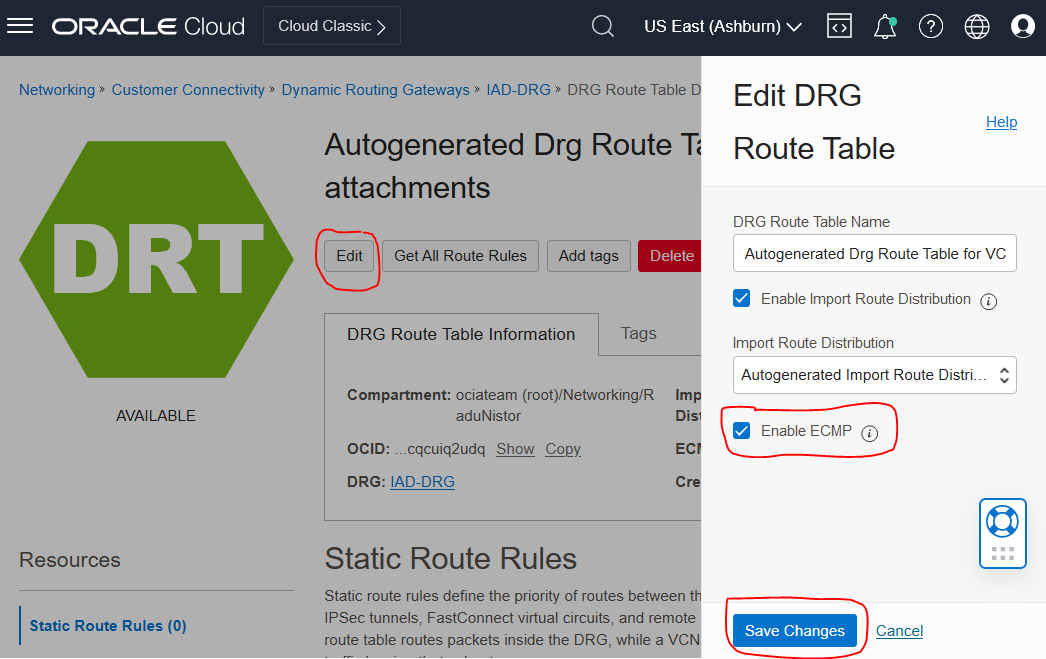
NOTE: Enabling ECMP is a global setting per Route table which means it may impact other IPSEC tunnels or FastConnect Virtual Circuits. If you have other connections in the DRG you need to make sure you will not impact them by enabling ECMP.
And that’s it! We have finished setting up a redundant IPSEC connection between OCI and Azure.
Final note
This procedure is meant as an example on creating redundant IPSEC tunnels between OCI and Azure. As always, adapt it to your environment and do extensive tests before moving to Production.