
The Cisco Firepower Thread Defense NGFW Virtual brings Cisco’s next-generation firewall functionalities to virtualized environments, and it runs the same software as physical Cisco threat defense to enable consistent security policies to follow workloads across your physical, virtual, and cloud environments and between clouds. It also can be deployed in OCI to implement its next-generation security features, such as application visibility and control, intrusion prevention system, advanced malware protection, URL filtering, and virtual private networks. Curious how? Look no further! In this blog series, I will explore setting up these security solutions, FTDv and FMCv, on OCI. Let’s dive in!
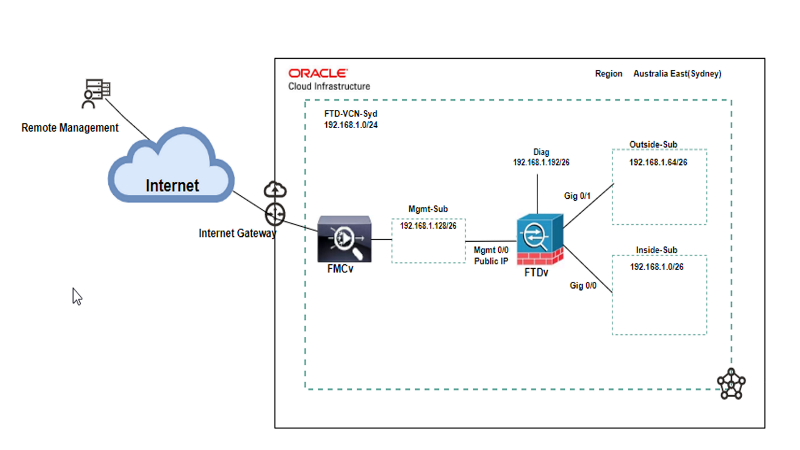
Architecture
Prerequisite
- Knowledgeable about OCI networking.
- Knowledgeable about Cisco Firewall FTD and Firewall Management FMC.
- Existing VCN with four subnets: Mgmt, Outside, Inside, Diagnostic, and Internet Gateway.
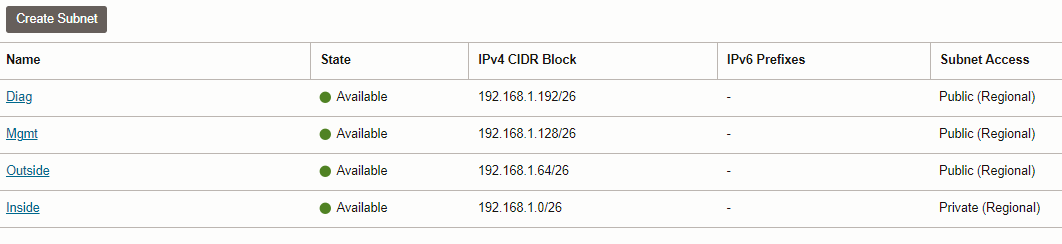
Note: Please assign non-overlapping CIDR block with on-prem or any other public cloud to your OCI VCN.
Note: You need to have two Management subnets, one for FTD and the other one for the Lina operating system (Diag). If you don’t add a Diag subnet and the Diag VNIC during the FTD deployment, the FTD won’t boot up.
Note: Please create a custom route table for all your subnets; you should associate an Internet gateway to your Mgmt subnet to allow access from outside.
Note: For this blog, I have one default Security list associated with all my subnets with Allow All protocol with default route as a source. However, when you create your firewall, you need to allow TCP traffic ingress from your chosen source CIDR blocks with destination port numbers 22(SSH),8305(intra-platform communication channel for firepower appliance), and 443(HTTPS).
Agenda:
- Installation of Virtual Firepower Thread Defense (FTDv) from the OCI Marketplace (Part-1)
- Confirm the SSH connectivity to Cisco FTDv
- Installation of Cisco Firepower Management Center (FMCv) (Part-2)
- Managing Smart License in FMCv
- Add FTDv to FMCv
- Register FTDv to FMCv
Let’s get started.
Installation of FTDv from the OCI Marketplace
Log into your OCI tenancy and choose your proper region.
Navigate to the hamburger menu and click on Marketplace.
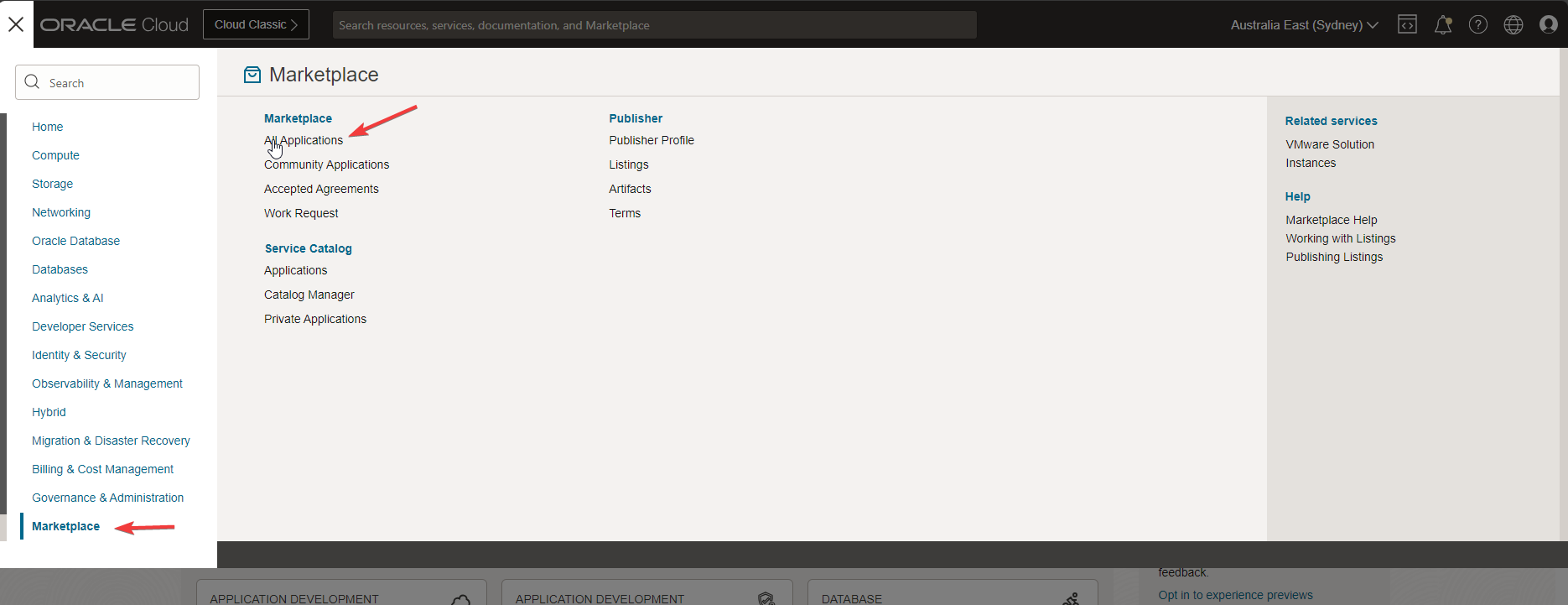
Click on All Applications and search by Cisco.
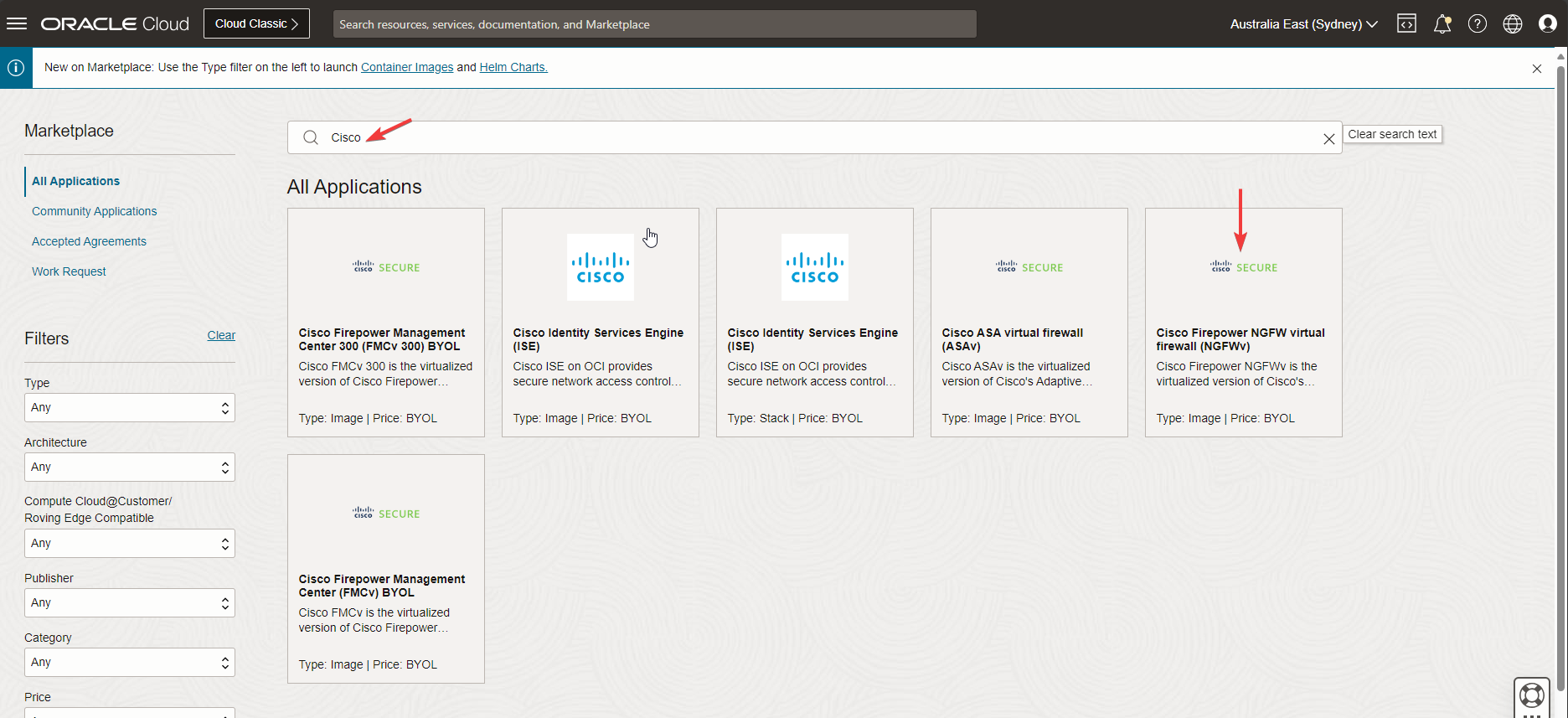
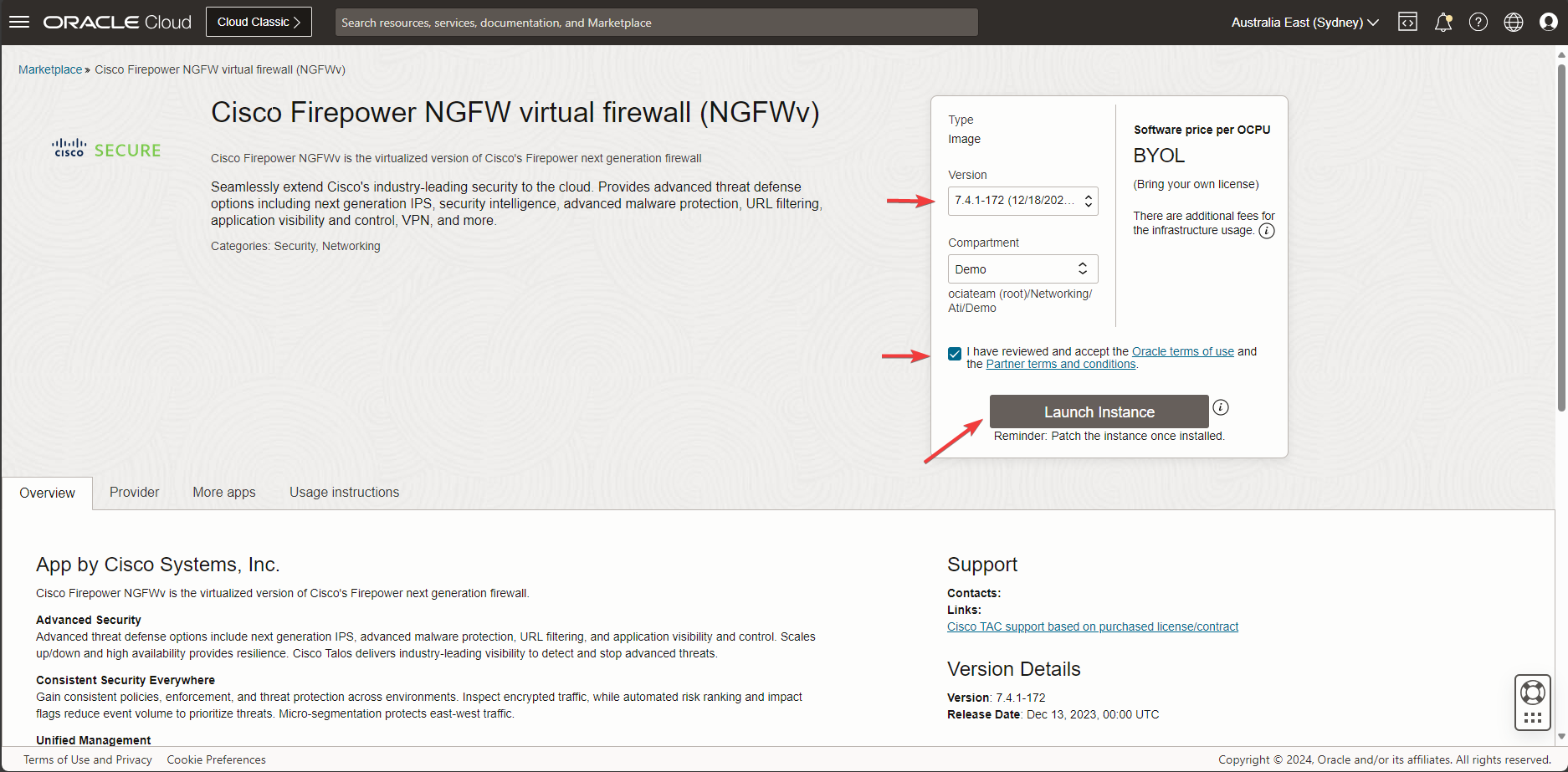
Choose Cisco Firepower NGFW virtual firewall (NGFWv) from the available options.
Choose your chosen Version, and after reviewing Oracle and Cisco terms of use and conditions, check the box and click on Launch Instance.
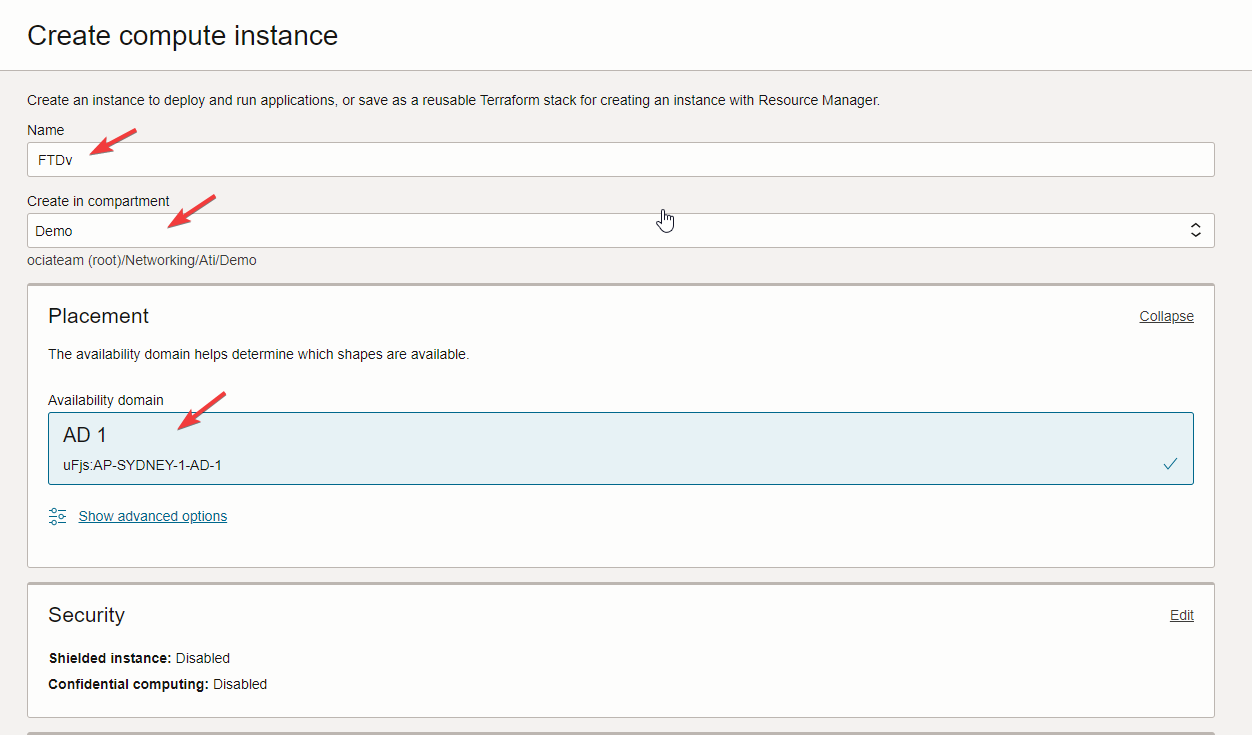
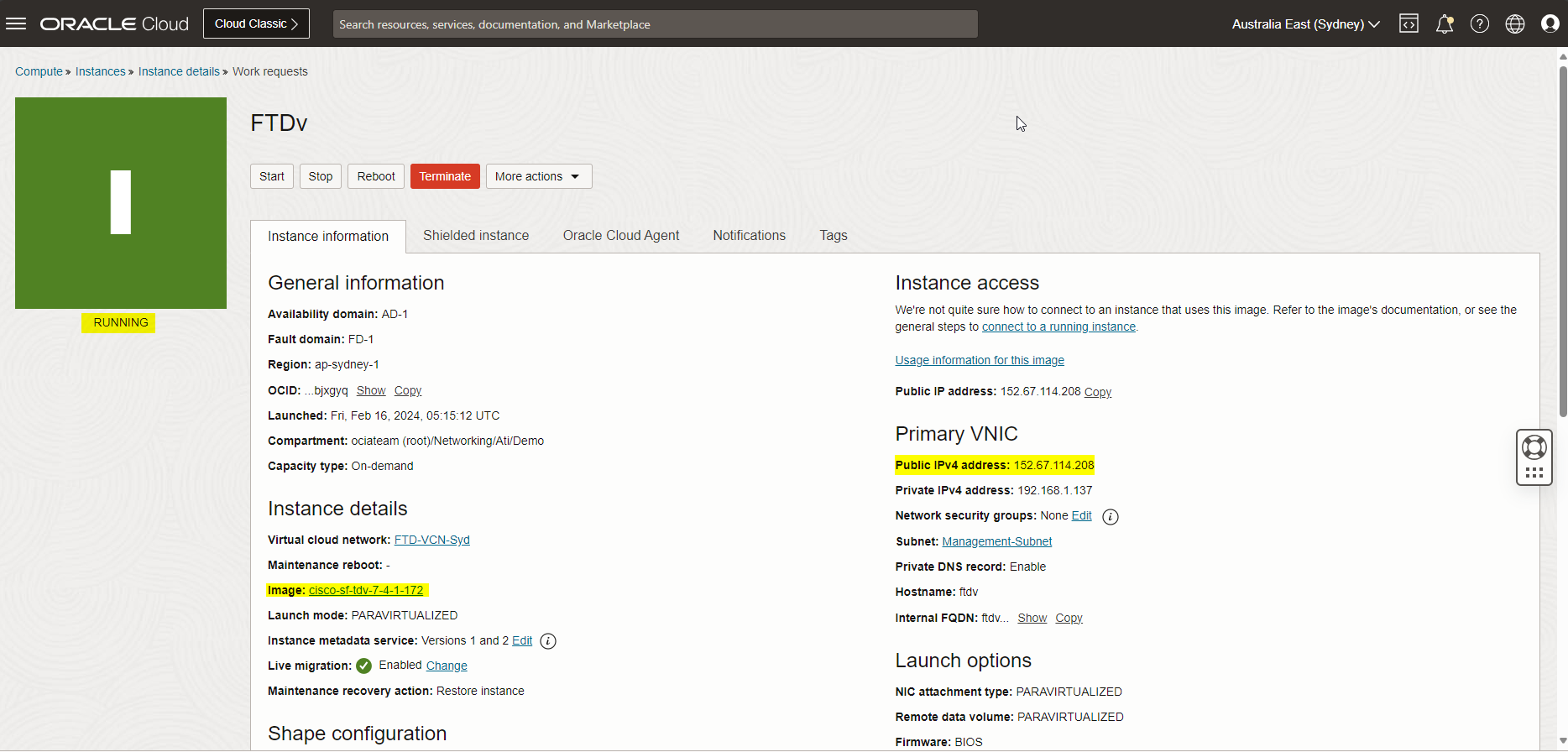
Navigate to the Compute Instance page to continue with your FTDv configuration. Check the screenshot below.
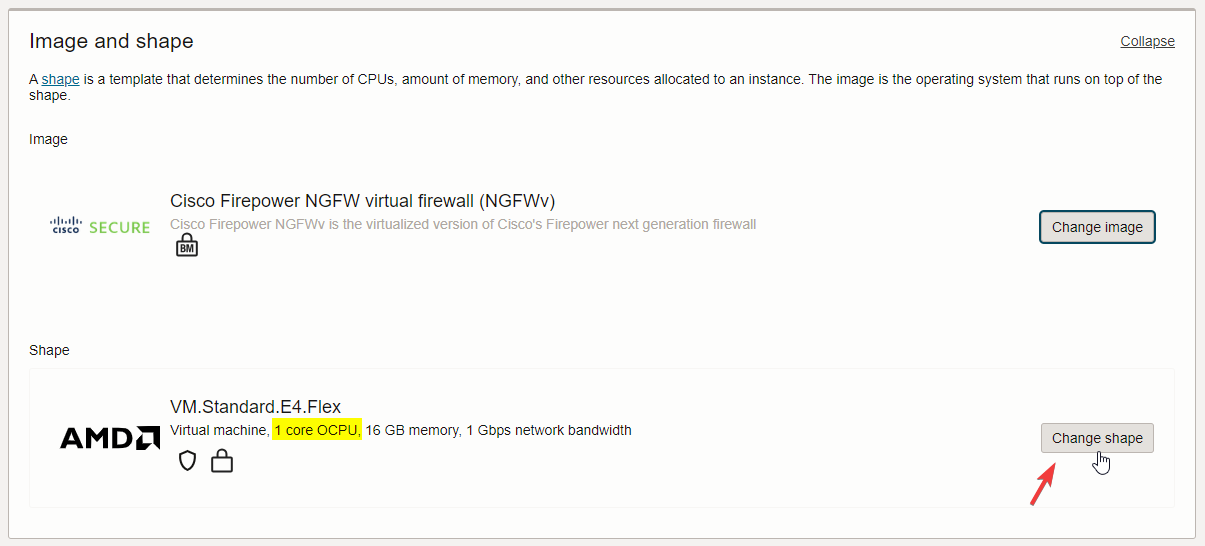
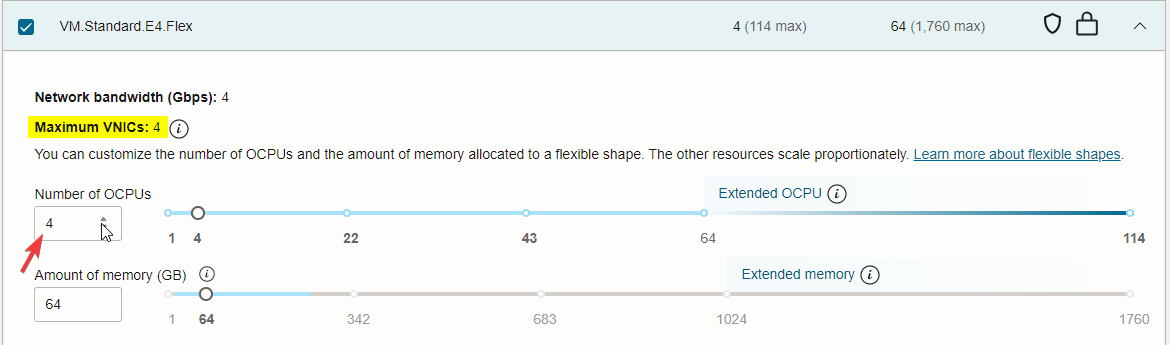
Note: Double check the Value of OCPUs; you must have a Value between 4 and 8; if your default value is different, click on Change Shape and Update the Number of OCPUs.
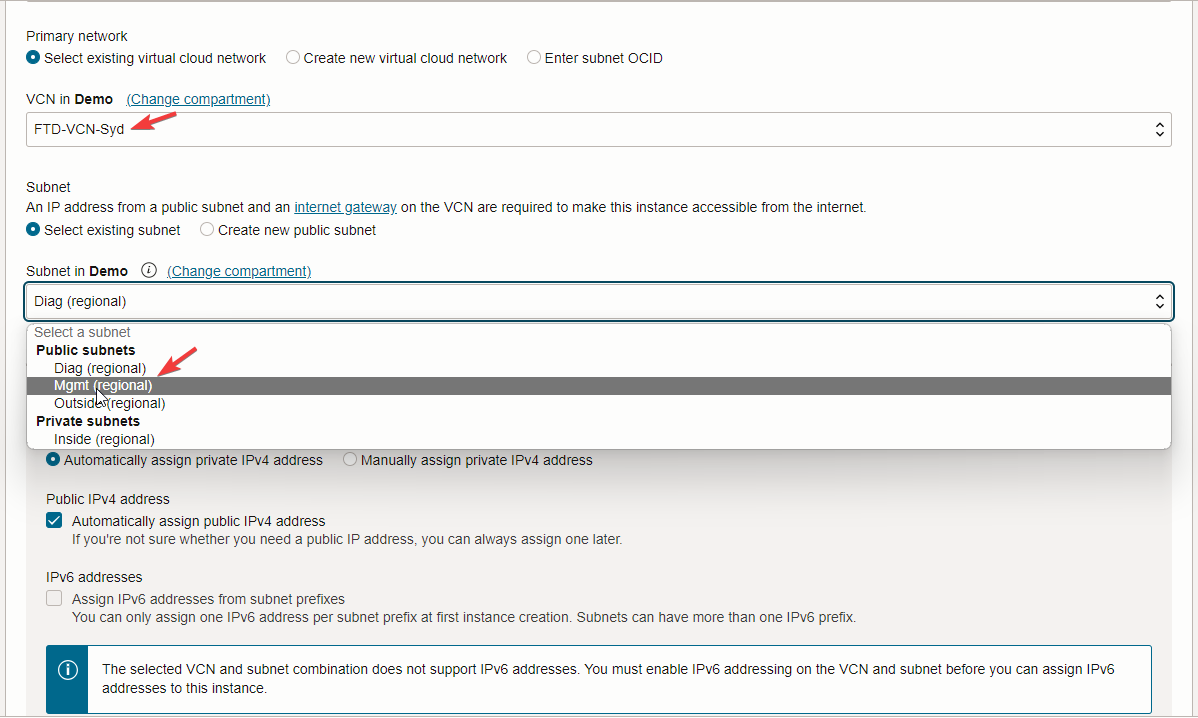
Next, choose your available VCN from the VCN dropdown with the Management subnet.
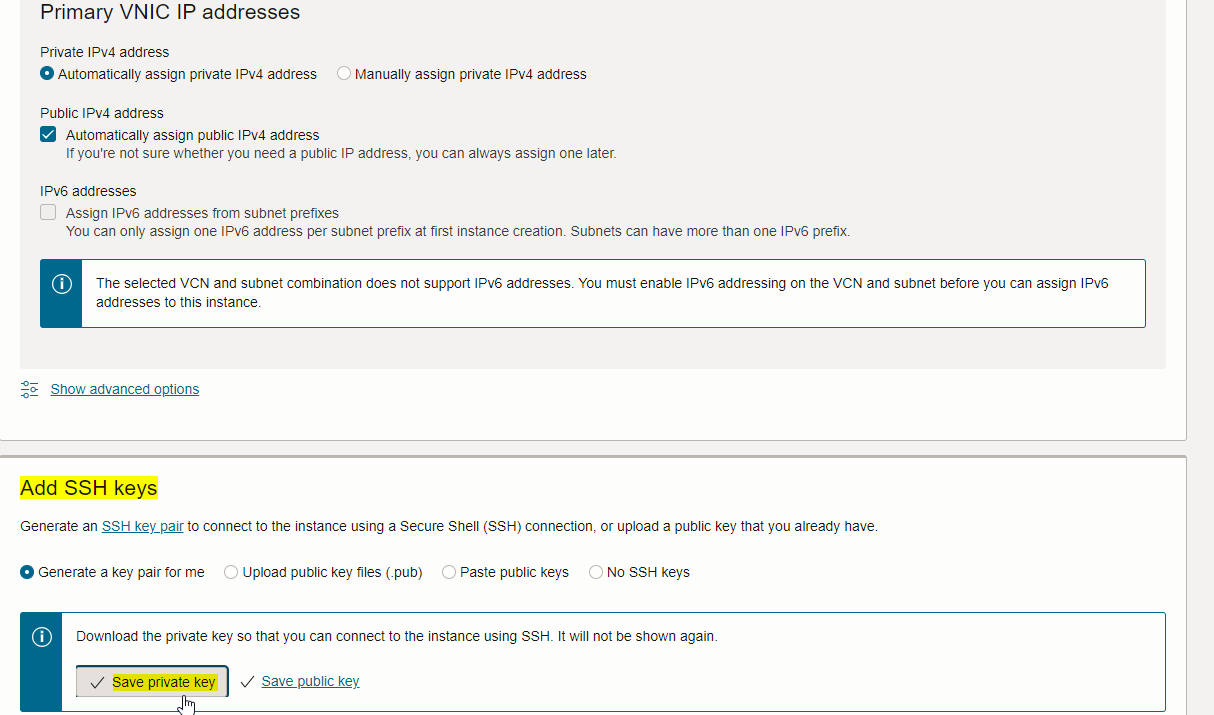
Next, we’ll need to download the SSH key to securely access the FTDv. You can also use your existing key pair and upload or paste it into the OCI console.
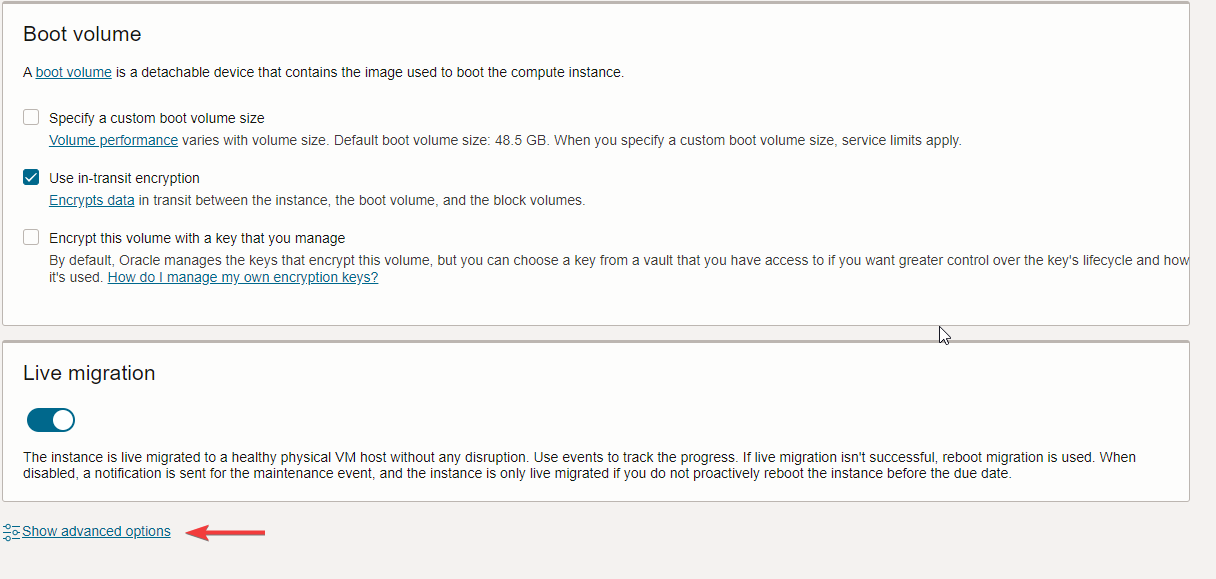
Next, click on Show Advanced options.
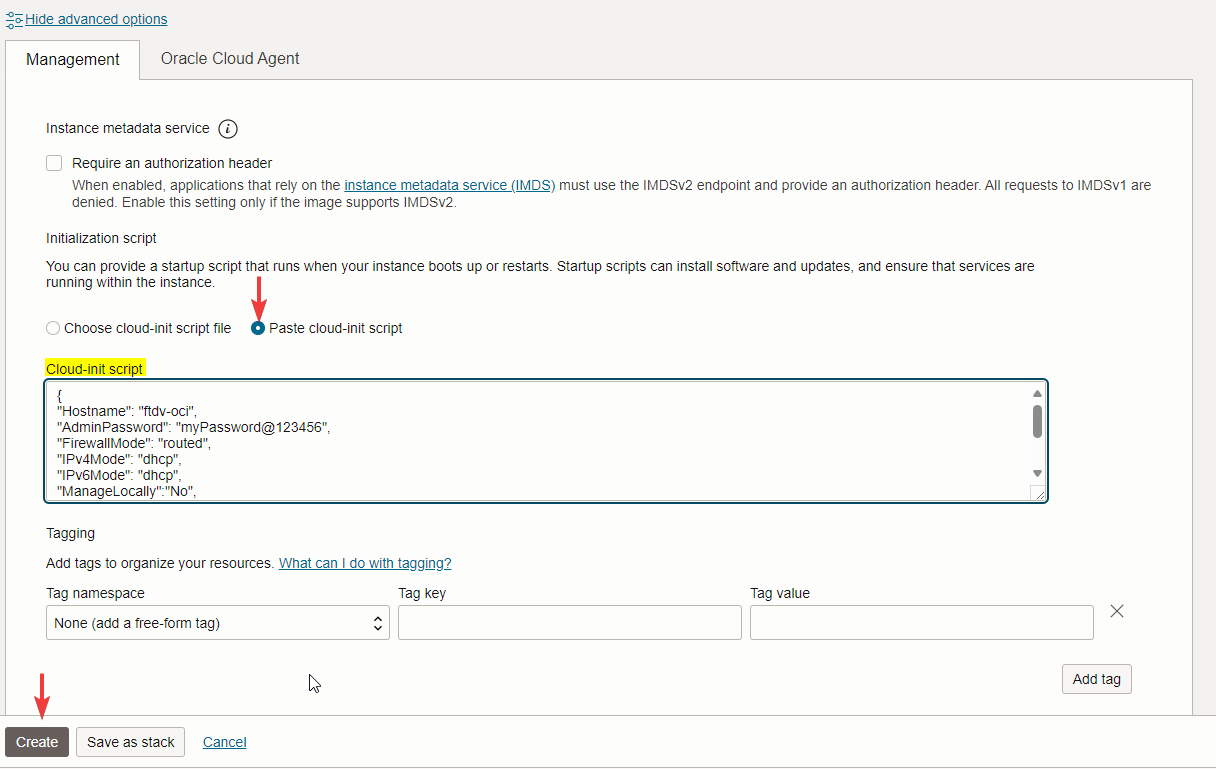
From the management tab, click on Paste cloud-init script. For this demo, I used the default one recommended by Cisco. For more information, check out this link.
Next, click on Create.
Afterward, you will see it running with a green status.
Now, click on the Attached VNICs to create additional VNICs for each available subnet in your FTD VCN.
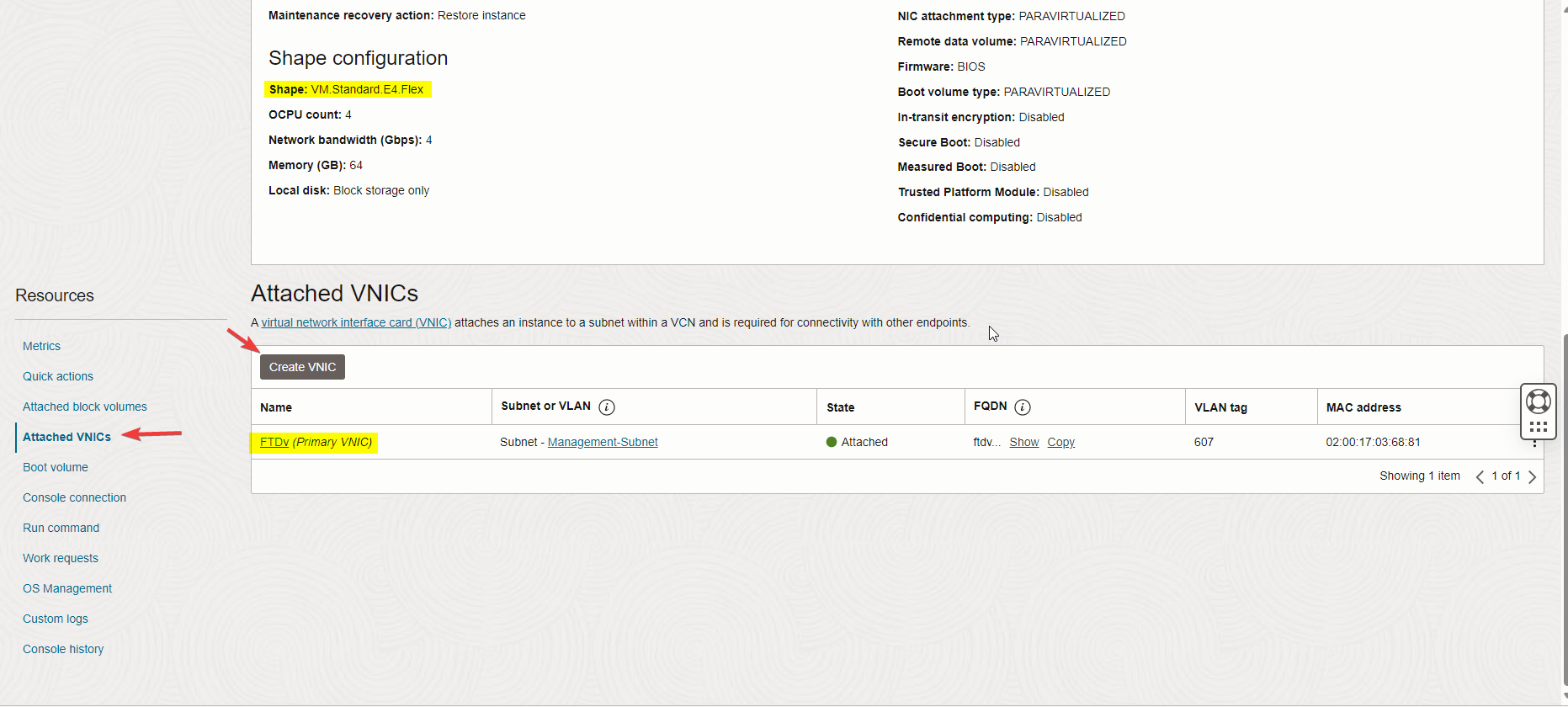
First, I created one VNIC with the Internal subnet; please repeat this for the External and Diagnostic subnet as well.
Check the screenshots below.
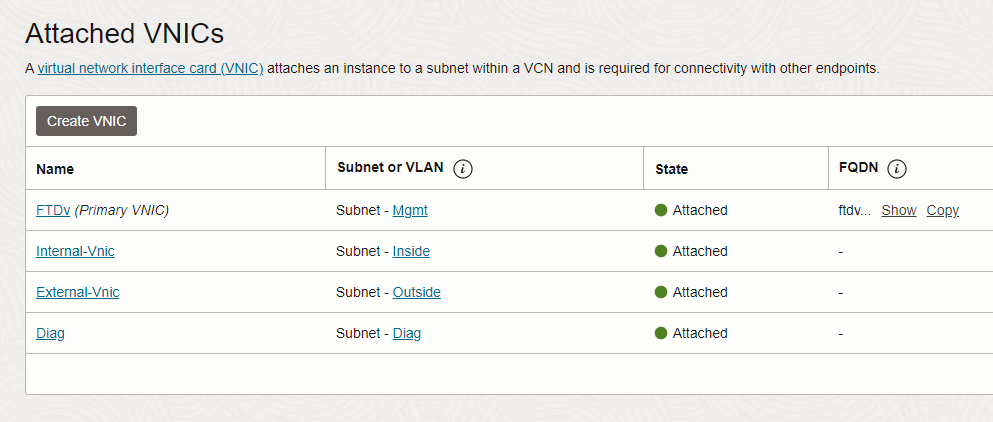
Note: When you add an IPv4 address to the new VNIC, you don’t need to assign a public IP address to the Internal and Diag VNICs.
Note: Internal and External VNICs above are data interfaces. FTDv and Diag are management interfaces.
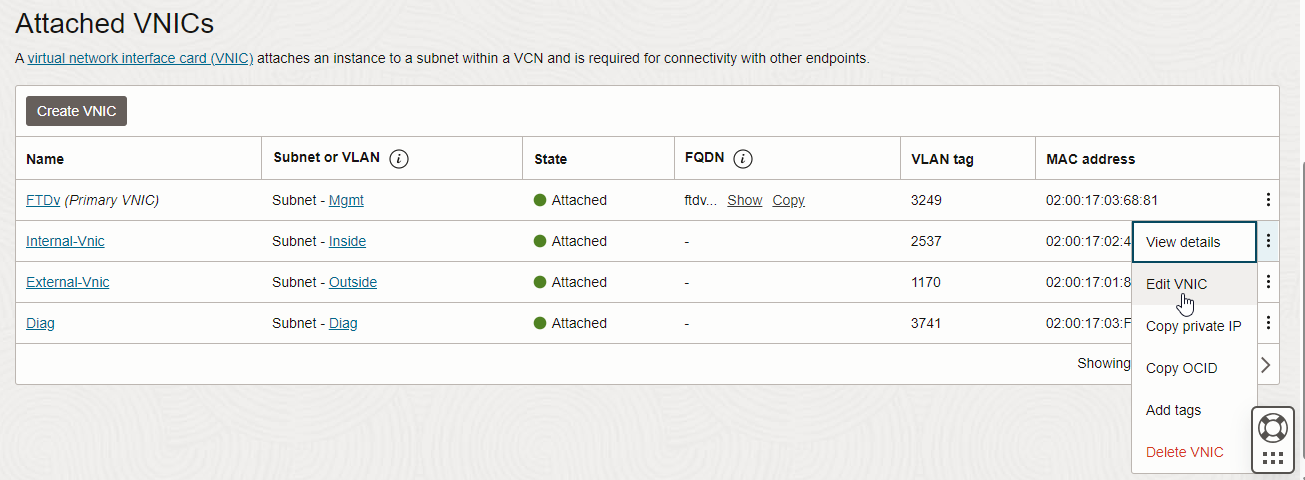
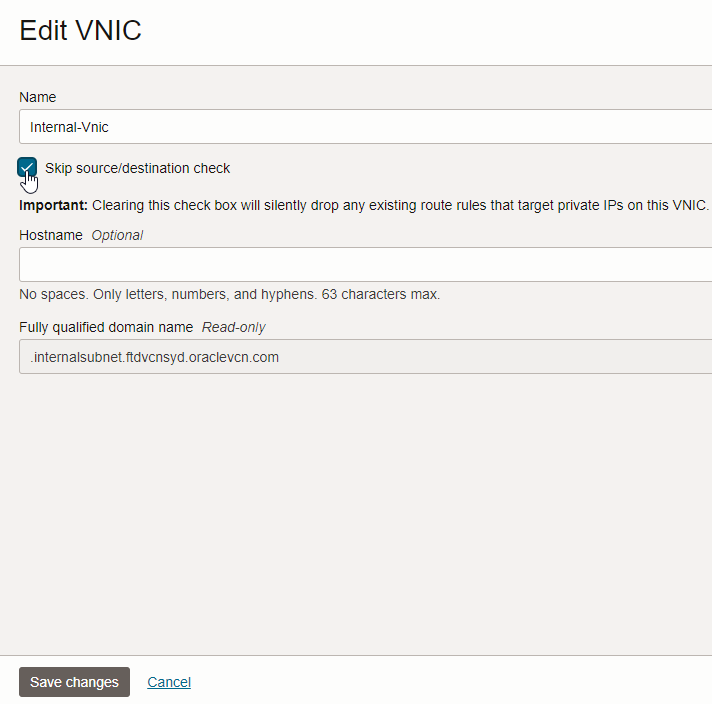
Note: Make sure to edit all your interfaces to Skip the source/destination check.
Confirm the SSH connectivity to Cisco FTD
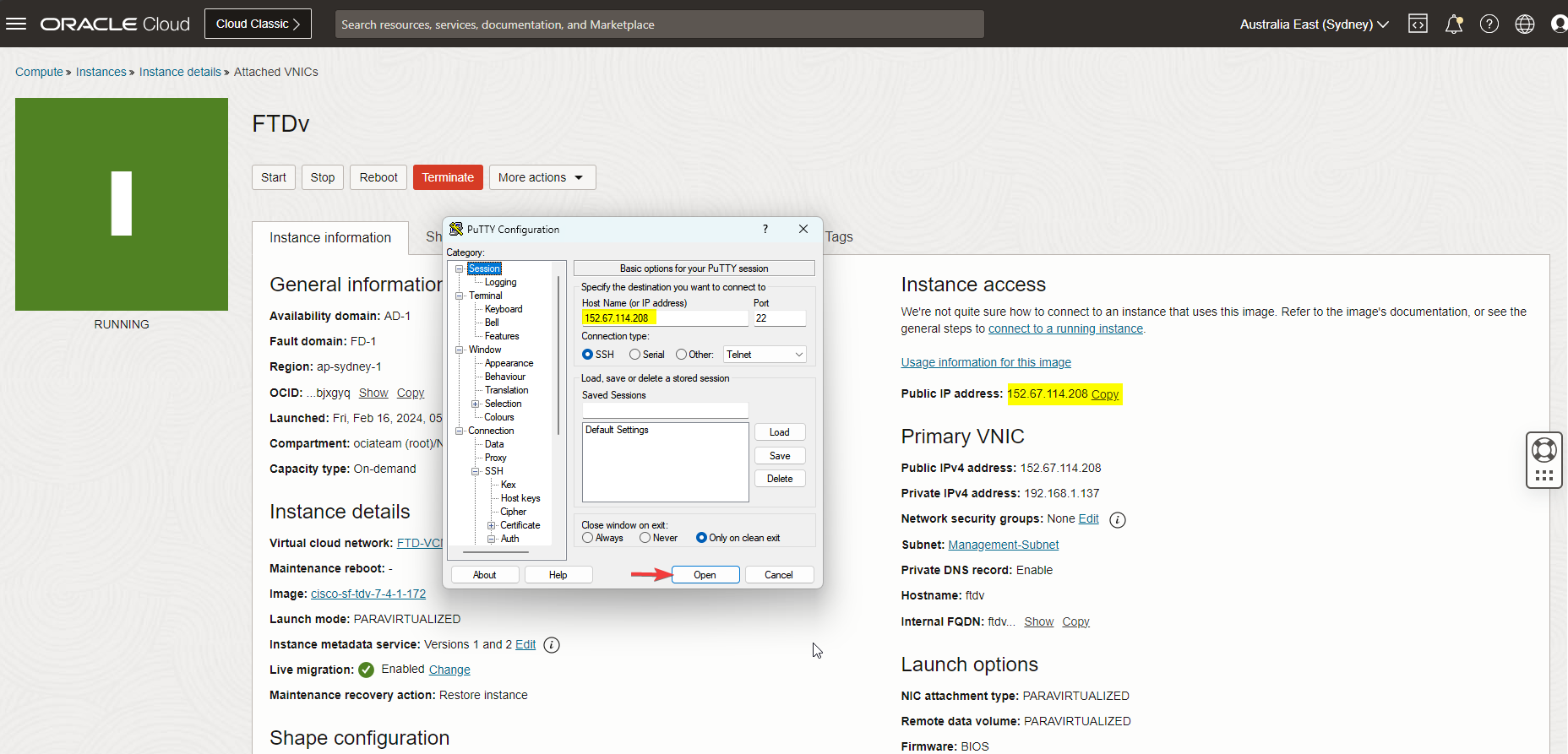
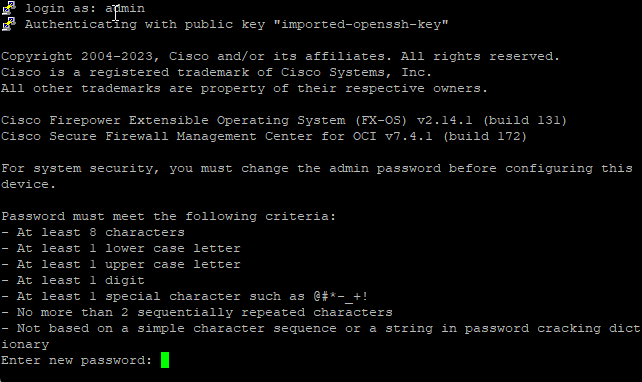
Let’s SSH to the FTDv and change a default password to go through a system initialization.
Note: 152.67.114.208 is FTDv’s primary VNIC public IP address username is admin.
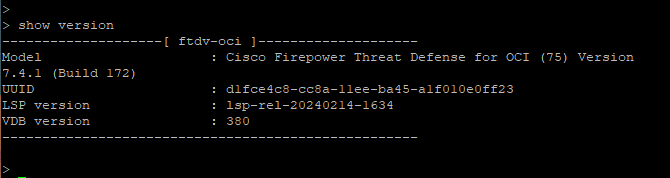
Check the FTD version below.
To continue, click the link below and check the second blog.
I hope you enjoyed it!