ADW Version Oracle Database 19c Enterprise Edition Release – Production Version 19.11.0.0.0
Oracle Cloud Application 22A (11.13.22.01.0)
Fusion Analytics Warehouse Application Version 21.R3
Background
Fusion HCM Analytics provides comprehensive workforce, turnover data sourced from Fusion HCM Cloud in a warehouse designed to support broad set of analytics use cases. In some specific use cases, Fusion HCM Analytics data can be complemented with additional Payroll, Cumulative Earning – Deduction or Costing data sets. For such data, Fusion HCM Cloud provide with an extract mechanism named HCM Extracts. HCM Extracts uses BI Publisher as the delivery mechanism for extracted data.
This blog is part of in a series covering topics on how to utilize Oracle ETL / Data Integration tools to extract data from various data sources to complement Fusion Analytics Warehouse factory data. Future blog topics will cover extracting from: Oracle SaaS Applications, Oracle on-premise applications (e.g. EBS), and other Oracle applications such as Responsys, Eloqua and third party data sources like Salesforce or Workday.
This blog walks though how to configure Oracle Data Integrator (ODI) on Oracle Cloud Marketplace to replicate data from Fusion HCM Cloud, using HCM Extracts, into an Autonomous Data Warehouse (ADW) database that is part of the FAW product.
* Follow the steps in the first blog for instructions on:
Policies Assignment (Step 1)
SSH key-pair Generation (Step 4-b and 4-c)
ODI Marketplace Provisioning (Step 2)
ADW Configuration (Step 5-h, 5-i, 5-j and 6-d)
Architecture Overview
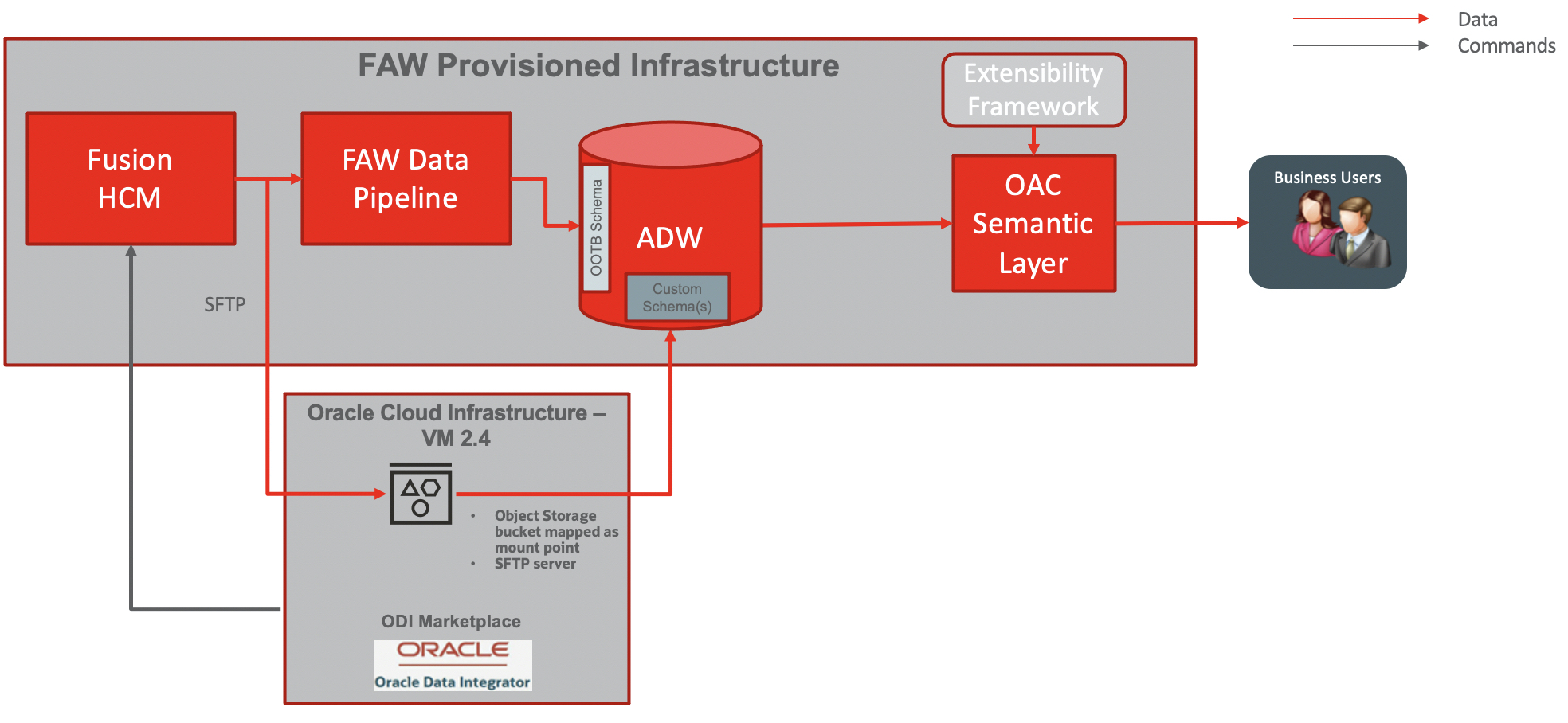
The diagram below details the architecture blue print for this use case:
Figure 1 : Architecture overview
The data flow is as follow:
ODI Market Place (MP) will be installed in Linux VM
An object storage bucket will be mounted as a folder mount point on the ODI MP VM (with s3sfuse)
An SFTP Server will be configured with private key authentication with opc user on the ODI VM
Create and Prepare an HCM Payroll Data Extract
Edit/ Create HCM Extract Definition in Fusion HCM : Extract Parameters, Blocks + Filter Records, Data Elements, Validate Extract
Integrate HCM Extract with BIP: Create RTF template and report in BI Publisher
Set Up Report Options: Define Delivery Method (SFTP) and Associate Report location in BI
Run / Schedule Extract using FlowActionService SOAP API to push the HCM Extract to SFTP
ODI MP will wait for the HCM Extract to be deliver to the SFTP before integrating it into ADW with the LKM File to Oracle
All additional transformations will happen inside the ADW
HCM extracts can be scheduled once every day and the steps below provide guidance on how to automate HCM Extract scheduling
Semantic model will be extended by customizing an existing subject area or addition of a new subject area to allow reporting on HCM data extracted in ADW, as per the CEAL Team blog available here.
Invoking the HCM Extract with FlowActionServices
In the Part 1 blog and Part 2 blog, the SFTP server / BI Publisher / Object Storage configuration was achieved as well as the HCM Extract configuration, preparation and execution. In order for ODI to consume the generated HCM Extract csv file, the ODI Topology was set up during Part 3.
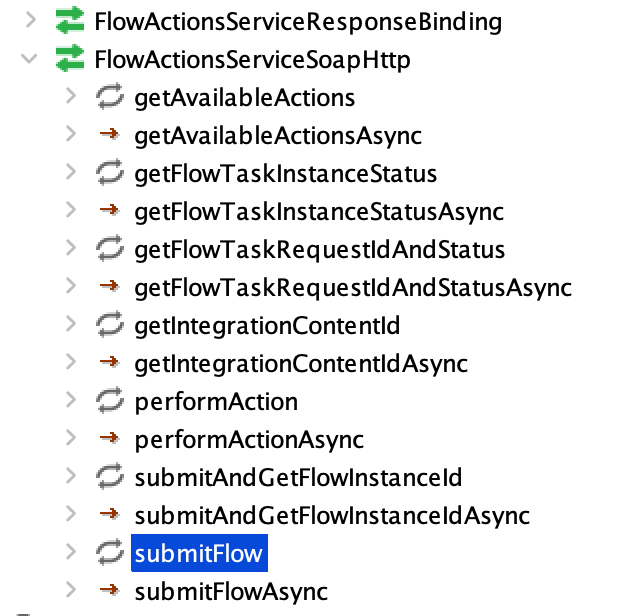
The following steps will guide you through how to invoke the Payroll HCM Extract created during previous parts of this blog series, with the FlowActionServices. FlowActionServices is the HCM SOAP WebServices used to perform task actions included in payroll flows, such as submit, retry, and roll back. The main operations that can be executed with FlowActionsServices are :
getFlowTaskInstanceStatus
getAvailableActions
performAction
submitFlow
submitAndGetFlowInstanceId
getFlowTaskRequestIdAndStatus
getIntegrationContentId
Each operation has syncrhonous and asynchronous method.
The FlowActionServices endpoint follows this syntax https://<Fusion SaaS hostname>:443/hcmService/FlowActionsService. When opening this endpoint with a SOAP client like SOAPUI, below is the content of the available methods
This blog covers the submitFlow operation. For additional details, please refer to MyOracle Support note Fusion Global HCM: HCM Extracts FAQ and Troubleshooting Guide (Doc ID 1637638.1).
Running the Extract manually and collecting parameters IDvalues
When running the HCM extract from Fusion Application user interface, the parameters being selected and passed are mostly descriptions.
When running the HCM Extract using the SOAP endpoint method, the parameters being passed need to be mostly IDs (except for Dates parameters). In order to get these IDs, we can run the HCM Extract manually from the Fusion Application user interface and use a simple BI Publisher report to get the parameters ID values. There is also an approach (not covered in this blog) that leverages the HCM REST APIs to get the parameters details of a certain HCM Extract Flow and there are described here.
The steps below describes how to collect the HCM Extract parameters IDs values in order to use them in the SOAP endpoint method payload call.
Run the extract manually
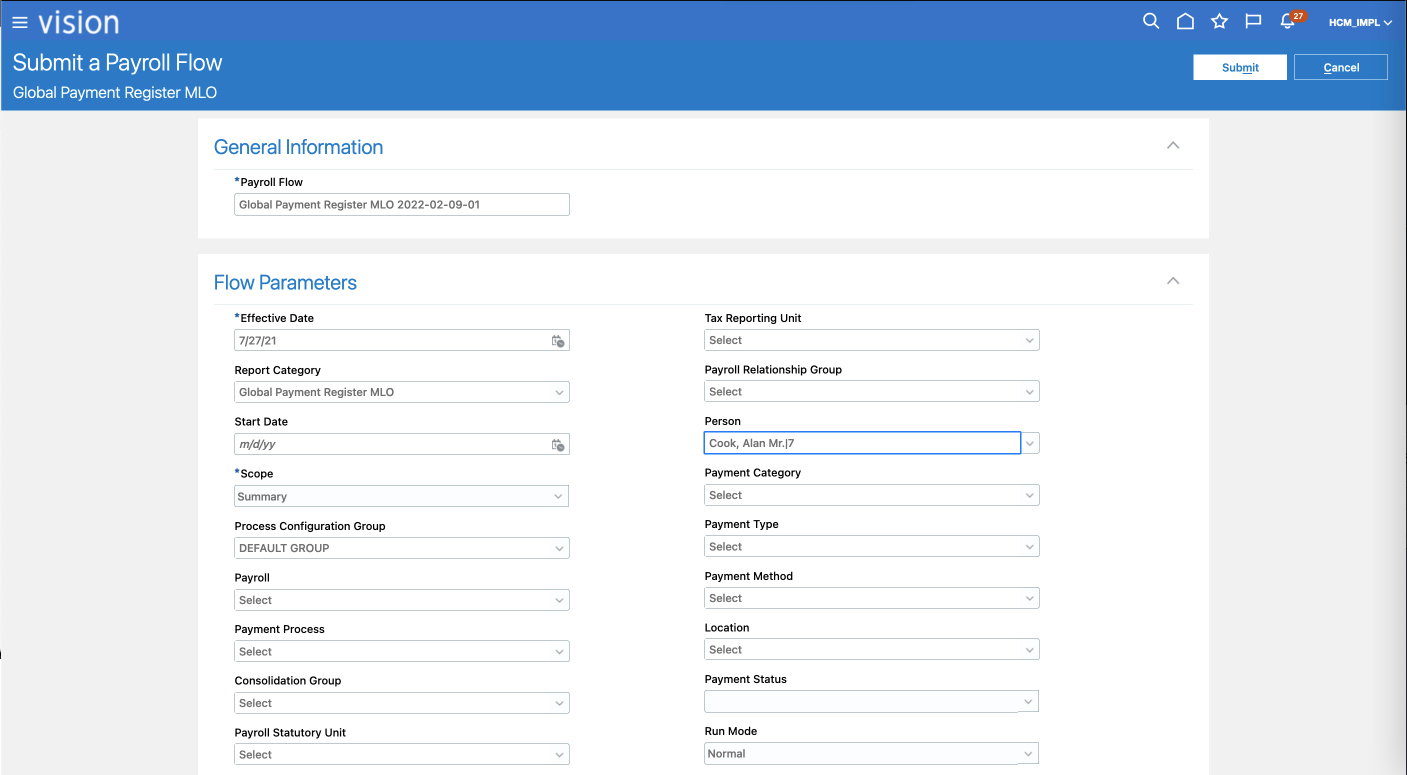
a) In Fusion Application, navigate to My Clients Groups > Payroll. Choose Submit a Flow and select the HCM Extract Global Payment Register. Give the Payroll Flow a unique name and enter the Flow parameters as described below
Figure 3 : HCM Extract parameters
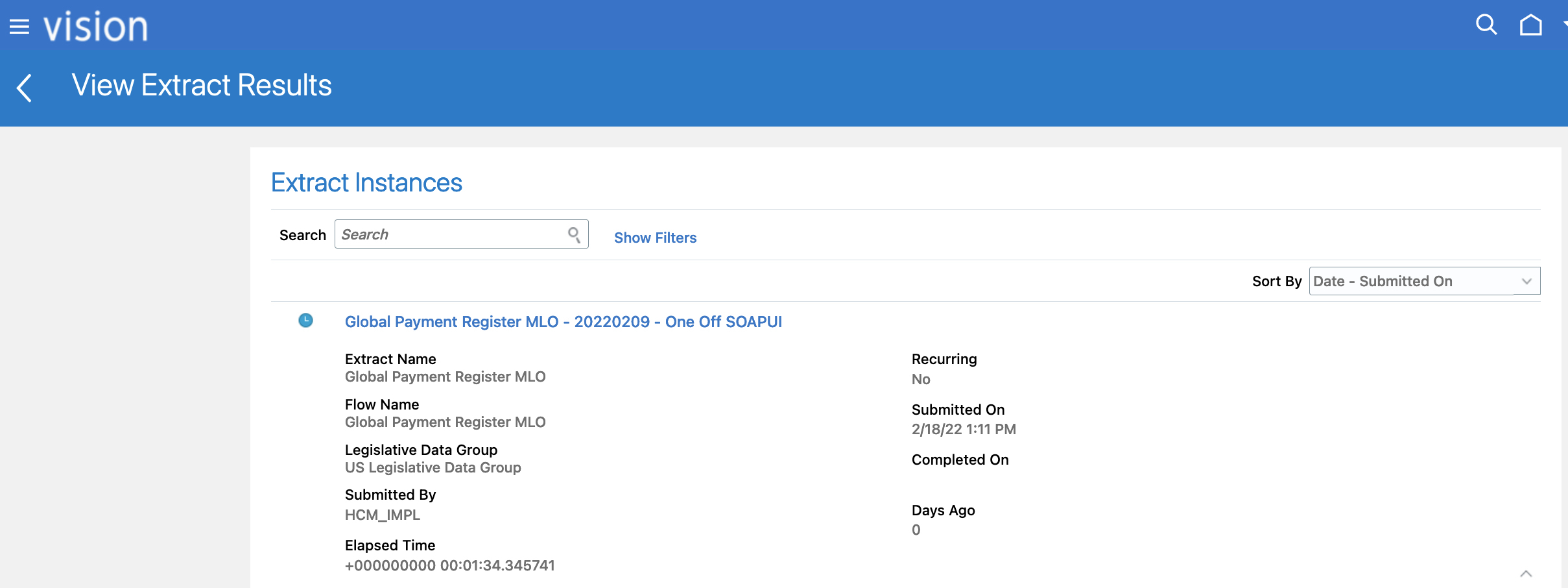
b) Submit the flow and monitor the Flow execution. Confirm the flow completes successfully.
Figure 4 : HCM Extracts Execution
Get the extract parameters using a simple BI Publisher report
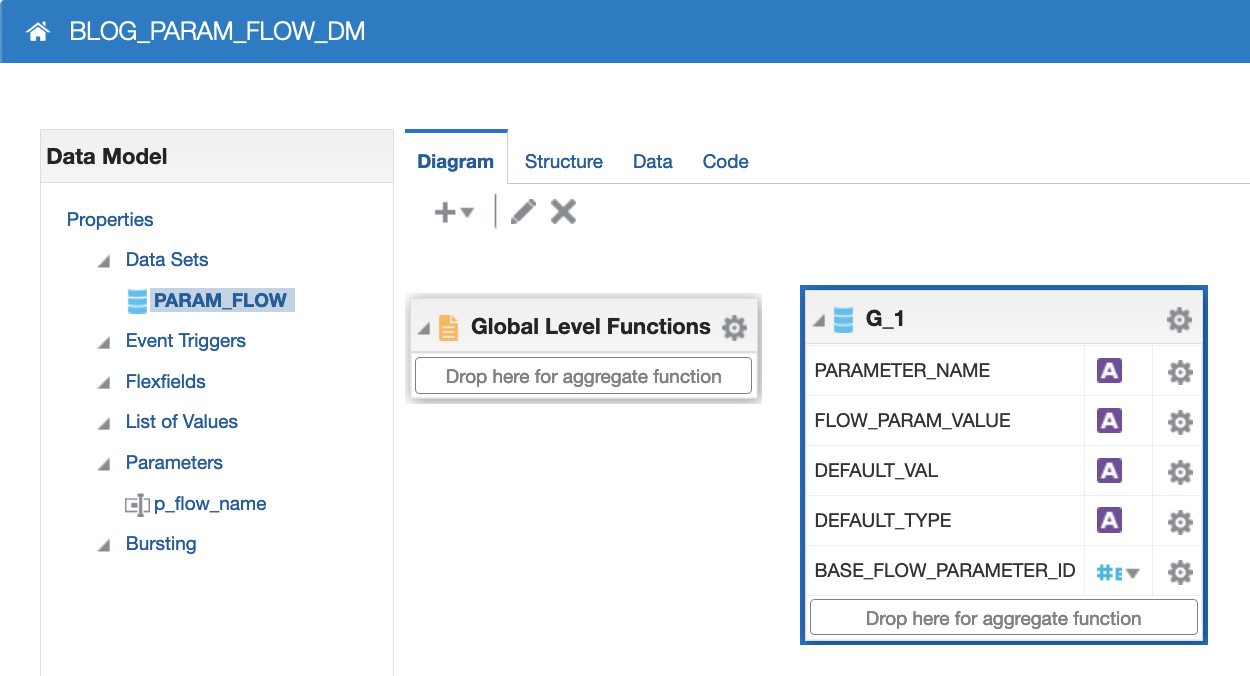
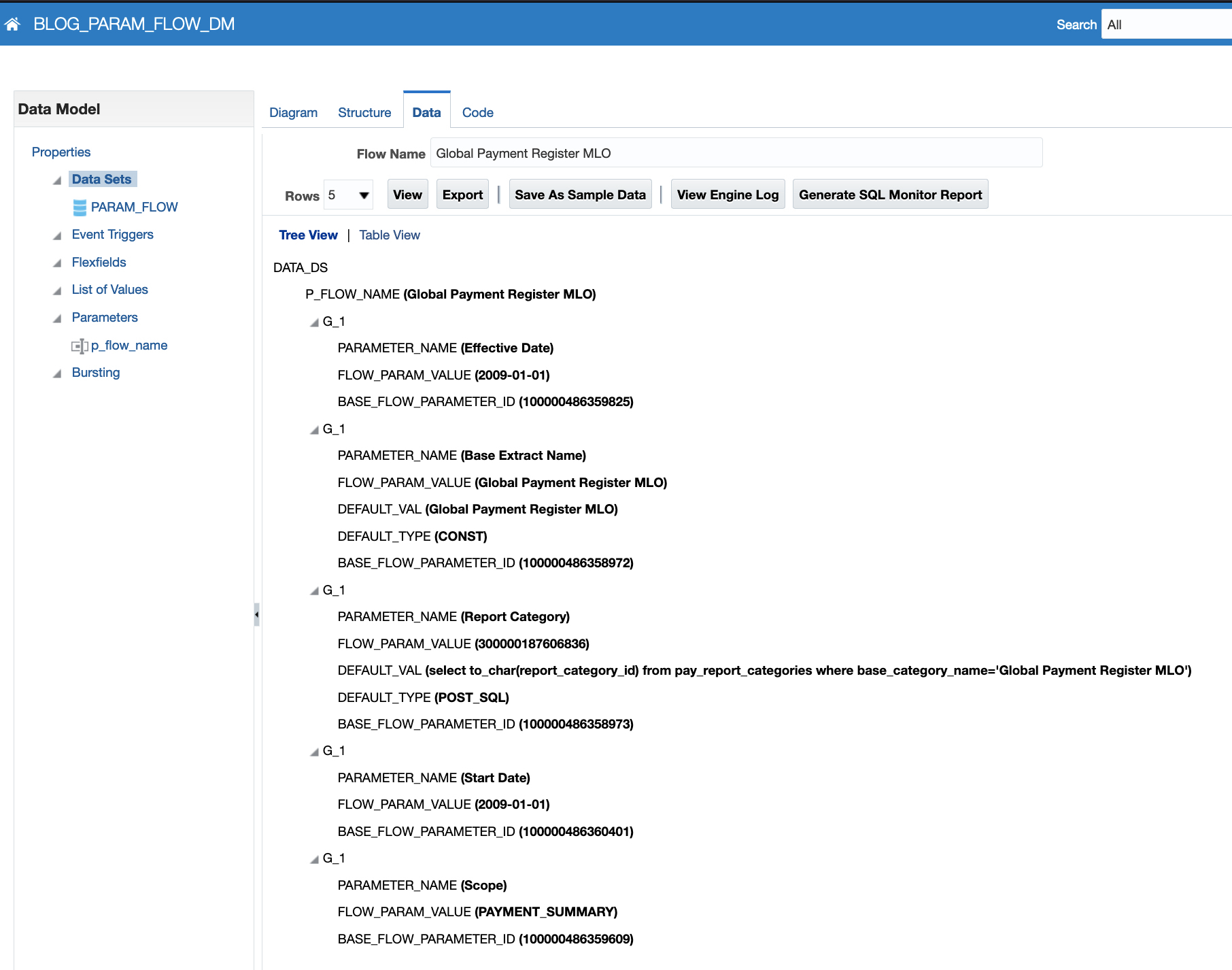
a) Access the Fusion Application BI Publisher tool and create a new data model with the below query. Make sure to create the p_flow_name BI Publisher parameter of type String and to save sample data for the BI Publisher Data Model
select fp.parameter_name,pv.flow_param_value, fp.default_val,fp.default_type, fp.base_flow_parameter_id from pay_flow_instances fi, pay_flows_vl f, pay_flow_parameters_vl fp, pay_flow_param_values pvwhere f.base_flow_id = fi.base_flow_id and fp.base_flow_id = f.base_flow_id and pv.flow_instance_id = fi.flow_instance_id and fp.base_flow_parameter_id = pv.base_flow_parameter_id and fi.instance_name = :p_flow_name
Figure 5 : BI Publisher Data Model
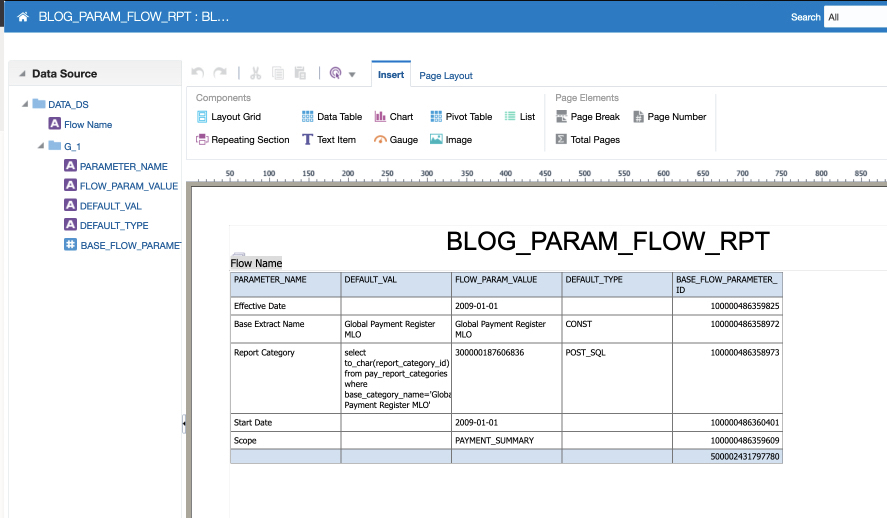
b) Create a new BI Publisher report based on the data model above
Figure 6 : BI Publisher Report
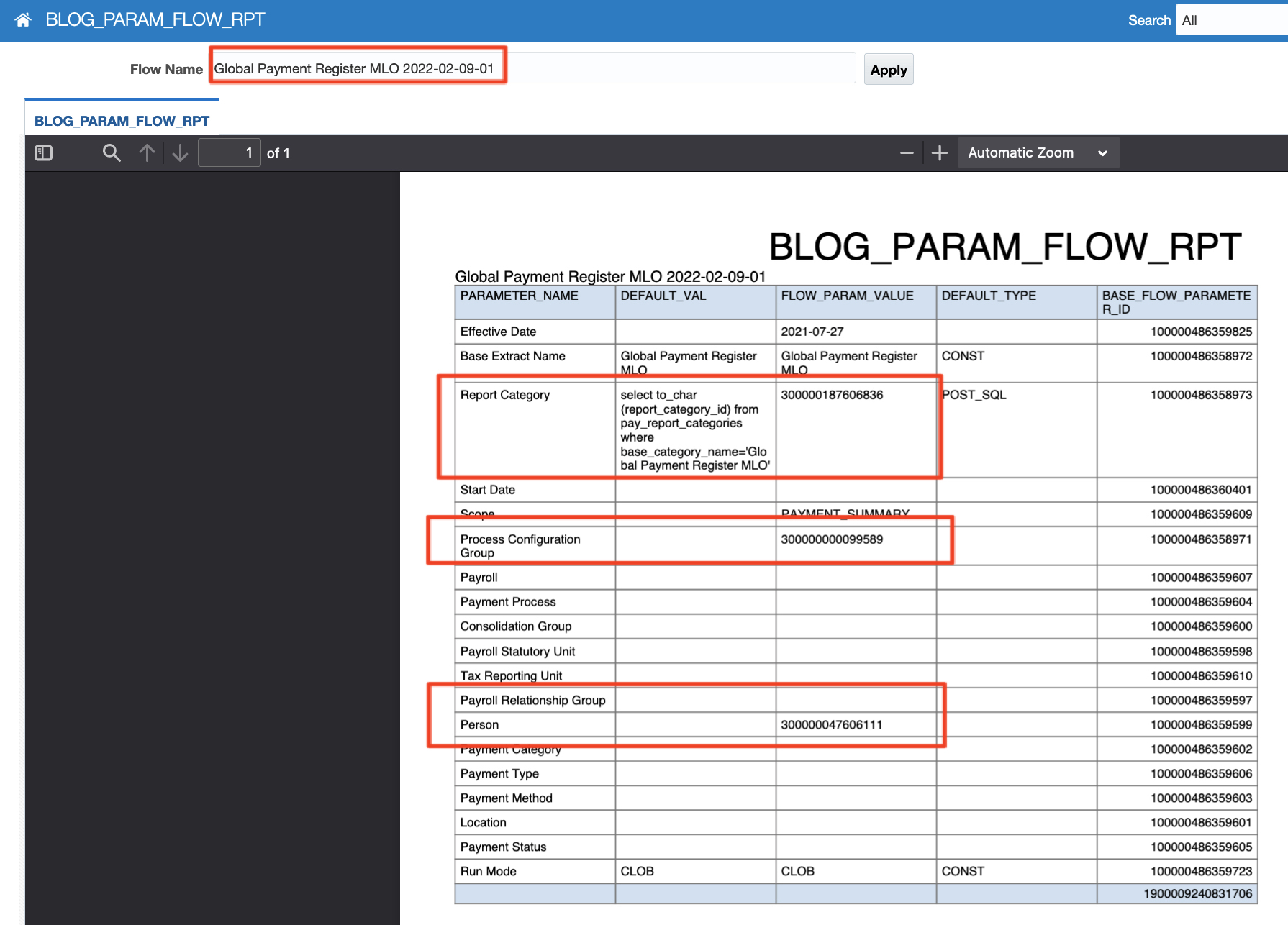
c) Run the BI Publisher report and collect the HCM Extracts parameter ID values
Figure 7 : HCM Extract parameter ID values
The table below records the parameter ID values that will be used in the next sections.
Parameter
Value
Report Category
300000187606836
Process Configuration Group
300000000099589
Person
300000047606111
Defining and Running the SOAP Payload
Now that the parameter ID values have been collected, you can use a SOAP client such has SOAPUI to build the request payload that will then be used for scheduling the HCM Extract.
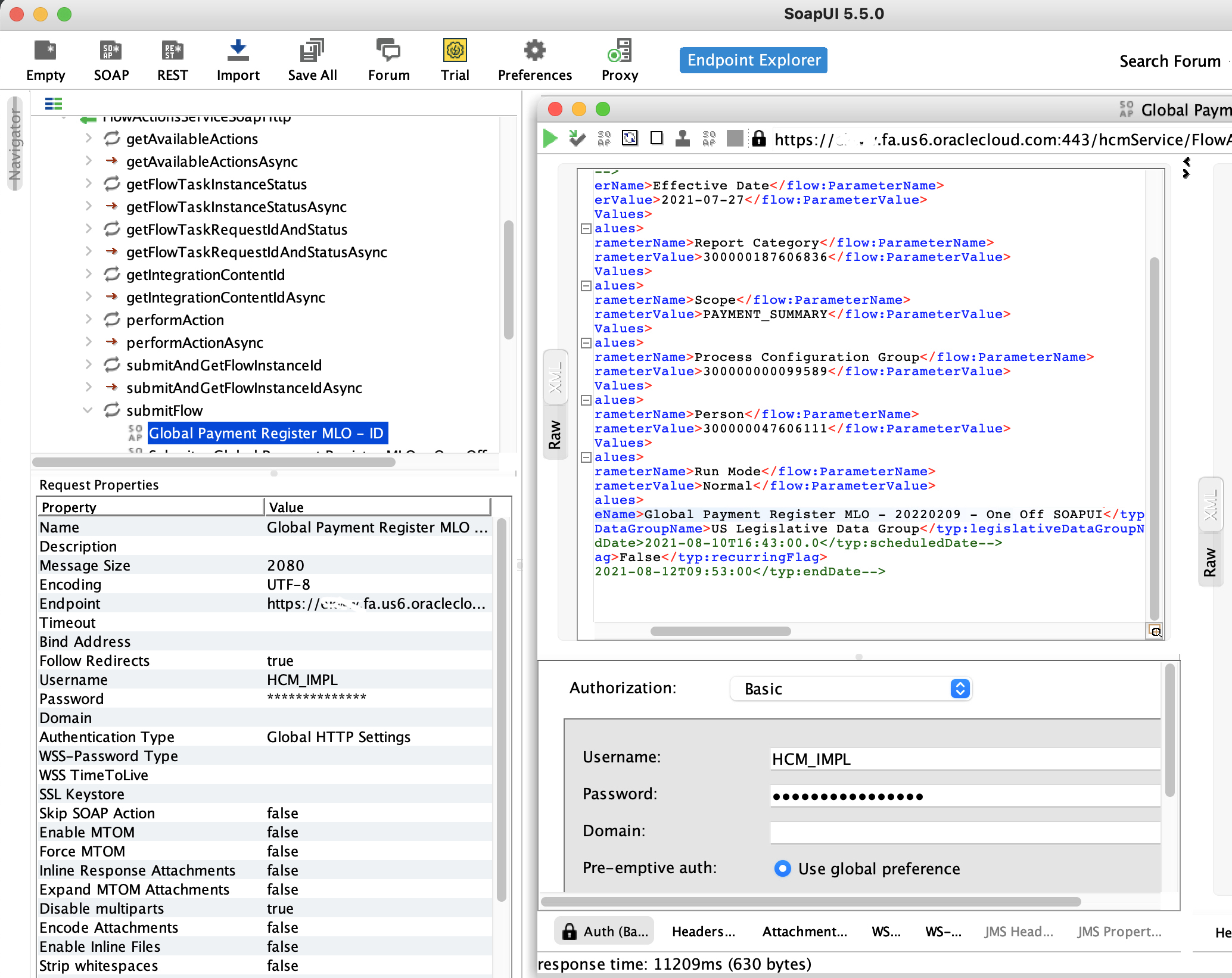
a) In SOAP UI, assuming you have created a new project with the WSDL https://<Fusion SaaS hostname>:443/hcmService/FlowActionsService, open the FlowActionsServiceSoapHttp endpoint > submitFlow method and create a new request with the payload below, including the parameters collected in the previous section:
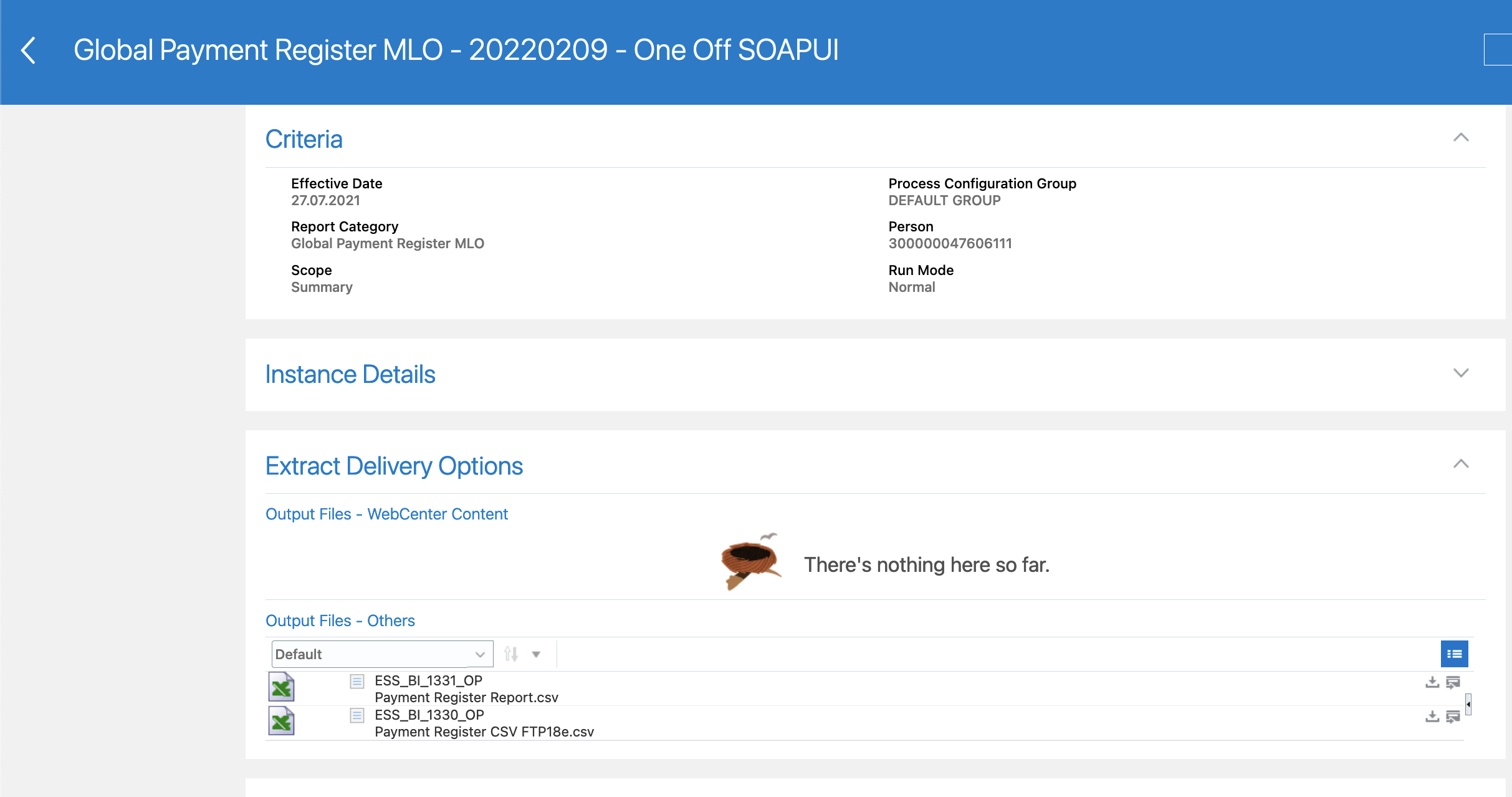
c) Validates that the flow executes successfully and confirm the extract file are being produced as per the HCM extract deliveries definition (SFTP ):
Figure 10 : SOAP UI HCM Extract Results
Automating with ODI
ODI natively integrates with SOAP and REST APIs as described here and here. However, for greater flexibility, we recommend the use of custom Jython or JavaBean shell procedure.
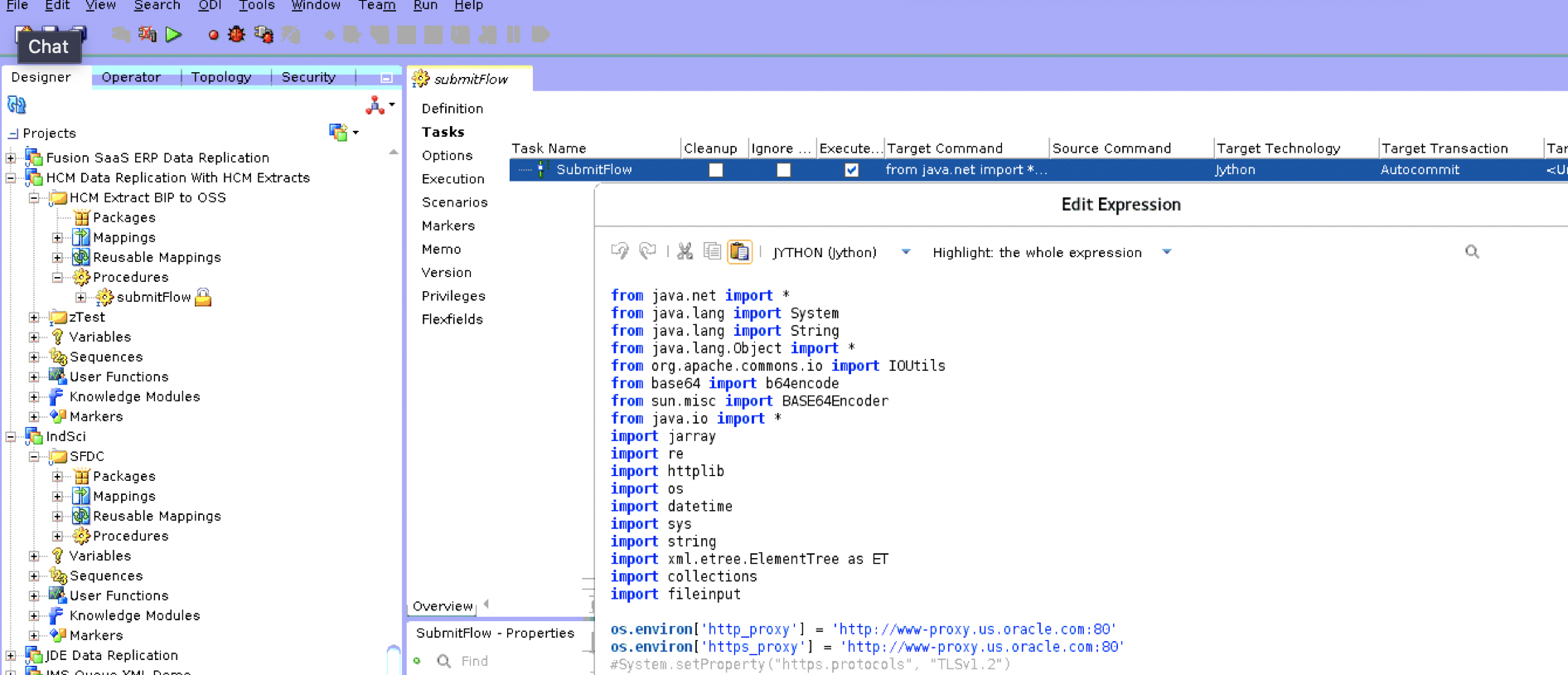
Below is a sample procedure code snippet and screenshot in ODI that will:
Create the payload file
Create a connection to the HCM FlowActionService endpoint
Post the payload
The code snippet below is provided as an example and will need to be adjusted based on your ODI configuration (variables), on your security requirements, on your coding standards.
from java.net import *
from java.lang import System
from java.lang import String
from java.lang.Object import *
from org.apache.commons.io import IOUtils
from base64 import b64encode
from sun.misc import BASE64Encoder
from java.io import *
#import required librariesos.environ['http_proxy'] = 'http://www-proxy.us.oracle.com:80'
os.environ['https_proxy'] = 'http://www-proxy.us.oracle.com:80'
#System.setProperty("https.protocols", "TLSv1.2")#===================================================#===================================================#===================================================
# Define variabales
#===================================================#===================================================#===================================================hostName = '#HCMX_FA_HOST_NAME'# Fusion Application hostname'
filePath = '#HCMX_FILE_PATH'#Path where the files will be generated
paramFlowInstanceName='#HCMX_P_FLOWINSTNAME'
paramEffectiveDate='#HCMX_P_EFFDATE'
paramReportCategory='#HCMX_P_REPCAT'
paramScope='#HCMX_P_SCOPE'
paramProcessConfigurationGroup='#HCMX_P_PROCCONFGRP'
paramPerson='#HCMX_P_PERSON'
payloadFileName = filePath + flowInstanceName +'_payload.xml'
responseFileName = filePath + flowInstanceName +'_response.xml'
requestWebUrl = hostName+ ':443/hcmService/FlowActionsService'
encd = 'UTF-8' # Define Encoding Type #encd = 'ISO-8859-1'#===================================================#===================================================#===================================================
# FUNCTIONS
#===================================================#===================================================#===================================================def createPayloadFile(soap_payload_file) :
# Write envelope body using xmlFileWriter
xmlFileWriter = BufferedWriter( FileWriter(soap_payload_file, True))
#for each of the lines in the payload below do the following
xmlFileWriter.write(..)#line below...
xmlFileWriter.newLine()
# PAYLOAD
#<soapenv:Envelope xmlns:soapenv="http://schemas.xmlsoap.org/soap/envelope/" xmlns:typ="http://xmlns.oracle.com/apps/hcm/processFlows/core/flowActionsService/types/" xmlns:flow="http://xmlns.oracle.com/apps/hcm/processFlows/core/flowControllerService/">
#<soapenv:Header/>
# <soapenv:Body>
# <typ:submitFlow>
# <typ:flowName>Global Payment Register MLO</typ:flowName>
# <!--Zero or more repetitions:-->
# <typ:parameterValues>
# <!--Optional:-->
# <flow:ParameterName>Effective Date</flow:ParameterName>
# <flow:ParameterValue>paramEffectiveDate7</flow:ParameterValue>
# </typ:parameterValues>
# <typ:parameterValues>
# <flow:ParameterName>Report Category</flow:ParameterName>
# <flow:ParameterValue>paramReportCategory</flow:ParameterValue>
# </typ:parameterValues>
# <typ:parameterValues>
# <flow:ParameterName>Scope</flow:ParameterName>
# <flow:ParameterValue>PAYMENT_SUMMARY</flow:ParameterValue>
# </typ:parameterValues>
# <typ:parameterValues>
# <flow:ParameterName>Process Configuration Group</flow:ParameterName>
# <flow:ParameterValue>paramProcessConfigurationGroup</flow:ParameterValue>
# </typ:parameterValues>
# <typ:parameterValues>
# <flow:ParameterName>Person</flow:ParameterName>
# <flow:ParameterValue>paramPerson</flow:ParameterValue>
# </typ:parameterValues>
# <typ:parameterValues>
# <flow:ParameterName>Run Mode</flow:ParameterName>
# <flow:ParameterValue>Normal</flow:ParameterValue>
# </typ:parameterValues>
# <typ:flowInstanceName>paramFlowInstanceName</typ:flowInstanceName>
# <typ:legislativeDataGroupName>US Legislative Data Group</typ:legislativeDataGroupName>
# <!--typ:scheduledDate>2021-08-10T16:43:00.0</typ:scheduledDate-->
# <typ:recurringFlag>False</typ:recurringFlag>
# <!--typ:endDate>2021-08-12T09:53:00</typ:endDate-->
# </typ:submitFlow>
# </soapenv:Body>
#</soapenv:Envelope>
xmlFileWriter.close()
return 1
#===================================================#===================================================#===================================================
# Run the request to execute HCM EXTRACT report
#===================================================#===================================================#===================================================createPayLoadIndicator = createPayloadFile(payloadFileName) #Create Payload filenameurl = URL(requestWebUrl)# Create URL
conn = url.openConnection()# Declare we are openning a Connection
# Say to handle POST
conn.setDoOutput(1) #Authorize the writting at the connection level
conn.setUseCaches(0) # Deactivate the Response Cache and set connection properties
#conn.setAllowUserInteraction(1)
conn.setConnectTimeout(10000000)
conn.setReadTimeout(10000000)
conn.setRequestMethod("POST")# Set the Content Type of the POST
#add the additional steps to set up authorization
#username='username' #password='password'#creadentials = base64.encodestring('%s:%s' % (username, password))[:-1]
#basicAuth = "Basic %s" % creadentials#conn.setRequestProperty("Authorization", basicAuth) # for Basic Auth
# https://docs.oracle.com/en/cloud/saas/financials/22a/oeswf/python.html#u30005133
conn.setRequestProperty("Accept-Charset", encd)
conn.setRequestProperty("Content-Type", "application/soap+xml; charset=%s" % encd )# Write SOAP Dataconn.getOutputStream().write(String(xmldata).getBytes())
respCode = conn.getResponseCode()
respMsg = conn.getResponseMessage()respCodeMsg = 'Response code : ' + str(respCode) + '/ Response message : ' + str(respMsg) + '\r\n'# If we get a 200 OK return code
if respCode == 200 :
try:
rd = InputStreamReader( conn.getInputStream() ) xmlResponse = IOUtils.toString(conn.getInputStream() , encd) xmlRespFileWriter = BufferedWriter( FileWriter(respFileName, True))
xmlRespFileWriter.append(xmlResponse)
xmlRespFileWriter.close() successMsg = 'Successfully wrote to : ' + respFileName + '\r\n' except :
exceptionMsg = 'Exception type: ' + str(sys.exc_info()[0])
For the parameter ID automation, you can either use the Fusion OTBI BIP Connector or the REST API mentionned in the previous section. The parameters can be stored in a definition database table and ODI variables can be defined based on this table to feed the values of the HCM Extract payload parameters, as described in Using Variables in ODI: The Timestamp Example.
You can leverage the following blogs from the A-Team to inlcude additional variables usage in the script and the processes that will be calling.
Once the procedure is ready, you can leverage packages and load plan to schedule the HCM Extracts as described here.
Want to Learn More?
Click here for more A-Team Oracle Data Integrator (ODI) Blogs.
Click here to sign up to the RSS feed to receive notifications for when new A-team blogs are published.
Click here to access the ODI Marketplace documentation library.
Summary
This article walked through the steps to configure Oracle Data Integrator on Oracle Cloud Marketplace (ODI) to replicate data from HCM Extracts into an Autonomous Data Warehouse (ADW) database.
Bookmark this post to stay up-to-date on changes made to this blog as our products evolve.
Authors
Matthieu Lombard
Consulting Solution Architect
The Oracle A-Team is a central, outbound, highly technical team of enterprise architects, solution specialists, and software engineers.
The Oracle A-Team works with external customers and Oracle partners around the globe to provide guidance on implementation best practices, architecture design reviews, troubleshooting, and how to use Oracle products to solve customer business challenges.
I focus on data integration, data warehousing, Big Data, cloud services, and analytics (BI) products. My role included acting as the subject-matter expert on Oracle Data Integration and Analytics products and cloud services such as Oracle Data Integrator (ODI), and Oracle Analytics Cloud (OAC, OA For Fusion Apps, OAX).