

In the previous post, DNS resolution with Network Anchors in Oracle Database@Azure, we introduced two DNS designs. This follow-up turns Option 2 of using a Network Anchor as a centralized DNS hub for database services into a step-by-step configuration.
Oracle AI Database@Azure services are hosted in delegated subnets within Azure VNets, with private DNS endpoints for each service. When applications, across multiple VNets, need to access services, in different delegated subnets, configuring separate DNS forwarding paths adds complexity. This is especially true as the environment grows.
Network Anchors simplify this configuration through a hub-and-spoke DNS model. Each VNet containing a database delegated subnet can act as a spoke, while one VNet with a delegated subnet serves as the central hub for DNS resolution. The associated Network Anchor VCN acts as the OCI DNS hub, connecting to the VCNs associated with the spoke delegated subnets. Applications use a single DNS forwarding destination, with a one-time configuration per region, to resolve private service names across the spokes.
This hub-and-spoke model centralizes DNS resolution only. Once a service’s private name is resolved, application data traffic flows directly to the destination spoke VNet without passing through the hub VNet.
When designing Network Anchor as a DNS hub, choose one of the following resolution patterns, based on your application requirements. Both patterns centralize DNS resolution. Application data traffic continues to flow directly to the destination spoke VNet.
1. Bidirectional DNS resolution
This pattern supports DNS resolution in both directions:
- Azure applications and services resolve the private names of Oracle AI Database@Azure services.
- Oracle AI Database@Azure services resolve Azure service names, such as those used by Blob Storage or Azure Kubernetes Service (AKS).
Connectivity between the hub and spoke VCNs uses Local Peering Gateways (LPGs). For deployments requiring more than 10 LPG peer connections, the design can be extended using a Dynamic Routing Gateway (DRG) through one of the spoke VCNs. DRG configuration is outside the scope of this blog.
2. Unidirectional DNS resolution
This pattern supports Azure applications and services resolving the private names of Oracle AI Database@Azure services. The private DNS views associated with the spoke VCNs are attached to the hub VCN’s DNS resolver, allowing the hub to resolve service names across the spokes through a single DNS forwarding destination.
Architecture
The following diagram separates the DNS query path from the database connection path. This distinction is important. Resolving a database name does not establish network connectivity to the returned private IP address.
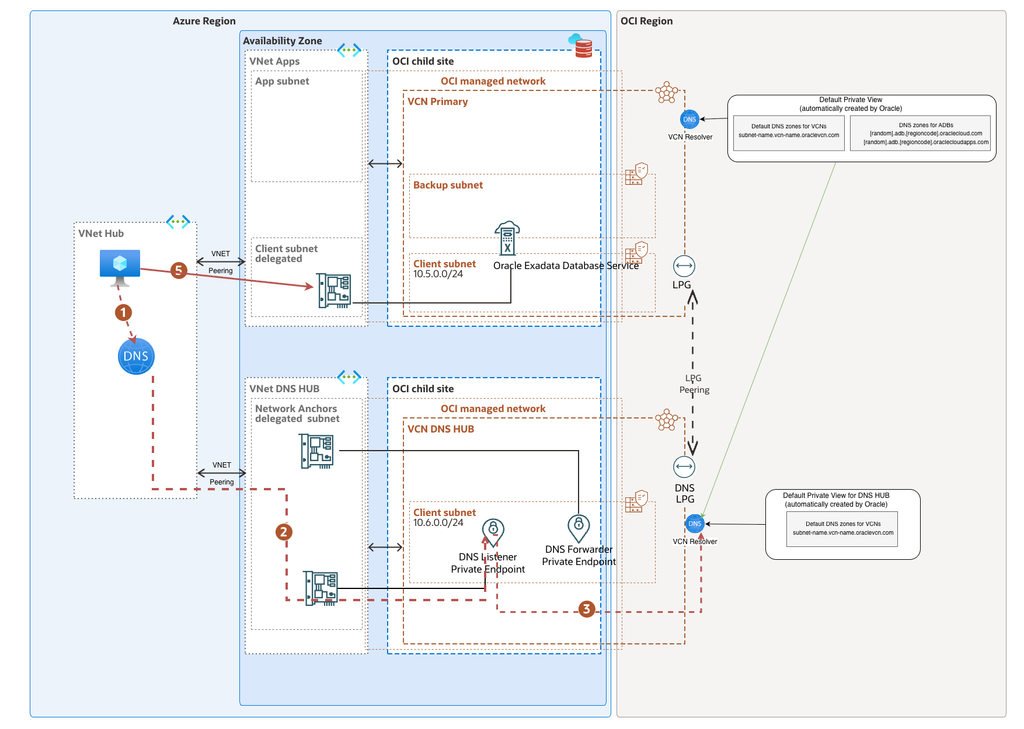
The DNS response follows the query path in reverse and is omitted from the arrows for readability.
The query flow is:
- An Azure workload sends a query to Azure-provided DNS. A DNS forwarding ruleset, linked to the workload VNet, matches the Oracle database DNS suffix.
- The Azure DNS Private Resolver outbound endpoint forwards the query to the Network Anchor’s OCI listening endpoint.
- The hub VCN resolver finds the record in the default private view or an attached spoke private view.
- The private answer returns through the Network Anchor listener and Azure DNS path to the workload.
- The application opens the database connection over its separately configured, private data path.
For bidirectional resolution, the Network Anchor forwarding endpoint sends queries for Azure private zones to the Azure DNS Private Resolver inbound endpoint.
Before starting
This post assumes that the reader is familiar with Azure VNets, OCI VCNs, route tables, NSGs, private DNS, and the database connection details for the selected service.
Prepare the following:
- A Resource Anchor. The Resource Anchor maps the Azure resource group to an OCI compartment.
- An Azure VNet and subnet delegated to Oracle.Database/networkAttachments for the Network Anchor. This VNet will be used as a hub for DNS resolution from Azure to the OCI DNS zones used by Oracle AI Database@Azure.
- One or more VNets with a database delegated subnet and corresponding OCI VCN. This VNet will host the Oracle AI Database@Azure services, for example: Oracle Exadata Database Service or Oracle GoldenGate.
- An Azure DNS Private Resolver or an existing DNS service capable of conditional forwarding.
- Non-overlapping CIDRs if LPG or DRG connectivity is used.
- The FQDN, DNS suffix, private IP, service port, VNet, VCN, resolver, and private view for every database service.
- OCI IAM permissions: The administrator performing the configuration needs the following permissions. For detailed policy creation steps, see Creating an IAM Policy.
- Private DNS management: Permissions to update the hub resolver, inspect the spoke private DNS views, and create or inspect resolver endpoints. The following broad policy is an example suitable for a lab environment. In production, scope access to the required compartments. See Private DNS—Required IAM Policies for details.
Allow group <DNS-ADMIN-GROUP> to manage dns in tenancy where target.dns.scope = ‘private’
- Networking management: Permissions to create or inspect the LPGs or DRG attachments, route tables, NSGs, and security rules required by the selected configuration. For peering across compartments or tenancies, the requester and acceptor administrators must establish the required OCI IAM policies before connecting the LPGs. See IAM Policies for Routing Between VCNs for policy examples covering these peering scenarios.
Deploy the Network Anchor DNS hub, database spokes, and associated private DNS views within the same OCI region. Because OCI private DNS is regional, use a separate DNS hub in each region and configure explicit DNS forwarding between regional hubs when cross-region name resolution is required.
For this design, enable Create DNS Listening Endpoint and leave Replicate DNS Private zones during DB creation disabled. The listening endpoint provides the DNS entry point for the centralized hub-and-spoke model. As explained in Oracle’s Network Anchor documentation, the two options provide overlapping functionality and should be selected based on your requirements.
This post assumes you already have working DNS resolution in Azure. Configuring Azure DNS Private Resolver, its inbound and outbound endpoints, and DNS forwarding rules is outside the scope of this blog. For guidance, see Microsoft’s Azure DNS Private Resolver overview and DNS Private Resolver endpoints and rulesets documentation.
Step 1: Create the Network Anchor DNS hub
At the time of writing, Network Anchor creation is performed from the Azure portal or API. The OCI console or API is used afterward to inspect the generated VCN and DNS resources.
- In the Azure portal, open Oracle AI Database@Azure.
- Select Multicloud Resources, then Network Anchors.
- Select Create.
- On the Basics tab, select the subscription, resource group, region, availability zone, and Resource Anchor.
- Select the Network Anchor VNet and its subnet delegated to
Oracle.Database/networkAttachments .
- Under DNS, enable Create DNS Listening Endpoint. We will call this direction Outbound DNS (Azure to OCI) because the query originates in Azure.
- Enter the Azure CIDRs that are allowed to query the listener. For Azure DNS Private Resolver, allow the outbound endpoint subnet CIDR. An outbound endpoint does not expose a stable, queryable IP address. Otherwise, allow only the approved enterprise DNS forwarders.
- Enable Create DNS Forwarding Endpoint when OCI-to-Azure resolution is required. Supply the required Azure private-domain forwarding information.
- Leave Replicate DNS Private zones during DB creation disabled for this centralized-listener design.
- Complete Consent, Tags, and Review + Create, then wait until the Network Anchor is active.
Open the Network Anchor overview and record:
- The OCI DNS listening endpoint IP.
- The OCI DNS forwarding endpoint IP, if created.
- The generated VCN and subnet identifiers.
- The NSGs associated with both endpoints.
The full wizard is documented in Create a Network Anchor.
Step 2: Verify the hub components in OCI
- Sign in to the OCI console and select the region used by the Network Anchor.
- Open Networking > Virtual Cloud Networks.
- Select the compartment created for the Resource Anchor.
- Open the VCN whose name contains the Network Anchor name.
- On the VCN details page, select the DNS Resolver.
- Under Endpoints, verify that the listening and forwarding endpoints are Active.
- Record the hub resolver OCID and endpoint IP addresses.
- Open the endpoint NSGs and confirm that UDP and TCP port 53 are allowed only from the intended sources and to the intended destinations.
Use both UDP and TCP 53. Most queries use UDP, but DNS falls back to TCP for large or truncated responses.
Step 3: Give the hub access through associated private views
Associated private views share DNS data with the hub resolver without requiring IP peering between the hub and spoke VCNs for the DNS lookup itself.
- In the OCI console, open the Network Anchor hub VCN.
- Select the hub VCN DNS Resolver.
- Select Associated private views, then Manage Private Views.
- Select the first spoke’s protected default view or the custom view containing its database zone.
- Select Additional Private View and repeat for every spoke.
- Put the views in a deliberate order and select Save Changes.
- Wait for the resolver update to complete.
OCI evaluates attached views in the configured order, followed by the resolver’s default view, resolver rules, and finally internet DNS. With the default Static zone mode, the first authoritative match stops processing even when the answer is NXDOMAIN . Avoid placing a broad parent zone in an earlier view when a later view contains a required child zone. Transparent and RTypeTransparent zones can continue evaluation in intentionally designed advanced configurations.
Scalability checkpoint: 50 attached views
The OCI DNS API allows a maximum of 50 entries in attachedViews per resolver. The resolver’s protected default view is normally evaluated separately; if explicitly placed in the attachment list, it consumes one of those entries. With one attached view per database spoke and the hub default kept separate, one hub resolver can expose as many as 50 spoke views to Azure. This is DNS visibility, not network connectivity.
The console preserves the complete ordered list when it saves the change. If the resolver is updated through the CLI, SDK, or API, send the complete desired attachedViews list; omitting an existing view removes that attachment.
Associated views solve DNS visibility only. Azure VNet peering, routing, NSGs, and the Oracle-managed service path must still allow the application to reach the returned database private IP.
Step 4: Forward Azure queries to the Network Anchor listener
First, check the DNS setting on each workload VNet. A forwarding-ruleset link is evaluated only when clients use Azure-provided DNS. If the VNet uses custom DNS servers, configure the conditional forwarder on those servers instead. The linked Azure ruleset is not in that query path.
Step 5: Validate in layers
Always validate the DNS path before testing the database client. Replace the placeholders below with the actual listener IP and database FQDN.
From a Linux VM that can reach the Network Anchor listener, test the listener directly:
dig @<network-anchor-listener-ip> <database-fqdn> A +short
dig @<network-anchor-listener-ip> <database-fqdn> A +tcp +short
The first query tests UDP and the second tests TCP. Both must return the expected private address or addresses. Repeat this direct test for at least one FQDN from every spoke.
Next, test through the normal Azure DNS path without specifying a server:
dig <database-fqdn> A +short
Finally, use the service’s connection profile, wallet, SCAN name, or deployment URL to test the real application connection. Do not replace an FQDN with the returned IP in the application configuration; database services can depend on the hostname and may return multiple private addresses.
If bidirectional DNS is enabled, run an equivalent lookup for an Azure private FQDN from an approved client in every participating spoke, not only from the hub VCN.
Troubleshooting
| Symptom | First checks |
| Direct query to the Network Anchor listener times out | VNet peering or other private path, effective routes, UDR/NVA behavior, and UDP/TCP 53 rules on the listener NSG |
| Listener returns NXDOMAIN | Correct spoke view attached, required zone and record present, attached-view order, and parent-zone shadowing |
| Direct listener query works but normal Azure lookup fails | Correct suffix in the Azure rule, rule enabled, target listener IP, outbound endpoint association, and ruleset linked to the client VNet |
| Linked Azure ruleset appears to be ignored | Workload VNet DNS setting; custom-DNS clients use their configured servers, not the linked ruleset |
| Azure returns NXDOMAIN without a query reaching OCI | Overlapping Azure Private DNS zone linked to the workload VNet; make it authoritative with the required record or unlink it from this resolution path |
| The wrong private answer is returned | Duplicate zones across views, resolver evaluation order, split horizon design, and cached TTL |
| DNS works but the database connection fails | Application data-path routing, VNet peering, service NSGs/security lists, database listener status, wallet, TLS, and the correct service port |
Adding a new spoke
Once the hub is operational, onboarding another database VCN becomes a short, repeatable change:
- Record the new service FQDN, suffix, private IPs, VCN, resolver, view, and application port.
- Configure and validate the application data path.
- Attach the spoke view.
- Add an Azure forwarding rule only when the new service uses a suffix not already covered.
- Test the Network Anchor listener directly, then test through the Azure client resolver, and finally test the database connection.
- Update the DNS inventory.
Conclusion
In this post, we configured a Network Anchor as a centralized DNS hub for a hub-and-spoke Oracle AI Database@Azure deployment. Azure clients forward database queries to one OCI listening endpoint, and the hub resolver gains access to the service records through attached private views or DNS forwarding over a routed network.
References
DNS resolution with Network Anchors in Oracle Database@Azure
Oracle AI Database@Azure: Network Anchor
Oracle AI Database@Azure: What’s New
Add a private view to a resolver
OCI DNS API: UpdateResolverDetails
OCI private DNS hub-and-spoke guidance
Oracle AI Database@Azure quotas and service limits
Oracle AI Database@Azure troubleshooting and delegated-subnet limit