

Introduction
Oracle Fusion Applications generate extensive audit logs that capture every significant security and business event across your SaaS environment. These logs include user authentication events, authorization decisions, administrative changes, transaction-level activities, and platform-level operations.
OCI Log Analytics provides the ideal destination for Fusion Applications audit data, offering powerful exploration capabilities, correlation with other log sources, detection rules, and AI-powered analysis through LoganAI. By leveraging the REST API-based log collection method with OCI Management Agents, organizations can establish continuous, automated ingestion of Fusion audit logs without complex middleware or custom integrations.
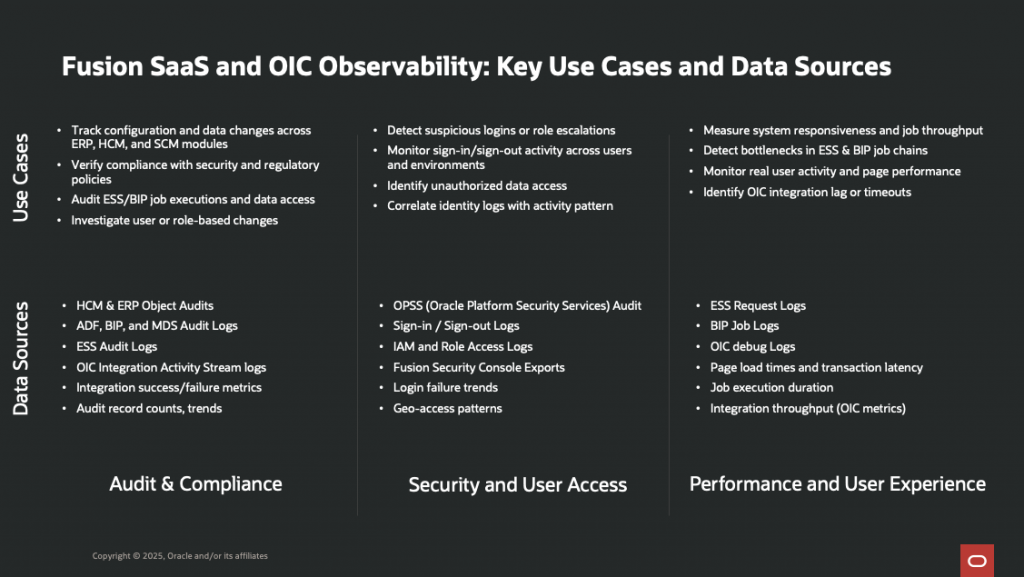
Note: If you want to monitor the ESS jobs performance and status, I have published a blog post on the Fusion Enterprise Scheduler Service (ESS) job request logs collection using OCI Management Agent and REST API log collection, you can find it here.
However, accessing and collecting Fusion Application audit logs requires understanding the complex permission model and configuring the appropriate integration mechanisms. This blog post addresses the first of the two critical aspects:
- Part 1: Understanding Required Permissions: What privileges and roles are needed to access Fusion audit log data
- Part 2: Setting Up Log Ingestion: Step-by-step configuration for Fusion Apps Audit Logs using OCI Management Agent and REST API log collection
Note: This guide focuses on Fusion Applications transaction and business object audit logs accessed via the Fusion Audit REST API. For IAM Identity Domain audit events (sign-in attempts, MFA challenges, session activity), these flow through OCI Audit and can be ingested via Service Connector – see Methods and Ways to Extract Session Information Using OCI Audit for that complementary approach.
Solution Design
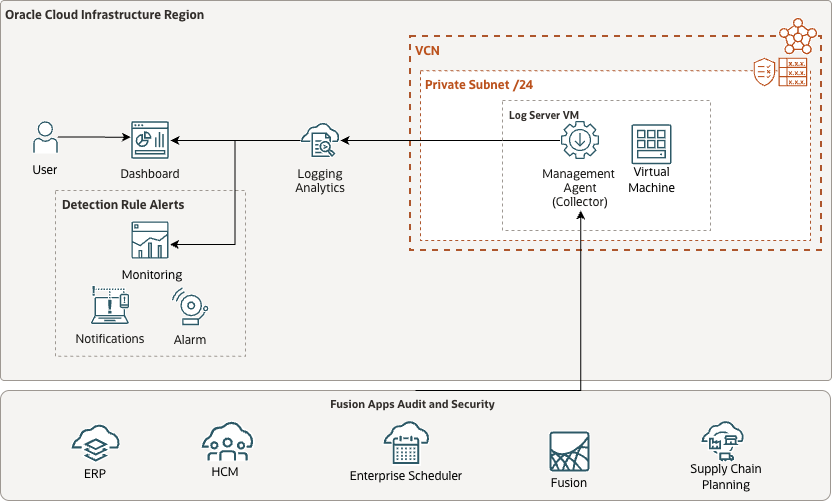
Oracle Log Analytics enables continuous collection of Fusion Application audit logs through REST API-based log sources. The Management Agent acts as the collector, periodically invoking Fusion Applications REST APIs to fetch Fusion audit log data and forwarding it to Log Analytics for parsing, indexing, and analysis.
Reference Architecture:
Prerequisites
Before proceeding with the implementation, ensure you have:
- An active OCI tenancy with appropriate IAM permissions
- Access to Oracle Fusion Applications with administrative privileges
- An OCI Compute instance (Oracle Linux) where the Management Agent will be installed
- Network connectivity between the Management Agent host and your Fusion Applications instance
- Understanding of your Fusion Applications POD URL and LOGIN URL (refer to Doc ID 2661308.1 in Oracle My Support)
- Create a service account in Fusion Applications for the Management Agent to use
Part 1: Understanding Required Fusion Applications Audit and Security Logs Permissions
Accessing Fusion Application audit logs requires a combination of Fusion Applications privileges. This section provides a comprehensive overview of the permission requirements.
Service Account Setup
For REST API access, you need to create a service account (integration user) in Fusion Applications:
- Sign in to Oracle Fusion Applications using administrator privileges.
- Navigate to:
- Tools > Security Console > Users
- Create a service account (integration user) with the following details:
- Last Name:
SERVICE_APP_ICS_ID - Email: Valid email address
- User Name:
SERVICE_APP_ICS_ID - Person Type: None
- Last Name:
Recommended Core Audit and Security Logs Privileges
Sign In – Sign Out Activity Logs
Note: Sign-in/Sign-out REST API is deprecated and no longer available after Fusion Identity Upgrade, starting Oracle Fusion 25B or higher. You will have to use the OCI Audit Logs as per KB181606. Please refer to Identity Upgrade Overview.
You can get the last seven days of user sign-in sign-out information using a setting available on the Add User Account page in Security Console. To view the setting, you must enable a profile option.
Note: Update the configuration of the Sign-In/Sign-Out audit data requires Fusion Apps Administrator or Security Administrator privilege, or make sure the admin account user has FND_MANAGE_AUDIT_POLICIES_PRIV.
- The Sign-In/Sign-Out audit data requires an additional Fusion Applications enablement step that is separate from role/privilege assignment.
- Data availability limitation: Sign-In/Sign-Out audit data is available for the last seven days only.
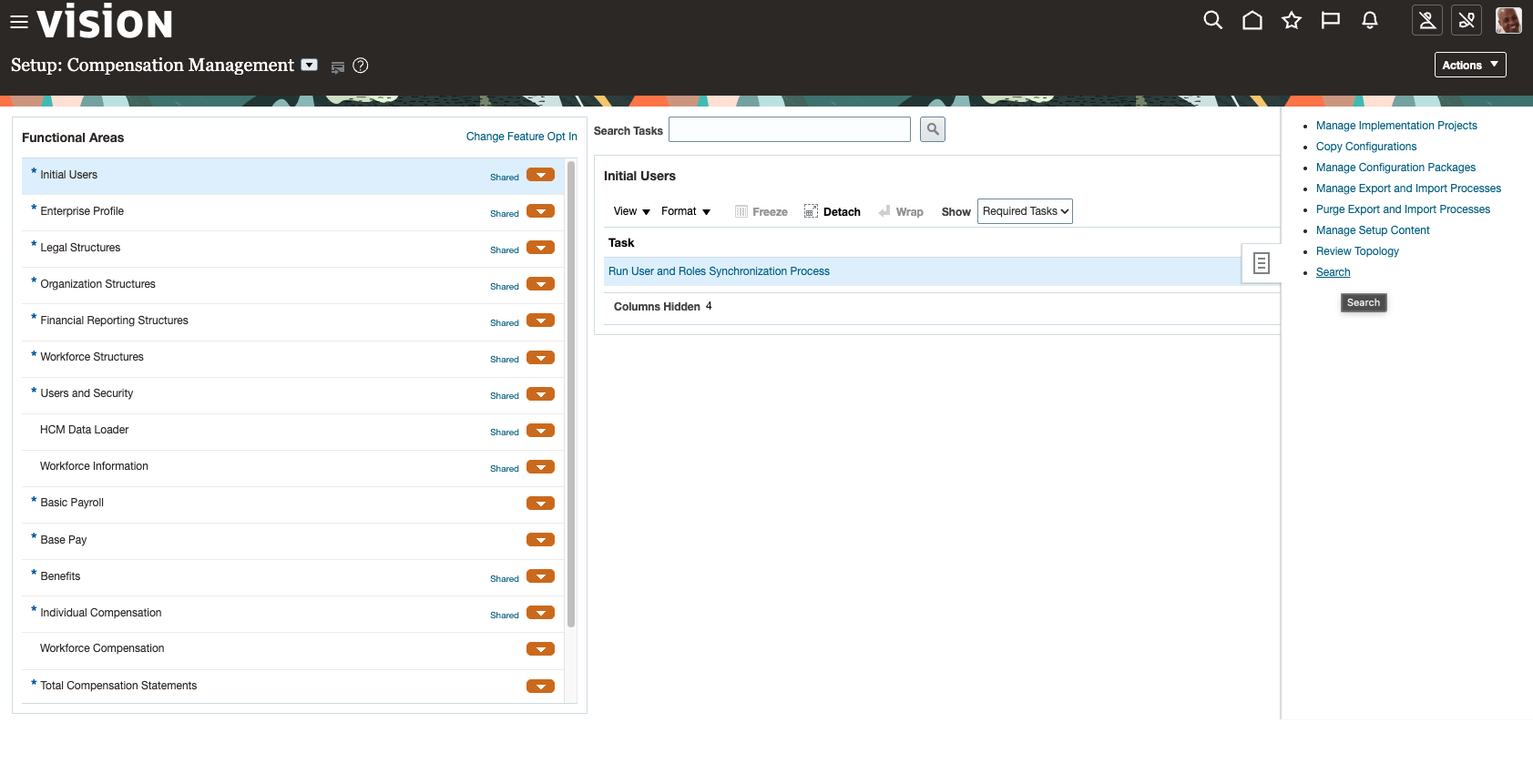
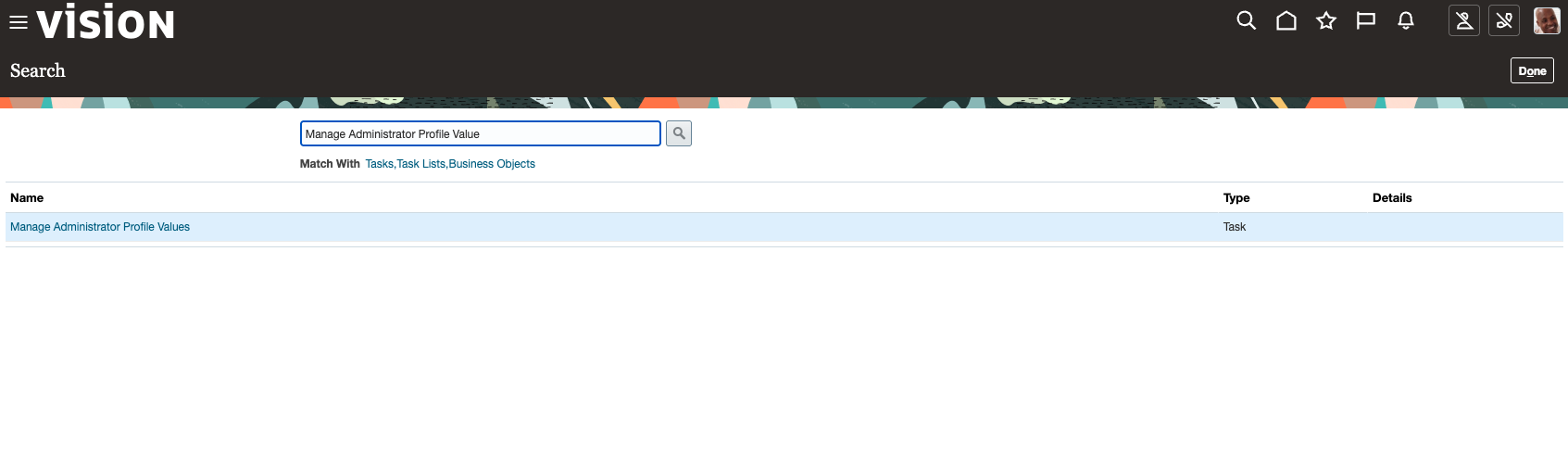
- Enable the profile option:
- In Setup and Maintenance
- Open the side bar to search task
- Enable administration access for the integration user:
- In Security Console, go to Users
- Open the integration user (or when creating it via Add User Account)
- In Advanced Information, enable Enable Administration Access for Sign In-Sign Out Audit REST API
- Reference: How to Get User Sign-in Sign-out Information?
Fusion ERP, HCM, SCM, CX Audit Logs
| Role/Privilege | Provides |
|---|---|
ASE_REST_SERVICE_ACCESS_IDENTITY_INTEGRATION_PRIV | Access to Fusion REST API endpoints: fscmRestApi, fndAuditRESTService, audittrail, getaudithistory |
- Sign in to Oracle Fusion Applications using administrator privileges.
- Navigate to:
- Tools > Security Console > Roles
- Create a service account custom role with the following details:
- Role Name:
SERVICE_APP_ICS_ID_ROLE - Role Code:
SERVICE_APP_ICS_ID_ROLE - Role Category:
Common - Job Roles - Role Privilege:
- Add the following Function Security Policy
ASE_REST_SERVICE_ACCESS_IDENTITY_INTEGRATION_PRIV 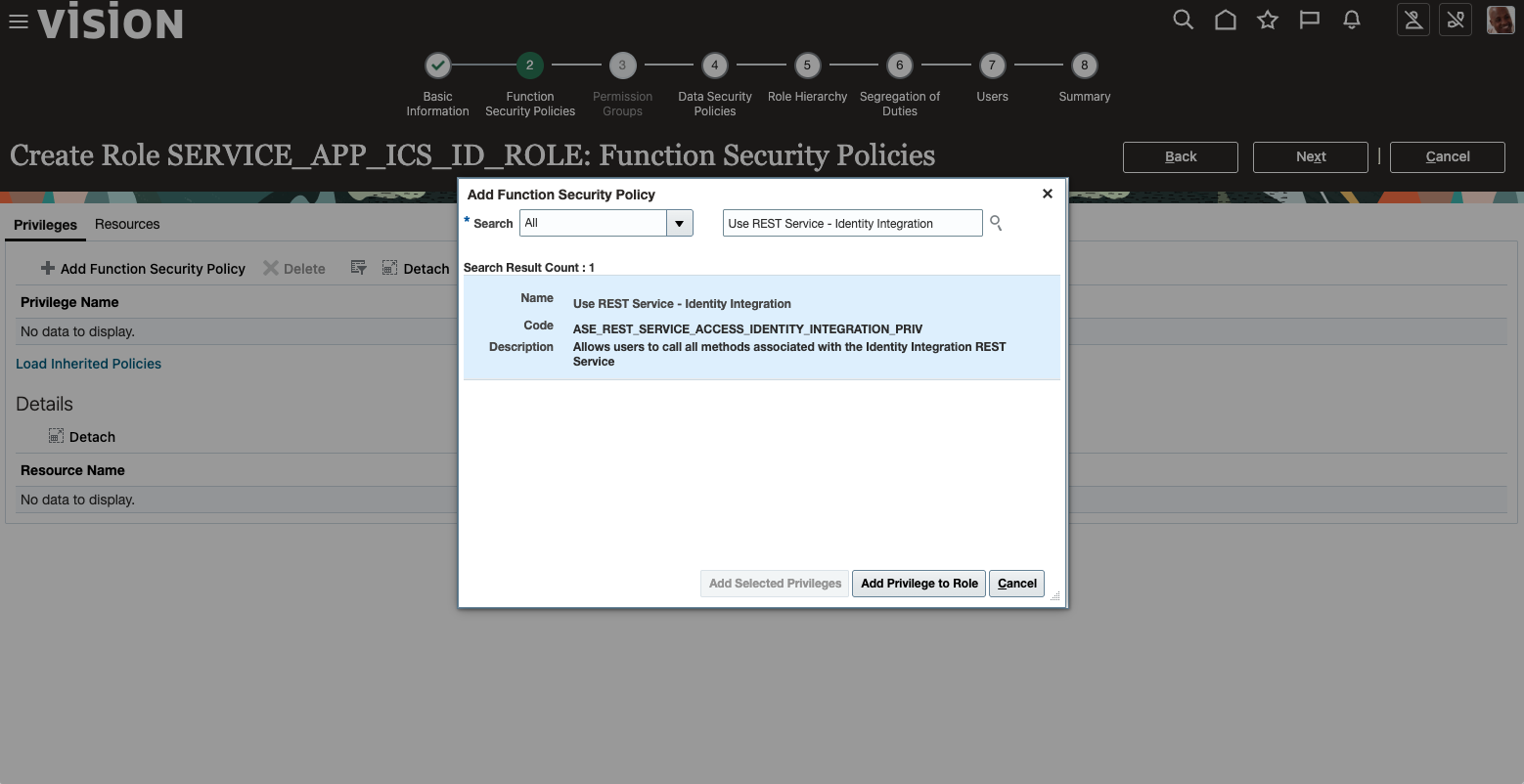
- Click Next
- Add the following Function Security Policy
- Add User
SERVICE_APP_ICS_IDto the custom roleSERVICE_APP_ICS_ID_ROLE - Click Save and Close
- Role Name:
Oracle Platform Security Services (OPSS) Audit Logs
Oracle Platform Security Services (OPSS) audit enables auditing of security-related events, such as authentication and authorization, across Oracle Fusion Applications. To enable OPSS audit logging, follow these steps:
By default, auditing is disabled for all Oracle Fusion Applications, including Oracle Platform Security Services (OPSS). To enable or disable auditing for OPSS, follow these steps:
- Access Manage Audit Policies:
In the Setup and Maintenance work area, search for and select the Manage Audit Policies task.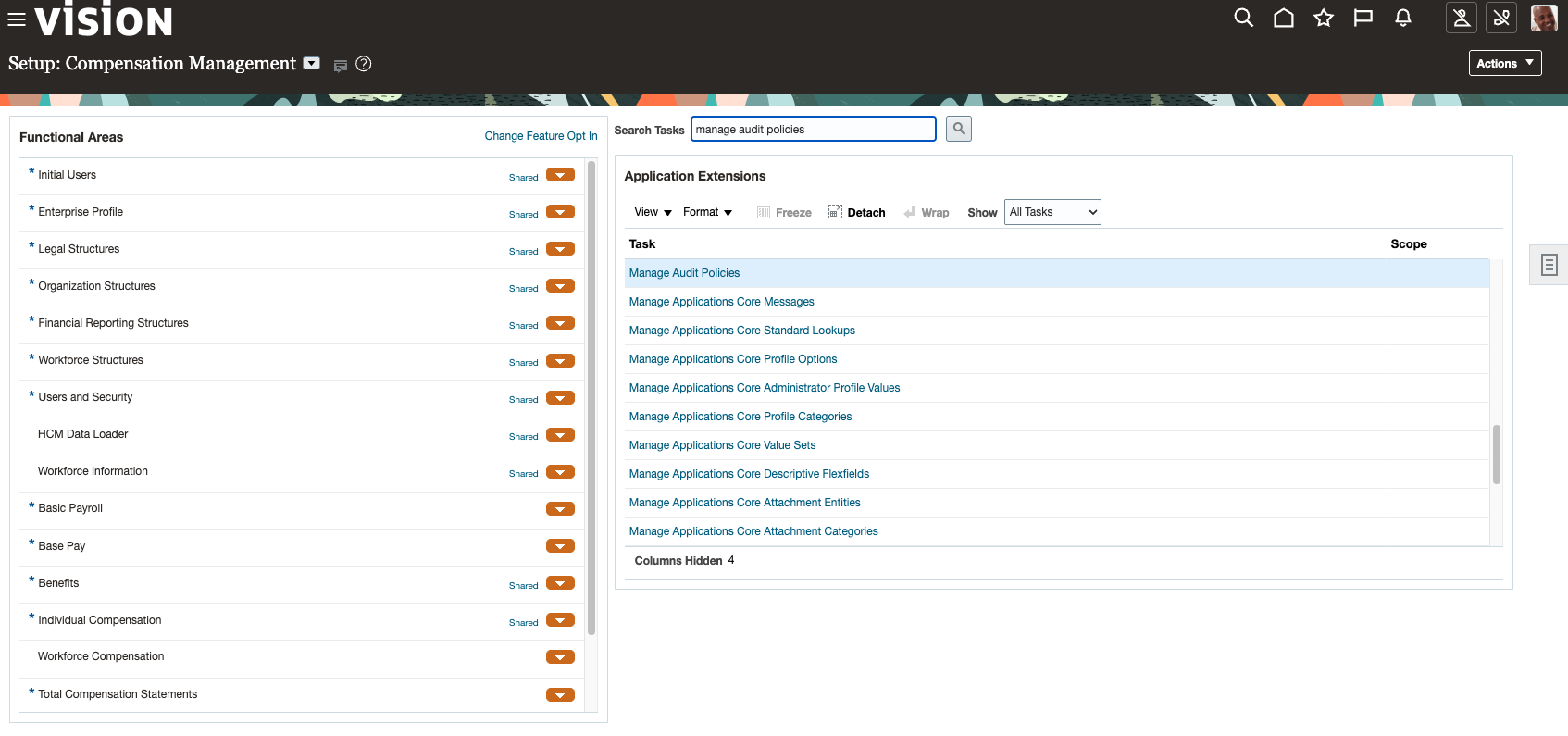
- Set Audit Level for OPSS:
- On the Manage Audit Policies page, locate Oracle Platform Security Services in the list.
- To enable auditing, set the Audit Level to
Low - Critical Events Only. - To disable auditing, set the Audit Level to
None. - Click Save and Close to confirm and apply your changes.
Note:
To manage audit policies, you must have the Manage Audit Policies (FND_MANAGE_AUDIT_POLICIES_PRIV) function security privilege. The predefined Application Implementation Consultant job role includes this privilege. If you want to want to use the Security – Audit Real Time subject area in Oracle Transactional Business Intelligence (OTBI) to access OPSS audit data. Access to this OTBI subject area requires the FBI_SECURITY_TRANSACTION_ANALYSIS_DUTY duty role. The predefined IT Security Manager job role contains this duty role.
Enterprise Scheduler Service (ESS) Job Request Logs
Users can view and manage the scheduled processes that they submit, for example, to cancel the process or see the output. However, to perform these actions for scheduled processes submitted by other users, specific roles are required.
ESS Monitor Role is sufficient for viewing the scheduled process history.
The privilege required to access for all Scheduled Process is ESS_REQUEST_HISTORY.
- Open Security Console and go to the Roles page. Click Create Role.
- (Optional) On the Data Security Policies page:
- Add a policy with:
- Data Resource:
ESS_REQUEST_HISTORY - Data Set: All Values
- Actions: Select desired tasks (e.g., View, Update, Cancel).
- Data Resource:
- Add a policy with:
- On the Role Hierarchy page, add any needed roles.
- On the Users page, assign the users who need this custom role.
Enterprise Scheduler Service (ESS) Audit Logs
You can also update the Audit Level for Oracle Enterprise Scheduling Service (ESS) for ESS metadata changes, ESS request operations, Administrative operations to ESS request processor and dispatcher.
- Access Manage Audit Policies:
- In the Setup and Maintenance work area, search for and select the Manage Audit Policies task.
- Set Audit Level for ESS:
- On the Manage Audit Policies page, locate Enterprise Scheduler Service in the list.
- To enable auditing, set the Audit Level to
Medium - Some Events. - Click Save and Close to confirm and apply your changes.
Oracle Metadata Services (MDS) Audit Logs
Customization of the Fusion web application developed with Oracle ADF is supported by Oracle Metadata Services (MDS), which is a framework that integrates with JDeveloper tools and also manages the customization of ADF features by end users at runtime. The Oracle Metadata Services (MDS) framework allows you to create applications that your customers can further customize for their users or customers and which the end users can also customize.
MDS can be applied to the range of other components in the ADF technology stack, such as ADF Faces, ADF Controller, ADF Model, and ADF Business Components.Oracle Metadata Services (MDS) audit enables auditing of metadata changes in Oracle Fusion Applications. To enable MDS audit logging, follow these steps:
- Access Manage Audit Policies:
- In the Setup and Maintenance work area, search for and select the Manage Audit Policies task.
- Set Audit Level for MDS:
- On the Manage Audit Policies page, locate Oracle Metadata Services in the list.
- To enable auditing, set the Audit Level to
Medium - Some Events. - Click Save and Close to confirm and apply your changes.
Oracle SOA Suite Audit Logs
The Oracle SOA Suite audit enables auditing of SOA Suite events in Oracle Fusion Applications. To enable SOA Suite audit logging, follow these steps:
- Access Manage Audit Policies:
- In the Setup and Maintenance work area, search for and select the Manage Audit Policies task.
- Set Audit Level for SOA Suite:
- On the Manage Audit Policies page, locate Oracle SOA Suite in the list.
- To enable auditing, set the Audit Level to
Medium - Some Events. - Click Save and Close to confirm and apply your changes.
Oracle Fusion Applications Business Object Audit Logs
To configure which attributes appear in the audit report for Oracle Fusion Applications business objects, follow these steps (adapted from Oracle documentation):
- Access Manage Audit Policies:
- In the Setup and Maintenance work area, search for and select the Manage Audit Policies task.
- Under Fusion Applications Business Objects section, set Audit Level to Auditing
- Under Fusion Applications Business Objects section, click Configure Business Object Attributes:
- Select Product and Object:
- From the Product list, select the relevant product. For example:
- Global Human Resources for Log Analytics Fusion Apps: HCM People Audit Logs Log Source
- Global Payroll for Log Analytics Fusion Apps: HCM Payroll Audit Logs Log Source
- Check the Audit checkbox for the relevant business object.
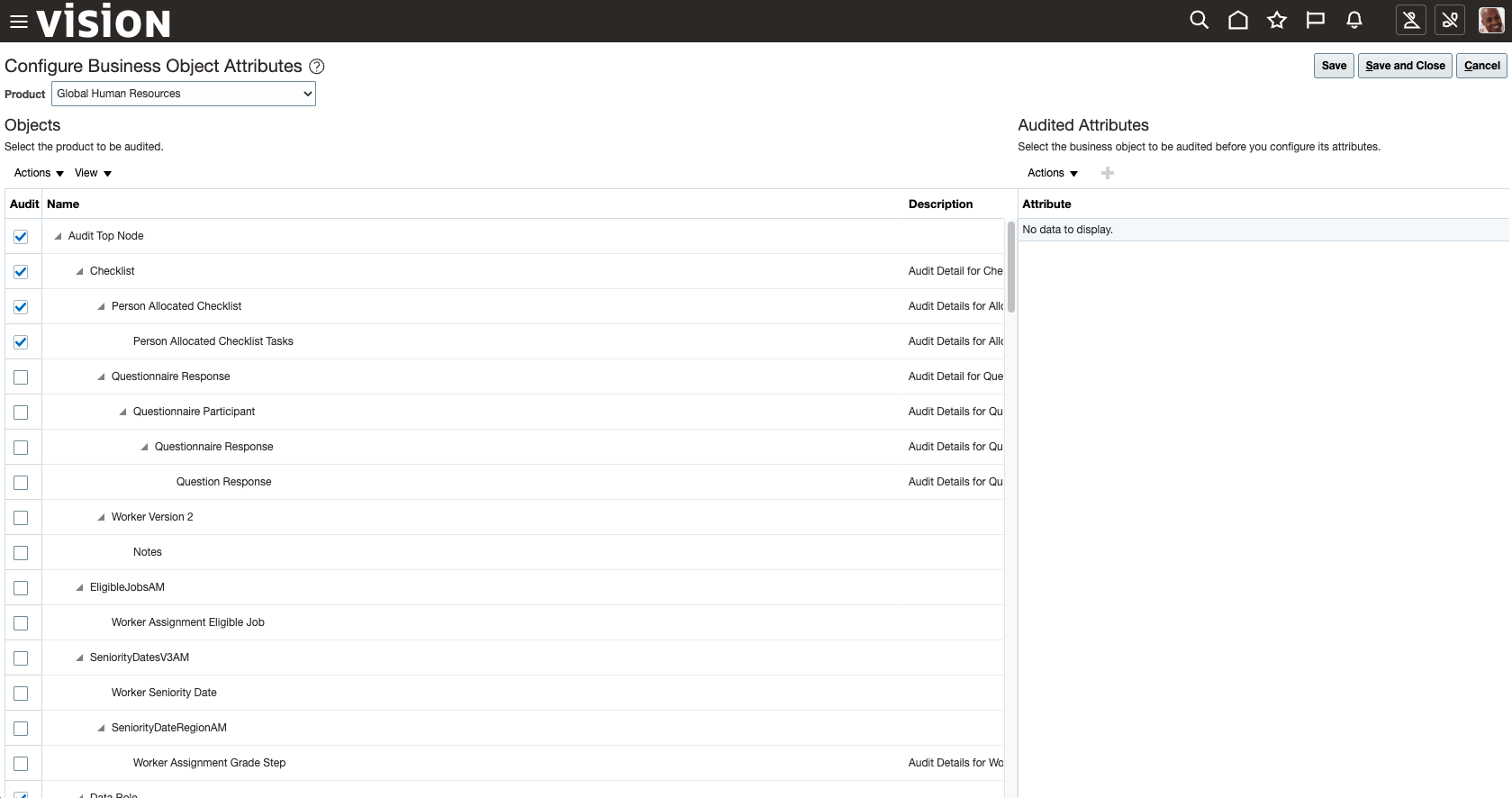
- From the Product list, select the relevant product. For example:
- Click Save and Close to confirm and apply your changes.
Conclusion
In Part 1, we explored how to enable and configure audit logging across key Oracle Fusion Applications components, including ESS, MDS, SOA Suite, and Business Objects. By following the steps outlined, you ensure critical business transactions and workflow activities are recorded, supporting your compliance and security monitoring objectives. Properly configured audit policies allow for effective tracking of user and system activity, forming the foundation for robust audit log collection and analysis in OCI Log Analytics.
In the next part, we will cover step-by-step guidance on ingesting these audit logs into Oracle Cloud Infrastructure, so you can gain actionable insights and streamline your audit compliance processes.
References
- Configure Fusion Applications Audit and Security Logs Ingestion in OCI Log Analytics – Part 2
- Gaining Insights from Fusion ESS, Audit and Security Dashboards with AI Augmentation Using LoganAI – Part 3
- Simplify Oracle Fusion Applications Observability with OCI Log Analytics
- ESS Roles Documentation
- Enable Audit for Oracle Platform Security Services
- Fusion Applications Audit Policies
- Fusion Applications Audit Report API
- HCM REST API Authorization
- How to Get User Sign-in Sign-out Information?
- Create a Fusion Service Integration User Account
- REST API Quick Start
- Doc ID 2661308.1 – Fusion Applications URLs and Configuration
- Doc ID 2059102.1 – How To Configure And Use Audit In BI Publisher For Fusion SaaS Cloud Customers
- Doc ID 2731495.1 – Fusion Applications OTBI: How To Configure And Use Audit For Usage and Performance In OTBI For Fusion SaaS Cloud Customers