
The purpose of this blog is to guide you on how to connect OCI and GCP using FastConnect and Partner Interconnect between the two Cloud Service Providers. For this configuration example, I used Megaport as the Partner and the Megaport Cloud Router (MCR) service.
For this blog, we will strictly focus on the GCP Partner Interconnect and the corresponding configuration on the MCR since there are several blogs that describe the details on how to configure OCI’s FastConnect circuit with the MCR. Below is an example that shows how to connect OCI to AWS, which also includes instructions and screenshots for the OCI FastConnect configuration portion for Megaport:
Connect Oracle Cloud to AWS via Megaport Cloud Router
So, what does it take to achieve this connectivity? The following components will need to be configured:
- OCI FastConnect
- GCP Partner Interconnect
- Megaport Cloud Router
Assuming an OCI FastConnect circuit with Megaport has been provisioned, the next step is to complete the GCP side of the configuration.
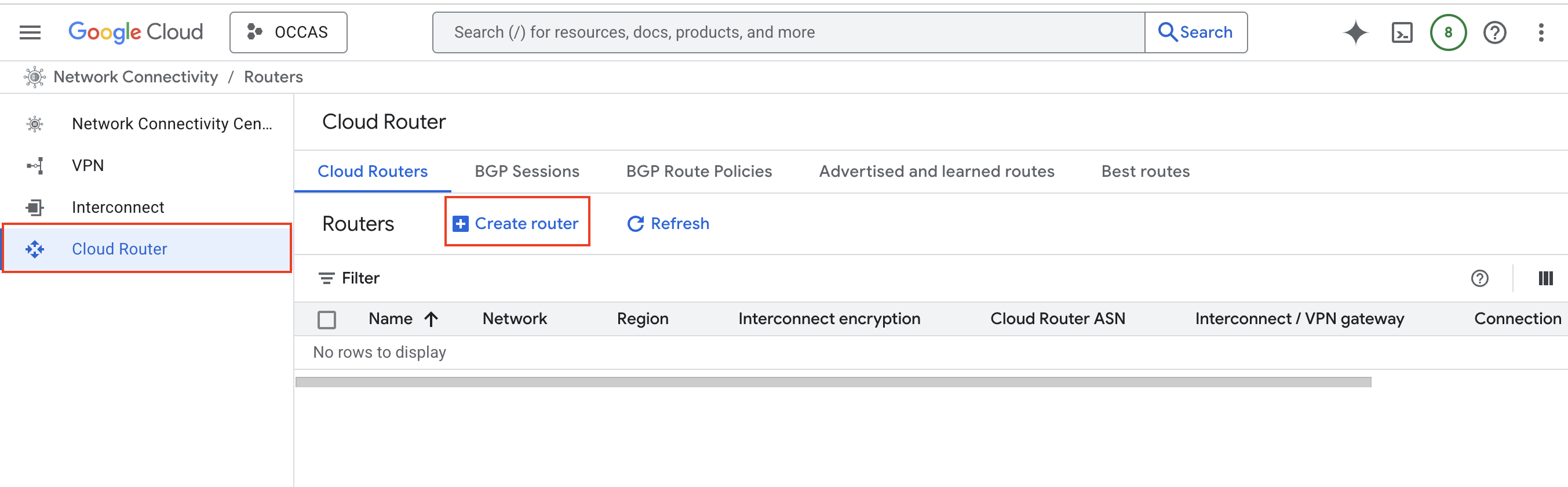
To do this, we’ll need to create a Cloud Router and configure it with the necessary parameters. In the GCP console, navigate to Network Connectivity -> Cloud Router and select Create router.
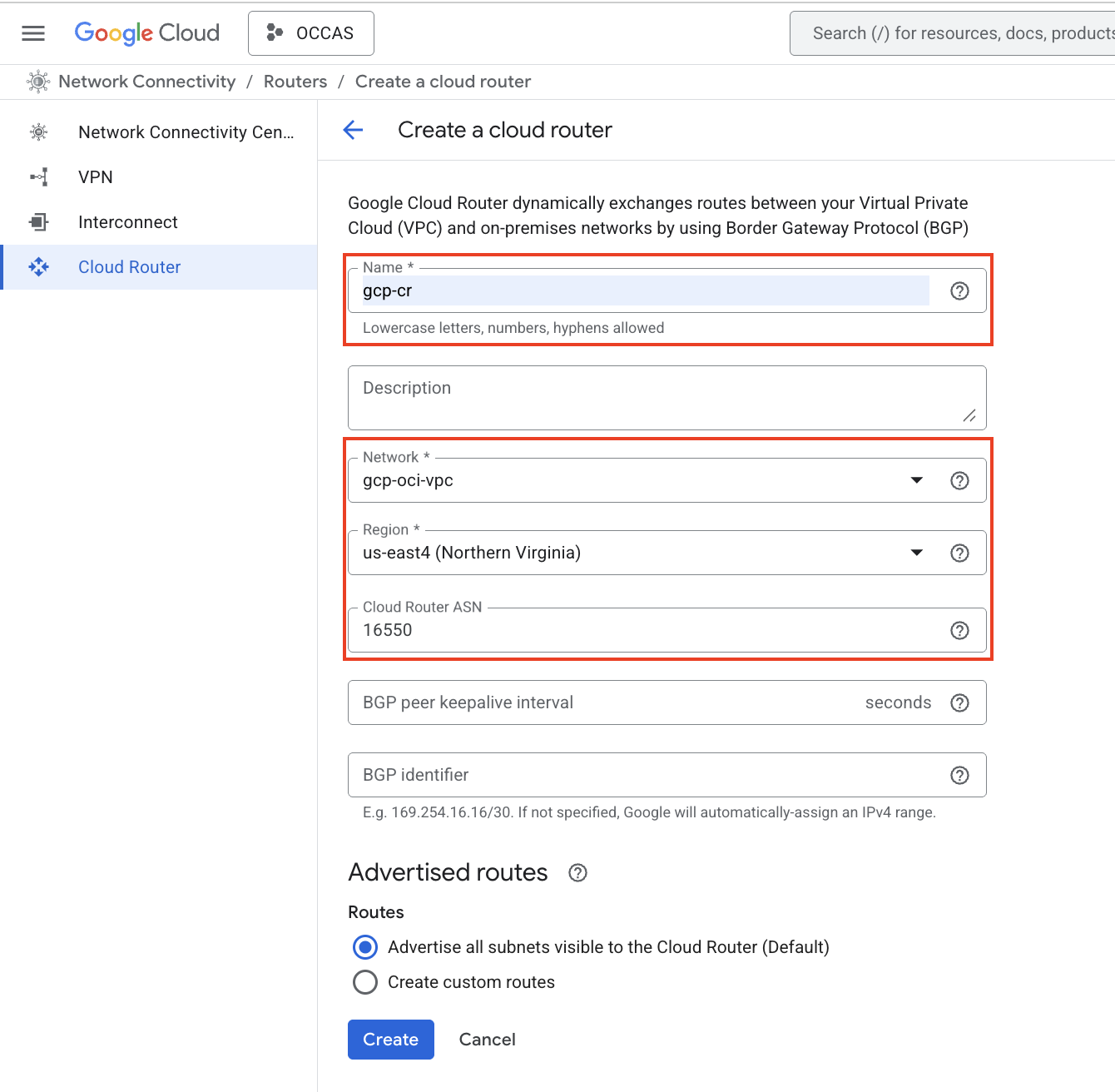
Provide the necessary values and click Create:
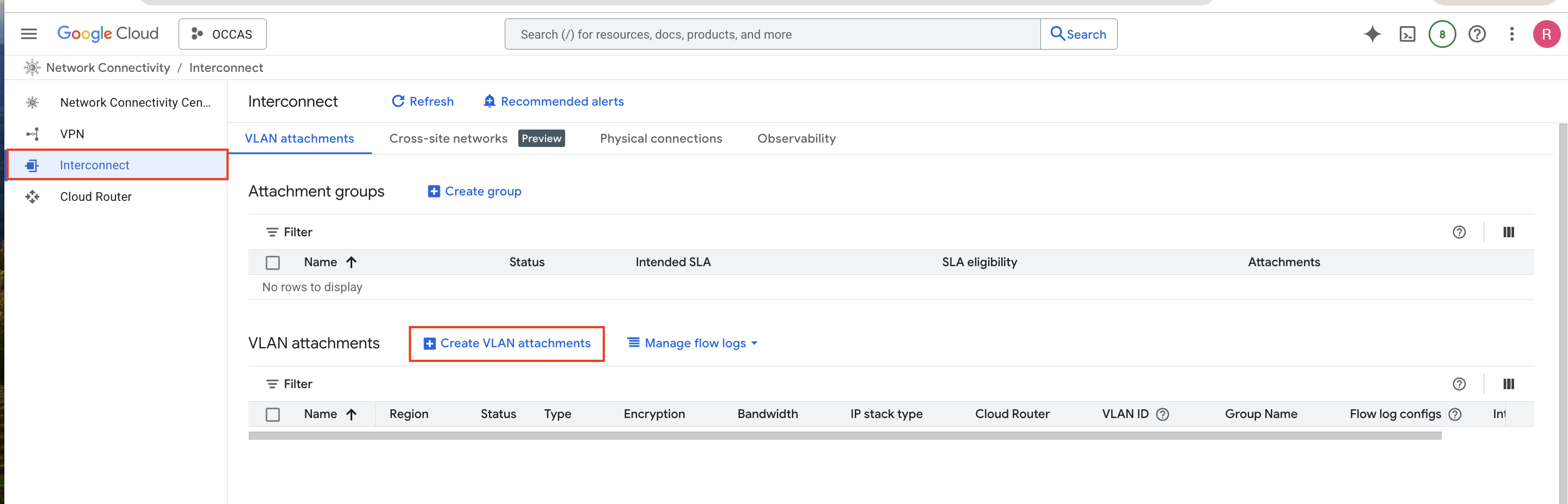
Now that we have a Cloud Router created, we can proceed with creating the Partner Interconnect. To do this, we’ll need to create a new VLAN attachment and provide it with the necessary configuration values. Navigate to Network Connectivity -> Interconnect and click on Create VLAN attachments:
Select Partner Interconnect connection and click Continue:

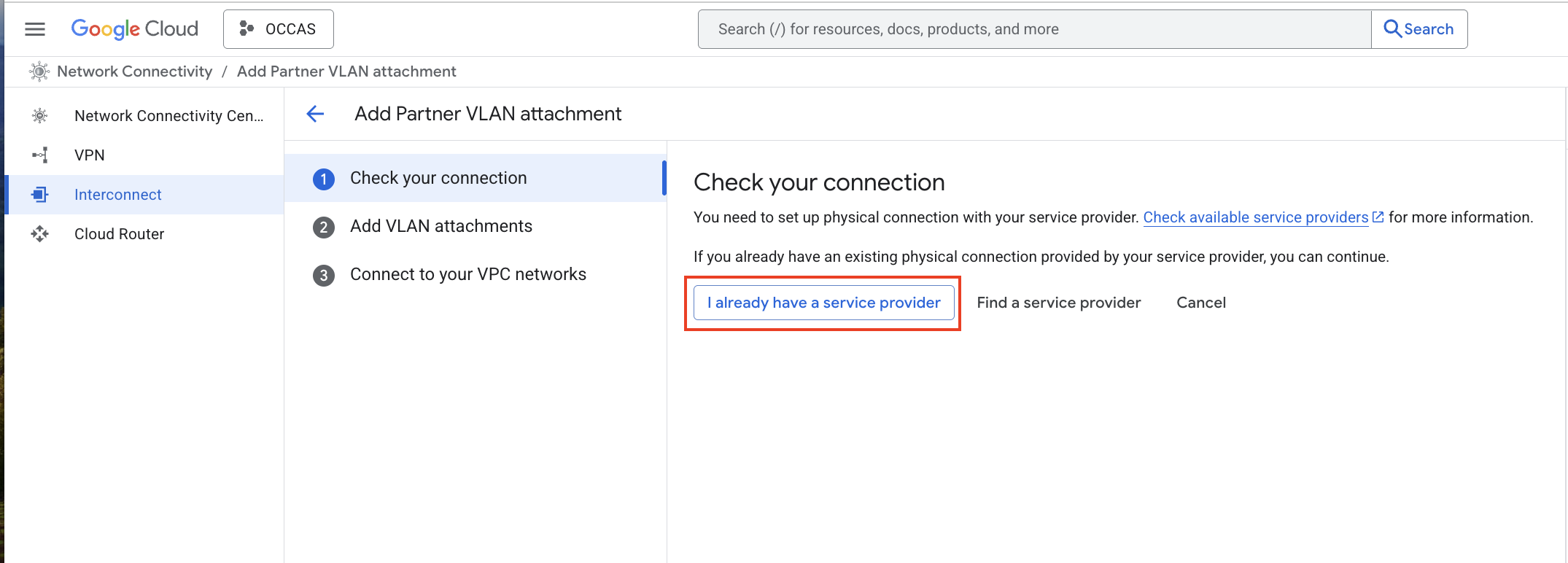
Select I already have a service provider:
You will now be prompted if you’d like to create a redundant pair of VLAN attachments (recommended), a redundant VLAN to an existing VLAN, or a single VLAN (no redundancy).
For this blog, I am creating a single VLAN (no redundancy). However, for real world mission critical applications, a redundant pair of VLAN attachments is always the recommended option and best practice.
Provide the network, the region, the Cloud Router, and the VLAN attachment name to proceed:

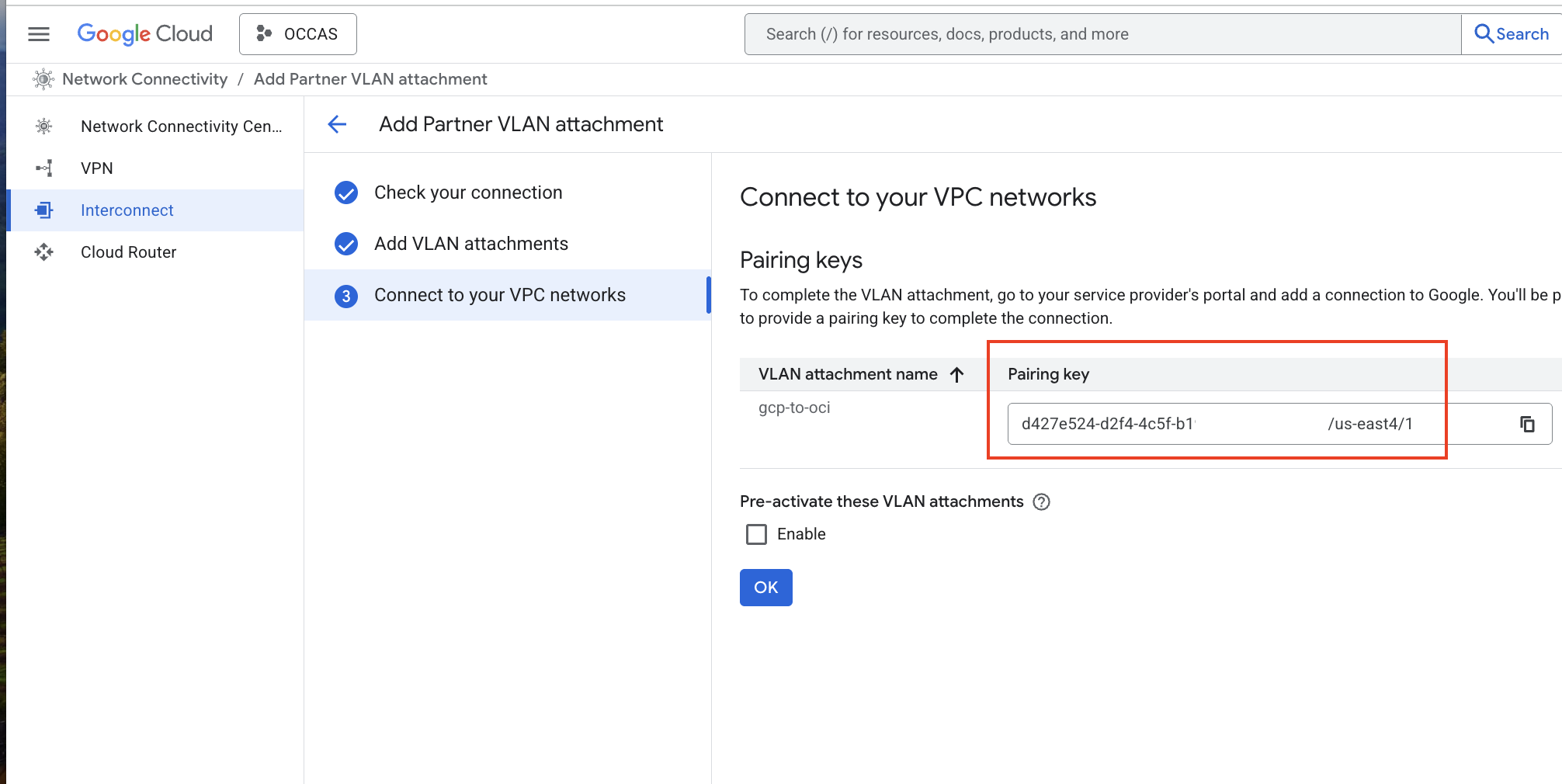
You will be presented with a paring key. Copy the Pairing key as we’ll need it for the MCR configuration:
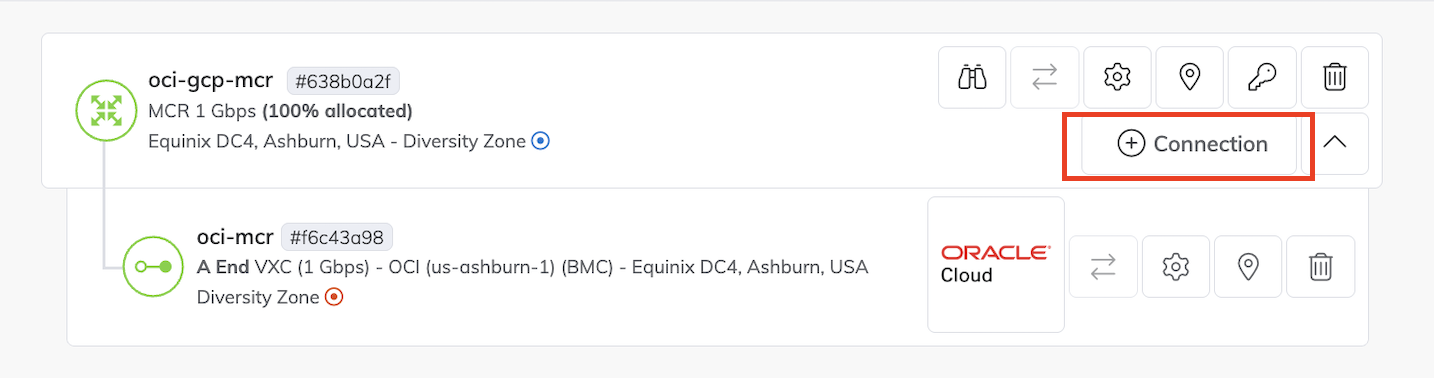
In the Megaport console, click on + Connection:
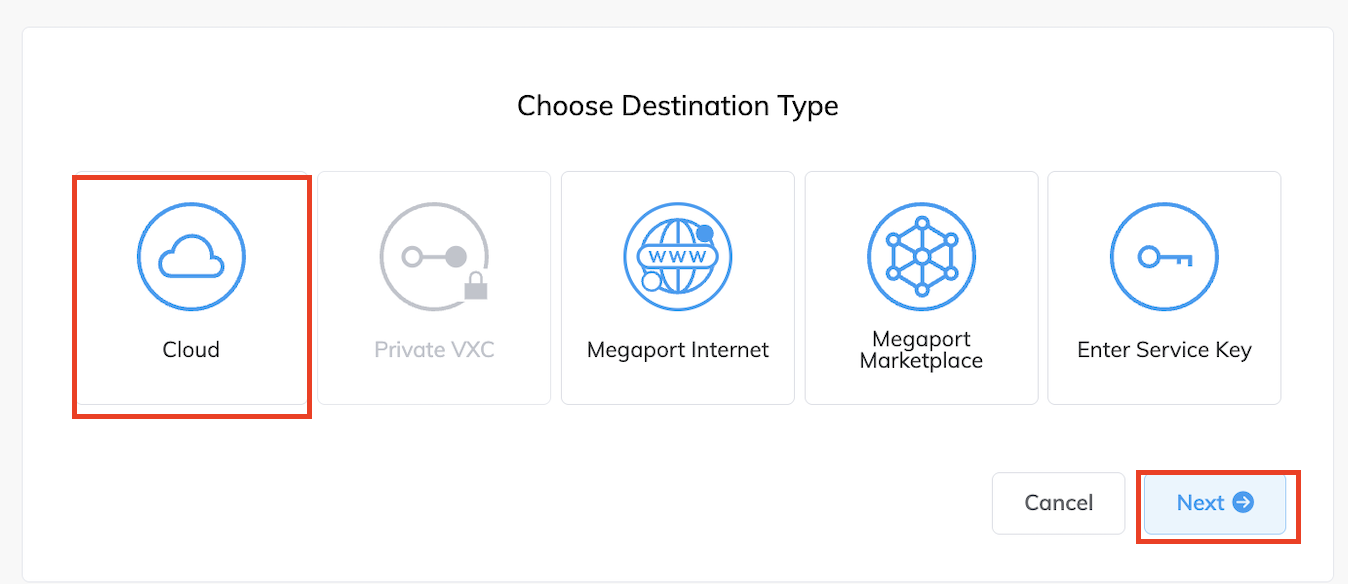
Select Cloud and click Next:
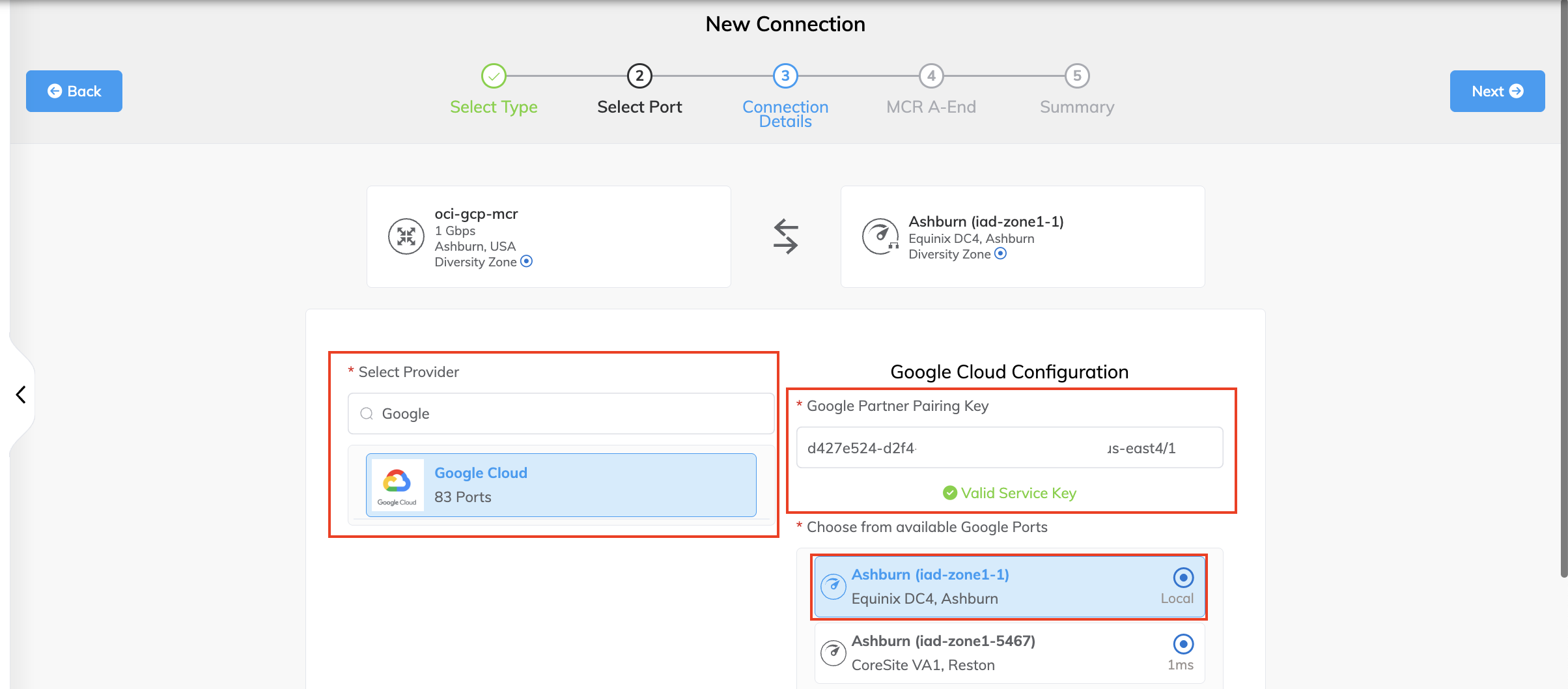
Under Select Provider, type Google and select Google Cloud. Paste the pairing key in the Google Partner Pairing Key section and select the preferred Google Port and click Next:
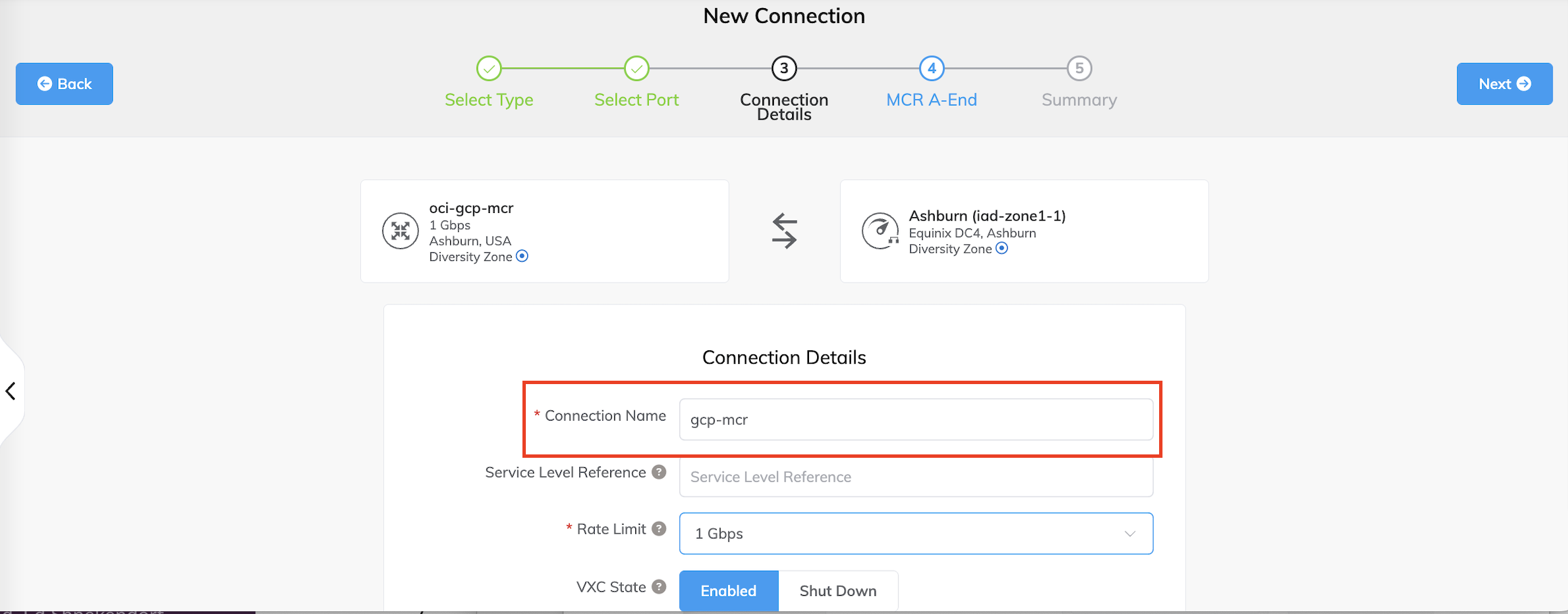
Provide the connection a name:
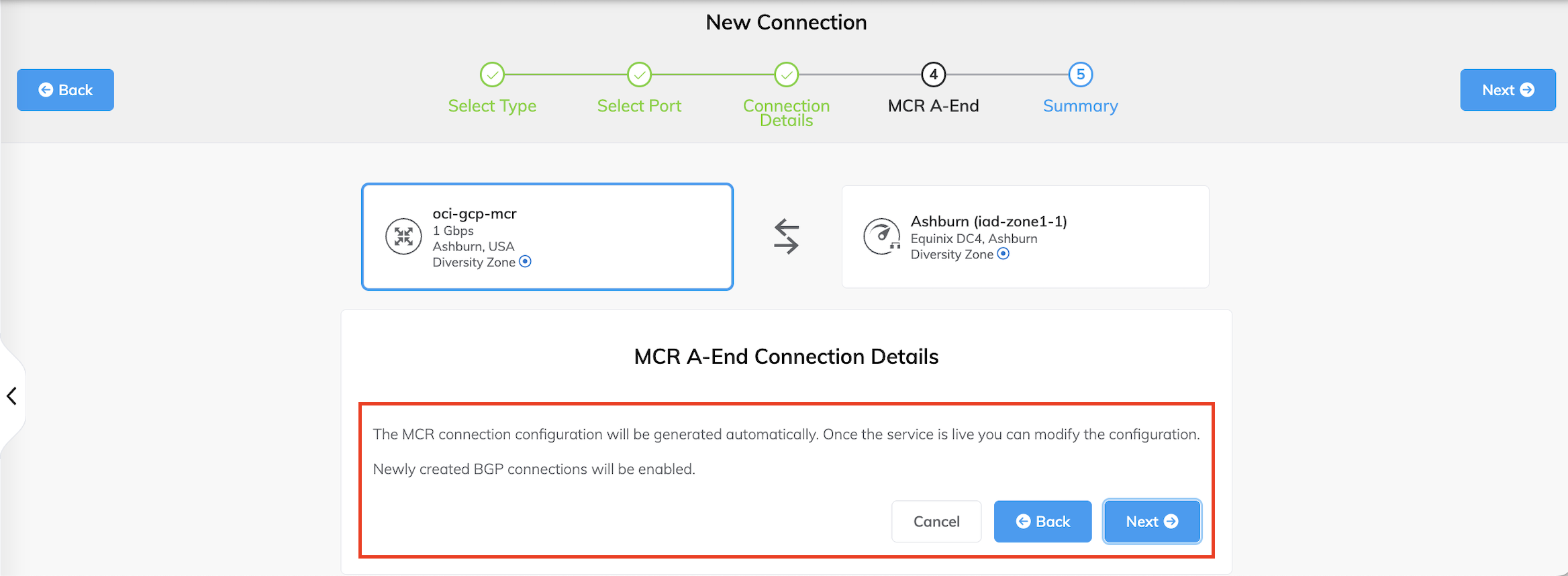
The MCR A-End Connection will be generated automatically:
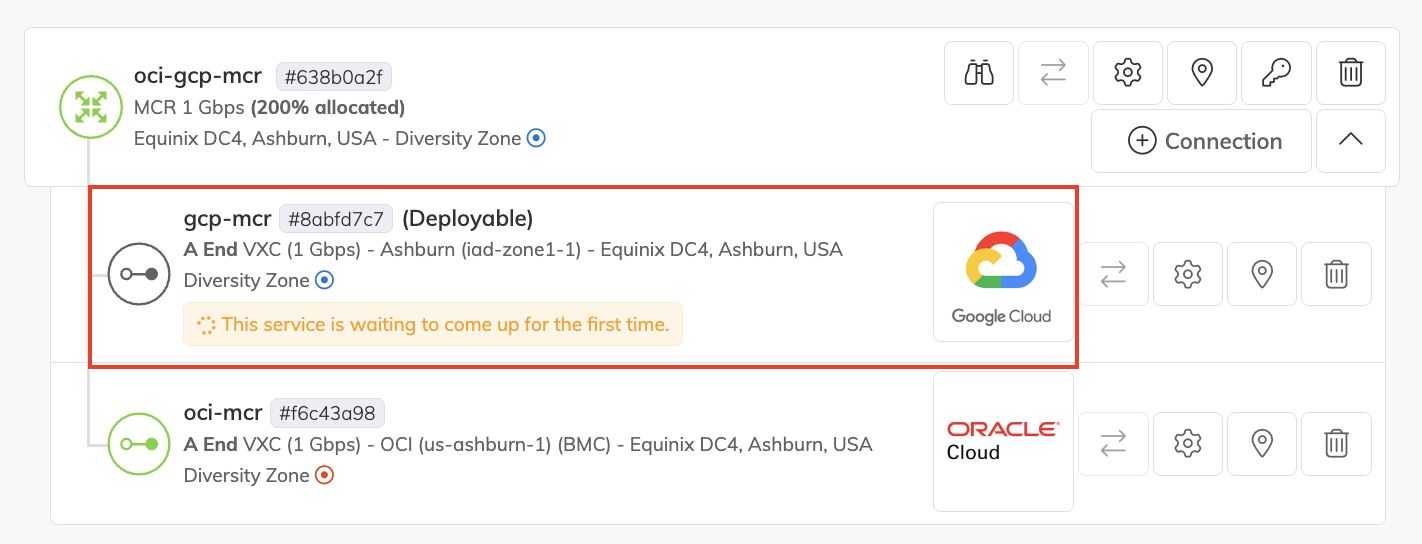
The service will take a few minutes to deploy:
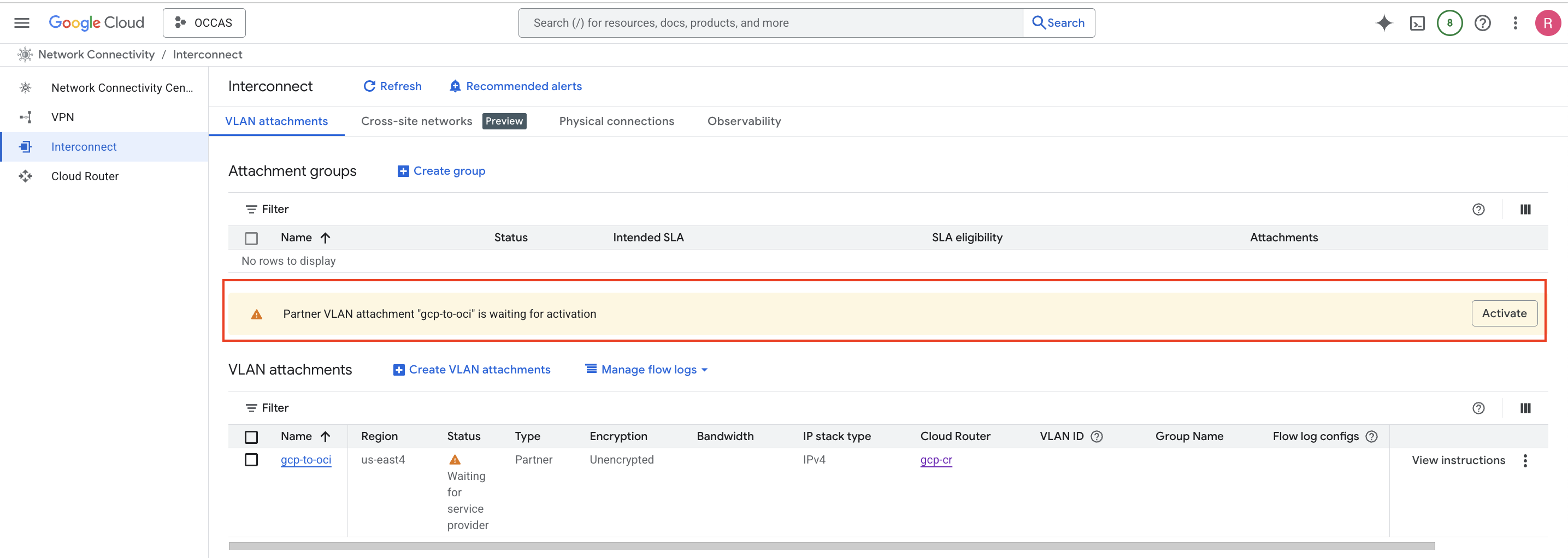
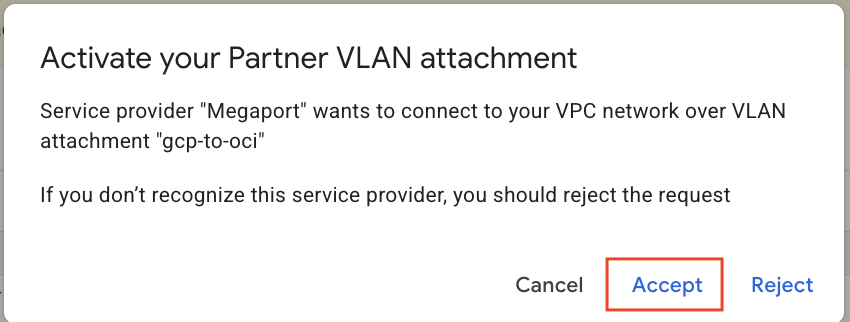
If you navigate back to the GCP console, you will notice that the Partner VLAN attachment needs to be activated. Click on Activate:
A window will appear confirming to activate your Partner VLAN attachment. Click Accept:
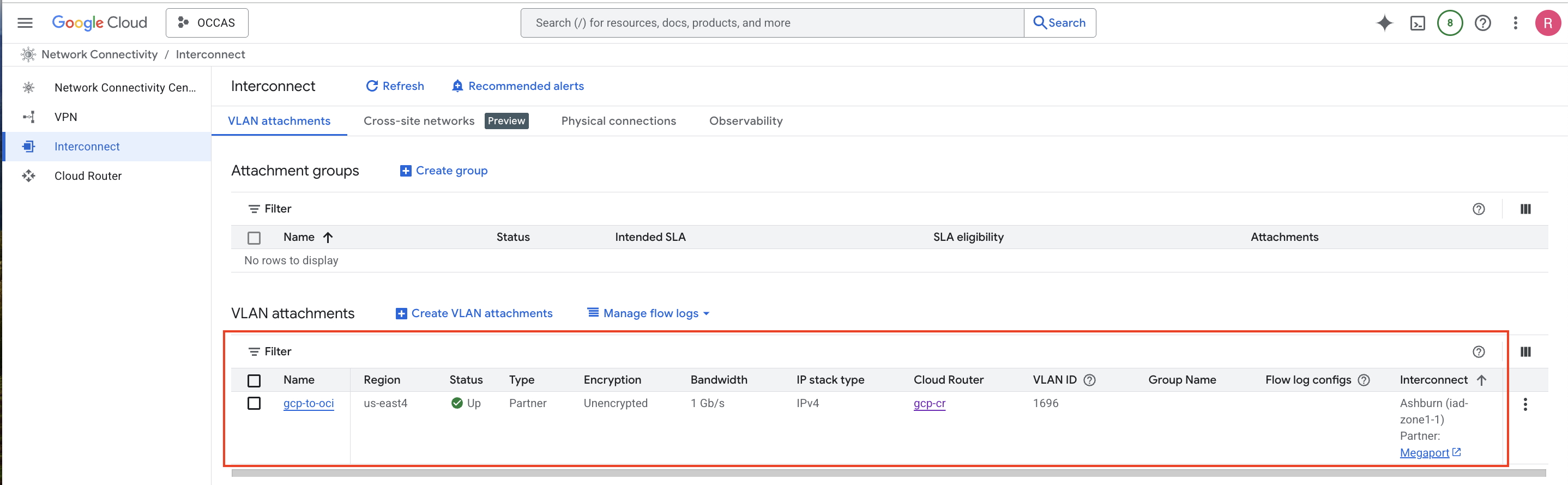
Once activated, it will take a few minutes before services and BGP come up:
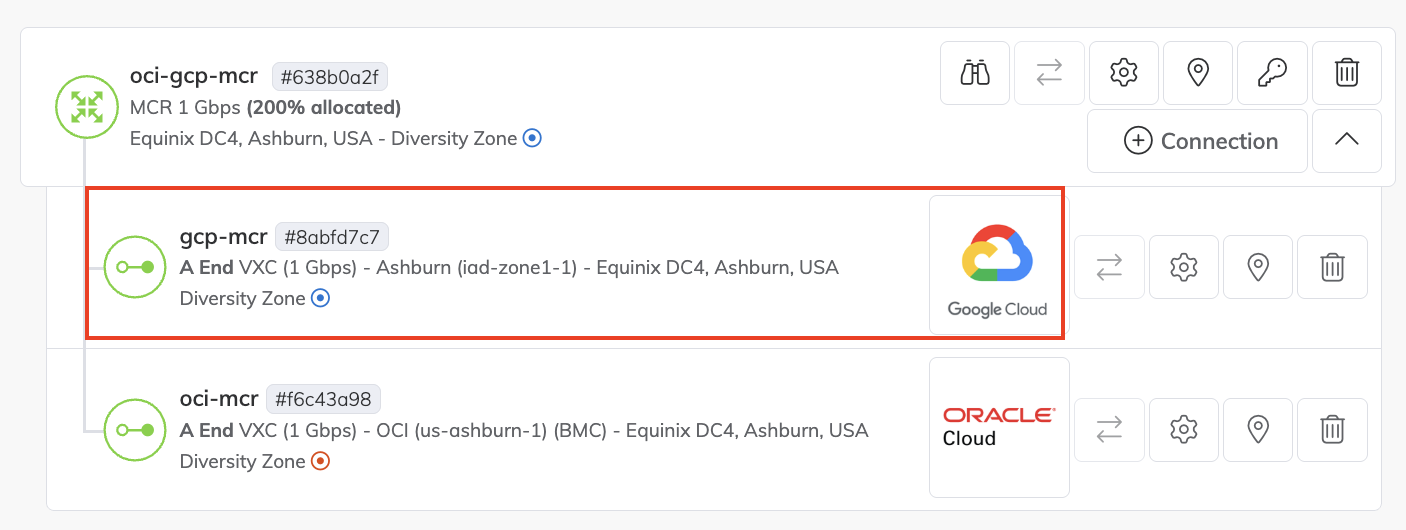
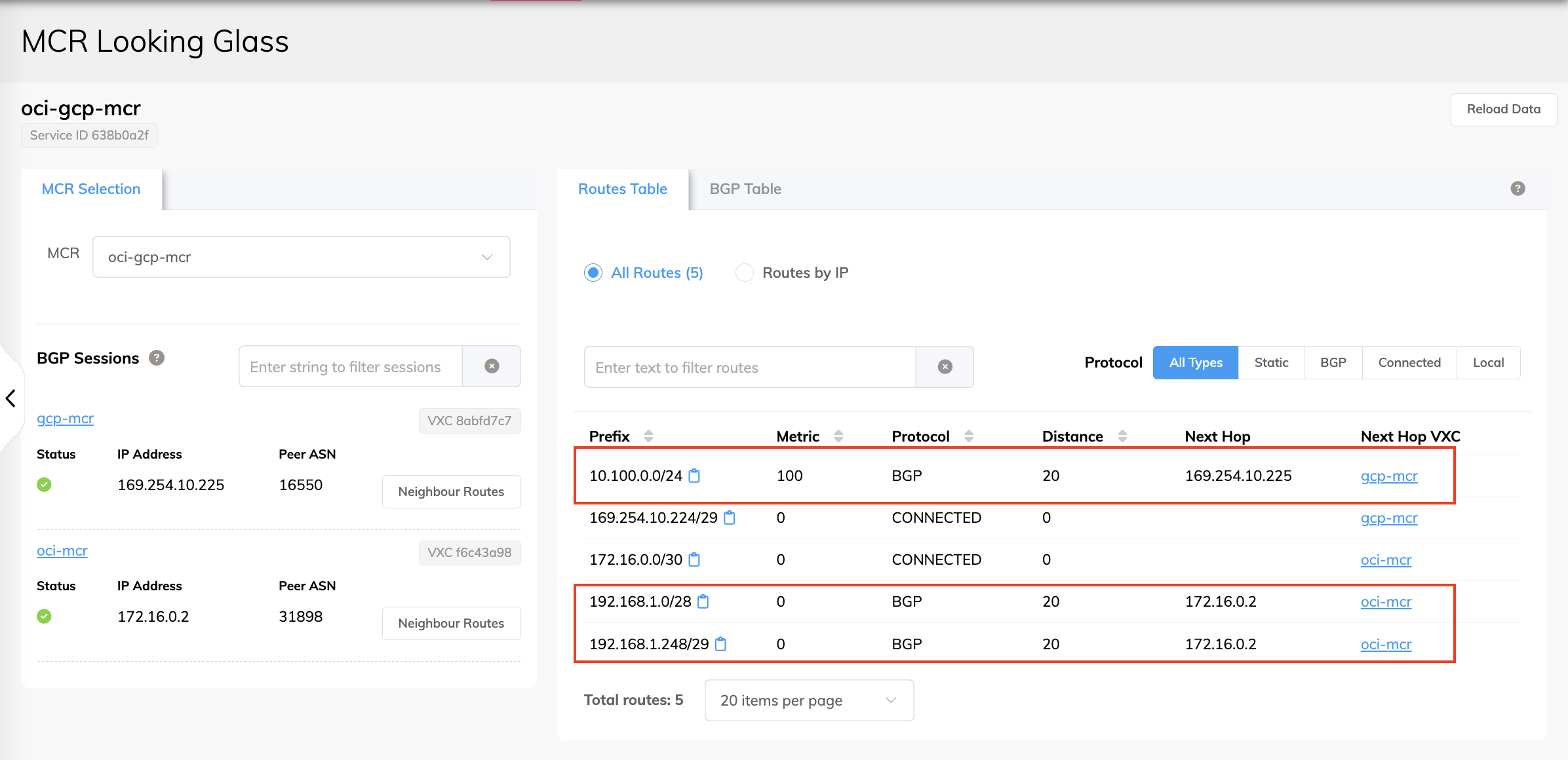
Taking look at MCR’s Looking Glass, we see both the OCI CIDR and the GCP CIDR being learned by the MCR:
And that’s it! Establishing a private dedicated connection between OCI and GCP is a relatively straight-forward task. I hope you’ve enjoyed this overview on how to connect OCI and GCP using FastConnect and Partner Interconnect model.
Resources:
FastConnect with and Oracle Partner Documentation
Connect Oracle Cloud to Any Cloud with Megaport Cloud Router
GCP Partner Interconnect Overview Documentation