
The purpose of this blog is to guide you on how to access storage buckets in GCP via a secure private FastConnect circtuit from OCI.
This blog assumes there is private connectivity between OCI and GCP and there is a storage bucket in GCP.
Overview
Buckets in GCP are accessible using the https://storage.googleapis.com/<bucket-name>. The FQDN storage.googleapis.com resolves to a pool of external ip addresses by default. To access storage.googleapis.com using an internal ip address, we’ll need to enable Private Service Connect in GCP. We’ll then need to advertise this new internal ip address to OCI and create a custom zone in OCI to resolve to the private ip address of the Private Service Connect when accessing storage.googleapis.com.
Let’s look at the steps involved to achieve this.
Solution Example
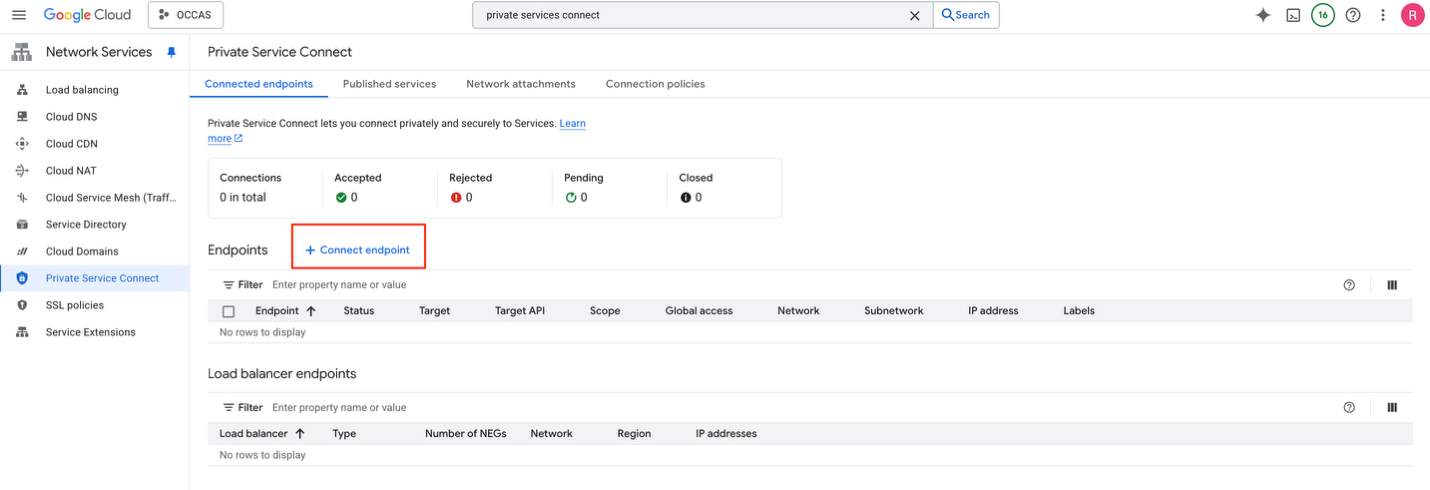
To enable Private Service Connect, navigate to Network Services -> Private Service Connect and select + Connect endpoint.
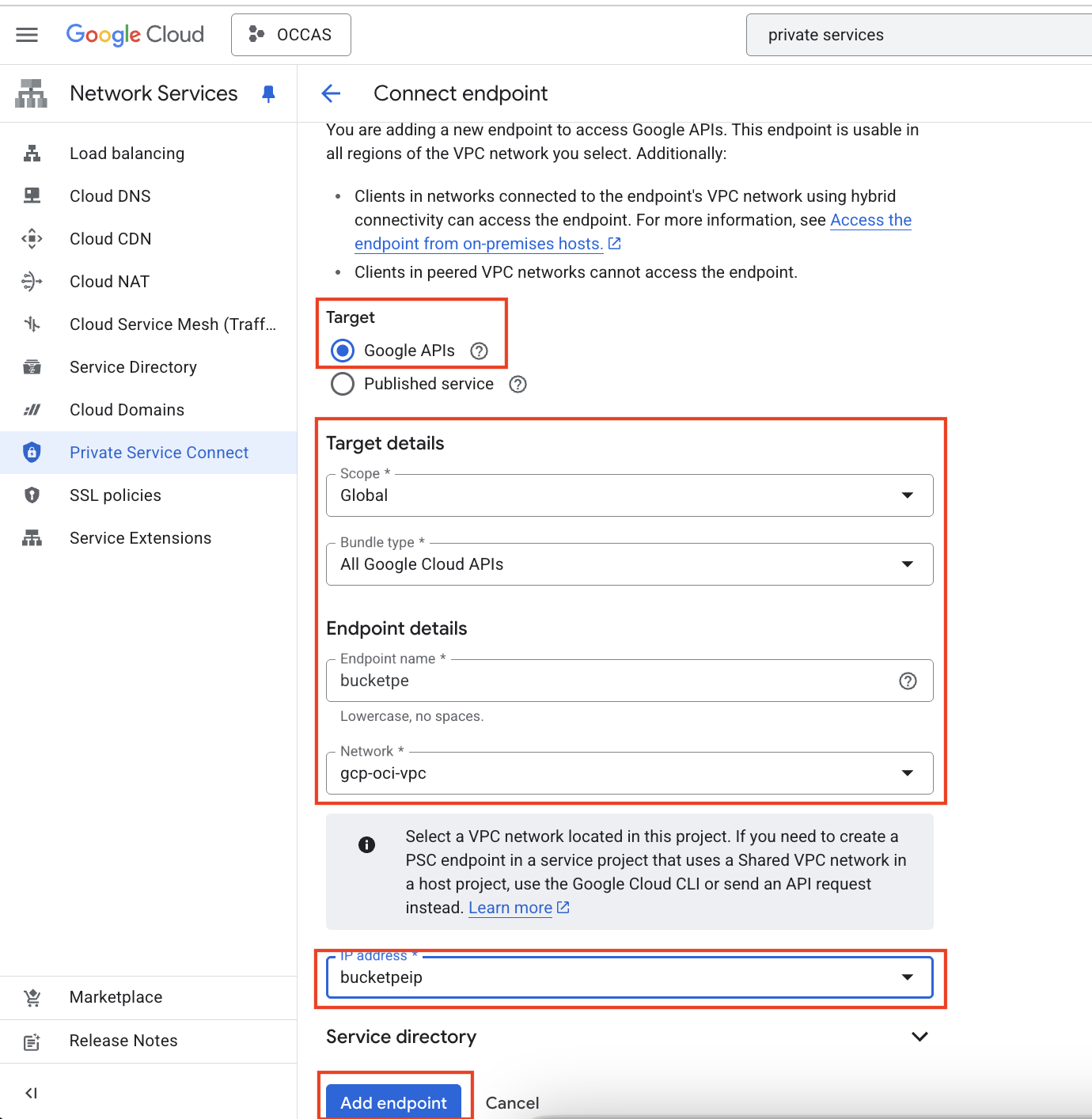
We’ll need to provide input to create the Private Service Connect. In my case, I used the following:
- Target: Google APIs
- Scope: Global
- Bundle Type: All Google Cloud APIs
- Endpoint Name: provide a name
- Network: provide a VPC
- IP Address: provide an unused non-overlapping /32 ip address
Note: You will be prompted to create an ip address that will be used for the Private Service Connect. The ip address of the Private Service Connect must be a unique /32 ip address that does not overlap with any GCP VPC ranges. In my case, I opted to use 10.255.255.254/32 and my VCP CIDR is 10.100.0.0/24.
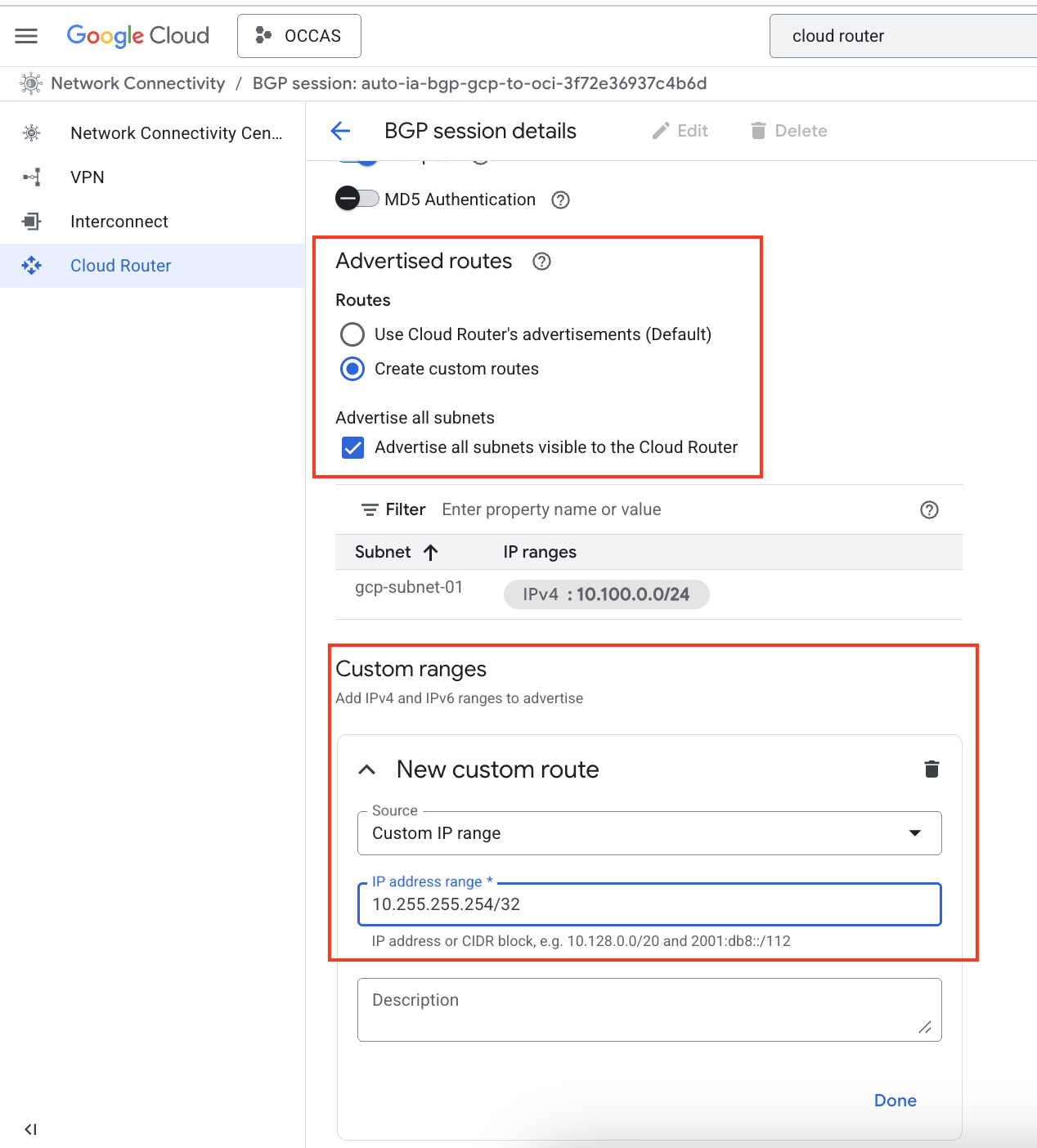
Next, we’ll need to advertise the new Private Service Connect ip address towards OCI. To do this, we’ll need go to the Cloud Router and select the BGP session details to modify the Advertised Routes method.
By default, the advertised routes is set to Use Cloud Router’s advertisements. We’ll need to change this to Create custom routes and select the checkbox for Advertise all subnets visible to the Cloud Router. We’ll also need to add a new custom route under the Custom Ranges section. The Source should be a Custom IP range with the corresponding ip address. In my case, it is 10.255.255.254/32. Click on Done to save the changes.
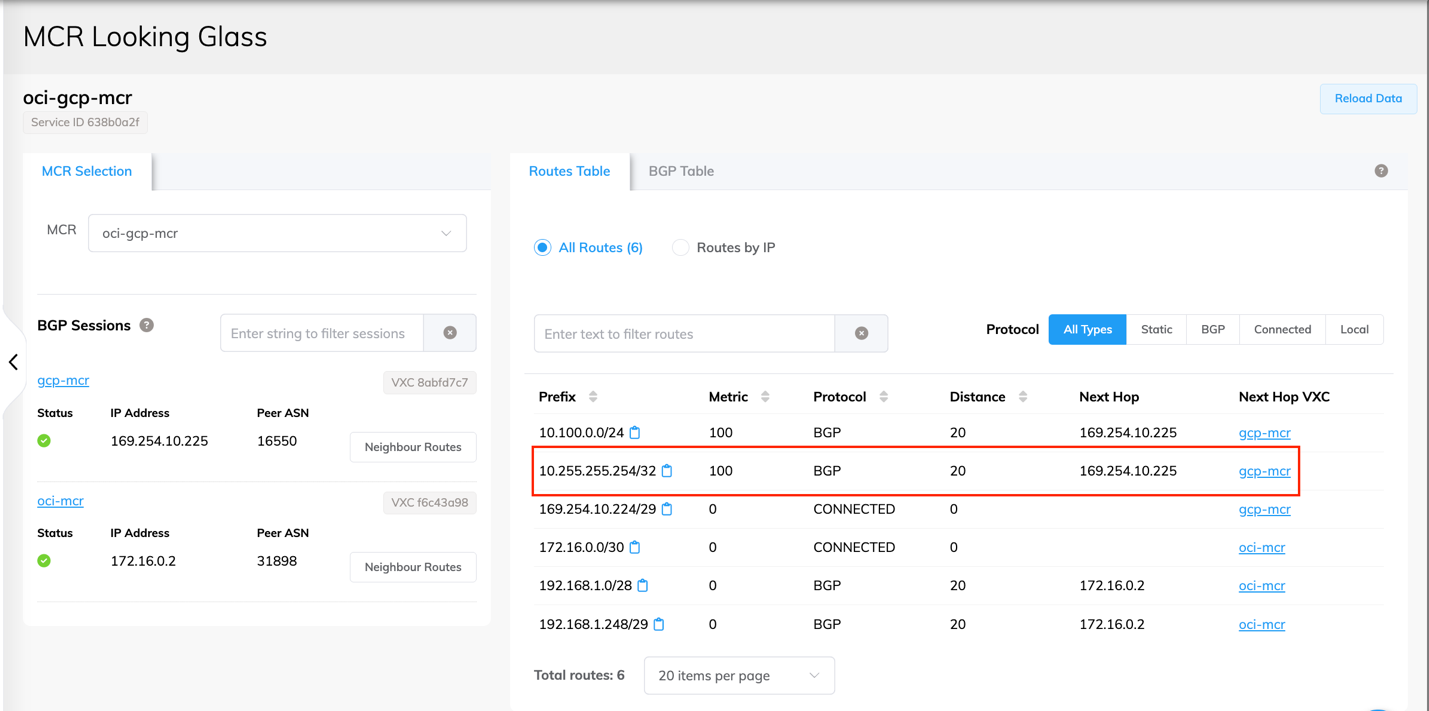
If we navigate to the Megaport portal and take a look at the MCR Looking Glass, we should see the new 10.255.255.254/32 route appear:
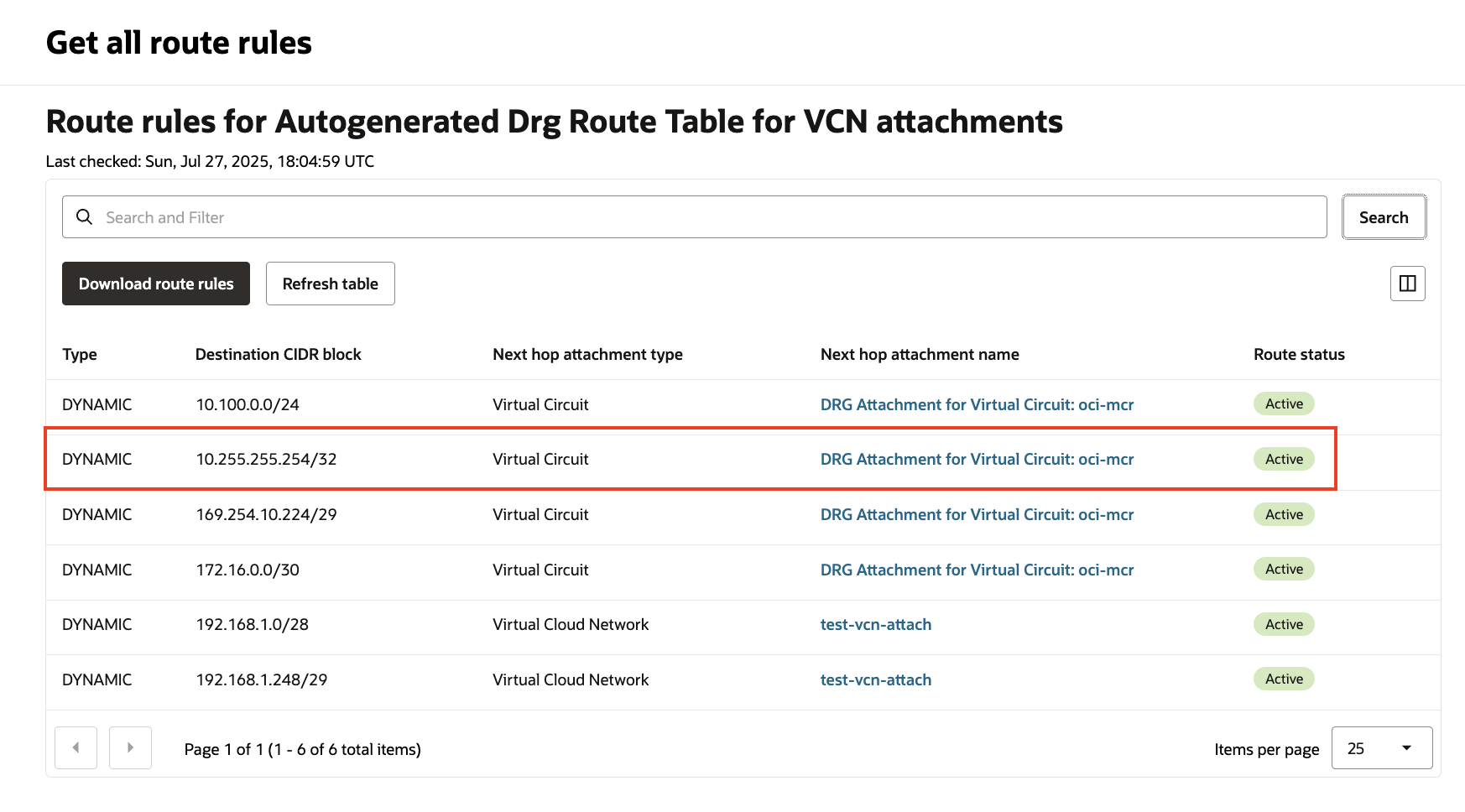
We should see the same route further propagate to OCI as well:
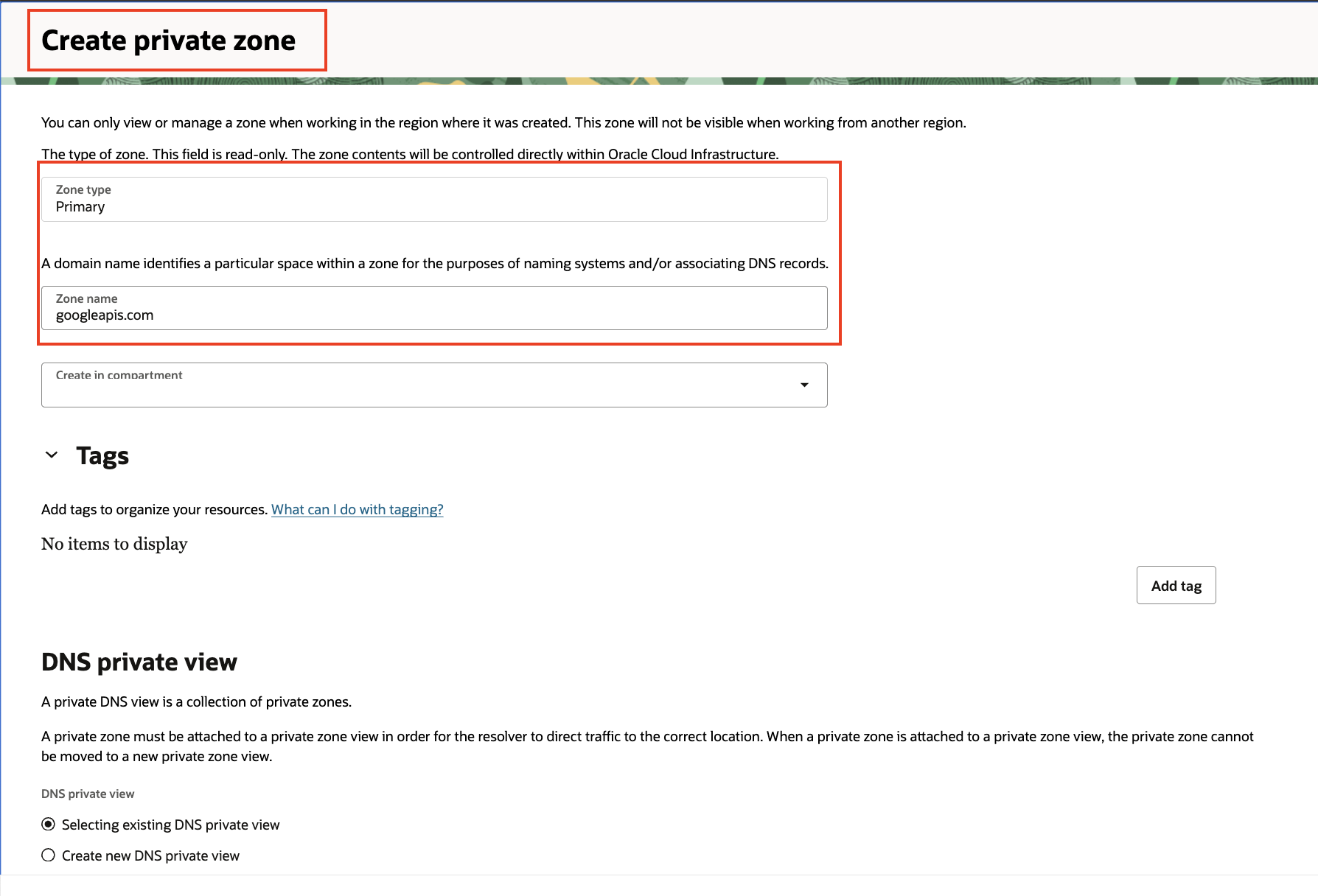
Next, we’ll need to create a private zone in OCI for googleapis.com.
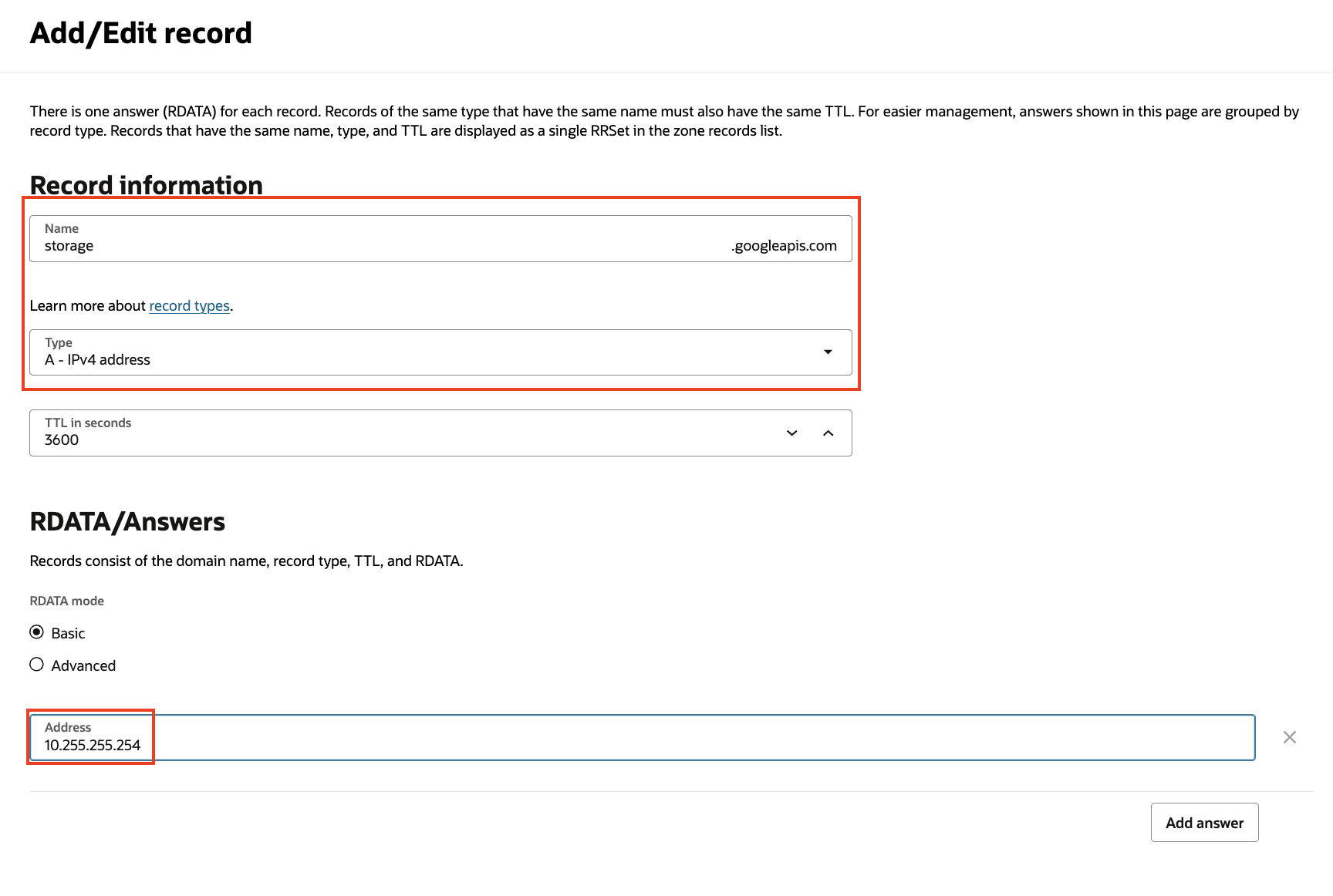
We’ll also need to create a corresponding A record for storage.googleapis.com to resolve using 10.255.255.254:
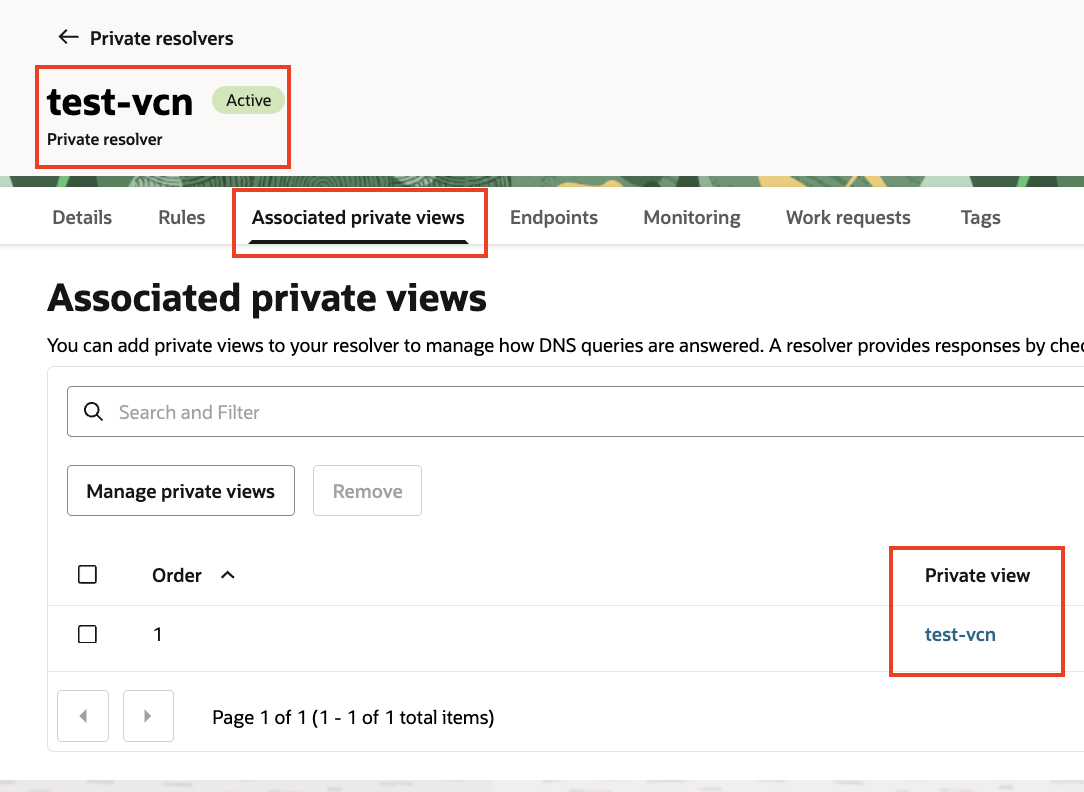
We’ll need to make sure that the private view hosting the private zone is associated with the VCN’s DNS Resolver Private View:
We should now be able to reach the storage account securely and reliably via private dedicated interconnects. Notice the DNS resolution for storage.googleapis.com resolves to the Private Service Connect ip address and the curl of a file within a bucket is accessible:
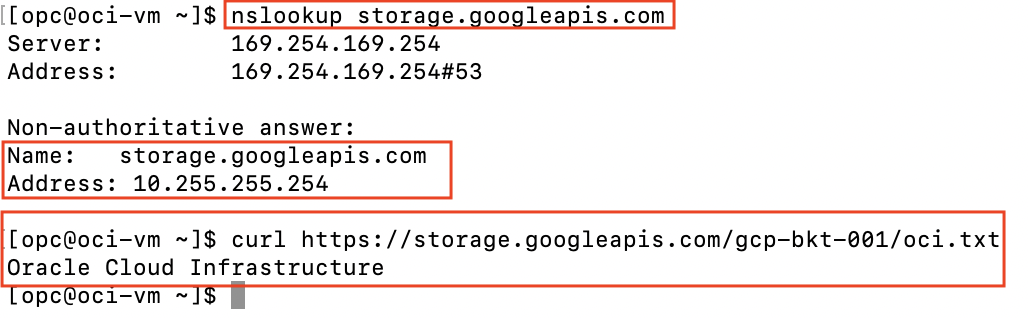
There we have it, we are able to connect from OCI to GCP’s buckets via private circuits instead of the Internet. I hope this blog is a useful example for your use cases.