
The latest release of Oracle Enterprise Manager, 24ai, includes new capabilities that span the areas of platform modernization, operational continuity, AI insights, performance & automation, and more.
For AI insights, two features were announced: GenAI Assistant, expected in a future release update (RU), and AI Cloud Extensions, which is available with the base release. AI Cloud Extensions integrates two features of OCI Ops Insights cloud service, Capacity Planning and SQL Insights, with Enterprise Manager 24ai. To use AI Cloud Extensions you need to have an Oracle Cloud Infrastructure tenancy, and to have enabled Ops Insights as per the documentation here: Get Started with Ops Insights.
In this blog, I describe the steps needed to set up and configure AI cloud extensions for capacity planning and SQL insights in Enterprise Manager 24ai.
Note: Extraction of data from Oracle Enterprise Manager Oracle Database targets into an Oracle Cloud Infrastructure service requires Diagnostics Pack license on the OEM Database targets.
Prerequisites
OEM Prerequisites
Ensure all prerequisites described in the documentation are completed. Following are additional hints for prerequisite “Define a Global Named Credential in Enterprise Manager for OCI“.
Assuming you belong to an IAM group in your tenancy that has been enabled to use Ops Insights as per Get Started with Ops Insights:
- Take note of your tenancy OCID and user OCID: In OCI console, click on your user icon (top right of the screen) to find this information.
- Create an API signing key (or use an existing one): In OCI console, click on your user icon, then click “User Settings”. Click “API keys” under “Resources”. Add a key and download the private key (and optionally the public key). Once the key is added, take note of the key fingerprint shown in OCI console.
- Create the OCI named credential in OEM as shown here:
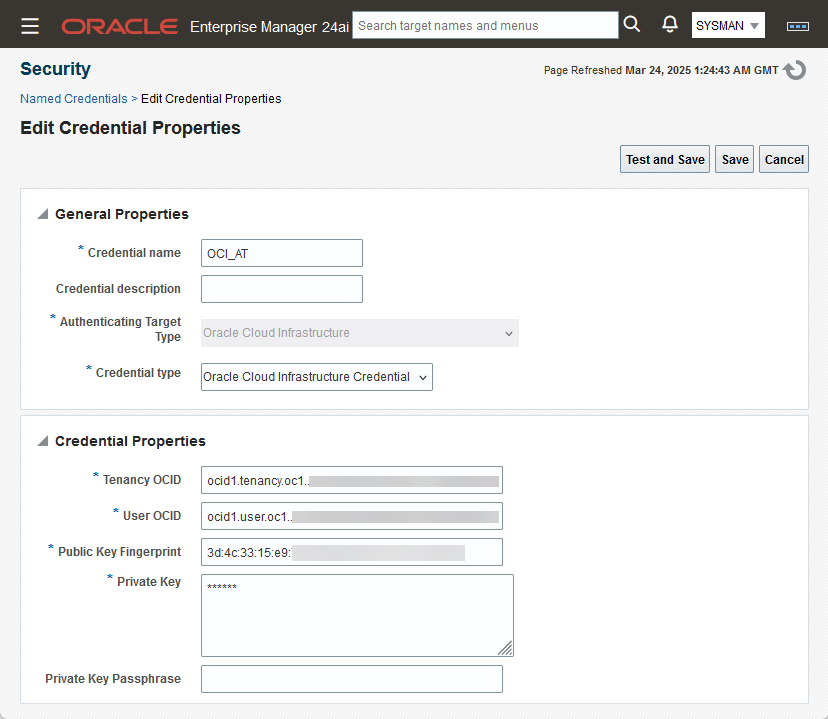
Note: I used sysman for this demo. However, the recommendation per the prerequisites is to create a separate OEM “super administrator” user. You should then complete all tasks described here as that user.
OCI Prerequisites
Ensure the prerequisites described in the documentation are completed, specifically creating the policies described in section “EM Bridge Prerequisites” on the page.
Configuration
Configure Cloud Bridge in OEM
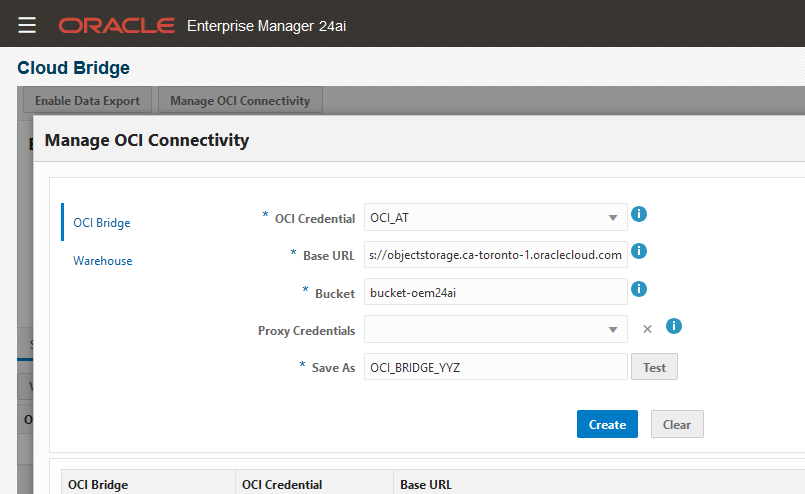
Step-by-step instructions for creating the cloud bridge are in the documentation here. In the following screenshot, “OCI_AT” credential and “bucket-oem24ai” are those created in the prerequisites:
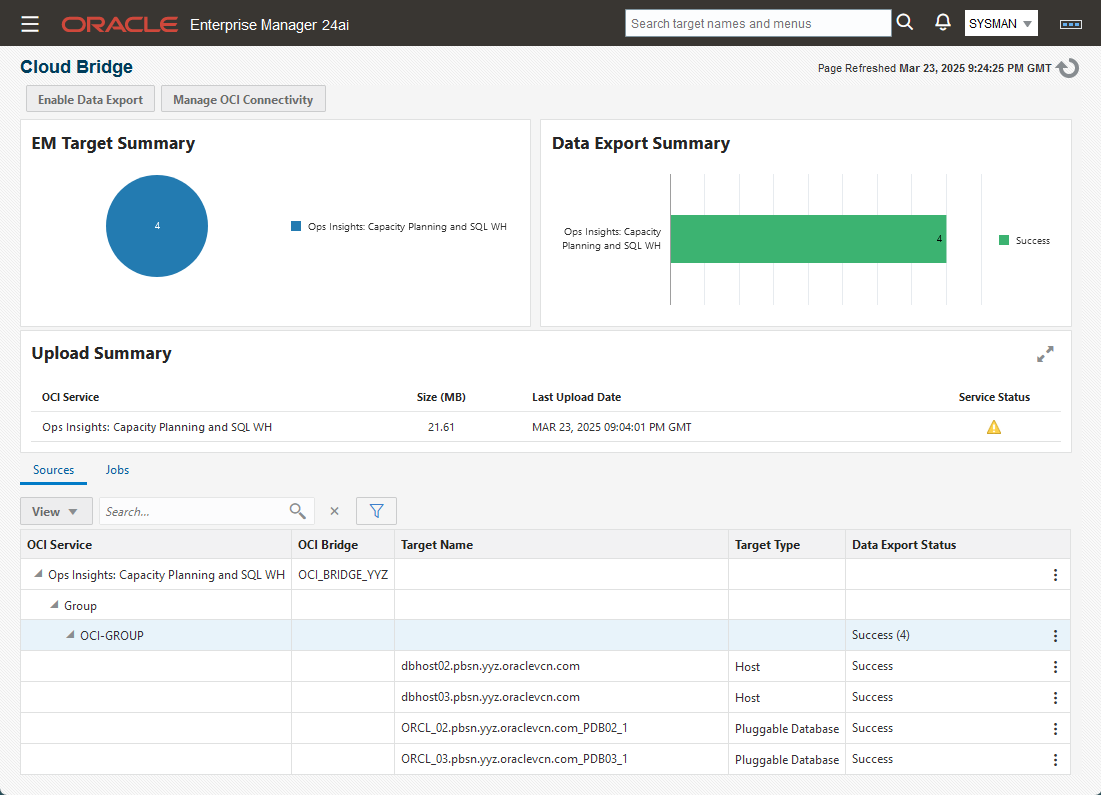
In the following screenshot, OCI-GROUP is the OEM group containing OEM targets selected to upload data to Ops Insights. It includes two PDBs and two hosts (however, note cloud extensions are not available for hosts currently):
Verify you can see data in your storage bucket as per step 1.8 of the documentation referenced at the beginning of this section.
Configure EM Bridge in OCI
At this point data is moving from OEM to the OCI storage bucket via the cloud bridge. In this task we create and configure an EM bridge to move data from the storage bucket to Ops Insights:
- In OCI console, navigate to “Observability & Management”->”Ops Insights”->”Administration”->”EM Bridges”.
- Click “Create Bridge”. Provide a name that helps you identify the source OEM. Provide the name of the storage bucket created earlier.
- Click Create.
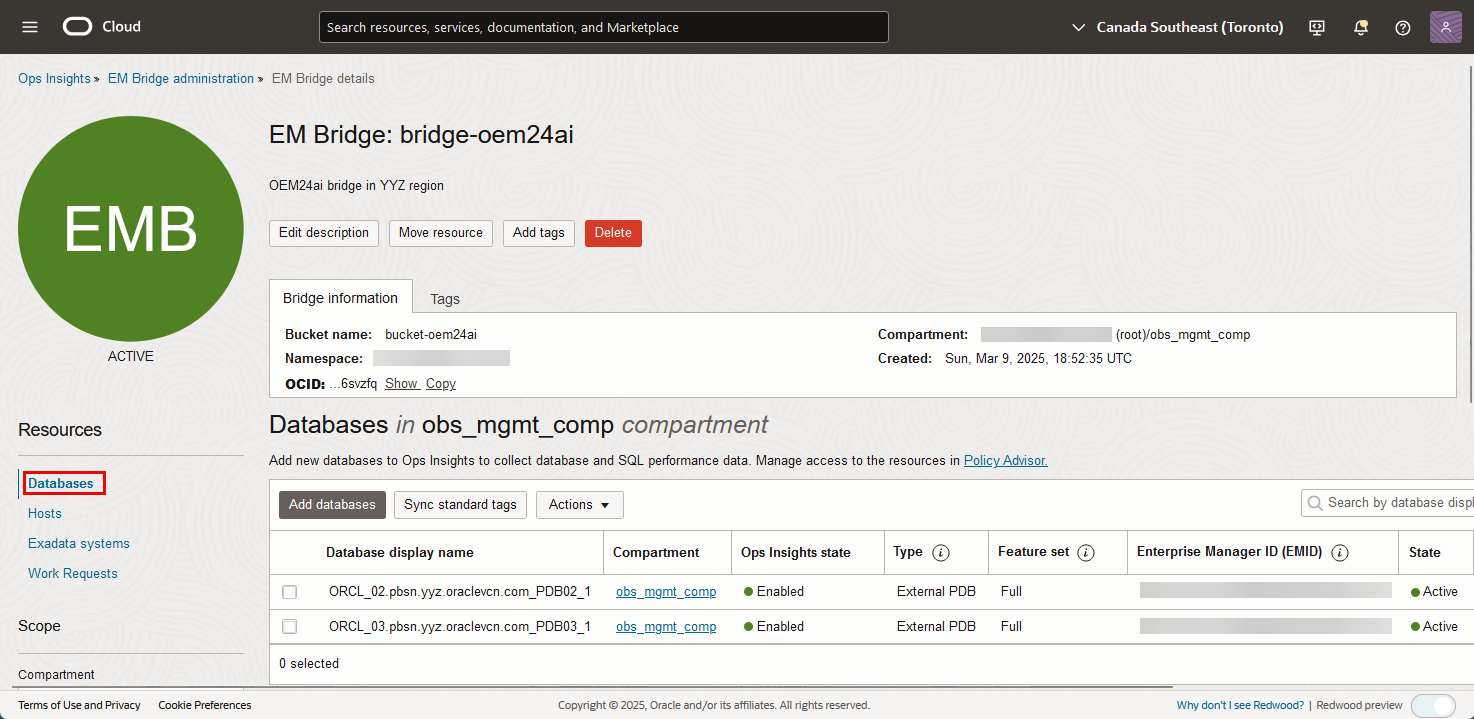
- Once created, click on the bridge name to add your data sources.
- The “Databases” link will be highlighted, click “Add databases”.
- The pop-up window will show the databases from your OEM group that have been uploading data to the bucket. Add those databases.
Access AI Cloud Extensions Data in OEM
You can now use Cloud Extensions to view Oracle Cloud Infrastructure (OCI) Ops Insights database details in Enterprise Manager. Cloud Extensions allows OCI Ops Insights database-specific insights, such as Capacity Planning and SQL Insights, to be displayed directly in Enterprise Manager interface under the database home page. You can view SQL performance insights, database capacity planning, and forecasting information in the context of a database, right on the Enterprise Manager’s Database Resource page.
In Enterprise Manager, navigate to “Targets”->”Databases”. Click on one of the databases that is part of the OEM group. On the database home page, click on the “Capacity & SQL Insights” tile to see Ops Insights analysis for this database:
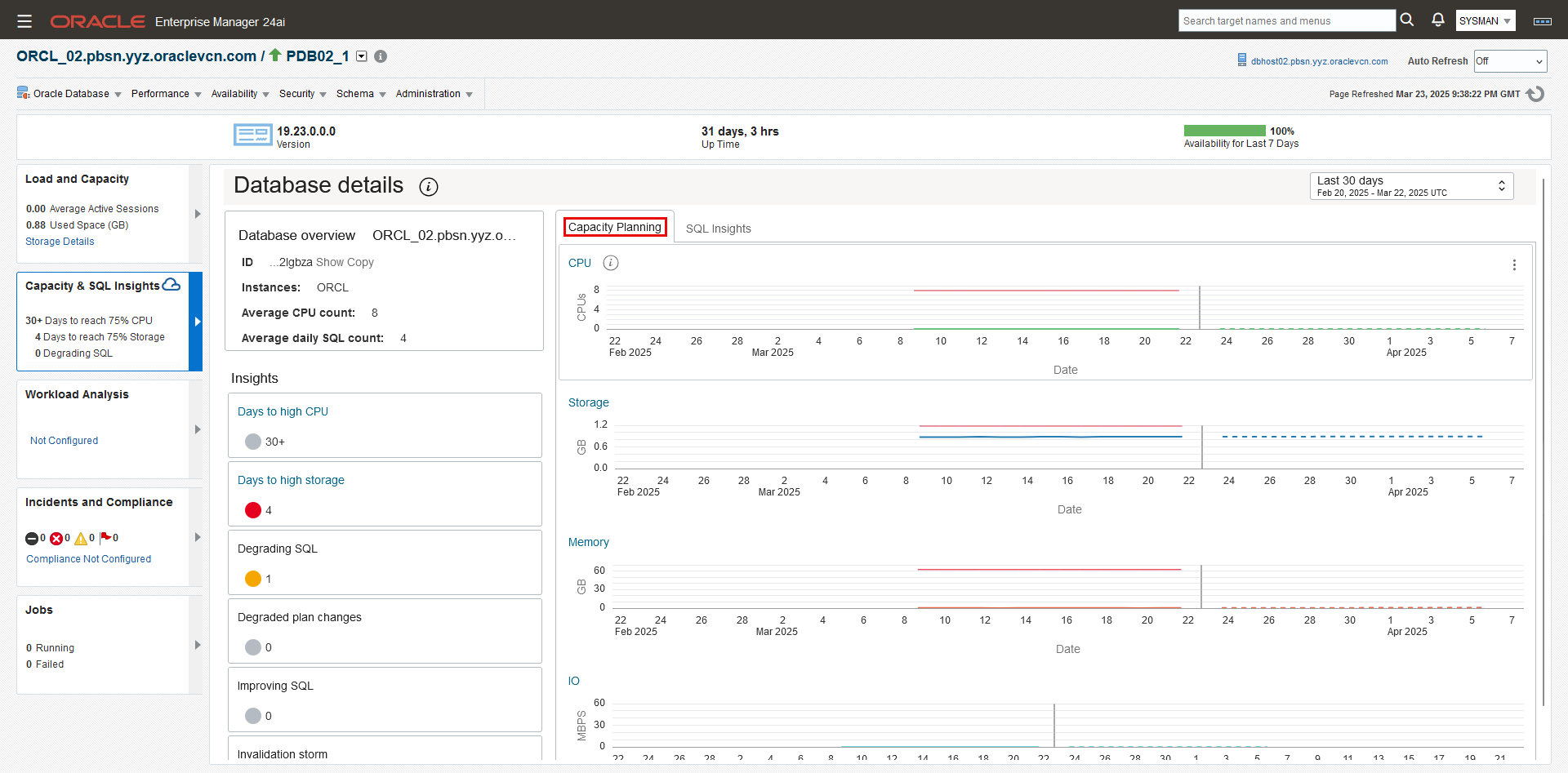
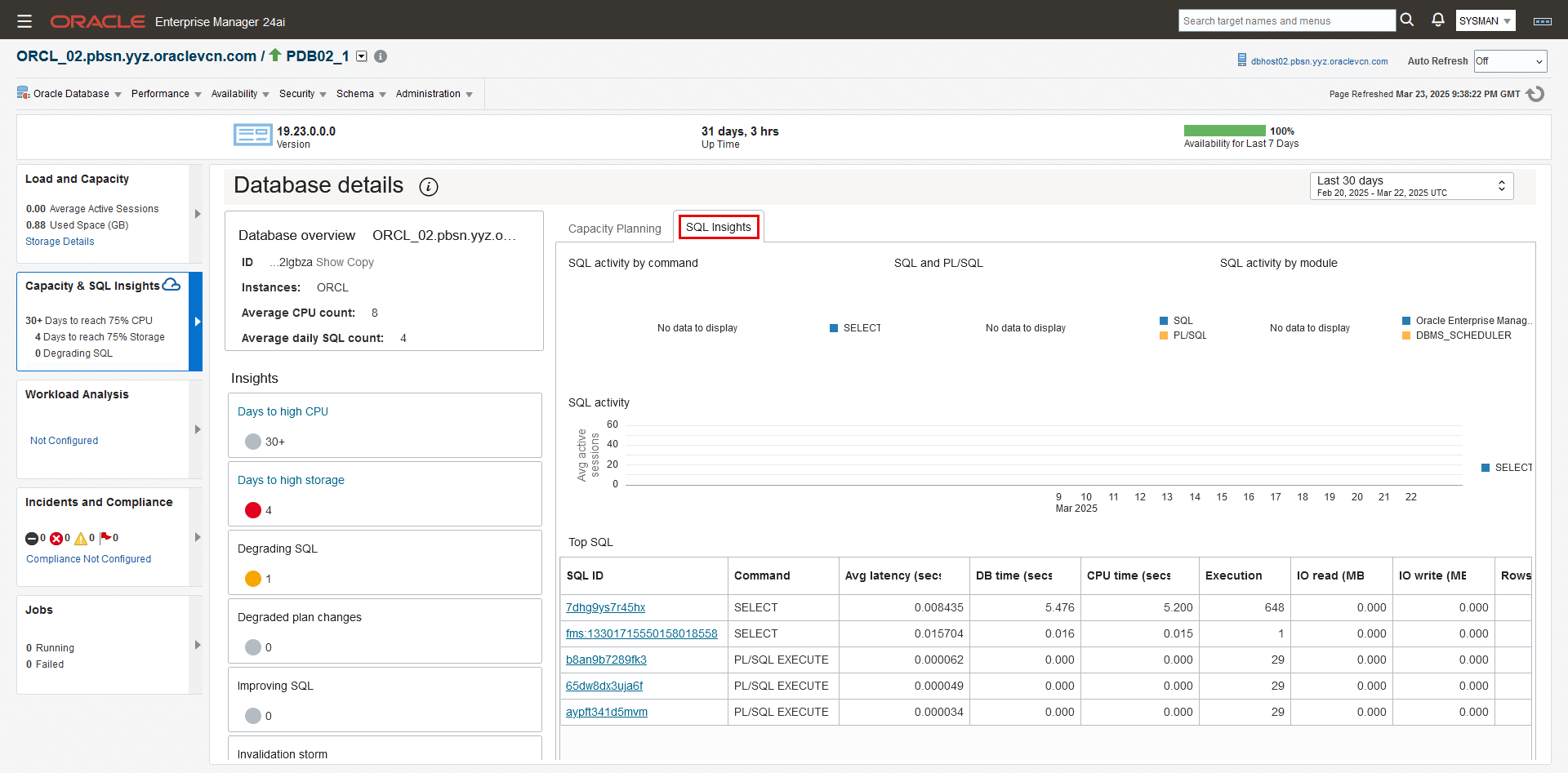
In this blog I covered the configuration tasks. For details on the analysis presented on the Capacity Planning and SQL Insights tabs, please refer to the documentation here: Viewing Cloud Extension Data.
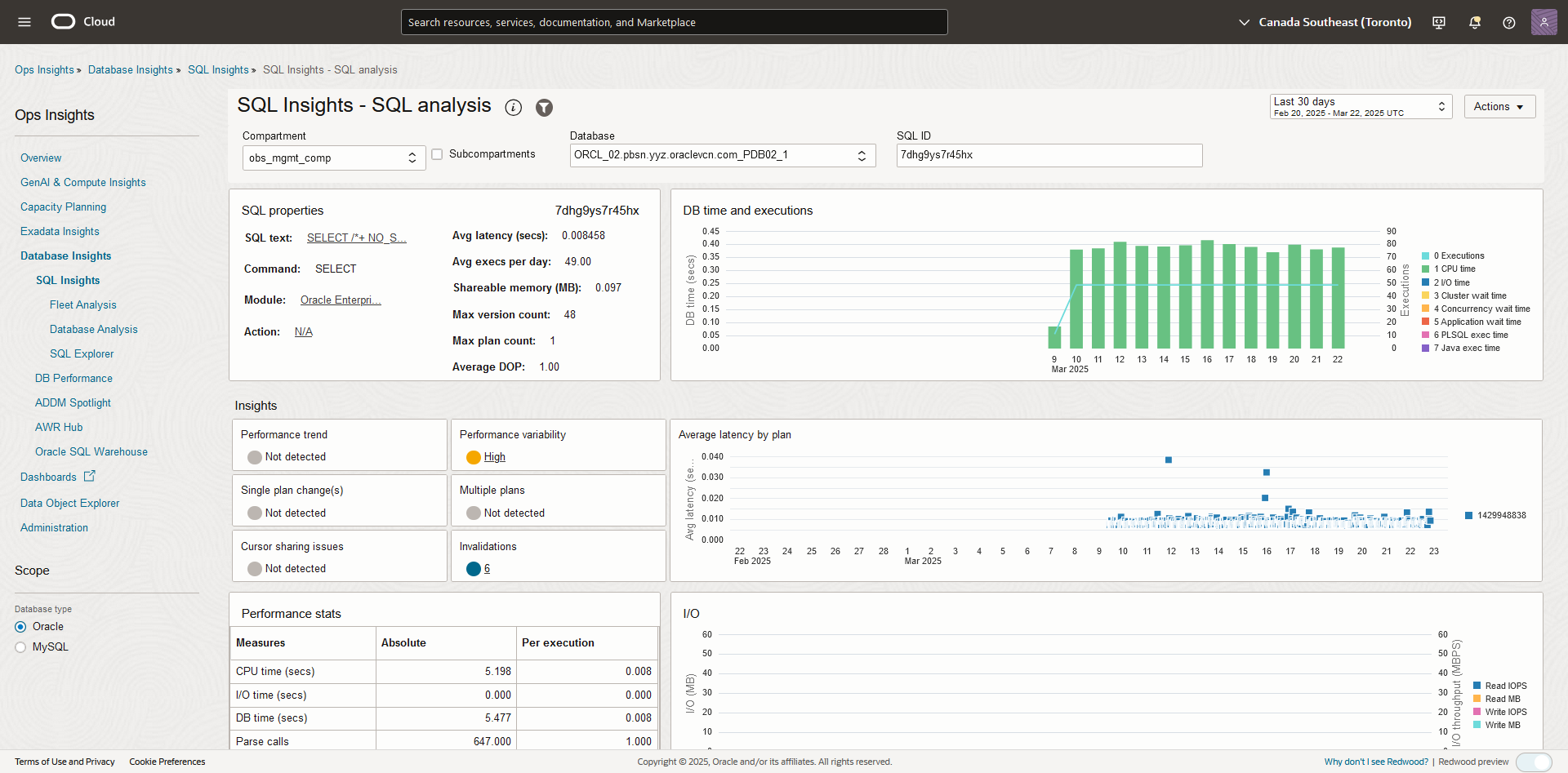
Note when you click on links in Capacity Planning or SQL Insights tabs, you are directed to Ops Insights in OCI console in context of the link. For example, clicking on the first SQL ID shown above takes us to the SQL Analysis page of that specific SQL:
Reference
- Introducing Oracle Enterprise Manager 24ai (Blog)
- Integrating Enterprise Manager with OCI Services (OEM Documentation)
- Adding Enterprise Manager Targets (OCI Documentation)
- Enterprise Manager Cloud Extension: A Deep Dive (Video)