
In the previous part of this series, we ingested OCI FOCUS cost reports into Autonomous Database, built dashboards with Oracle Analytics Cloud, and used built-in machine learning to detect anomalies. In this part, we go one step further—by enabling natural language interaction with your cost data using OCI Generative AI Agents.
This guide explains how to connect OCI Generative AI Agents to your ADW instance so users can query cost data using plain English, without writing SQL.
Why Use AI Agents for FinOps?
OCI Generative AI Agents allow you to build assistants that respond to natural language queries and perform actions like querying a database. This allows:
-
Natural cost exploration (e.g., “Which service cost the most last month?”)
-
Interactive anomaly investigation
-
Budget tracking and reporting
-
Broader access to FinOps insights without needing SQL knowledge
Prerequisites
-
Autonomous Database (ADW) with cost data from FOCUS reports (covered in Part 2)
-
AI Agents service enabled in your OCI tenancy
-
Note: As of writing, AI Agents are available in limited regions. This walkthrough uses the Chicago region.
-
-
IAM Policy to allow the agent to query the ADW
Connect OCI AI Agent to Cost Data
Step 1: Create the Cost Assistant Agent
-
Navigate to OCI Console → Analytics & AI → Generative AI Agents
-
Click Create Agent
-
Name: OCI Cost Assistant
-
Description: Describe the agent’s purpose (e.g., cost data assistant)
-
Welcome Message: e.g., “Hi, I can help you explore your OCI cost and usage.”
-
Routing Instructions:For questions about tenancy cost and usage, use the SQL tool.
-
Step 2: Add SQL Tool and Connect to ADW
In the agent configuration:
-
Select SQL as the tool
-
Enter:
-
Name: cost-usage-sql-Connection
-
Description Connect AI agent with ADW Cost Table
-
Schema: Choose In-line and provide the schema of your cost table
-
In-context examples: Add sample SQL queries to guide the agent
-
Example Queries:
Note: Note: The queries below are only examples. Review and adjust them to fit your organization’s requirements.
-- Total Cost by Service
SELECT ServiceName, SUM(BilledCost) AS TotalBilledCost
FROM oci_cost_data
GROUP BY ServiceName
ORDER BY TotalBilledCost DESC;

-- Daily Spend Trend
SELECT TRUNC(ChargePeriodStart) AS Day, SUM(BilledCost) AS DailyCost
FROM oci_cost_data
GROUP BY TRUNC(ChargePeriodStart)
ORDER BY Day;

-- Cost by Region
SELECT Region, SUM(BilledCost) AS TotalCost
FROM oci_cost_data
GROUP BY Region
ORDER BY TotalCost DESC;

-- Cost by Compartment
SELECT oci_CompartmentName, SUM(BilledCost) AS TotalCost
FROM oci_cost_data
GROUP BY oci_CompartmentName
ORDER BY TotalCost DESC;

-- High Usage Resources
SELECT ResourceId, ResourceType, SUM(UsageQuantity) AS TotalUsage
FROM oci_cost_data
GROUP BY ResourceId, ResourceType
ORDER BY TotalUsage DESC
FETCH FIRST 10 ROWS ONLY;

-- Cost Trend by Charge Category
SELECT TRUNC(ChargePeriodStart) AS ChargeDate, ChargeCategory, SUM(BilledCost) AS TotalCost
FROM oci_cost_data
GROUP BY TRUNC(ChargePeriodStart), ChargeCategory
ORDER BY ChargeDate;
Step 3: Add Semantic Hints and Table Descriptions (Optional)
Example: SQL Annotation
-- natural_language: "What was the compute cost in June?"
SELECT ServiceName, SUM(BilledCost)
FROM oci_cost_data
WHERE ServiceName = 'Compute' AND TO_CHAR(ChargePeriodStart, 'YYYY-MM') = '2025-06'
GROUP BY ServiceName;
Column Descriptions (Inline)
Provide clear explanations for key columns. Examples:
-
ServiceName: OCI service being billed -
BilledCost: Amount charged -
ChargePeriodStart: Start time of the billing period -
Region: OCI region where the resource ran -
oci_CompartmentName: Name of the compartment -
ResourceId: OCI resource identifier -
UsageQuantity: Quantity used (e.g., GB, OCPU hours) -
EffectiveCost: Cost after discounts
Step 4: Configure Execution and Permissions
-
Set Model Size to Large for better accuracy (adds some latency)
-
Set SQL Dialect to Oracle SQL
-
Choose the compartment where the ADW is deployed
-
Click Test Connection
Ensure this IAM Policy exists to allow the AI Agent to query your ADW:
allow any-user to manage database-tools-family in compartment YOUR_COMPARTMENT
    where any { request.principal.type = 'genaiagent' }
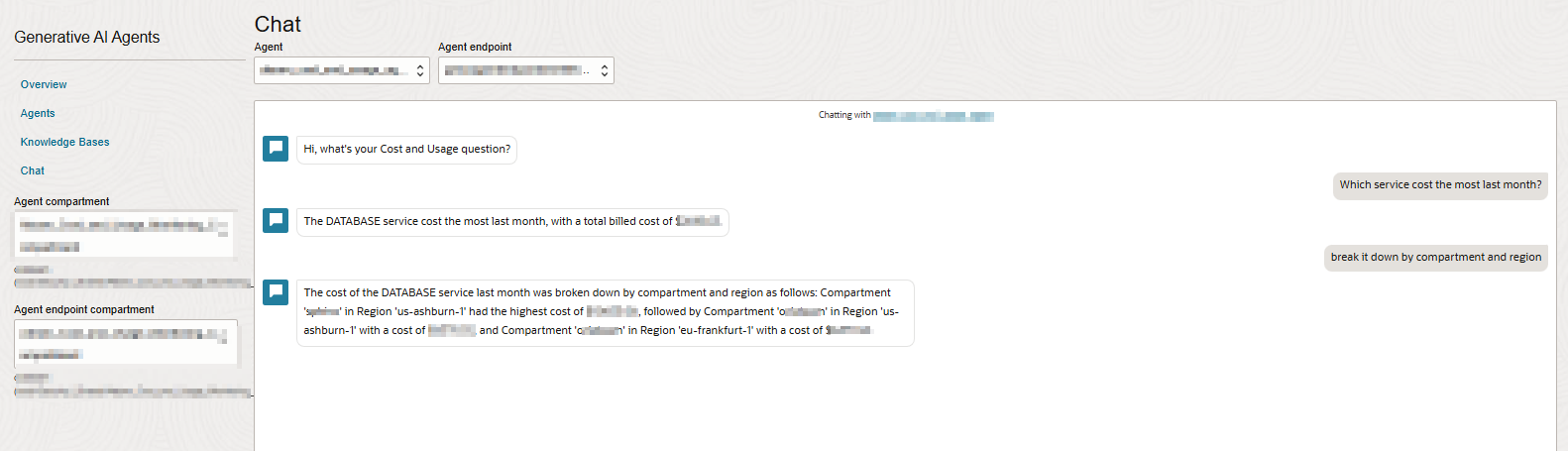
Step 5: Test the Agent
Once configuration is complete:
-
Go to Generative AI Agents
-
Click Launch Chat
-
Test natural language queries such as:
-
“Show me the top 5 costliest services last month”
-
“What is the daily cost trend for Compute?”
-
“Break down the cost by region in June”
-
Key Takeaways
-
OCI AI Agents allow conversational access to structured cost data stored in ADW
-
SQL-backed tools return precise and controlled answers
-
Teams can now explore, track, and investigate costs using natural language
This enables more accessible, scalable, and intelligent cost insights for your entire organization.