
Introduction
Oracle announced Bring Your Own Certificate Authority (BYOCA) for OCI Certificates on February 3, 2026. The feature is important because many enterprises already have established PKI hierarchies, compliance controls, and root CAs that they do not want to rebuild or expose in the cloud.
This blog is my hands-on validation of that feature. I wanted to test a practical BYOCA flow where the external CA is familiar to reproduce. For this walkthrough, Smallstep is used as an example external root CA for this lab. OCI Certificates creates and manages the subordinate CA, while the subordinate CA private key is protected by OCI Vault using a hardware security module (HSM)-protected key.
The interesting part of my test is not only activating the subordinate CA, but also enforcing name constraints and proving the behavior with one allowed certificate request and one blocked certificate request. BYOCA lets organizations bring their existing trust model into OCI while OCI manages the subordinate CA lifecycle.
What We Are Building
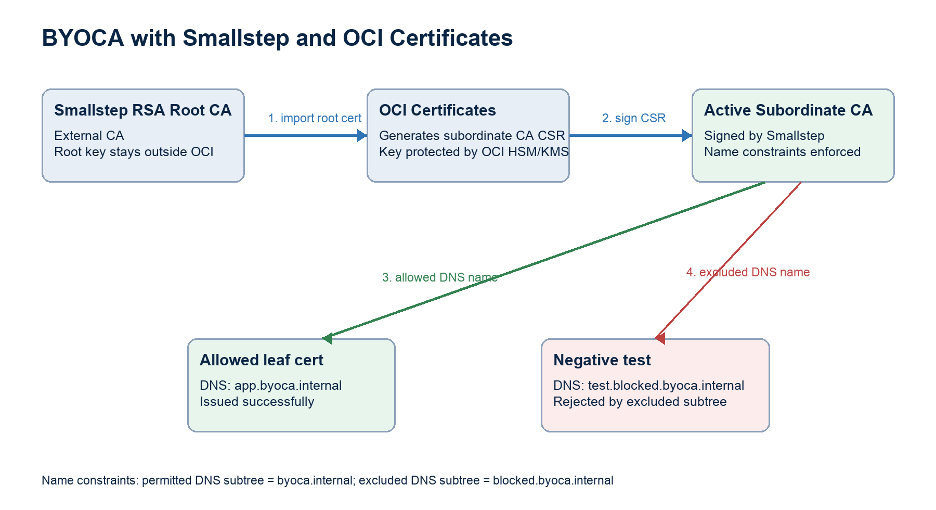
| Key idea: Choose the OCI CLI or Console option Subordinate Certificate Authority: External CA issued, Managed Internally. The external CA signs the subordinate CA certificate, while OCI manages the subordinate CA key. |
Objectives
- Create a Smallstep RSA root CA.
- Create or select an OCI RSA HSM key.
- Import the Smallstep root CA certificate into OCI.
- Create an OCI-managed subordinate CA using the required settings, then optionally apply advanced CA controls such as certificate expiry rules, path length restrictions, and DNS name constraints.
- Download the OCI-generated CSR and sign it with Smallstep using a template that includes matching X.509 name constraints.
- Upload the signed subordinate CA certificate back to OCI.
- Optional: Issue one allowed leaf certificate and run one negative test against the excluded DNS subtree.
Prerequisites
- OCI CLI configured for the target tenancy and region.
- Smallstep CLI installed.
- jq and OpenSSL installed.
- An OCI compartment.
- An OCI Vault in your selected region.
- Permissions to manage OCI Certificates, Certificate Authorities, and KMS keys.
Values to Replace
Only replace the values shown in angle brackets. Everything else can be copied as written.
| How to read the commands: When a command shows <compartment_ocid>, replace the whole placeholder with your real compartment OCID and remove the angle brackets. The guide avoids shell variables so each command is readable on its own. |
| <compartment_ocid> | OCID of the compartment where the root CA, subordinate CA, and test certificates are created. |
| <vault_management_endpoint> | The management endpoint from the OCI Vault details page. Example: https://<vault-id>-management.kms.us-ashburn-1.oraclecloud.com |
| <kms_key_ocid> | OCID of the RSA HSM-protected key used by the OCI-managed subordinate CA. |
| <root_ca_ocid> | The OCID returned after importing the Smallstep RSA root CA. |
| <subordinate_ca_ocid> | The OCID returned after creating the OCI-managed subordinate CA. |
| <certificate_ocid> | The OCID returned after issuing the allowed app.byoca.internal leaf certificate. |
Section 1: Create a Smallstep RSA Root CA
For this lab, I use Smallstep to create an example RSA root CA. In a real deployment, this could be an enterprise CA or another approved external CA that can sign the OCI-generated subordinate CA CSR.
Reference: Smallstep step certificate create.
step certificate create \
  --profile root-ca \
  --kty RSA \
  --size 2048 \
  --not-after 87600h \
  "Smallstep RSA BYOCA Root CA" \
  smallstep-rsa-root-ca.crt \
  smallstep-rsa-root-ca.key
I run a quick OpenSSL check to confirm the root certificate subject, issuer, and validity period before importing it into OCI.
openssl x509 -in smallstep-rsa-root-ca.crt -noout -subject -issuer -dates| Important: Do not upload smallstep-rsa-root-ca.key to OCI. OCI only needs the root CA certificate, not the external root private key. |
Section 2: Create an OCI RSA HSM Key
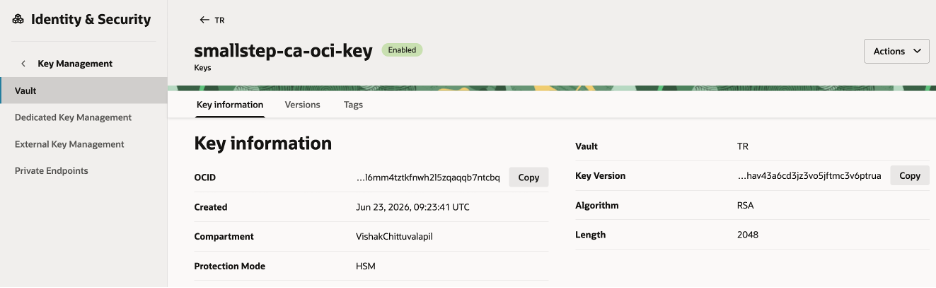
Because the subordinate CA is managed internally by OCI, its private key is generated and protected by OCI Vault using an HSM-protected key. Create an RSA HSM key for the subordinate CA. In OCI KMS, RSA key sizes are specified in bytes rather than bits, so an RSA-2048 key uses a length value of 256.
Reference: OCI CLI key create.
cat > smallstep-ca-oci-rsa-key-shape.json <<'EOF'
{
  "algorithm": "RSA",
  "length": 256
}
EOF

oci kms management key create \
  --endpoint "<vault_management_endpoint>" \
  --compartment-id "<compartment_ocid>" \
  --display-name "smallstep-ca-oci-key" \
  --key-shape file://smallstep-ca-oci-rsa-key-shape.json \
  --protection-mode HSM
Copy the key OCID from the command output or from the OCI Console. Use it wherever this guide shows <kms_key_ocid>.
Section 3: Import the Smallstep RSA Root CA into OCI
Create a small JSON request file. This is more reliable than passing a multi-line PEM directly on the command line.
References: OCI CLI create root CA managed externally , OCI CLI advanced JSON options.
jq -Rs '{
  certificatePem: .,
  compartmentId: "<compartment_ocid>",
  name: "smallstep_rsa_byoca_root",
  externalKeyDescription: "Smallstep RSA root key is managed outside OCI"
}' smallstep-rsa-root-ca.crt > smallstep-rsa-root-create.json

oci certs-mgmt certificate-authority create-root-ca-managed-externally \
  --from-json file://smallstep-rsa-root-create.json \
  --query 'data.id' \
  --raw-output
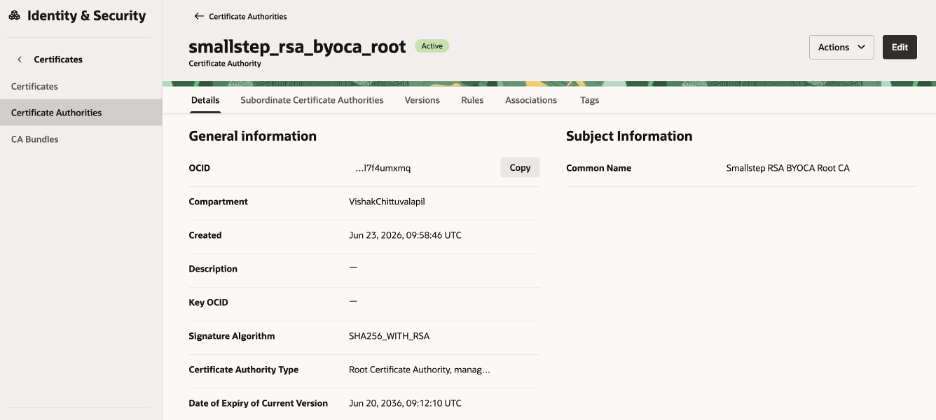
Copy the returned OCID. This is <root_ca_ocid> for the next section.
Section 4: Create the OCI-managed Subordinate CA
In the OCI Console, the option to select is Subordinate Certificate Authority: External CA issued, Managed Internally.
| External CA issued | Smallstep signs the OCI-generated subordinate CA CSR. |
| Managed internally | OCI generates and protects the subordinate CA private key in OCI HSM/KMS. |
| Expiry rules | Limit how long leaf certificates and descendant CAs can be valid. |
| Issuance rules | Restrict whether this CA can issue additional subordinate CAs. |
| Name constraints | Limit which DNS namespaces this CA can issue certificates for. |
| Path constraint | Set pathLengthConstraint to 0 so this CA can issue leaf certificates only. |
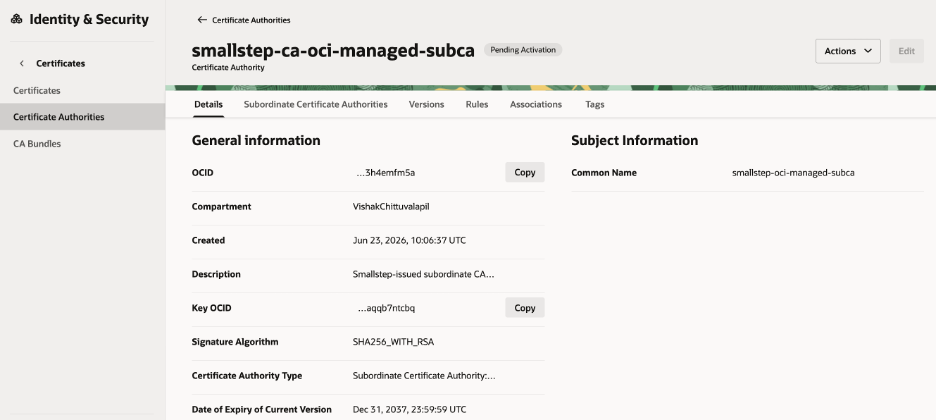
| Expected state | The CA becomes Pending activation until the signed certificate is uploaded. |
| Note: Name constraints are optional issuance controls for a subordinate CA. OCI supports permitted and excluded subtrees such as DNS, IP Address, and Directory Name, and excluded subtrees take priority over permitted subtrees. As of today, issuance rules cannot be modified after the CA is created, so plan these values carefully. |
| Also for this walkthrough, I use a CN-only subordinate CA subject for simplicity. If you add more subject attributes, verify that the signed certificate subject matches the OCI-generated CSR subject exactly before uploading it to OCI. |
References: OCI CLI create subordinate CA issued by external CA, Steps to Create a Subordinate CA.
cat > smallstep-subca-subject.json <<'EOF'
{
  "commonName": "smallstep-oci-managed-subca"
}
EOF

cat > smallstep-subca-rules.json <<'EOF'
[
  {
    "ruleType": "CERTIFICATE_AUTHORITY_ISSUANCE_EXPIRY_RULE",
    "leafCertificateMaxValidityDuration": "P397D",
    "certificateAuthorityMaxValidityDuration": "P3000D"
  },
  {
    "ruleType": "CERTIFICATE_AUTHORITY_ISSUANCE_RULE",
    "pathLengthConstraint": 0,
    "nameConstraint": {
      "permittedSubtree": [
        {
          "type": "DNS",
          "value": "byoca.internal"
        }
      ],
      "excludedSubtree": [
        {
          "type": "DNS",
          "value": "blocked.byoca.internal"
        }
      ]
    }
  }
]
EOF

oci certs-mgmt certificate-authority \
  create-subordinate-ca-managed-internally-issued-by-external-ca \
  --issuer-certificate-authority-id "<root_ca_ocid>" \
  --subject file://smallstep-subca-subject.json \
  --certificate-authority-rules file://smallstep-subca-rules.json \
  --compartment-id "<compartment_ocid>" \
  --name "smallstep-ca-oci-managed-subca" \
  --description "Smallstep-issued subordinate CA with OCI-managed HSM key, issuance rules, and name constraints" \
  --kms-key-id "<kms_key_ocid>" \
  --signing-algorithm SHA256_WITH_RSA \
  --freeform-tags '{"lab":"byoca","externalIssuer":"smallstep","managedKey":"oci-hsm"}' \
  --wait-for-state PENDING_ACTIVATION \
  --wait-for-state FAILED \
  --query 'data.{id:id,state:"lifecycle-state",details:"lifecycle-details"}' \
  --output json
Copy the returned OCID. This is <subordinate_ca_ocid> for the next sections.
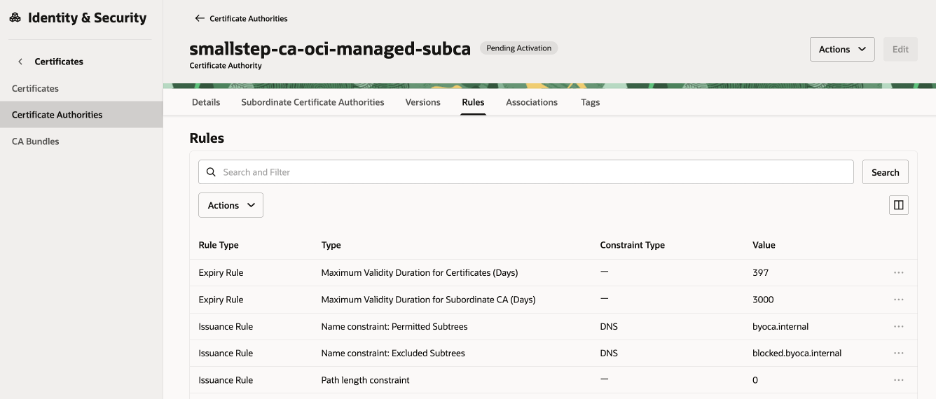
What these rules do: These settings are examples of guardrails you can apply to the subordinate CA based on your requirements. In this walkthrough, I limit leaf certificates to 397 days, prevent this CA from creating additional subordinate CAs by setting pathLengthConstraint to 0, and use DNS name constraints to allow certificates for byoca.internal while blocking the blocked.byoca.internal subtree. For DNS name constraints, I used plain subtree values such as byoca.internal and blocked.byoca.internal. Leading-dot values were rejected during testing, so I avoided that format in the final configuration.
| Allowed | byoca.internal, api.byoca.internal, web01.byoca.internal |
| Blocked by exclusion | db.blocked.byoca.internal, test.blocked.byoca.internal |
| Blocked by permitted subtree | api.public-example.com, app.other.internal |
Optional: Verify the created CA and review the applied rules.
oci certs-mgmt certificate-authority get \
  --certificate-authority-id "<subordinate_ca_ocid>" \
  --query 'data.{state:"lifecycle-state",details:"lifecycle-details",rules:"certificate-authority-rules"}' \
  --output json
Section 5: Download the CSR from OCI
Once the subordinate CA is created, OCI generates a CSR for the CA version. Download this CSR and review it before signing. This confirms that the CSR belongs to the OCI-managed subordinate CA and that the key material was generated by OCI.
oci certs-mgmt certificate-authority-version get \
  --certificate-authority-id "<subordinate_ca_ocid>" \
  --version-number 1 \
  --query 'data."csr-pem"' \
  --raw-output > oci-subca-csr-for-smallstep.csr

cat oci-subca-csr-for-smallstep.csr
openssl req -in oci-subca-csr-for-smallstep.csr -noout -subject -nameopt RFC2253
Expected output: subject=CN=smallstep-oci-managed-subca
Section 6: Sign the CSR with Smallstep
Sign the OCI-generated CSR with the external CA. Because this lab enables OCI name constraints, the externally signed subordinate CA certificate must include matching X.509 Name Constraints.
The Smallstep template below is used only to make the lab certificate match the OCI CA rules. If you use a different external CA, configure the equivalent X.509 Name Constraints extension in that CA’s signing workflow.
Reference: Smallstep step certificate sign.
cat > smallstep-subca-nameconstraints.tpl <<'EOF'
{
  "subject": {
    "commonName": {{ toJson .Subject.CommonName }}
  },
  "keyUsage": ["certSign", "crlSign"],
  "basicConstraints": {
    "isCA": true,
    "maxPathLen": 0
  },
  "nameConstraints": {
    "critical": true,
    "permittedDNSDomains": ["byoca.internal"],
    "excludedDNSDomains": ["blocked.byoca.internal"]
  }
}
EOF

step certificate sign \
  --template smallstep-subca-nameconstraints.tpl \
  --not-after 78840h \
  oci-subca-csr-for-smallstep.csr \
  smallstep-rsa-root-ca.crt \
  smallstep-rsa-root-ca.key > oci-subca-signed-by-smallstep.crt

openssl verify -CAfile smallstep-rsa-root-ca.crt oci-subca-signed-by-smallstep.crt
openssl x509 -in oci-subca-signed-by-smallstep.crt -noout -subject -issuer -dates
openssl x509 -in oci-subca-signed-by-smallstep.crt -noout -text | grep -A20 "Name Constraints"| Expected check: Before uploading the signed certificate to OCI, verify that it has the expected subject, expires before the root CA, and includes the X509v3 Name Constraints extension for byoca.internal and blocked.byoca.internal. |
Section 7: Activate the Subordinate CA in OCI
Upload the Smallstep-signed subordinate CA certificate to OCI. This completes the external-issuer workflow and moves the subordinate CA from Pending activation to Active.
Reference: OCI CLI update subordinate CA issued by external CA.
jq -Rs '{
  actionType: "UPDATE_CERTIFICATE",
  certificatePem: .
}' oci-subca-signed-by-smallstep.crt > smallstep-update-subca-action.json

oci certs-mgmt certificate-authority \
  update-subordinate-ca-managed-internally-issued-by-external-ca \
  --certificate-authority-id "<subordinate_ca_ocid>" \
  --action-details file://smallstep-update-subca-action.json \
  --force

oci certs-mgmt certificate-authority get \
  --certificate-authority-id "<subordinate_ca_ocid>" \
  --query 'data.{name:name,state:"lifecycle-state"}' \
  --output table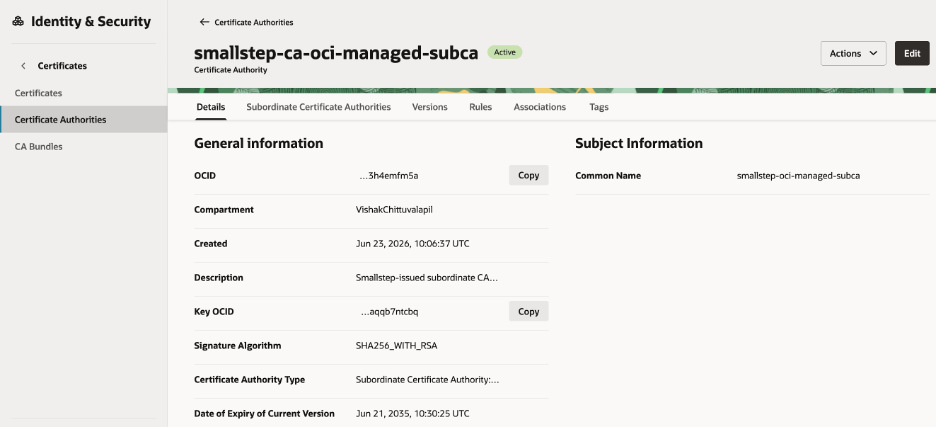
Section 8: Validate the CA Chain
At this point the BYOCA setup is complete. Export the OCI CA bundle and verify that it chains to the Smallstep RSA root.
Reference: OCI CLI certificate authority bundle get.
oci certificates certificate-authority-bundle get \
  --certificate-authority-id "<subordinate_ca_ocid>" \
  --query 'data."certificate-pem"' \
  --raw-output > smallstep-oci-subca-from-oci.pem


openssl verify -CAfile smallstep-rsa-root-ca.crt smallstep-oci-subca-from-oci.pem && \
openssl x509 -in smallstep-oci-subca-from-oci.pem -noout -subject -issuer| Expected result: smallstep-oci-subca-from-oci.pem: OK subject= /CN=smallstep-oci-managed-subca issuer= /CN=Smallstep RSA BYOCA Root CA |
Section 9: Issue an Allowed Leaf Certificate
With the subordinate CA active, issue a leaf certificate for a DNS name inside the permitted subtree. I used app.byoca.internal because it is allowed by the byoca.internal name constraint.
Reference: OCI CLI create certificate issued by internal CA.
oci certs-mgmt certificate create-certificate-issued-by-internal-ca \
  --issuer-certificate-authority-id "<subordinate_ca_ocid>" \
  --compartment-id "<compartment_ocid>" \
  --name "app-byoca-internal-cert" \
  --certificate-profile-type TLS_SERVER_OR_CLIENT \
  --subject '{"commonName":"app.byoca.internal"}' \
  --subject-alternative-names '[{"type":"DNS","value":"app.byoca.internal"}]' \
  --key-algorithm RSA2048 \
  --signature-algorithm SHA256_WITH_RSA \
  --wait-for-state ACTIVE \
  --wait-for-state FAILED \
  --query 'data.{id:id,state:"lifecycle-state",details:"lifecycle-details"}' \
--output json| Expected result: The certificate should become Active because app.byoca.internal is inside the permitted byoca.internal subtree. |
oci certificates certificate-bundle get \
  --certificate-id "<certificate_ocid>" \
  --query 'data."certificate-pem"' \
  --raw-output > issued-app-byoca-cert.pem

openssl x509 -in issued-app-byoca-cert.pem -noout -subject -issuer -dates
openssl x509 -in issued-app-byoca-cert.pem -noout -text | grep -A4 "Subject Alternative Name"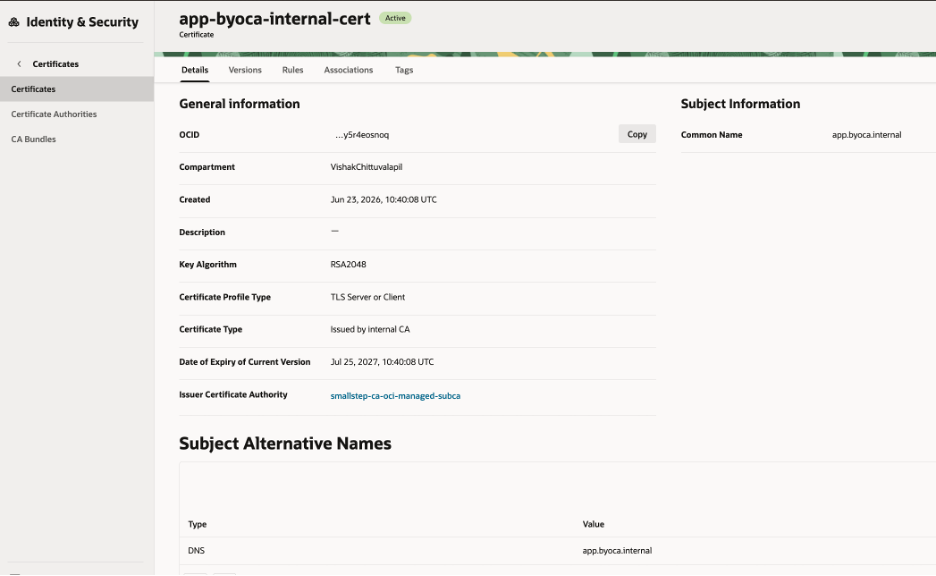
Section 10: Negative Test for Name Constraints
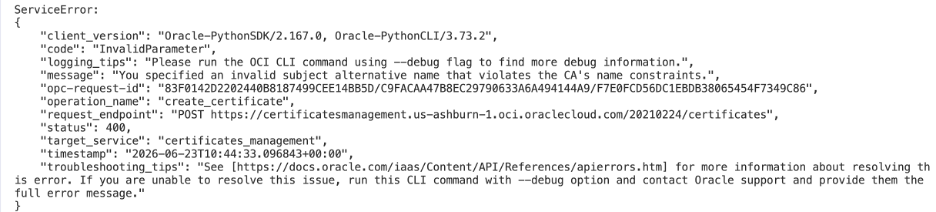
To prove the name constraint is doing real work, try issuing a certificate under the excluded subtree. The CA should reject test.blocked.byoca.internal because blocked.byoca.internal was configured as an excluded DNS subtree.
oci certs-mgmt certificate create-certificate-issued-by-internal-ca \
  --issuer-certificate-authority-id "<subordinate_ca_ocid>" \
  --compartment-id "<compartment_ocid>" \
  --name "blocked-byoca-internal-cert" \
  --certificate-profile-type TLS_SERVER_OR_CLIENT \
  --subject '{"commonName":"test.blocked.byoca.internal"}' \
  --subject-alternative-names '[{"type":"DNS","value":"test.blocked.byoca.internal"}]' \
  --key-algorithm RSA2048 \
  --signature-algorithm SHA256_WITH_RSA \
  --wait-for-state ACTIVE \
  --wait-for-state FAILED \
  --query 'data.{id:id,state:"lifecycle-state",details:"lifecycle-details"}' \
--output json| Expected result: This request should fail or return a Failed lifecycle state because the DNS name is under the excluded blocked.byoca.internal subtree. |
CLI Output:
Troubleshooting
| step not found | Install Smallstep CLI and confirm step version returns successfully. |
| oci not found | Add the OCI CLI install directory to PATH or call the full OCI binary path. |
| KMS invalid shape | Use an RSA HSM key. For RSA-2048, the OCI CLI key shape is algorithm RSA and length 256. |
| Algorithm mismatch | Smallstep defaults to EC P-256. Use –kty RSA –size 2048 when the OCI HSM key is RSA. |
| PEM upload timeout | Use –from-json with certificatePem instead of passing the PEM directly on the command line. |
| Subordinate pending | Upload the Smallstep-signed certificate with actionType UPDATE_CERTIFICATE. |
| Name constraint activation failed | The Smallstep-signed subordinate CA certificate must include a matching X.509 Name Constraints extension. Use the template in Section 6. |
| Subject mismatch | Use a CN-only subordinate CA subject for this walkthrough so OCI and the external signer match the subject cleanly. |
| Validity mismatch | The signed subordinate CA certificate must expire before the root CA, and certificateAuthorityMaxValidityDuration must not exceed the subordinate CA validity period. |
| Leaf certificate rejected | Check the DNS name. app.byoca.internal is permitted; test.blocked.byoca.internal is intentionally blocked by the excluded subtree. |
Conclusion
This walkthrough demonstrates the BYOCA capability in OCI Certificates using Smallstep as an example external CA for the lab. The key takeaway is that OCI can manage the subordinate CA and protect its private key, while the trust anchor remains with an external CA chosen by the organization. In production, that external CA could be an enterprise PKI or a commercial CA provider, depending on the organization’s trust and compliance requirements.