
Introduction
Recently, I was asked to assist a customer for their proof of concept. The requirement was to leverage Fusion Universal Content Management (UCM) SOAP APIs to export individual PDF documents, ZIP them up and transfer them into a third party SFTP server.
These PDF documents were generated by a BIP (Oracle BI Publisher) Bursting query. Please note, using BIP for data extraction is an antipattern as it is designed for reporting purposes only. Also, see my colleagues Bala & Angelo’s blogs on this topic – https://www.ateam-oracle.com/post/data-extraction-options-and-guidelines-for-oracle-fusion-applications-suite & https://www.ateam-oracle.com/post/using-synchronous-bip-for-extracting-data-dont.
However, rarely there are exception scenarios, and this was one of those exception cases where it involved asynchronously calling BIP in low frequency for a reporting use case. Please note the below pattern would be applicable for all pillars (CX – “Customer Experience”, ERP – “Enterprise Resource Planning”, SCM – “Supply Chain Management”, HCM – “Human Capital Management”) when BIP is used.
I’ve suggested leveraging OIC as a middleware to orchestrate the flow. The customer has a scheduler which triggers the BIP report to burst the files into UCM. The desired behaviour was for this scheduler to invoke the OIC endpoint to start the process of fetching the files from UCM, zipping them up and moving them to the SFTP server.
For the POC flow, I’ll be walking you through in this blog and I’m using OIC’s built in SFTP server.
For simplicity, I will not go through the BIP report and bursting part of the scenario. We can assume there is a BIP report which drops PDF files into UCM via bursting.
The Flow
I’ve defined an app-driven integration to start with and will walk you through the steps of defining this flow based on the pseudocode of the flow as below.
1. Trigger
[Trigger TriggerSchedule using Sample REST connection of type REST ]
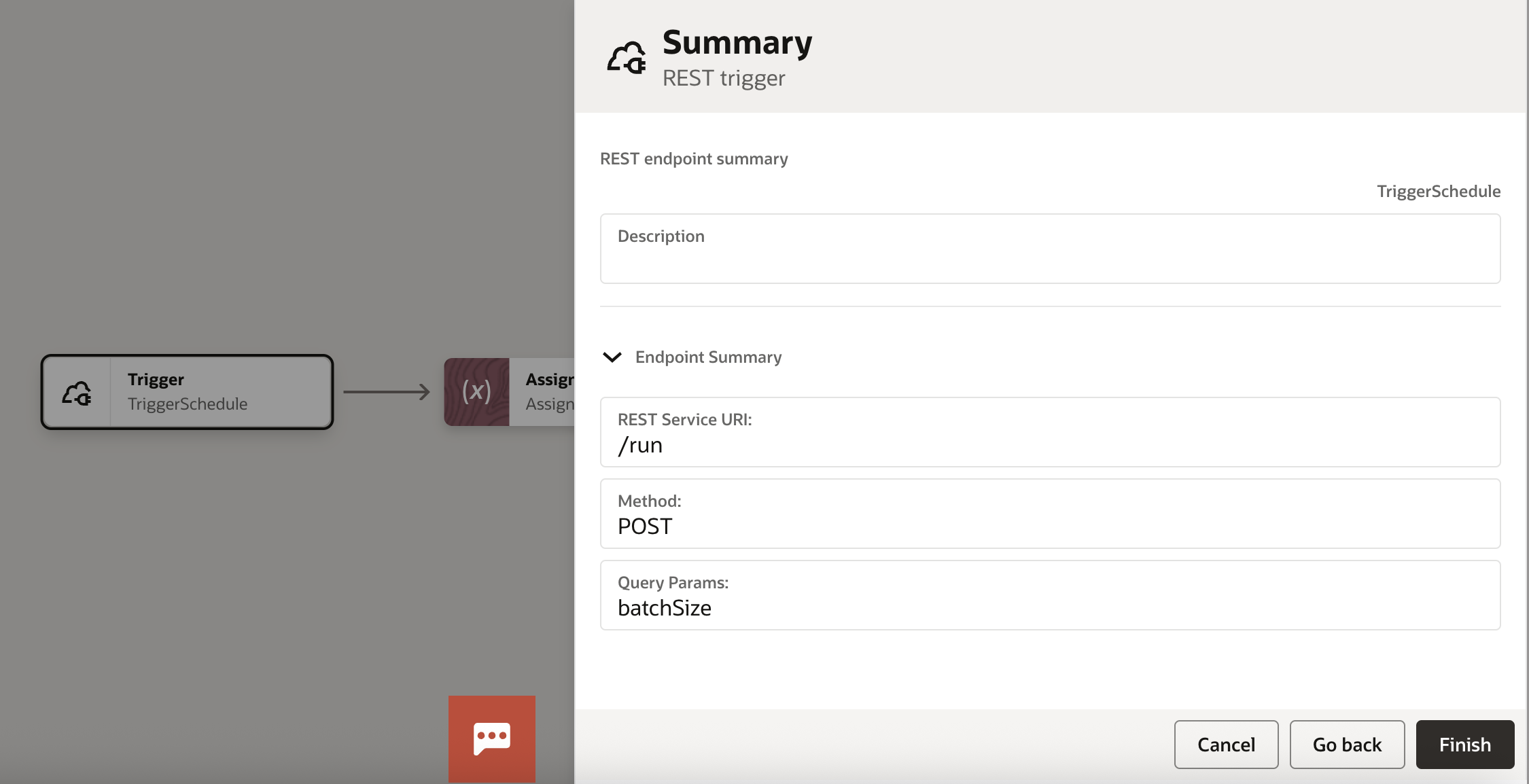
As a starting point for our integration, I’ve defined a REST Trigger and decided to get the “batchSize” as a query parameter as UCM endpoints return 200 files maximum in a single page. If you want to read more than 200 files at a time, you’ll need to page the results. Also, hard coding these types of values in an integration is never a good idea therefore best practice is to parametrise any values you may want to change.
2. Assign
[Assign values to counter, fileOffset, startOffset, batchSize, totalRows]
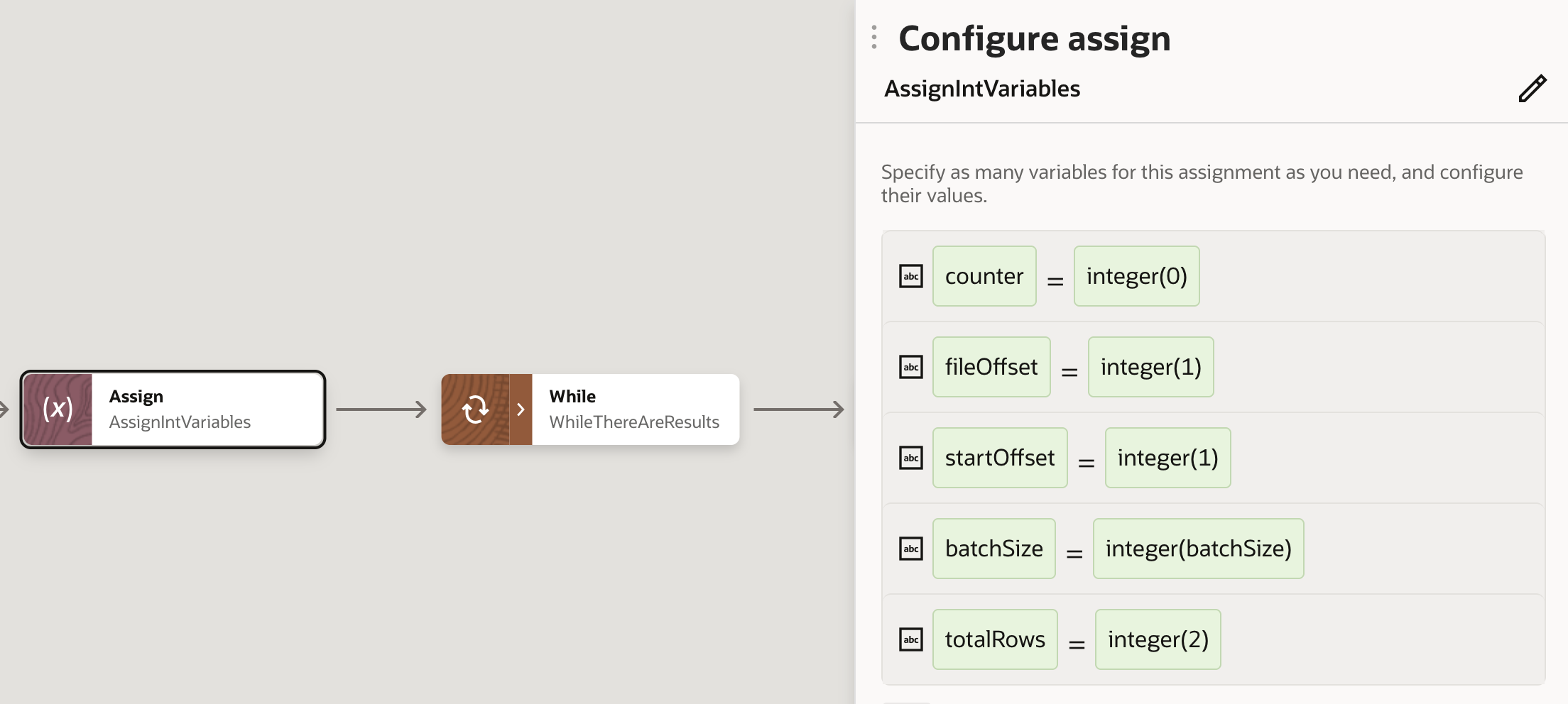
Within the assign step, I initialise my variables which will aid me with paging and reporting how many files I’ve processed in my flow. To make sure the conditions are met for the first iteration of the While loop in the next step, I initialise my “startOffset” as 1 and “totalRows” as 2. “totalRows” parameter is the total count of files to be processed which UCM APIs will return.
3. While
[While (ns0:integer($fileOffset) > ns0:integer(0) and ns0:integer($startOffset) <=ns0:integer($totalRows))]
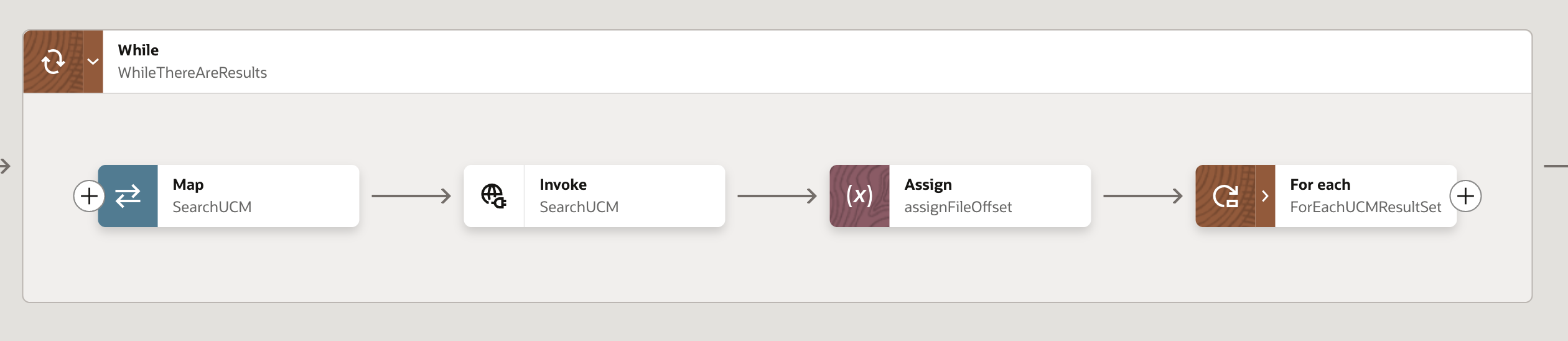
Effectively, the while loop will iterate until there are still more files to read. The variables defined within the While loop expression ($fileOffset, $startOffset, $totalRows) will be set/updated within the while loop in the subsequent steps.
4. Invoke
[Invoke SearchUCM using Fusion UCM SOAP connection of type SOAP]
Whilst defining my flow, I’ve made use of my colleague Shreeni’s blog (https://www.ateam-oracle.com/post/oic-and-ics-file-based-integrations-for-oracle-hcm-cloud-using-ucm-webservices) so it may be worth reading that blog to see another use case of leveraging UCM SOAP APIs.
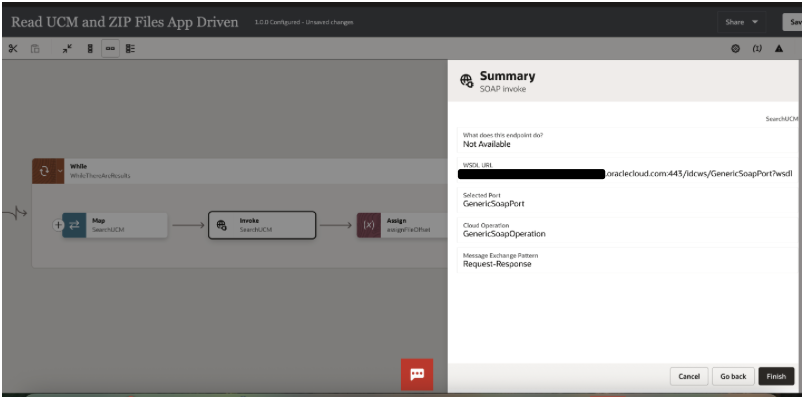
I’ve configured a generic SOAP Connector in OIC to invoke Fusion UCM SOAP endpoints as below:
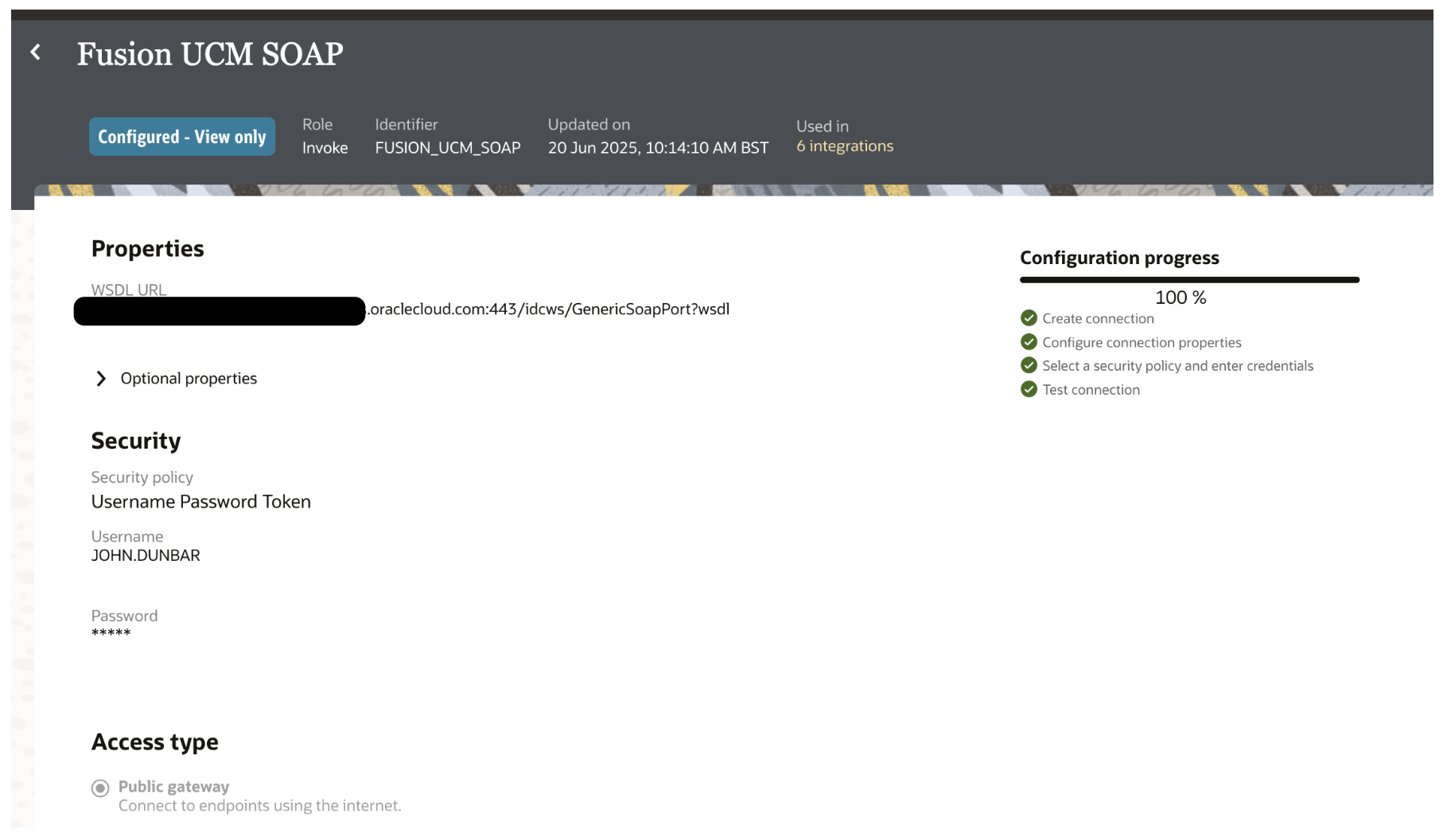
Note:
Webcenter Content (UCM) SOAP services are usually found in the below Fusion SaaS URL
https://<FusionSaaSHostName>:443/idcws/GenericSoapPort?wsdl
The UCM Application is accessible at below Fusion SaaS URL
https://<FusionSaaSHostName>/cs
There is not much you can do when you’re configuring the SOAP adapter invoke as it will be the same for every operation you perform on UCM. The difference will be how you define the mapping and what parameters you pass on the map (i.e. Searching for Files, Retrieving the details of a file)
5. Map to SearchUCM
[ Map from TriggerSchedule to SearchUCM ]
This is the mapping we define to invoke the UCM SOAP APIs in order to search for the files we are looking for.
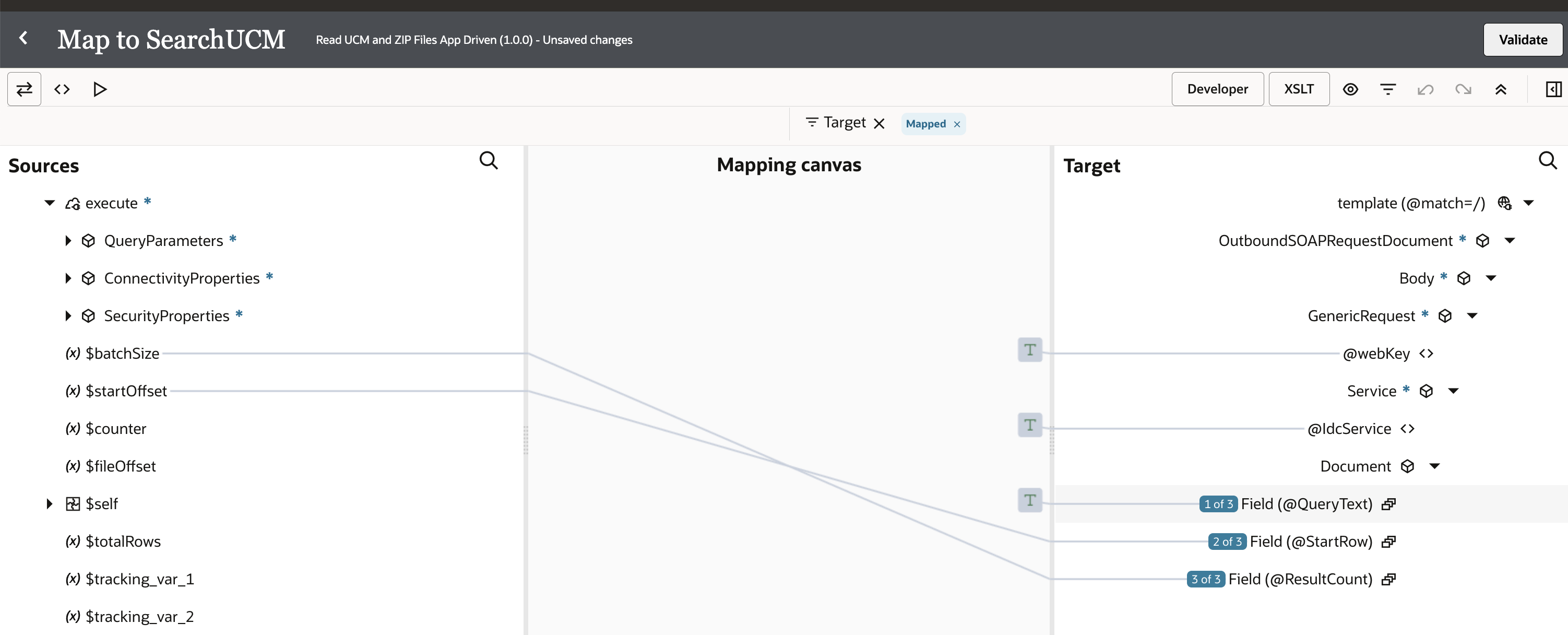
I usually find the code view easier to read, so below is the code view with details below.
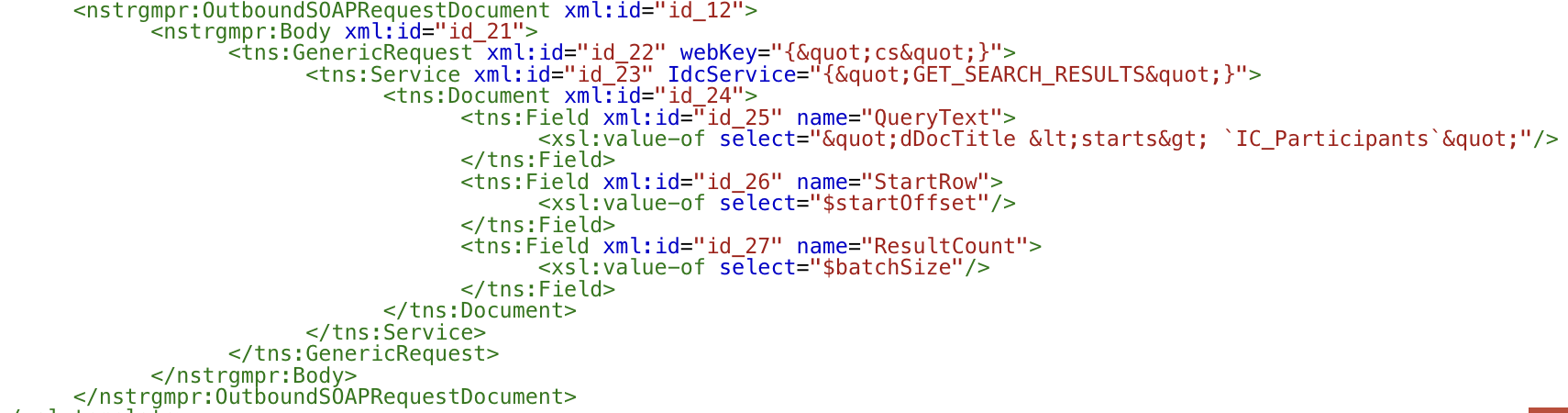
- webKey attribute will need to be defaulted to “cs”
- IdcService = “GET_SEARCH_RESULTS” will need to be used here as that’s the operation we’re after (we’ll use a different one when getting the file contents)
- QueryText Field element under the Document node will contain your search criteria. I’ve personally spent a lot of time trying to find a comprehensive guide to build query strings but the method I found easiest to use was the Query Builder on UCM UI.
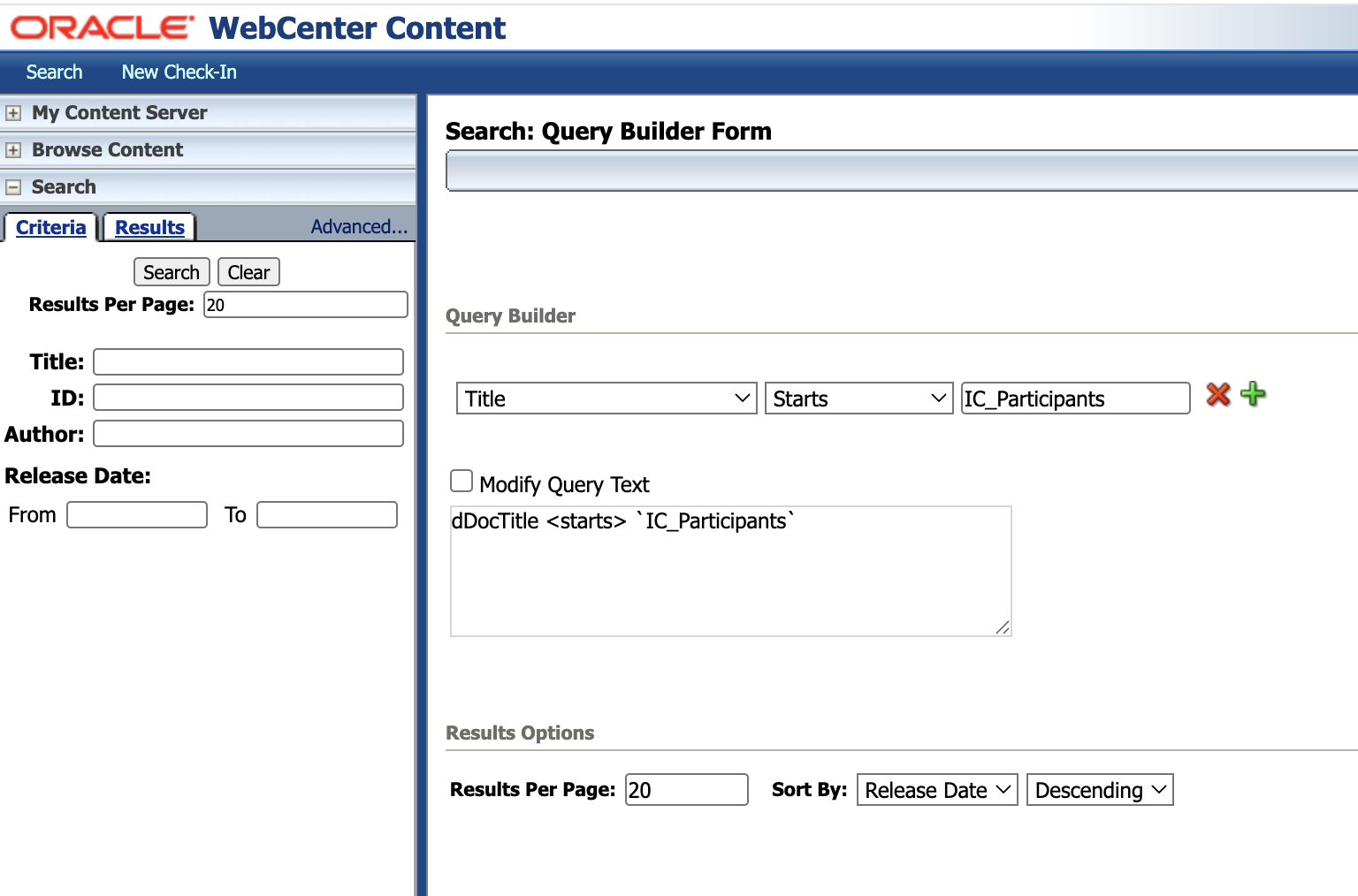
(after you sign into UCM UI, expand Search, click on Advanced link and then click show query builder advanced options link)
Once you create your query string, you can copy and paste it to your integration map. Please note the strings are enclosed with a backtick (`) rather than the traditional single/double quotes, missing that small detail may cost you a lot of time debugging the flow.
- StartRow Field element under the Document node will be leveraged to do the paging to tell where to start the query from
- ResultCount Field element under the Document node will be used to tell the API how many elements you want to return starting from the StartRow (i.e. if StartRow is 5 and ResultCount is 20, you’ll get elements from 5 to 25). Max page size you can get in each API call is 200 but you may want to tailor the page size according to your needs.
One thing I found very helpful when debugging was to increase tracing in OIC to capture the UCM SOAP Request and Response XMLs to understand how your API call performs. In some cases, the invoke target might not throw an error but the response may include an error string.
6. Assign
[Assign values to fileOffset, startOffset, totalRows ]
This step is crucial as it maintains the key variables to make sure While loop runs accurately.
I adjust 3 variables in this step:
- $fileOffset (to indicate how many more items are left to fetch from UCM)
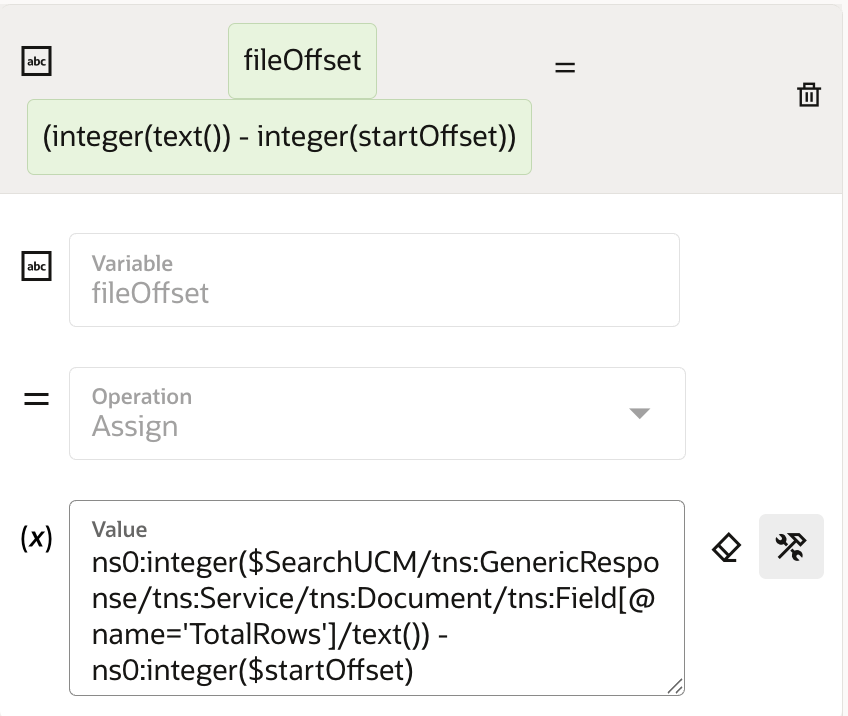
You don’t have to, but when I’m doing arithmetic operations in OIC, I cast the values as integer explicitly. I’m essentially getting the total number of items to process from the response and subtracting the current startOffset from it to calculate the remaining number of items to fetch from UCM.
- $startOffset (to set where the next pull from UCM will start from)
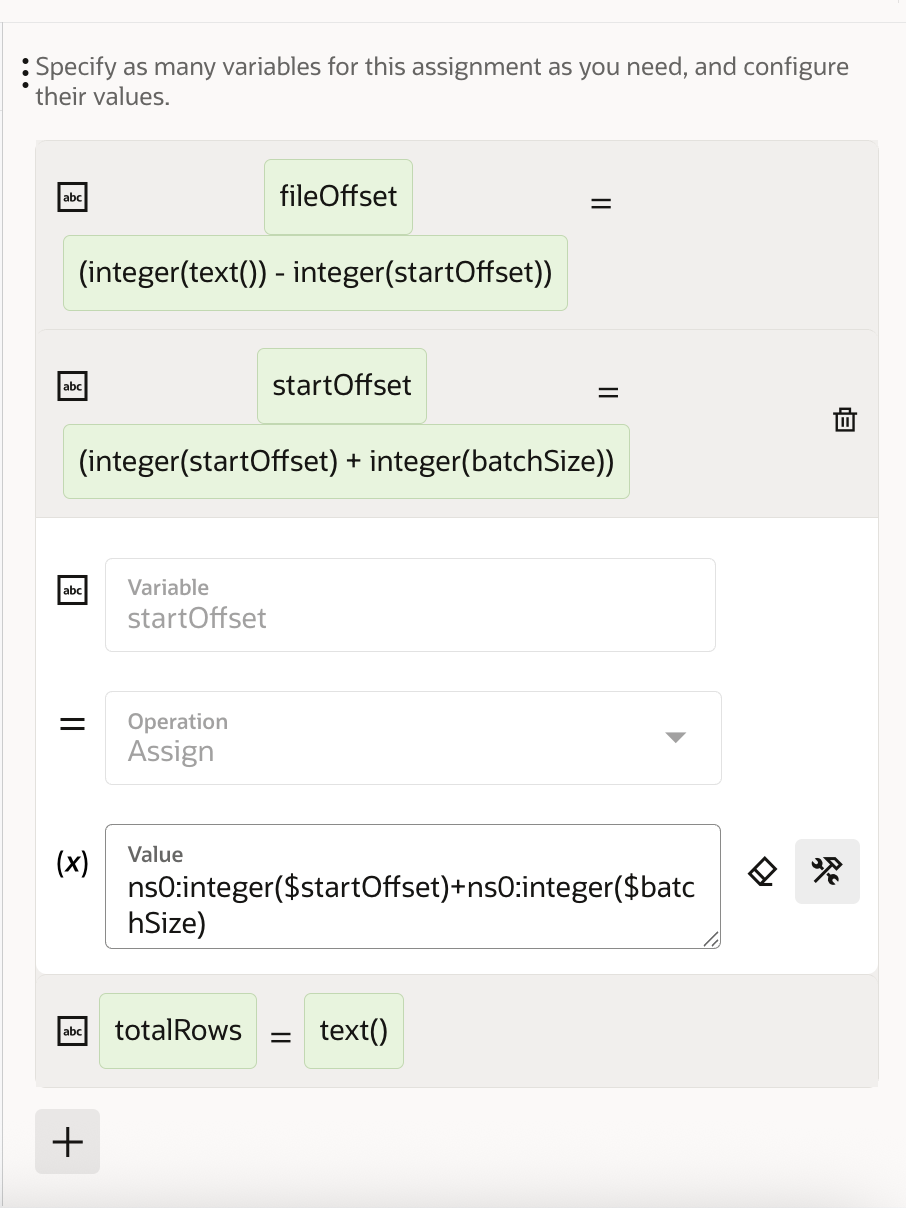
This operation is to simply set the next starting offset to be the existing offset + page size
- $totalRows (to set the total number of files to read from UCM)
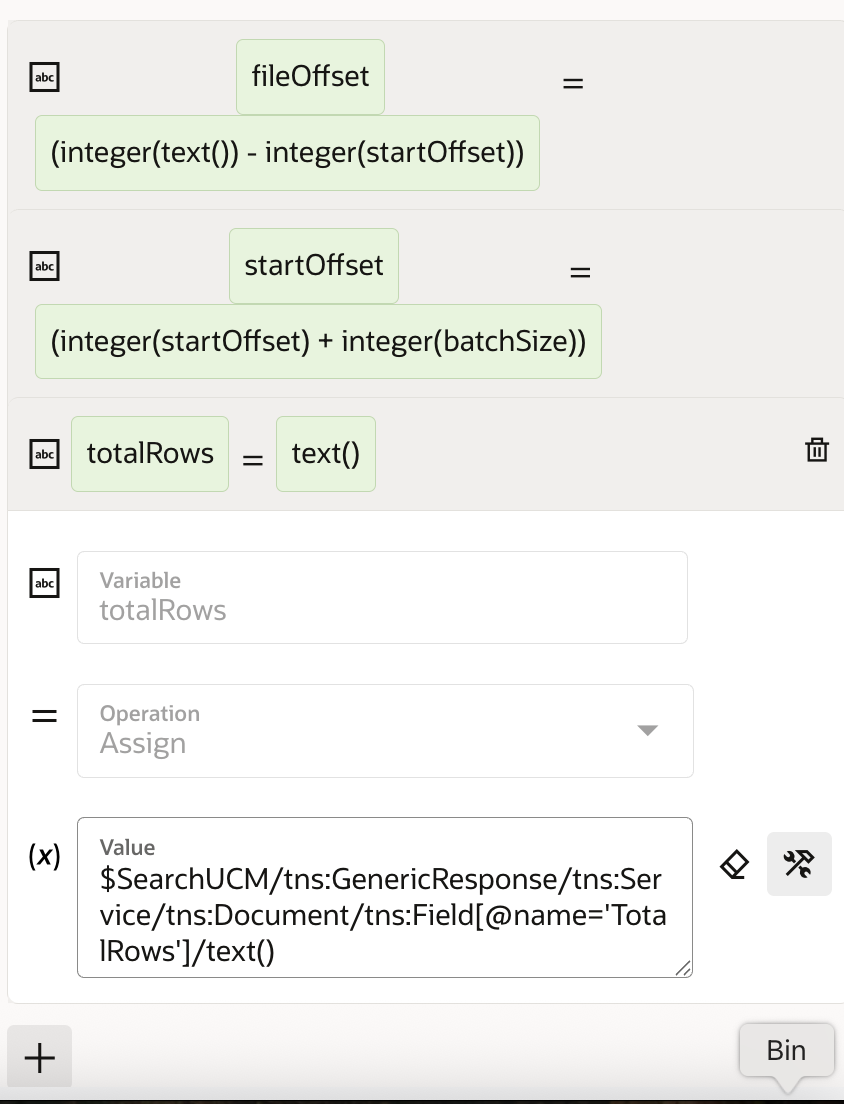
Variable is set to the TotalRows value returned within the response XML coming from the UCM API call
7. For each
[ For each item in (ResultSet) ]
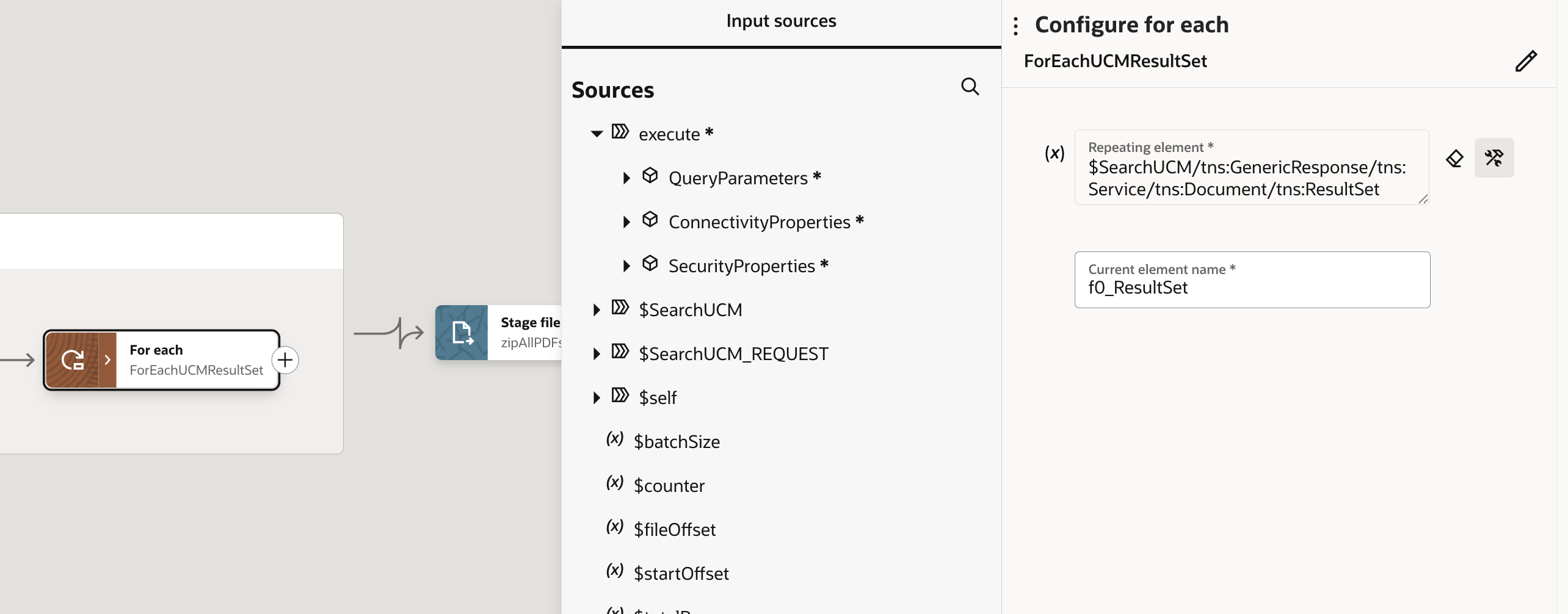
For each loop to iterate through the results returned from the API call
8. IF name = ‘SearchResult…
[ If (name = ‘SearchResults‘) then do ]
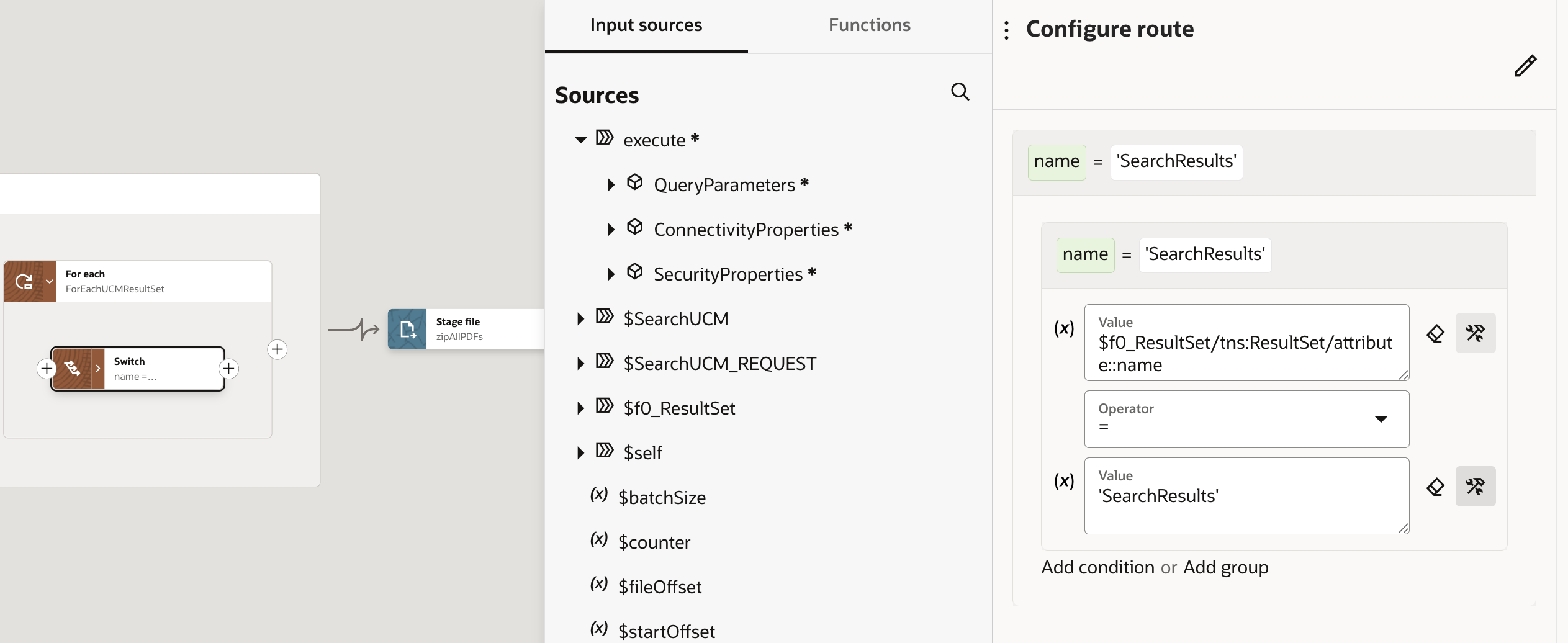
The Switch statement here makes sure we process the ResultSet element marked as “SearchResults” to avoid trying to process and element we are not interested in.
9. For each
[ For each item in (Row) ]
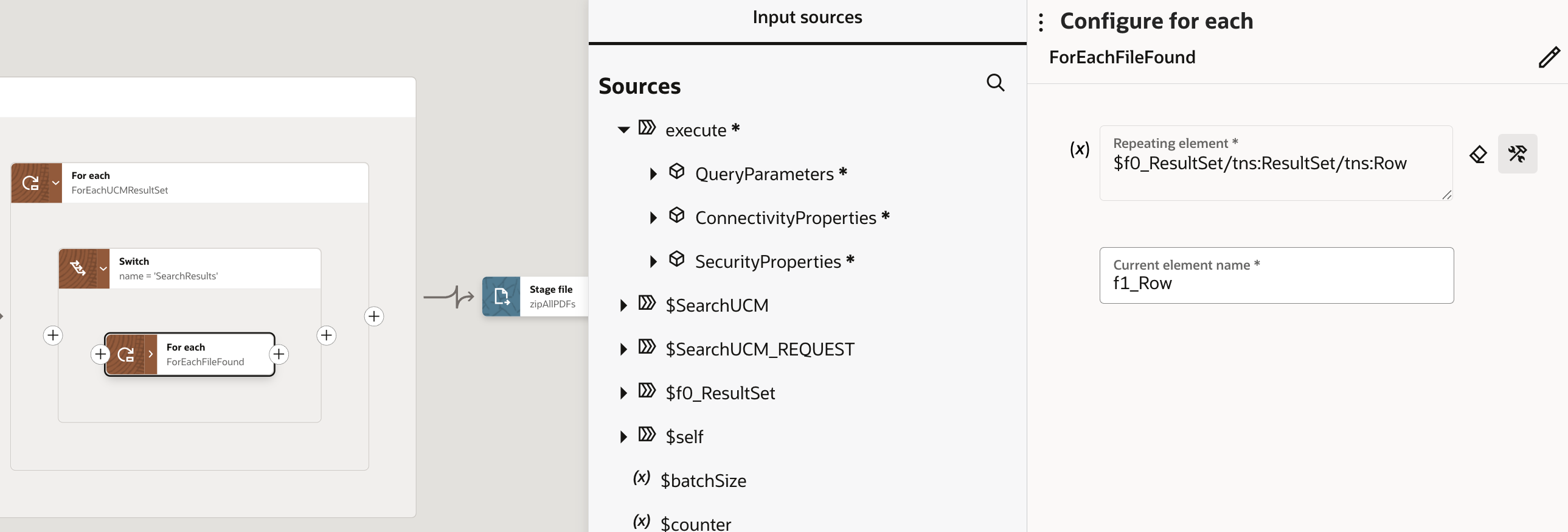
An inner foreach loop enables us to iterate through the array of “Rows” containing the individual file information
10. Logger
[Log message formed by ($f1_Row/tns:Row/tns:Field[@name=”dID”]/text()) Message will be logged Always]
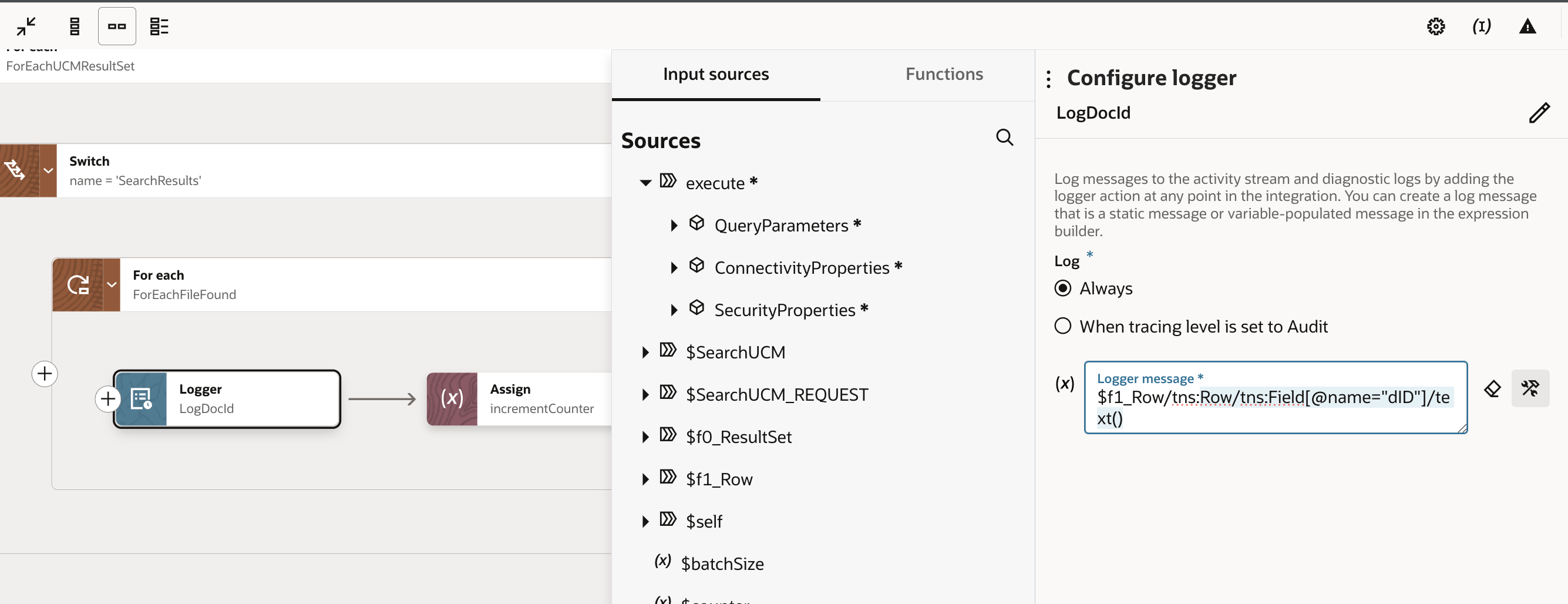
This is the logger I’ve placed to be able to see the document id of the file I’m processing in this iteration. For POC purposes I’m always logging this but if this integration was to be deployed on production, it should log when tracing level is set to Audit.
11. Assign
[Assign values to counter]
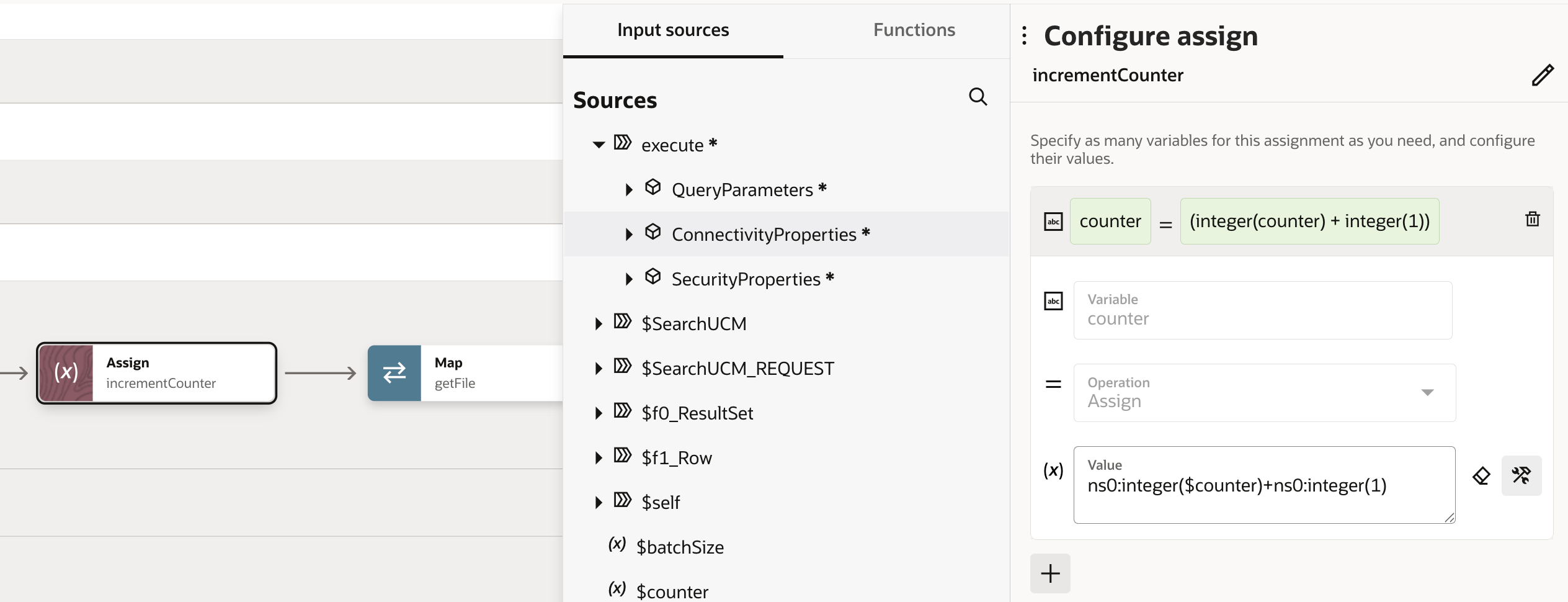
Within this step, I’m maintaining my counter for the number of files I’ve processed so I can log it when the integration completes successfully.
12. Invoke
[ Invoke getFile using Fusion UCM SOAP connection of type SOAP]
This is very much the same step as the invoke definition within Step 4. UCM SOAP APIs do have a generic SOAP operation definition and what changes the behaviour is the mapping you define when invoking the operation.
13. Map to getFile
[Map from TriggerSchedule to getFile]
This is the mapping we define to invoke the UCM SOAP APIs in order to download the contents for the individual file we specify to download from UCM.
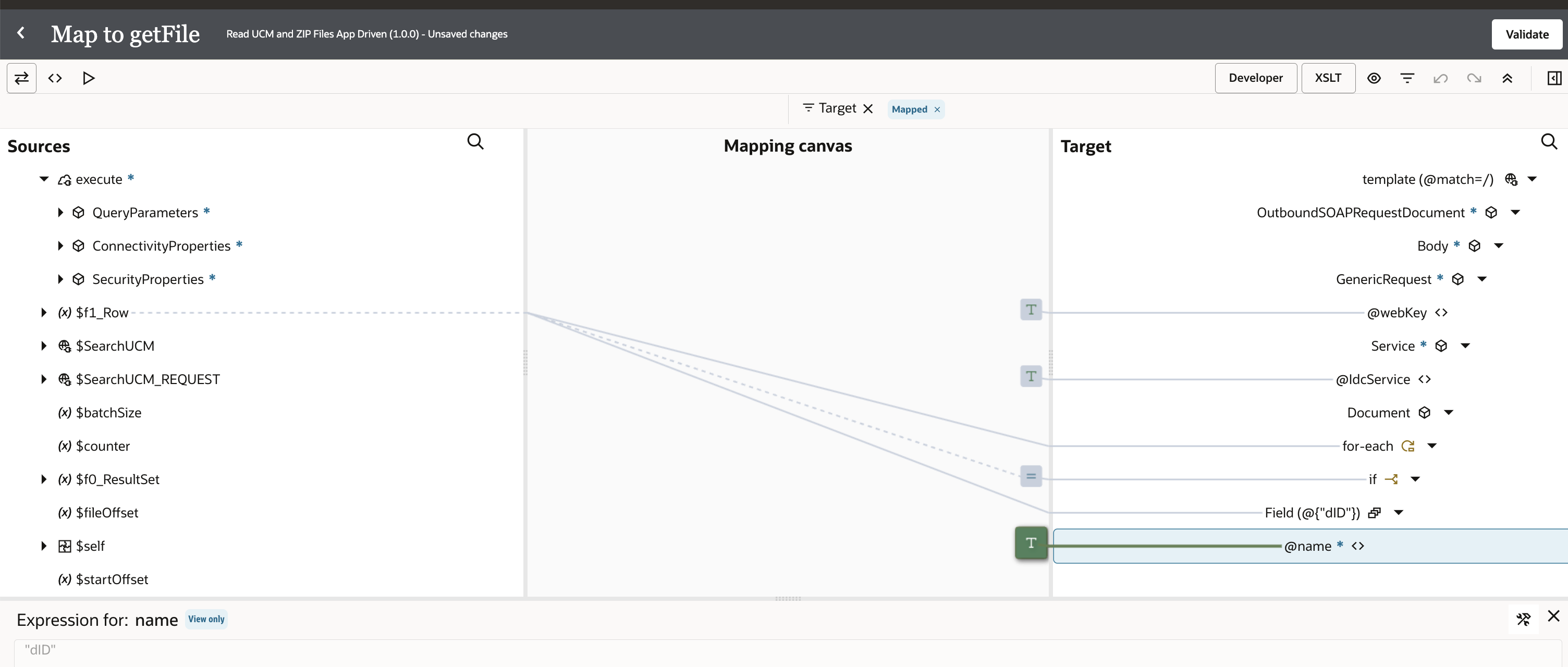
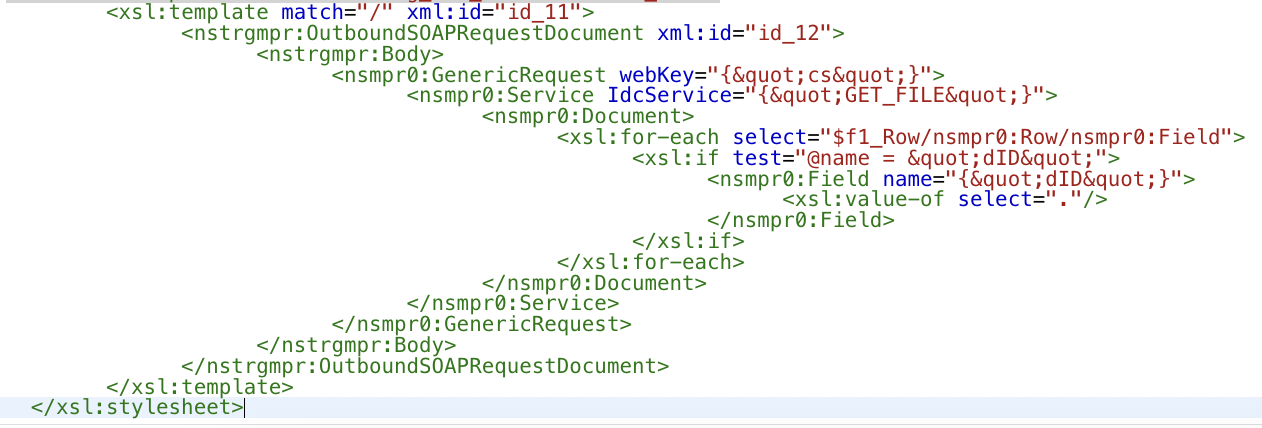
- webKey attribute will need to be defaulted to “cs”
- IdcService = “GET_FILE” will need to be used to get the file contents
- As the Document node in the response contains multiple Field elements, we define a for-each loop within the map and choose the Field element with name attribute “dID”
- This API call will return the file contents in “FileReference” format
14. Stage file
[Perform Write operation on stage file ]
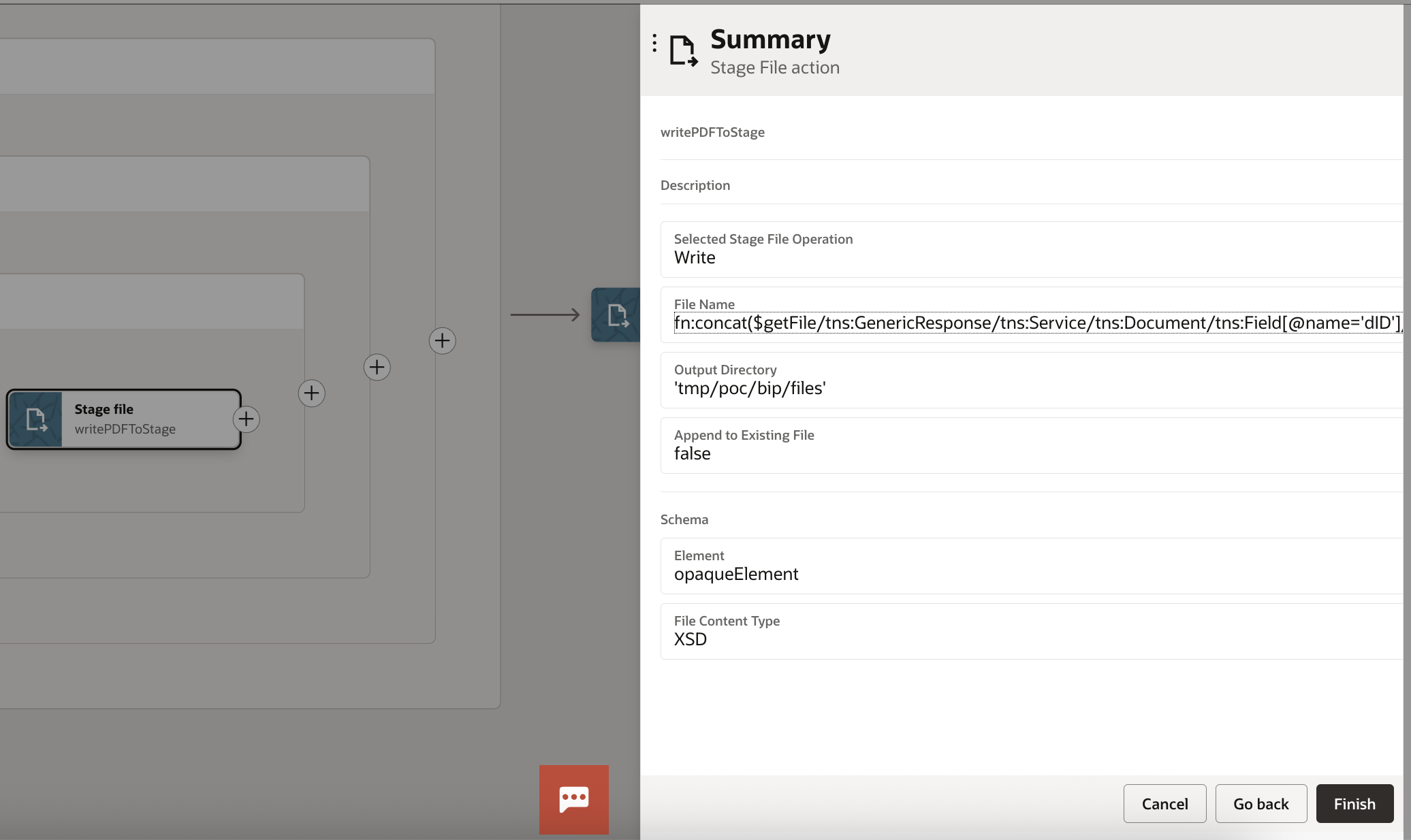
Here, I define the temporary file directory for stage file contents to be written into, temporary file name and also the schema. I’m using the Opaque schema to be able to store the contents of the FileReference I’ll be receiving from the UCM response in a base64 encoded format. For more information about this pattern, please see the following documentation – https://docs.oracle.com/en/cloud/paas/integration-cloud/integrations-user/use-stage-file-write-operation-opaque-schema.html.
Please note, the file name here is dynamic and unique to each file as this for each loop will run for every file returned within the page and store the files in the virtual file directory -‘tmp/poc/bip/files‘. This is going to be directory to be Zipped in the following steps.
15. Map to writePDFToStage
[Map from TriggerSchedule to writePDFToStage]
When transferring the contents and writing into Stage, I’ll be leveraging the below OIC Mapper function:
encodeReferenceToBase64 – Accepts the OIC Virtual File System (VFS)’s file reference as input and returns the base64–encoded content of the file as the return value
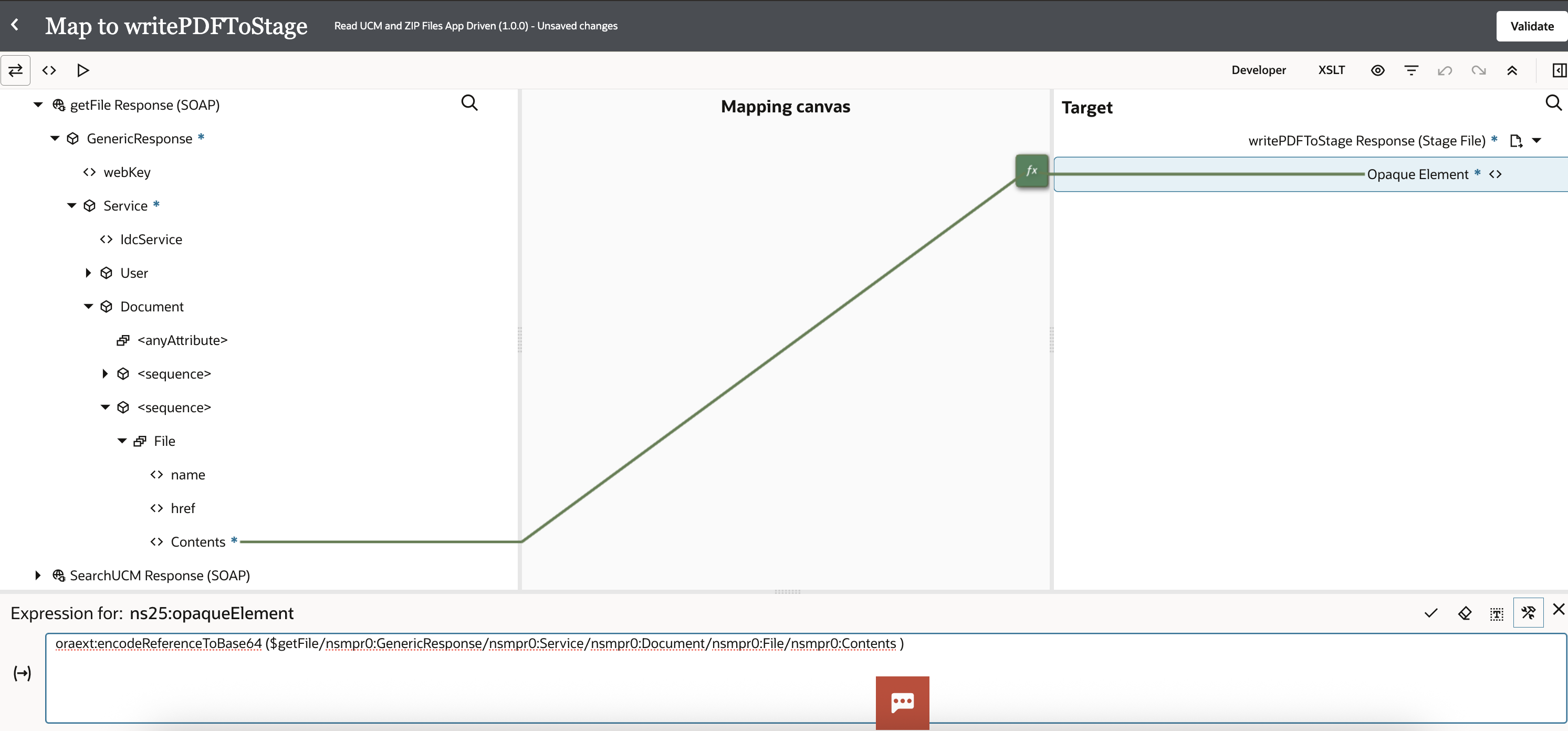
I simply take the Contents FileStream returned by the response of the UCM SOAP API call and map it to the “OpaqueElement” I’ve defined in Stage file schema. Please note that the FileStream is surrounded with encodeReferenceToBase64 function.
16. Stage file
[Perform Zip operation on stage file ]
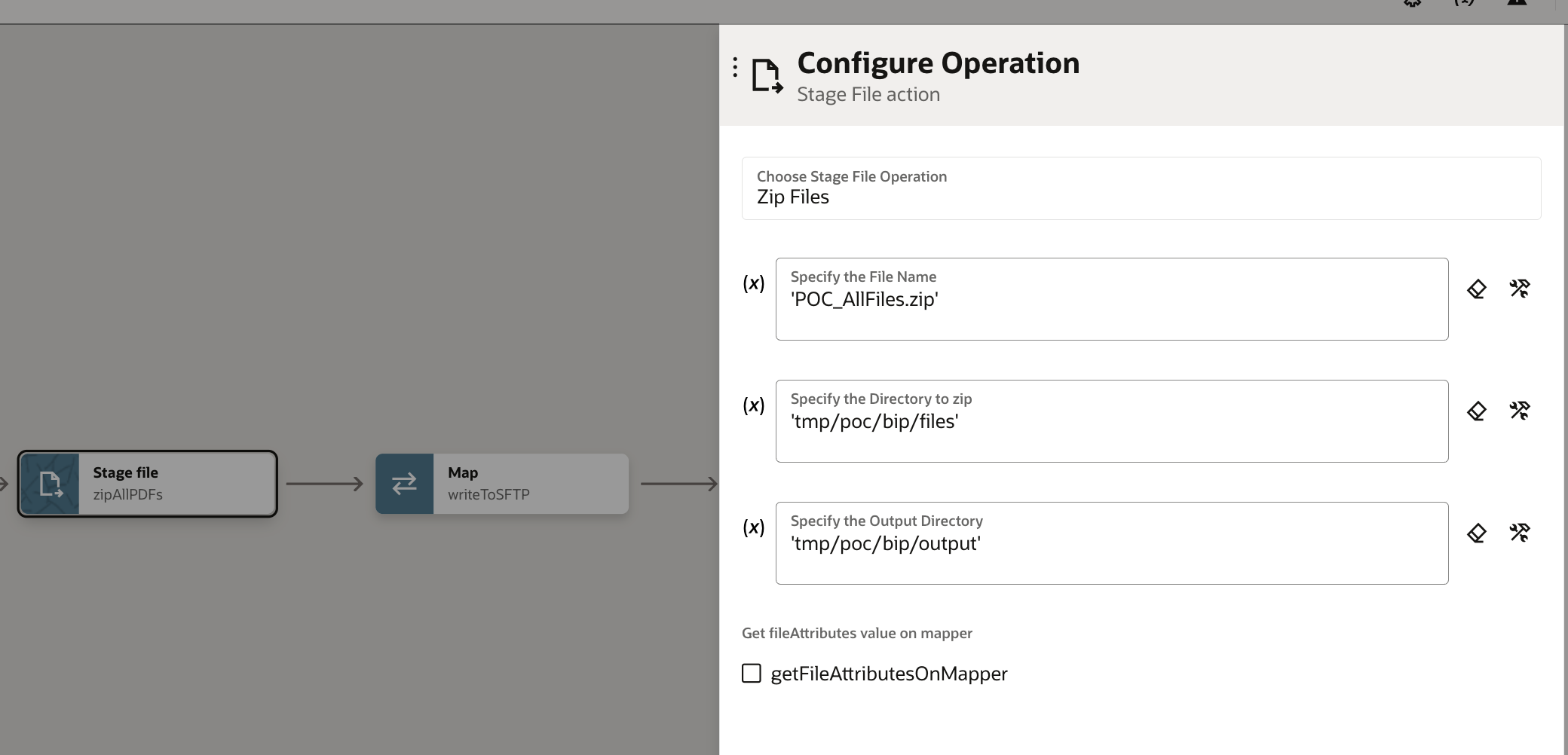
Previous foreach loops write the individual files into the OIC VFS. This step ZIPs them up and places them into the specified output directory with the specified ZIP file title.
17. Invoke
[Invoke writeToSFTP using OIC YO SFTP connection of type FTP]
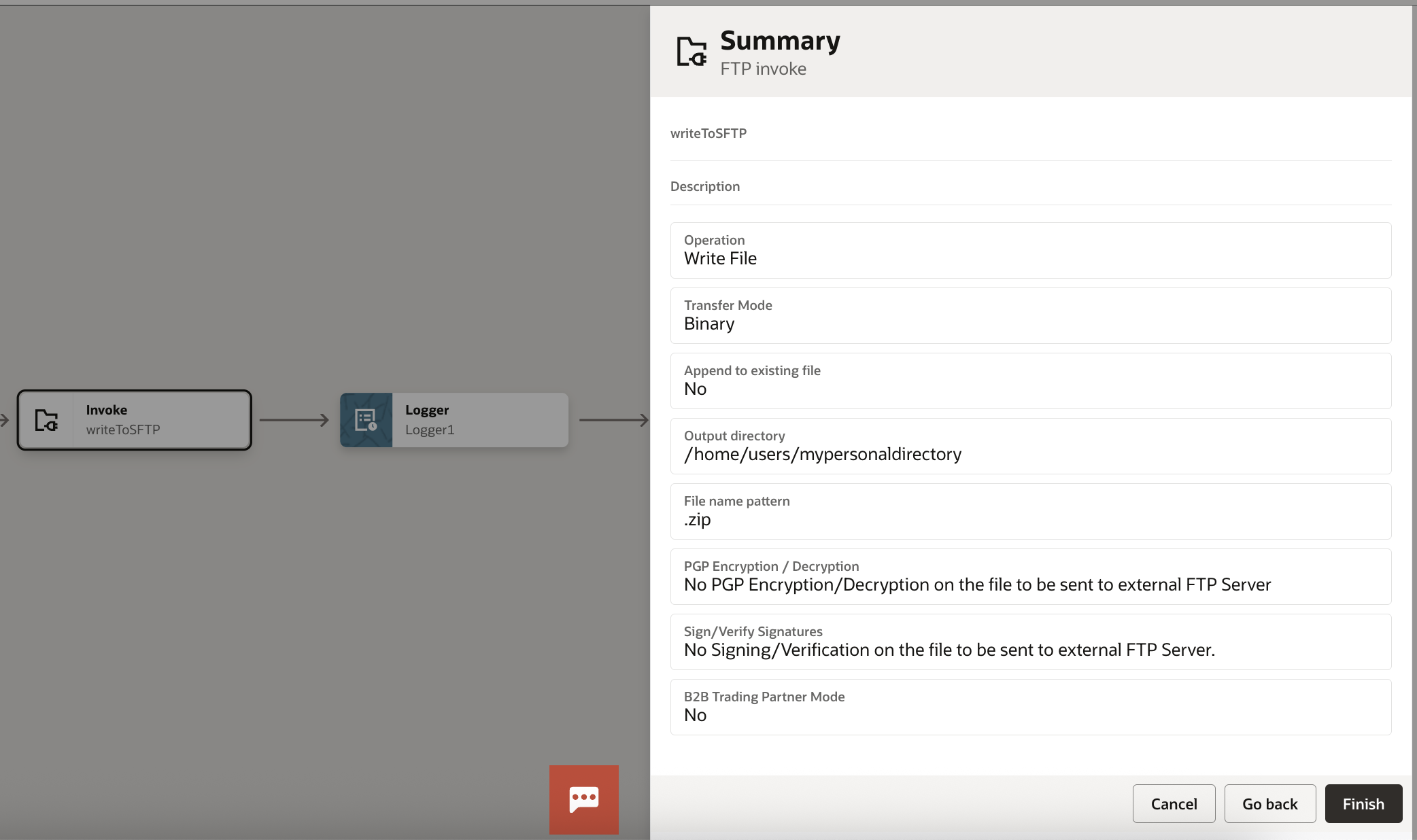
In this step, I define the invoke to write into my SFTP directory. I’ve chosen OIC File Server SFTP server to keep it simple for my POC but could also be OCI Object Storage, AWS S3 buckets or any other SFTP server depending on your use case.
18. Map to writeToSFTP
[Map from TriggerSchedule to writeToSFTP ]
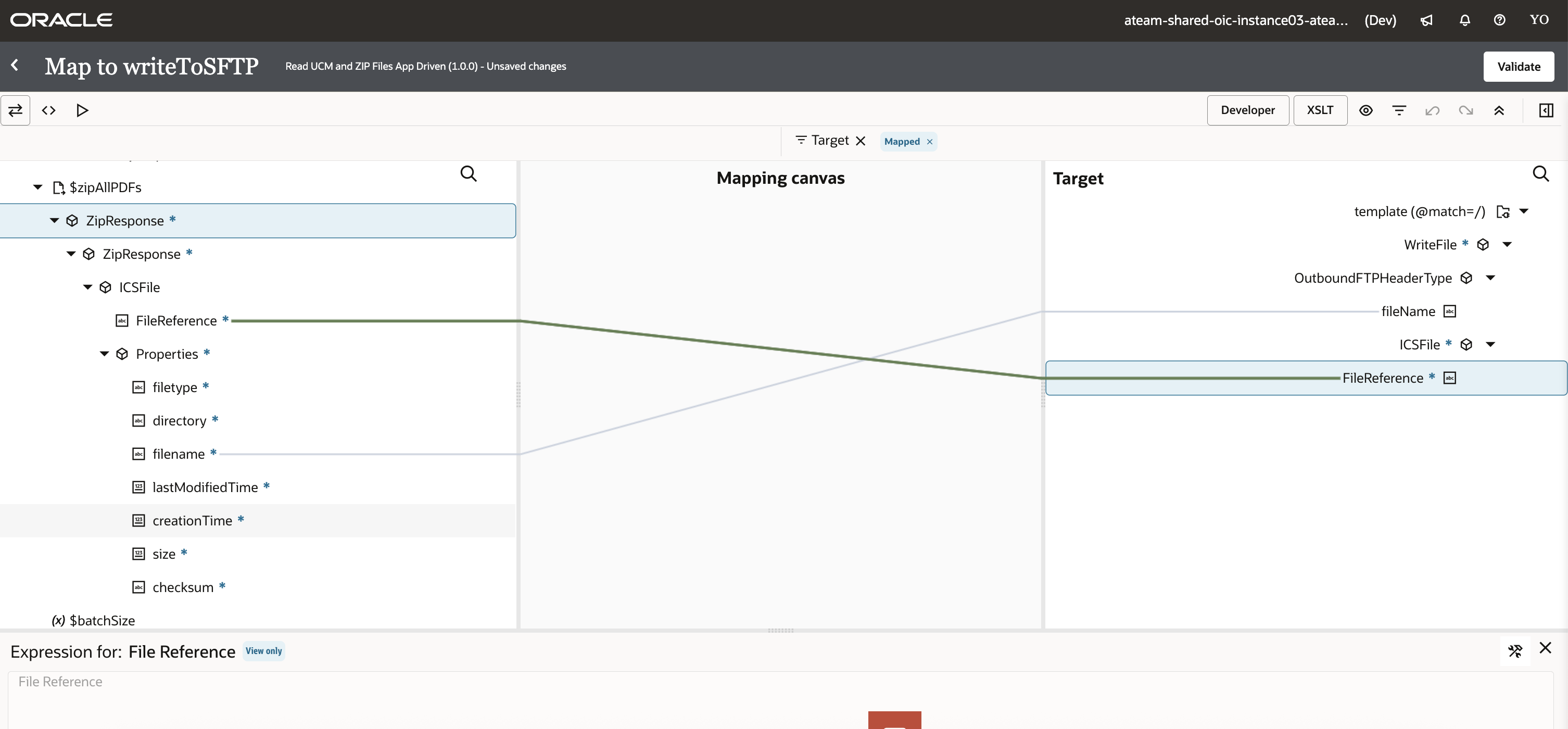
This is a simple mapping, directly mapping the FileReference from the Stage ZIP File operation response to the FileReference element of the Write File SFTP operation. I also map the name of the ZIP file here.
19. Logger
[Log message formed by (concat(‘Total number of files processed is ‘, counter)); Message will be logged Always ]
Finally, I log the number of files I’ve processed before integration processing is complete and the instance exits.
Please note that this is a proof of concept therefore no error handling is defined. If you’re planning to take this flow as basis and build your own integration, I strongly suggest building the error handling framework around it.
Your finished integration should look like below:
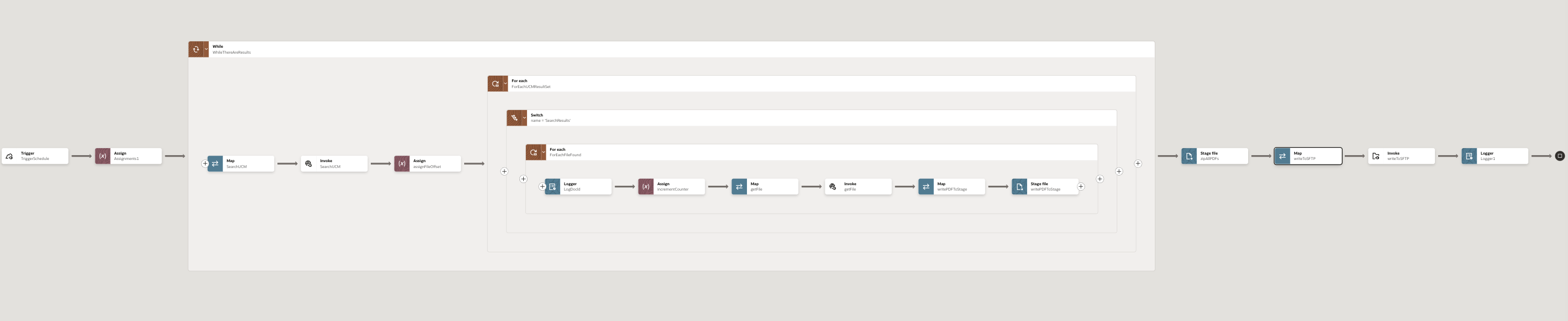
Conclusion
In this blog, I’ve shown you how you can pick files up from Fusion UCM, use OIC to ZIP them up and then deliver the ZIP file to an SFTP server. This is especially handy if you have a requirement to send files out from UCM in a Zipped fashion to a target system.