
OCI IAM Hosted Sign-In is a useful option when you want to tailor the identity domain sign-in experience without building a completely separate front end. It lets you customize the main sign-in page using custom HTML and translations, which makes it a practical choice for small but meaningful usability or branding improvements.
One common use case is updating the default username hint text. In one customer scenario, the requirement was to change the username placeholder from “Username or Email” to simply “Username” so the sign-in experience better matched the organization’s login policy and reduced confusion for end users.
Before You Start
Before you start, confirm the identity domain type. Hosted Sign-In is not available for Free domains and starts from Oracle Apps Premium and above for more info refer Feature Availability for Identity Domain Types .
Also, do not test this directly in production. A safer approach is to first create a non-production identity domain, validate the behaviour there, and then apply the same change to the production domain after testing is complete.
What Hosted Sign-In Supports
Oracle documents two important areas to understand before making changes:
Hosted Sign-In applies to the main sign-in page. It does not affect every authentication-related flow, such as password reset or MFA pages. Oracle also documents a few important limitations:
- Custom JavaScript is not allowed
- The <style> tag is not allowed
- There is no code validation, so changes should always be tested with Preview
- Some core elements in the default HTML should not be removed
The default HTML provided by OCI should be treated as the working template. In many cases, translations alone are enough for the desired change, which keeps the implementation simple and low risk.
How Translations Work
Hosted Sign-In supports translations for:
- Existing sign-in elements using Oracle’s reserved IDs
- New labels or text that you add in the custom HTML
Oracle documents these reserved IDs for existing sign-in elements:
- idcs-username-label
- idcs-username-placeholder
- idcs-password-label
- idcs-password-placeholder
For any new text you add in custom HTML, assign a data-idcs-text-translation-id and then define the value in the translations JSON.
Example Scenario
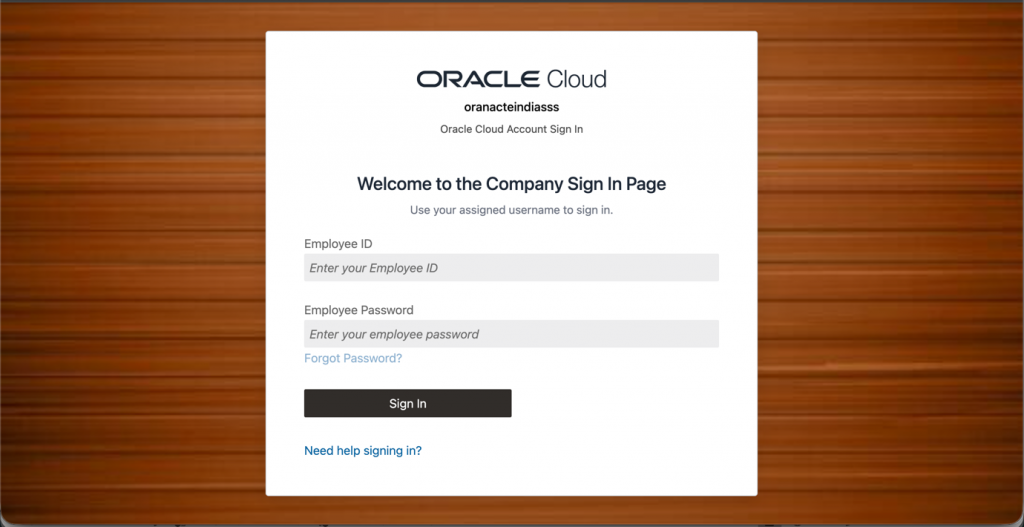
Consider a fictitious company, Acme Services, that wants to make a few simple improvements to its OCI IAM Hosted Sign-In page:
- Replace Username or Email with Employee ID
- Replace the password label with Employee Password
- Add a short welcome message above the sign-in form
- Add a brief instruction to guide users on what credential to use
This is a good example of where Hosted Sign-In works well. The page does not need a complete redesign, but a few focused changes can make the experience clearer and more aligned with internal terminology.
Steps to Configure
- As an Tenancy Admin, from the OCI Console hamburger menu, navigate to Identity & Security.
- Click on Domains under Identity.
- Select the compartment and click on your Domain where you want to enable Hosted Sign-In.
- Navigate to Settings and scroll down under Downloads section.
- Click Enable Hosted Sign-In.
- On the Hosted Sign-In page, click Restore Default HTML.
- Update the default HTML with the required custom HTML changes.
- Under Translations, add the required JSON.
- Use Preview to validate the experience.
- Save the changes after testing is complete.
Custom HTML
<div class="oj-flex oj-sm-flex-direction-column">
  <div id="idcs-app-shell-signin-background" class="oj-idaas-signin-app-shell oj-idaas-signin-app-shell-background">
    <div class="oj-flex oj-idaas-signin-app-shell-wrapper oj-idaas-signin-app-shell-wrapper-background">
      <div class="oj-flex-item oj-sm-12 oj-idaas-signin-app-shell-padding-left oj-idaas-signin-app-shell-padding-right">
        <div class="oj-idaas-signin-app-shell-branding-logo-wrapper">
          <img id="custom-idaas-signin-branding-logo" class="oj-idaas-signin-app-shell-branding-logo" />
        </div>
        <oj-idaas-signin-section id="custom-idaas-signin-section"></oj-idaas-signin-section>
      </div>

      <div class="oj-flex-item oj-sm-12 oj-idaas-signin-app-shell-content-wrapper">
        <oj-idaas-signin-message id="custom-idaas-signin-message"></oj-idaas-signin-message>

        <div class="oj-idaas-signin-app-shell-padding-left oj-idaas-signin-app-shell-padding-right">
          <div style="text-align:center; margin: 0 0 24px 0; padding: 0 12px;">
            <div
              data-idcs-text-translation-id="welcometext"
              style="font-size: 24px; font-weight: 500; line-height: 1.3; color: #1f2937; margin-bottom: 8px;">
            </div>

            <div
              data-idcs-text-translation-id="instructions"
              style="font-size: 15px; font-weight: 400; line-height: 1.5; color: #6b7280; max-width: 520px; margin: 0 auto 14px auto;">
            </div>
          </div>

          <oj-bind-slot name="content"></oj-bind-slot>
        </div>
      </div>
    </div>
  </div>
</div>
Translations
{
  "welcometext": {
    "en": "Welcome to the Acme Services Sign In Page"
  },
  "instructions": {
    "en": "Use your assigned employee ID to sign in."
  },
  "idcs-username-label": {
    "en": "Employee ID"
  },
  "idcs-username-placeholder": {
    "en": "Enter your Employee ID"
  },
  "idcs-password-label": {
    "en": "Employee Password"
  },
  "idcs-password-placeholder": {
    "en": "Enter your employee password"
  }
}
Additional Practical Examples
A few smaller examples that also work well:
- Change only the username label:
{
  "idcs-username-label": {
    "en": "Company Username"
  }
}
- Change only the username placeholder:
{
  "idcs-username-placeholder": {
    "en": "Username"
  }
}
- Add a short support note in custom HTML and translations:
<div
  data-idcs-text-translation-id="supportnote"
  style="font-size: 13px; color: #6b7280; text-align: center; margin-top: 16px;">
</div>
{
  "supportnote": {
    "en": "Need help signing in? Contact your IT support team."
  }
}
Bonus Tips
- Branding logo support: The default Hosted Sign-In HTML includes the logo element:
<img id="custom-idaas-signin-branding-logo" class="oj-idaas-signin-app-shell-branding-logo" />If a custom logo is configured in branding, Hosted Sign-In will use it.
- Background image support: Oracle documents background image support through Branding settings. If you want a page background image, it is cleaner to configure it through branding rather than embedding it in custom HTML.
- Multilingual support: Hosted Sign-In translations can also support multiple languages. This is useful when the identity domain serves users in more than one locale.
Example:
{
  "idcs-username-placeholder": {
    "en": "Enter your Employee ID",
    "es": "Introduzca su ID de empleado"
  }
}
To test multilingual behaviour, the sign-in page must be rendered in that language in the browser or session.
Recommended Approach
For most implementations, the best approach is to start small:
- Restore the default HTML
- Make the minimum required change first
- Use translations wherever possible instead of heavily rewriting HTML
- Test in a non-production domain before making the same update in production
- Keep a recovery path in mind in case a change affects the sign-in experience
- Use the Backup URL to Recover the Sign In Page if something goes wrong.
This keeps the customization easy to support and reduces operational risk.
Closing Thoughts
Hosted Sign-In is a lightweight but effective OCI IAM capability for organizations that want to improve the sign-in experience without building a separate custom authentication front end. In many cases, small changes such as replacing Username or Email with Employee ID, refining password guidance, or adding brief instructional text are enough to make the page more intuitive and better aligned with enterprise standards.
With a measured approach, Hosted Sign-In gives administrators a practical way to improve usability while keeping the solution simple and supportable. Starting from the default HTML, relying on translations where possible, and validating changes first in a non-production domain can go a long way toward delivering a cleaner, clearer, and more business-friendly login experience.