
Oracle Database@Azure Networking
A practical Azure Portal validation procedure using vNIC Resource JSON.
Summary
This blog explains how to validate whether Advanced Network Features are active for an Oracle Database@Azure database instance vNIC. The practical check is performed in Azure Portal by opening the vNIC Resource JSON and checking the bmNetworkingFeatures value.
Note: Screenshots in this document are redacted to remove subscription IDs, resource groups, VNet names, private IP addresses, internal DNS suffixes, and customer-specific naming.
Introduction
Oracle Database@Azure, also commonly written as ODB@Azure, integrates Oracle database infrastructure with Azure networking. In current Microsoft documentation, the service is documented under Oracle AI Database@Azure. The Microsoft network planning article explains that Oracle AI Database clusters connect to an Azure virtual network through a virtual network interface card, or virtual NIC, from a subnet delegated to Oracle.Database/networkAttachment. See the Microsoft Learn network planning article.
From a network design perspective, it is important to understand how the Oracle Database@Azure connectivity model has evolved. In earlier deployments, standard/default networking was effectively the only available connection mode for the delegated subnet and the database vNIC. Advanced network features were introduced as the next step in that model: they keep the required ODB@Azure connectivity while adding a more Azure-native virtual networking experience with better security, performance, and control, similar to standard Azure virtual machines. For new designs, advanced networking should be treated as the preferred direction and, in practice, is likely to become the normal choice for most new deployments. At the time of writing, this is not an in-place setting that can be toggled on an existing deployment. Microsoft documents advanced network features as supported only for new Oracle AI Database@Azure deployments, and existing virtual networks with previously created Oracle Database@Azure delegated subnets do not support these features at this time. Therefore, moving from standard/default networking to advanced networking should be planned as a full reprovisioning activity for the ODB@Azure infrastructure, using a newly prepared delegated subnet after the required provider feature registration has been completed.
Advanced network features can materially affect a design because Microsoft lists different topology and constraint support between default and advanced networking. Examples include support for Network Security Groups on delegated subnets, service tags, virtual network flow logs, Global VNet Peering, active/active VPN gateways, and ExpressRoute FastPath when advanced features are used.
Important distinction: Microsoft Learn states that there is no direct way to verify whether a VNet supports advanced network features. This blog focuses on a practical vNIC-level validation method: checking the Resource JSON of the database instance vNIC.
Prerequisites
Before starting the validation, make sure the following items are available:
- Azure Portal access to the subscription where Oracle Database@Azure is deployed.
- Read access to the Virtual Network, delegated subnet, connected devices or topology view, and the vNIC Resource JSON.
- The VNet and delegated subnet used by the Oracle Database@Azure deployment.
- An identifier that maps the vNIC to the DB instance, such as the vNIC name or private IP address.
- An existing Oracle Database@Azure deployment if the goal is to validate the current vNIC state.
Provider registration for new advanced networking deployments
For new deployments that require advanced network features, Microsoft documents provider feature registration before creating the new delegated subnet. The commands shown in the Microsoft article are:
The same article notes that the registration state can remain in Registering for up to 60 minutes and should show Registered before delegated subnet creation continues. See the Microsoft Learn network planning article.
Solution Description
What this procedure verifies
This procedure verifies the networking mode on the actual Azure-side vNIC associated with the Oracle Database@Azure DB instance. It is not a VNet-level verification method.
The operational validation method used in this blog is: open the VNet, locate a vNIC from the delegated subnet, open the vNIC in JSON format, and check the bmNetworkingFeatures property.
| Resource JSON property | Value | Interpretation |
|---|---|---|
bmNetworkingFeatures |
24 | Advanced network features are active on the selected DB instance vNIC. |
bmNetworkingFeatures |
8 | Standard/default networking is active on the selected DB instance vNIC. |
Operational note: The bmNetworkingFeatures value mapping is based on the validation procedure used in this blog. The Microsoft Learn source explains the feature modes and states that VNet-level verification is not directly available, but it does not document this specific JSON value mapping.
Step 1: Open Virtual Networks in Azure Portal
In Azure Portal, use the global search box to search for Virtual networks and open the Virtual networks service.
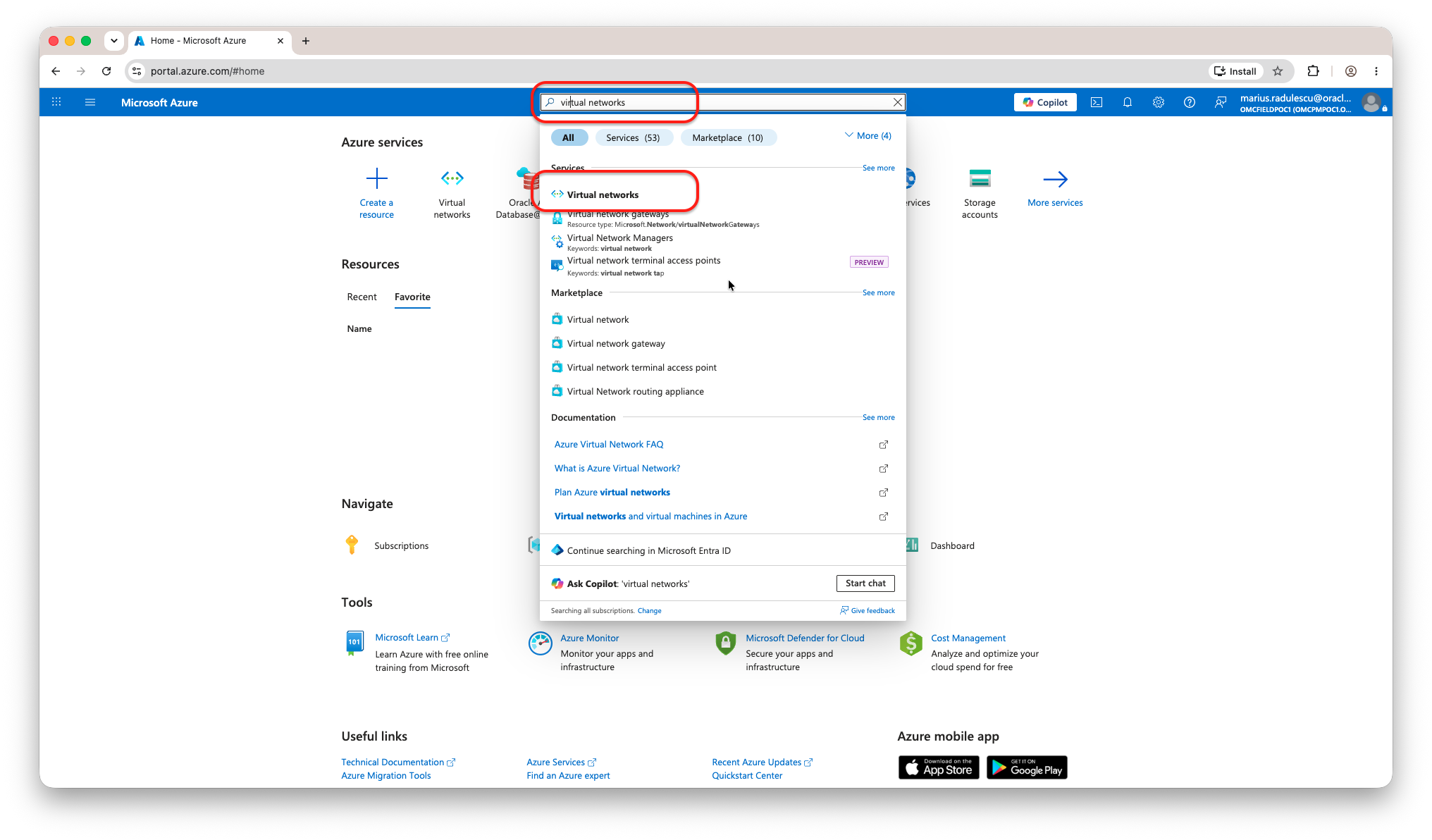
Figure 1. Search for Virtual networks in Azure Portal.
From the Virtual networks list, select the VNet that contains the Oracle Database@Azure delegated subnet.
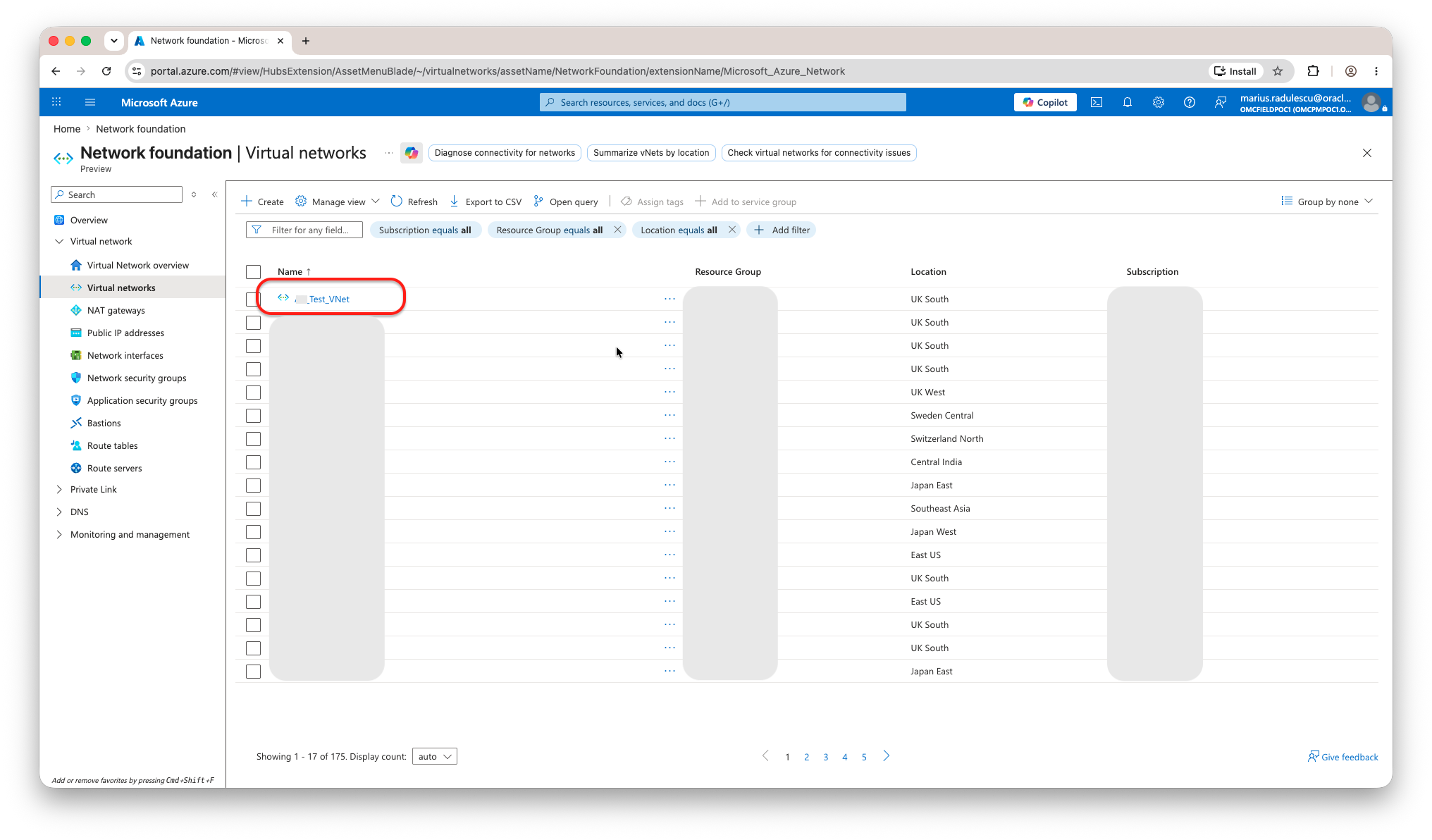
Figure 2. Select the target VNet. VNet names, resource groups, and subscription names are redacted.
Step 2: Locate the DB instance vNIC
There are two common ways to reach the vNIC: use Connected devices from the VNet, or use the VNet Topology view and open the vNIC details from the topology map. The topology path is often the easiest way to visually confirm the network interface relationship.
Open the selected VNet and go to the topology area. Confirm that you are working in the correct VNet before selecting any interface.
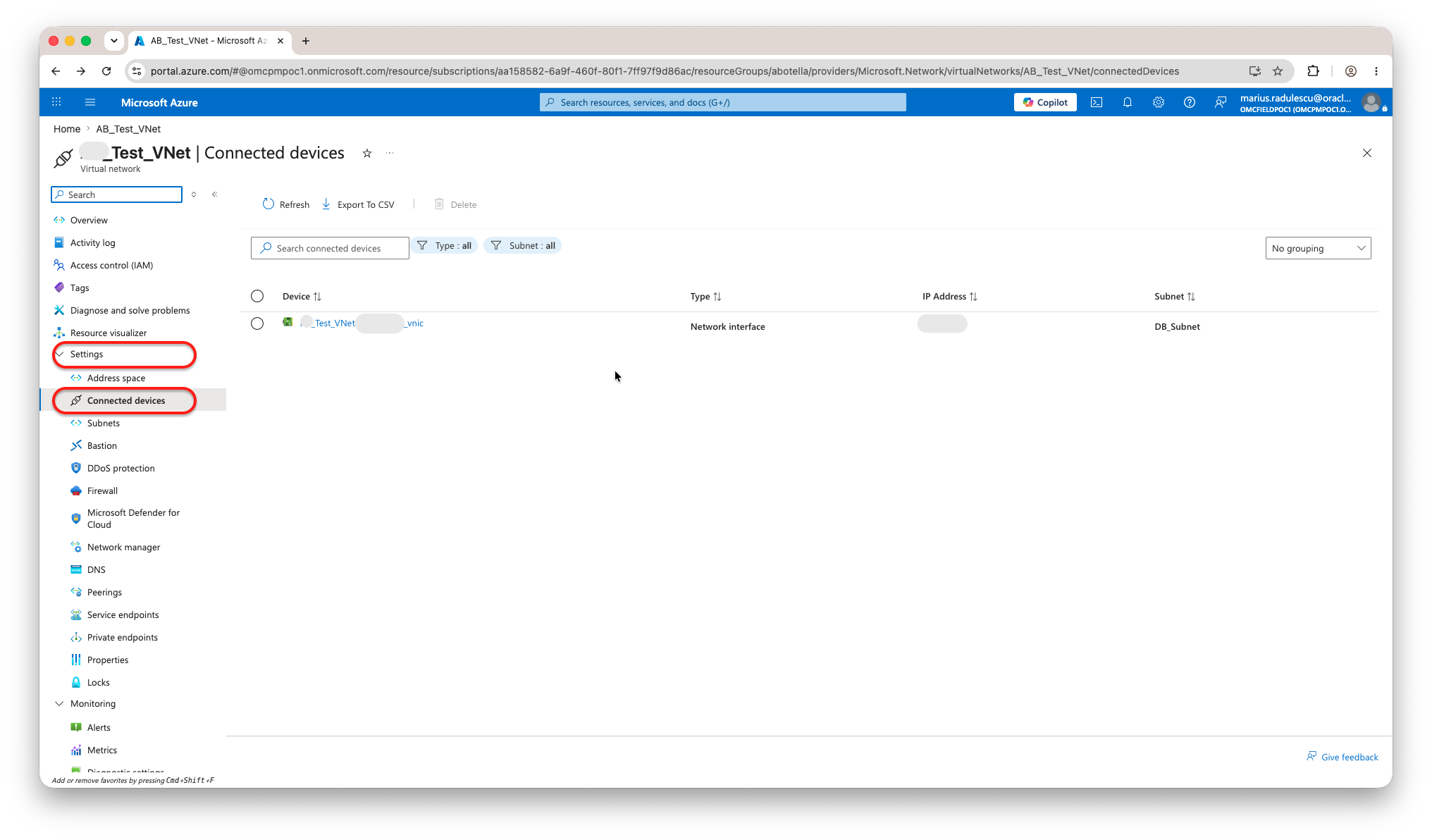
Figure 3a. Open the VNet Connected devices area. Environment-specific VNet and names and IPs are redacted
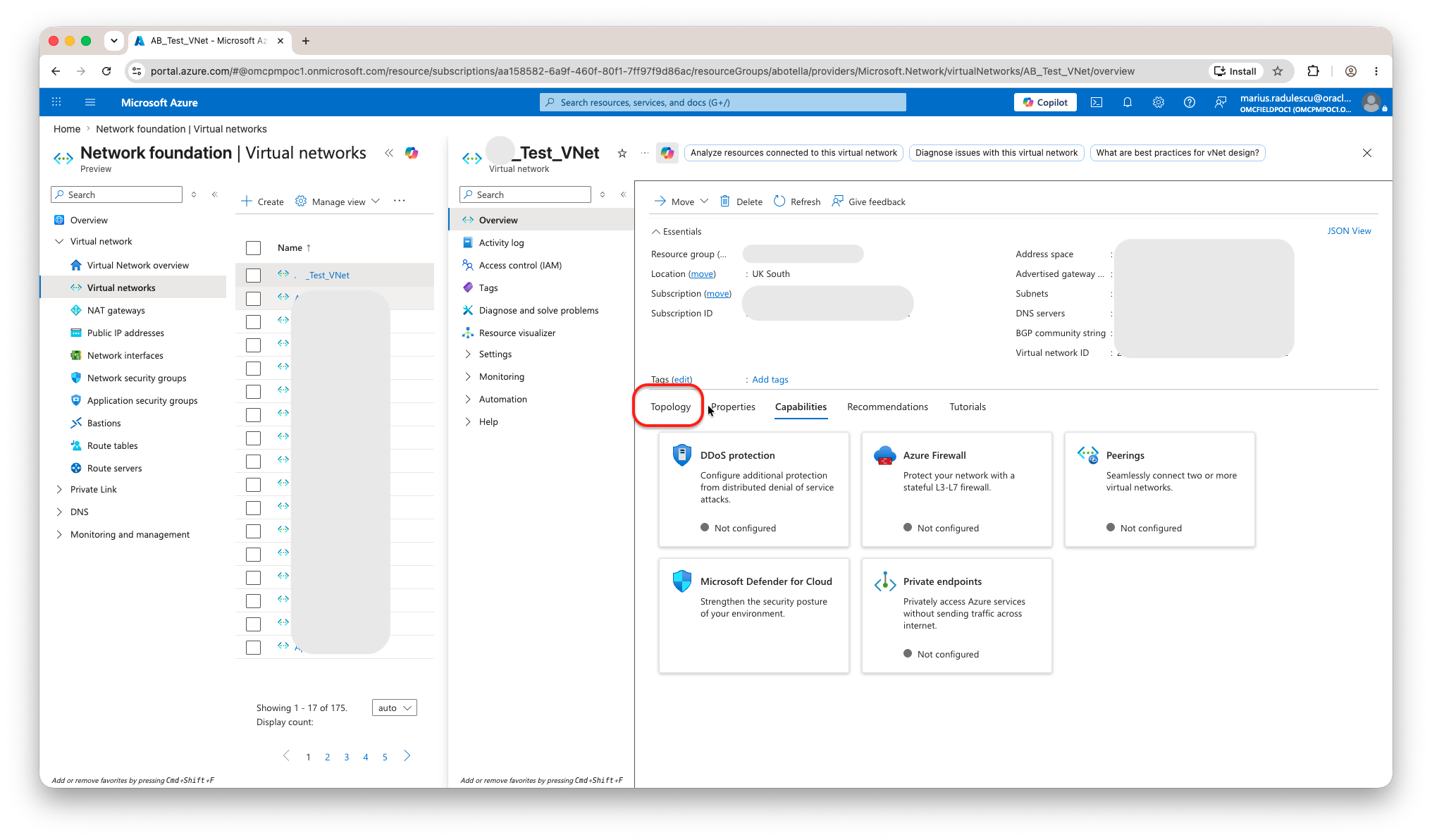
Figure 3b. Open the VNet Topology area. Environment-specific VNet and subscription values are redacted.
In the topology view, select the DB instance vNIC from the delegated subnet and click View Details. Use the private IP address, vNIC name, or environment naming convention to confirm that the selected vNIC maps to the DB instance that you are validating.
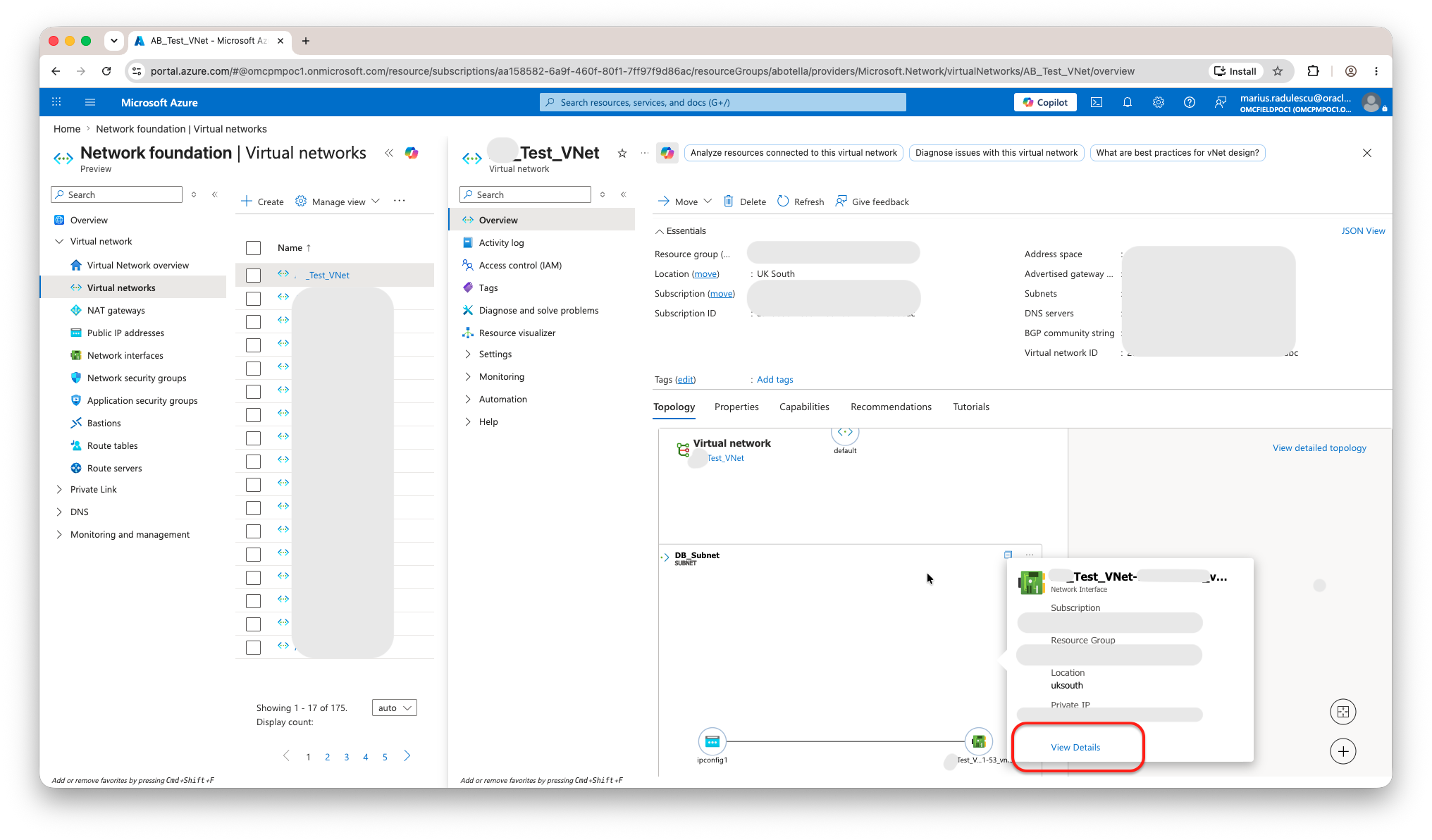
Figure 4. Select the database vNIC and click View Details. vNIC, subnet, resource group, subscription, location, and private IP values are redacted.
Step 3: Open the vNIC Resource JSON
On the vNIC overview page, click JSON View. This opens the Resource JSON view for the selected network interface.
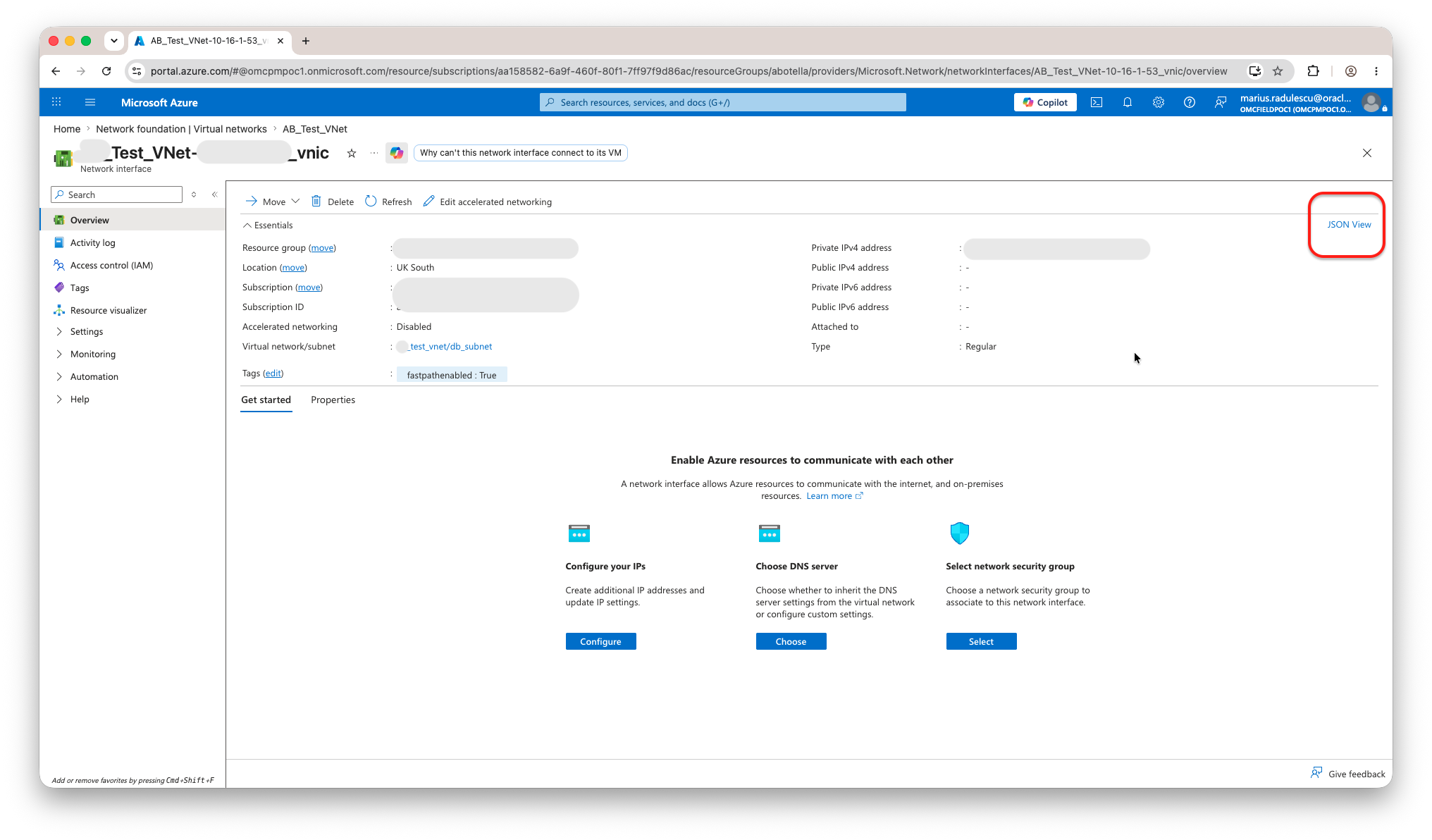
Figure 5. Open JSON View from the vNIC overview page. Resource group, subscription, private IP, VNet/subnet, and tag values are redacted.
Step 4: Search for bmNetworkingFeatures
In Resource JSON, search for bmNetworkingFeatures. If the value is 24, the DB instance vNIC has advanced network features active. If the value is 8, the vNIC is using standard/default networking.
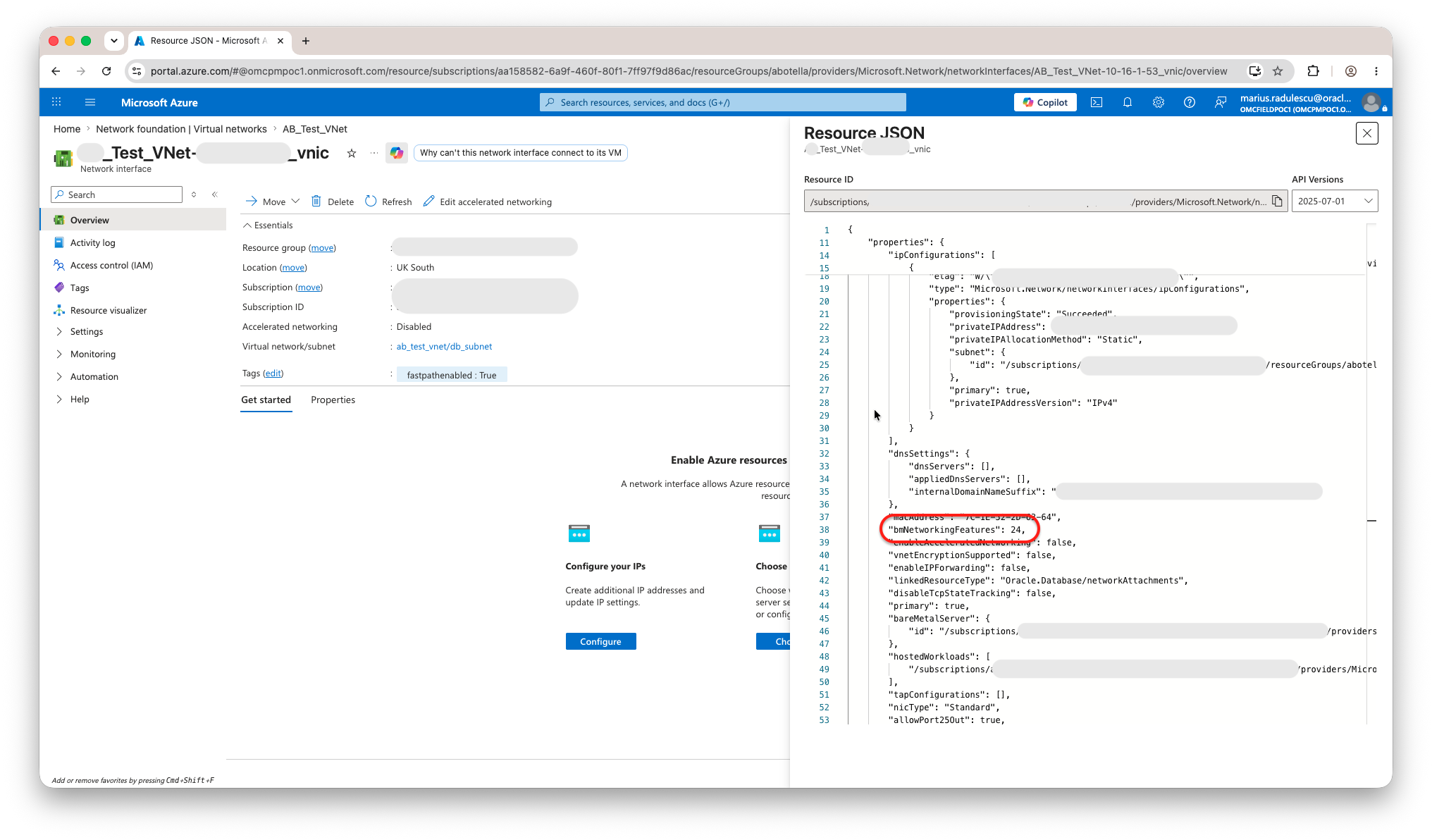
Figure 6. Cropped Resource JSON snippet showing bmNetworkingFeatures: 24. Sensitive values are redacted.
Step 5: Interpret and document the result
| Observed property | Value | Recommended action |
|---|---|---|
bmNetworkingFeatures |
24 | Record that advanced network features are active on the selected DB instance vNIC. |
bmNetworkingFeatures |
8 | Record that the selected DB instance vNIC is using standard/default networking. Review default-networking limitations before approving the design. |
For customer validation, troubleshooting, or change documentation, capture enough evidence to make the result repeatable:
| Evidence item | Purpose |
|---|---|
| Subscription and resource group | Identifies the Azure scope of the validation. Redact these values for public sharing. |
| VNet and delegated subnet | Confirms that the vNIC belongs to the Oracle Database@Azure network path. |
| vNIC name and private IP address | Maps the interface to the DB instance. Redact these values in public documents. |
| API version used in Resource JSON | Makes the check easier to repeat. |
bmNetworkingFeatures value |
Documents the final networking-mode result. |
| Validation date and operator | Supports audit, support, or handover records. |
Conclusion
Advanced Network Features are an important Oracle Database@Azure network design consideration because they affect supported topologies, security controls, and routing options. Microsoft Learn describes the difference between default and advanced network features and documents the prerequisites and constraints for using advanced networking. See the Microsoft Learn network planning article.
For an existing deployment, a practical vNIC-level validation method is to open the Azure-side DB instance vNIC, view the Resource JSON, and check the bmNetworkingFeatures value. Use the following rule of thumb:
| Value | Meaning |
|---|---|
| 24 | Advanced network features are enabled on the DB instance vNIC. |
| 8 | Standard/default networking is active on the DB instance vNIC. |
Always verify that the selected network interface is the correct DB instance vNIC from the Oracle Database@Azure delegated subnet. If the JSON value is missing or unexpected, treat the validation as inconclusive rather than assuming the feature state.
Sources and Links
Microsoft Learn: Plan a network for Oracle Database@Azure