


Introduction
Security teams require centralized visibility into authentication activity, privileged operations, access changes, and sensitive business transactions occurring across enterprise SaaS platforms. Oracle Fusion Cloud Applications generate rich audit events that can support security monitoring, compliance reporting, governance reviews, and security investigations. However, the challenge is not only extracting audit records from Fusion Applications, but also delivering them reliably into downstream monitoring, archival, and analytics platforms without creating tightly coupled integrations.
This article introduces a scalable event-driven integration architecture using Oracle Integration Cloud (OIC) and OCI Streaming. Oracle Integration is used to extract and transform Fusion audit events, while OCI Streaming acts as the central durable event backbone between Oracle Fusion Cloud and downstream consumers. By introducing a streaming layer, audit extraction becomes decoupled from downstream processing systems, enabling independent scaling, event durability, replay capability, and support for multiple parallel consumers.
This architecture establishes the foundation for the rest of the series, where subsequent parts demonstrate how OCI Streaming can be integrated with SIEM and security analytics platforms such as Splunk using both serverless push-based and Kafka-compatible pull-based integration models.
Fusion Audit Event Sources
Oracle Fusion Cloud provides multiple audit extraction patterns depending on the type of activity that needs to be monitored. The integration architecture described in this article is generic and can be used with different Fusion audit event categories, including business transaction audits, platform configuration audits, security audits, and operational activity monitoring.
Oracle Integration Cloud can invoke the appropriate Fusion audit APIs, transform the payloads, and publish the events into OCI Streaming for downstream processing.
Additional details on Fusion audit extraction approaches are available in:Methods to Extract Audit Monitoring Data from Fusion Applications
Fusion Business Object Audit (Transactional Audit Events)
Business object audit events capture transactional changes occurring within Fusion Applications, such as employee updates, supplier changes, procurement transactions, or HCM data modifications.
Example payload:
{
  "fromDate":"2025-11-15 00:00:00",
  "toDate":"2025-12-15 23:59:59",
  "product":"hcmCore",
"businessObjectType":"oracle.apps.hcm.people.core.uiModel.view.ManagePersonVO",
  "includeChildObjects":"true",
  "includeAttributes":"true",
  "attributeDetailMode":"true"
}
Fusion Platform Audit (Configuration and Administrative Events)
Platform audit events capture configuration and administrative activities occurring within Fusion middleware and platform services.
Examples include:
- ADF page and taskflow modifications
- ESS job activity
- OPSS security policy changes
- MDS sandbox and metadata changes
- SOA approval configuration updates
Example payload:
{
  "fromDate":"2025-11-15 00:00:00",
  "toDate":"2025-12-15 23:59:59",
  "product":"ESS",
  "includeChildObjects":"true",
  "includeAttributes":"true",
  "includeExtendedObjectIdentiferColumns":"true",
  "includeImpersonator":"true",
  "attributeDetailMode":"true",
  "timeZone":"UTC"
}
Reference Architecture
Oracle Fusion Cloud Applications act as the source of audit and security events. Oracle Integration Cloud (OIC) orchestrates the extraction, transformation, and publication of those audit records into OCI Streaming.
OCI Streaming serves as the durable and decoupled event backbone between Oracle Fusion Cloud and downstream consumers. By introducing a streaming layer, the architecture separates audit extraction from downstream processing systems, enabling independent scaling, replay capability, fault isolation, and reliable event delivery.
This architecture establishes a reusable event-driven integration foundation where multiple downstream consumers can independently process the same audit event stream for purposes such as SIEM integration, archival, analytics, or additional security processing.
Subsequent parts of this series demonstrate how OCI Streaming can be integrated with downstream platforms such as Splunk SIEM using both serverless push-based and Kafka-compatible pull-based integration models.
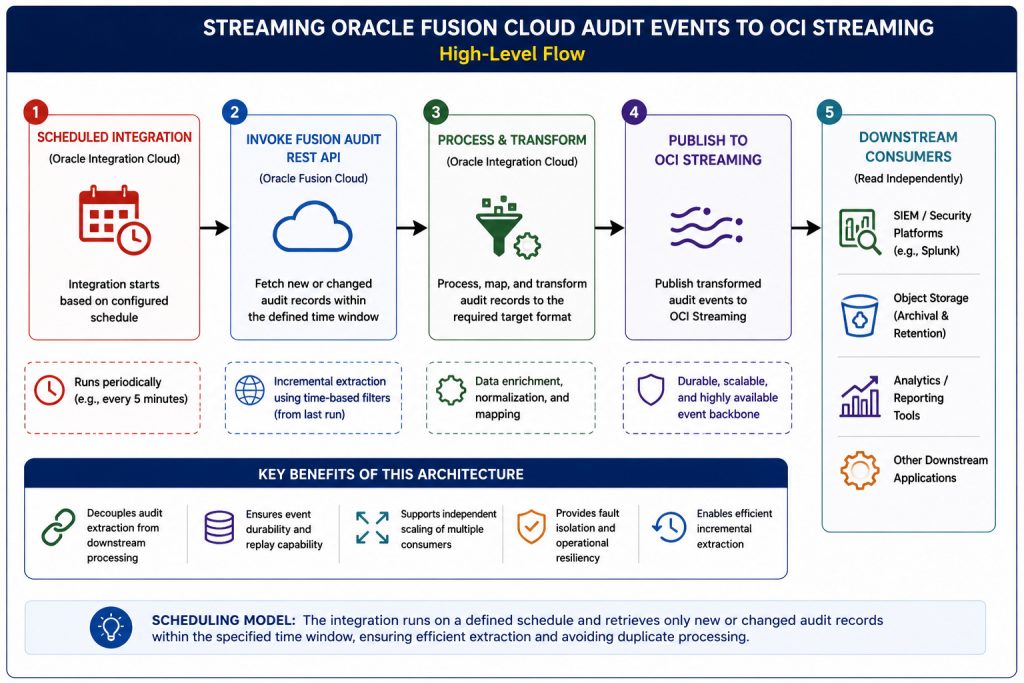
How the scheduled integration works
The integration is created in Oracle Integration Cloud as a Scheduled integration. This means it runs on a timer and periodically checks Oracle Fusion Cloud for new audit records.
At a high level, the flow works like this:
- Oracle Integration Cloud starts on a schedule.
- The flow invokes the Fusion Audit REST API.
- The response is processed and transformed as needed.
- The audit records are published to OCI Streaming.
- Downstream consumers read from the stream independently.
This scheduling model is important because audit extraction is usually incremental. Rather than repeatedly pulling the same full dataset, the integration only retrieves new or changed records within a defined time window. That keeps the process efficient and reduces the chance of reprocessing the same audit events.
Steps
1. Create the OCI Stream
Start by creating the stream that will hold Fusion audit events.
- On the Streams list page, select Create stream.
- Enter the following information:
- Stream name: Enter a name for the stream.
- Compartment: Select the compartment in which to create the stream.
- Select the stream pool to contain your stream.
- If the compartment has an existing stream pool, you can select it.
- If no stream pool exists in the compartment, you can select one of the following options:
- Select Auto-Create a default stream pool. A default stream pool is created for you when you create the stream.
- Select Create new stream pool and configure the stream pool. For instructions, see step 5 in Creating a Stream Pool.
- Provide values for Define stream settings:
- Retention (in hours): Enter the number of hours (from 24 to 168) to retain messages in this stream. The default value is 24.
- Number of partitions: Enter the number of partitions for the stream. The maximum number is based on the limits for your tenancy.The maximum Total write rate and Total read rate values for the stream are displayed as you adjust the number of partitions.
- Select Create.
After the stream is created, open the stream pool and capture the Kafka connection details. Oracle Integration requires the bootstrap server and SASL connection information when configuring the OCI Streaming Adapter connection.
2. Create an integration in Oracle Integration
Create a REST API connection to Fusion Audit API
In Oracle Integration:
- Navigate to Home > Integrations > Connections.
- Select Create.
- Choose the REST Adapter.
- Enter a connection name, such as
FA_Audit. - Enter an identifier, such as
FA_AUDIT. - Select the appropriate role, typically Invoke.
- In the connection URL, enter the Fusion Applications base URL:
https://<fahost:port> - Configure the Security section based on the requirements of the target API .
- Test and Save the connection.
The integration will use this connection to invoke the Fusion Audit API endpoint:
/fscmRestApi/fndAuditRESTService/audittrail/getaudithistory
Create a Streaming Adapter Connection
Create a connection to the Oracle Cloud Infrastructure Streaming Service to enable messages to be published and consumed.
In Oracle Integration:
- Navigate to your project.
- Open Integrations > Connections.
- Select Add.
- Choose the Streaming Adapter.
- Enter a name such as
Fusion_Audit_Stream. - Create the connection.
- Select the Streaming adapter to use for this connection. You must satisfy the following prerequisites to create a connection with the Oracle Cloud Infrastructure Streaming Service Adapter.
- Enter the information that describes this connection.Click Create. Your connection is created.
- Go to the Properties section. You can get the values to add in the properties section from the Kafka Connection settings of the OCI Streampool. In the Bootstrap Servers field, specify the host and port to use to connect to the Oracle Cloud Infrastructure Streaming Service. eg:
cell-1.streaming.us-ashburn-1.oci.oraclecloud.com:9092. Go to the Security section and enter the SASL connection strings from the Kafka Connection settings.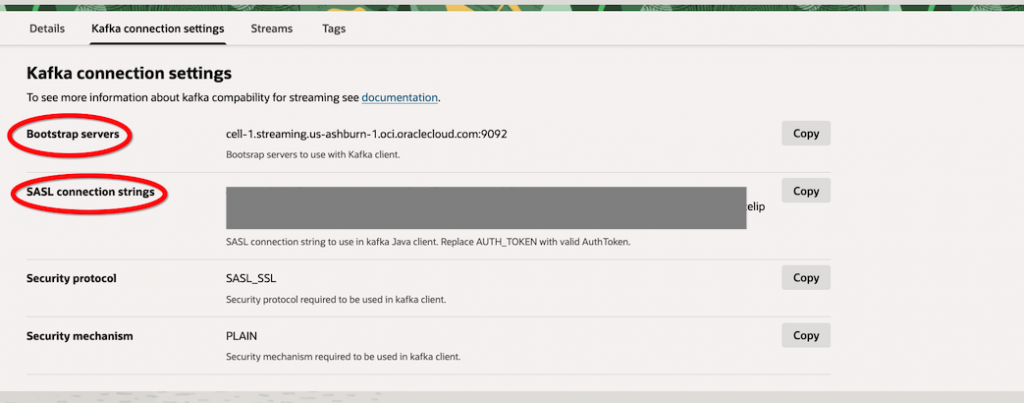
- SASL Password is the auth token generated earlier from the prerequisites step.
- Go to the Access type section.Select the option for accessing your endpoint.
- Test your connection to ensure that it’s configured successfully.
Create a Scheduled OIC Integration
Create a new Integration from OIC console of type Scheduled. This integration is responsible for periodically extracting audit records from Oracle Fusion Cloud and publishing them to OCI Streaming.
Add the following schedule parameters:
lastSuccessful_auditEndDaterunConfig
The lastSuccessful_auditEndDate parameter acts as a checkpoint for the integration. When the integration is scheduled, after each successful execution, the integration stores the ending timestamp of the audit window. During the next scheduled run, this value is used to determine where processing should resume. This incremental processing model is important because it prevents gaps in audit collection while also avoiding duplicate processing of previously extracted records.
The runConfig parameter controls the behavior and scope of the audit extraction. Instead of hardcoding values in the integration flow, the configuration is passed dynamically at runtime, making the integration reusable across different Fusion products and business object types. The parameter defines the audit start date, audit interval, execution mode, Fusion product area, and business object type.
auditStartDate=2017-01-01 01:00:00|auditInterval=10M|runMode=ADHOC|product=hcmCore|businessObjectType=oracle.apps.hcm.people.core.uiModel.view.ManagePersonVO| Parameter | What it means | Example |
|---|---|---|
auditStartDate | The initial timestamp from which audit extraction begins. | 2017-01-01 01:00:00 |
auditInterval | Defines the extraction window for each API call. The value must be time duration in ISO-8601 format. Refer- https://docs.oracle.com/en/cloud/paas/application-integration/mapper-user/perform-date-conversions-mapper.html | |
runMode | Specifies how the integration executes. Set it as ADHOC or SCHEDULED based on whether the integration is scheduled or adhoc. | |
product | Identifies the Fusion application area to query. | hcmCore |
businessObjectType | Specifies the business object type included in the audit query. | |
Assign Variable Values from runConfig
Add an Assign activity to extract the individual values from runConfig and store them in variables that the integration can use later in the flow.
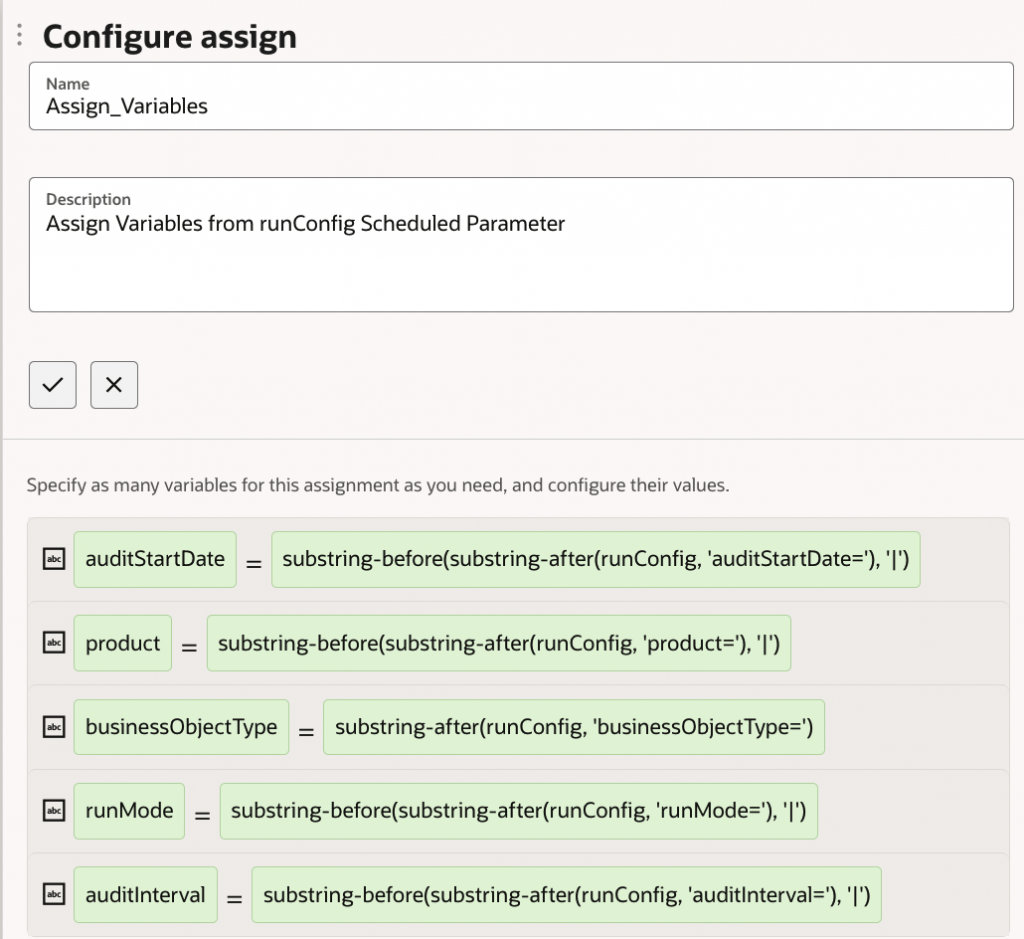
This allows the integration to dynamically derive the audit window, execution mode, product, and business object type at runtime instead of hardcoding them in the flow.
The Assign activity shown below parses the pipe-delimited runConfig string using XPath substring functions. Each configuration value is extracted and assigned to a corresponding integration variable.
Use the following assignments:
| Variable | Expression |
|---|---|
auditStartDate | substring-before(substring-after($runConfig, 'auditStartDate=’), ‘|’) |
product | substring-before(substring-after($runConfig, 'auditStartDate='), '|') |
businessObjectType | substring-before(substring-after($runConfig, 'auditStartDate='), '|') |
runMode | substring-before(substring-after(runConfig, 'runMode='), '|') |
auditInterval | substring-before(substring-after(runConfig, 'runMode='), '|') |
Add a Switch and Compute the Audit Window
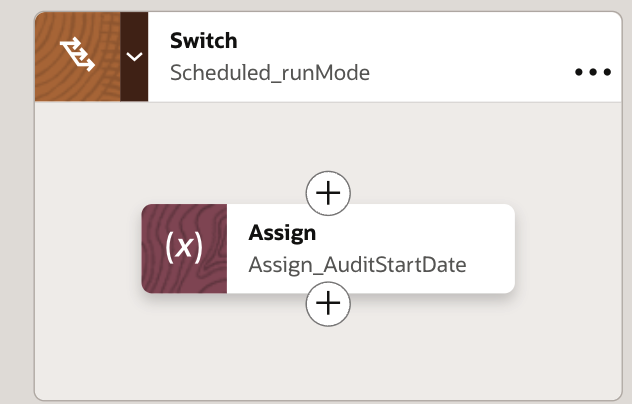
Add a Switch with the following condition:
$runMode = 'SCHEDULED' and $lastSuccessful_auditEndDate != ''
This condition checks whether the integration is running in SCHEDULED mode and whether a previous successful execution timestamp already exists.
If the condition evaluates to true, it means the integration has already processed at least one audit window earlier. In that case, the next run should continue from the point where the previous execution ended instead of restarting from the original configured date.
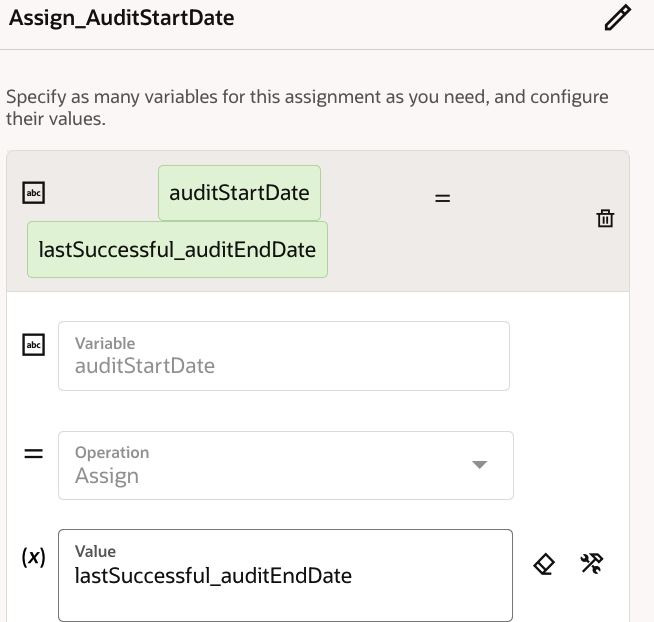
Inside the Switch, add an Assign activity and set auditStartDate to lastSuccessful_auditEndDate.
This step is important because it enables incremental audit extraction. Rather than repeatedly querying the same historical records, the integration advances the audit window forward after every successful run.
Compute the Audit End Date
Add an Assign activity to calculate the auditEndDate variable using the configured auditStartDate and auditInterval values.
fn:substring(fn:translate(fn:string(ns0:dateTime(fn:translate($auditStartDate,' ','T')) + ns0:dayTimeDuration($auditInterval)),'T',' '),1,19)This logic determines the next audit window based on the configured start date and interval. It ensures the integration calculates a valid end time for the audit request and supports both initial and incremental runs.
Invoke the Fusion Audit REST API
Add an Invoke activity using the FA_Audit REST connection, and configure the relative URI as:
/fscmRestApi/fndAuditRESTService/audittrail/getaudithistory
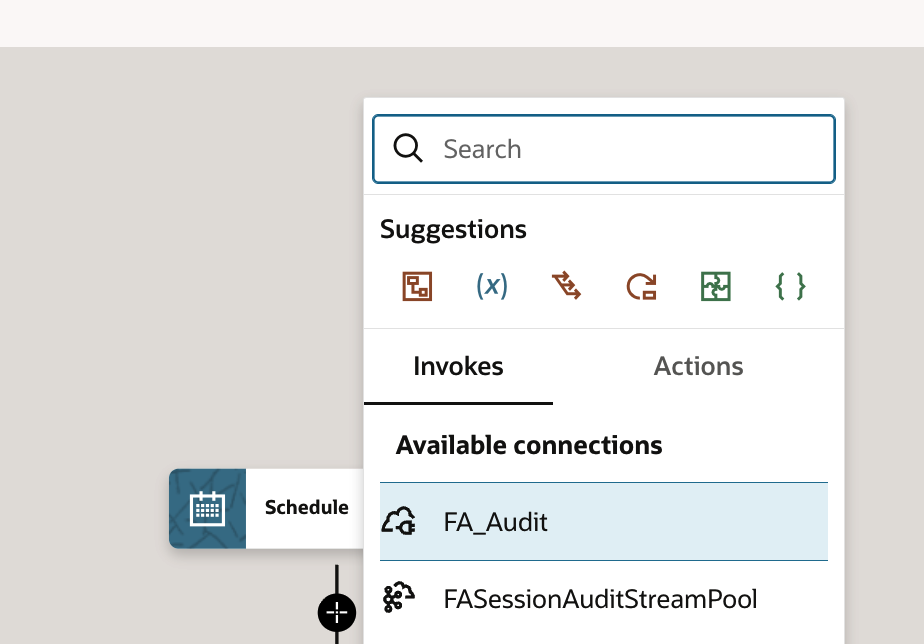
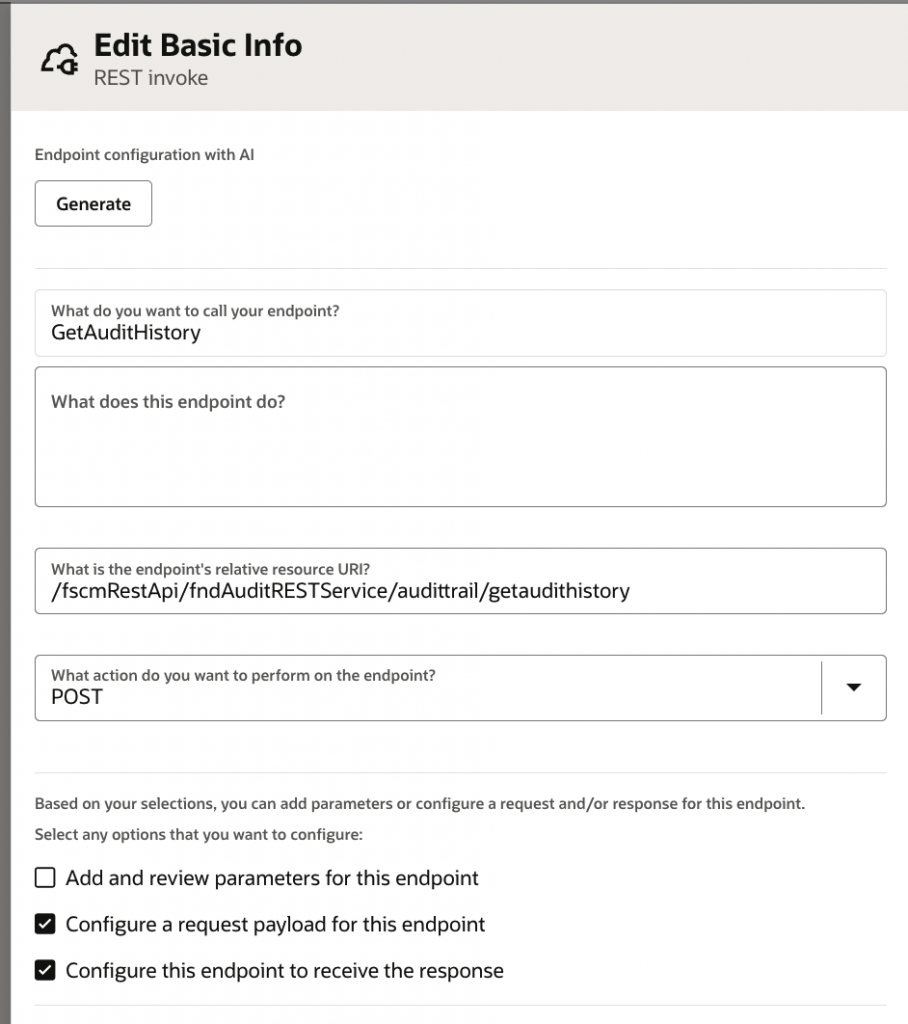
This call retrieves the audit history from Oracle Fusion Cloud for the product and business object type defined in the scheduled parameters. The request should include a sample payload so Oracle Integration can infer the schema and map the request fields correctly. A sample request payload is shown below:
{
"fromDate": "2017-01-01",
"toDate": "2017-01-27",
"product": "hcmCore",
"businessObjectType": "oracle.apps.hcm.people.core.uiModel.view.ManagePersonVO",
"includeChildObjects":"true"
}
Provide a sample response payload based on the Fusion API response so the integration can define the response structure correctly. For example:
{
  "actionName" : "getAuditHistory",
  "status" : "SUCCESS",
  "pageSize" : "9",
  "auditData" : [ {
    "voForeignKeyMap" : {
      "AddressId1" : "300000137549949",
      "AddressType" : "HOME"
    },
    "userInternalName" : "BETTY.ANDERSON",
    "userName" : "PAYROLL ADMINISTRATOR (Betty Anderson)",
    "eventType" : "Object Data Insert",
    "qualifiedBusinessObject" : "oracle.apps.hcm.people.core.uiModel.view.ManagePersonAddressVO",
    "businessObject" : "Person Address",
    "description" : "Person ID:Jonathan Ellis/PersonId:Jonathan Ellis",
    "descriptionInternal" : "Person ID:300000137549941/PersonId:300000137549949",
    "attributeInternalName" : "Country",
    "attribute" : "Country",
    "attributeDetails" : [ {
      "attributeInternalName" : "Country",
      "attribute" : "Country"
    }, {
      "attributeInternalName" : "AddressType",
      "attribute" : "Type"
    }, {
      "attributeInternalName" : "PersonId",
      "attribute" : "PersonId"
    } ],
    "date" : "2017-01-18 19:57:38"
  }, {
    "voForeignKeyMap" : {
      "AddressId1" : "300000137425873",
      "AddressType" : "HOME"
    },
    "userInternalName" : "BETTY.ANDERSON",
    "userName" : "PAYROLL ADMINISTRATOR (Betty Anderson)",
    "eventType" : "Object Data Insert",
    "qualifiedBusinessObject" : "oracle.apps.hcm.people.core.uiModel.view.ManagePersonAddressVO",
    "businessObject" : "Person Address",
    "description" : "Person ID:Sadie Simon/Person ID:Sadie Simon/PersonId:Mark Simon",
    "descriptionInternal" : "Person ID:300000137425867/Person ID:300000137425867/PersonId:300000137425873",
    "attributeInternalName" : "PersonId",
    "attribute" : "PersonId",
    "attributeDetails" : [ {
      "attributeInternalName" : "PersonId",
      "attribute" : "PersonId"
    }, {
      "attributeInternalName" : "Country",
      "attribute" : "Country"
    }, {
      "attributeInternalName" : "AddressType",
      "attribute" : "Type"
    } ],
    "date" : "2017-01-13 18:40:57"
  } ]
}
Complete the REST invoke configuration.
Process the Audit Response
The Fusion Audit API response contains audit records in the auditData array. Add a For Each action to process each audit record individually.
Configure the loop as:
Current element: currentAuditRecord
Repeating element: auditData
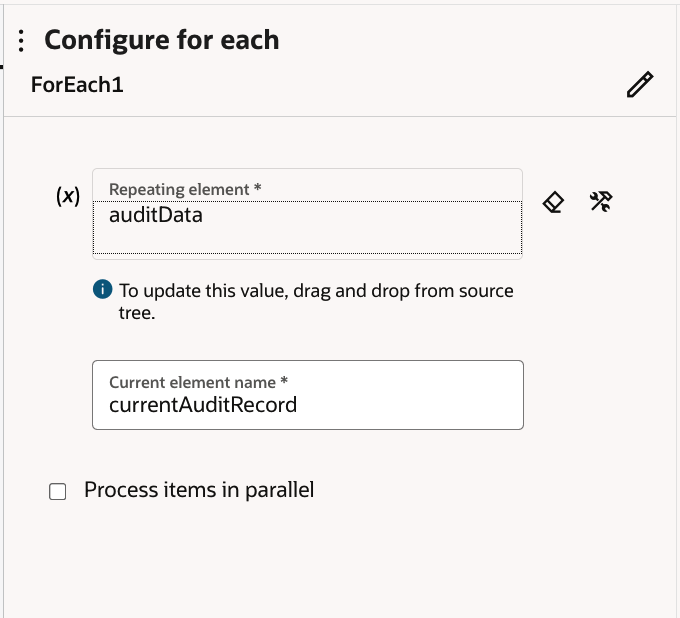
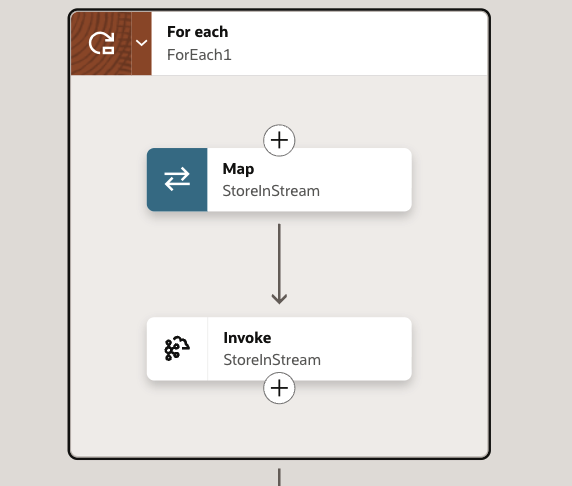
Inside the loop, publish the current audit record to OCI Streaming. Sending one audit record per stream message makes downstream processing easier because each message represents one auditable event. Inside the For Each loop, add an Invoke activity using the OCI Streaming connection.
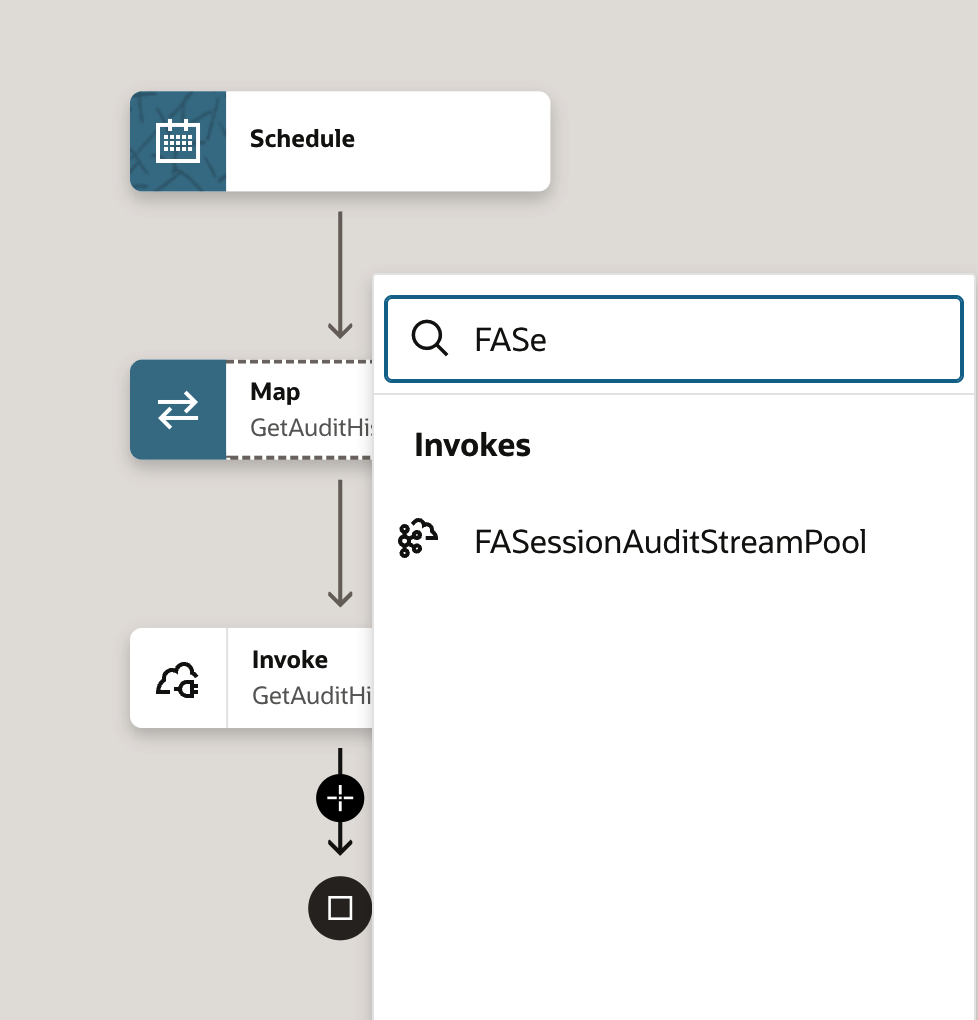
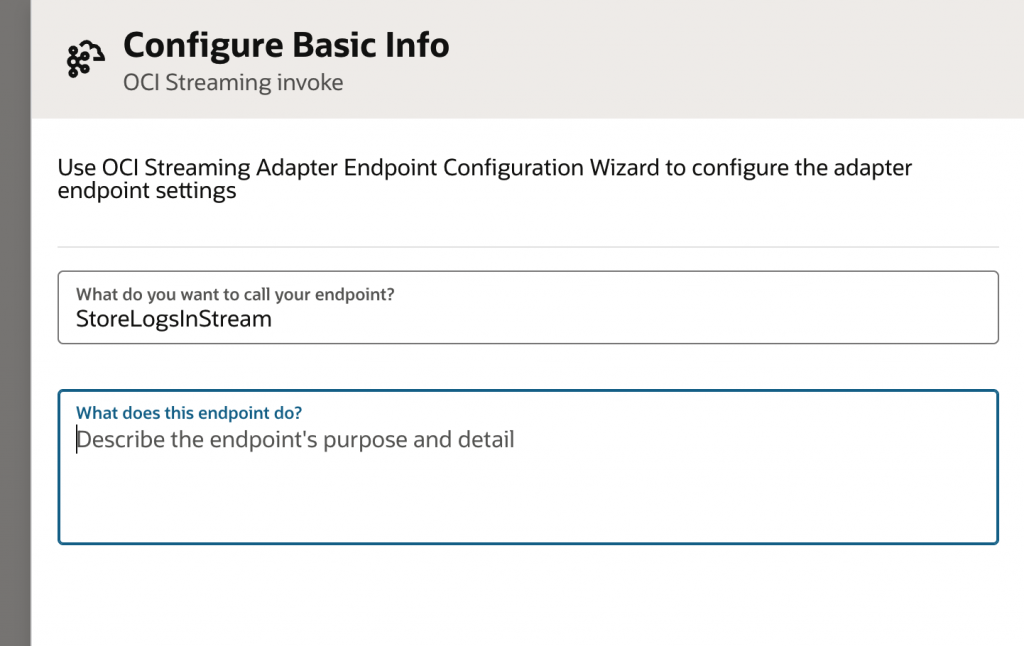
Configure Basic Info.
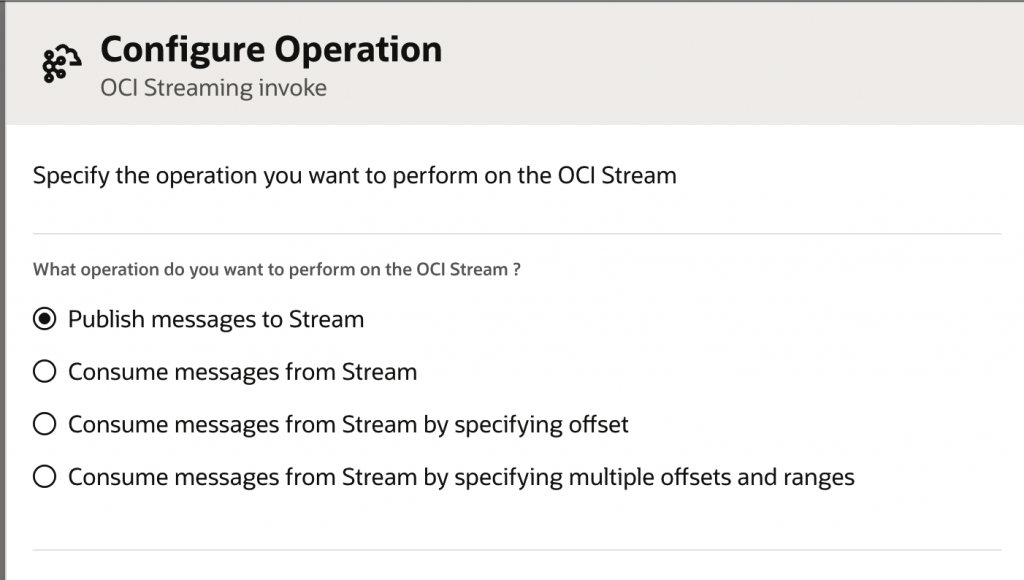
Configure the operation to Publish messages to Stream
Select the stream created earlier: FusionAuditStream
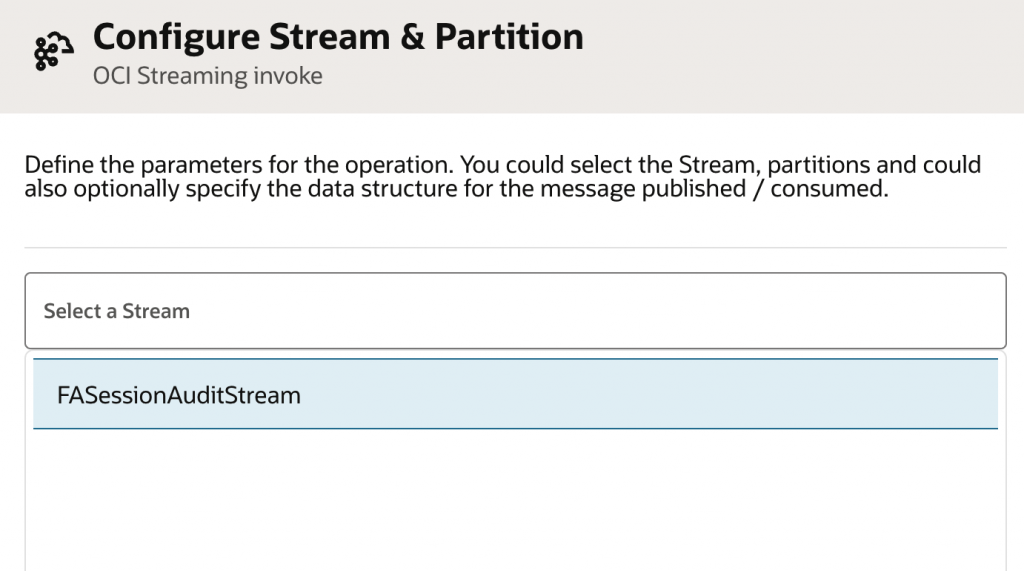
Configure the response json using the response expected from the Audit API call.
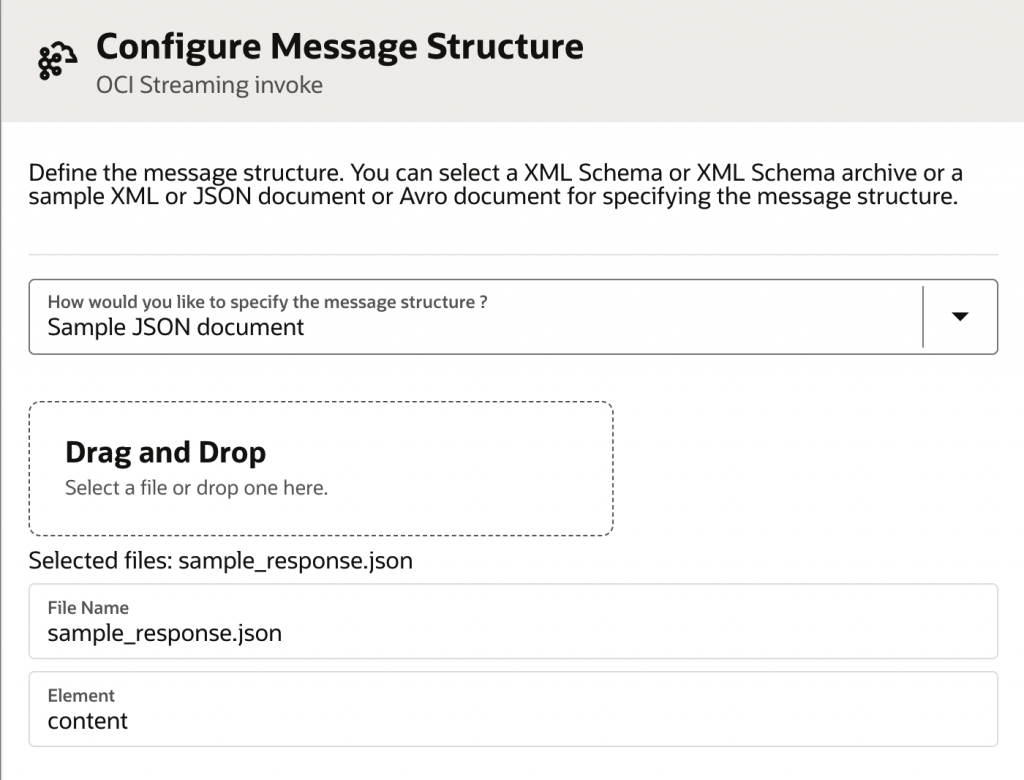
Use this as a sample json to define the message structure.
{"auditData": [
        {
             "voForeignKeyMap": {
                "AddressId1": "300000137549949",
                "AddressType": "HOME"
            },
            "userInternalName": "CARLOS.RODRIGUEZSALGADO",
            "userName": "Carlos Rodriguez Salgado",
            "eventType": "Object Data Update",
            "qualifiedBusinessObject": "oracle.apps.hcm.people.core.uiModel.view.ManagePersonLegislativeInfoVO",
            "businessObject": "Person Legislative Information",
            "description": "Person ID:Carlos Rodriguez Salgado/PersonId:Carlos Rodriguez Salgado",
            "descriptionInternal": "Person ID:300000048933127/PersonId:300000048933130",
            "attributeInternalName": "PersonId",
            "attribute": "PersonId",
            "attributeDetails": [
                {
                    "attributeInternalName": "PersonId",
                    "attribute": "PersonId"
                }
            ],
            "date": "2017-01-24 09:49:44"
        },
        {
             "voForeignKeyMap": {
                "AddressId1": "300000137549949",
                "AddressType": "HOME"
            },
            "userInternalName": "BETTY.ANDERSON",
            "userName": "PAYROLL ADMINISTRATOR (Betty Anderson)",
            "eventType": "Object Data Insert",
            "qualifiedBusinessObject": "oracle.apps.hcm.people.core.uiModel.view.ManagePersonLegislativeInfoVO",
            "businessObject": "Person Legislative Information",
            "description": "Person ID:Jonathan Ellis/PersonId:Jonathan Ellis",
            "descriptionInternal": "Person ID:300000137549941/PersonId:300000137549944",
            "attributeInternalName": "PersonId",
            "attribute": "PersonId",
            "attributeDetails": [
                {
                    "attributeInternalName": "PersonId",
                    "attribute": "PersonId"
                }
            ],
            "date": "2017-01-18 19:57:38"
        }]}
Click Finish.
Map the Fusion audit response to the stream message payload.
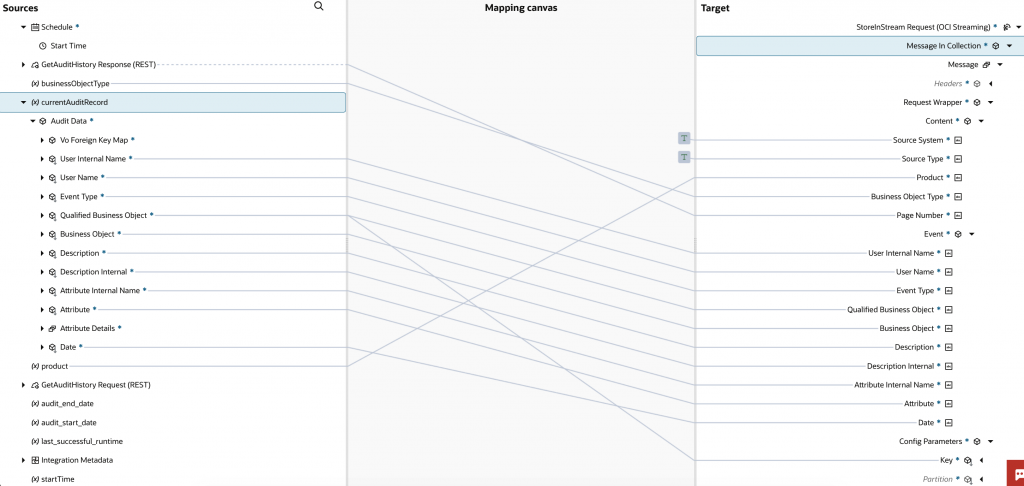
Update the Checkpoint
Add an Assign activity to set the value of lastSuccessful_auditEndDate to the value of $auditEndDate.
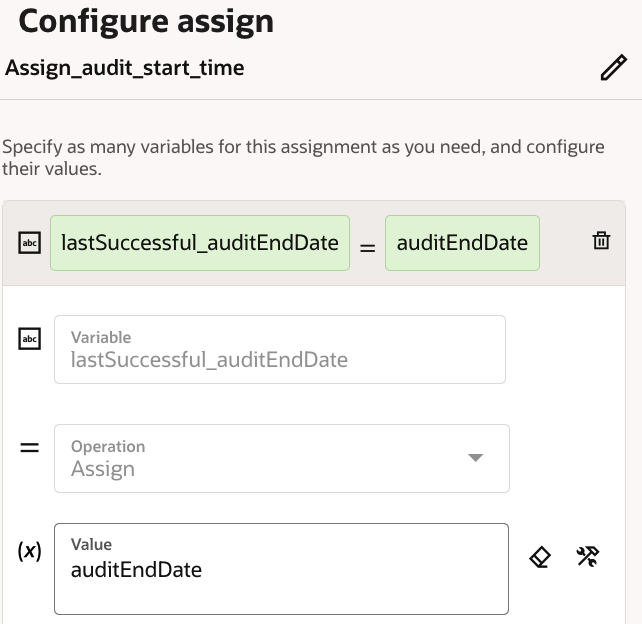
This step closes the loop for incremental extraction. After the integration finishes processing the current batch, the checkpoint is updated so the next scheduled run can resume from the correct point.
Final Integration Flow
Once the orchestration, mapping, streaming publish, and checkpoint update are in place, the final integration flow is ready.
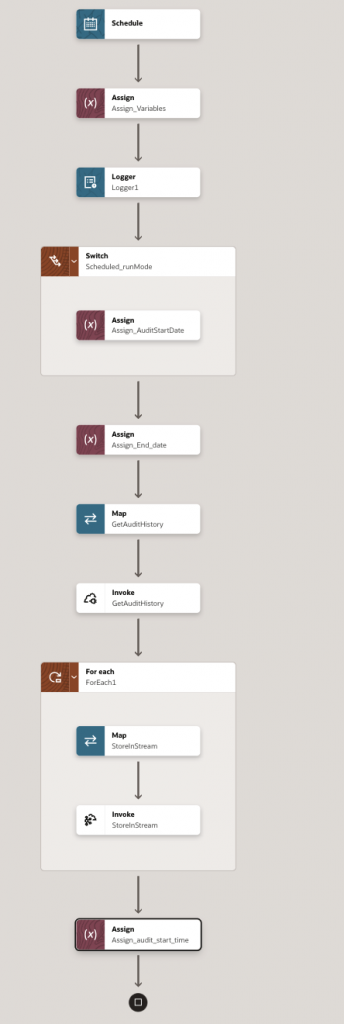
Activate the integration and execute an initial test run using a small audit window to validate the configuration and data extraction behavior.
When triggering the integration, provide the schedule parameters based on the execution mode — either ADHOC or SCHEDULED.
For a scheduled run, provide the initial auditStartDate so the integration can process the correct window and continue from the last successful checkpoint in the subsequent runs. Example,
auditStartDate=2017-01-13 18:40:00|auditInterval=P10DT1H|runMode=SCHEDULED|product=hcmCore|businessObjectType=oracle.apps.hcm.people.core.uiModel.view.ManagePersonVOFor an ad hoc run, pass the required parameters explicitly for that one-time execution. Example,
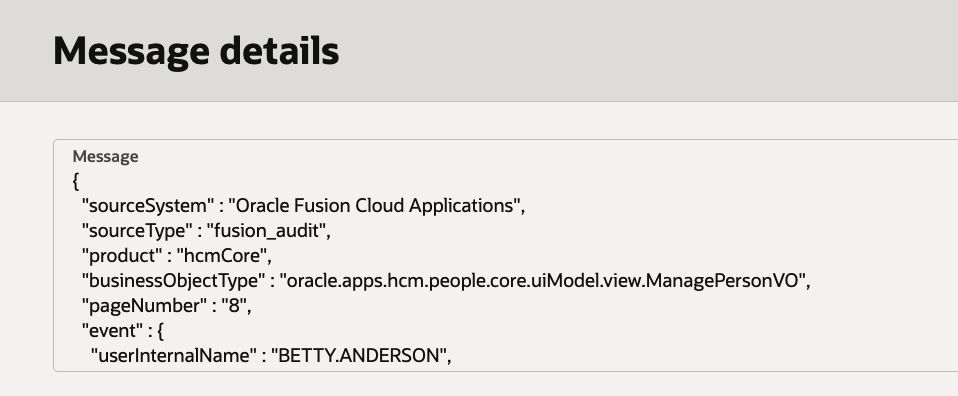
auditStartDate=2017-01-13 18:40:00|auditInterval=P10DT1H|runMode=ADHOC|product=hcmCore|businessObjectType=oracle.apps.hcm.people.core.uiModel.view.ManagePersonVOAfter execution, confirm that messages are available in the OCI Stream.
Operational Considerations
Use a consistent timestamp strategy. Fusion Audit API requests should use the expected date format, such as:
yyyy-MM-dd HH:mm:ss
Audit records may contain sensitive information. Review the fields sent to OCI Streaming and Splunk, and apply masking or filtering if required by your security policy.
This integration is intended as a reference implementation to demonstrate the overall architecture and integration pattern. In a production deployment, additional operational controls should be considered, especially around fault handling, retries, and checkpoint management.
Conclusion
This solution demonstrates how Oracle Integration Cloud can orchestrate the extraction and transformation of Oracle Fusion Cloud audit events while OCI Streaming provides a scalable and durable event backbone for downstream consumers.
By decoupling audit extraction from downstream processing systems, the architecture enables reliable event delivery, replay capability, independent consumer scaling, and support for multiple parallel integration patterns.
In the next part of this series – Part 2 – Integrating OCI Streaming with SIEM Platforms (Splunk) using OCI Functions and Kafka Connect , we will demonstrate how OCI Streaming can be integrated with SIEM platforms such as Splunk using both serverless push-based and Kafka-compatible pull-based integration models, along with optional archival patterns using OCI Object Storage.
References
- Fusion Audit REST API – 26B version
- OCI Streaming
- OIC (Oracle Integration Cloud) – 26.04 version