

Introduction
Security teams require centralized visibility into authentication activity, privileged operations, access changes, and sensitive business transactions across enterprise SaaS platforms. Oracle Fusion Cloud Applications generate rich audit events that can support security monitoring, compliance reporting, insider threat analysis, governance reviews, and SIEM-based alerting.
In Part 1 of this series — Part 1 – Streaming Oracle Fusion Cloud Audit Events to OCI Streaming using Oracle Integration Cloud, Oracle Integration Cloud (OIC) was used to extract, transform, and publish Fusion audit events into OCI Streaming, creating a scalable and decoupled event ingestion layer.
In this article, we demonstrate how OCI Streaming can serve as the central event backbone for integrating Oracle Fusion Cloud audit data with SIEM platforms such as Splunk using both serverless push-based and Kafka-compatible pull-based integration models.
OCI Streaming is further integrated with Splunk SIEM using two different architectural patterns:
| Integration Pattern | Model |
| OCI Function + Splunk HEC | Push-based |
| Kafka Connect + Splunk Sink Connector | Pull-based |
Both approaches are valid enterprise architectures and support different operational, scalability, and governance requirements.
Objective
The objective of this solution is to:
- Stream Oracle Fusion Cloud audit events into Splunk SIEM
- Decouple Fusion extraction from SIEM ingestion
- Enable scalable event-driven security architectures
- Support real-time security monitoring and analytics
- Demonstrate OCI Streaming Kafka compatibility with Splunk
- Provide reusable enterprise integration patterns for SIEM onboarding
Solution
The overall solution architecture uses OCI Streaming as the central durable event backbone between Oracle Fusion Cloud Applications and external SIEM platforms such as Splunk. Oracle Integration Cloud publishes Fusion audit events into OCI Streaming, while downstream consumers independently process, transform, archive, or forward events to security analytics platforms.
This decoupled event-driven architecture enables scalable and resilient security integrations by providing event durability, replay capability, independent consumer scaling, fault isolation, and support for multiple downstream consumers such as SIEM platforms, archival systems, and analytics pipelines.

1. Push to SIEM (Producer Based Event Push Model)
This approach is best suited for real-time, low-to-medium volume, event-driven integrations where simplicity and low latency are prioritized over replay and consumer-managed durability.
OCI Functions consume events from OCI Streaming and push them directly into Splunk using the Splunk HTTP Event Collector (HEC), enabling near real-time ingestion with minimal infrastructure footprint.
This model is ideal for:
- When Lightweight serverless architecture is preferred
- Custom transformation logic is needed
- Event enrichment or normalization is required
- Lower infrastructure management/ operational overhead is desired
- Kafka infrastructure management should be avoided
- Serverless OCI-native integration is preferred
- Rapid Implementation
Considerations:
- Replay capability is limited compared to consumer-based streaming
- Retry and duplicate-handling logic may need to be managed within the integration layer or downstream in Splunk
- Scaling depends on Function concurrency and batching configuration
1.1 High Level Architecture
In this flow, OCI Streaming receives audit or event data, which is then processed through Service Connector Hub and forwarded to an OCI Function responsible for Base64 decoding, normalization, and payload transformation before sending the processed events to Splunk through the Splunk HTTP Event Collector (HEC).

1.2 Prerequisites
The following components must already exist:
OCI Streaming
- Stream pool created
- Stream created
- Message retention configured
OCI Functions
- OCI Functions application created
- OCI CLI configured
OCI Service Connector Hub
- Permission to read OCI Stream
- Permission to invoke OCI Functions
Splunk Cloud / Splunk Enterprise
- Splunk HEC enabled
- HEC token created
- Port 8088 accessible
1.3 Process Flow
- Oracle Fusion Cloud generates audit events.
- Oracle Integration Cloud extracts audit records using Fusion APIs.
- OIC publishes audit events into OCI Streaming.
- OCI Service Connector Hub reads messages from OCI Streaming.
- Service Connector invokes OCI Function.
- OCI Function:
- Decodes Base64 payloads
- Normalizes JSON events
- Sends events to Splunk HEC
- Splunk indexes normalized audit events.
1.4 Data Flow
Raw OCI Streaming Payload, OCI Streaming stores payloads as byte arrays.
Example payload received by OCI Function:
[
  {
    "stream": "FASessionAuditStream",
    "partition": "0",
    "key": "base64-key",
    "value": "base64-payload"
  }
]
OCI Function Processing
The OCI Function performs:
- Base64 decode
- UTF-8 conversion
- JSON parsing
- Event normalization
Final Splunk Event
{
  "businessObjectType": "oracle.apps.hcm.people.core.uiModel.view.ManagePersonVO",
  "event": {
    "eventType": "Object Data Insert",
    "userName": "PAYROLL ADMINISTRATOR"
  },
  "sourceType": "fusion_audit"
}
1.5 Detailed Install/ Configuration Steps
1.5.1 Create Splunk HTTP Event Collector (HEC)
Navigate:
Settings
→ Data Inputs
→ HTTP Event Collector
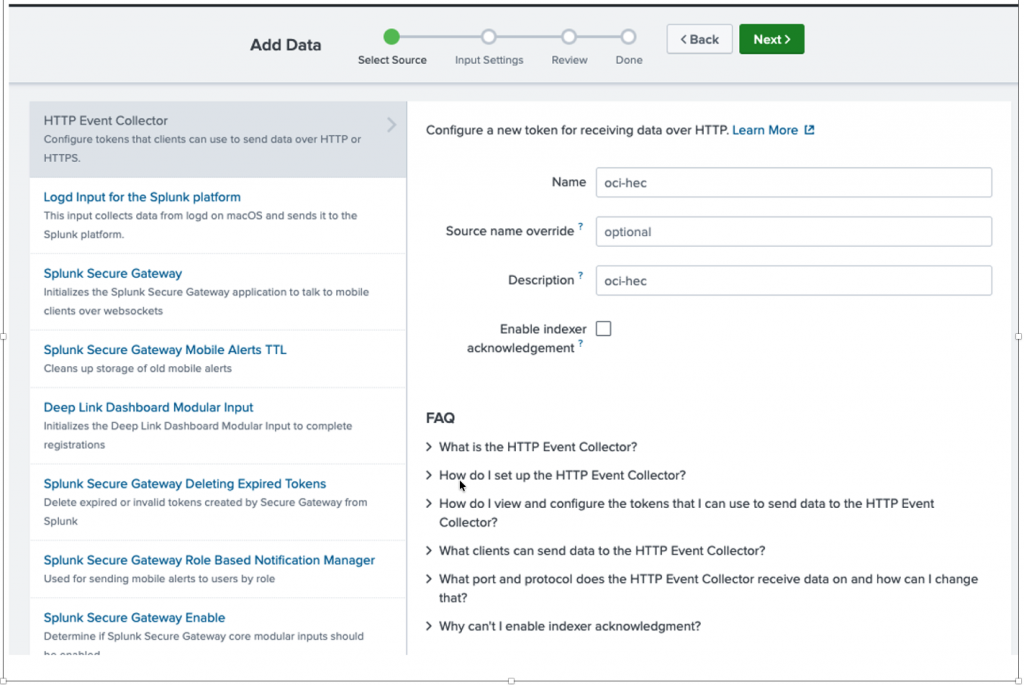
Add new HTTP Event Collector

Add Data
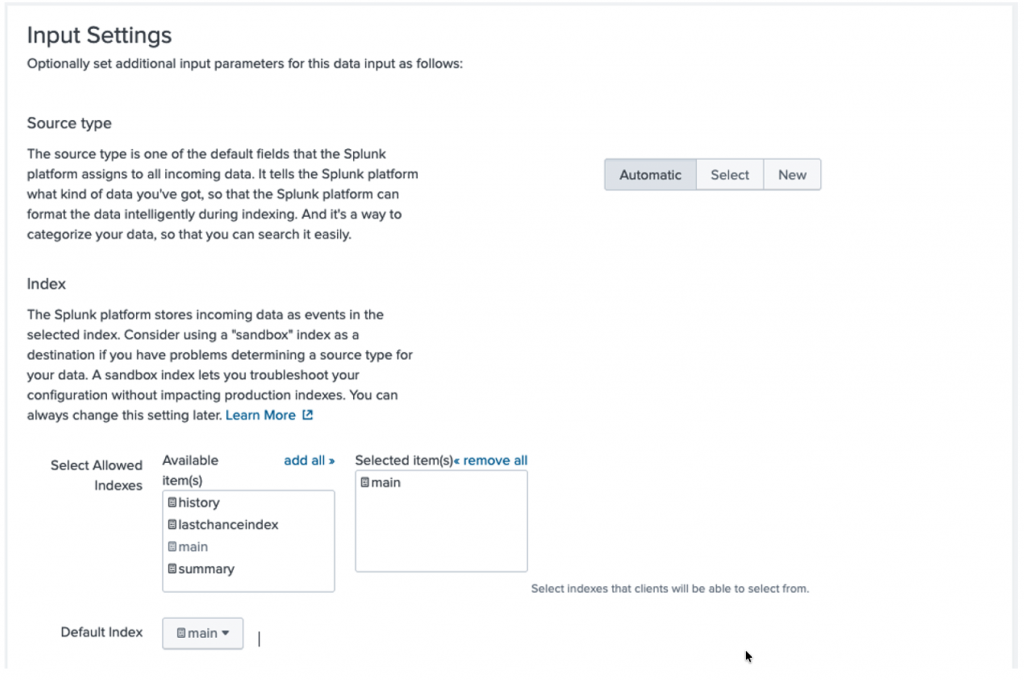
Input Settings-
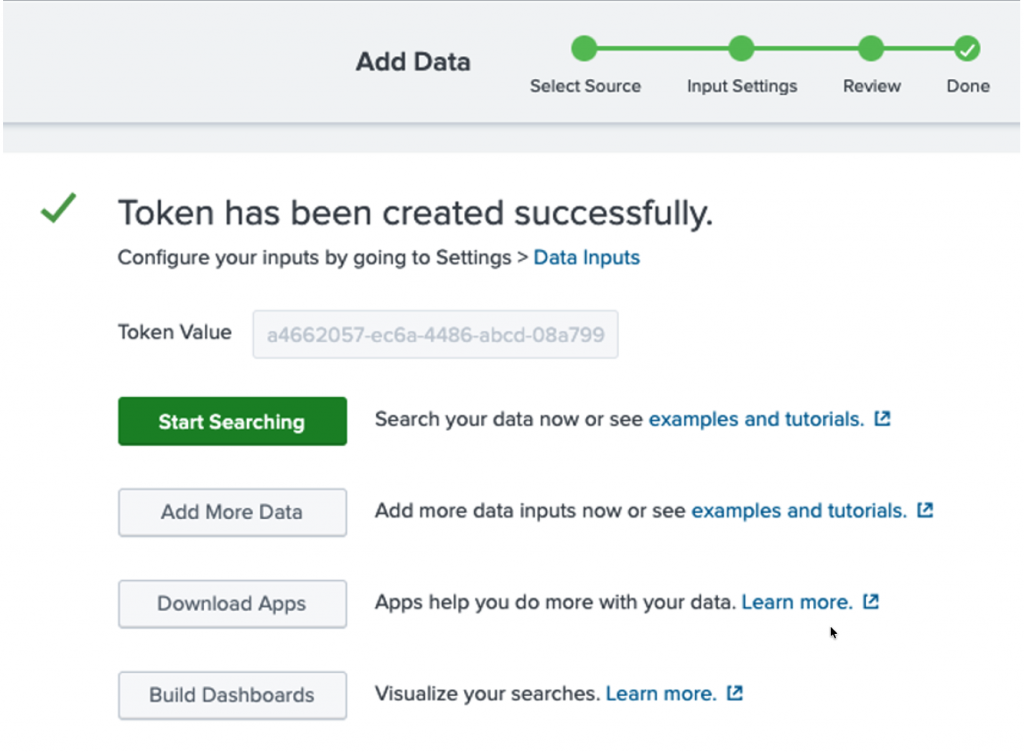
Token Created
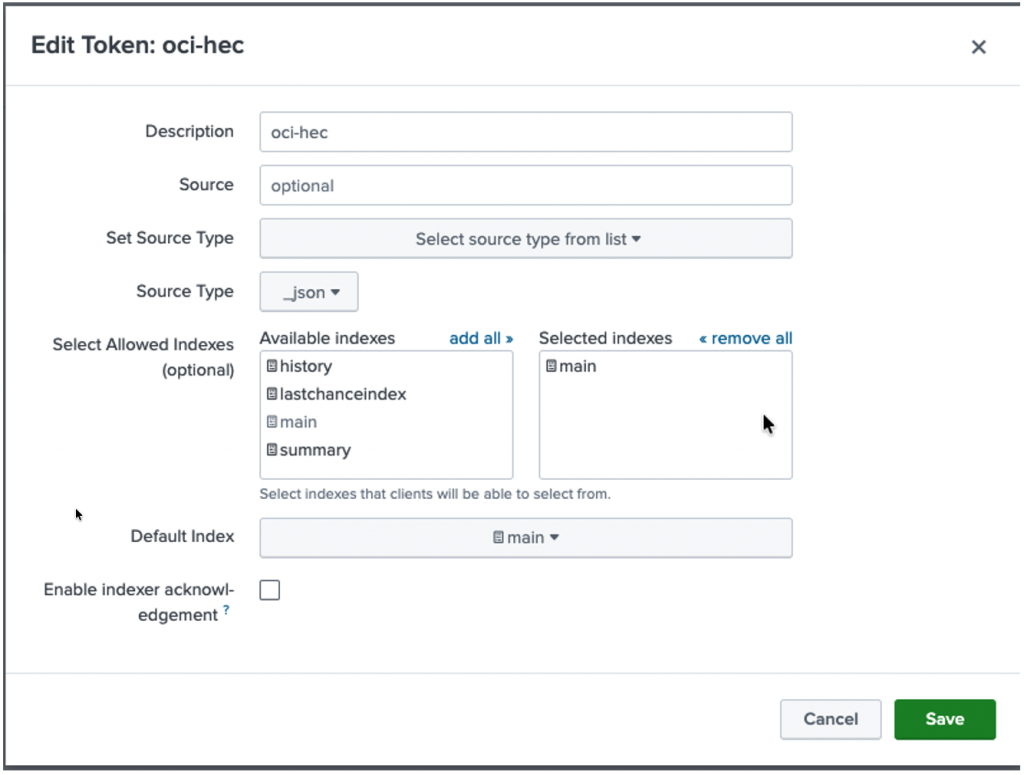
HEC Token should look like this –
| Parameter | Value |
| Name | oci-hec |
| Source Type | _json |
| Index | main |
Enable HEC
Global Settings → Enable HTTP Event Collector
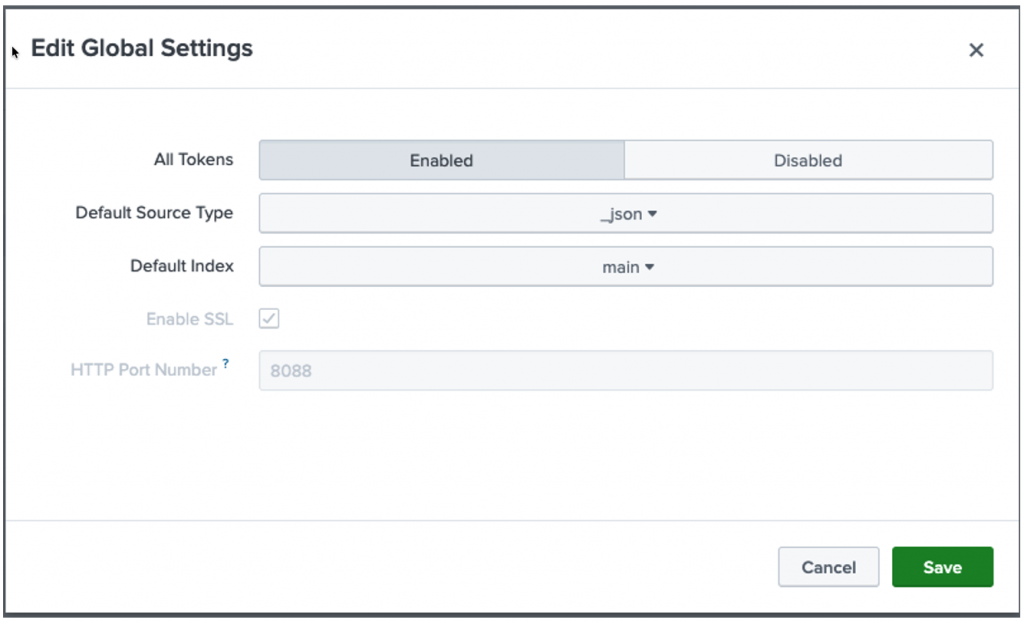
Note down HEC Token URL and Token –
- HEC URL
- HEC Token
Example: https://prd-p-xxxxx.splunkcloud.com:8088/services/collector
You can test this Token URL to see if it is working –
curl -k \
https:// prd-p-xxxxx.splunkcloud.com:8088/services/collector \
-H "Authorization: Splunk <Token>" \
-d '{"event": "test from OCI", "sourcetype": "oci_stream_test", "source": "oci_stream"}'
Should return
{
    "text": "Success",
    "code": 0
}
You can also test from Postman
Request:
POST https:// prd-p-xxxxx.splunkcloud.com:8088/services/collectorHeaders:
| Authorization | Splunk <HEC_TOKEN> |
| Content-Type | application/json |
Request Body
{
  "event": {
    "message": "Hello from OCI",
    "source": "oci-stream"
  },
  "sourcetype": "oci:test"
}
Response should be –
{
    "text": "Success",
    "code": 0
}
Go Back to Splunk Cloud and search for this entry
Apps>>Search & Reporting >>
index=* source="oci_stream"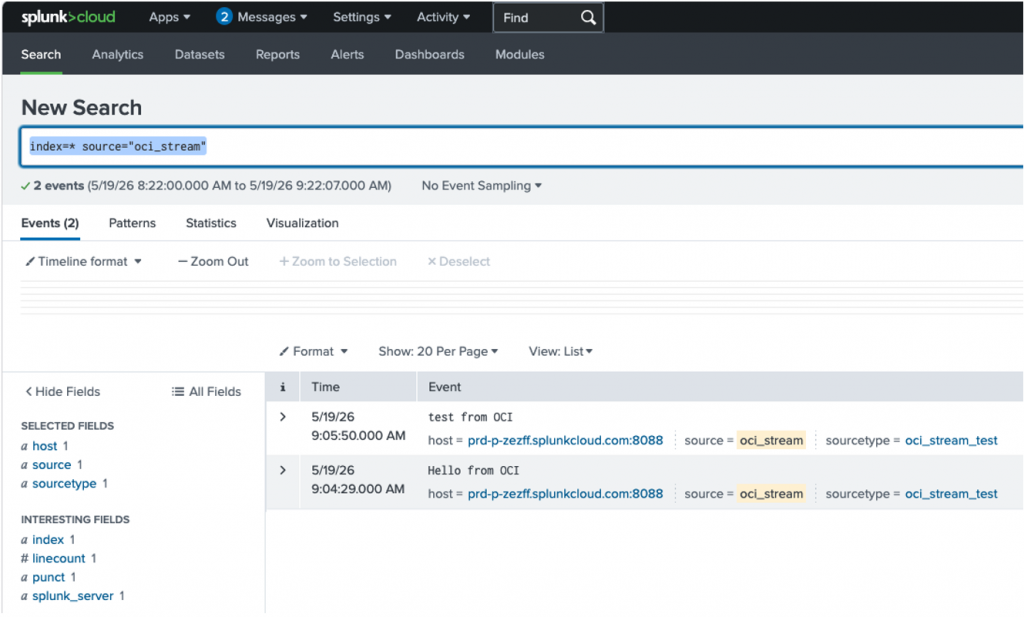
1.5.2 OCI Function
Step 1 – Create OCI Function Application
Go to Developer Service – Create OCI Function Application:
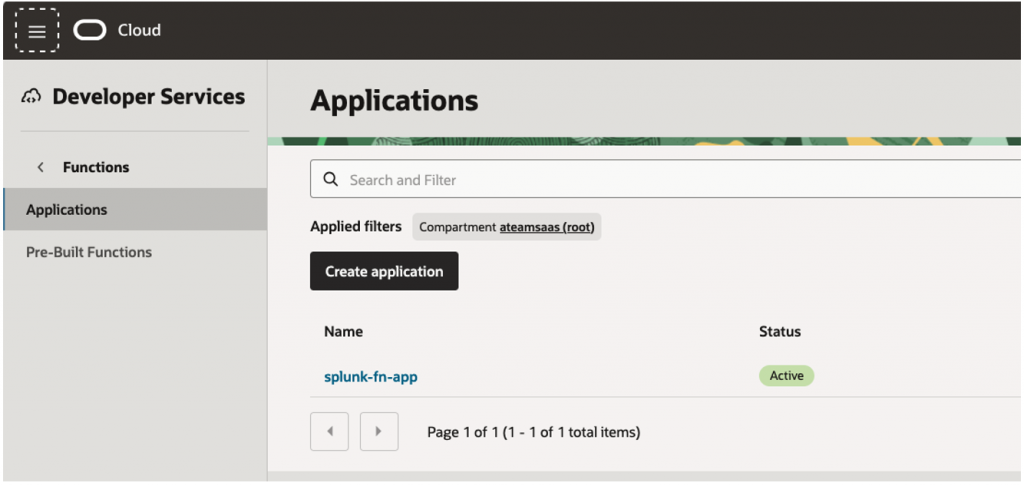
| Name | splunk-fn-app |
| VCN | VCN with internet access (Public subnet) Function needs outbound internet to call Splunk HEC |
| Shape | GENERIC_X86 – Works with Python runtime – Compatible with Fn / OCI Functions – No special configuration needed – Lightweight Execution(decode + HTTP call), No Heavy Compute required. |
Function Application –
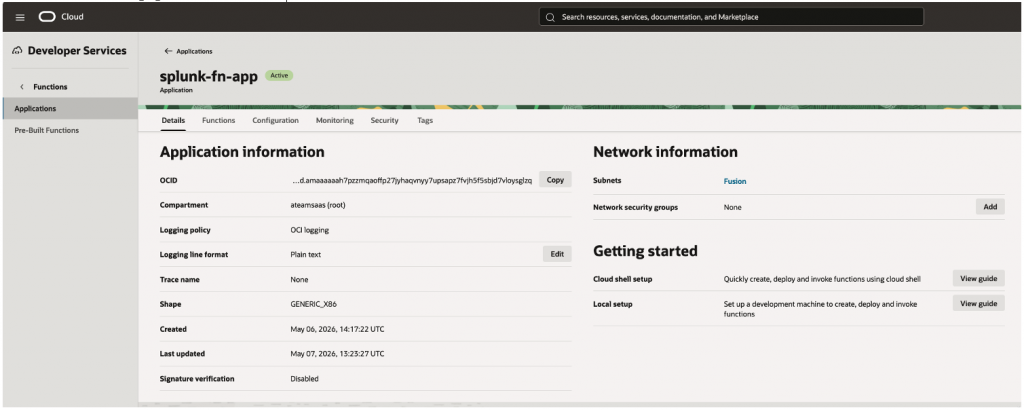
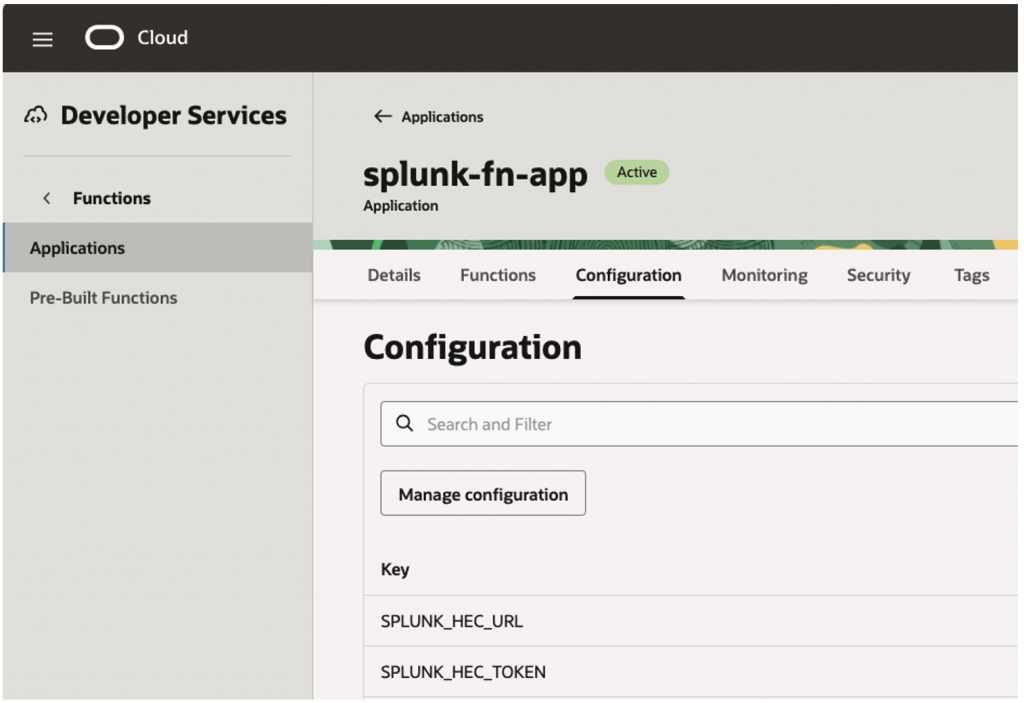
Function Application Configurations –
Configure Splunk HEC URL & HEC Token as environment variables –
| SPLUNK_HEC_URL | https:// prd-p-xxxxx.splunkcloud.com:8088/services/collector |
| SPLUNK_HEC_TOKEN | <your_token> |
Step 2 – Initialize Python Function (Using Cloud Shell)
fn init --runtime python3.11 splunk-stream-fn-v3
cd splunk-stream-fn-v3
Create a Function File –
nano func.pyPaste below Code file –
import io
import json
import gzip
import base64
import os
import requests
import logging

logger = logging.getLogger()
logger.setLevel(logging.INFO)

SPLUNK_HEC_URL = os.getenv("SPLUNK_HEC_URL")
SPLUNK_HEC_TOKEN = os.getenv("SPLUNK_HEC_TOKEN")


def normalize_payload(data):

    logger.info("Starting payload normalization")

    # Convert BytesIO to raw bytes
    if isinstance(data, io.BytesIO):
        data = data.read()

    # Handle gzip payload
    if (
        isinstance(data, (bytes, bytearray))
        and data.startswith(b"\x1f\x8b")
    ):
        data = gzip.decompress(data)

    # Convert bytes to string
    if isinstance(data, (bytes, bytearray)):
        data = data.decode("utf-8")

    # Parse JSON
    if isinstance(data, str):
        data = json.loads(data)

    events = []

    # OCI Service Connector sends list payload
    if isinstance(data, list):

        logger.info(
            f"Detected payload with {len(data)} record(s)"
        )

        for index, record in enumerate(data, start=1):

            logger.info(
                f"Processing record #{index}"
            )

            if "value" not in record:

                logger.warning(
                    f"Skipping record #{index} "
                    f"because value field missing"
                )

                continue

            decoded = base64.b64decode(
                record["value"]
            ).decode("utf-8")

            normalized_event = json.loads(decoded)

            events.append(normalized_event)

        logger.info(
            f"Successfully normalized "
            f"{len(events)} event(s)"
        )

        return events

    logger.info(
        "Payload already normalized"
    )

    return [data]


def handler(ctx, data=None):

    logger.info(
        "========== OCI Function Invocation Started =========="
    )

    logger.info(
        f"Splunk HEC URL configured: "
        f"{SPLUNK_HEC_URL}"
    )

    if not data:

        logger.warning("No payload received")

        return {
            "status": "no_data"
        }

    logger.info("Payload received successfully")

    events = normalize_payload(data)

    logger.info(
        f"Total normalized events: {len(events)}"
    )

    headers = {
        "Authorization": f"Splunk {SPLUNK_HEC_TOKEN}",
        "Content-Type": "application/json"
    }

    success = 0

    for index, event in enumerate(events, start=1):

        logger.info(
            f"Sending event #{index} to Splunk"
        )

        splunk_payload = {
            "source": "oci:stream",
            "sourcetype": "_json",
            "event": event
        }

        response = requests.post(
            SPLUNK_HEC_URL,
            headers=headers,
            json=splunk_payload,
            timeout=10,

            # TODO:
            # Replace with proper SSL validation
            verify=False
        )

        logger.info(
            f"Splunk response: "
            f"HTTP {response.status_code} - "
            f"{response.text}"
        )

        if response.status_code != 200:

            raise Exception(
                f"Splunk HEC error: "
                f"{response.status_code} - "
                f"{response.text}"
            )

        success += 1

    logger.info(
        f"Successfully pushed "
        f"{success} event(s) to Splunk"
    )

    logger.info(
        "========== OCI Function Invocation Completed =========="
    )

    return {
        "status": "success",
        "events_sent": success
    }
Save:
- CTRL + O
- ENTER
- CTRL + X
Step 3 – Install Python Dependencies
Update requirements.txt: This includes Python Modules required by function.
fdk>=0.1.104
requests
Step 4 – Function Directory Structure
Your final OCI Function project should look like this:
splunk-stream-fn/
├── func.py
├── func.yaml
└── requirements.txt| File | Purpose | Required |
func.py | Main OCI Function Python handler containing Base64 decode, normalization, and Splunk HEC forwarding logic | Yes |
func.yaml | OCI Functions deployment metadata including runtime, memory, and entrypoint configuration | Yes |
requirements.txt | Python dependencies installed during OCI Function build process | Yes |
Step 5 – OCI Function Logic
The OCI Function performs:
- Stream payload ingestion
- Payload normalization
- Base64 decode
- JSON parsing & conversion
- Normalize events
- Send Events to Splunk HEC POST
- Logging and debugging
Important implementation detail:
OCI Service Connector invokes OCI Function using list-based payload structure:
[
  {
    "stream":"...",
    "value":"base64..."
  }
]
This required explicit Base64 decoding and payload normalization within the OCI Function.
Step 5 – Deploy OCI Function
Run below commands to deploy function –
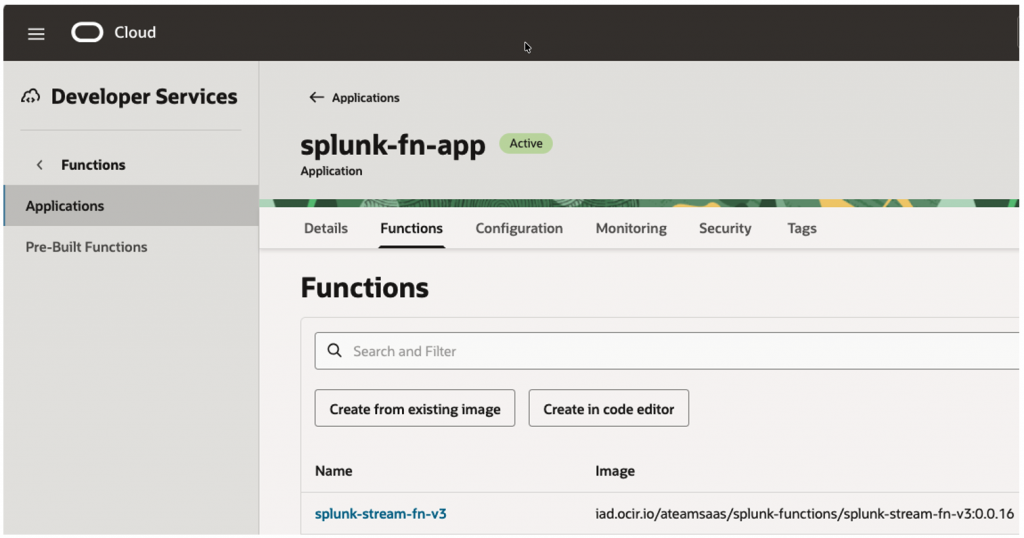
fn deploy --app splunk-fn-appPost Deployment Function will show up inside Function application –
1.5.3 OCI Service Connector Hub
Step 1 – Create Service Connector
Navigate:
OCI Console
→ Observability & Management
→ Service Connector Hub
→ Create Service Connector
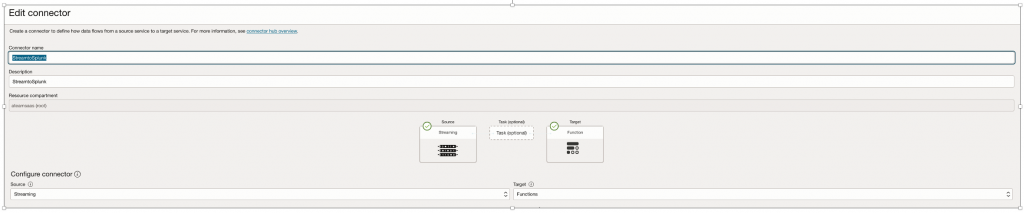
Connector Name – StreamtoSplunk
| Parameter | Value |
| Source | OCI Streaming |
| Target | OCI Functions |
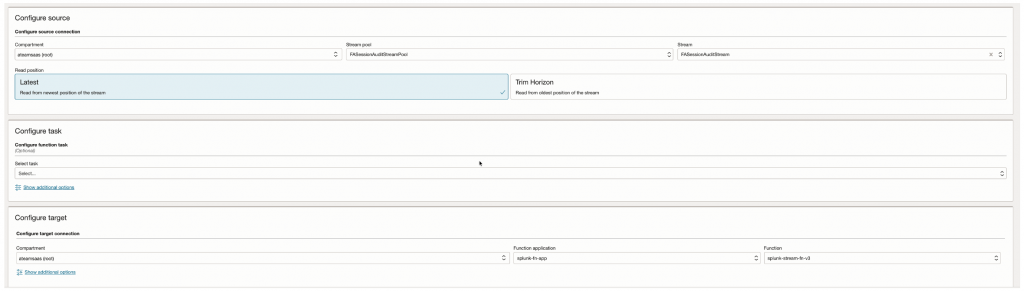
Step 2 – Configure Source
Source Type:Streaming
Select:
- Stream Pool
- Stream Name
- Read Position = Latest
Step 3 – Configure Target
Target Type: Functions
Select:
- Function Application = splunk-fn-app
- OCI Function = splunk-stream-fn-v3
Define – Service Connector
Configure Source & Target –
1.5.4 Test End to End
Step 1 – Publish Test Event
Trigger Fusion audit activity.
Example:
- Person Update
- Role change
- PII update
Step 2 – Verify OCI Streaming
Validate messages exist in OCI Stream.
Step 3 – Verify OCI Function Logs
Navigate:
OCI Console
→ Logging
→ Functions Logs
Expected logs:
Successfully decoded record
Successfully pushed events to Splunk
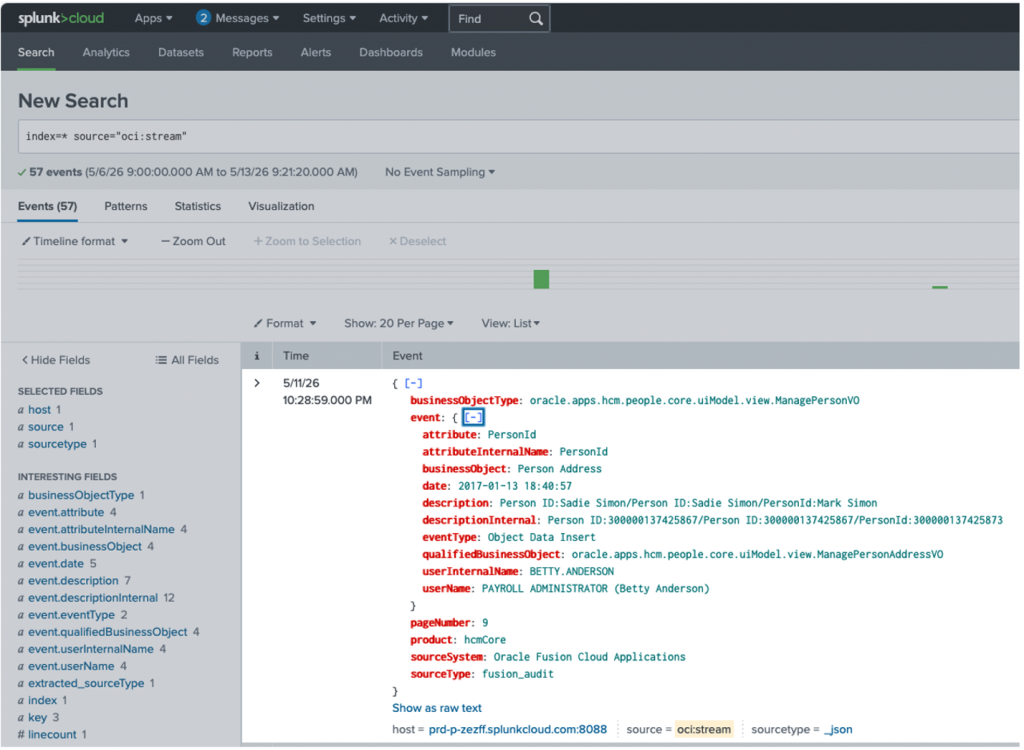
Step 4 – Verify Splunk Events
Splunk Search:
index=* source="oci:stream"Expected Result:
- Structured JSON events
- Searchable fields
- Parsed audit attributes
- Real-time ingestion
2. Pull from SIEM (Consumer Based Event Pull Model)
This approach is best suited for enterprise-scale, high-volume log ingestion where reliability, replay, and controlled consumption are critical. Splunk Enterprise consumes data from OCI Streaming using a Kafka connector such as Splunk Connect for Kafka. This enables offset management, replay of missed events, and independent scaling of ingestion. It is ideal for regulated environments requiring auditability, long-term retention, and resilient delivery, where downstream issues must not result in data loss.
This model is ideal for:
- Existing Kafka ecosystem adoption
- Enterprise streaming architectures
- Regulated and compliance-driven environments
- Large-scale SIEM ingestion
- Replay capability
- Multiple downstream consumers are needed
- Independent consumer scaling
Considerations –
- VM Management
- Operational Overhead
- Monitoring responsibility
- Patching responsibility
2.1 High Level Architecture
The below architecture represents another standard enterprise integration pattern where OCI Streaming acts as a Kafka-compatible event source, Kafka Connect Worker consumes and processes the streaming data, and the Splunk Sink Connector forwards the events to Splunk through the Splunk HTTP Event Collector (HEC).

2.2 Prerequisites
OCI Streaming
- Stream pool created
- Stream created
- Kafka compatibility enabled
OCI IAM
- OCI Auth Token created
- Streaming permissions configured
OCI Compute Instance (Not for Customer with existing Kafka Connect platform)
- Oracle Linux VM
- Network access enabled
- Port 9092 access – to reach to OCI Streaming
- *.streaming.us-ashburn-1.oci.oraclecloud.com:9092
- Post 8088 – to reach to Splunk HEC
- prd-p-XXX.splunkcloud.com:8088
- Internet connectivity
Kafka
- Kafka binaries installed
- Java installed
- Splunk Sink Connector
Splunk
- HEC enabled
- HEC token created
2.3 Process Flow
- Fusion audit events are published into OCI Streaming.
- Kafka Connect Worker connects to OCI Streaming using Kafka compatibility.
- Splunk Sink Connector consumes OCI Stream messages.
- Connector forwards events to Splunk HEC.
- Splunk indexes audit events.
2.4 Data Flow
- OCI Streaming exposes Kafka-compatible endpoints.
- OCI Streaming to act as Kafka-compatible event bus
- Kafka Connect treats OCI Streaming as a Kafka broker.
- Kafka Connect to continuously consume OCI Stream events
- Splunk Sink Connector to forward events into Splunk Cloud
- Consumer-based SIEM ingestion model
Splunk Sink Connector Processing
Kafka Connect performs:
- Topic subscription
- Consumer offset management
- Payload conversion
- Metadata mapping
- Splunk HEC forwarding
Metadata Mapping
{
  "splunk.sources": "oci:kafka-stream",
  "splunk.sourcetypes": "_json"
}
Resulting Splunk metadata:
source=oci:kafka-stream
sourcetype=_json
2.5 Detailed Install /Configuration Steps
2.5.1 – OCI Streaming Setup
Step 1 – Create Kafka Configuration in OCI for Stream
OCI Streaming is Kafka-compatible by default.
Navigate: Analytics & AI >>Messaging >>Stream>>Kafka Connect Configurations
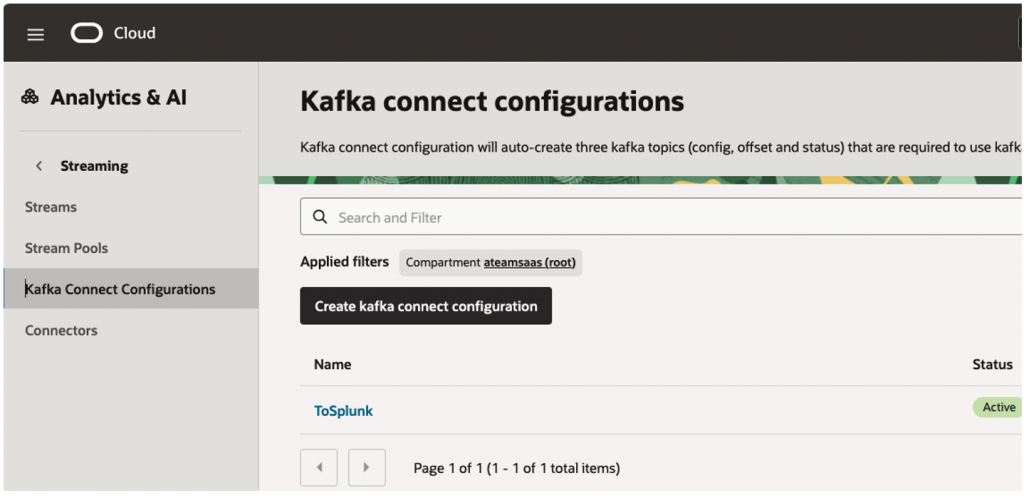
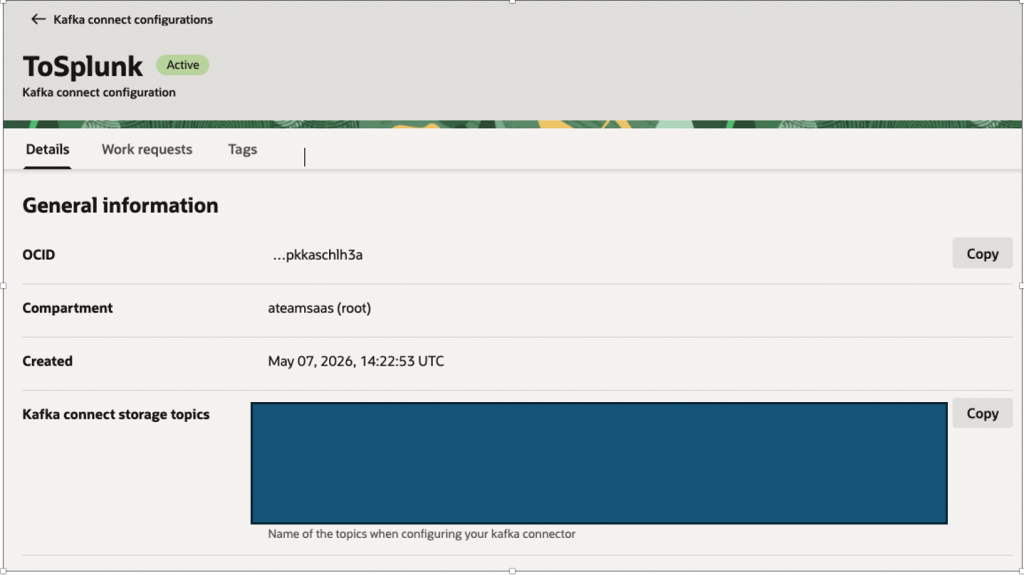
This will create Kafka Connect Storage topics –
Step 2 – Obtain Stream Bootstrap Endpoint
Example:
cell-9.streaming.us-ashburn-1.oci.oraclecloud.com:9092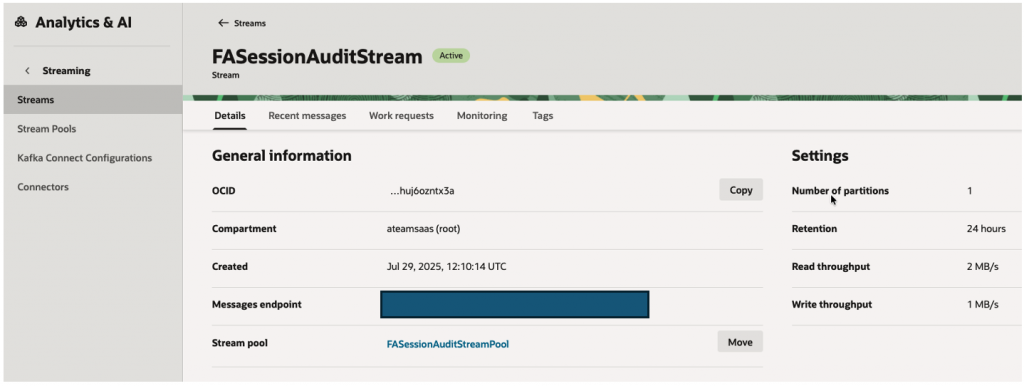
Step 3 – Obtain Stream Pool
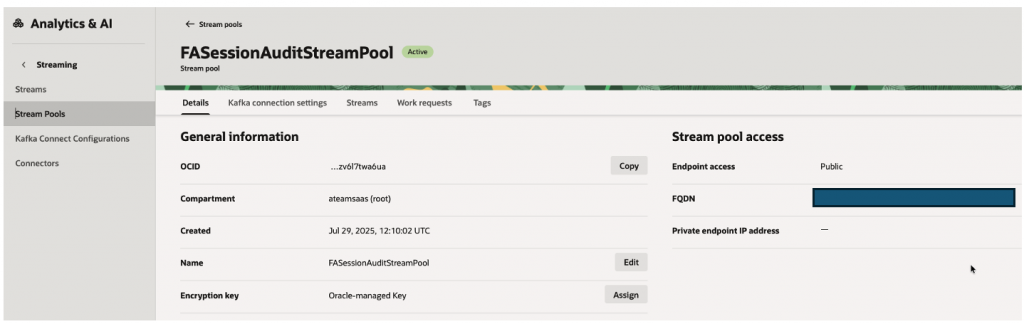
Configure Kafka Authentication – SASL connection strings
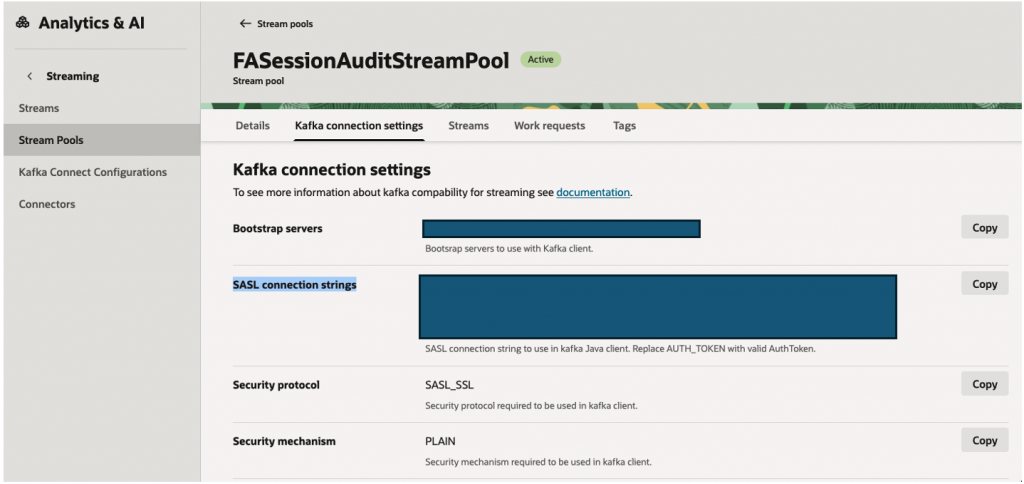
Kafka uses: SASL_SSL
Example username format:
<tenancy-name>/<user-name>/<stream-pool-ocid>
Step 4 – Create OCI Auth Token
Navigate:
OCI Console→ Identity→<Domain>User Management → <User> → Auth Tokens
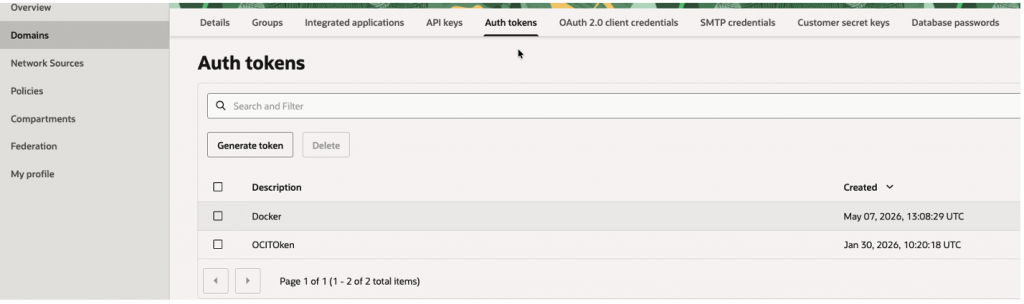
Create Auth Token, Note Down Auth Token, this will be used for Connection later.
2.5.2 Deploy or Reuse Kafka Connect Infrastructure
The examples in this article use an OCI Compute instance to deploy Kafka Connect for demonstration purposes. However, provisioning a new Kafka environment is not a prerequisite for this architecture.
Organizations that already operate a Kafka ecosystem can typically reuse their existing Kafka Connect infrastructure and simply deploy the Splunk Sink Connector with the appropriate OCI Streaming configuration. In such environments, only the Kafka Connect worker configuration and connector definition need to be updated to connect to OCI Streaming and Splunk.
Option 1 – Reuse Existing Kafka Connect Platform (Recommended)
Organizations with an existing Kafka Connect deployment can reuse their current infrastructure and deploy the Splunk Sink Connector using the OCI Streaming Kafka-compatible endpoint and authentication configuration described in this article.
Option 2 – Deploy Kafka Connect on OCI Compute
For customers without an existing Kafka Connect platform, Kafka Connect can be deployed on an OCI Compute instance. The remainder of this section demonstrates this deployment approach and the associated configuration steps.
For Option 2 – We would need VM & then Install below dependencies –
- Java
- Kafka binaries
- Splunk Sink Connector
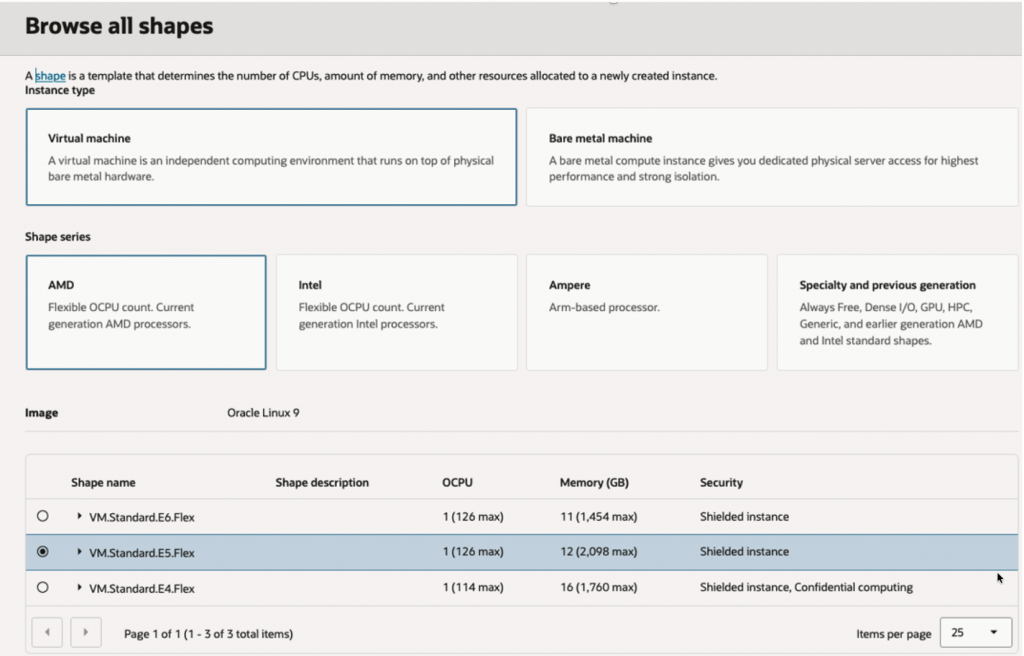
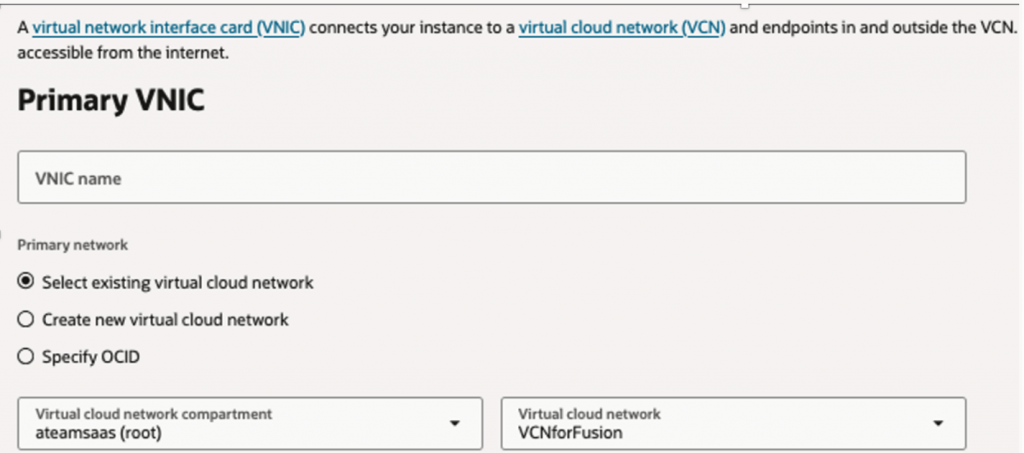
Step 1 – Create OCI Compute VM
- Name – fusion-mgmt-agent-01 (You can keep name as per your conventions)
- Shape: VM.Standard.E5.Flex
- OS: Oracle Linux 9
- 1-2 OCPU’s
- 12-16 GB RAM
- Network:
- Private subnet preferred
- Internet access or NAT required
- Open outbound HTTPS (443)
- Check for Addition of Management Agent.
- Used for lightweight processing or custom components; billed based on OCPU and memory consumption.
- Start with basic & increase as per your workloads, the incremental compute cost is modest – refer
Network – Select VCN which allows Ingress Access to Port 22 for compute SSH access
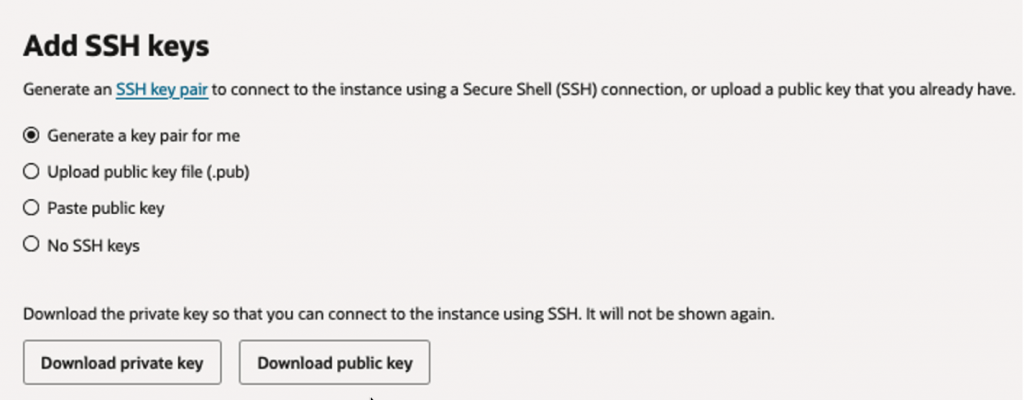
Download Key Pairs so you can use that to connect to compute.
Finally Press – Create Button to submit provision request & wait for instance to be in active state.

Keep Note of VM Name & Public IP, in our case it is – fusion-mgmt-agent-01, this will be used later while creating Entity in next steps.
Step 2 – Install Java
Open Terminal & SSH to Compute
ssh -i /path/to/your_private_key.pem opc@PUBLIC_IP_OF_COMPUTEInstall Java 17
sudo dnf install java-17-openjdk -yVerify
java -versionStep 3 – Download Kafka
wget https://downloads.apache.org/kafka/3.7.1/kafka_2.13-3.7.1.tgzStep 4 – Extract Kafka
tar -xvf kafka_2.13-3.7.1.tgzStep 5 – Create Kafka Connect Directories
mkdir -p ~/kafka-connect/plugins
mkdir -p ~/kafka-connect/configs
Directory Structure should show like this..
/home/opc/
   ├── kafka_2.13-3.7.1/
   └── kafka-connect/
         ├── configs/
         ├── plugins/
         └── logs/
Step 6 – Configure connect-distributed.properties
Create connect-distributed.properties
nano ~/kafka-connect/configs/connect-distributed.propertiesupdate below code
bootstrap.servers=[oci-streaming-kafka-endpoint]

group.id=connect-cluster

key.converter=org.apache.kafka.connect.storage.StringConverter
value.converter=org.apache.kafka.connect.json.JsonConverter

value.converter.schemas.enable=false

config.storage.topic=[connect-config-topic]

offset.storage.topic=[connect-offset-topic]

status.storage.topic=[connect-status-topic]

config.storage.replication.factor=1
offset.storage.replication.factor=1
status.storage.replication.factor=1

plugin.path=/home/opc/kafka-connect/plugins

security.protocol=SASL_SSL
sasl.mechanism=PLAIN

sasl.jaas.config=org.apache.kafka.common.security.plain.PlainLoginModule required username="[tenancy-name]/[user-name]/[stream-pool-ocid]" password="[OCI_AUTH_TOKEN]";

producer.security.protocol=SASL_SSL
producer.sasl.mechanism=PLAIN

consumer.security.protocol=SASL_SSL
consumer.sasl.mechanism=PLAIN

producer.sasl.jaas.config=org.apache.kafka.common.security.plain.PlainLoginModule required username="[tenancy-name]/[user-name]/[stream-pool-ocid]" password="[OCI_AUTH_TOKEN]";

consumer.sasl.jaas.config=org.apache.kafka.common.security.plain.PlainLoginModule required username="[tenancy-name]/[user-name]/[stream-pool-ocid]" password="[OCI_AUTH_TOKEN]";
Use this as your complete connect-distributed.properties
Replace
- [oci-streaming-kafka-endpoint] – Ex – cell-9.streaming.us-ashburn-1.oci.oraclecloud.com:9092
- [connect-config-topic] – Available in OCI Stream>Kafka connect configuration> Kafka connect storage topics
- [connect-offset-topic] – Available in OCI Stream>Kafka connect configuration> Kafka connect storage topics
- [connect-status-topic] – Available in OCI Stream>Kafka connect configuration> Kafka connect storage topics
- [tenancy-name]/[user-name]/[stream-pool-ocid] with your Tenancy Name/UserName/StreampoolOCID
- [OCI_AUTH_TOKEN] with your OCI Auth Token
Save:
- CTRL + O
- ENTER
- CTRL + X
Step 7 – Download Splunk Kafka Connector
Run –
cd ~/kafka-connect/pluginsInstall GIT
sudo dnf install git -yVerify Installation
git --versionClone Kafka Connect for Splunk
git clone https://github.com/splunk/kafka-connect-splunk.gitAfter Clone –
cd kafka-connect-splunkGo into Splunk connector repo
cd ~/kafka-connect/plugins/kafka-connect-splunkInstall Maven
sudo dnf install maven -yVerify Maven
mvn -versionExpected:
- Apache Maven version
- Java 17 detected
Build Splunk connector:
mvn clean package -DskipTestsThis may take several minutes , dependency downloads , first-time Maven cache creation, be patient.
Verify Build Success, After build completes:
ls targetYou should see – connector jar & build artifacts
Something like: kafka-connect-splunk-*.jar
Step 8 – Start Kafka Connect Worker
Example:
nohup bin/connect-distributed.sh \
~/kafka-connect/configs/connect-distributed.properties \
> ~/kafka-connect/connect.log 2>&1 &
This launches Kafka Worker in background –
- REST API on port 8083
- OCI Streaming consumer engine
What Kafka Connect Worker Does
- connects to OCI Streaming
- reads Kafka topic/stream
- manages offsets
- loads connector plugins
- exposes REST APIs
Step 9 – Verify Kafka Connect Worker
curl http://localhost:8083/Expected:
{
  "version":"3.7.1"
}
2.5.3 Create Splunk Sink Connector
This configuration is used by Kafka Connect Worker how it should consume OCI Stream events and send them into Splunk
What Splunk Sink Connector Does
- subscribes to OCI Stream topic
- pulls events continuously
- transforms records
- sends events to Splunk HEC
Step 1 – Create splunk-sink.json
Create splunk-sink.json
nano ~/kafka-connect/configs/splunk-sink.jsonExample:
{
  "name": "splunk-sink",
  "config": {
    "connector.class":"com.splunk.kafka.connect.SplunkSinkConnector",
    "tasks.max": "1",
    "topics": "FASessionAuditStream",
    "splunk.hec.uri":"https://prd-XXXX.splunkcloud.com:8088",
    "splunk.hec.token":"[SPLUNK_HEC_TOKEN]",
    "splunk.sources": "oci:kafka-stream",
    "splunk.sourcetype": "_json",
    "splunk.indexes": "main",
    "splunk.hec.ssl.validate.certs":"false",
    "key.converter":"org.apache.kafka.connect.storage.StringConverter",
    "value.converter":"org.apache.kafka.connect.storage.StringConverter",
    "key.converter.schemas.enable":"false"
  }
}
Replace
- [SPLUNK_HEC_TOKEN] with actual Splunk HEC token.
- splunk.hec.uri – Actual Splunk HEC URL – https://prd-XXXX.splunkcloud.com:8088
Save:
- CTRL + O
- ENTER
- CTRL + X
Note – SSL Validation, For production deployments, following configuration should only be used for Development:
“splunk.hec.ssl.validate.certs”:”false”
- Use trusted CA certificates
- Configure Java truststore
- Avoid disabling SSL certificate validation
Step 2 – Create Connector
Kafka Connect receives splunk-sink.json and dynamically creates running Splunk Sink Connector inside worker.
curl -X POST \
-H "Content-Type: application/json" \
--data @/home/opc/kafka-connect/configs/splunk-sink.json \
http://localhost:8083/connectors
Step 3 – Verify Connector
curl http://localhost:8083/connectorsExpected:
["splunk-sink"]Step 4 – Verify Status
curl http://localhost:8083/connectors/splunk-sink/statusExpected –
RUNNING
2.5.4 Test End to End
Kafka Connect continuously consumes OCI Stream and pushes events into Splunk HEC
Step 1 – Generate Fusion Audit Events
Trigger:
- Person Update
- PII Update
- Role Change
Step 2 – Verify Kafka Connect Logs
tail -f ~/kafka-connect/connect.logExpected:
Successfully joined group
Adding newly assigned partitions
Executing sink task
Step 3 – Verify Splunk Events
Splunk Search:
index=* source="oci:kafka-stream"Expected Result:
- Structured JSON events
- Parsed searchable fields
- Real-time ingestion
- Kafka consumer metadata
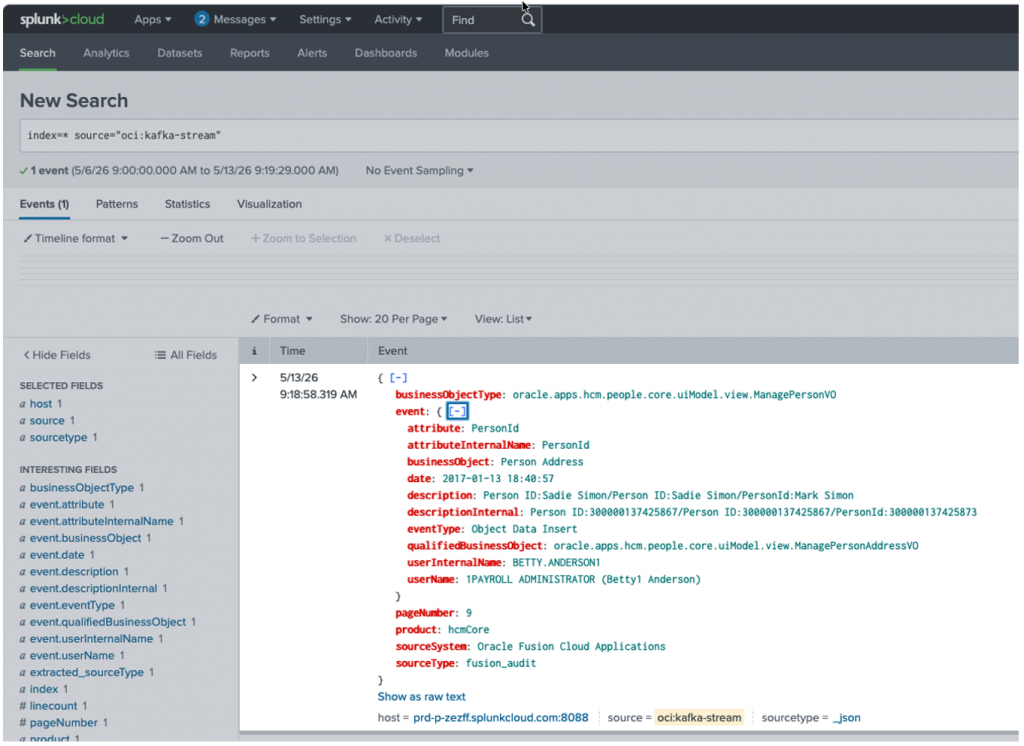
*Kafka Connect Production Deployment Considerations
- Deploy Kafka Connect as systemd service
- Run Kafka Connect as Linux background service
- Configure restart policies
- Kafka Connect may crash Without restart policy until admin manually logs in
- Enable centralized logging
- Kafka Connect generates multiple logs without centralized logging troubleshooting becomes difficult
- Configure monitoring and alerting
- Kafka Pull introduces moving parts- Kafka Connect Worker, Splunk Sink Connector, without monitoring pipeline failures will remain silent & non notified for any action.
- Use dedicated OCI Compute instances
- For high-volume audit pipelines
Data Archival and Multi-Consumer Architecture
OCI Streaming supports multi-consumer event processing patterns, enabling organizations to implement parallel downstream integrations from the same Fusion audit event stream.
This allows OCI Streaming to function as both:
- Real-time SIEM event pipeline
- Long-term audit archival platform
Multiple pipelines can run simultaneously against the same OCI Stream.
| Pipeline | Purpose |
| Service Connector → Object Storage | Long-term archival |
| Service Connector → OCI Function → Splunk | Push SIEM integration |
| Kafka Connect → Splunk Sink Connector | Pull SIEM integration |
This allows organizations to build scalable event-driven security architectures without redesigning upstream Fusion extraction logic.
A common enterprise architecture pattern is:
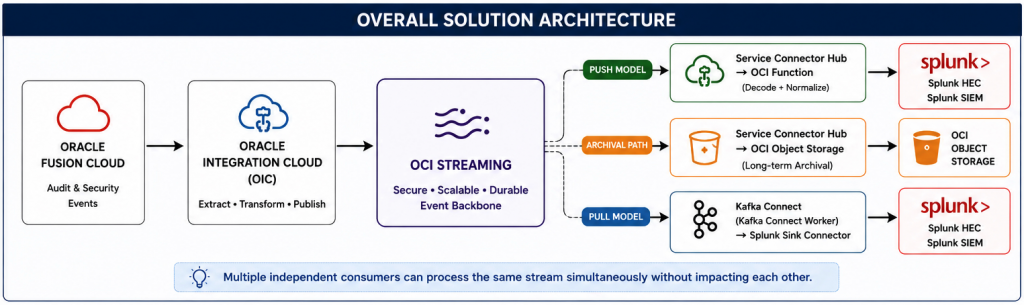
In this model:
- One pipeline archives raw audit events into OCI Object Storage
- Another pipeline simultaneously forwards events into SIEM platforms such as Splunk
- Multiple independent consumers can process the same stream without impacting each other
This architecture enables:
- Long-term audit retention
- Compliance archival
- Security investigation replay
- Cost-optimized storage
- Independent SIEM processing
- Decoupled consumer scalability
Archival using Service Connector Hub
OCI Service Connector Hub can directly persist OCI Streaming events into OCI Object Storage.
Example use cases:
- Regulatory retention
- Audit evidence preservation
- Cold storage archival
- Historical forensic analysis
- Data lake ingestion
Extensibility
The same OCI Streaming integration architecture can also be extended to additional SIEM and security analytics platforms supporting HTTP collectors, Kafka consumers, or streaming ingestion frameworks, including platforms such as CrowdStrike Falcon LogScale, Elastic, and Microsoft Sentinel.
OCI Streaming provides a reusable and decoupled event backbone architecture that enables organizations to onboard multiple downstream security analytics platforms without redesigning Fusion audit extraction flows.
Additional reference architectures and implementation examples:
- OCI Integration with CrowdStrike Falcon LogScale SIEM
https://www.ateam-oracle.com/oci-integration-with-crowdstrike-logscale-siem
Conclusion
OCI Streaming provides a scalable and decoupled integration backbone for Oracle Fusion Cloud audit events.
By combining OCI Streaming with:
- OCI Functions
- Service Connector Hub
- Kafka Connect
- Splunk Sink Connector
organizations can implement flexible SIEM integration architectures supporting both serverless push-based ingestion and enterprise pull-based streaming models.
The push model provides a lightweight OCI-native serverless integration approach with custom transformation capability, while the pull model leverages OCI Streaming Kafka compatibility to integrate with enterprise Kafka ecosystems and SIEM ingestion pipelines.
Together, these patterns enable organizations to centralize Fusion Cloud security telemetry into enterprise SIEM platforms for monitoring, compliance, governance, and threat detection.
References
- Part 1 – Streaming Oracle Fusion Cloud Audit Events to OCI Streaming using Oracle Integration Cloud
- OCI Streaming
- OCI Events
- OCI Service Connector Hub
- OCI Functions
- Kafka Connect
- Splunk Kafka Connect Sink Connector
- Splunk HTTP Event Collector (HEC)