Oracle DBAs should now be familiar with the product management blog published last April: Take Action Today: Protect Your Oracle Database Against AI-Enabled Cybersecurity Threats. One of the recommendations in the blog is to ensure your database client libraries are updated as well. Keeping track of your clients locations and versions may be a challenge, as these may be part of applications or client tools running on various remote hosts or developers individual laptops.
Oracle Enterprise Manager 24ai, as of release update 11, provides a new out-of-the-box dashboard that can solve this problem, Oracle Database Client Drivers dashboard. You can use this dashboard to view client session driver types and versions across monitored database targets. It helps you identify the client drivers and versions used across your database fleet, so you know which are below the database patch level and need to be patched.
Enabling Metric Collection
To access the dashboard, navigate to “Enterprise” -> “Dashboards” -> “Oracle Database Client Drivers”. The dashboard is not populated by default. To populate it, you need to enable collection of the new metric “DB Client Version Monitoring” on your database targets. This metric is found under “Metric and Collection Settings” of a database target or monitoring template, on the “Other Collected Items” tab. For Multi-Tenant databases, the metric can be enabled on the container database and on the PDB:
- If enabling on a monitoring template, click on the “Other Collected Items” tab.
- If on a database target, navigate to target menu, “Monitoring”->”Metrics and Collections Settings” -> “Other Collected Items” tab.
- Locate the metric “DB Client Version Monitoring“. The collection schedule should show “Disabled”. Enable collection by setting an interval. The suggested interval is 6 hours, which should be adequate, but you can adjust it per your requirements.
Utilizing the Dashboard
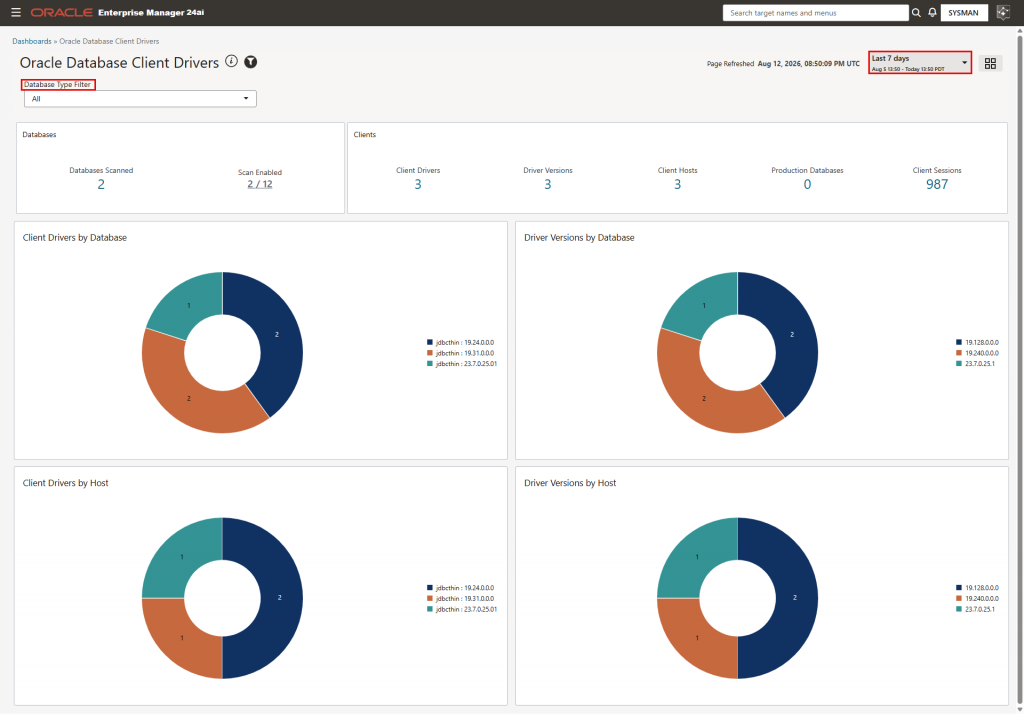
Below is a populated dashboard with the metric enabled on 2 databases. The dashboard will show data for clients that connected to the database during the time interval you set in the top right corner:
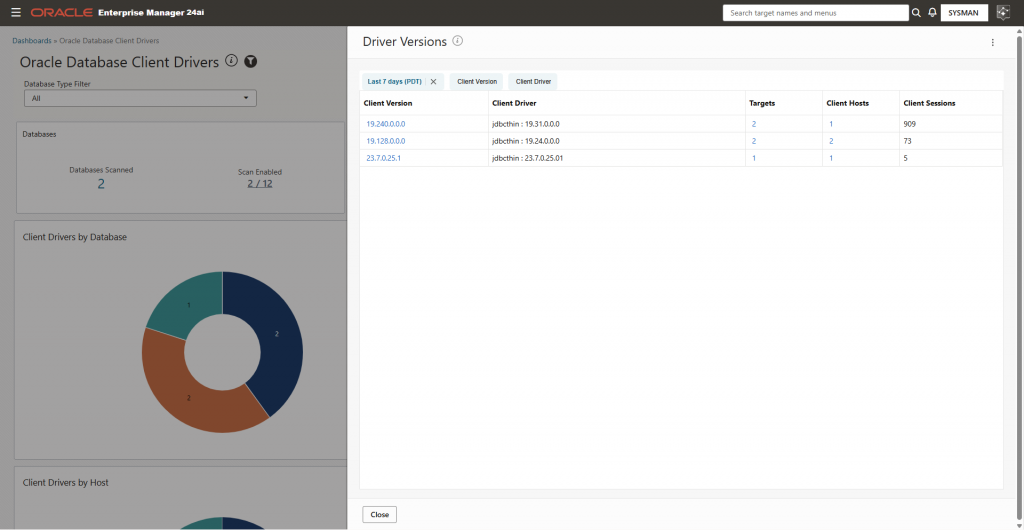
Click on any of the numbers in the first row for more details. For example, clicking on the number under “Driver Versions” opens a slide-out with database client driver versions details:
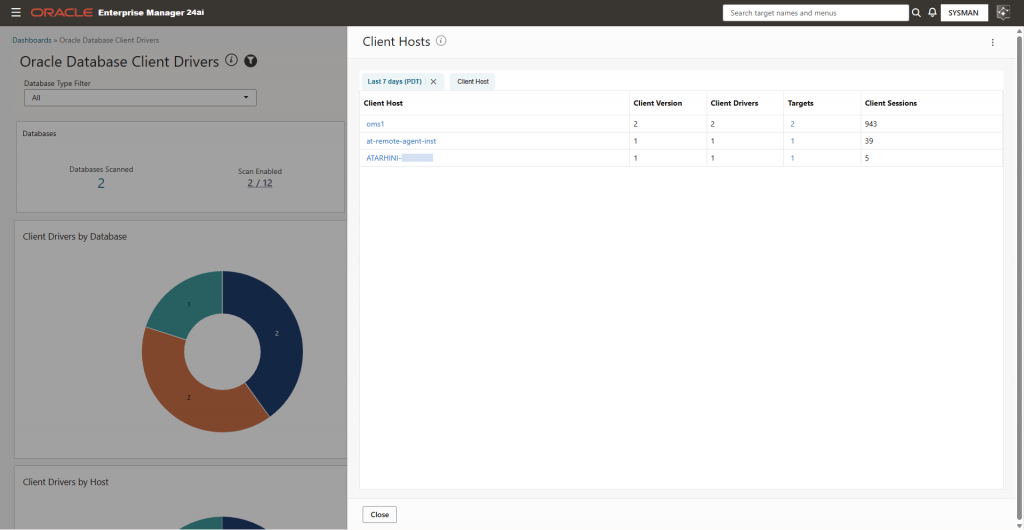
Clicking on the number under “Client Hosts” opens a slide-out with the client hosts details. With this information, the DBA can alert the administrators of these hosts to update their client drivers if not up to date. Note the last entry in this screenshot from my demo environment is for a laptop running SQL Developer. As, the DBA should be able to alert developers whose local workstations show up in this list to update their client drivers if not up to date: