

Introduction
Oracle Fusion Applications represent one of the most comprehensive enterprise SaaS solutions, supporting critical business functions across Human Capital Management (HCM), Enterprise Resource Planning (ERP), Supply Chain Management (SCM), and Customer Experience (CX). As organizations increasingly rely on Fusion Cloud Apps for mission-critical operations, understanding the real user experience becomes paramount for ensuring optimal performance, identifying bottlenecks, and maintaining user satisfaction.
Oracle Cloud Infrastructure (OCI) Application Performance Monitoring (APM) Real User Monitoring (RUM) Browser Agent provides a powerful solution for gaining deep visibility into how users interact with Fusion Cloud Applications. By deploying the APM Browser Agent, organizations can monitor real user sessions, track page performance, analyze user behavior patterns, and correlate performance metrics with business outcomes—all from the browser perspective.
This blog post provides a comprehensive guide to implementing OCI APM RUM Browser Agent for Oracle Fusion SaaS Cloud Apps, covering both ADF (Application Development Framework) and Redwood page implementations, and exploring key use cases that enable data-driven performance optimization.
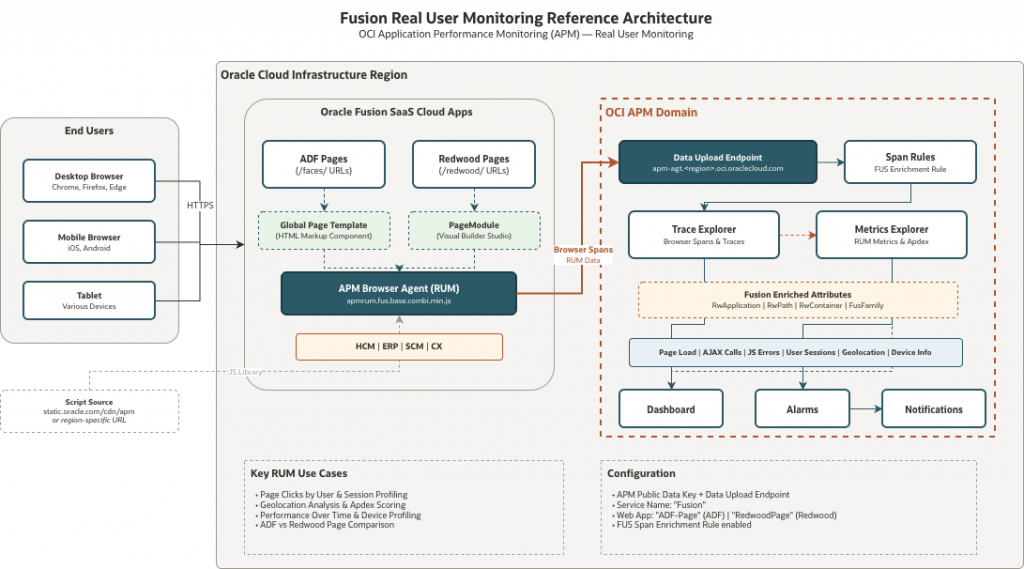
Reference Architecture: OCI APM Real User Monitoring for Oracle Fusion SaaS Cloud Apps
OCI APM Real User Monitoring captures user interaction data directly from the browser, providing comprehensive insights into the actual user experience. The APM Browser Agent records:
- Page Load Performance: Complete page load times, resource loading, and rendering metrics
- User Interactions: Clicks, navigation patterns, and user session flows
- AJAX Calls: API call performance and error rates
- JavaScript Errors: Client-side errors that impact user experience
- Geographic Data: User location-based performance analysis
- Device Information: Browser, device type, and connection characteristics
- Application Performance Index (Apdex): Standardized performance scoring
The APM Browser Agent sends browser spans and RUM metrics to OCI APM, where they can be visualized in Trace Explorer and Metrics Explorer, enabling comprehensive analysis of user experience across Fusion Cloud Applications. Beyond deep-dive analysis, this telemetry allows you to utilize out-of-the-box RUM Dashboards and define Custom Metrics to detect and alert on Fusion environment performance issues proactively.
Prerequisites
Before implementing APM RUM for Fusion Cloud Apps, ensure you have:
- OCI APM Domain: An active APM domain in your OCI tenancy
- Follow these quick steps to create a domain:
- Sign in to the Oracle Cloud Infrastructure console.
- Open the navigation menu, click Observability & Management, and under Application Performance Monitoring, click Administration.
- Select your target compartment, click Create APM Domain, and fill in the required details (Name, Compartment, Description, etc.).
- Click Create APM domain and wait for the domain to be provisioned.
- For full setup details, see Create an APM Domain.
- Follow these quick steps to create a domain:
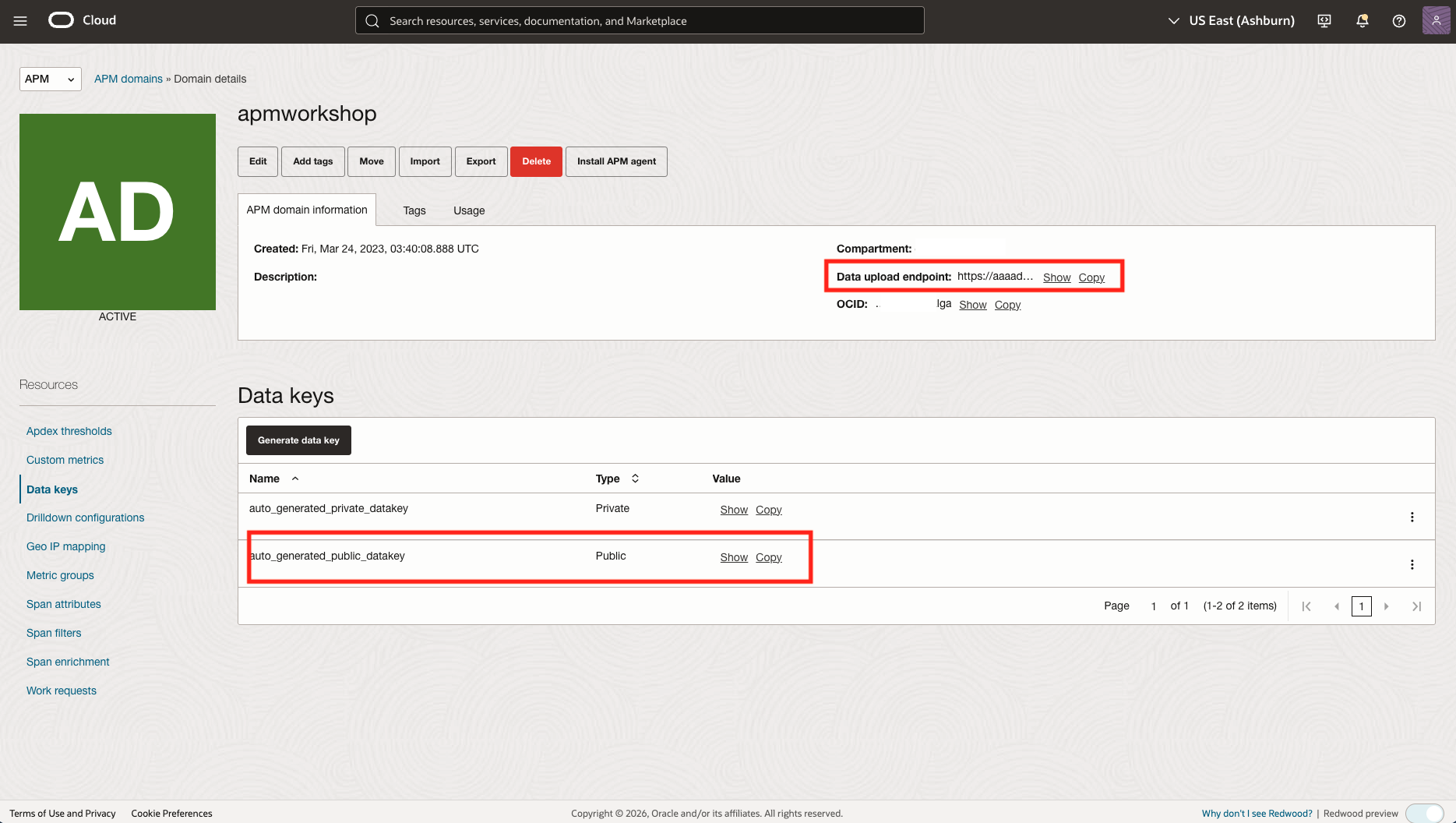
- APM Data Key: The public data key from your APM domain
- Navigate to APM Domain > Resources > Data Keys
- Copy the Public Data Key
- Data Upload Endpoint: The OCI data upload endpoint URL for your APM domain
- Format:
https://<domain-id>.apm-agt.<region>.oci.oraclecloud.com - Found in APM Domain > Administration > Data Upload Endpoint
- Copy the Data Upload Endpoint
- Format:
- ADF Sandbox Access: Ability to create and publish sandboxes in Fusion Applications
- Redwood Visual Builder Studio project access: Ability to create and publish VBCS project for Fusion Redwood pages.
- Note: The Fusion role alone does not grant access to VB Studio — the user also needs a VB Studio role in the Identity Domain.
- If role synchronization is enabled (the common case), assign one of:
ORA_SYNC_ENABLED_ADMINISTRATOR_ABSTRACT— maps to VB Studio AdministratorORA_SYNC_ENABLED_DEVELOPER_ABSTRACT— maps to VB Studio Developer (These are assigned in the Fusion Security Console and auto-sync to the Identity Domain.)
- If role synchronization is disabled, you must manually assign in the Identity Domain console:
DEVELOPER_ADMINISTRATOR— VB Studio admin access (create projects, manage settings)DEVELOPER_USER— VB Studio developer access (create/develop projects).
Implementation: Deploying APM Browser Agent
Oracle Fusion Applications consist of two distinct page architectures, each requiring a specific implementation approach:
- ADF Pages: Legacy pages identified by
/faces/in the URL - Redwood Pages: Modern pages identified by
/redwood/in the URL
For complete coverage, you must implement the APM Browser Agent for both page types.
Part 1: Adding RUM Agent to Fusion ADF Pages
ADF pages use a global page template that can be customized to include the APM Browser Agent across all ADF pages in your Fusion instance.
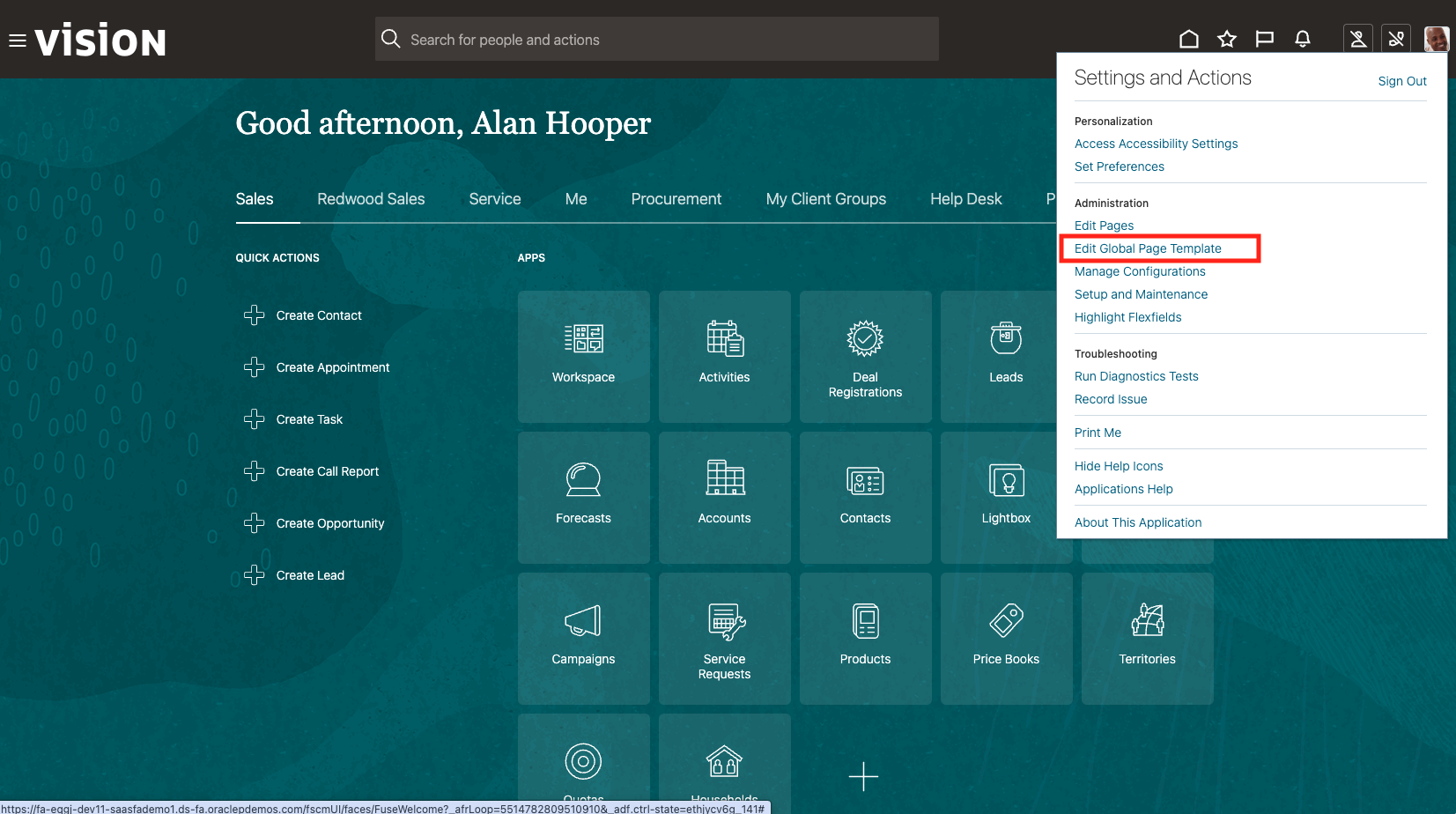
Step 1: Access Global Page Template Editor
- Log in to your Fusion Cloud Application
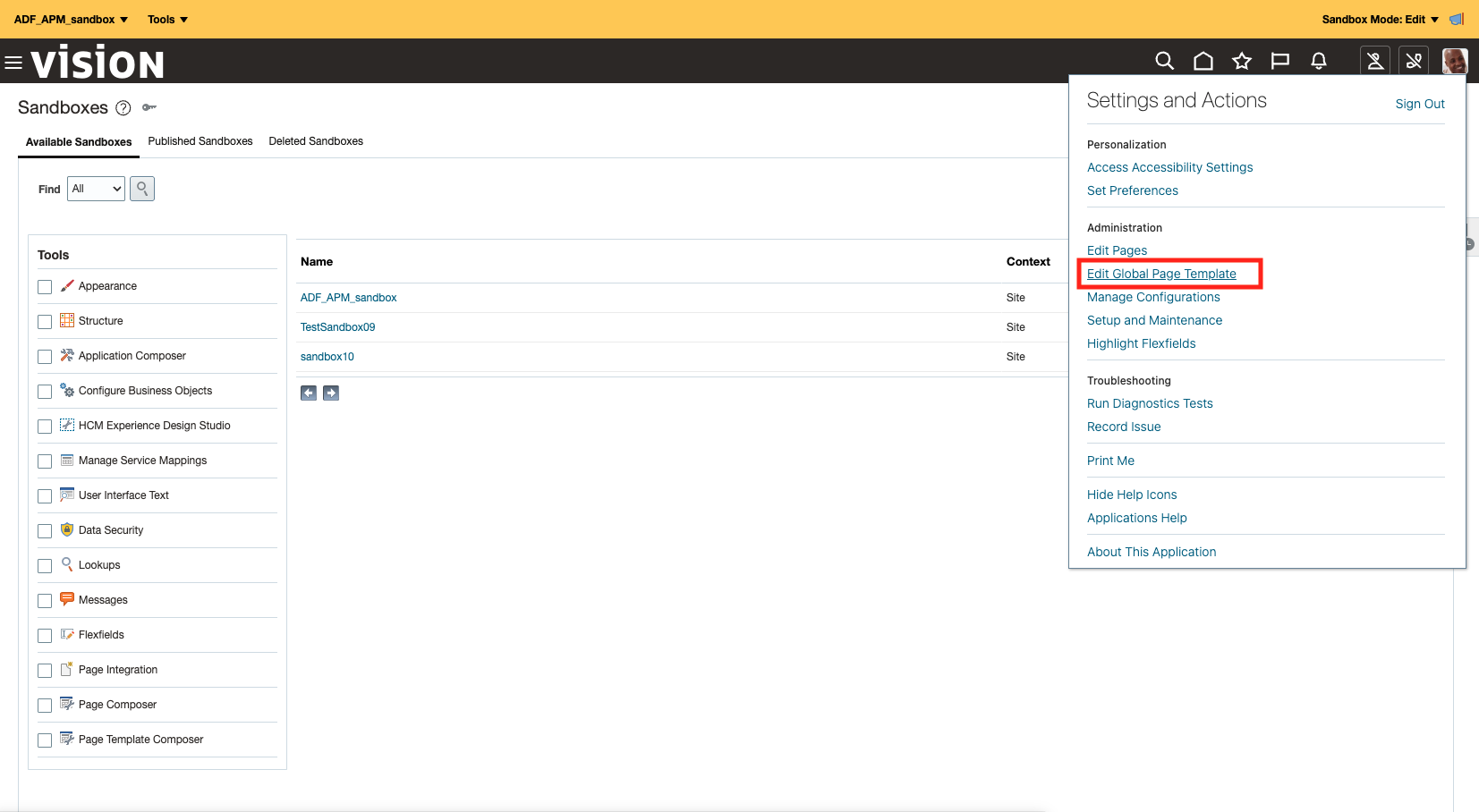
- Navigate to Settings > Actions > Edit Global Page Template
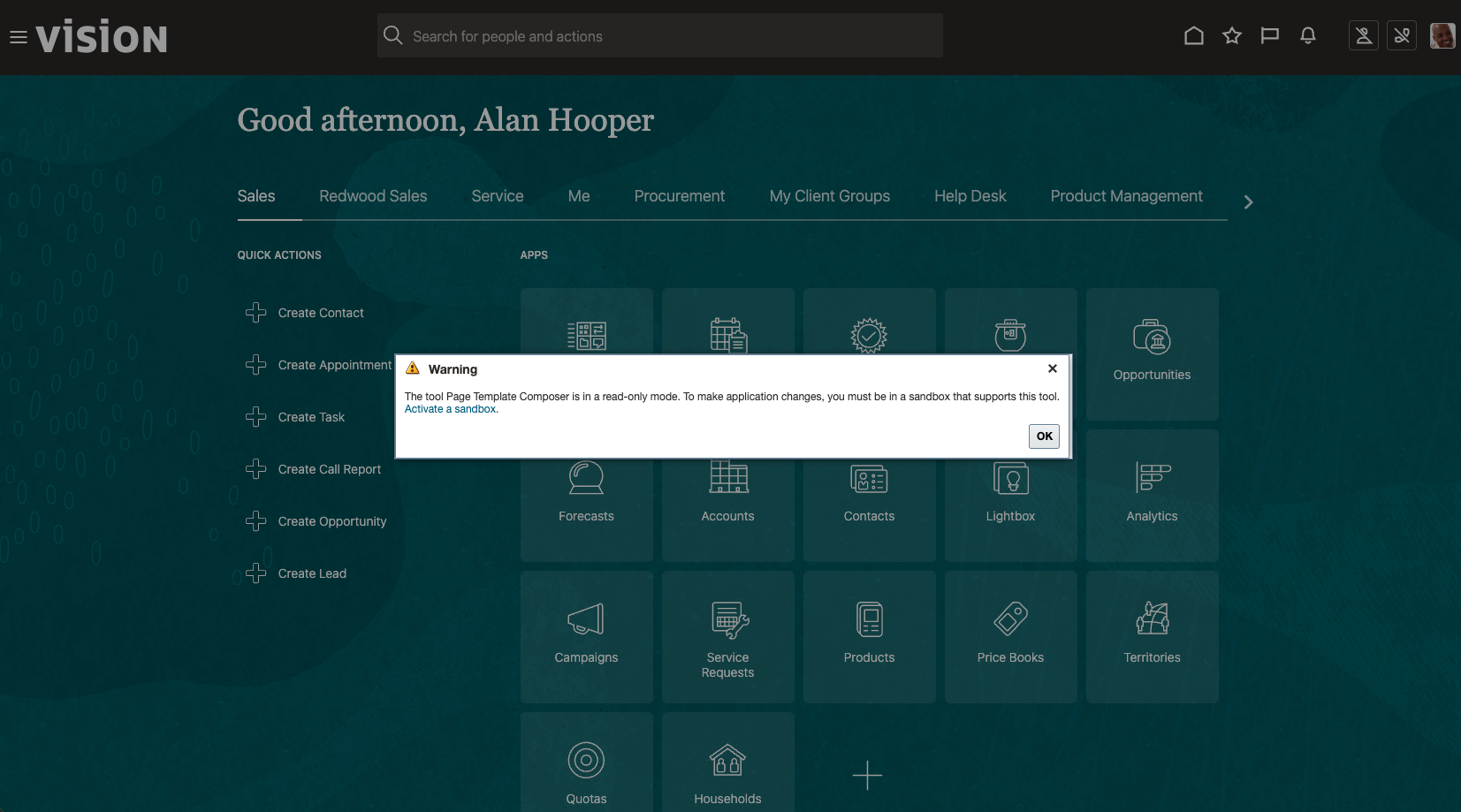
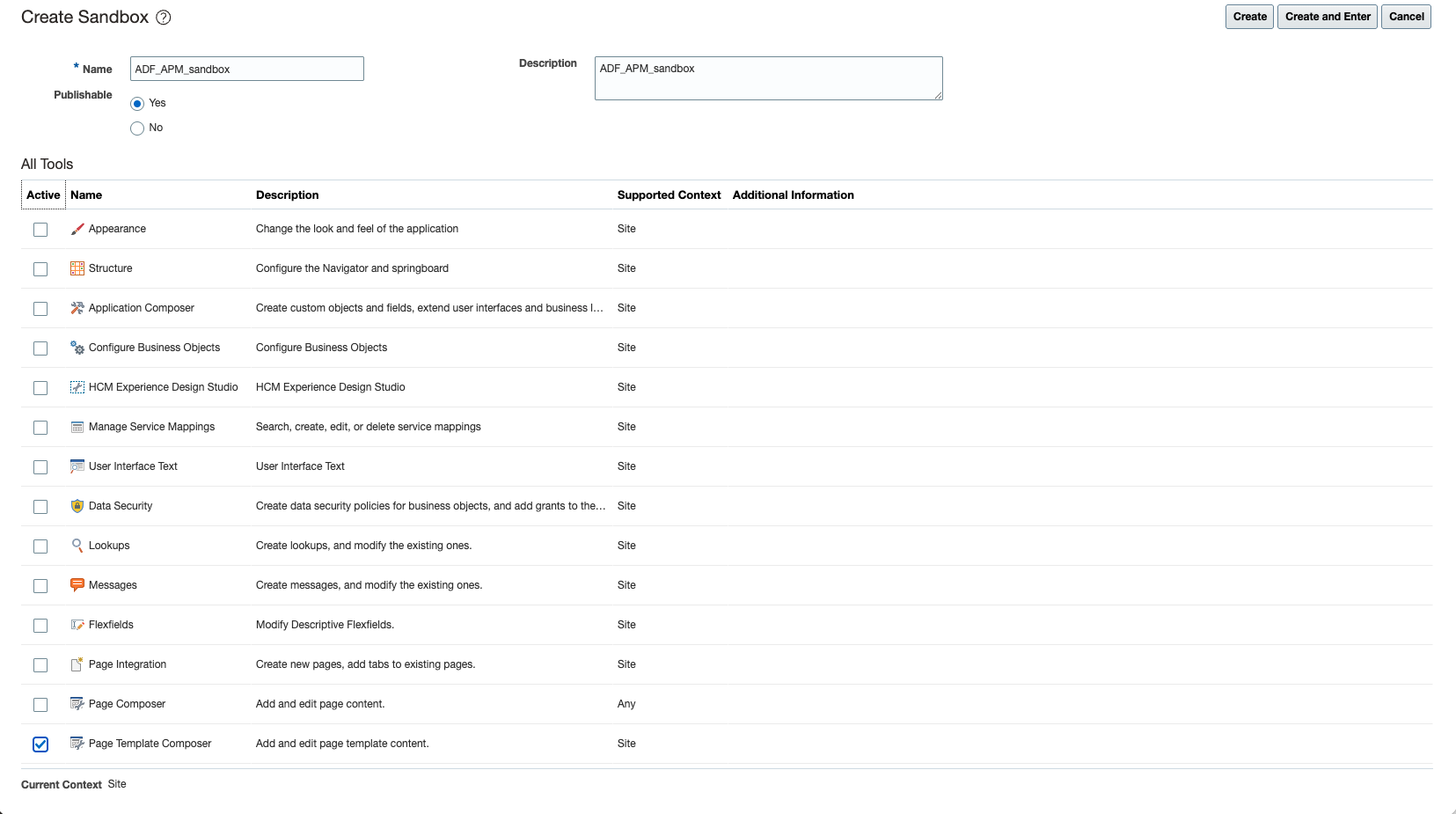
- Create or activate a sandbox:
- Click Activate a Sandbox
- Select Page Template Composer option
- Click Create and Enter
- Enter the sandbox by clicking on its name
Step 2: Edit the Template
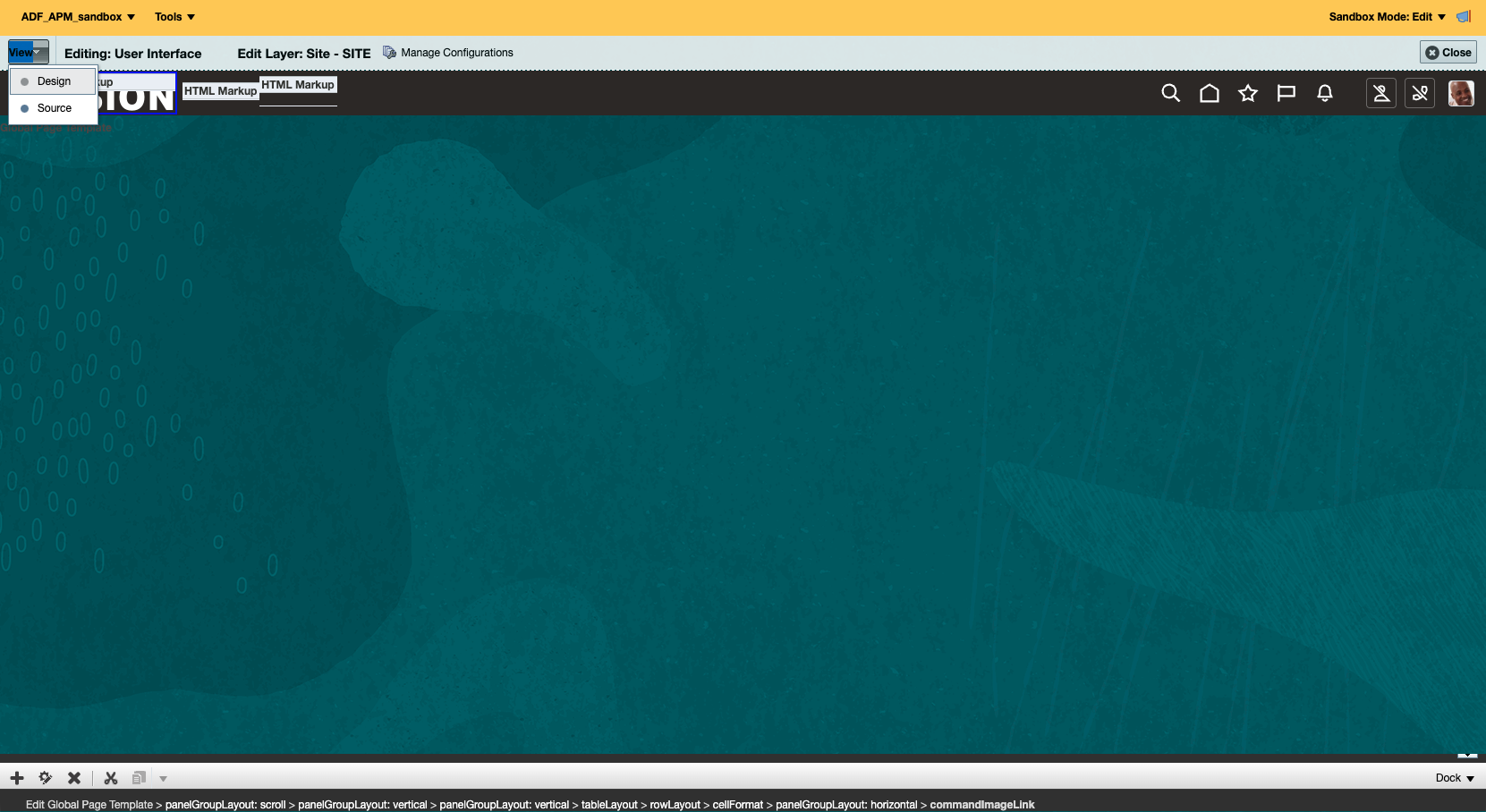
- Click Edit Global Page Template from the menu (now that you’re in a sandbox)
- Ensure the page is in Design mode
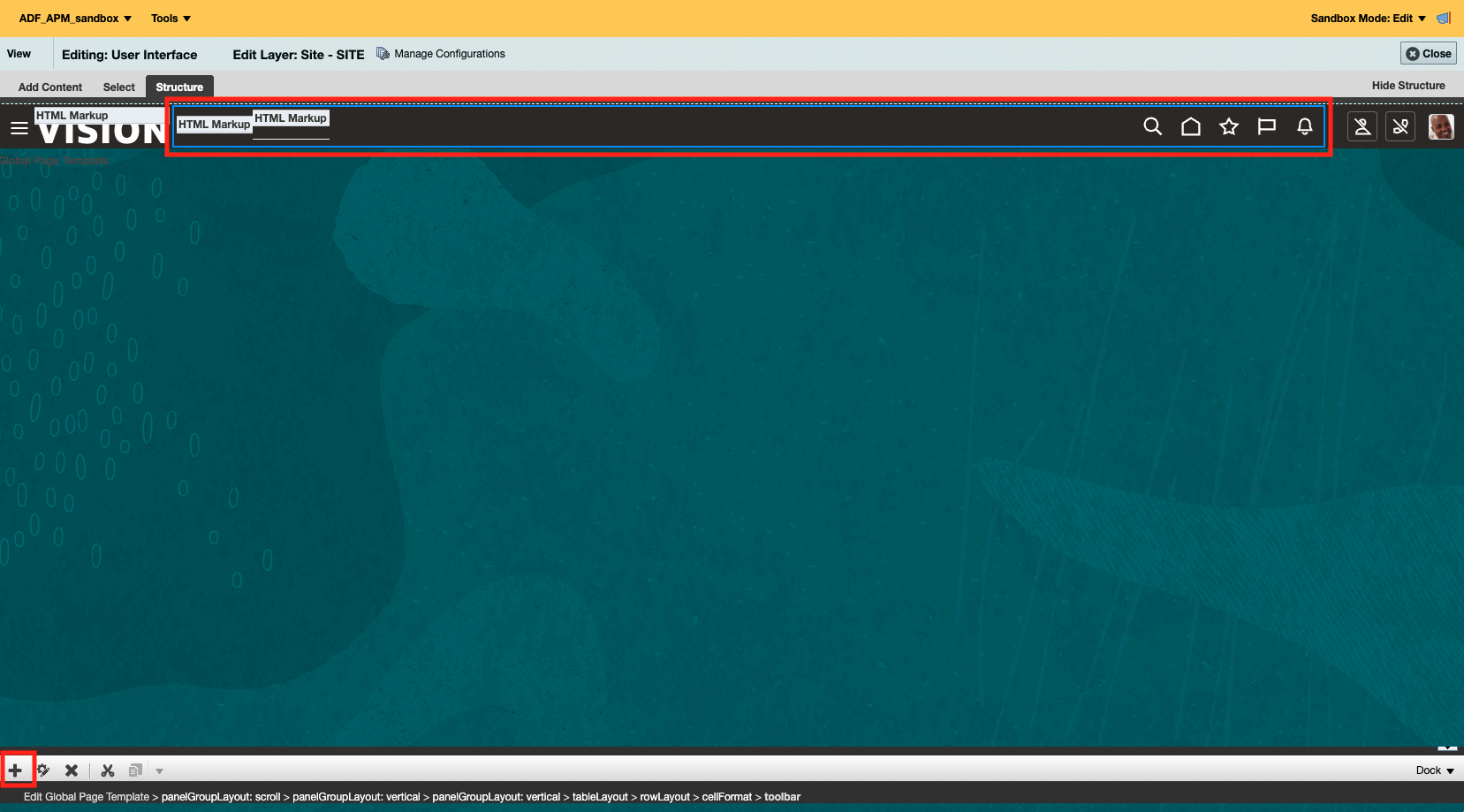
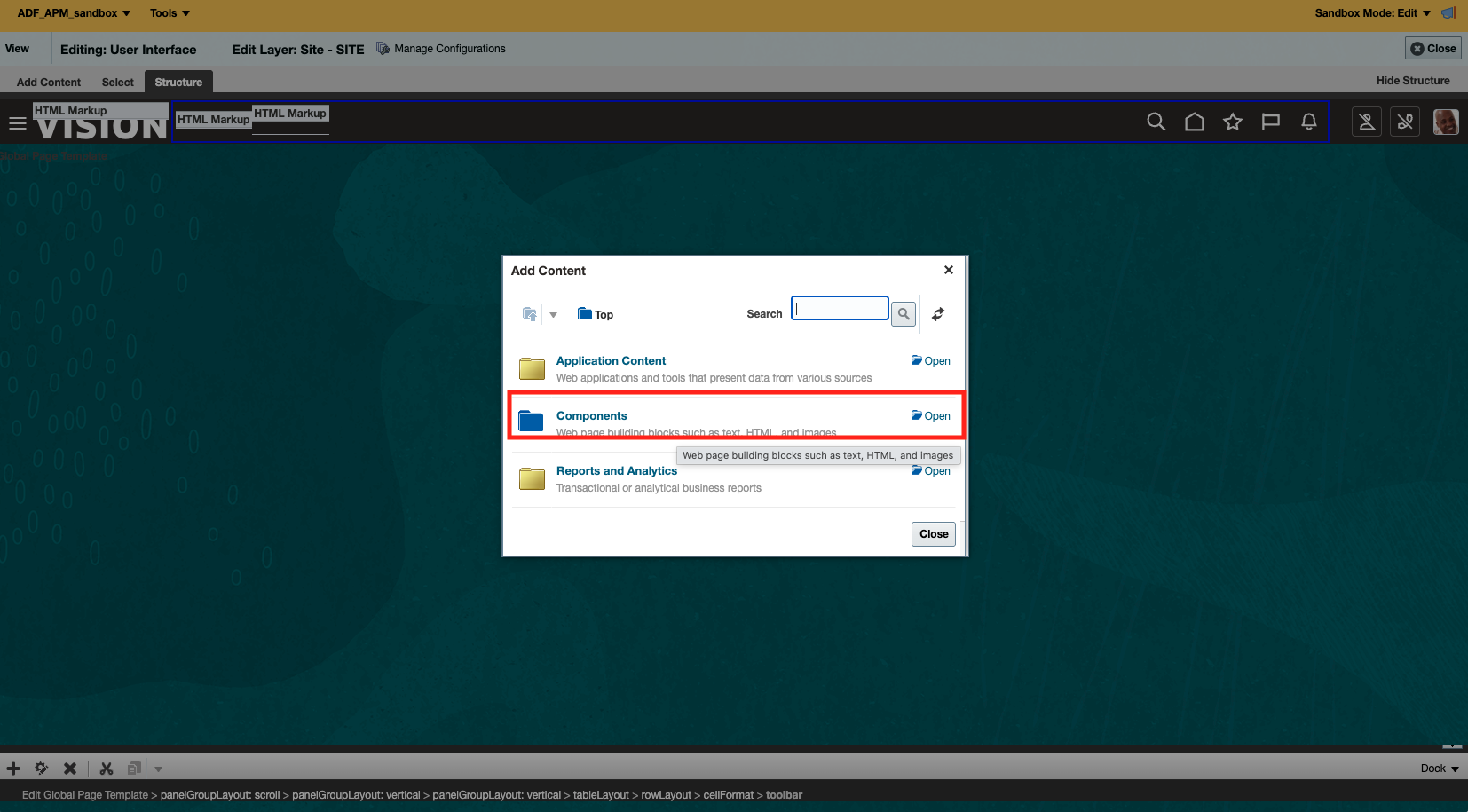
- When active, you’ll see a bar with ‘Add content’ | ‘Select’ | ‘Structure’
- Select Structure from that bar
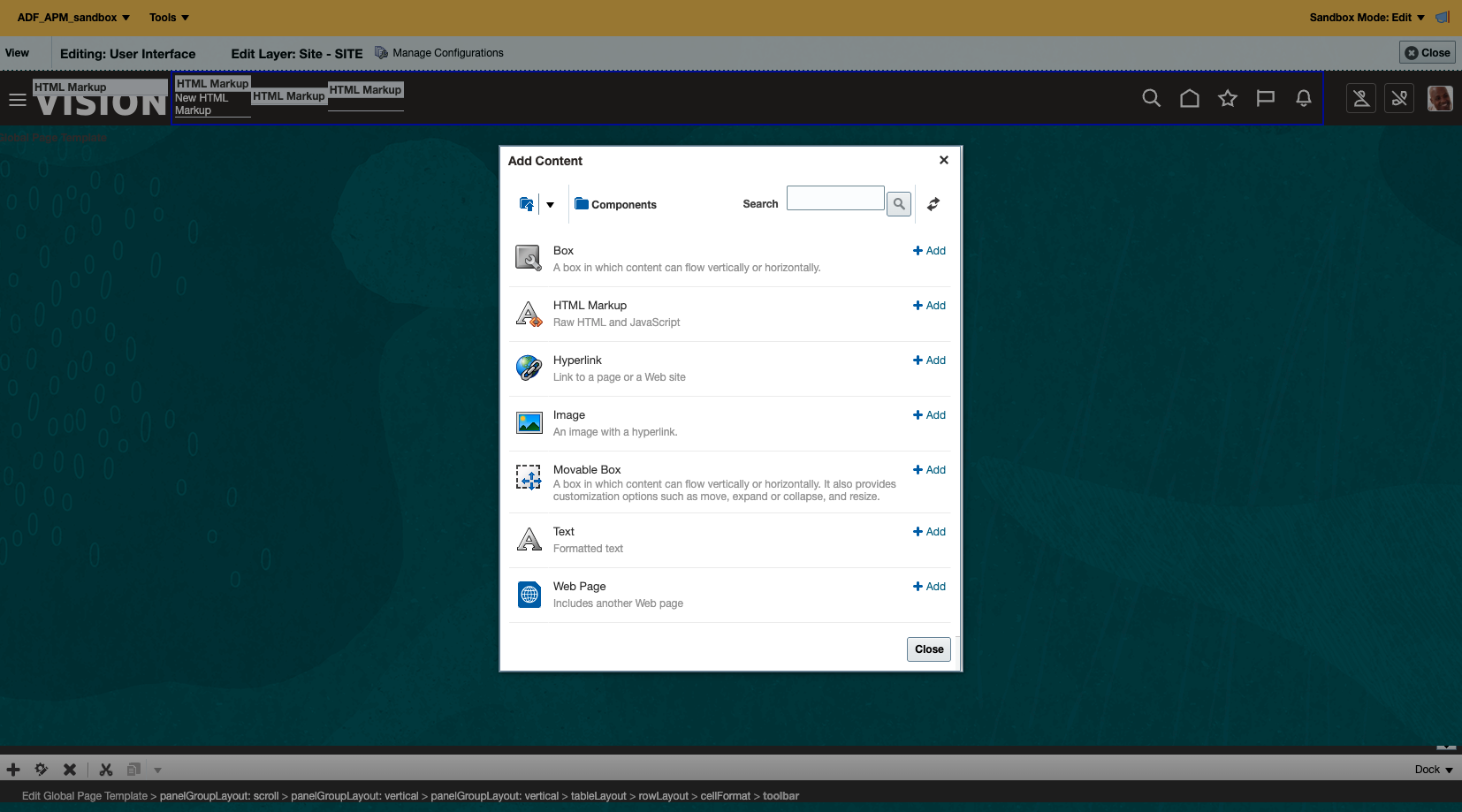
- Click the “+” symbol at the bottom to add a new HTML markup component
- Select Component and click Add to add the HTML Markup, then Close the popup
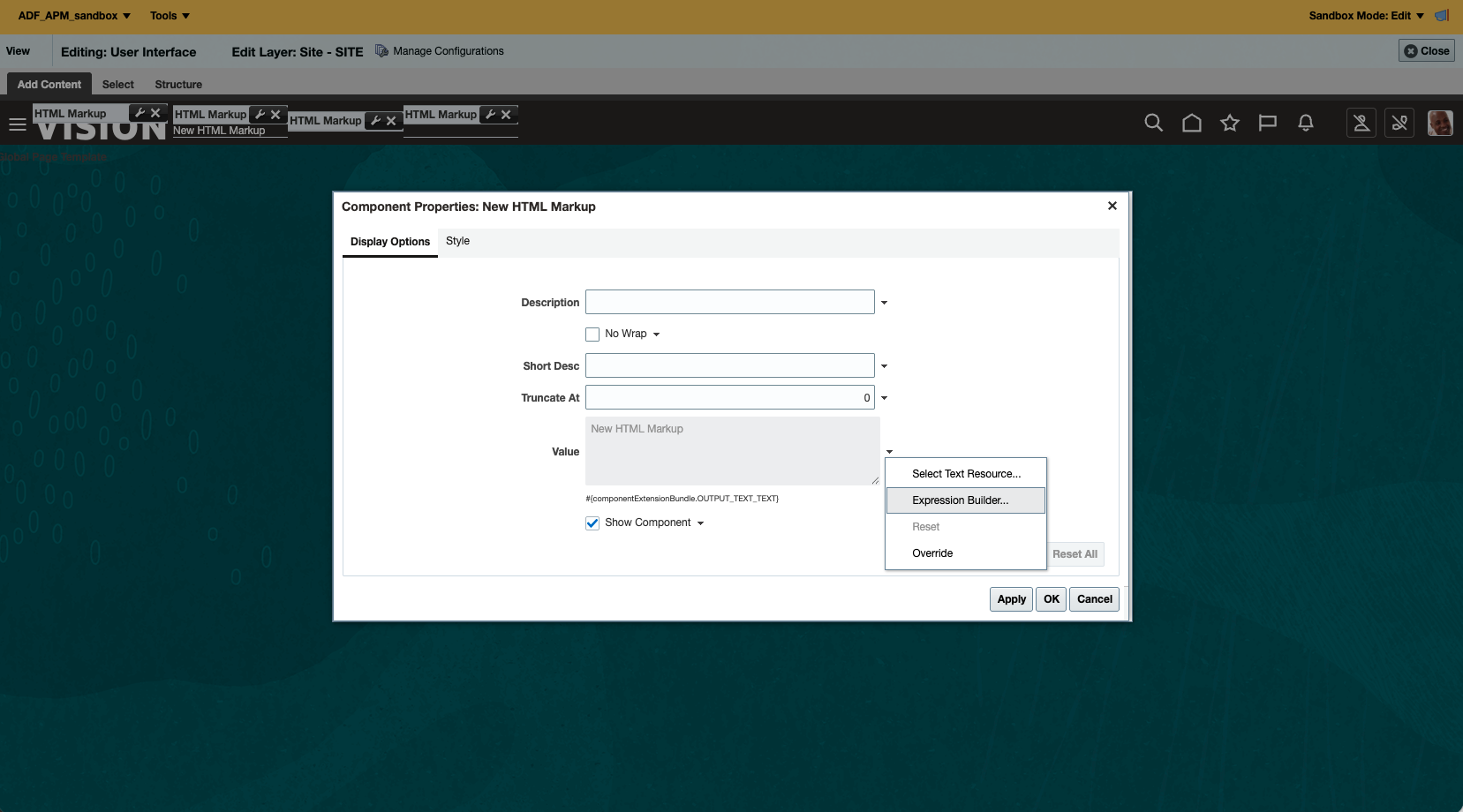
- Switch to Add Content tab and click the gear setting button of the HTML Markup component
- Open the Expression by clicking the settings icon
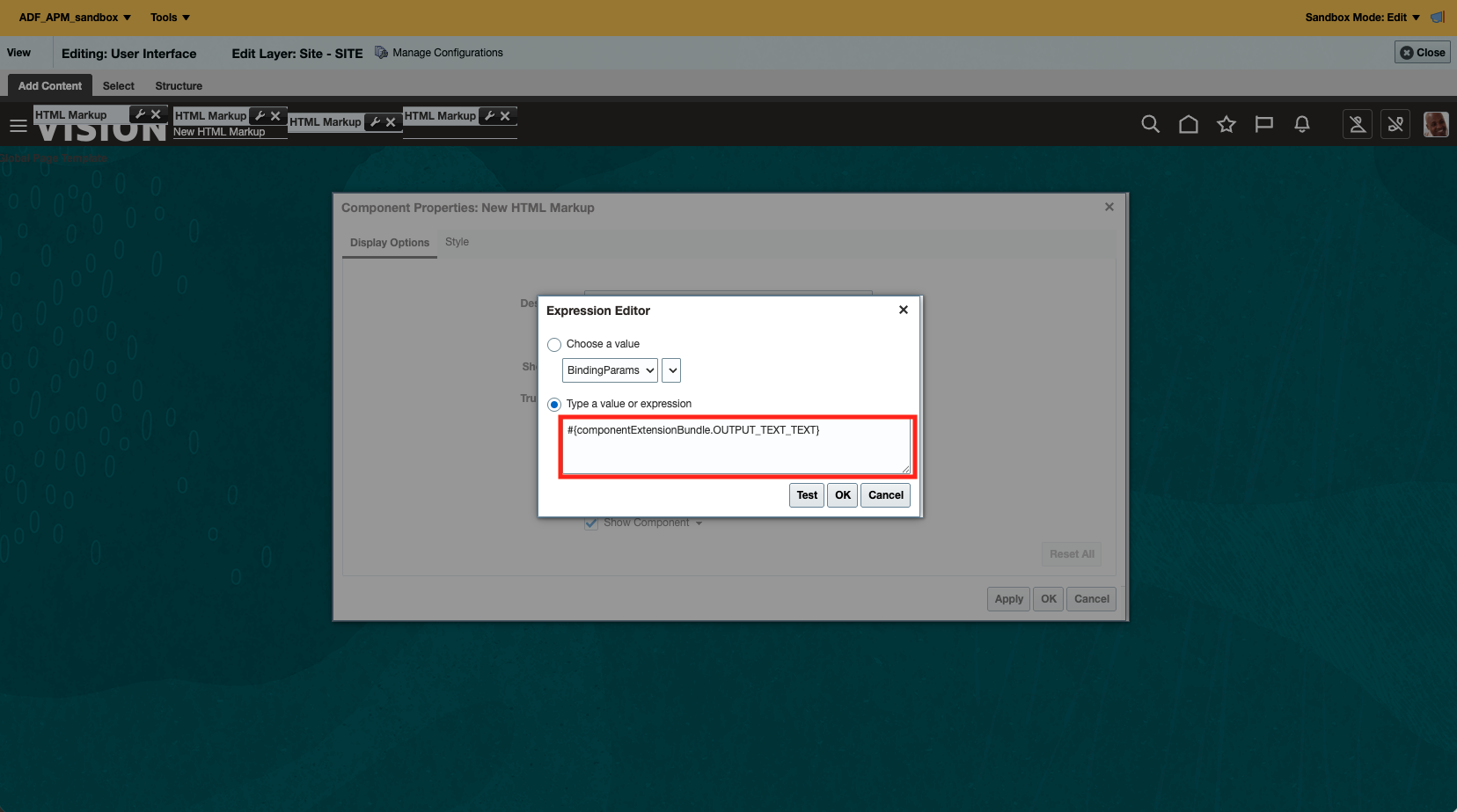
- Click Expression Builder
Step 3: Add APM Browser Agent Script
In the Expression Builder, add the following HTML markup:
<!-- APM RUM Library -->
<!-- Note: static.oracle.com requires maintenance to update the version -->
<!-- Alternative: Use region-specific script if needed -->
<!--
<script
  type="text/javascript"
  crossorigin="anonymous"
  src="https://static.oracle.com/cdn/apm/oci/1.1/1.1-1xx/1.1-159/apmrum.fus.base.combi.min.js"
></script>

<script type="text/javascript">
  function initializeAPMRumConf() {
    const apmRumConfig = window.apmrum || (window.apmrum = {});

    apmRumConfig.custEP = apmRumConfig.custEP || {};

    /* CUSTOMER SPECIFIC VALUES */
    apmRumConfig.custEP.OracleAPMPublicDataKey = 'YOUR_PUBLIC_DATA_KEY';
    apmRumConfig.custEP.ociDataUploadEndpoint =
      'https://YOUR_DOMAIN_ID.apm-agt.us-phoenix-1.oci.oraclecloud.com';
    apmRumConfig.custEP.serviceName = 'Fusion';
    apmRumConfig.custEP.webApplication = 'ADF-Page';

    apmRumConfig.traceSupportingEndpoints =
      apmRumConfig.traceSupportingEndpoints || [
        {
          headers: [],
          hostPattern: '.*',
        },
      ];

    /* Uncomment the line below to get username values in plain text.
       By default, the value will be hashed. */
    // apmRumConfig.custEP.trackPlainUserId = true;
    // apmRumConfig.trackPlainUserId = true;

    /* Uncomment the line below to get the application page title. */
    // apmRumConfig.trackScreenText=true;

    /* END OF CUSTOMER SPECIFIC SETTINGS */
    apmRumConfig.confInst = (apmRumConfig.confInst || new Set()).add('custEP');
  }

  initializeAPMRumConf();
</script>
-->
<!-- END: APM RUM Library -->
Configuration Notes:
- Remember to remove the comments (line 4, line 47) at the beginning and the end of the script block
- Replace
YOUR_PUBLIC_DATA_KEYwith your APM domain’s public data key - Replace
YOUR_DOMAIN_ID.apm-agt.us-phoenix-1.oci.oraclecloud.comwith your actual data upload endpoint - Adjust the region in the endpoint URL to match your APM domain region
- The
webApplicationvalue is set to'ADF-Page'to identify ADF pages in APM - The document title of the application page and the text visible to the user can be helpful in reporting, but they may contain person identifiable information (PII) that is not allowed to be captured by default.
- Ref: https://docs.oracle.com/en-us/iaas/application-performance-monitoring/doc/configure-attributes-real-user-monitoring.html
User ID Hashing:
- By default, APM hashes user IDs to protect privacy
- To track plain text user IDs (for debugging), uncomment:
apmRumConfig.custEP.trackPlainUserId = true; - Warning: Only enable plain text user IDs if required for troubleshooting and ensure compliance with privacy regulations
Personally Identifiable Information (PII):
- Review APM documentation on Hiding Personally Identifiable Information
- Configure PII masking if your application contains sensitive user data
- Ensure compliance with GDPR, CCPA, and other privacy regulations
Set Content-Security-Policy Header
- The browser uses the CSP standard to enhance security. The use of apmrum library from either static.oracle.com OR the region specific ingest-rum.apm-agt.<region>.oci.oraclecloud.com means that the script needs to be added to the list of locations where code is allowed to be loaded from, that is,
ALLOWED_ORIGINSparameter. This requires configuration of ADF as documented in the following locations:
Step 4: Publish the Changes
- Click Apply or Save to close the popup
- Click Publish
- Click Yes in the confirmation dialog
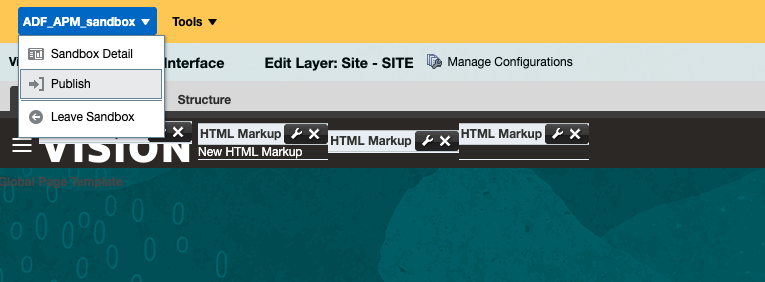
The APM Browser Agent is now deployed to all ADF pages in your Fusion instance.
Part 2: Adding RUM Agent to Fusion Redwood Pages
Starting from Oracle Fusion Release 26C, the earlier approach of adding JavaScript to the Unified Module in Advanced mode is no longer used. Instead, the Fusion APM RUM Assistant transforms a current Visual Builder workspace export into an importable ZIP, embeds the browser agent and shared APM configuration, and activates the module in the eligible Redwood App UI overrides selected for that extension. The administrator does not need to edit JavaScript or JSON.
Access: To request access to the Fusion APM RUM Assistant, you can access the script from here. If you need help, please contact your Oracle account team or open a My Oracle Support service request for additional support.
Deployment boundary: Generate and review the ZIP locally, then import it into a non-production Visual Builder workspace first. Treat Preview, RUM upload verification, and publication as separate administrator approval gates. Keep the original workspace export as the rollback artifact.
Step 1: Export the Current Workspace
- Navigate to any Redwood page in your Fusion application
- For example, nativate to Me -> Journeys or any Redwood pages that you know
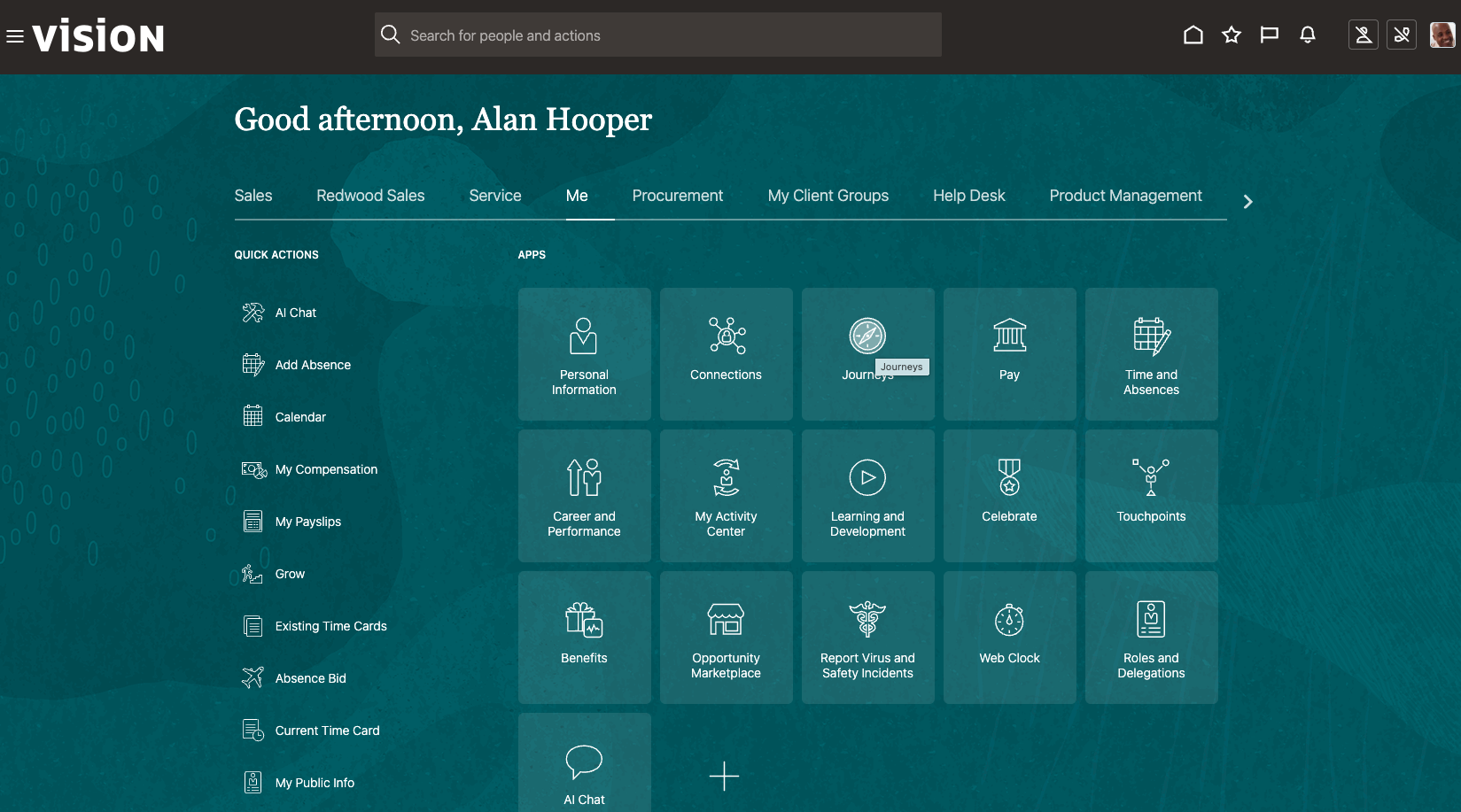
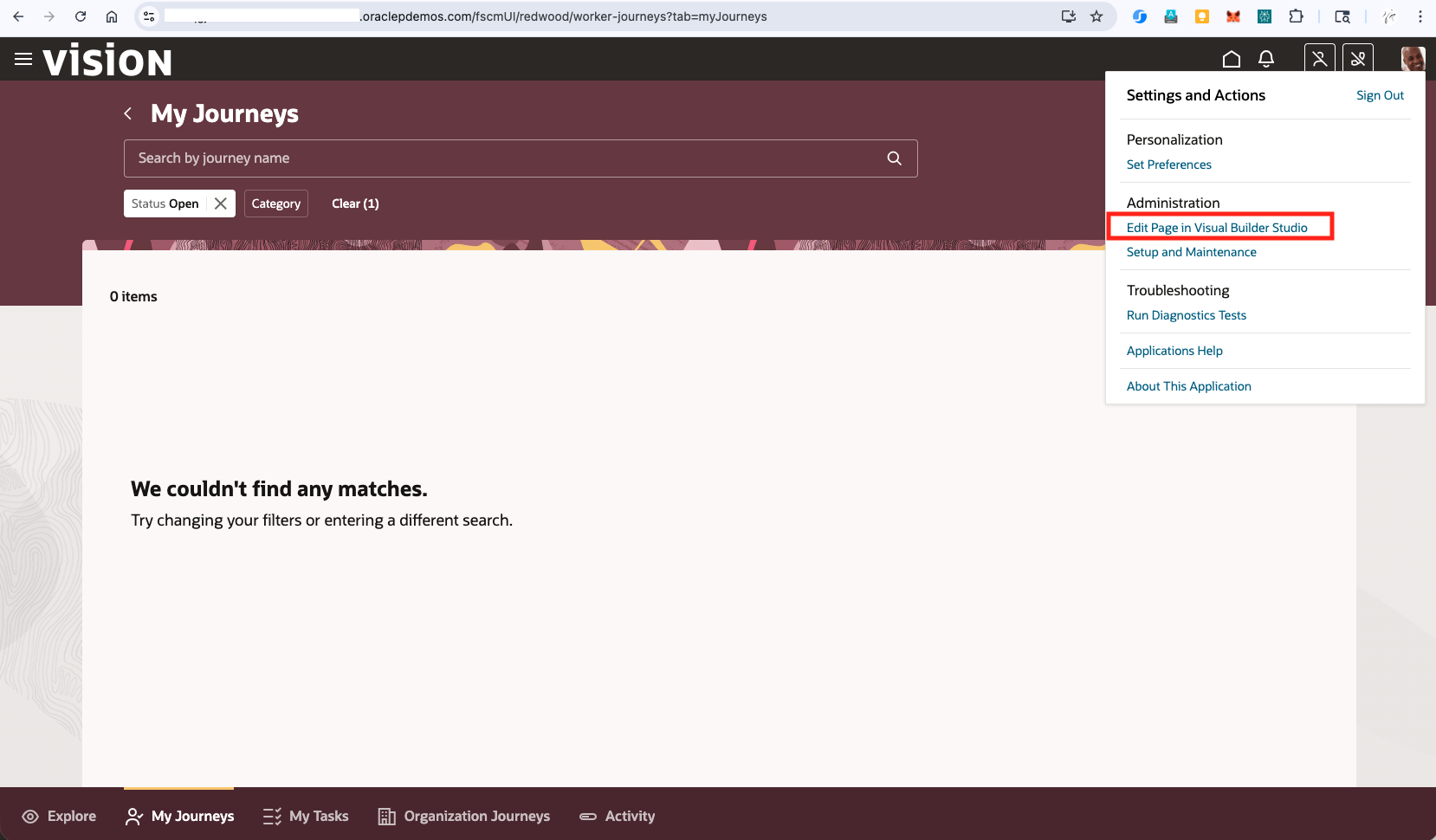
- Click the Profile icon in the top-right corner
- Select Edit the Page in Visual Builder Studio
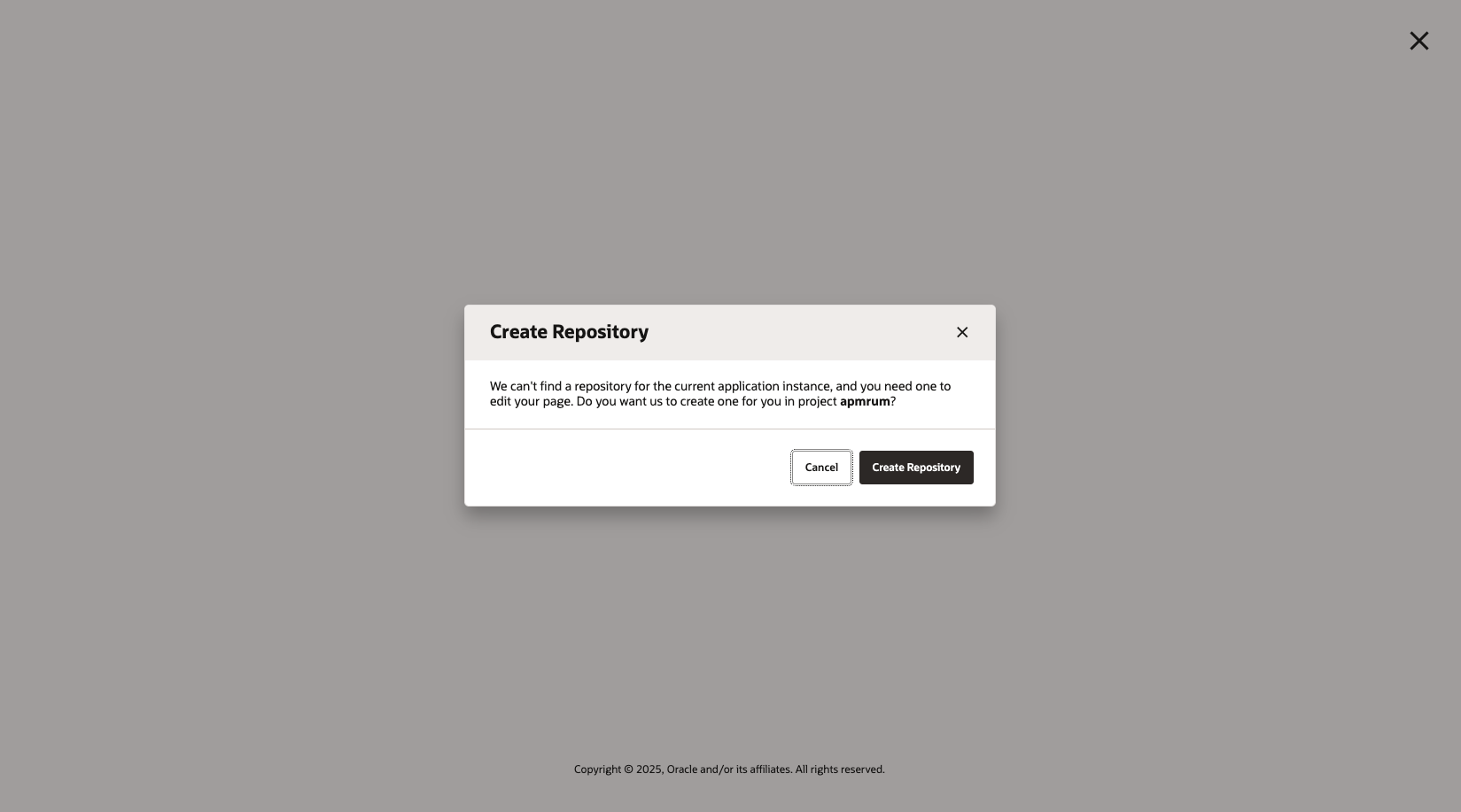
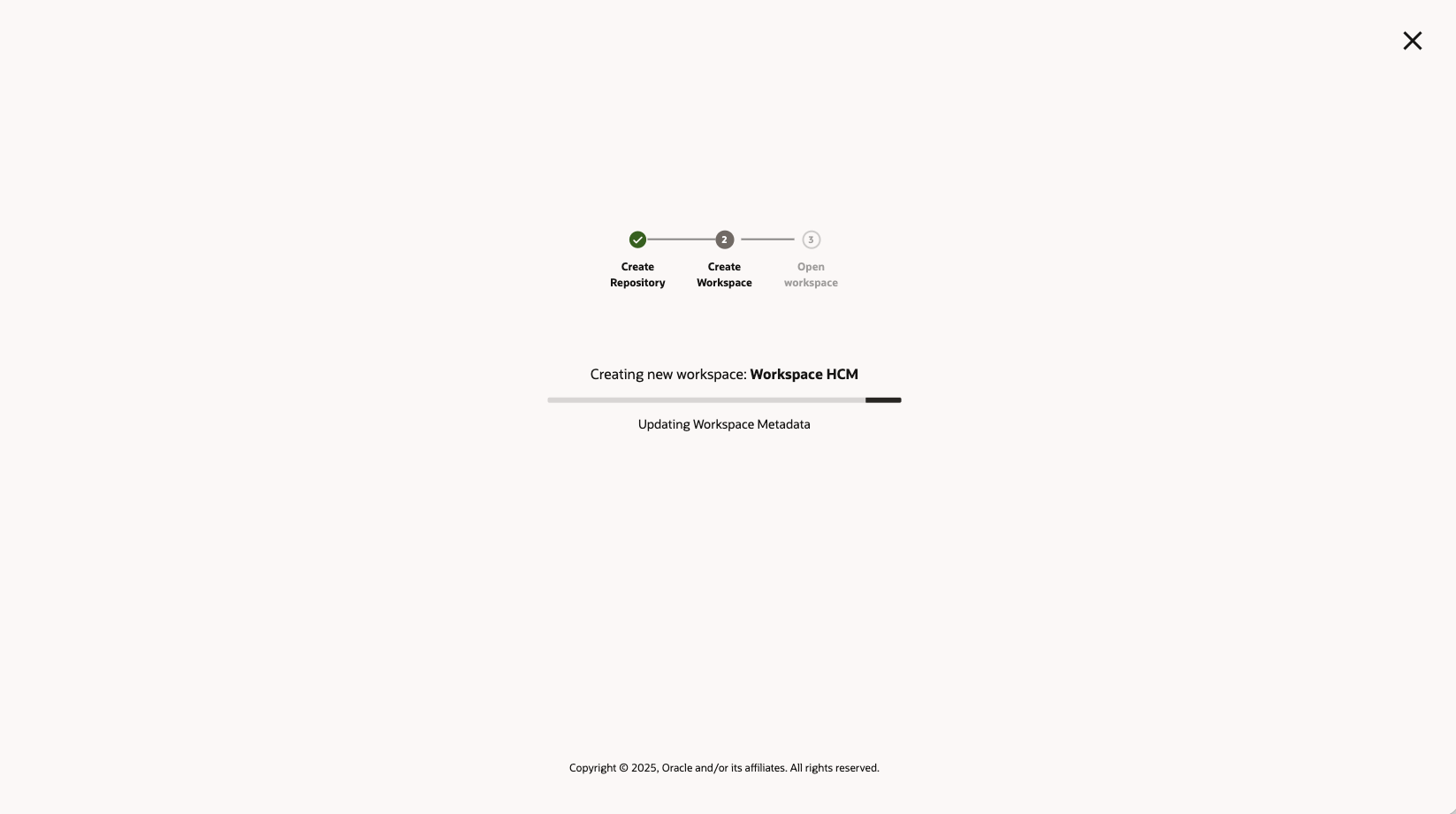
Note: The first time you access this option, Fusion will automatically create a Git repository for your Oracle Application or App Extension project. This is a one-time activity.
Step 2: Export the Current Workspace
- The project (Git repository) will open showing the page template
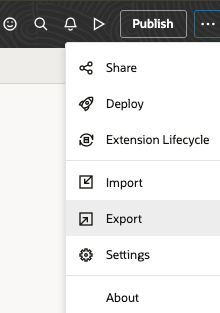
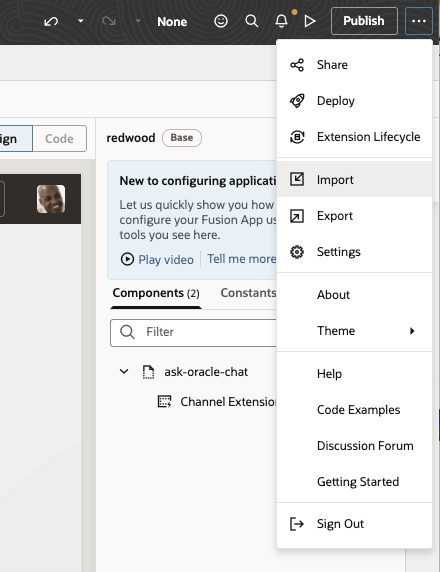
- From the menu in the upper-right corner, select Export. The downloaded archive contains the current files from the workspace branch. For more information, see Export Your Workspace as an Archive.
Step 3: Prepare and Start the Assistant
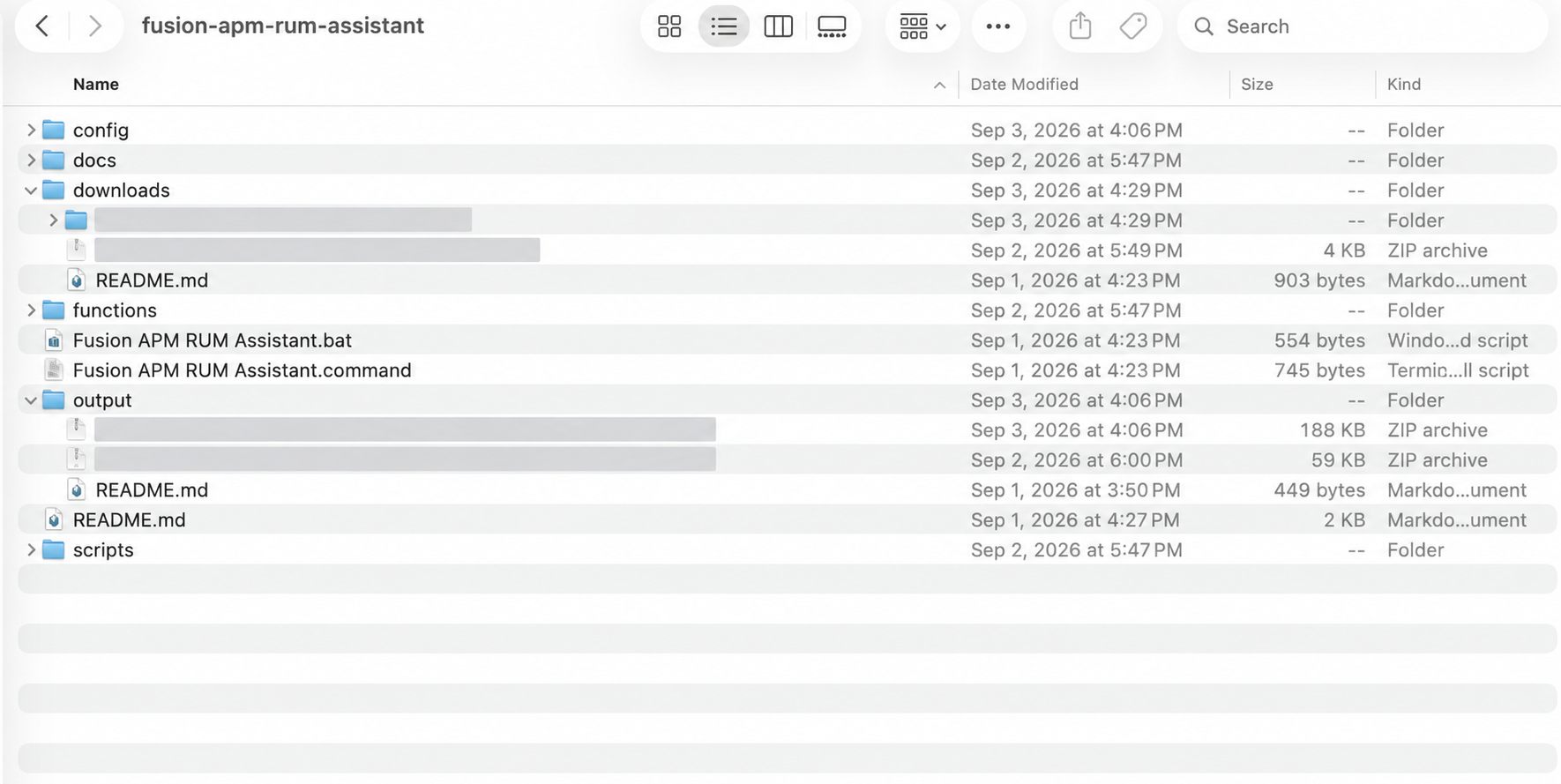
- Extract fusion-apm-rum-assistant.zip into a private working folder.
- Copy the Fusion workspace export into the assistant’s downloads folder.
- Start the assistant:
- macOS: Double-click Fusion APM RUM Assistant.command.
- Windows: Double-click Fusion APM RUM Assistant.bat.
- If prompted that Python 3 is unavailable, ask your local IT team to install Python 3 and then start the assistant again.
On the first run, enter the following values from the target OCI APM domain:
- OCI region: The region containing the APM domain. The assistant uses this region to obtain the browser agent while generating the ZIP.
- APM public data key: Found under APM domain details > Data Keys > Public Data Key.
- APM data upload endpoint: Shown in the APM domain details. Copy it directly and confirm that it is the HTTPS apm-agt endpoint for the intended APM domain and OCI realm; do not substitute a general-purpose HTTPS URL. This assistant version checks the URL format but does not prove that the host belongs to the intended APM domain, so this manual comparison is required.
- The local configuration is stored in the extracted assistant folder for reuse. The generated ZIP also contains deployment-specific APM settings, so keep both the working folder and generated ZIP within the approved deployment process. The assistant writes trackScreenText: false and trackPlainUserId: false in its customer configuration. Static inspection of this package also found that the embedded Fusion base library initializes a separate fusBaseConfig.trackPlainUserId value to true. Treat the effective user-name behavior as unresolved until the target APM data confirms that identity is hashed or omitted, and do not publish if plain identifiers appear.
Step 4: Select the Fusion App UI Scope
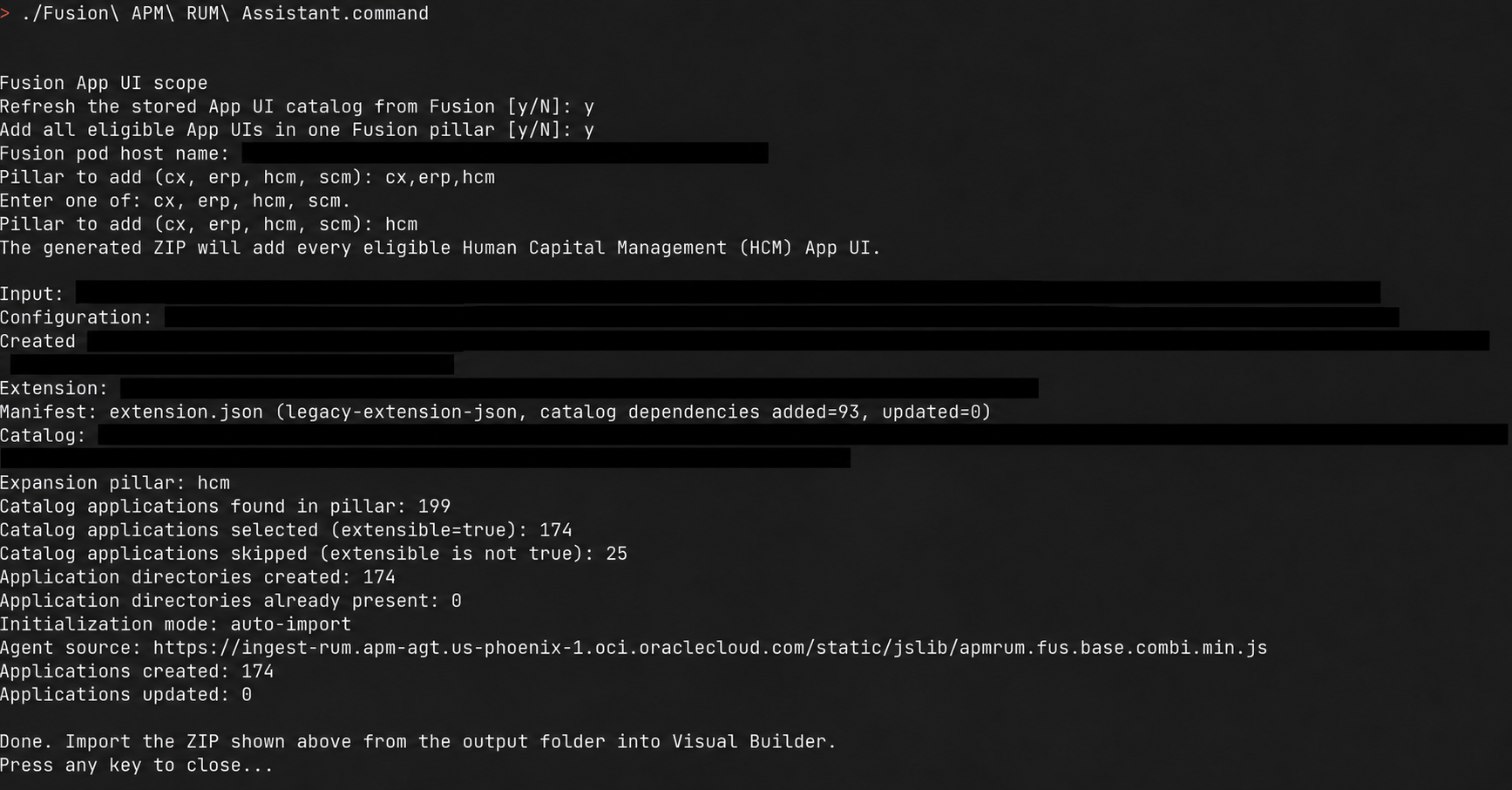
- The assistant asks two scope questions. Both default to No. to minimize changes, but on first time the expansion based on the correct pillar is required and both should be answered with YES.
- Refresh the stored App UI catalog from Fusion?
- Choose No to use the saved catalog, or when you only want to instrument App UIs already represented in the exported workspace.
- Choose Yes for first-time pillar expansion or after Fusion changes. Enter the Fusion pod host name when prompted. The assistant downloads the pod’s current app-ui-info catalog and saves it beside the local APM configuration.
- If the pod returns an interactive sign-in page instead of the catalog, download the catalog URL through an authenticated Fusion browser session, save it as config/app-ui-info.json, and run the assistant again without refreshing it.
- Add all eligible App UIs in one Fusion pillar?
- Choose No to use only the App UIs already present in the export.
- Choose Yes, then enter exactly one pillar: hcm, cx, erp, or scm. A comma-separated list is not accepted.
- The generated ZIP includes all eligible extensible App UIs in that pillar, except unified-module.
- If the downloads folder contains several Fusion export ZIPs, select the intended archive from the numbered list.
Step 5: Import, Preview and Publish
- Return to the same Visual Builder workspace used for the export.
- Confirm that no one has changed the workspace since the source export was created. If it has changed, export a fresh rollback ZIP, rerun the assistant against that archive, and review the new output before importing.
- From the upper-right menu, select Import and choose the *-with-apm-rum.zip (eg. example-demoservices-phx_apmrum_158849_21-1.0-with-apm-rum.zip) file from the assistant’s output folder.
- Review the import result and build messages.
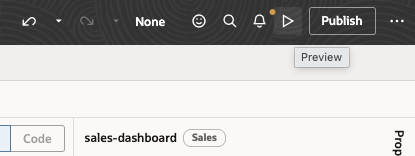
- Preview representative Redwood user workflows in the selected App UIs. Do not publish yet. Wait 5–10 minutes, verify RUM data in the intended APM domain.
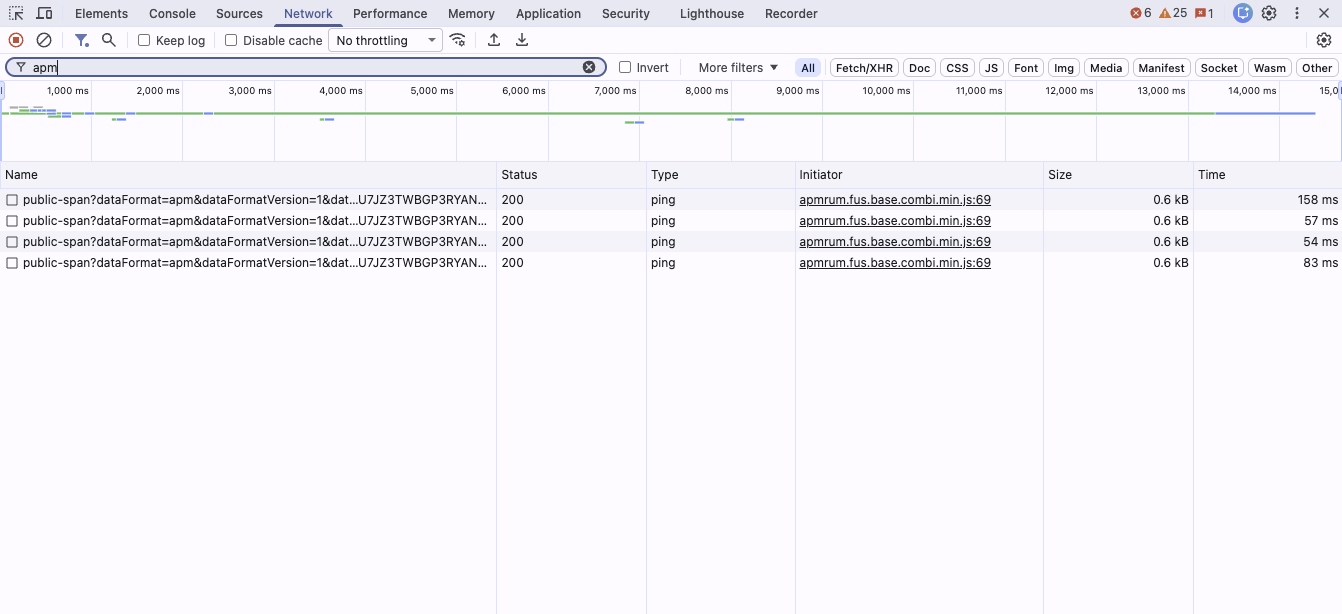
- In the browser Developer Tools Network tab, filter for apm and confirm that the APM data upload endpoint returns HTTP 200 or 204.
- In the intended APM domain, confirm the new activity in Trace Explorer or the Real User Monitoring dashboard. Verify the expected ServiceName and WebApplication, and confirm that privacy-sensitive values are not reported.
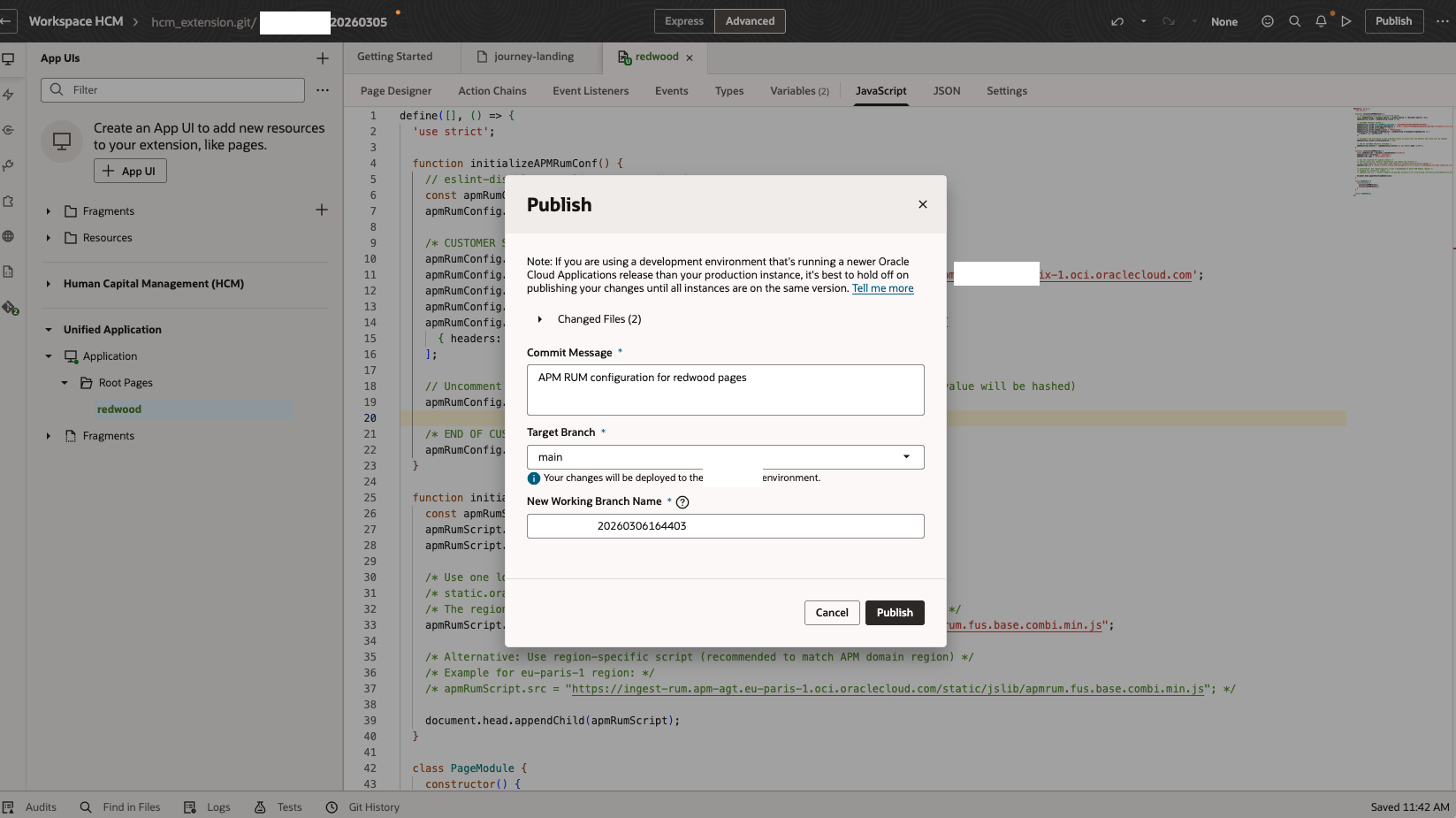
- Click Publish to deploy the changes to all Redwood pages
Part 3: Configure APM Domain Enrichment Rules
For complete Fusion coverage, enable the Oracle-provided Fusion (FUS) span rule to add Fusion-specific attributes and dimensions to your traces.
Enable Fusion Enrichment Rule
- Navigate to your OCI APM Domain
- Go to Administration > Span Rules
- Click Create Span Enrichment
- Select Oracle Provided span rules
- Find and add the “FUS” rule
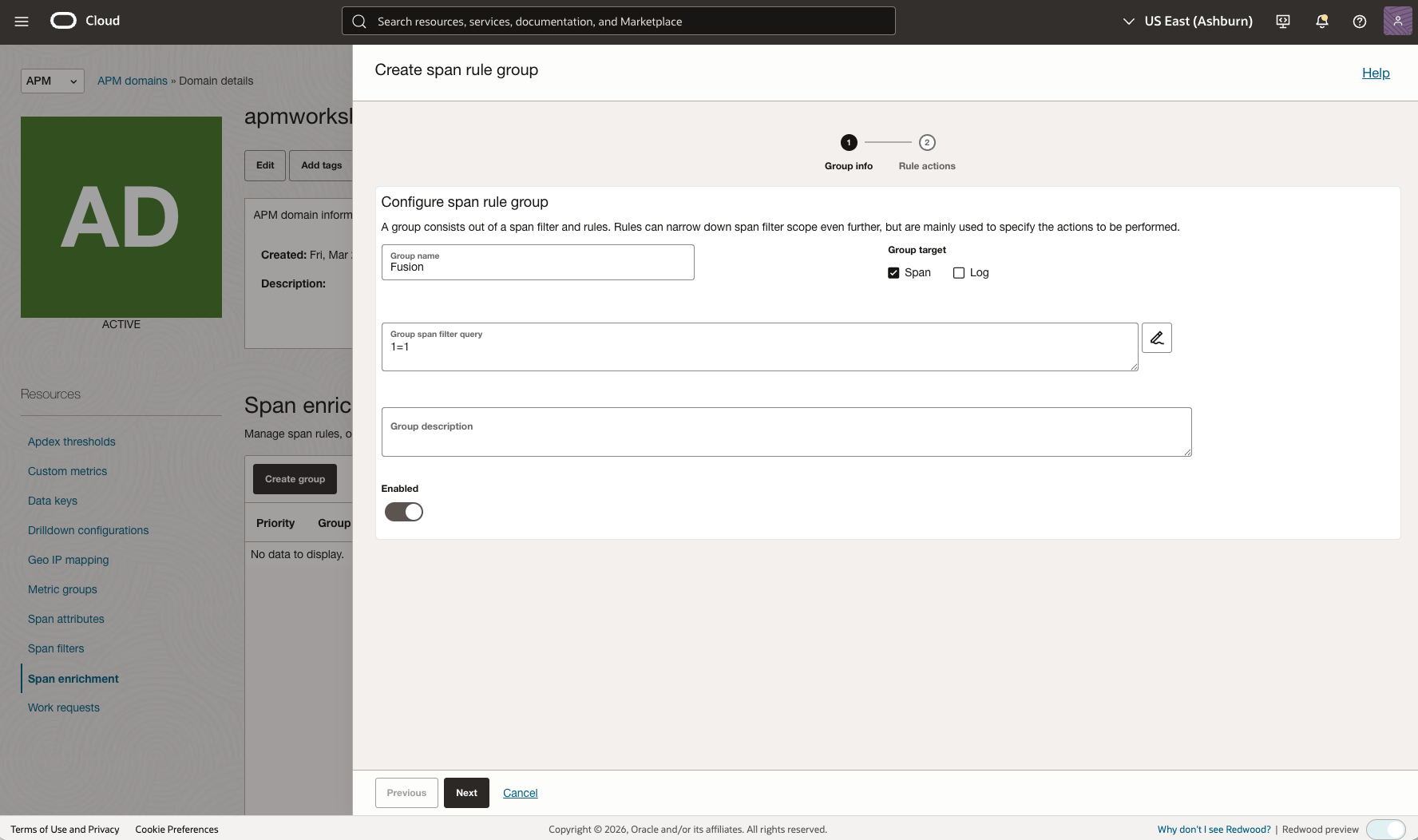
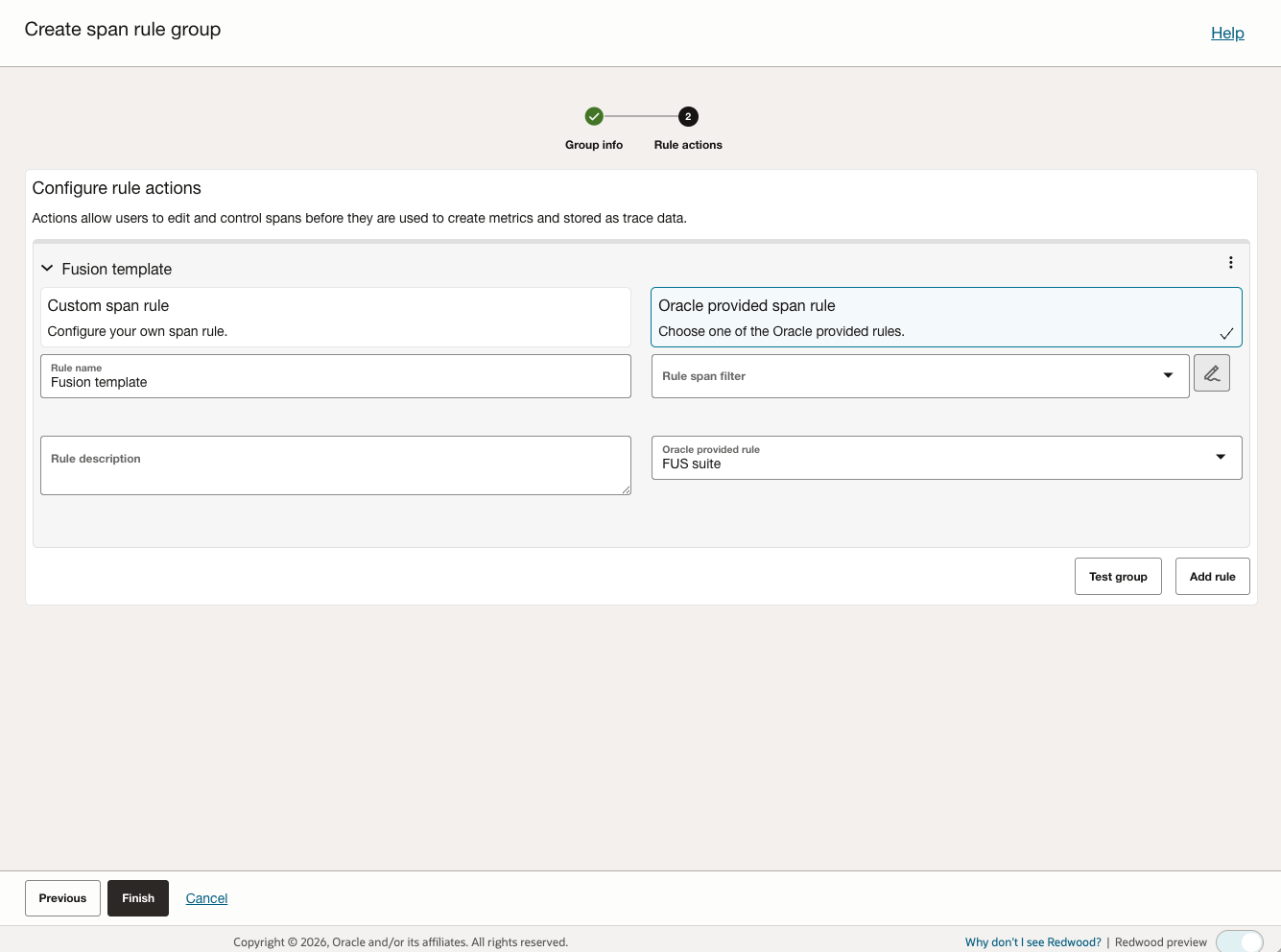
This enrichment rule creates the following Fusion-specific attributes:
- RwApplication: Identifies the Redwood application
- RwPath: Captures the Redwood page path
- RwContainer: Identifies the Redwood container
- FusFamily: Describes the Fusion area where activity occurred (e.g., HCM, ERP, SCM, CX)
These attributes enable powerful filtering and analysis capabilities in APM Trace Explorer and Metrics Explorer.
Part 4: Verify Application Performance Monitoring Browser Agent Deployment
To generate some monitoring data and verify the setup, use the application you are configuring:
- Generate Data: Use the application you are setting up the monitoring for to generate initial monitoring data.
- View in APM: Go to the APM Trace explorer page to see the data loaded. For example, see APM screenshots below.
- Track user names in plain text: The user-name dimension is collected and hashed by default. If you want to have the user name in plain text, uncomment the relevant line in the example code:
apmRumConfig.custEP.trackPlainUserId = true;
If needed, verify that the APM data upload url (window.apmrum.ociDataUploadEndpoint) is reachable by doing the following:
- Go to your application and use the Developer Tools in your browser to go to the Developer console. In most browsers, you can start the Developer Console by pressing the F12 key.
- Select the Network tab and filter the URL list by
observations/public-span, if required. - The Collector URL should be displayed with the 200 or 204 HTTP response code. If you do not see a 200 or 204 HTTP response code, then the browser is not able to access the Collector URL.
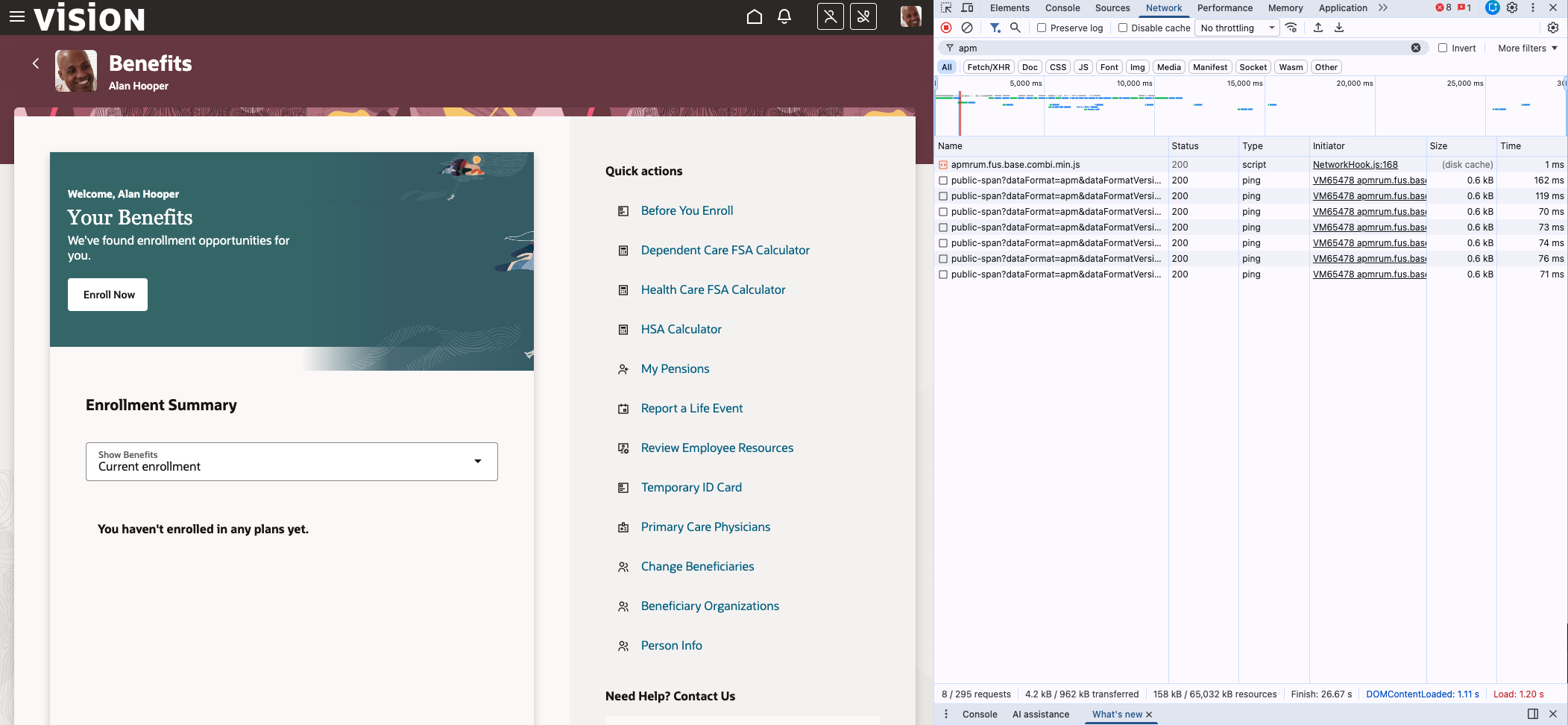
Utilize the APM Real User Monitoring Dashboard to monitor user behavior and application performance
OCI Application Performance Monitoring provides an out-of-the-box Real User Monitoring (RUM) Dashboard that offers immediate, high-level visibility into your Fusion Cloud Apps performance without requiring any custom queries.
To access the RUM Dashboard:
- Navigate to Observability & Management in the Oracle Cloud Console.
- Navigate to Application Performance Monitoring, and click Real User Monitoring.
- Use the global filters at the top to select your compartment, APM domain, Web Application and the desired time frame.
The RUM Dashboard visualizes critical performance metrics across several key dimensions automatically:
- Apdex Score: Monitor the overall satisfaction of your users in a single aggregate performance score.
- Page Performance: Track the exact, real-world time it takes for your Redwood and ADF pages to render for users.
- Page Views & Sessions: View user engagement trends and active sessions over time to understand peak traffic periods.
- Geographic Breakdown: Visually analyze which regions and countries your users are connecting from, and identify location-specific performance latency.
- Client & Browser Breakdown: Understand the device types, operating systems, and browsers your users depend on to access Fusion.
- Top Slowest Pages: Instantly pinpoint the specific Fusion pages currently exhibiting the poorest performance to prioritize code and network optimizations.
This built-in dashboard serves as an excellent starting point for everyday monitoring, performance reporting, and quickly diagnosing macro-level user experience issues without ever looking at the raw telemetry data.
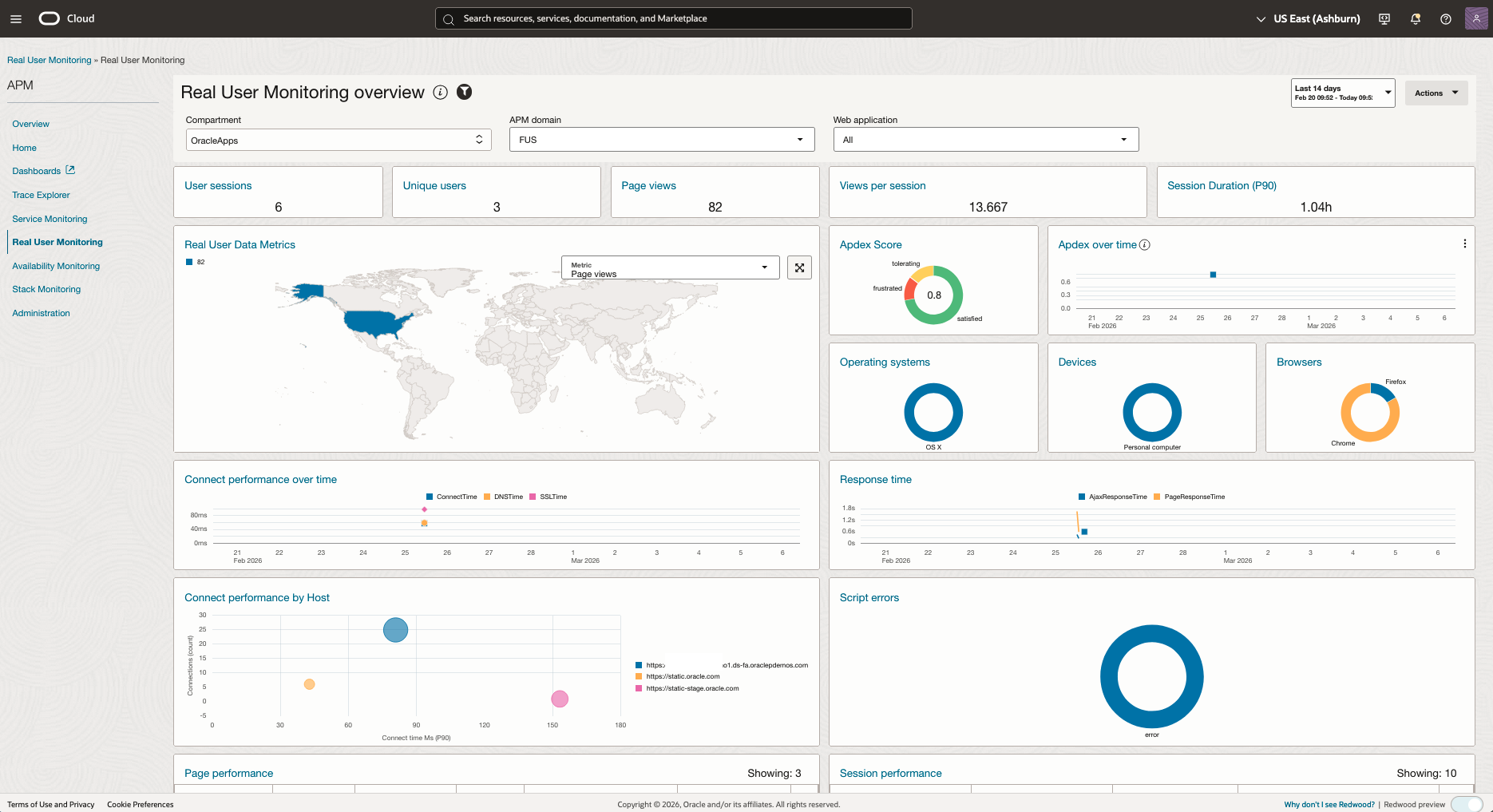
Gain additional insights from RUM Data
Once the APM Browser Agent is deployed and the Fusion span enrichment rules are configured, you can leverage the newly populated attributes (such as RwApplication, RwContainer, RwPath, FusFamily, FusProductCode, FusComponentType, etc.) to gain deeper, custom insights from your RUM data across various use cases:
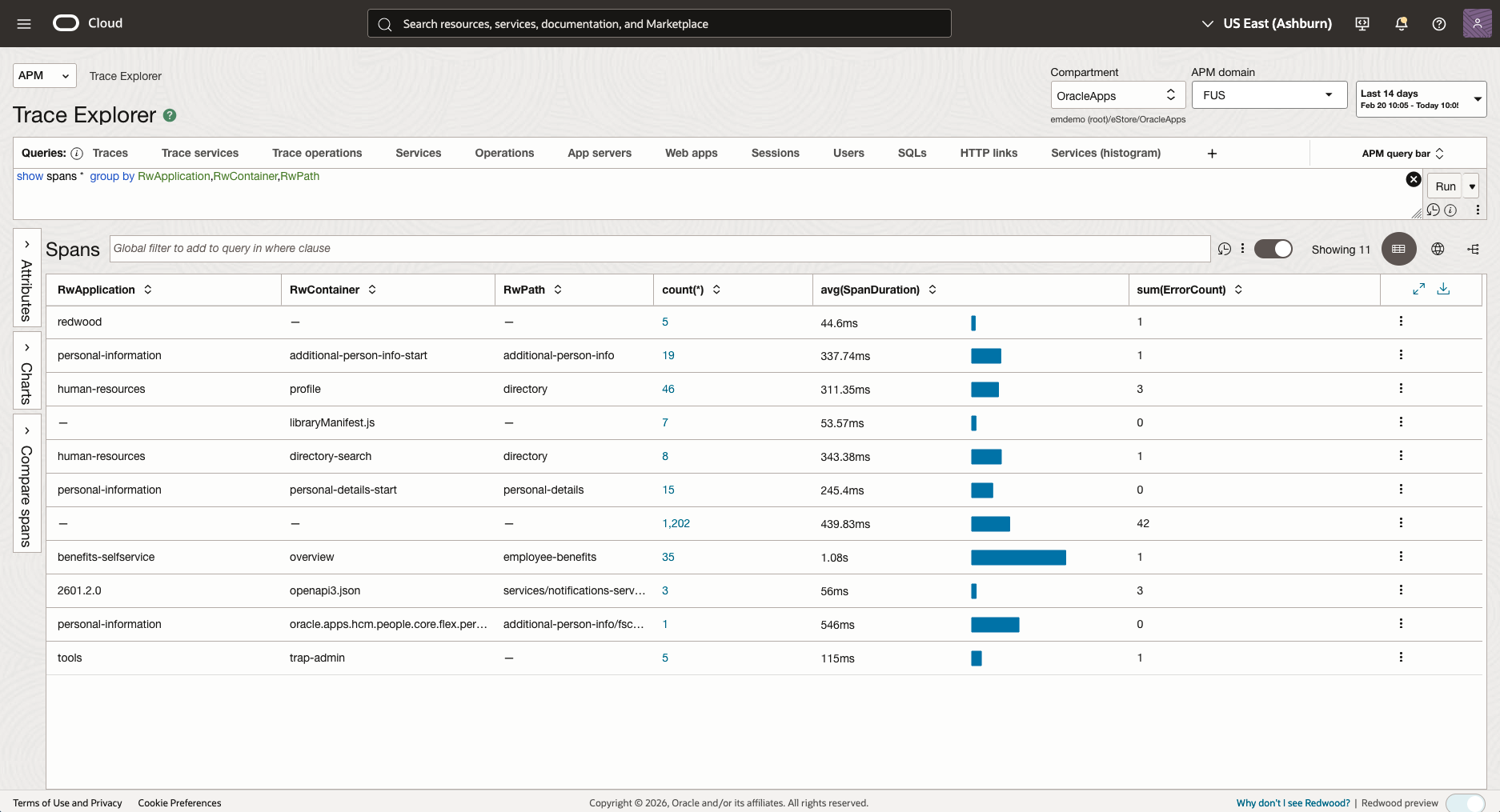
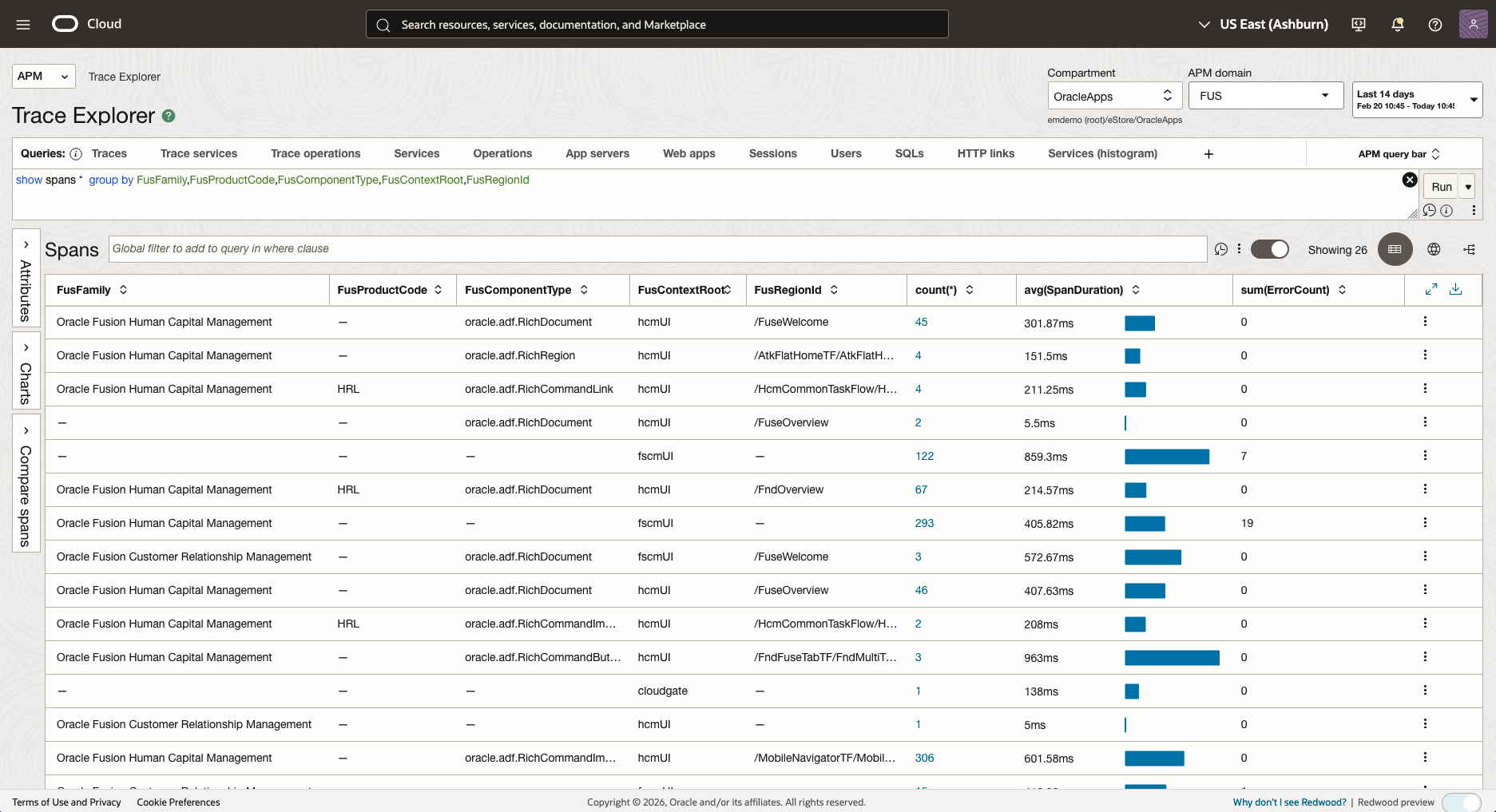
Use Case 1: Fusion Cloud Apps Pages Clicks by User
Understand which Fusion pages users access most frequently and identify user navigation patterns.
For Redwood Pages:
show spans * group by RwApplication,RwContainer,RwPath
For ADF Pages:
show spans * group by FusFamily,FusProductCode,FusComponentType,FusContextRoot,FusRegionId
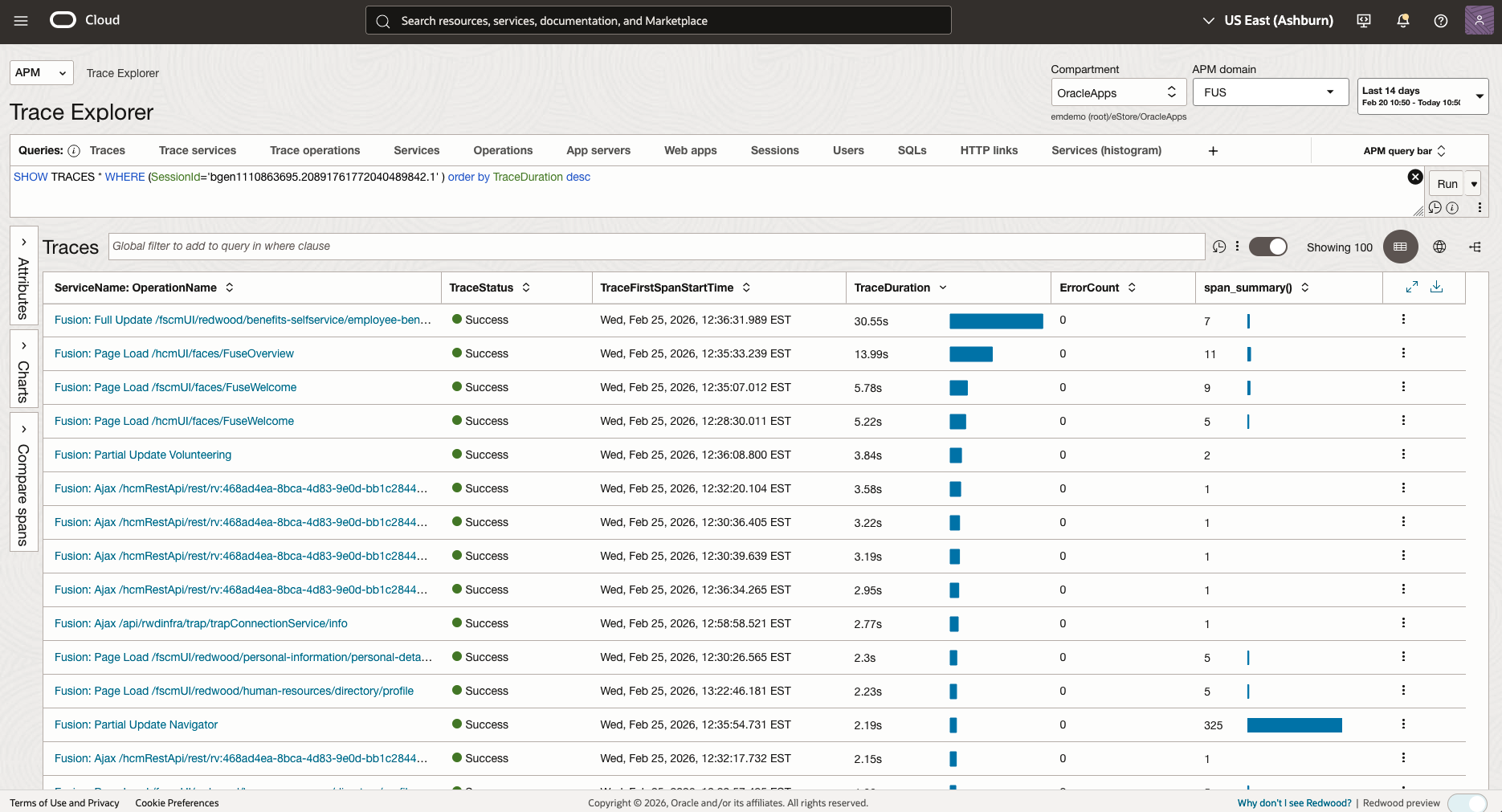
Use Case 2: User Session Performance Profiling
Analyze the sequence of events and performance bottlenecks within individual user sessions.
show (traces) * where SessionId='<your_session_id>' order by TraceRootSpanStartTime asc
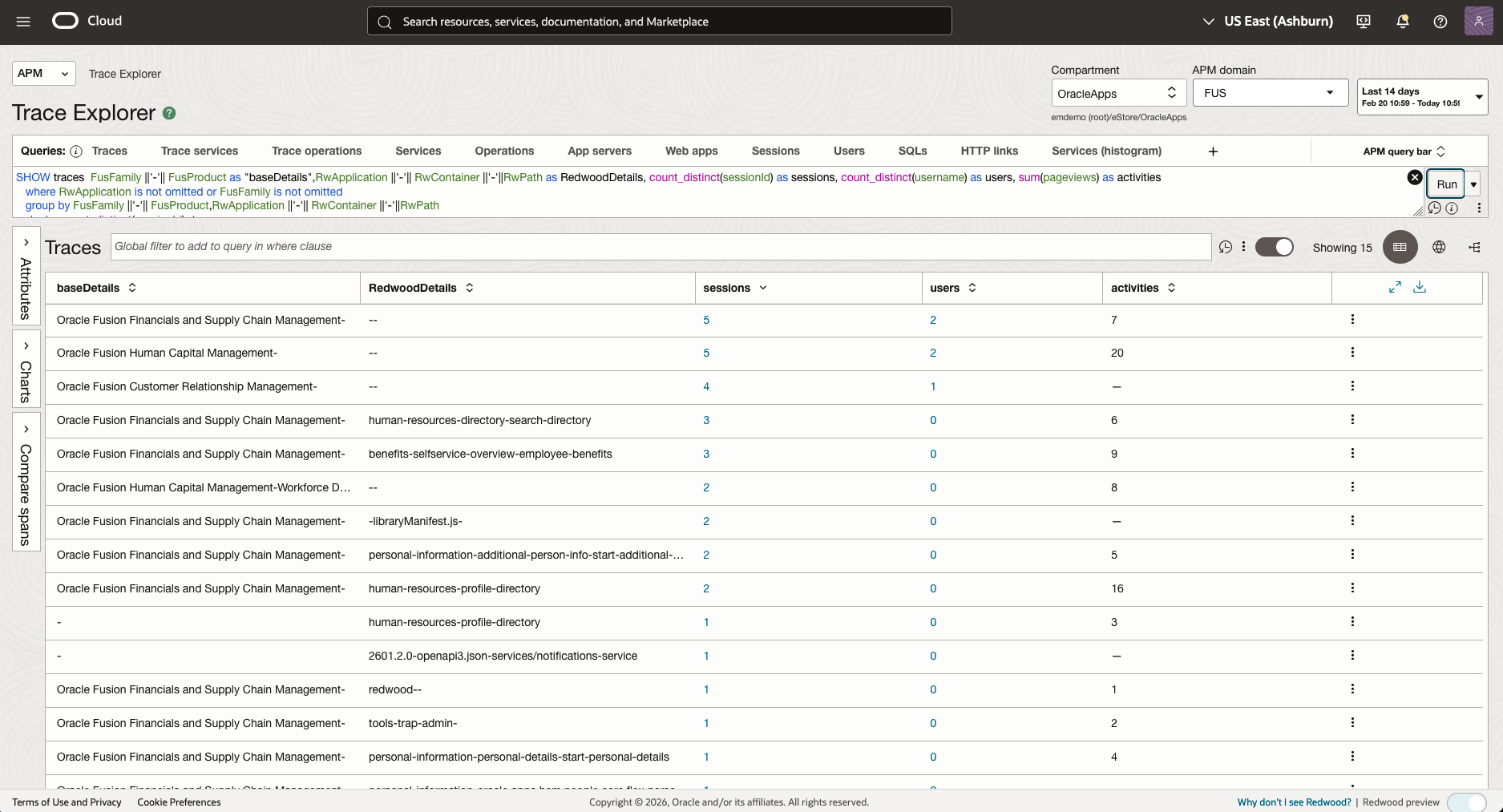
Use Case 3: Comprehensive Application Usage and Engagement
Analyze user engagement across both ADF modules and Redwood pages by aggregating the number of unique sessions, users, and total pageviews for each application area, ordered by highest session volume.
SHOW traces  FusFamily ||'-'|| FusProduct as "baseDetails",RwApplication ||'-'|| RwContainer ||'-'||RwPath as RedwoodDetails, count_distinct(sessionId) as sessions, count_distinct(username) as users, sum(pageviews) as activities
   where RwApplication is not omitted or FusFamily is not omitted
   group by FusFamily ||'-'|| FusProduct,RwApplication ||'-'|| RwContainer ||'-'||RwPath
order by count_distinct(sessionId) desc
APM Custom Metrics and Alarms
Beyond passively monitoring dashboards, you can configure OCI APM to proactively alert you when Fusion web pages exceed acceptable performance thresholds. This involves creating a Custom Metric to aggregate performance data based on specific criteria, and then configuring OCI Alarms.
Step 1: Create a Custom Metric
First, define a custom metric to continuously capture specific performance behavior, such as slow page loads.
- Navigate to your APM Domain > Resources > Custom metrics.
- Click Create custom metric.
- Enter a Metric name (e.g.,
SlowFusionRedwoodPages). - In the Span filter box, configure the query to isolate the targeted behavior. For example:
ServiceName = 'Fusion' and WebApplication = 'RedwoodPage' - From the Metric value source dropdown list, select the numeric metric to capture (e.g.,
SpanDuration).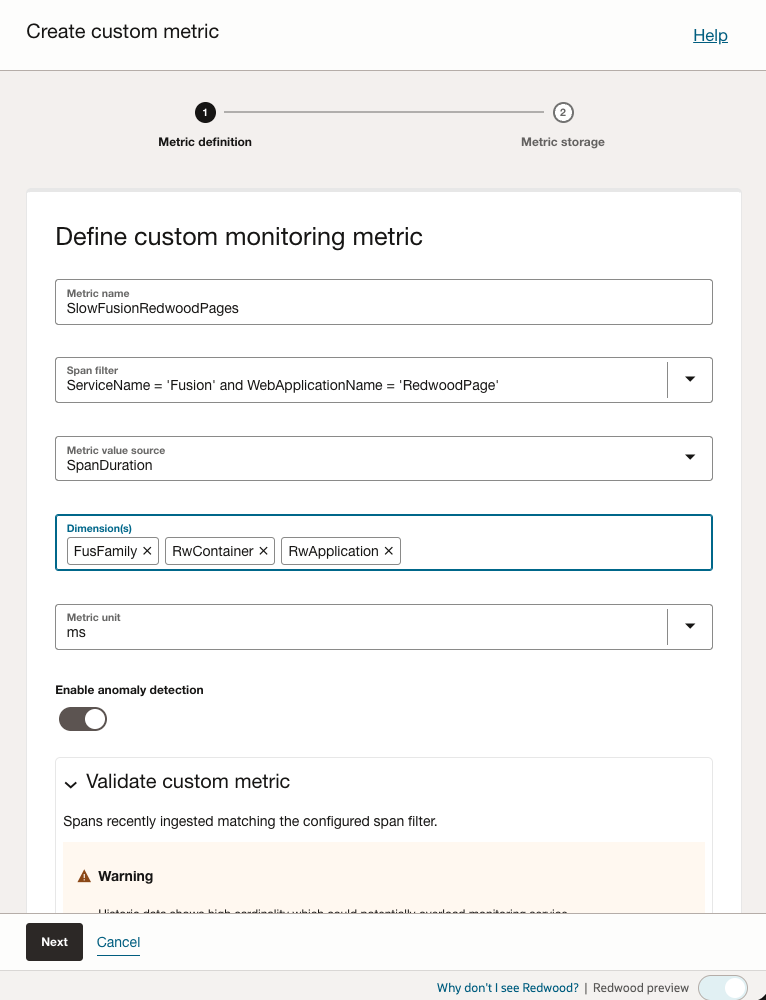
- (Optional) Select one or multiple Dimensions for fine-grained grouping (e.g.,
RwContainer,RwApplication,FusFamily).Note: if you choose too many dimensions, the custom metric will be aggregated for each combination of dimensions, which may result in high cardinality which could potentially overload monitoring service. Please reduce the number of dimensions to avoid this issue.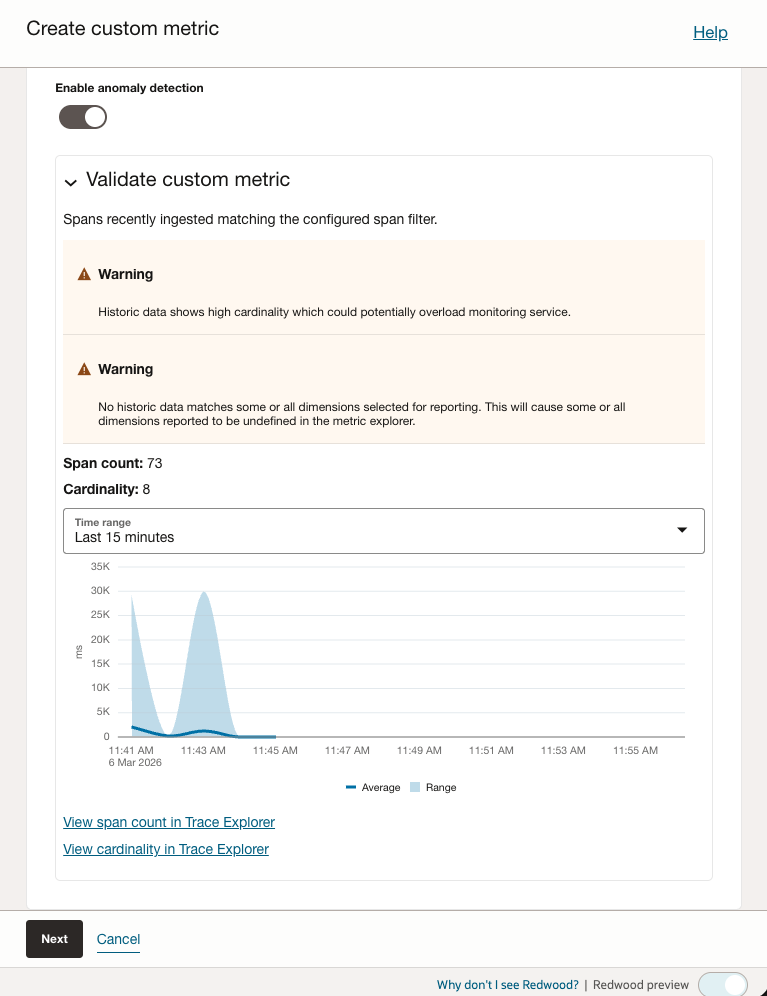
- Click Next to choose metric storage options.
- Choose your target Compartment and Namespace. The default namespace is
oracle_apm_custom(note: using a non-default custom namespace requires configuring OCI identity policies). - Click Create. APM will now periodically aggregate and push this custom metric to the OCI Monitoring service.
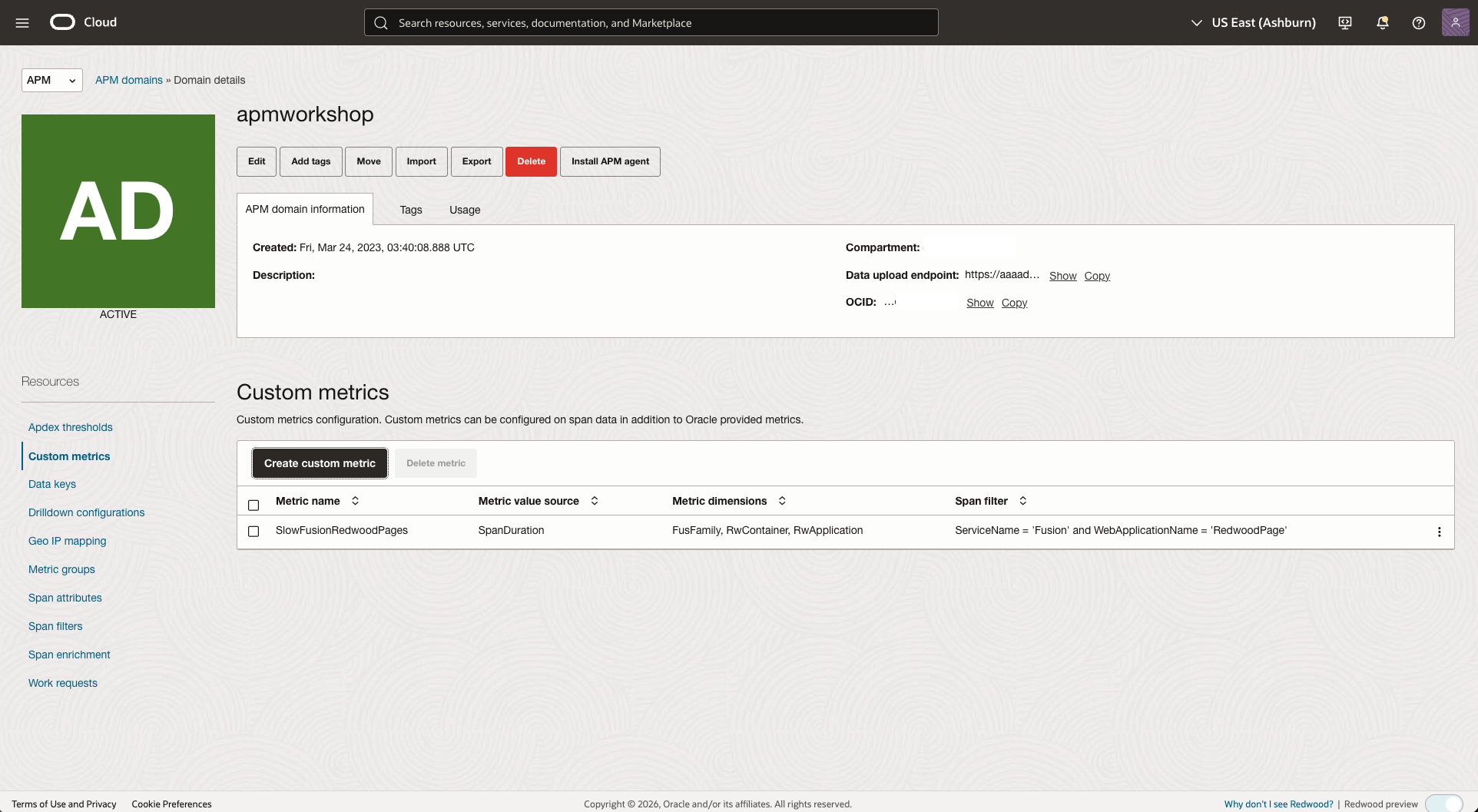
Step 2: Configure an OCI Alarm
Finally, set up an alarm to notify your team when the custom metric breaches a threshold.
- In the Oracle Cloud Console, navigate to Observability & Management > Monitoring > Metrics Explorer.
- Select the compartment, metric namespace (
oracle_apm_custom) and the custom metric name (e.g.,SlowFusionRedwoodPages). - Click Create Alarm.
- Provide Alarm Name, Alarm Summary, Metric Namespace(e.g.,
oracle_apm_custom), Metric Name(e.g.,SlowFusionRedwoodPages), Interval(1 minute), Statistic(Mean). - Define the Trigger Rule (e.g., trigger when the count > 1000 within a 1-minute interval).
- Under Destinations, select or create an OCI Notification Topic (e.g., Email, Slack/PagerDuty integration) to route the alert to your support team.
- Click Save Alarm.
Your team will now receive automated alerts whenever Fusion page performance degrades beyond your specified thresholds!
Conclusion
Implementing OCI APM Real User Monitoring for Oracle Fusion SaaS Cloud Apps provides organizations with comprehensive visibility into real user experience, enabling data-driven performance optimization and improved user satisfaction. By deploying the APM Browser Agent for both ADF and Redwood pages, organizations can:
- Track User Behavior: Understand which pages users access and how they navigate through Fusion Apps
- Profile Performance: Analyze individual user sessions to identify performance bottlenecks
- Geographic Analysis: Understand how user location impacts application performance
- Standardized Metrics: Use Apdex scores to measure and track overall application performance
- Trend Analysis: Monitor performance over time to detect degradation and measure improvements
- Device Profiling: Optimize application performance for different devices, browsers, and connection types
The implementation is straightforward, requiring only JavaScript configuration in Fusion’s page templates and enabling the Fusion enrichment rule in APM. Once deployed, the APM Browser Agent automatically collects comprehensive RUM data without requiring additional server-side agents.
By leveraging the insights provided by APM RUM, organizations can proactively identify and resolve performance issues, optimize user experience, and ensure that Fusion Cloud Apps deliver the performance and reliability that users expect.
References
- Configure APM Browser Agent for Real User Monitoring
- Observability and Management Solution: Oracle Fusion Applications and OCI Observability Services
- Deploy the APM Browser Agent With Your Application
- Configure Attributes for Real User Monitoring
- Configure Session Tracking
- Configure Ajax Calls Instrumentation
- Configure Span Rules
- Hide Personally Identifiable Information
- Verify APM Browser Agent Deployment