
Introduction
During one of my customer engagements; a question was brought up on how to remove the ‘~opc/.ssh/authorized_keys’ from every compute node. Their goal was to harden all of their instances for a better security posture. The solution here is to use the ‘RunCommand’ feature for instances as described in the documentation. Using the console, you will have to run your command script on each instance manually; however there is a way to use the OCI CLI to update every compute instance in bulk. This is the topic of my post today.
Before we begi n a few points:
- The script I provide is not production ready, it is merely to demonstrate the CLI calls you will need to make for bulk updates.
- In my environment I’m only using Oracle Linux hosts. If you plan to use Windows as well, make sure your script support the Windows platform.
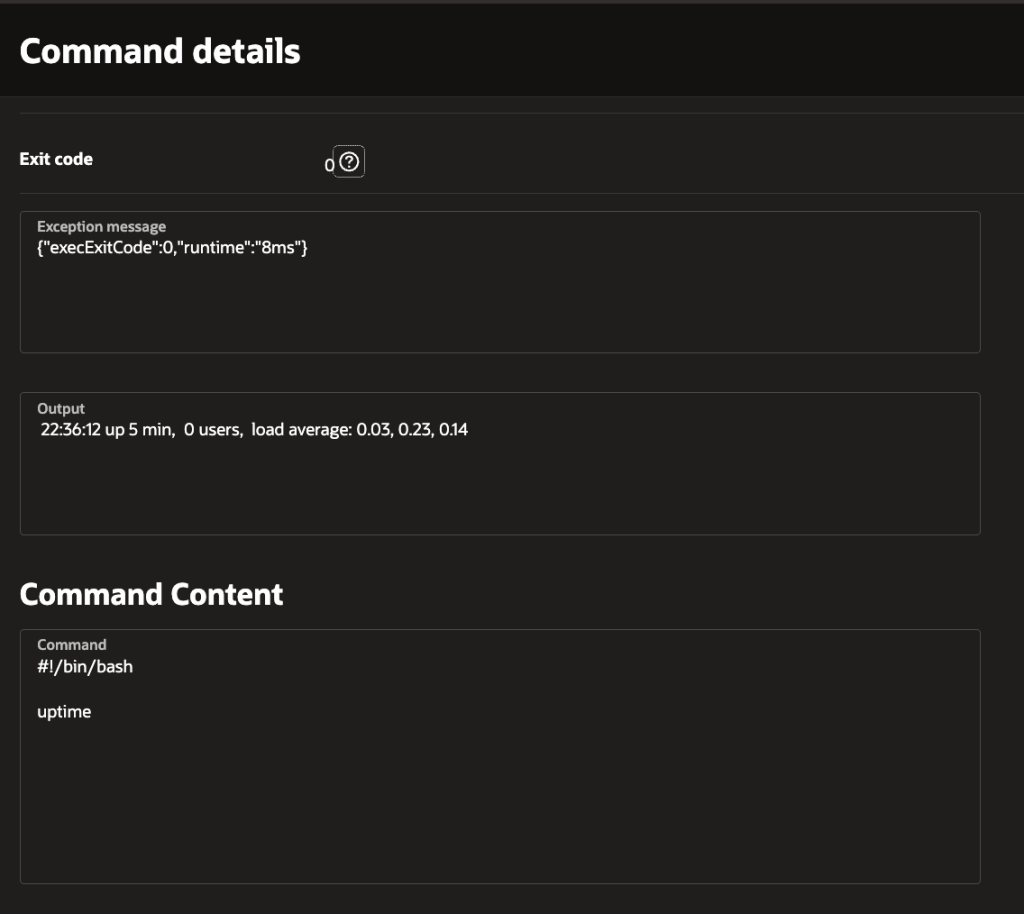
- For my ‘bash’ script I will not be removing the ~opc/.ssh/authorized_keys file. Instead I will be executing a simple command ‘uptime’. This command will output something like the following: “22:36:12 up 5 min, 0 users, load average: 0.03, 0.23, 0.14”. Be careful creating a script to delete any important files. I recommend that you move the file from its default location instead.
- If the output of your script is more than 1 MB and/or you have different versions of the script (i.e. Linux vs. Windows) or a large script then you will need to use an Object Storage bucket to store and receive output. Since the output of ‘uptime; is less than 1 MB the output type for my use case is ‘TEXT’. More details to follow.
- If you script needs admin rights then you will need to add the ‘orarun’ user to the ‘sudoers’ list on Linux flavors. Check out he documentation for more information.
- NOTE: To add ‘orarun’ to the sodoers list requires admin privileges; which is not available the initially. It is recommended that you create a harden image with ‘orarun’ in the sodoers list and then deploy these custom images to you infrastructure.
Details
Before running the script there are some network and IAM Policies that need to be configured. You can find these in the documentation as well. Here are the required configuration changes:
Create a dynamic group that enumerates all the compute instances in your tenancy or compartment.
For example:
All {instance.compartment.id = ‘<Your Tenancy or Compartment OCID’}
Create an IAM policy to allow the run command to be triggered
Allow dynamic-group Default/allMyInstancesGrp to use instance-agent-command-execution-family in tenancy where request.instance.id=target.instance.id).
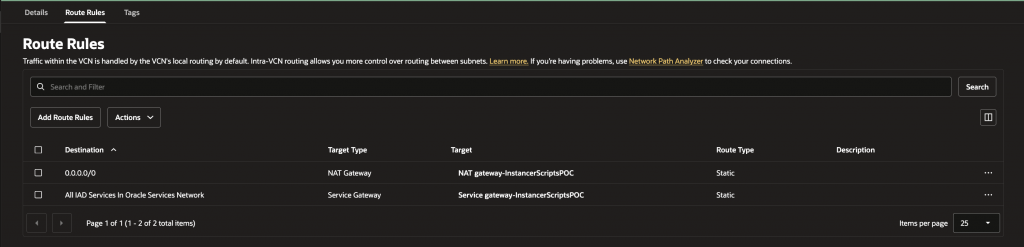
Configure a routing table/rule to the Service or NAT gateway to be present for the subnet hosting the compute instance
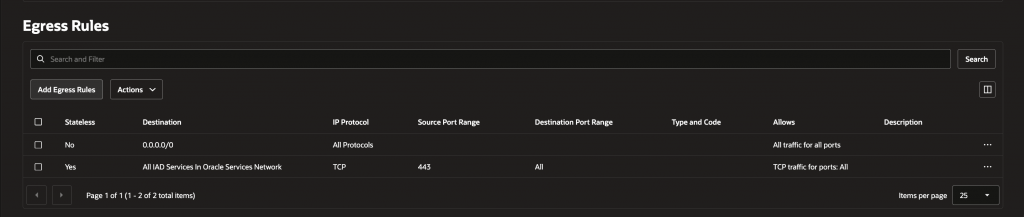
Create an NSG or Subnet Security List rule that allows stateful egress to the Services on TCP 443
Make sure the ‘Compute Instance Run Command’ plugin is enabled on the compute instance.
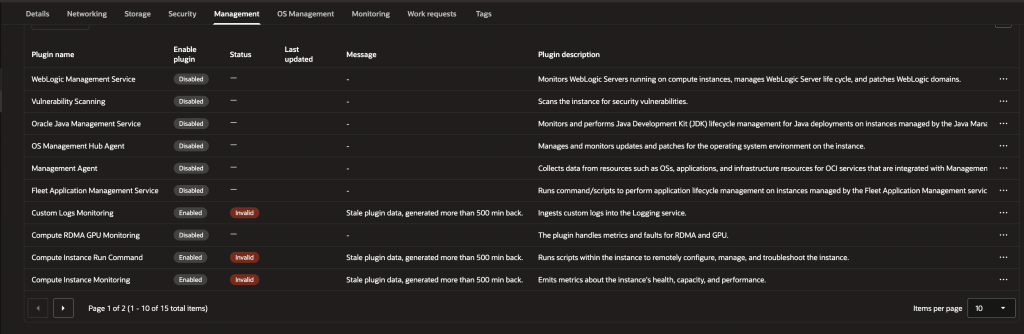
Do not worry if you have a lot of compute instances. The script will handle this by ignoring the instance if the plugin is not enabled.
Script Details:
Once the above steps are done you can run the script.
On line 33 you will notice that we need to create a file called ‘content.json’.
--content file://content.json \As I mentioned above, that if the output is less than 1 MB we could just set the output type to TEXT. This file defines the type and the script itself:
{
   "output": {
         "outputType": "TEXT"
   },
   "source": {
        "sourceType": "TEXT",
        "text": "#!/bin/bash\n\nuptime"
    }
}
If the output is more than 1 MB and/or the script is large you should change this file to use Object Storage bucket.
To help you figure out the schema of the ‘content.json’ file, generate all possible JSON inputs by running this command:
oci instance-agent command create --generate-param-json-input content > contentParam.jsonThe output is as follows:
{
"commandString": "string",
  "output": [
    "This parameter should actually be a JSON object rather than an array - pick one of the following object variants to use",
    {
      "bucketName": "string",
      "namespaceName": "string",
      "objectName": "string",
      "outputType": "OBJECT_STORAGE_TUPLE"
    },
    {
      "outputType": "OBJECT_STORAGE_URI",
      "outputUri": "string"
    },
    {
      "outputType": "TEXT"
    }
  ],
  "source": [
    "This parameter should actually be a JSON object rather than an array - pick one of the following object variants to use",
    {
      "bucketName": "string",
      "namespaceName": "string",
      "objectName": "string",
      "sourceType": "OBJECT_STORAGE_TUPLE"
    },
    {
      "sourceType": "OBJECT_STORAGE_URI",
      "sourceUri": "string"
    },
    {
      "sourceType": "TEXT",
      "text": "string",
      "textSha256": "string"
    }
  ]
}
This output should help you construct the content.json file for using Object Storage buckets instead of ‘TEXT’.
Now lets take a look at the code. There are four CLI calls:
oci compute instance list
...
...
This will list out the instances and check if the instance is running.
oci instance-agent plugin list
...
...
This call validates that the plugin is runningIf it is not then skip.
oci instance-agent command create
...
...
This call creates the run command and attaches it to the instance.
oci instance-agent command-execution get
...
...
This cal prints out the details of the Run Command for the instance.
Now let’s taka a look at the output of the script for a single instance:
Checking Compute Instance Run Command plugin status for ocid1.instance.oc1.iad......
Created command: ocid1.instanceagentcommand.oc1.iad.... for instance: ocid1.instance.oc1.iad....
{
  "data": {
    "content": null,
    "delivery-state": "VISIBLE",
    "display-name": "Uptime check for ocid1.instance.oc1.iad....",
    "instance-agent-command-id": "ocid1.instanceagentcommand.oc1.iad....",
    "instance-id": "ocid1.instance.oc1.iad....",
    "lifecycle-state": "ACCEPTED",
    "sequence-number": 1582232968,
    "time-created": "2026-04-30T17:24:03.630000+00:00",
    "time-updated": "2026-04-30T17:24:03.630000+00:00"
  }
}
Notice that the ‘content ‘ attribute is ‘null’; this i s expected. After first initiating the create call it will take a few moments until the script actually runs. You can verify this in the Console. Go to one of you instances and under the ‘Management’ tab you will see you run command status. After a few m moments the status should change as follows:

Now you can be able to View Details and see the output of you script as shown here:
Summary
The script provided demonstrates how you might be able to traverse all of your instances and assign a script to use with the run command feature. Just remember a few key points:
- If the output of your script is more than 1 MB you will need to use an Object Storage bucket to receive output.
- If you script needs admin rights then you will need to add the ‘orarun’ user to the ‘sudoers’ list on Linux flavors. Check out the docs for more information.
- This script is not production ready; for demonstration purposes only.
- Some configuration needs to be done in order to give your instance access to run your script.
thanks for reading!