

Introduction
This is post is the second page of a 3-part blog series about connecting multiple OCI VCNs via Megaport using the AS Override feature. The focus of this page is to configure the infrastructure in OCI for the blog series. To access the main page of this series, please visit this link.
Topology
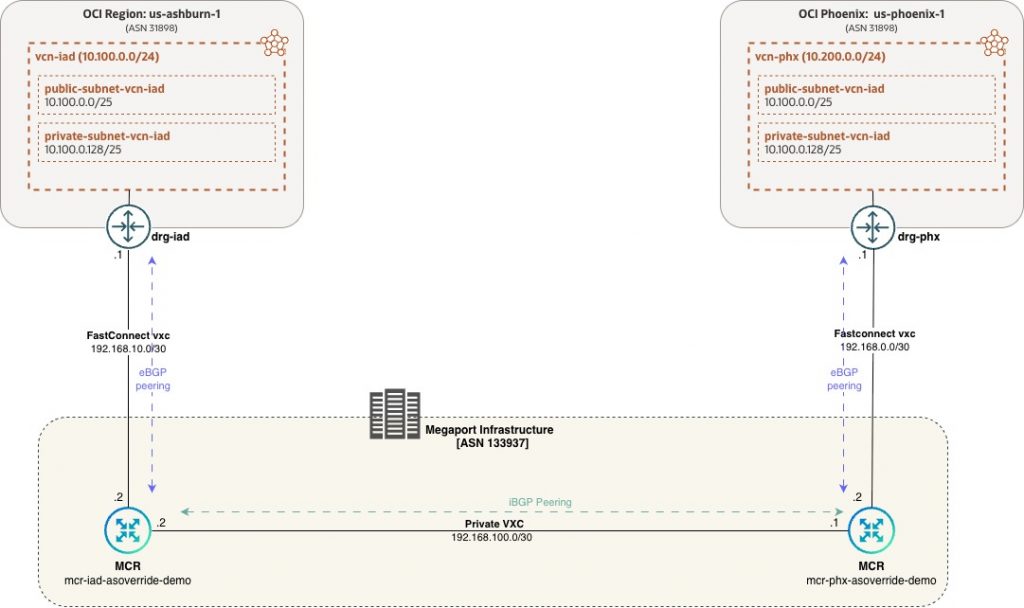
- There are 2 VCNs –
- vcn-iad in OCI Ashburn with a CIDR of 10.100.0.0/24
- vcn-phx in OCI Phoenix with a CIDR of 10.200.0.0/24.
- Each VCN is connected to a DRG in its respective region.
- Each VCN’s route-table has a route pointing 10.0.0.0/8 to the respective DRG.
- Each DRG terminates a partner Fastconnect circuit to Megaport in their respective regions.
- Each FastConnect circuit terminates on a Megaport Cloud Router (MCR)
- The two MCRs are connected to each other within Megaport via a private virtual circuit.
- BGP peering is enabled between endpoints of each link.
- ASN for both Oracle regions is 31898
- ASN for Megaport is 133937
- There are 2 compute instances for testing
- vm-iad in Ashburn with an IP of 10.100.0.32
- vm-phx in Phoenix with an IP of 10.200.0.79
Pre-Requisites
The goal of the blog is to focus on the connectivity through Megaport. Hence, the following OCI resources are assumed to have already been created.
- Virtual Cloud Networks (VCN) in both regions, Phoenix and Ashburn
- Subnets within this VCN
- Route tables and Routes within the VCN
- Security Lists allowing access between the VCNs
- Dynamic Routing Gateway (DRG) in both regions
- VCN attachments between the VCN and DRG in both regions
- Compute Instances in both VCNs to be used for testing
Furthermore, you will need IAM permissions in OCI for configuring FastConnect circuits and permissions in Megaport for creation of MCR, VXC and for editing settings.
Configuration Steps
OCI Ashburn Configuration
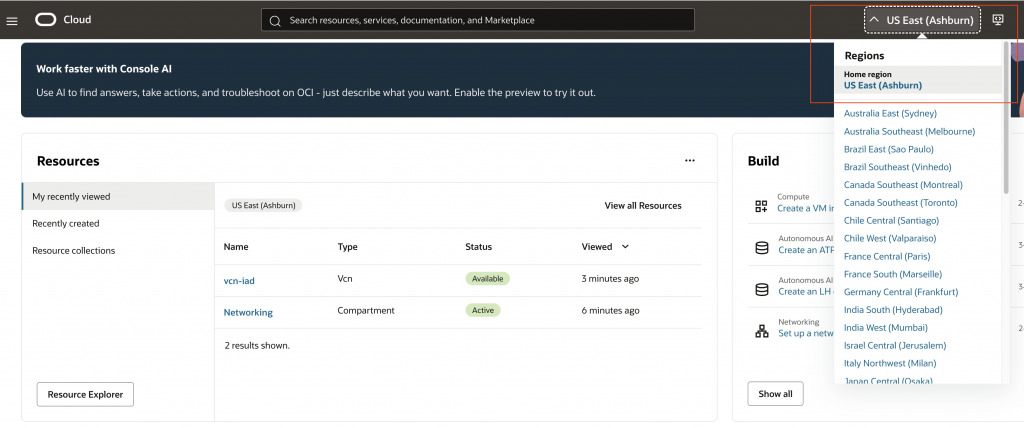
Login to OCI Console and select the Ashburn region
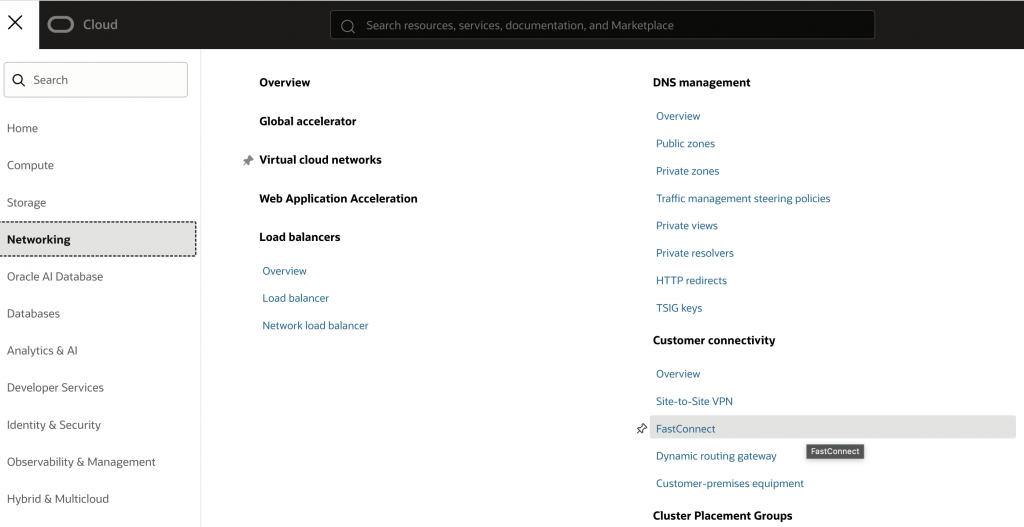
Within the selected region, select Networking > Customer Connectivity > FastConnect
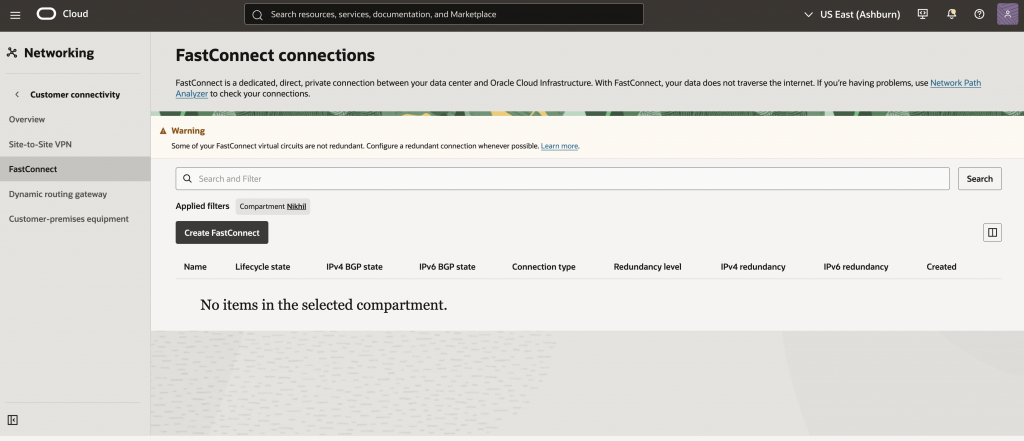
Click on ‘Create FastConnect’
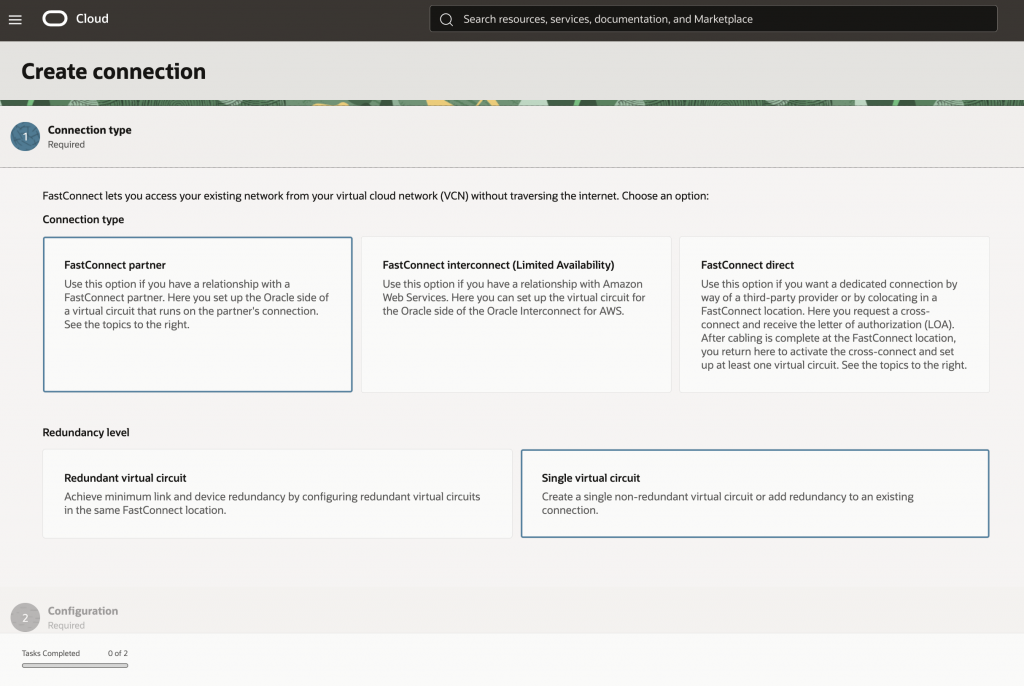
Since its a FastConnect via Megaport, select ‘FastConnect Partner’ and ‘Single virtual Circuit’
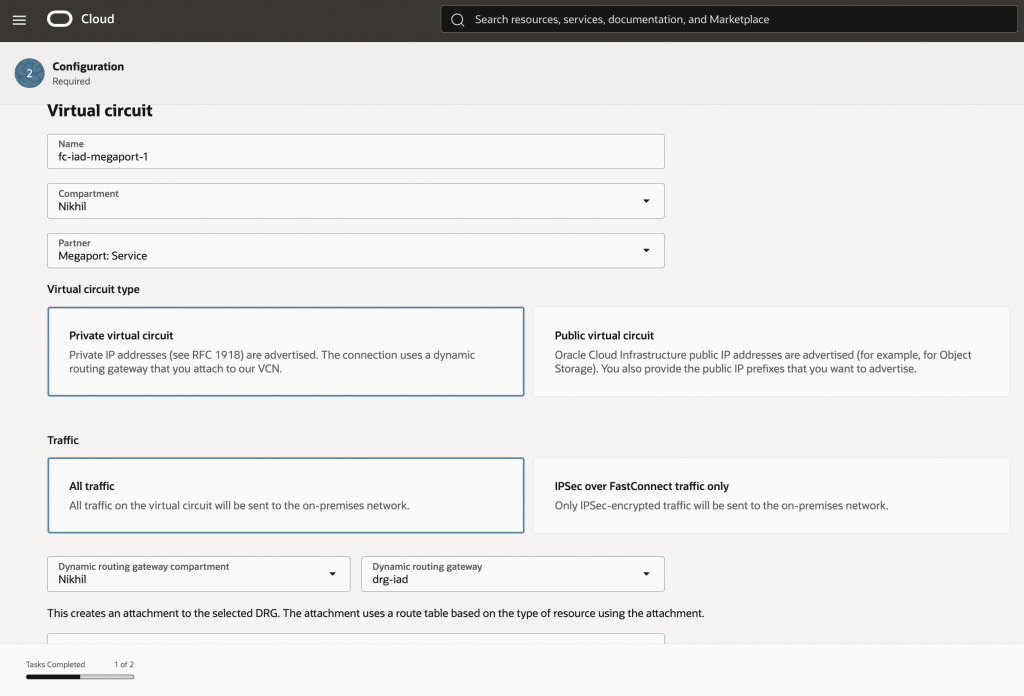
Enter the name for this virtual circuit, select Megaport as the partner and select ‘Private Virtual Circuit’. Also, associate this with the DRG which has already been created in the region. Leave the remaining values as default.
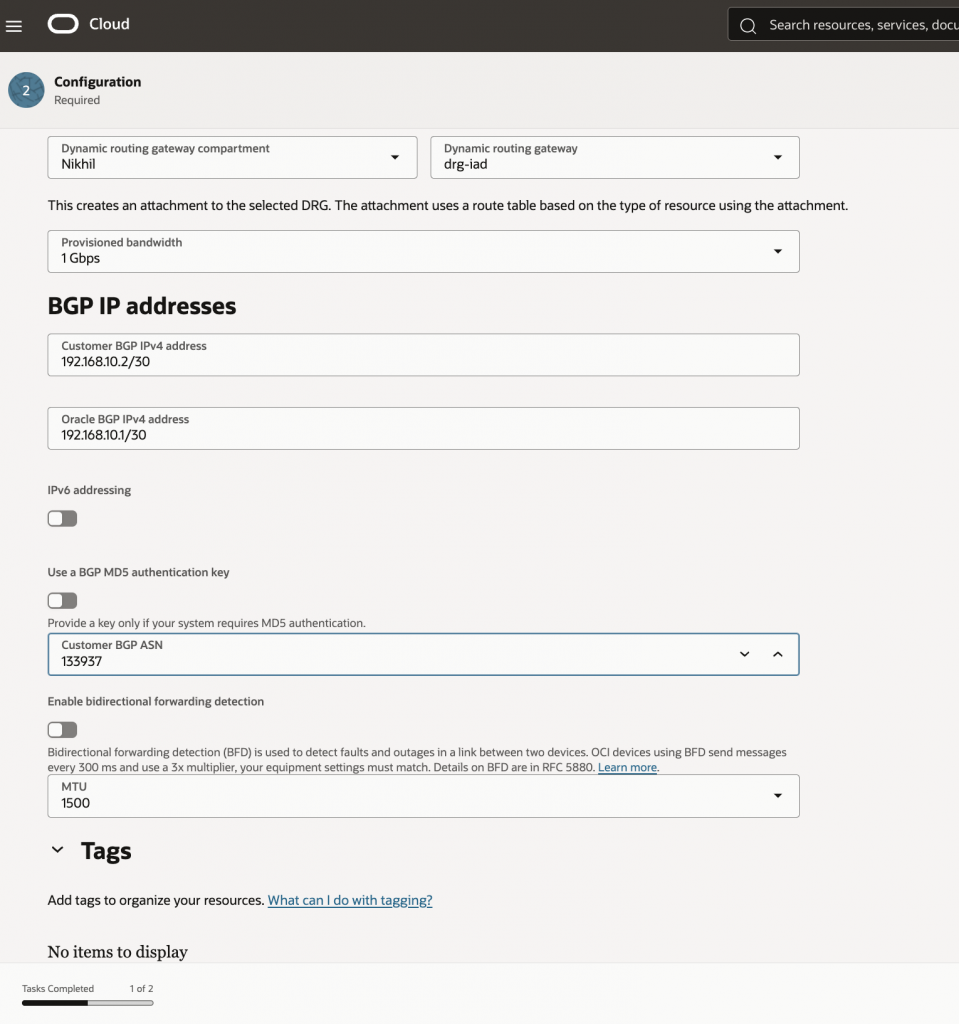
Select parameters such as BGP peering addresses and BGP ASN for the far-end (Megaport). MTU can be left at default value.
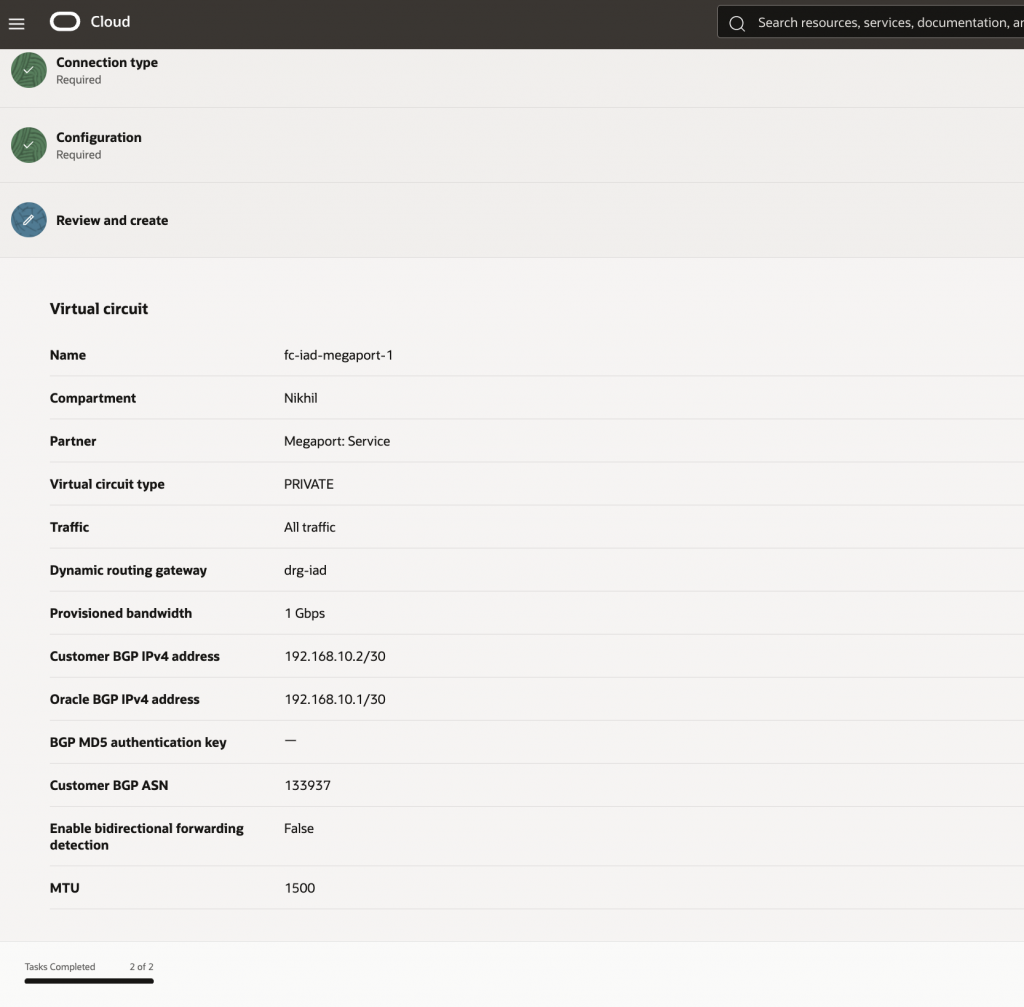
Review the entered values and then click on ‘Create’
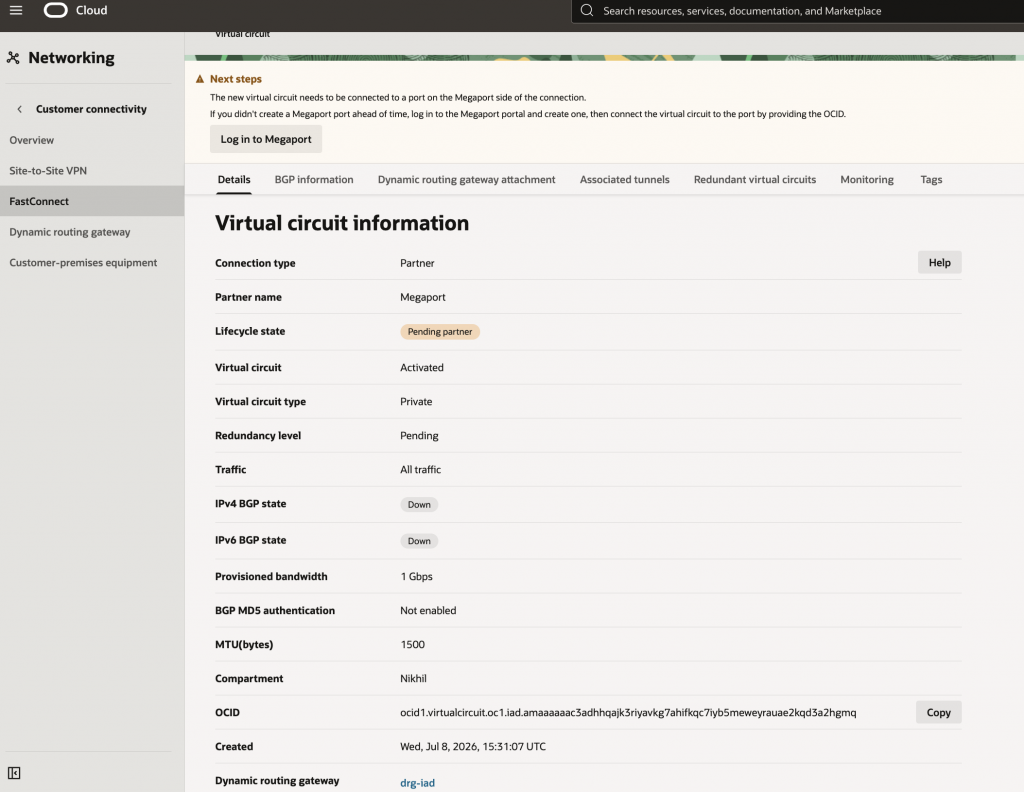
Once the FastConnect virtual circuit is created, it will be in ‘Pending Partner’ status until the Megaport side configuration is completed.
OCI Phoenix Configuration
Login to OCI Console and select the Phoenix region
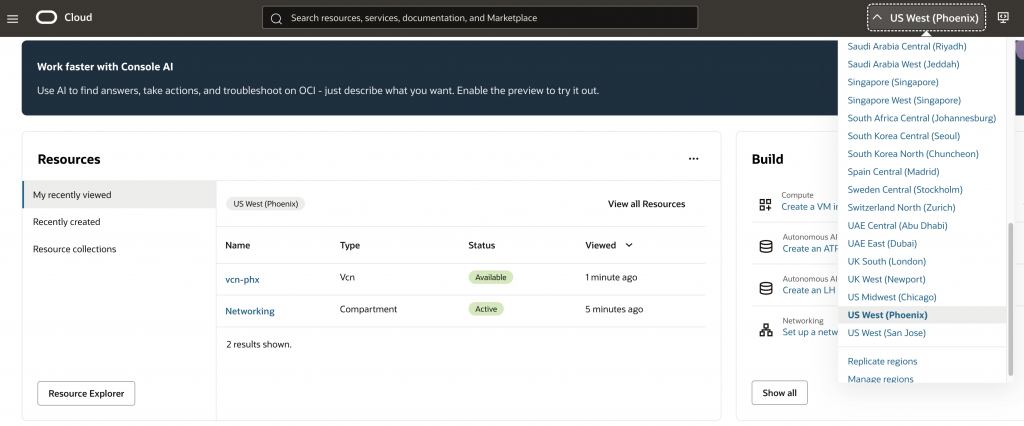
Within the selected region, select Networking > Customer Connectivity > FastConnect
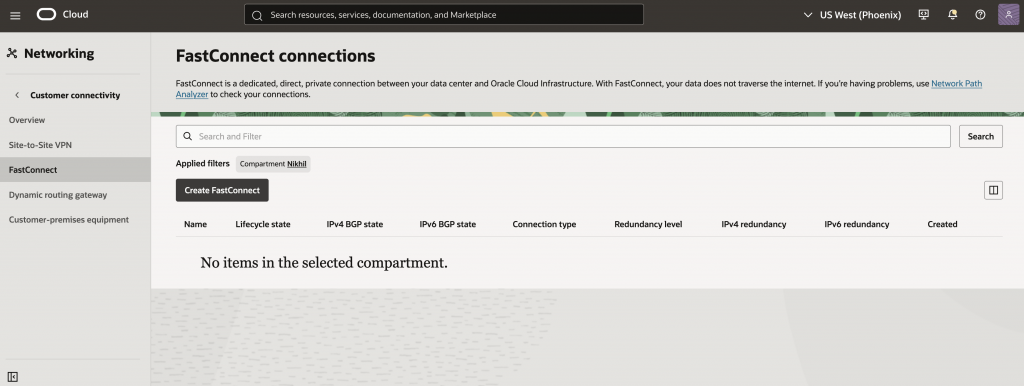
Click on ‘Create FastConnect’
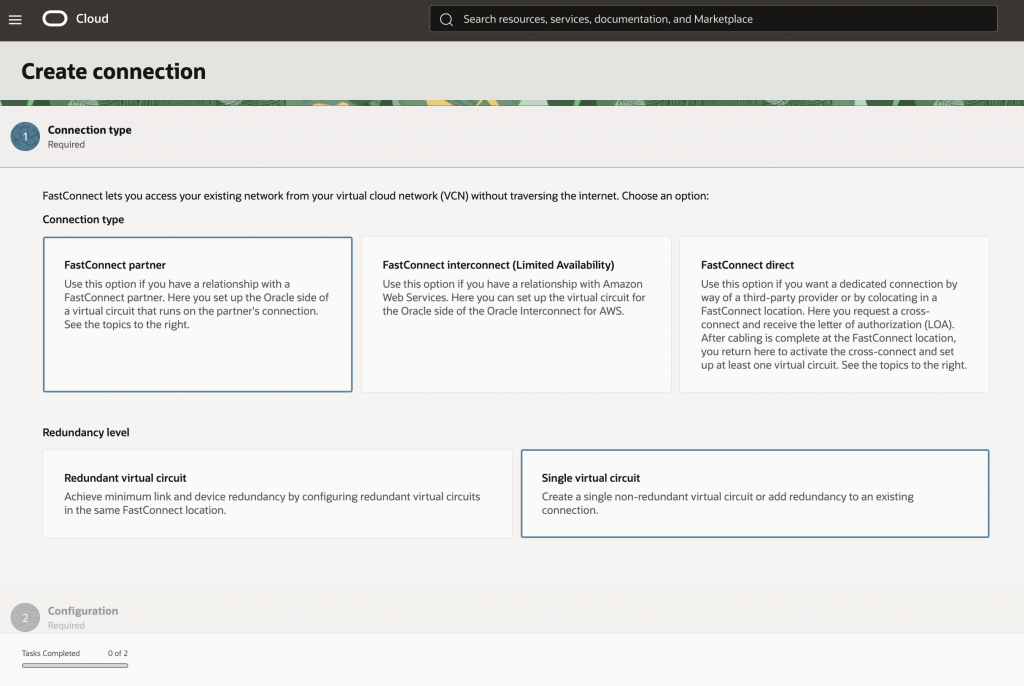
Since its a FastConnect via Megaport, select ‘FastConnect Partner’ and ‘Single virtual Circuit’
Enter the name for this virtual circuit, select Megaport as the partner and select ‘Private Virtual Circuit’. Also, associate this with the DRG which has already been created in the region. Leave the remaining values as default.
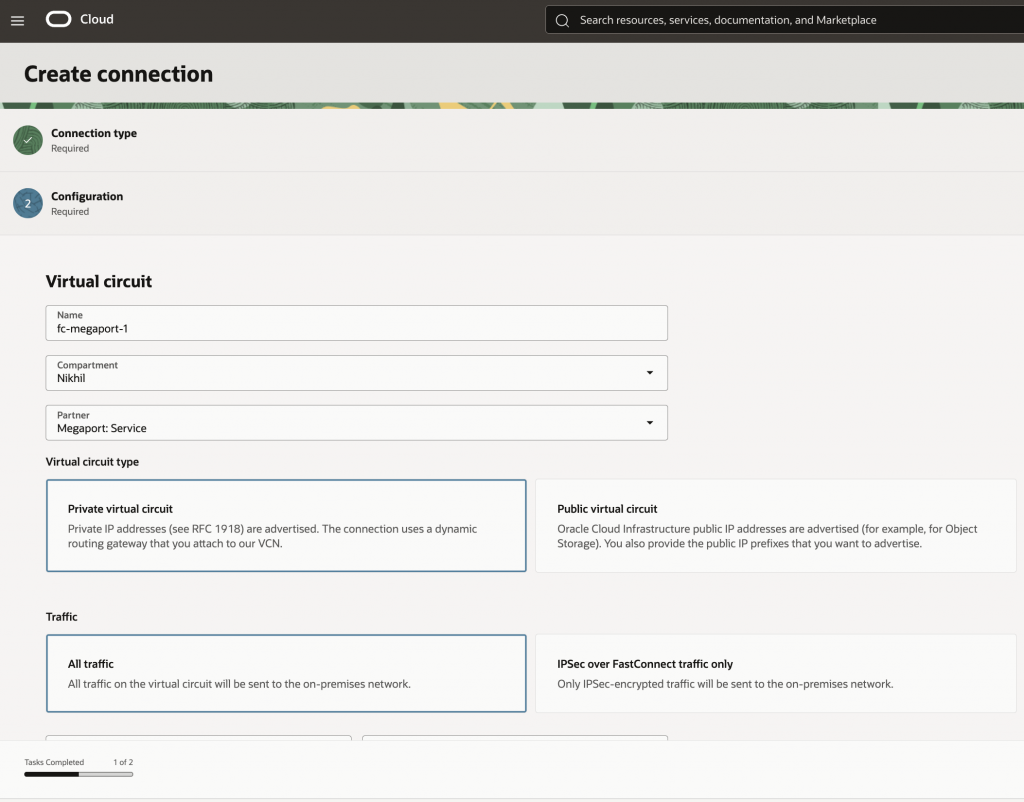
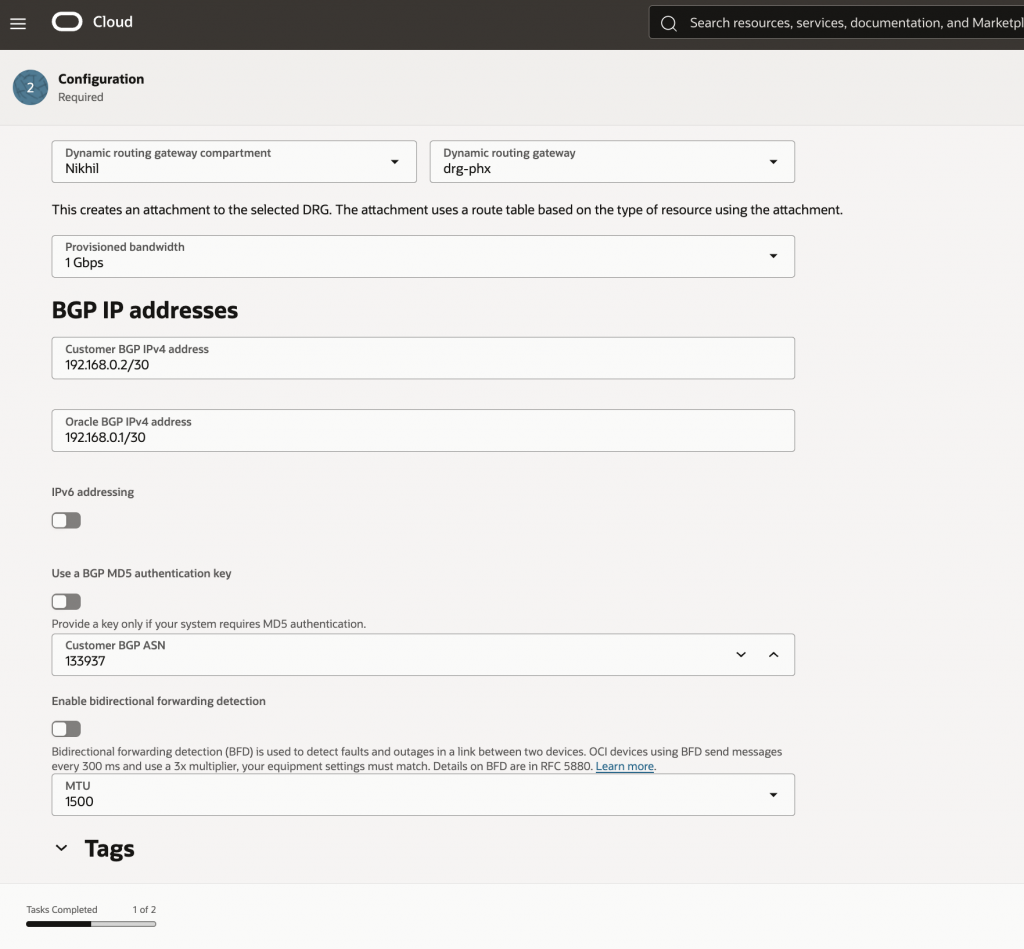
Select parameters such as BGP peering addresses and BGP ASN for the far-end (Megaport). MTU can be left at default value.
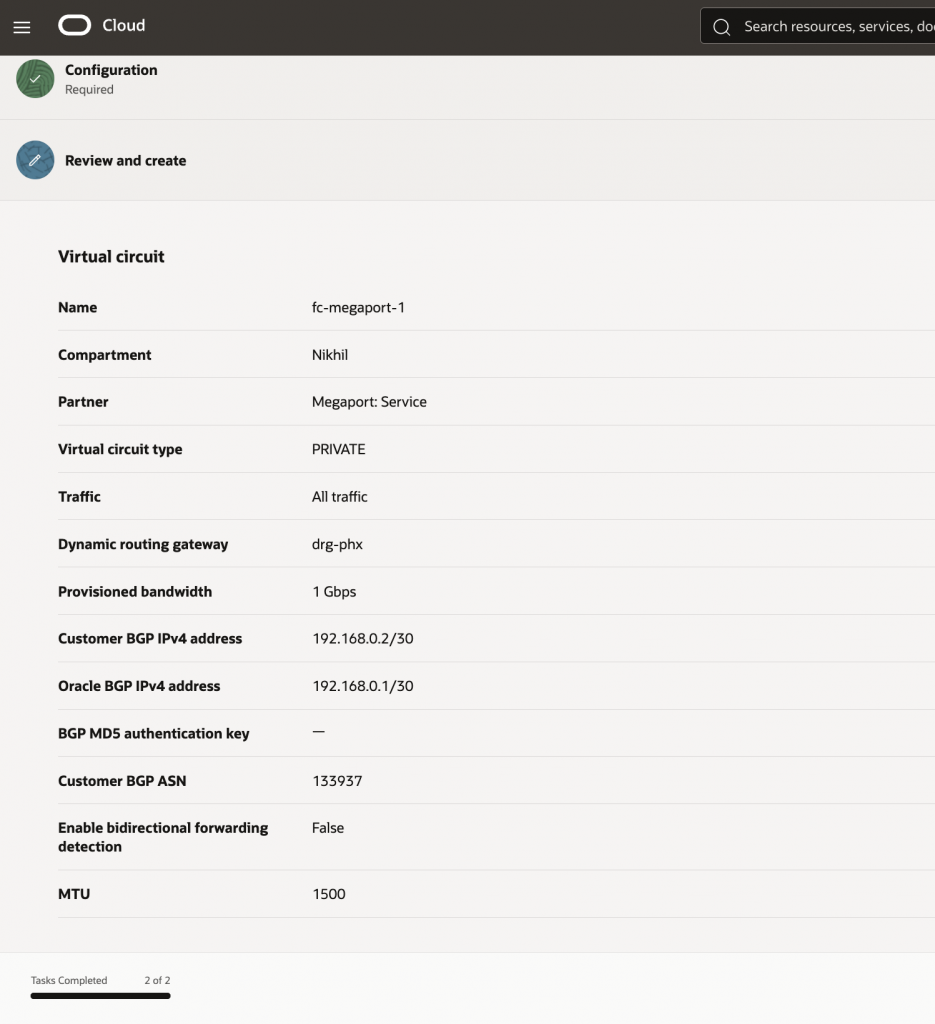
Review the entered values and then click on ‘Create’
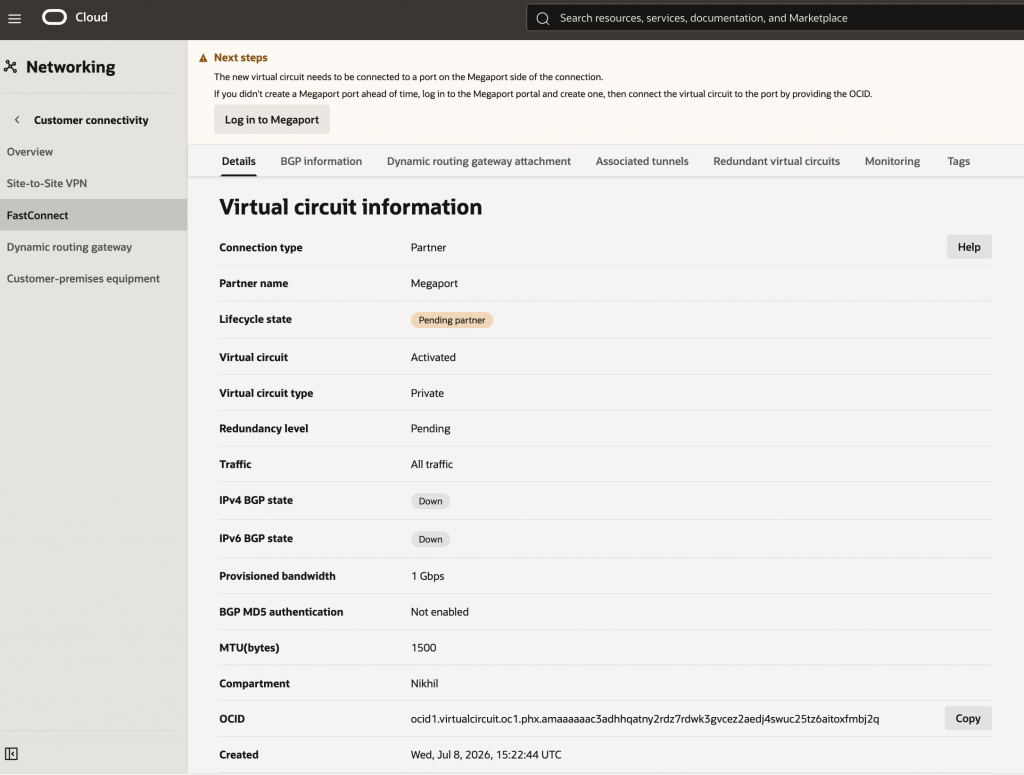
Once the FastConnect virtual circuit is created, it will be in ‘Pending Partner’ status until the Megaport side configuration is completed.
Conclusion
This concludes the OCI side configuration for the solution. To complete the configuration of the topology, please continue to the Megaport-side configuration which is discussed here.