
Introduction
In today’s global, hybrid work environments, organizations often need to apply different sign-in and MFA (Multi factor authentication) policies to distinct user groups. For example, all full-time employees should authenticate via federated SSO with an external identity provider; contingent workers should sign in using identity domain credentials with SMS-based MFA; and mobile field employees should use username/password plus a mobile authenticator passcode. This blog explains how to implement these security configurations using the User Categories feature in the Fusion Security Console.
Example Requirement
The requirement is as described in the introduction. The same is depicted visually in the below table.
Note that the requirement is to make the MFA enrollment using IAM domain mandatory and specific for the contingent workers and field workers.
| Full Time Employees | Contingent Employees | Field Employees | |
| Login | Corporate Federated SSO (Example AD) | Identity Domain users | Identity Domain users |
| MFA | Configured at federated external identity provider | Mobile SMS (OTP) | Authenticator Passcode |
| MFA enrolment | Mandatory | Mandatory | Mandatory |
Note – MFA is mandatory for all users authenticated by Fusion IAM Domain
The table shows only the MFA options relevant to the above example requirement. However, in reality all the below authentication options are available by default and few or all of them may be enabled by the security administrator per domain.
- One-Time PIN over Email
- One-Time PIN over SMS
- Passcode on Oracle Mobile Authenticator
- Push-based notification from Oracle Mobile Authenticator
- FIDO Passkey Authenticator
- Bypass code
Now, let us look at the steps required to configure the user population specific MFA for the
Steps
1. Fusion Security Console
Login as Application Administrator and navigate to Tools-> Security Console-> User Categories
Notice that Default User Category exists and all users belong to this category by default
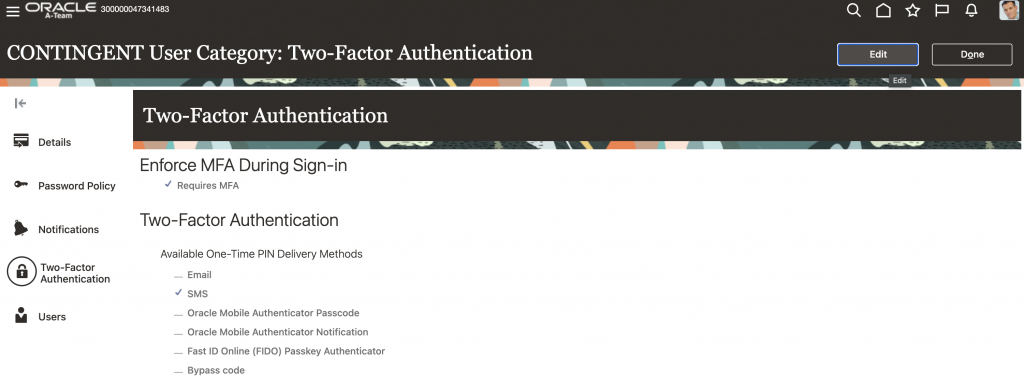
Create new User Category for contingent workers; Configure ‘Two-Factor Authentication’ settings and select ‘SMS’ as the second factor
Create new User Category for field workers; Configure ‘Two-Factor Authentication’ settings and select ‘Oracle Mobile Authenticator Passcode’ as the second factor
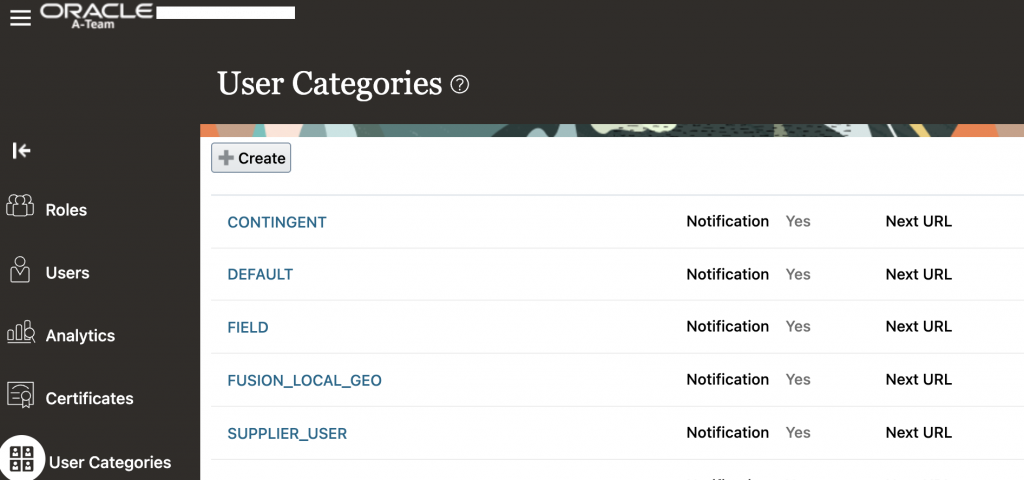
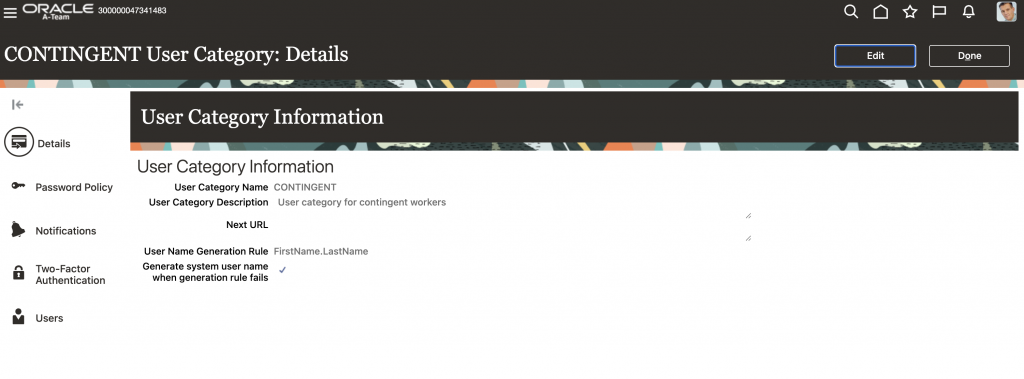
Since the MFA enrollment is mandatory for these users, select ‘Requires MFA’ under ‘Enforce MFA During Sign-in’ for both the user categories.
Add users to the newly created user categories, using one of the methods described in the documentation. Note that one user can only belong to a single user category
Tip:
For assigning multiple existing users to a user category, use the OCI Identity SCIM API to automate the assignment. Refer – Add Users to a User Category – SCIM API
Note that for every user category created on Fusion Security Console, corresponding Sign-on rules are auto created within the OCI IAM Domain’s ‘User Category Based Sign-on Policy’. These will be bound and used for login and MFA flow when users specific to a user category login to Fusion Cloud Applications. However, users must not manually update these sign-on rules. It is recommended to configure using the User Categories as shown above. Contact Oracle if there is a requirement to edit these OCI IAM domain sign-on rules.
2. Verification
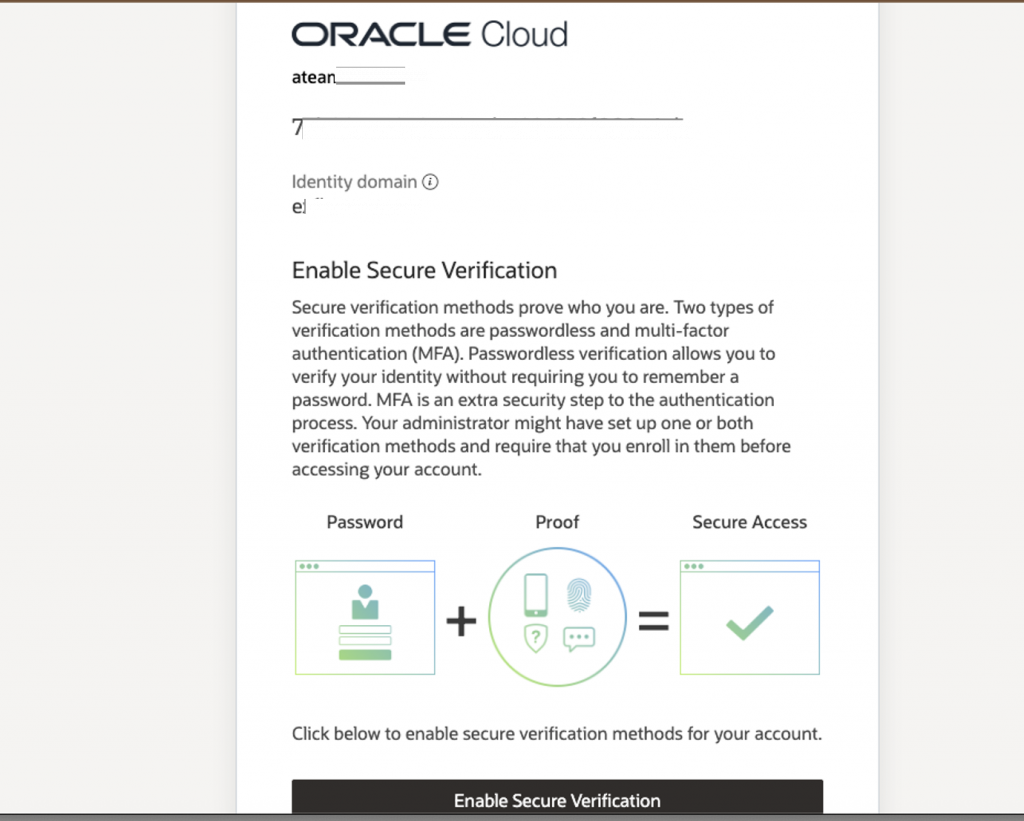
Test login using the users from the new categories. On first time login the user will be forced to enroll the MFA factor configured in the user category. Subsequent logins will prompt for the additional factors for authentication completion.
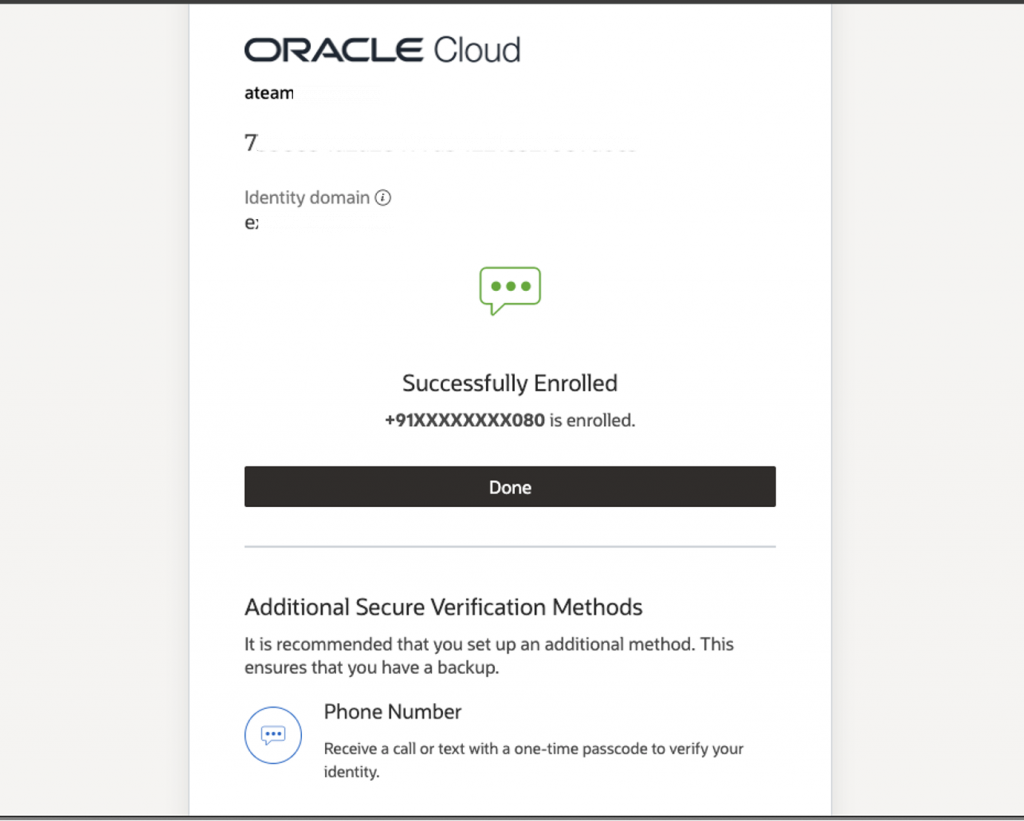
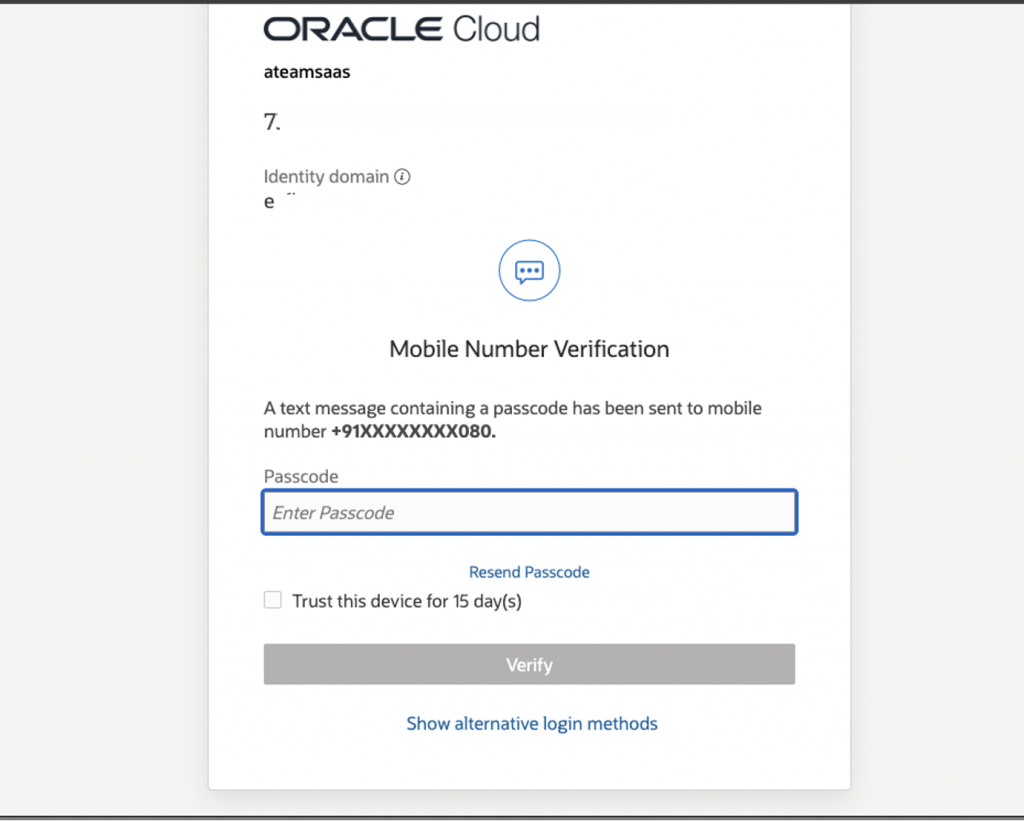
Note that MFA reset action may be required in some cases for users who are moved from one user category to others for the new MFA configuration to take effect.
To reset MFA factors for any user account, refer to Reset MFA in Fusion
Tip:
In order to reset MFA factors for multiple users the above action can also be automated using OCI Identity REST API. Refer – Resetting Authentication Factors for Multiple Users using the Bulk Endpoint.
References
User Categories Overview – Doc
Add users to a User Category – Doc
Add Users to a User Category – REST API
MFA – Oracle Fusion Cloud Common Technologies and User Experience 26A What’s New
MFA – Oracle Fusion Cloud Common Technologies and User Experience 26B What’s New
Acknowledgements
Many thanks to Ranveer Tiwari from A-Team and Roland Koenn from SaaS Cloud Security Product Management team for their valuable inputs to this blog content.