

Using Model Context Protocol (MCP) tool in Oracle Fusion AI Agent Studio, you can connect to external MCP servers, and use their capabilities inside agents and nodes, without building additional REST wrappers or plugin logic.
MCP Server in Oracle Autonomous AI Database is a managed, multi-tenant server designed to provide secure, standardized access to database tools through the Model Context Protocol (MCP). By connecting Oracle Fusion AI Agent Studio with Oracle Autonomous Database , Fusion AI agentic workflows can run SQL statements on an Oracle Database and interact with the results.
In this blog, we’ll go through the steps to connect Fusion AI Agent with an Oracle Autonomous DB MCP server.
Steps
1. Enable MCP server in database
Enabling the MCP Server creates a remote endpoint associated with the database OCID. Once enabled, the database exposes its MCP server endpoint, which MCP clients can use.
- Navigate to your Autonomous Database instance (Oracle AI Database -> Autonomous AI Database).
- Make sure the prerequisites are met.
- Add a free-form tag to enable the MCP server:
- Tag Name:
adb$feature - Tag Value:
{"name":"mcp_server","enable":true} 
- Tag Name:
Once MCP server is enabled, access MCP server by adding the following URL to your MCP client application,https://dataaccess.adb.{region-identifier}.oraclecloudapps.com/adb/mcp/v1/databases/{database-ocid}
2. Create Agent Tools in database
DBMS_CLOUD_AI_AGENT package defines and manages agents, tasks, tools, and orchestration in the database.
Before you start using the package, give grants to the user.
GRANT EXECUTE ON DBMS_CLOUD_AI_AGENT TO <your_user>;To create an AI Agent tool, we can use the CREATE_TOOL Procedure in the DBMS_CLOUD_AI_AGENT package. The tools can be custom PL/SQL procedures or functions, or built-in tool types such as RAG, SQL, WEBSEARCH, or NOTIFICATION. We’ll use a custom PL/SQL function as a tool.
For example, the function below is created on sample SH schema, to get sales performance by category.
CREATE OR REPLACE FUNCTION GET_SALES_BY_CATEGORY (
    p_year   IN NUMBER,
    p_offset IN NUMBER DEFAULT 0,
    p_limit  IN NUMBER DEFAULT 10
) RETURN CLOB AS
    v_sql  CLOB;
    v_json CLOB;
BEGIN
    v_sql := 'SELECT NVL(JSON_ARRAYAGG(JSON_OBJECT(*) RETURNING CLOB), ''[]'') ' ||
             'FROM ( ' ||
             '  SELECT p.prod_category, SUM(s.amount_sold) AS total_revenue, COUNT(s.prod_id) AS units_sold ' ||
             '  FROM sh.sales s ' ||
             '  JOIN sh.products p ON s.prod_id = p.prod_id ' ||
             '  JOIN sh.times t ON s.time_id = t.time_id ' ||
             '  WHERE t.calendar_year = :yr ' ||
             '  GROUP BY p.prod_category ' ||
             '  ORDER BY total_revenue DESC ' ||
             '  OFFSET :off ROWS FETCH NEXT :lim ROWS ONLY ' ||
             ')';

    EXECUTE IMMEDIATE v_sql
    INTO v_json
    USING p_year, p_offset, p_limit;

    RETURN v_json;
END;
Now lets create a tool, that uses the above PL/SQL function. The syntax is
DBMS_CLOUD_AI_AGENT.CREATE_TOOL(
     tool_name          IN  VARCHAR2,
     attributes          IN  CLOB,
     status              IN  VARCHAR2  DEFAULT NULL,
     description         IN  CLOB      DEFAULT NULL
  );
Parameters are,
| Parameter | Description |
|---|---|
tool_name | A unique name to identify the tool.This is a mandatory parameter. |
attributes | Tool attributes in JSON format. See CREATE_TOOL Attributes.This is a mandatory parameter. |
status | Status of the tool.The default value is ENABLED. |
description | User-defined description to help identify the tool. |
BEGIN
  DBMS_CLOUD_AI_AGENT.CREATE_TOOL (
    tool_name  => 'GET_SALES_BY_CATEGORY',
    attributes => '{"instruction": "Returns a JSON summary of sales revenue and units sold grouped by product category for a specific calendar year.",
       "function": "GET_SALES_BY_CATEGORY",
       "tool_inputs": [
            {"name":"p_year",  "description": "The calendar year to analyze (e.g., 1998, 1999, 2000, 2001)."},
            {"name":"p_offset","description": "Pagination parameter to skip records."},
            {"name":"p_limit", "description": "Pagination parameter. Use this to set the page size when performing paginated data retrieval."}
       ]}'
  );
END;
3. Create an MCP Tool in Fusion AI Agent Studio
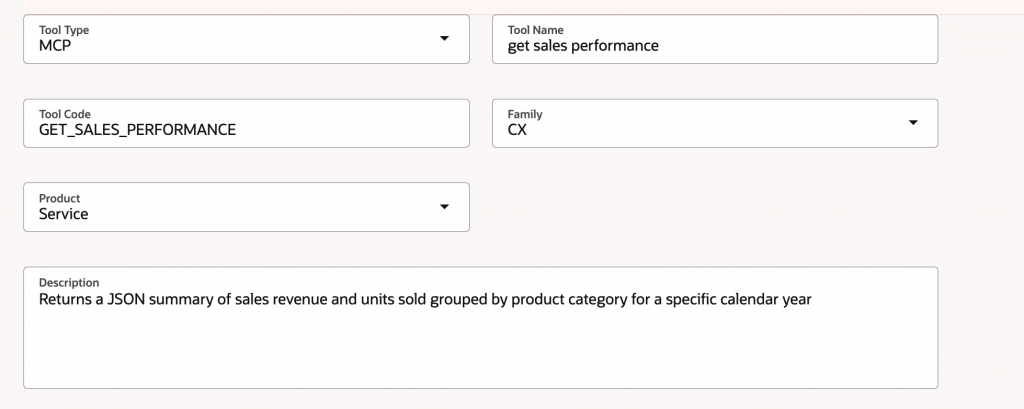
Connect to Fusion AI Agent Studio. Click on Tools tab and create a new tool, by selecting the Tool Type as MCP.
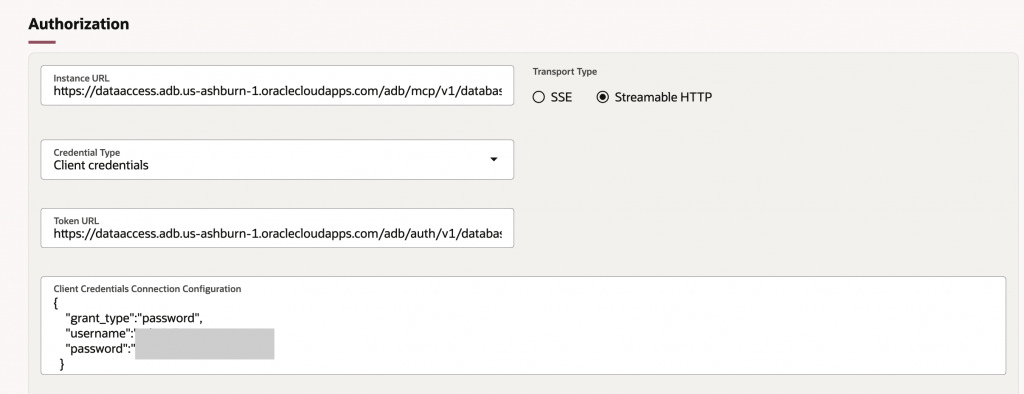
Authorization section
Generate the bearer token to the database MCP server, using the following.
Instance URL : https://dataaccess.adb.{region-identifier}.oraclecloudapps.com/adb/mcp/v1/databases/{database-ocid}
Transport Type : Streamable HTTP
Client Type : Client Credentials
Token URL : https://dataaccess.adb.{region-identifier}.oraclecloudapps.com/adb/auth/v1/databases/{database-ocid}/token
Replace the placeholders with your actual information:
{region-identifier}: The specific Oracle Cloud region{database-ocid}: The OCID of your Autonomous AI Database
Client Credentials Connection Configuration :
{
“grant_type”:”password”,
“username”:”<db-username>”,
“password”:”<db-password>”
}
You can see the tools from MCP server listed, once the connection is successful.

Select the check box next to the tool.
You can also preview the tool from the Agent Studio, pass the Tool Parameters and test the Tool.
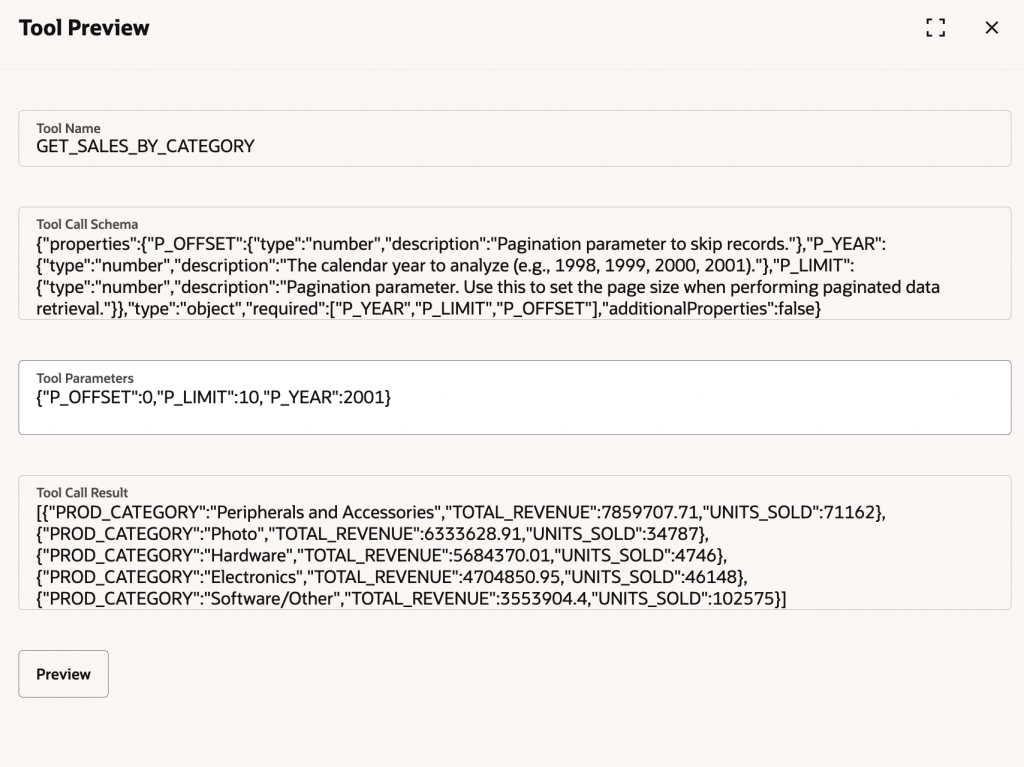
Click Create. The MCP tool to database is now created. You can use this tool in your Agent team now.
4. Best Practice Security Considerations
For your Oracle Database 26ai as MCP server, you should create a dedicated, low-privileged user for the MCP server that utilizes schema-level grants rather than administrative roles. This ensures the server can only execute specifically registered tools and access required vector data through a restricted, secure connection.
Authentication and Schema Isolation
To configure an Oracle Autonomous Database 26ai as a Model Context Protocol (MCP) server following the principle of least privilege, ensure you transition from using administrative accounts like ADMIN to a dedicated, restricted architecture. To do so, implement a two-schema approach to isolate tool definitions from the data they access.
- Create a Dedicated MCP User: Create a low-privileged user (e.g.,
MCP_USER) specifically for the MCP server connection. - Schema-Level Privileges: Use the new 26ai schema-level privileges to grant the
MCP_USERaccess to only the necessary objects in the schema without granting broad system-level roles
Tool Execution and Least Privilege
Tools exposed via the MCP server should be strictly defined and bounded to prevent “prompt injection” or unauthorized data exploration. Recommended techniques for preventing these unwanted behaviors include:
- Register Restricted Tools: Use the DBMS_CLOUD_AI_AGENT.CREATE_TOOL package to register specific PL/SQL functions as tools.
- Prohibit Generic SQL: Avoid creating a tool that accepts arbitrary SQL. Instead, define specific functions and expose only those.
- Virtual Private Database (VPD): Implement VPD policies that use the MCP_SERVER_ACCESS_CONTEXT$.USER_IDENTITY context to bind data access to the identity of the user calling the tool.
- Read-Only Enforcement: Configure the MCP_USER session as Read-Only at the database level to ensure it cannot modify data even if a tool is misconfigured.
- Auditing and Monitoring: Monitor the DBTOOLS$MCP_LOG table and V$SESSION (specifically the MODULE and ACTION columns) to track which AI agent is calling which tool.