
Introduction
This blog is part of the blog series Extending Oracle Fusion Cloud Applications using Oracle APEX. In this blog post we will cover the steps to access Oracle Fusion AI Agents from Oracle APEX Fusion Extensions.
Requirement
A customer is strategically leveraging and unlocking value from Oracle Fusion AI agents while accessing AI Agents from Oracle Fusion Cloud Applications and are evaluating the below requirements:
- Access AI agents from Oracle APEX Fusion Extensions.
- Extend the benefits of AI agents to Oracle APEX Fusion Extensions.
Prerequisites
- Access to Oracle Fusion.
- Access to Oracle APEX environment.
- Complete the steps mentioned in the Extending Oracle Fusion Cloud Applications using Oracle APEX – Authentication blog.
- Complete the steps mentioned in the Extending Oracle Fusion Cloud Applications using Oracle APEX – Authorization blog.
High level steps
- Login to the APEX environment.
- Create a new Fusion Integrated APEX application.
- Update the scope in the Authentication scheme of the Fusion Integrated APEX application.
- Create Application Items and Application Computations.
- Create REST data source/s.
- Create the DB Object/s.
- Create Oracle APEX page/s.
Execution flow
- User logs into the Fusion Integrated APEX Extension application.
- The AI Agent Team Code, AI Agent Team Version, AI Agent Team Welcome message details are available in the Application items.
- When the page loads, the APEX collection is created, welcome message is populated in the APEX collection and displayed to the user.
- User interacts with the AI Agent.
- The interaction is stored in the APEX collection, displayed to the user and gets automatically purged at the end of the session.
Detailed steps
Create a new Fusion Integrated APEX application. We cannot reuse the APEX application created in the Authentication blog, as it is using a different API scope. For this blog, we are using Oracle APEX 24.2 which allows one scope per Authentication scheme. The option to work with multiple scopes is in the Oracle APEX roadmap.
Authentication scope changes: Navigate to the Shared Components –> Authentication Schemes and update the Authentication Scheme APEX_FA_XXXX_OAUTH as below (Replace xxxx with the respective environment details):
| Before change | After change |
| profile,email,offline_access,#FA_XXXX_OAUTH_SCOPE# | profile,email,offline_access,urn:opc:resource:fusion:xxxx:fusion-ai/ |
The scope #FA_XXXX_OAUTH_SCOPE# is picked from the APEX Instance parameters at run time. By default, it points to the scope urn:opc:resource:fa:instanceid=799523205urn:opc:resource:consumer::all. The scope urn:opc:resource:fusion:xxxx:fusion-ai/ is required to invoke the Oracle Fusion Agent studio API invokeAsync. If we update the APEX instance parameters with the required scope for invokeAsync, it will impact all Fusion Integrated APEX applications, and so we are creating a new Fusion Integrated APEX application and using the required scope in the Authentication scheme and limiting the new scope to the specific application.
Application Items: Navigate to the Shared Components –> Application Items and create the Application Items as below:
| Name | Computed On | Protection Level | Scope |
| P_AGENT_TEAM_CODE | ON_NEW_INSTANCE | Restricted – May not be set from browser | Application |
| P_AGENT_TEAM_VERSION | ON_NEW_INSTANCE | Restricted – May not be set from browser | Application |
| P_AGENT_TEAM_WELCOME_MESSAGE | ON_NEW_INSTANCE | Restricted – May not be set from browser | Application |
| P_AGENT_TEAM_PROCESSING_MESSAGE | ON_NEW_INSTANCE | Restricted – May not be set from browser | Application |
Application Computations: Navigate to the Shared Components –> Application Computations and create the Application Computations as below:
| Sequence | Name | Computation Point | Type | Computation (Sample values) | Remarks |
| 10 | P_AGENT_TEAM_CODE | On New Instance (new session) | Static Assignment | PROCUREMENT_POLICY_ADVISOR | Replace with the Agent Team Code. |
| 10 | P_AGENT_TEAM_VERSION | On New Instance (new session) | Static Assignment | 17 | Replace with the version of Agent Team. |
| 10 | P_AGENT_TEAM_WELCOME_MESSAGE | On New Instance (new session) | SQL Query (return single value) | select ‘Hi ‘||:APP_USER||’. I am your Procurement Policy Advisor. How can I help you today ?’ from dual | Replace with the Agent Team Welcome message of your choice. |
| 10 | P_AGENT_TEAM_PROCESSING_MESSAGE | On New Instance (new session) | Static Assignment | Thinking …. | Replace with an interim message which is printed when the Agent is working on the user request. |
Create REST data source/s: Navigate to the Shared Components –> REST Data Sources and create the below REST Data Sources from scratch using the below details (Replace xxxx with the respective environment details):
In order to create the REST data source, we need to execute the page to have a valid session to Fusion.
| Field | Fusion Agent InvokeAsync | Additional Information |
| REST Data Source Type | Oracle Cloud Applications (SaaS) REST Service | Select this REST Data Source Type. |
| Name | Fusion Agent InvokeAsync | Use an appropriate name for the REST data source. |
| URL Endpoint | https://fa-xxxx-xxxx-xxxx.xx.xxx.oraclecloud.com/api/fusion-ai/orchestrator/agent/v2/:P_AGENT_TEAM_CODE/status/:P_JOB_ID URL Parameter 1: P_AGENT_TEAM_CODE: Value: XYZ URL Parameter 2: P_JOB_ID: Value: XYZ | Use the endpoint of the REST API. |
| HTTPS Host Name | leave blank | leave blank |
| Remote Server | APEX_FA_XXXX-XXXX_REST_APIS | This remote server was created during APEX Application creation. |
| Base URL | https://fa-xxxx-xxxx-xxxx.xx.xxx.oraclecloud.com/ | The Base URL of the Oracle Fusion environment. |
| Service URL Path | api/fusion-ai/orchestrator/agent/v2/:P_AGENT_TEAM_CODE/status/:P_JOB_ID | The URL path of the endpoint. |
| Use Batch DML | Yes | depends on the endpoint. |
| Use Total Results | No | depends on the endpoint. |
| Use Pagination | Yes | depends on the endpoint. |
| Authentication Required | Yes | Select as Yes. |
| Credentials | APEX_FA_XXXX-XXXX_DBMS_CRED | This credential was created during APEX Application creation. |
| OAuth Token URL | https://fa-xxxx-xxxx-xxxx.xx.xxx.oraclecloud.com/ | This gets defaulted when selecting the credential. |
| Click on Advanced button. | ||
| Discovery Sample | Upload the file Fusion_Agent_InvokeAsync.json | |
| Row Selector | . | We need to use a dot (.). |
| Click on Discover button. | ||
| Click on Create REST Data Source button. | ||
Update the REST Data Source Fusion Agent InvokeAsync as below:
| Field | Before change | After change |
| URL Path Prefix | api/fusion-ai/orchestrator/agent/v2/:P_AGENT_TEAM_CODE/status/:P_JOB_ID | api/fusion-ai/orchestrator/agent/v2/:P_AGENT_TEAM_CODE |
| Static ID | fusion_agent_invokeasync | FUSION_AGENT_INVOKEASYNC |
| Delete the REST Data source parameter P_JOB_ID. | ||
| Open the REST Data source Data Profile and set the Contains Single Row to Yes. | ||
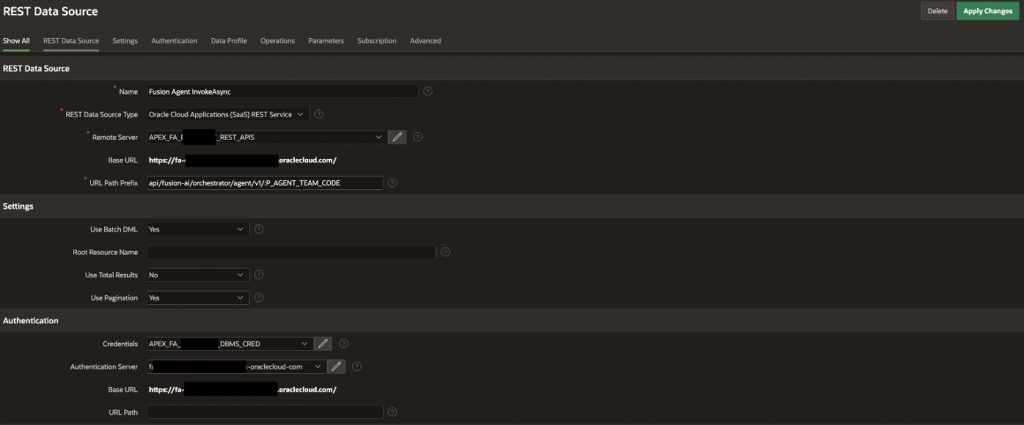
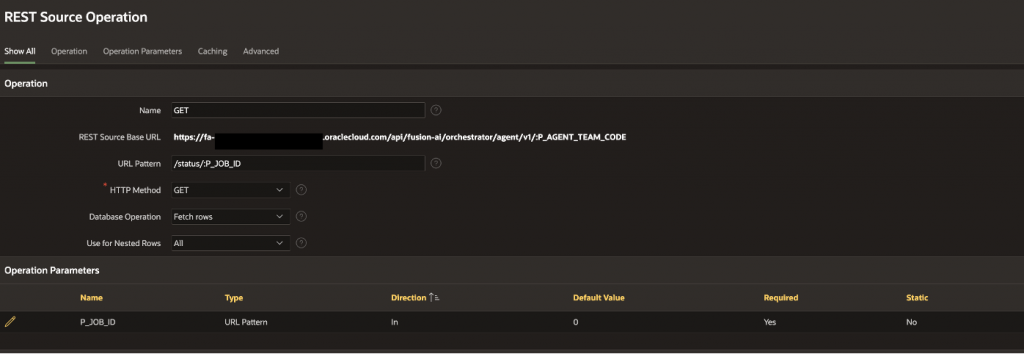
Update the REST Data Source GET Operation as below:
| Field | Before change | After change |
| URL Pattern | . | /status/:P_JOB_ID |
Click on the Add Parameter button and add the parameter as below:
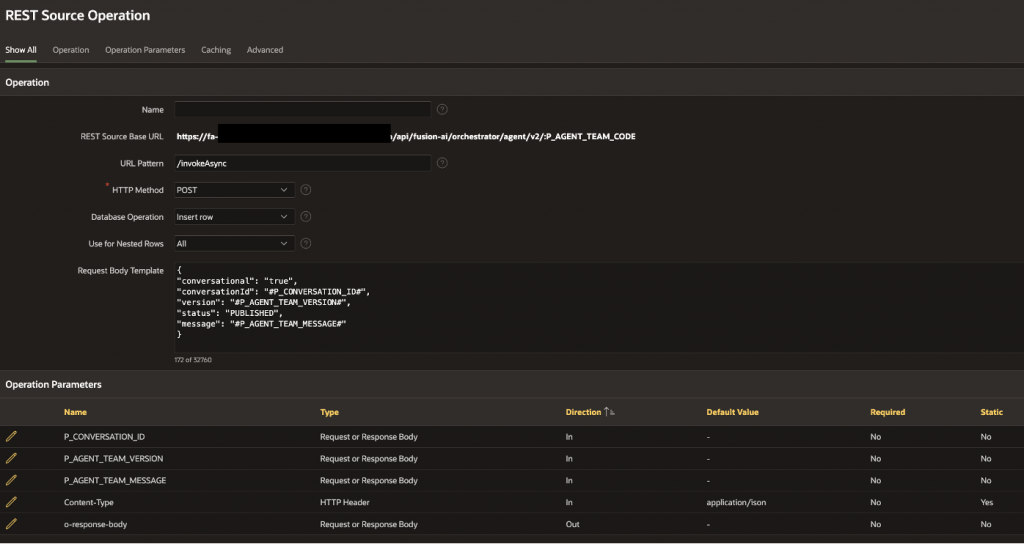
Create the REST Data Source POST operation as below:
| Field name | Field value |
| URL Pattern | /invokeAsync |
| HTTP Method | POST |
| Database Operation | Insert Row |
| Use for Nested Rows | All |
| Request Body Template | { “conversational”: “true”, “conversationId”: “#P_CONVERSATION_ID#”, “version”: “#P_AGENT_TEAM_VERSION#”, “status”: “PUBLISHED”, “message”: “#P_AGENT_TEAM_MESSAGE#” } |
Click on Create button. Open the POST operation and Click on Synchronize with Body button.
This would add the below parameters:
- P_CONVERSATION_ID
- P_AGENT_TEAM_VERSION
- P_AGENT_TEAM_MESSAGE
Add the below parameters:
| Type | Name | Direction | Default Value | Static | Data Type |
| HTTP Header | Content-Type | IN | application/json | Yes | String |
| Request or Response | o-response-body | OUT |
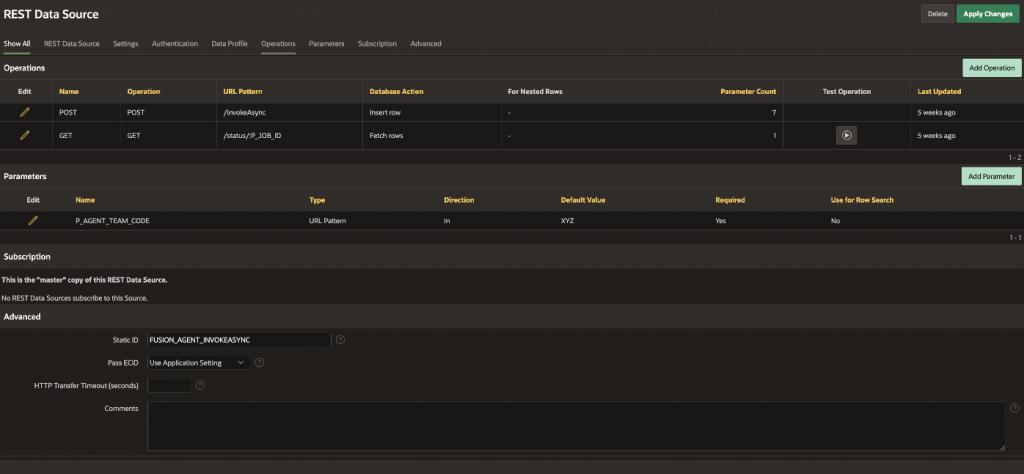
Create the DB Objects: Create the View XX_FUSION_AGENT_CHATS_V
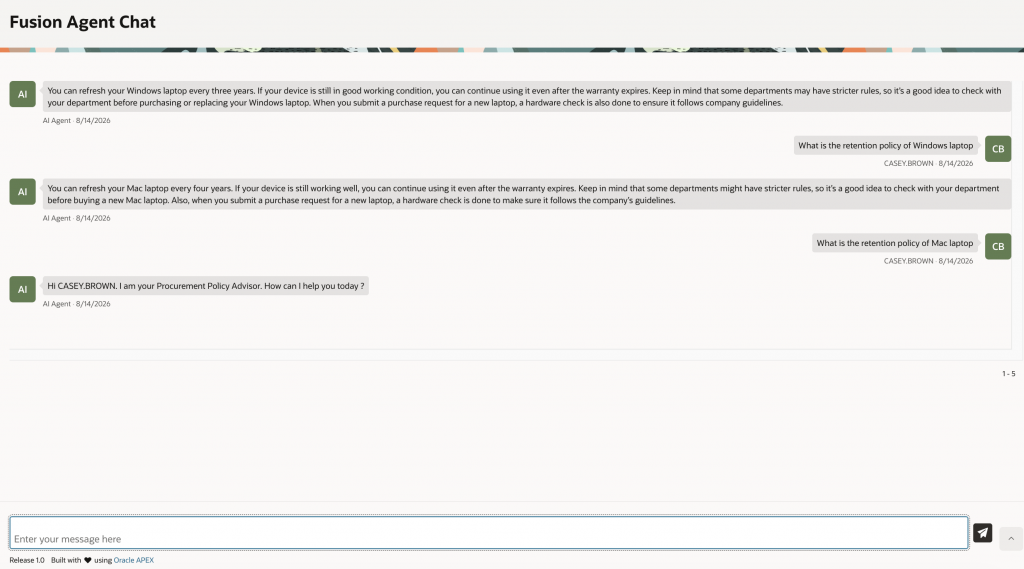
Create Oracle APEX page/s: Create a blank Oracle APEX page Fusion Agent Chat with the below details:
Add the CSS Code to the Page level CSS Inline property.
Create a Static content region named Fusion AI Agent Metadata with the below detailsand add the below page items (Replace XX with the page number):
| Field Name | Field Value |
| Region : Name | Fusion AI Agent Metadata |
| Region : CSS Classes | u-hidden |
| Region : Slot | Body |
| Field Name | Type | Label | Additional Information |
| PXX_CONVERSATION_ID | Text Field | Conversation Id | This field will be used to store the ConversationId retrieved during the first call to InvokeAsync API and reuse it for subsequent call to InvokeAsync API. |
| PXX_JOB_ID | Text Field | Job Id | This field will be used to store the JobId retrieved during the calls to InvokeAsync API for each Agent message and use it to check the status of the Agent response. |
Create a region named Fusion AI Agent Chat using the below details:
| Field Name | Field Value |
| Region : Name | Fusion AI Agent Chat |
| Region : Type | Classic Report |
| Region : Source | Location: Local Database Type: SQL Query SQL Query: Fusion AI Agent Chat Classic Report Query |
| Region : CSS Classes | xx-Chat |
| Region : Slot | Body |
| Region : Template | Blank with Attributes |
| Attributes : Layout | Number of Rows : 100000 |
| Attributes : Appearance | Template Type : Theme Template : Comments |
Select the Classic Report column COMMENT_TEXT and set the property Escape special characters to Off.
Create a Static content region named User Message and Send Button with the below detailsand add the below page items (Replace XX with the page number):
| Field Name | Field Value |
| Region : Name | User Message and Send Button |
| Region : Slot | Footer |
| Region : Template | Item Container |
| Region : Template Options : Alignment | Center |
| Field Name | Type | Details |
| PXX_USER_MESSAGE | Text Field | Label : << leave it blank >> Slot : Item Value Placeholder : Enter your message here |
| PXX_SEND_USER_MESSAGE_BTN | Button | Label : Send Button Template : Icon Hot : Yes Icon : fa-send Action : Defined by Dynamic Action Static ID : PXX_SEND_USER_MESSAGE_BTN Slot : Button End |
Dynamic Actions (DA)
| Dynamic Action Object / Event | Details |
| Pre-Rendering –> After Header –> Create Process | Name : Initialize Chat Type : Execute Code Location : Local Database Language : PL/SQL PL/SQL Code : Pre-Rendering After Header |
| PXX_USER_MESSAGE –> Key Down –> Items(s) Name : Post user message on Enter key press Event : Key Down Selection Type : Item(s) Item(s) : PXX_USER_MESSAGE Client-side Condition Type : JavaScript expression JavaScript Expression : event.key == ‘Enter’ && !apex.item(“PXX_USER_MESSAGE”).isEmpty() | True Action Action : Execute JavaScript Code Code : $(‘#PXX_SEND_USER_MESSAGE_BTN’).click(); |
| PXX_SEND_USER_MESSAGE_BTN –> Click –> Button Name : Button Press DA Event : Click Selection Type : Button Button : PXX_SEND_USER_MESSAGE_BTN Client-side Condition Type : Item is not null Item : PXX_USER_MESSAGE | True Actions Name : Disable button Action : Disable Selection Type : Button Button : PXX_SEND_USER_MESSAGE_BTN Name : Submit the User message Action : Execute Server-side Code Language : PL/SQL PL/SQL Code : Submit_User_Message_Sample_Code Items to Submit : PXX_USER_MESSAGE,PXX_CONVERSATION_ID Items to Return : PXX_JOB_ID,PXX_CONVERSATION_ID,PXX_USER_MESSAGE Name : Refresh chat region Action : Refresh Selection Type : Region Region : Fusion AI Agent Chat Name : Check Job status Action : Execute Server-side Code Language : PL/SQL PL/SQL Code : Check_Job_Status_Sample_Code Items to Submit : PXX_JOB_ID,PXX_CONVERSATION_ID Name : Refresh chat region Action : Refresh Selection Type : Region Region : Fusion AI Agent Chat Name : Enable button Action : Enable Selection Type : Button Button : PXX_SEND_USER_MESSAGE_BTN |
Sample code
DB_View_XX_FUSION_AGENT_CHATS_V
CREATE OR REPLACE VIEW XX_FUSION_AGENT_CHATS_V
AS
SELECT seq_id,
c001 user_name,
c002 workflow_code,
c003 workflow_version,
c004 job_id,
c005 conversation_id,
c006 message_owner,
c007 message_text,
c008 start_date
FROM apex_collections
WHERE collection_name = 'XX_FUSION_AGENT_CHATS';
Fusion_Agent_InvokeAsync.json
{
  "input" : "sample_input",
  "output" : "sample_output",
  "progressMessage" : "",
  "error" : null,
  "followUpQuestions" :
  [
  ],
  "jobId" : "sample_jobId",
  "conversationId" : "sample_conversationId",
  "traceId" : "sample_traceId",
  "status" : "COMPLETE",
  "supportingChunks" :
  [
    {
      "textChunk" : "sample_textChunk",
      "vectorSearchScore" : 0.632657,
      "textSearchScore" : -1,
      "documentIdentificationCriteria" :
      {
        "documentType" : "application/pdf",
        "documentIdentifier" : "300000",
        "documentCategory" : null,
        "entityId" : null,
        "entityName" : null,
        "documentTitle" : "Policies",
        "parentObjectId" : null,
        "grandparentObjectId" : null,
        "rootObjectId" : null,
        "pastDue" : false
      },
      "additionalContext" :
      {
        "document" : "300000"
      }
    }
  ],
  "citations" :
  [
    {
      "citedText" : "sample_citedText",
      "documentIdentificationCriteria" :
      {
        "documentType" : "application/pdf",
        "documentIdentifier" : "300000",
        "documentCategory" : null,
        "entityId" : null,
        "entityName" : null,
        "documentTitle" : "Policies",
        "parentObjectId" : null,
        "grandparentObjectId" : null,
        "rootObjectId" : null,
        "pastDue" : false
      },
      "additionalContext" :
      {
        "document" : "300000"
      }
    }
  ],
  "nodes" :
  [
  ],
  "waitingToolCode" : null,
  "workflowCode" : "PROCUREMENT_POLICY_ADVISOR",
  "workflowName" : null,
  "architecture" : null,
  "workflowVersion" : 17,
  "workflowStatus" : "PUBLISHED",
  "startDate" : 1786531118905,
  "endTime" : 1786531140469,
  "createDate" : "2026-08-12T10:38:38.905+0000",
  "endDate" : "2026-08-12T10:39:00.469+0000",
  "timeTaken" : 0,
  "inputTokenCount" : 0,
  "outputTokenCount" : 0,
  "waitingNodeDetails" : null,
  "preview" : false
}
Page_Level_CSS_Inline
.xx-Chat .t-Chat--own .t-Comments-icon {
  margin-right: 0;
  margin-left: 12px;
}

.xx-Chat .t-Chat--own {
  flex-direction: row-reverse;
}

.xx-Chat .t-Chat--own .t-Comments-body {
  align-items: flex-end;
}

.xx-Chat .t-Chat--own .t-Comments-comment:after {
  border-left-color: var(--ut-comment-chat-background-color);
  border-right-color: rgba(0,0,0,0);
  right: none;
  left: 100%;
}

.xx-Chat .t-Comments {
   height: 470px;
   overflow: scroll;
}

.blinking-text {
    animation: blinker 1s linear infinite;
}

@keyframes blinker {
  50% {
            opacity: 0;
        }
    }
Fusion_AI_Agent_Chat_Classic_Report_Query
select to_number(seq_id) seq_id,
case message_owner
when 'USER' then user_name
else 'AI Agent'
end user_name,
case message_text
when :P_AGENT_TEAM_PROCESSING_MESSAGE then '<span class="blinking-text">'||:P_AGENT_TEAM_PROCESSING_MESSAGE||'</span>'
else message_text
end comment_text,
start_date comment_date,
case message_owner
when 'USER' then apex_string.get_initials(user_name)
else 'AI'
end  user_icon,
null                     as actions,
null                     as attribute_1,
null                     as attribute_2,
null                     as attribute_3,
null                     as attribute_4,
case message_owner
when 'USER' then 't-Chat--own'
else null
end comment_modifiers
from xx_fusion_agent_chats_v
order by seq_id desc
Pre_Rendering_After_Header
--This code can be moved to a PL/SQL package.
begin apex_collection.create_or_truncate_collection('XX_FUSION_AGENT_CHATS');   apex_collection.add_member(
p_collection_name => 'XX_FUSION_AGENT_CHATS',
p_c001            => :APP_USER,
p_c002            => :P_AGENT_TEAM_CODE,
p_c003            => :P_AGENT_TEAM_VERSION,
p_c004            => null,
p_c005            => null,
p_c006            => 'AGENT',
p_c007            => :P_AGENT_TEAM_WELCOME_MESSAGE,         p_c008            => SYSDATE
);
end;
Submit_User_Message_Sample_Code
--This code can be moved to a PL/SQL package.
declare
lc_http_response      clob;
lv_job_id             varchar2(500);
lv_conversation_id    varchar2(500);
l_params              apex_exec.t_parameters;
begin
apex_exec.add_parameter(l_params, 'P_AGENT_TEAM_CODE', :P_AGENT_TEAM_CODE);
apex_exec.add_parameter(l_params, 'P_AGENT_TEAM_VERSION', :P_AGENT_TEAM_VERSION);
apex_exec.add_parameter(l_params, 'P_AGENT_TEAM_MESSAGE', :PXX_USER_MESSAGE);
apex_exec.add_parameter(l_params, 'P_CONVERSATION_ID', :PXX_CONVERSATION_ID);
apex_exec.execute_rest_source(
p_static_id  => 'FUSION_AGENT_INVOKEASYNC',
p_operation  => 'POST',
p_parameters => l_params
);
lc_http_response      := apex_exec.get_parameter_clob(l_params, 'o-response-body');
Select json_value(lc_http_response,'$.jobId'),     json_value(lc_http_response,'$.conversationId')
into lv_job_id,lv_conversation_id
from dual;
apex_collection.add_member(
p_collection_name => 'XX_FUSION_AGENT_CHATS',
p_c001            => :APP_USER,
p_c002            => :P_AGENT_TEAM_CODE,
p_c003            => :P_AGENT_TEAM_VERSION,
p_c004            => lv_job_id,
p_c005            => lv_conversation_id,
p_c006            => 'USER',
p_c007            => :PXX_USER_MESSAGE,
p_c008            => SYSDATE
);
apex_collection.add_member(
p_collection_name => 'XX_FUSION_AGENT_CHATS',
p_c001            => :APP_USER,
p_c002            => :P_AGENT_TEAM_CODE,
p_c003            => :P_AGENT_TEAM_VERSION,
p_c004            => lv_job_id,
p_c005            => lv_conversation_id,
p_c006            => 'AGENT',
p_c007            => :P_AGENT_TEAM_PROCESSING_MESSAGE,         p_c008            => SYSDATE
);
:PXX_JOB_ID  := lv_job_id;
:PXX_CONVERSATION_ID := lv_conversation_id;
:PXX_USER_MESSAGE := NULL;
EXCEPTION WHEN OTHERS THEN
apex_debug.error('Error executing REST Source : Submit the User message :' ||SQLERRM);
RAISE;
end;
Check_Job_Status_Sample_Code
--This code can be moved to a PL/SQL package.
declare
    l_params  apex_exec.t_parameters;
    l_rc      apex_exec.t_context;
    lv_status VARCHAR2(500);
    lv_output VARCHAR2(32767);
    ln_seq_id NUMBER;
begin
    loop
        l_params.DELETE;
        apex_exec.add_parameter(l_params, 'P_AGENT_TEAM_CODE', :P_AGENT_TEAM_CODE);
        apex_exec.add_parameter(l_params, 'P_JOB_ID', :PXX_JOB_ID);
        l_rc := apex_exec.open_rest_source_query(
            p_static_id  => 'FUSION_AGENT_INVOKEASYNC',
            p_parameters => l_params
            );

        WHILE apex_exec.next_row(l_rc)
        LOOP
            lv_status := apex_exec.get_varchar2(l_rc, apex_exec.get_column_position( l_rc, 'STATUS' ));
            lv_output := apex_exec.get_varchar2(l_rc, apex_exec.get_column_position( l_rc, 'OUTPUT' ));
            apex_exec.close_array(l_rc);
        END LOOP;

        apex_exec.close(l_rc);
        DBMS_SESSION.SLEEP(2); -- Decide the sleep time based on the activities performed by the Agent.
        exit when lv_output is not null;
    end loop;
    select seq_id
      into ln_seq_id
      from XX_FUSION_AGENT_CHATS_V
     where seq_id = (select max(seq_id) from XX_FUSION_AGENT_CHATS_V where message_text like :P_AGENT_TEAM_PROCESSING_MESSAGE||'%');
    apex_collection.update_member(
        p_collection_name => 'XX_FUSION_AGENT_CHATS',
        p_seq             => ln_seq_id,
        p_c001            => :APP_USER,
        p_c002            => :P_AGENT_TEAM_CODE,
        p_c003            => :P_AGENT_TEAM_VERSION,
        p_c004            => :PXX_JOB_ID,
        p_c005            => :PXX_CONVERSATION_ID,
        p_c006            => 'AGENT',
        p_c007            => lv_output,
        p_c008            => SYSDATE
        );
EXCEPTION
WHEN OTHERS THEN
apex_debug.error('Error executing REST Source : Check Job status :' ||SQLERRM);
RAISE;
end;
Conclusion
With the above solution, the APEX Fusion extensions can access, leverage and benefit from the rich capabilities of Oracle Fusion AI Agents. Oracle APEX declarative options can be used to add more actions to the Chat. CSS and JavaScript can be used for any specific requirements related to visual appeal of the Chat.
References
Enable Applications to Access Fusion Applications Agents
Agent Team REST Endpoints
Integrating Oracle APEX with Oracle Fusion Applications