
Introduction
Oracle Cloud Infrastructure (OCI) Object Storage is a scalable, high-performance, durable, and cost-effective cloud-based storage service designed for storing unlimited amounts of any type of data. It offers high durability and availability by replicating data automatically within OCI. You can organize data into buckets and control access using IAM policies, pre-authenticated requests, and encryption. It supports multiple storage tiers (Standard, Infrequent Access, Archive) to balance performance and cost.
Oracle Autonomous AI Database Select AI simplifies and automates using generative AI, whether generating, running, and explaining SQL from a natural language prompt, using retrieval augmented generation with vector stores, generating synthetic data, or chatting with the LLM. Use natural language to interact with your database and LLMs through SQL to enhance user productivity and develop AI-based applications.
Requirement
OCI Object Storage allows users to search for objects by name or prefix from the console. OCI also provides REST API to interact with Object storage which provides paginated results. However, we have Object storage search requirements which users wish to perform and we will explore the options to achieve the same.
Below are few user requirements for Object storage search:
- Search objects with suffix or object extensions.
- Search objects name containing search keyword.
- Search objects by size or size range.
- Search objects by created/last modified date or date range.
- Search objects across sub-folders.
Prerequisites
- Access to Oracle Cloud Infrastructure.
- Access to Oracle Autonomous Database.
- Access to Oracle APEX environment.
High level steps
- Create the required OCI policies.
- Create a new DB user or use an existing non-Admin DB user.
- Grant the required DB roles.
- Create the Select AI profile and other related objects.
- Create an Oracle APEX page to use the Select AI features.
Detailed steps
- Create the required OCI policies (IAM Policies for OCI Generative AI). You can create one of the below policies.
| Sample OCI Policy | Additional Information |
| allow dynamic-group XYZ_DG to manage generative-ai-family in compartment XYZ — Replace XYZ_DG and XYZ with appropriate details. | This policy grants OCI Gen AI access to the dynamic group via resource principal. This type of policy is used for machine-to-machine access. |
| allow group XYZ_UG to manage generative-ai-family in compartment XYZ — Replace XYZ_UG and XYZ with appropriate details. | This policy grants OCI Gen AI access to the user group. This type of policy is used for human user access. |
2. Create a new DB user or use an existing non-Admin DB user (e.g MY_SELECT_AI_USER), which will be used for Select AI activities. ADMIN user should not be used for this purpose.
3. Grant the required DB roles using ADMIN DB user to the DB user MY_SELECT_AI_USER.
GRANT EXECUTE ON DBMS_CLOUD_AI TO MY_SELECT_AI_USER;

EXEC DBMS_CLOUD_ADMIN.ENABLE_PRINCIPAL_AUTH(provider => 'OCI',username =>'MY_SELECT_AI_USER');

-- Replace MY_SELECT_AI_USER with appropriate details.
4. Create the Select AI profile and other related objects using MY_SELECT_AI_USER DB user.
Credential:
If we are using OCI$RESOURCE_PRINCIPAL, the credential is created with the above step.
If we are not using OCI$RESOURCE_PRINCIPAL and using individual OCI user details, then we need to create the credential using DBMS_CLOUD.CREATE_CREDENTIAL
View:
We will create the below view which will help list the object details of an OCI Object storage bucket.
create or replace view MY_OCI_OS_V
as
SELECT object_name, bytes size_in_bytes, checksum, created, last_modified
FROM DBMS_CLOUD.LIST_OBJECTS('OCI$RESOURCE_PRINCIPAL', 'https://objectstorage.my_oci_os_region.oraclecloud.com/n/my_oci_os_ns/b/my_oci_os_b/o/');

-- Replace MY_OCI_OS_V, MY_OCI_OS_REGION, MY_OCI_OS_NS, MY_OCI_OS_B with appropriate details.
In the above code, you need to check/replace the object storage region, namespace and bucket. If you are using resource principal, you can retain OCI$RESOURCE_PRINCIPAL, else you can replace it with the name of the credential created above.
Below are few important details about the view:
- The view uses Oracle provided function DBMS_CLOUD.LIST_OBJECTS.
- DBMS_CLOUD.LIST_OBJECTS lists the details of all the objects in the specified bucket. The details include the object name, object size in bytes, checksum, creation date, last updated date.
- We will use this view when we create the Select AI profile.
Select AI Profile:
We will create the Select AI profile with OCI provider and Grok model using the below sample code. You can evaluate the other available providers and models and use the one which meets your expectations and requirements.
BEGIN
  DBMS_CLOUD_AI.CREATE_PROFILE(
      profile_name => ‘MY_SELECT_AI_PROFILE',
      attributes   =>
      '{
        "provider": "oci",
        "region": "us-chicago-1",
        "oci_compartment_id": "ocid1.compartment.oc1..xxxxxxxxxxxxxxxxxxx",
        "credential_name": "OCI$RESOURCE_PRINCIPAL",
        "comments": true,
        "object_list": [
          {"owner": "MY_SELECT_AI_USER", "name": "MY_OCI_OS_V"}
        ],
        "model": "xai.grok-4"
      }');
end;

-- Replace MY_SELECT_AI_PROFILE, MY_SELECT_AI_USER, MY_OCI_OS_V, REGION, OCI_COMPARTMENT_ID, MODEL with appropriate details.| Parameter | Additional Information |
| Provider | We are using OCI and there is support for multiple other providers too. |
| Region | Region of the model. Please check model availability based on the specified region. |
| OCI Compartment Id | OCI Gen AI Compartment Id. |
| Credential name | OCI$RESOURCE_PRINCIPAL or the name of the credential created above. |
| Comments | This parameter can be used to decide if table/column comments need to be added to the user prompt when details are shared with LLM for query generation. |
| Object List | This parameter can be used to specify the schema or schema and table/view to be used. |
| Model | This parameter can be used to specify the model to be used. |
| Sample reference Select AI query | Additional Information | Expected Outcome |
| SELECT dbms_cloud_ai.generate( prompt => ‘I need details of the file which has the maximum size. also need the size of the file in GB’, action => ‘showprompt’, profile_name => ‘MY_SELECT_AI_PROFILE’) from dual | The action showprompt helps to verify the prompt sent to LLM, which includes the user prompt and other details influenced by the Select AI profile attributes specified at design-time or run-time. | You would see a JSON with the complete prompt details that would be sent to the LLM. |
| SELECT dbms_cloud_ai.generate( prompt => ‘I need details of the file which has the maximum size. also need the size of the file in GB’, action => ‘showsql’, profile_name => ‘MY_SELECT_AI_PROFILE’) from dual | The action showsql shows the SQL generated by LLM based on the above prompt. | You would see the generated SQL statement. |
| SELECT dbms_cloud_ai.generate( prompt => ‘I need details of the file which has the maximum size. also need the size of the file in GB’, action => ‘runsql’, profile_name => ‘MY_SELECT_AI_PROFILE’) from dual | The action runsql executes the SQL generated by LLM against the database. | You would see a JSON output of the above generated SQL statement. |
| SELECT dbms_cloud_ai.generate( prompt => ‘I need details of the file which has the maximum size. also need the size of the file in GB’, action => ‘narrate’, profile_name => ‘MY_SELECT_AI_PROFILE’) from dual | The action narrate executes the SQL generated by LLM against the database and converts the resulting data set into a conversational, plain-language, human-readable summary. | You would see a human-readable summary of the above JSON output. |
5. Create an Oracle APEX page to use the Select AI features.
| Steps | Additional Information |
| Create an APEX workspace and application. | Create a new APEX workspace and application or use an existing APEX workspace and application. |
| Create an APEX Page. | Create a new page in the APEX application. |
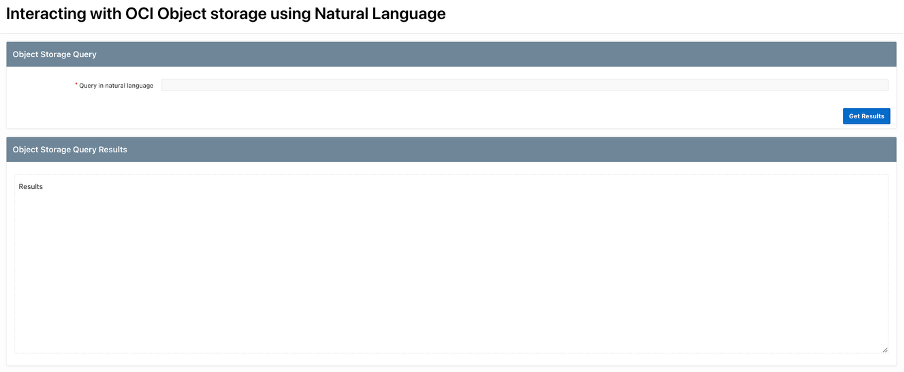
| Create a static region with a text field and button. | Region: Object Storage Query Text Field: Query in natural language (PX_OS_QUERY) Button: Get Results. |
| Create a static region with a read-only text area. | Region: Object Storage Query Results Text Area: Results |
| Create a dynamic action on the button. | Name: Get Result and populate the text area Action: Set Value Set Type: SQL Statement SQL Statement: SELECT DBMS_LOB.SUBSTR (dbms_cloud_ai.generate( prompt => :PX_OS_QUERY, action => ‘narrate’, profile_name => ‘MY_SELECT_AI_PROFILE’ ),2000,1) xx_result from dual where :PX_OS_QUERY IS NOT NULL Items to Submit: PX_OS_QUERY |
Below is a sample screenshot of the created APEX page.
Below is a list of few sample prompts:
- I need details of the file which has the maximum size and need the size of the file in GB.
- What are the different file extensions, their counts and total file size ?
- How many files were created every month in the last 6 months in each bucket. Also need the total file size in GB ?
- Which bucket has files larger than 0.5 GB in the last 11 months ?
- Which bucket has files larger than 0.5 GB in the last 11 months ? Also add the file details.
Conclusion
The above solution can be extended to handle multiple OCI Object storage buckets across multiple regions in a tenancy. The Select AI profile parameters (e.g annotations, comments, object_list, enforce_object_list, model and etc ) can be updated at run-time. You can use the view directly for any high-volume Object details viewing and listing requirements and use Select AI + LLM for other requirements. You can also consider adding table/column comments and additional guardrails (e.g restrict the SQL results to 10 rows) as required, which would be shared with LLM for further processing.