

Overview
Updated August 2026: Standard post-Identity Upgrade model
Use this guide when your employees authenticate to Oracle Fusion Cloud Applications through a corporate identity provider, or IdP, such as Microsoft Entra ID, Okta, or Ping, and you want external Oracle Fusion Bill Management users to use native Fusion multifactor authentication, or MFA, instead of being onboarded into the employee IdP.
This is the standard model after the Fusion Identity Upgrade: employee authentication remains with the corporate IdP, external Bill Management authentication uses direct Fusion sign-in through the Fusion Applications identity domain in Oracle Cloud Infrastructure Identity and Access Management (OCI IAM), and external-user MFA is configured in the Security Console using User Categories.
This approach uses standard Oracle Fusion Cloud capabilities. It does not require custom IAM policies, custom federation logic, external-user onboarding into the corporate identity provider, or a separate Bill Management-only identity domain when the requirement is MFA and sign-in-method segmentation.
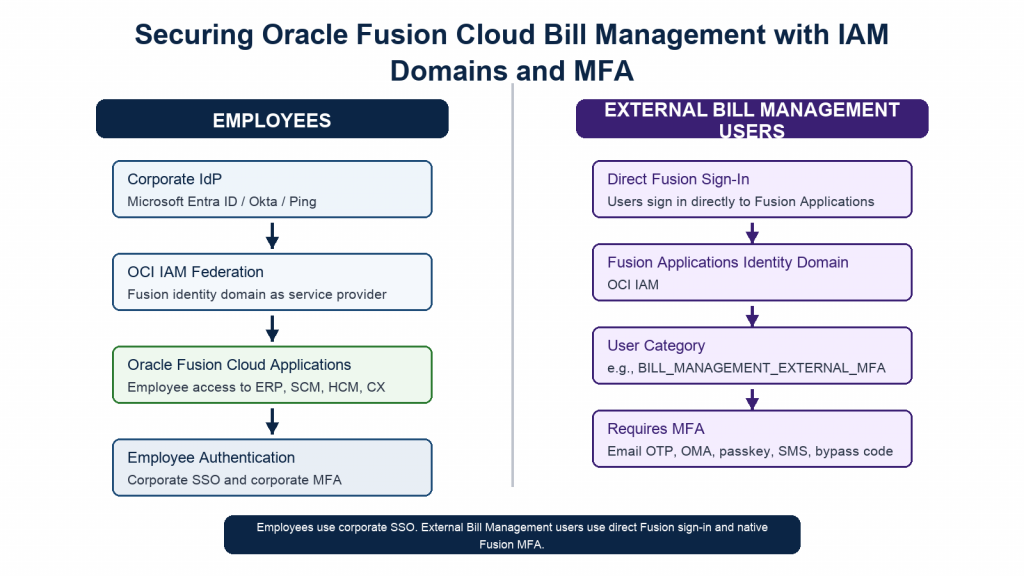
Recommended model
Employees use corporate SSO. The Fusion Applications identity domain in OCI IAM acts as the service provider, and the customer IdP acts as the external identity provider. Employee MFA remains in the customer IdP, where the organization already manages conditional access, device rules, and employee security policy. For the OCI IAM federation model, see Managing Identity Providers.
External Bill Management users use direct Fusion sign-in. They are registered customer contacts, remain Fusion application users, and are managed through Bill Management registration and Receivables customer-account security. They do not need to be added to the employee IdP. They sign in through the Fusion Applications identity domain and complete OCI IAM MFA. See Register External Users.
Bill Management MFA is segmented by a customer-defined User Category. Oracle documentation does not identify a Bill Management-specific predefined category; users remain in DEFAULT unless reassigned. Create a dedicated category such as BILL_MANAGEMENT_EXTERNAL_MFA for direct-sign-in external users and configure the MFA factors they can use.
Default category and 2026 MFA enforcement
DEFAULT is the delivered category for users who are not otherwise assigned; it is not Bill Management-specific. Use a dedicated category instead of changing DEFAULT for a mixed population.
Also check the environment’s MFA status. Oracle began enforcing MFA for eligible environments from Release 26B. If the required-MFA control is locked, the environment is already enforced. The category still controls the factors available to its users, while federated SSO users continue to follow the corporate IdP experience.
Important guardrails
A User Category controls MFA factors and other application-security preferences. It does not assign an IdP or grant Bill Management access; the Customer Accounts Payable Specialist role, or an approved custom role, grants that access.
Federated employees continue to use corporate SSO and corporate MFA. Oracle-enforced MFA does not add a second Oracle prompt to their SSO flow.
Keep integrations, service accounts, and automation accounts out of the external-user category. REST and SOAP API authentication does not require MFA.
Configure MFA only through Security Console. Depending on the release, the required setting may appear as Enforce MFA During Sign-in > Requires MFA or Enforce MFA Enrollment During Sign-in > Required. If the setting is locked, the environment is already enforced. Do not edit the generated OCI IAM sign-on rules directly.
MFA strengthens sign-in. It does not fix Bill Management role, customer-account, payment, dispute, or data-access configuration.
Access prerequisites
To manage MFA settings in Security Console, the administrator must have an appropriate custom role based on the IT Security Manager role.
Use OCI IAM identity-domain administrator permissions only when you need to inspect or correct identity-provider routing. Routine User Category and MFA-factor configuration belongs in Fusion Security Console.
To validate Bill Management access, include an administrator or business owner who understands the Receivables and Bill Management roles, customer-account assignments, payment setup, and dispute processes.
Step 1 – Confirm the sign-in paths
Before changing MFA settings, confirm the intended sign-in path for each population.
- Employees: Fusion redirects to the corporate IdP. Employee MFA happens in that IdP.
- External Bill Management users: Users sign in directly to Fusion and are prompted for native Fusion MFA.
- Other external users: Decide whether they follow the Bill Management pattern or need a separate category.
If an external Bill Management user is redirected to the employee IdP, check the OCI IAM IdP policy and the external IdP application assignment. If an employee receives the external Bill Management MFA experience, check the User Category and SSO routing.
Step 2 – Clean up Bill Management users first
Before rollout, review external Bill Management users in Fusion Applications. Inactivate stale users; confirm that each customer contact has role type Contact and is associated with the correct customer account or account site; verify a valid work email; and, if SMS is offered, verify a valid work mobile number.
Verify the external-user role configured in Manage Bill Management System Options—normally the predefined Customer Accounts Payable Specialist role—or an approved custom role. Internal employees still require an appropriate job role and business-unit data access. A role controls what the user can do; the User Category controls sign-in and MFA behavior. See Register External Users, Provide a User with the Bill Management Role, and Set Up Bill Management.
Step 3 – Create the Bill Management MFA category
Go to Navigator > Tools > Security Console > User Categories. Create a category for external Bill Management users who sign in directly to Fusion, for example BILL_MANAGEMENT_EXTERNAL_MFA. This is a customer-created example, not an Oracle-delivered category.
Choose the name carefully because a User Category cannot be renamed. Keep it focused on direct-sign-in external users. Each user can belong to only one category, and DEFAULT should not be repurposed unless its settings genuinely apply to every user who remains in it.
Review the entire category, not only Two-Factor Authentication. A User Category can also affect username generation, password policy, notifications, and the Next URL after password reset. Enable and test the required new-account and password-reset notifications. For category behavior and assignment, see Overview of User Categories and Add Users to a User Category.
Step 4 – Configure MFA methods and confirm enforcement
Open the Bill Management category, select Two-Factor Authentication, and choose the factors users can enroll in. If the enforcement control is editable, make MFA enrollment required. If it is locked, confirm that Oracle-managed environment enforcement is active and continue with factor selection.
A practical starting point is One-Time PIN over Email plus Oracle Mobile Authenticator passcode or push notification. Add a FIDO passkey where the population can support it. Offer SMS only when the user’s work mobile number is reliable and the method is accepted by security policy. Keep Bypass code available as a single-use recovery option that a user can generate or obtain from an administrator.
For current behavior, see MFA Enforcement, Manage MFA in an Environment, Set Up MFA Methods, and the A-Team article Configuring MFA across User Segments using Fusion Cloud User Categories.
Step 5 – Assign users and pilot
Assign a small pilot group before broad rollout. Use Security Console for small populations. For larger populations, use the documented SCIM User Category operation, including bulk operations where appropriate, or use a supported data loader. Verify the category assignment separately from the Bill Management role.
Validate at least one user who views transactions and credit memos, one who monitors or creates disputes, one who makes online payments if enabled, and one with narrow customer-account scope. Test first sign-in, MFA enrollment, subsequent sign-in, Bill Management Dashboard access, data visibility, and the new-account and password-reset notification path. If Oracle-managed enforcement is scheduled, use the non-production lead time before production for final support readiness.
Step 6 – Communicate and support the rollout
Tell external Bill Management users what will change before MFA takes effect. Keep the message simple: the Bill Management URL is not changing, MFA will be required, users may need email, mobile app, passkey, or SMS verification, and the support team can help with lost devices. Explain that email and SMS use the work email and work mobile stored in Fusion Applications.
Prepare support teams for missing work email or work mobile, a lost authenticator device, an unavailable factor, no MFA prompt, a locked enforcement control, a wrong redirect to the employee IdP, or successful MFA followed by missing Bill Management access. When MFA succeeds but application access is wrong, troubleshoot roles, customer-account access, and Bill Management setup—not MFA.
Sample external-user message
We are strengthening Oracle Fusion Cloud Bill Management sign-in security. You will be asked to set up multifactor authentication the next time you sign in. Your Bill Management URL is not changing. Follow the on-screen prompts to register an approved verification method. Email and SMS verification use the work email and work mobile held in Fusion Applications. Contact Bill Management support if you cannot complete enrollment or if you replace your device.
Troubleshooting quick signals
- External Bill Management user is sent to the employee IdP: Check OCI IAM IdP policy rules and external IdP assignment.
- External user signs in but is not prompted for MFA: Verify that the user is signing in locally rather than through SSO, then check the User Category, environment enforcement status, and required-enrollment setting if it remains editable.
- User moved between categories and behavior looks stale: Reset MFA factors if required and retest.
- Email or SMS is not available or delivery fails: Verify the work email or work mobile in Fusion Applications and confirm that the factor is enabled for the User Category.
- MFA works but Bill Management access is wrong: Review Bill Management roles, customer-account access, payment setup, dispute setup, and data access.
- Employees are prompted for the external-user MFA experience: Check User Category assignment and SSO routing.
Summary
Federated employees continue with corporate SSO and MFA. External Bill Management contacts sign in locally, complete OCI IAM MFA, and retain their roles and customer-account access in Fusion Applications. A dedicated User Category remains useful for factor selection and related security preferences, including in eligible environments where Oracle enforces MFA centrally.
References
Oracle A-Team, Securing Oracle Fusion Cloud Supplier Portal with IAM Domains and MFA
Oracle A-Team, Configuring MFA across User Segments using Fusion Cloud User Categories
Oracle OCI IAM, Managing Identity Providers
Oracle Fusion Applications, Multifactor Authentication Enforcement
Oracle Fusion Applications 26C, Manage Multifactor Authentication in an Environment
Oracle Fusion Applications 26C, Set Up Multifactor Authentication Methods
Oracle Fusion Applications 26C, Overview of User Categories
Oracle Fusion Applications, Add Users to a User Category
Oracle Fusion Applications REST API, Add Users to a User Category
Oracle Financials 26C, Set Up Bill Management
Oracle Financials, Register External Users
Oracle Financials, Provide a User with the Bill Management Role